Currency Recognition Using ESP32-CAM and Edge Impulse
by ElectroScope Archive in Circuits > Electronics
13 Views, 0 Favorites, 0 Comments
Currency Recognition Using ESP32-CAM and Edge Impulse
This project is an ESP32-CAM based system that can recognize Indian currency notes like ₹10, ₹20, ₹50, and ₹500 using a TinyML model trained on Edge Impulse. The ESP32-CAM looks at the note, runs the model locally, and then lights up a specific LED based on which denomination it detects. At the same time, the result shows up on the Serial Monitor.
Everything runs on-device after deployment. No cloud calls during detection. Once the model is flashed, it works offline.
I’ll go step by step through the hardware wiring, image collection, model training, and deployment. If you’ve never used Edge Impulse with ESP32-CAM before, don’t worry. This is very doable if you follow the order.
What This Build Does
You place a currency note under a fixed ESP32-CAM.
The camera captures the image.
The trained model predicts the denomination.
A matching LED turns ON.
You also see the detected value in the Serial Monitor.
This is basically edge AI running on a ₹600 camera board.
Supplies
Here’s what I used:
- ESP32-CAM (AI Thinker version)
- USB to Serial (FTDI) converter
- Breadboard
- Jumper wires
- 4 LEDs (any colors)
- 4 × 100Ω resistors
- Tripod or fixed stand for the camera
- Arduino IDE installed
- Edge Impulse account
Circuit Diagram
.png)
The ESP32-CAM doesn’t have a USB port, so the FTDI module is required for programming.
Hardware Wiring
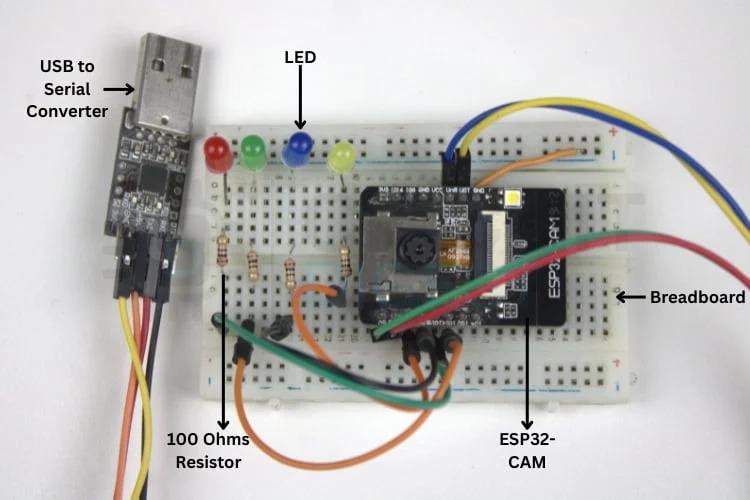
This part is important. The ESP32-CAM is picky about wiring during upload.
FTDI to ESP32-CAM
- FTDI TX → ESP32-CAM RX
- FTDI RX → ESP32-CAM TX
- FTDI 5V → ESP32-CAM 5V
- FTDI GND → ESP32-CAM GND
Make sure the FTDI jumper is set to 5V, not 3.3V.
Programming Mode
- Connect GPIO0 to GND before uploading code
- Remove this connection after upload is complete
If you forget this, uploads will fail.
LEDs
- Each LED anode goes to a GPIO pin through a 100Ω resistor
- All LED cathodes go to common GND
Each LED represents one currency denomination.
Mounting the Camera
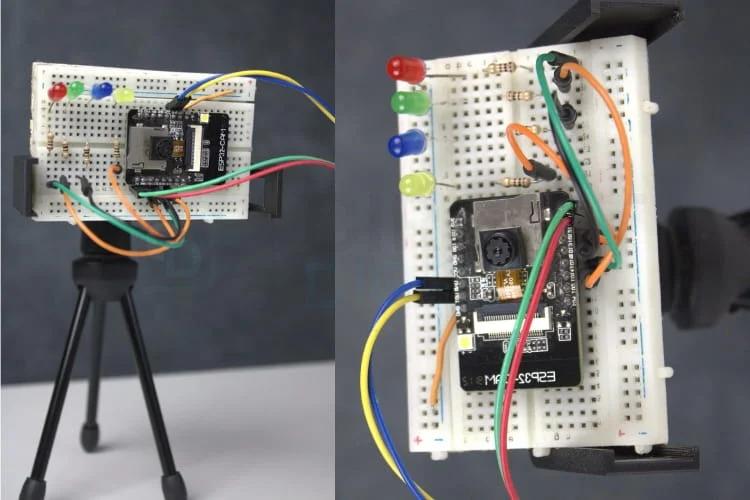
This matters more than you’d think.
I mounted the ESP32-CAM on a small tripod so the angle never changes. The note goes in the same spot every time. No tilt. No movement.
Consistency here massively improves accuracy.
Overall Workflow
The project has three big stages:
- Image collection
- Model training on Edge Impulse
- Deployment and testing
Do not skip steps or jump around.
Collecting Currency Images
You need images for each denomination.
I recommend at least 50 images per note, but more is better. Try different lighting and slight rotations, but keep the background simple. White background works best.
Image Collection Method
Instead of downloading datasets, I collected my own images using the ESP32-CAM itself.
This ensures the model sees exactly what the camera will see in real life.
Preparing the ESP32-CAM for Image Collection
Arduino Setup
Install this library first:
- EloquentEsp32cam
Open Arduino IDE and go to:
Examples → EloquentEsp32cam → Collect_Images_for_EdgeImpulse
Code Changes
At the top of the sketch, update:
Change this line:
to:
ESP32-CAM only works on 2.4 GHz WiFi, so make sure your hotspot supports that.
Capturing Images
Upload the code (remember GPIO0 to GND).
After boot, open Serial Monitor at 115200 baud. You’ll see an IP address.
Paste that IP into a browser.
You’ll get a simple web page with buttons:
- START COLLECTING
- CLEAR
- DOWNLOAD
Click START COLLECTING, place the currency under the camera, and let it capture images.
When done, click DOWNLOAD, name the label (like “₹50”), and save the ZIP.
Repeat this for all denominations.
Edge Impulse Project Setup
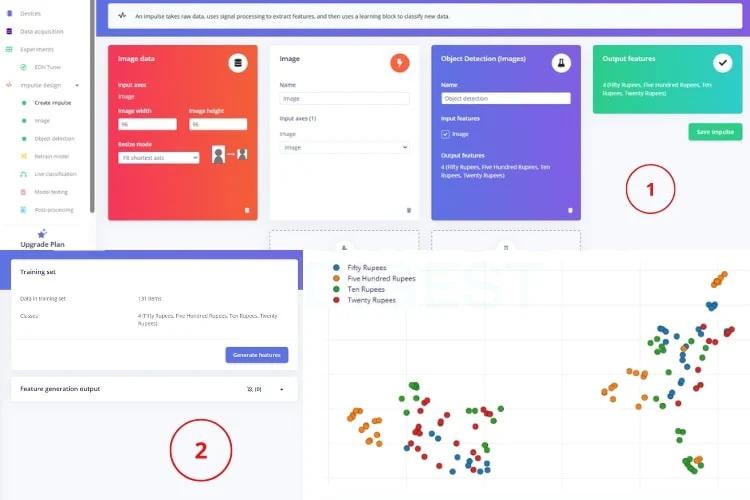
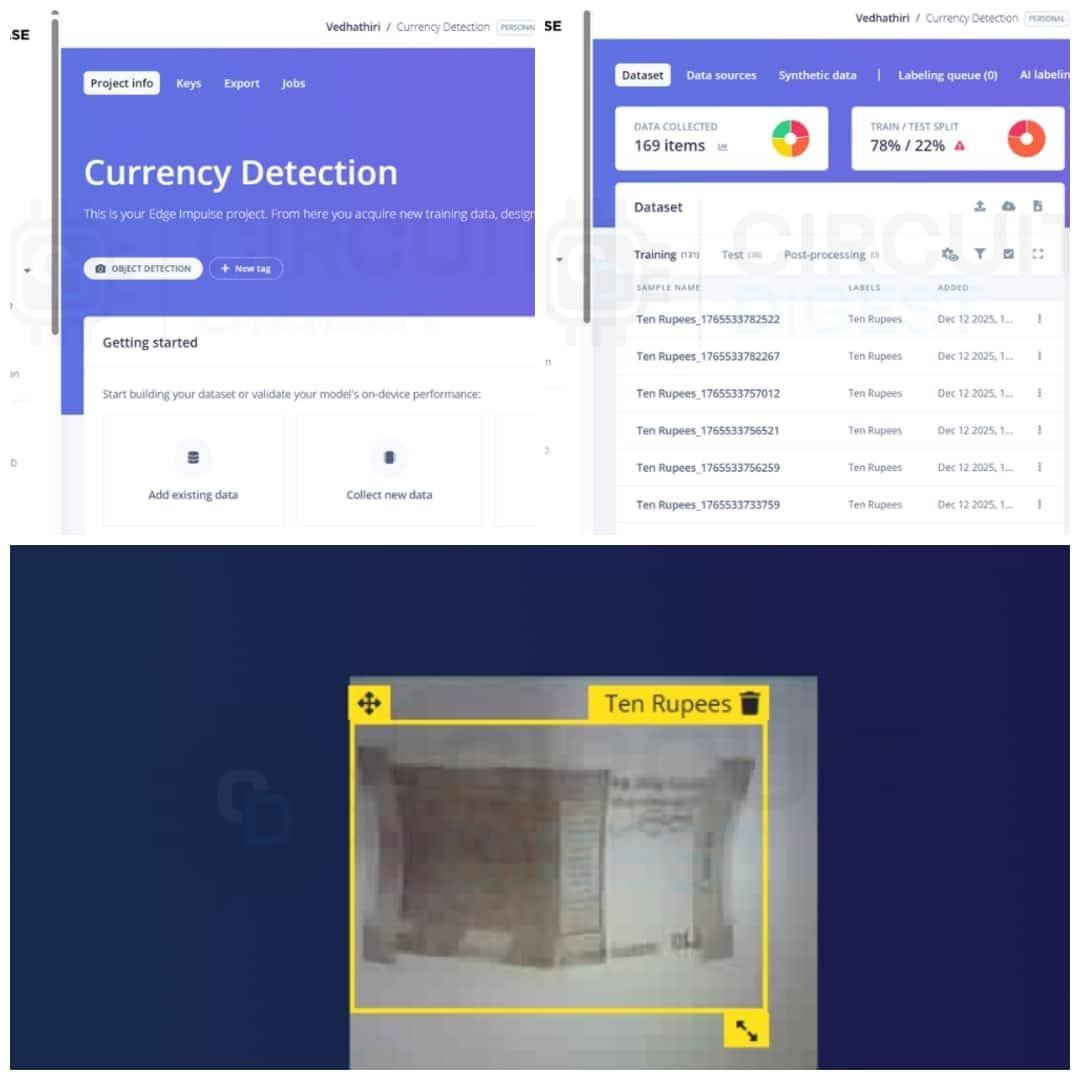
Create a new project on Edge Impulse.
Upload all the image ZIPs.
Split data into training and testing.
Then go to Labelling Queue and draw bounding boxes around the notes. Keep them roughly square.
Edge Impulse can auto-suggest boxes using YOLO, which saves time.
Impulse Design
In Create Impulse:
- Image size: 96 × 96
- Processing block: Image
- Learning block: Object Detection
In the image block:
- Enable Grayscale
- Generate features
Check the feature explorer. You should see clear separation between classes.
Training the Model
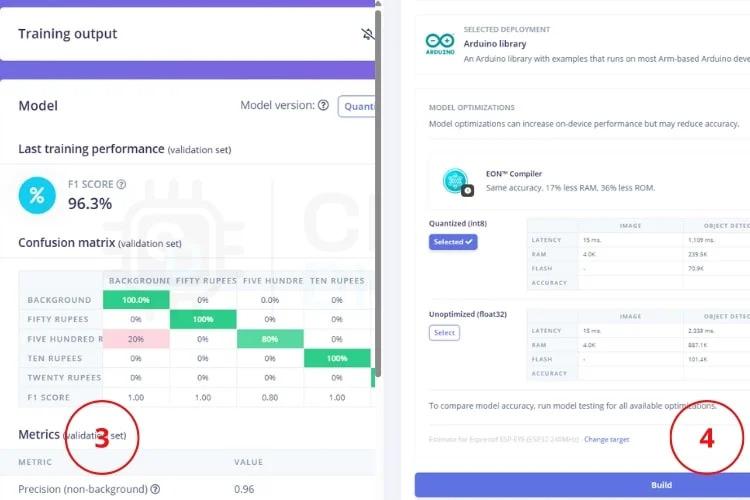
Go to Object Detection.
Set training cycles and learning rate (default works fine).
Start training.
After it finishes, check the F1 score. If accuracy is bad, add more images and retrain.
Deploying to ESP32-CAM
In Deployment:
- Select Arduino Library
- Target: Espressif ESP-EYE (ESP32 240 MHz)
Build and download the ZIP.
Extract it.
Inside, find the folder ending with _inferencing.
Copy that folder into:
Documents → Arduino → libraries
Restart Arduino IDE.
Programming the ESP32-CAM
Open the example sketch from the new Edge Impulse library.
In the code:
- Comment out:
- Uncomment:
Select the correct board and COM port.
Connect GPIO0 to GND again.
Upload the code.
After upload, disconnect GPIO0 from GND and reset the board.
Testing the System
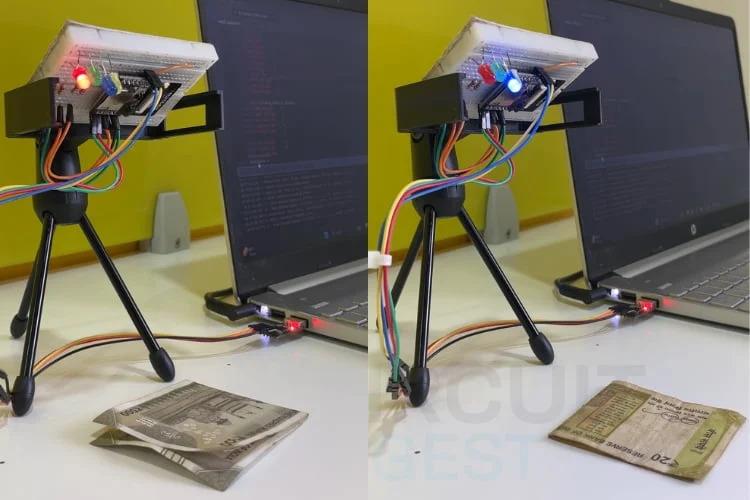
Open Serial Monitor.
Place a currency note under the camera.
Within a second or two:
- The correct LED lights up
- The denomination appears in Serial Monitor
If detection is inconsistent, check:
- Camera angle
- Lighting
- Background
- Image quality in training set
Tips for Better Accuracy
- Use more than 100 images per note if possible
- Include worn or folded notes
- Keep lighting consistent
- Fix camera position permanently
- Retrain with misclassified images
TinyML is very sensitive to data quality.
Final Thoughts
This ESP32 CAM currency recognition project proves you can run real computer vision on a cheap ESP32-CAM without cloud processing. Once deployed, it’s fast, private, and works offline.
You can extend this into:
- Assistive tools for visually impaired users
- Automated cash sorting
- POS validation systems
- Vending machine note detection
If you’re getting into embedded AI, this is a solid hands-on build that actually teaches you something real.