Creating and Running a Scheduled Integration With Parameter Logging in Oracle Integration Cloud (OIC)
by Suryajaya999 in Design > Software
5 Views, 0 Favorites, 0 Comments
Creating and Running a Scheduled Integration With Parameter Logging in Oracle Integration Cloud (OIC)
Oracle Integration Cloud (OIC) provides a powerful and flexible way to automate processes using scheduled integrations. Scheduled integrations are especially useful when you need to run jobs at fixed intervals, process parameters dynamically, and track execution details without manual intervention.
In this project, you learn how to design a scheduled integration in Oracle Integration Cloud that accepts input parameters, logs parameter values during execution, and runs successfully with proper tracking. The integration is built step by step, starting from creation and configuration, moving through logger setup, and finally executing and validating the run using instance tracking.
This walkthrough focuses on practical implementation rather than theory. It demonstrates how parameters are passed at runtime, how loggers help capture important execution details, and how Oracle Integration provides clear visibility into each run through activity streams and debug logs. These techniques are commonly used in real-world enterprise integrations for monitoring, validation, and troubleshooting.
By the end of this project, you will have a clear understanding of how to configure a scheduled integration, use loggers effectively, and verify successful execution using Oracle Integration Cloud’s built-in monitoring features.
Supplies
- Active Oracle Integration Cloud environment
- User account with Integration Developer role
- Access to the Design and Integrations modules
- Basic understanding of Oracle Integration concepts
- Knowledge of scheduled integration patterns
- Familiarity with integration naming conventions
- Defined business requirement for scheduled execution
- Integration parameters for runtime input
- Logger action for monitoring execution flow
- Tracking fields for runtime visibility
- Stable internet connection
- Modern web browser (Chrome or Edge recommended)
- Time zone information for schedule configuration
- Testing window to validate execution
- Access to activity stream and tracking dashboard
Access the Oracle Integration Home Dashboard
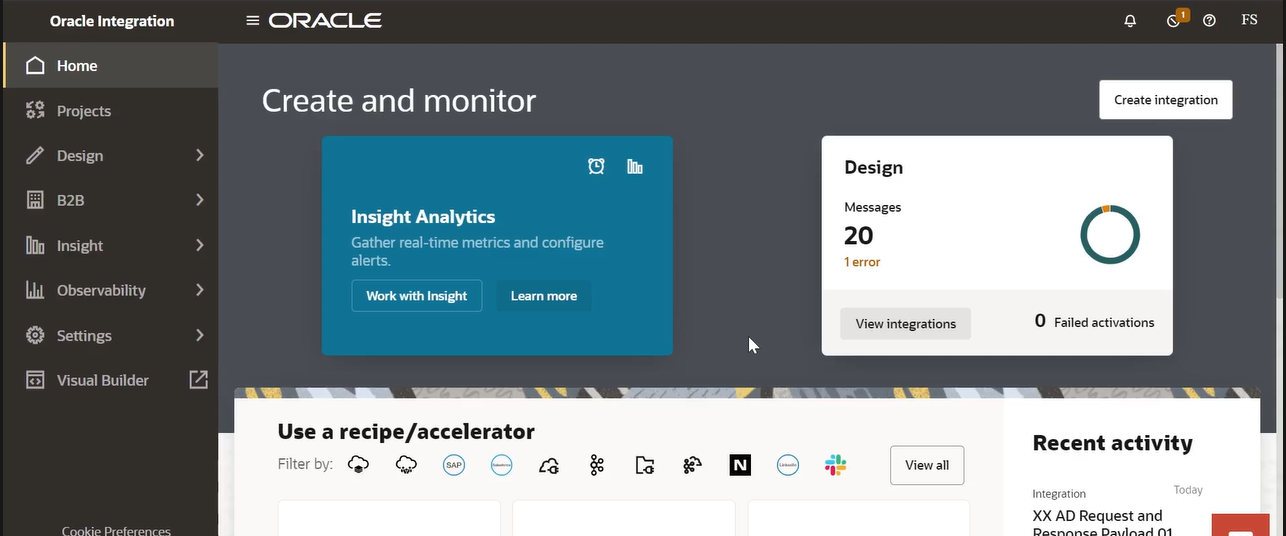
The first step begins by logging into Oracle Integration Cloud (OIC) and landing on the Home dashboard, which serves as the central workspace for all integration-related activities. This screen is designed to give you immediate visibility into your environment, current integration status, and the tools you’ll use throughout the integration lifecycle.
At the top of the page, you can see the Oracle Integration branding along with global navigation options. This confirms that you are working inside the Oracle Integration service rather than an individual application. The interface is clean and role-focused, helping both developers and administrators quickly understand system health and activity.
On the left-hand side, a vertical navigation panel provides access to key modules such as Home, Projects, Design, B2B, Insight, Observability, Settings, and Visual Builder. Each of these sections plays a specific role in integration development. For example, Design is where integrations are created and configured, while Observability helps monitor runtime behavior and troubleshoot issues. Starting from the Home page ensures you have a high-level overview before moving into detailed configuration.
The main area of the dashboard highlights the Create and Monitor section. This area summarizes the current state of your integrations and provides quick access to important actions. One of the most prominent elements here is the Create Integration button, usually positioned in the upper-right area. This button is the entry point for building new integrations, whether you are creating a basic app-driven flow, a scheduled integration, or a more advanced orchestration.
You’ll also notice an Insight Analytics card displayed in the center. This section is used to gather real-time metrics and configure business-level insights. Insight Analytics helps track key performance indicators, message volumes, and exceptions across integrations. Even if you are not using Insight immediately, its presence on the Home dashboard reminds you that monitoring and analytics are an integral part of integration design, not an afterthought.
To the right side of the screen, there is a Design summary panel showing the number of messages processed and any errors detected. This gives instant feedback about the health of your integrations. If errors are present, they are highlighted clearly, encouraging early investigation. This panel is especially useful in production or test environments where multiple integrations are active.
Further down, the dashboard provides access to recipes and accelerators. These are prebuilt integration templates that help speed up development by offering commonly used patterns and connectors. For beginners and experienced consultants alike, these accelerators can significantly reduce implementation time and ensure best practices are followed.
Starting your work from this Home dashboard is important because it aligns you with Oracle Integration’s recommended workflow: understand system status first, then design, activate, and monitor integrations. Once you are familiar with this page and its components, you are ready to move into the Design section and begin creating your first integration in the next step.
Open the Integrations Design Page and Start Creating a New Integration

After entering Oracle Integration Cloud, the next step is to move into the Design area, where all integration development activities take place. From the left-hand navigation menu, select Design and then choose Integrations. This opens the Integrations page, which displays all existing integrations available in the environment.
On this screen, you can see a list of integrations with details such as the integration name, version, and style. This list helps you quickly identify what has already been built and avoid creating duplicates. It is also useful for version control and maintenance, as each integration is clearly labeled and categorized based on its type, such as application-driven or scheduled.
To the right side of the page, the Create Integration panel is visible. This panel allows you to define the basic details of a new integration before starting the design. The first field requires you to enter a Name for the integration. This should be a meaningful and descriptive name that clearly explains the purpose of the integration, making it easier for other team members to understand its function.
Next, you need to provide an Identifier. The identifier is a unique technical name used internally by Oracle Integration. It is recommended to follow a consistent naming convention, as this identifier is referenced across integrations, lookups, and tracking data. Choosing a clear and standardized identifier helps with long-term maintainability.
The Version field is automatically populated with a default value. This version number helps manage changes and enhancements over time. As integrations evolve, updating the version ensures better control during deployments and troubleshooting.
There is also an optional Documentation URL field. This can be used to link external documentation, design notes, or internal wiki pages related to the integration. While optional, adding documentation is a good practice, especially in enterprise environments where multiple teams collaborate on integrations.
At this stage, you are not yet designing the integration flow. Instead, you are defining the foundation by setting up its identity and metadata. Once these details are entered and confirmed, the integration can be created and opened in the integration canvas for further configuration in the next step.
Define the Integration Name and Identifier
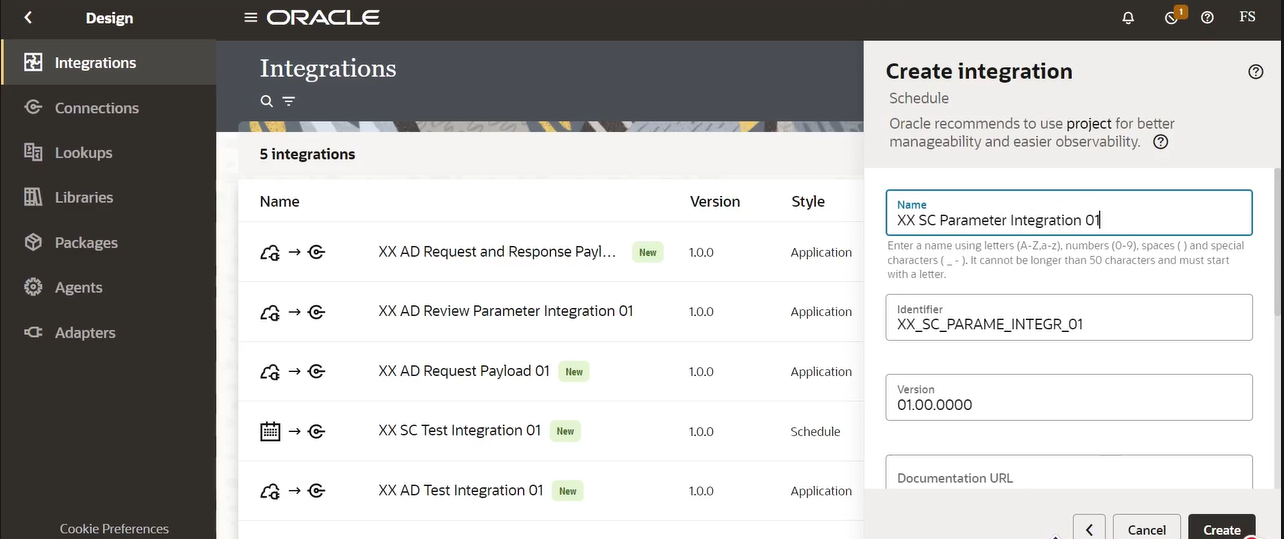
In this step, you complete the basic identification details required to create the integration. These details help Oracle Integration recognize, manage, and track the integration throughout its lifecycle.
Start by entering a clear and meaningful Name for the integration. In this example, the name follows a structured format that includes a prefix and a descriptive purpose, making it easy to understand what the integration is designed to do. Using a consistent naming pattern is important in environments where multiple integrations exist, as it improves readability and simplifies maintenance.
Below the name field, the Identifier is provided. This value acts as the technical reference for the integration and is used internally by Oracle Integration. Identifiers must be unique and typically follow uppercase formatting with underscores. Once the integration is created, the identifier cannot be changed, so it is important to verify it carefully before proceeding. Choosing a well-structured identifier helps avoid confusion when working with tracking, lookups, or future enhancements.
The Version field is automatically populated with a default version number. This versioning system supports controlled updates and enhancements over time. As changes are made to the integration in the future, the version can be incremented to reflect improvements or functional updates.
At this stage, you are still preparing the integration rather than designing the flow. These fields define how the integration will be recognized across the platform and by other team members. After reviewing the entered details and ensuring they follow your organization’s standards, you can proceed to create the integration and move into the design canvas in the next step.
Open the Integration Canvas and Select the Trigger or Invoke Action

After creating the integration, Oracle Integration opens the integration canvas, which is where the actual flow is designed. This canvas represents the logical sequence of actions that the integration will perform.
At the top of the flow, the integration type is already defined as Scheduled, which means this integration will run automatically based on a configured schedule rather than being triggered by an external application or event. The scheduled icon at the start of the flow confirms that this integration is time-based.
To build the flow, you begin by adding an action to the canvas. Clicking the plus (+) icon opens a selection panel that allows you to choose what kind of activity should be added next. This panel includes suggestions, invoke options, and available connections, helping you quickly locate the required component.
In the Invokes section, Oracle Integration displays a list of available connections that have already been configured in the environment. These connections represent external systems or services that the integration can interact with, such as Oracle HCM Cloud, file servers, or FTP locations. Selecting one of these connections allows the integration to send data to or retrieve data from that system.
The separation between Invokes and Actions helps keep the design structured. Invokes are typically used when calling external applications, while actions are used for internal processing such as assignments, lookups, or tracking. This clear distinction ensures the integration logic remains easy to understand and maintain.
This step is important because it marks the transition from setup to actual design. By choosing the appropriate connection or action at this point, you define how the scheduled integration will start processing data. Once the correct invoke or action is selected, the integration can be further configured to handle parameters, mappings, and business rules in the following steps.
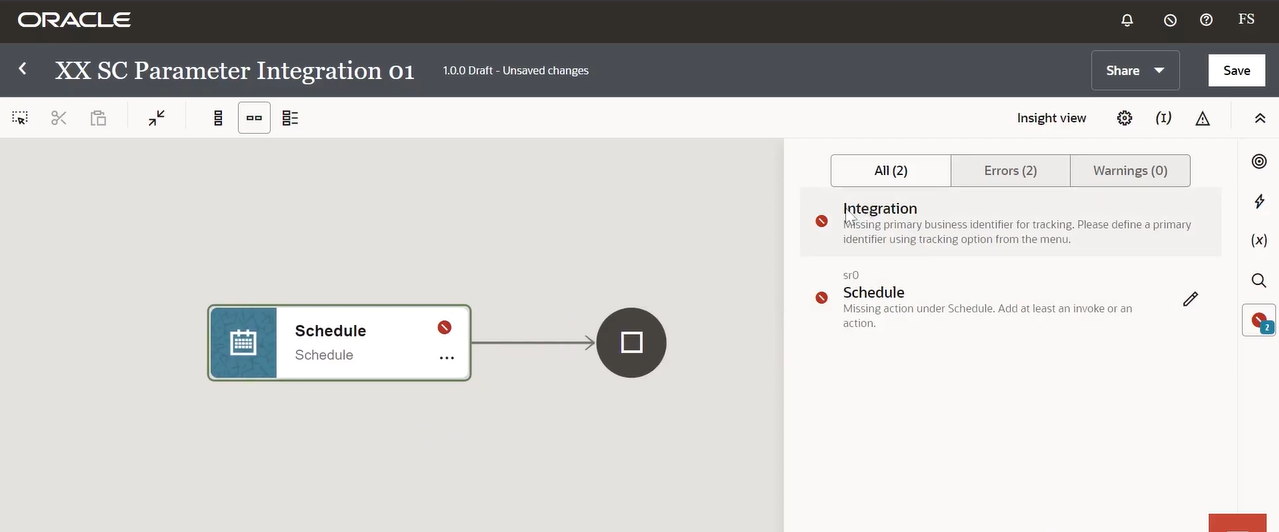
Review the Scheduled Integration and Resolve Initial Validation Messages
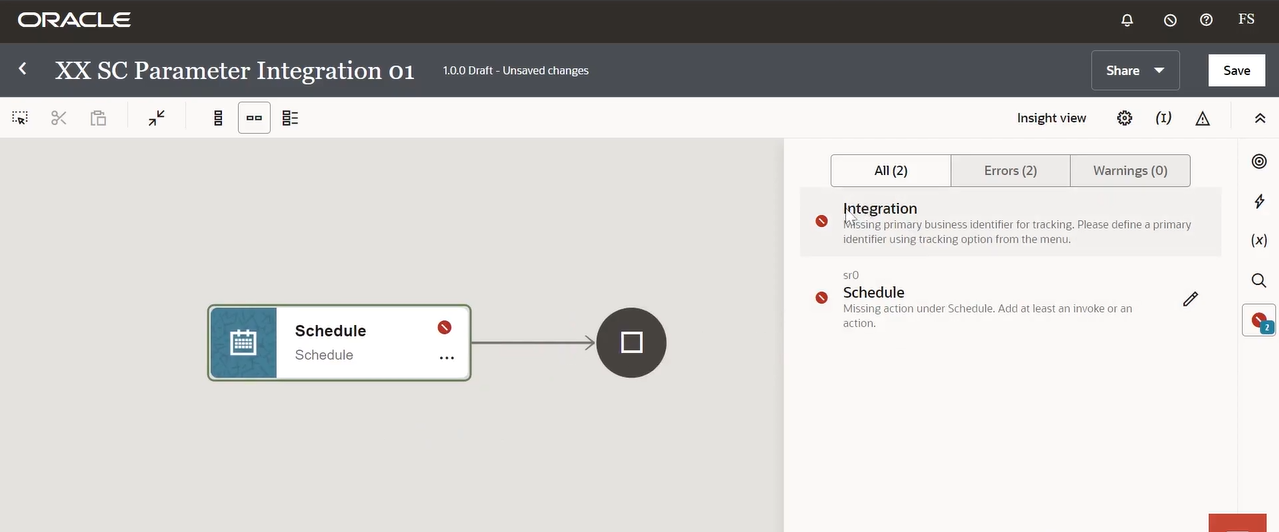
Once the integration canvas is opened, the scheduled trigger is visible as the starting point of the flow. At this stage, the integration exists in draft mode and has not yet been fully configured. Oracle Integration automatically performs basic validations and displays messages to guide you toward the required next steps.
On the right side of the screen, the Errors panel highlights validation messages related to the integration. One message indicates that a primary business identifier has not yet been defined for tracking. This identifier is used by Oracle Integration to track and correlate instances of the integration during runtime. Defining a primary identifier is important for monitoring, troubleshooting, and business tracking once the integration is activated.
Another validation message points out that the Schedule does not yet contain any actions. Since this is a scheduled integration, at least one invoke or internal action must be added after the schedule trigger. Until an action is included, the integration cannot be considered complete.
The red indicator on the schedule element visually confirms that additional configuration is required. This helps developers quickly identify incomplete areas in the flow without needing to search through settings manually.
At this point, these messages are expected and do not indicate a problem. They simply reflect that the integration design is still in progress. The next steps will involve adding actions to the scheduled flow and configuring tracking details so that these validation messages are resolved.
Once actions are added and tracking is defined, the errors will automatically clear, and the integration will be ready for activation.
Add and Configure a Logger Action in the Integration Flow
In this step, a Logger action is added to the scheduled integration flow. The logger plays an important role during development and support, as it helps capture key values and messages while the integration is running.
After adding the logger to the canvas, it appears as a separate action connected after the schedule trigger. Selecting the logger opens its configuration panel on the right side of the screen. This panel is where you define when and what information should be logged.
Under the logging options, the Log setting is configured to run Always. This ensures that the log message is written every time the integration executes, regardless of the tracing level. This is especially useful during testing and early validation, as it provides consistent visibility into the flow execution.
The Logger message field is the core part of this configuration. Here, you can enter a static message or build a dynamic message using available variables. On the left side, the Input sources panel lists values that can be used in the log, such as schedule-related details and integration parameters. These values can be dragged into the message field to create meaningful logs that show runtime data like timestamps, file names, or parameter values.
Using descriptive log messages is a best practice, as it makes troubleshooting easier when reviewing activity streams or diagnostic logs. Instead of generic text, logging key identifiers and parameters helps quickly understand what the integration processed during a specific run.
By adding the logger at this stage, you establish early visibility into the integration’s execution. This action also helps verify that the scheduled trigger is working as expected before more complex processing steps are introduced later in the flow.
Log Integration Parameter Values Using a Dynamic Message
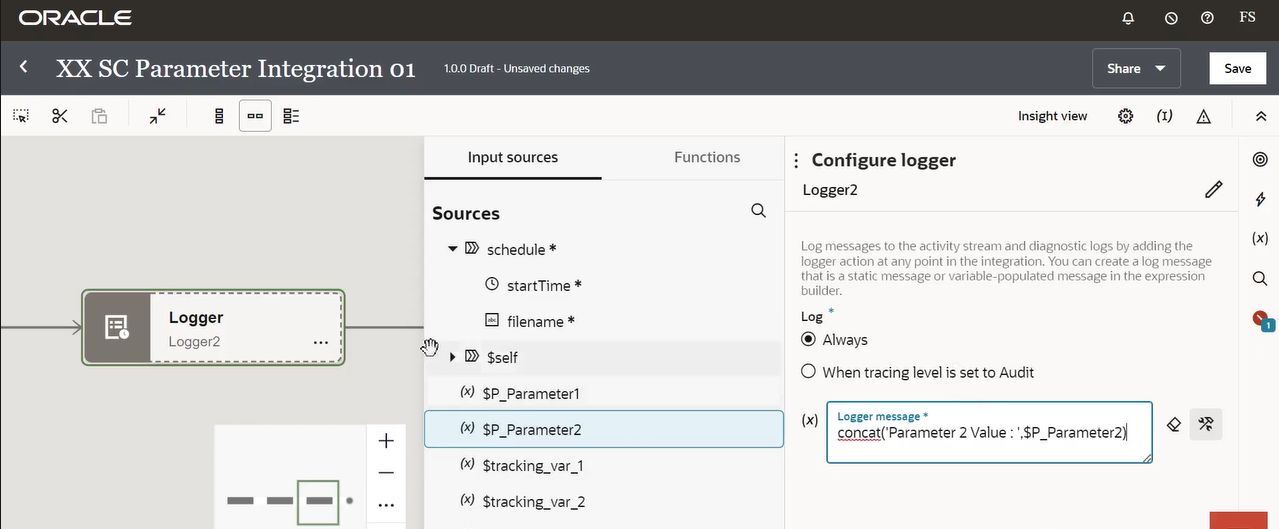
In this step, the logger is enhanced to capture runtime parameter values instead of just static text. This makes the logs more informative and useful for validation and troubleshooting.
A second logger action is added to the flow and selected for configuration. In the Configure logger panel, the logging option is again set to Always, ensuring that the message is written every time the scheduled integration runs.
The key focus here is the Logger message field. Instead of entering plain text, an expression is used to dynamically build the log message. The expression combines a readable label with the actual value of an integration parameter. This is done using a concatenation function, which allows multiple values to be joined into a single message.
From the Input sources panel, the parameter representing Parameter 2 is selected. This parameter is then referenced in the expression so that its value is printed in the log at runtime. By doing this, you can clearly see which value was passed into the integration during execution.
Logging parameter values is a best practice, especially for scheduled integrations that may run automatically without manual triggering. It helps confirm that the correct inputs are being received and processed. If an issue occurs, these logs provide immediate insight into what data was used during that run.
By configuring the logger in this way, the integration gains better observability and becomes easier to support and debug as it moves toward testing and activation.
Activate the Scheduled Integration and Choose the Tracing Level
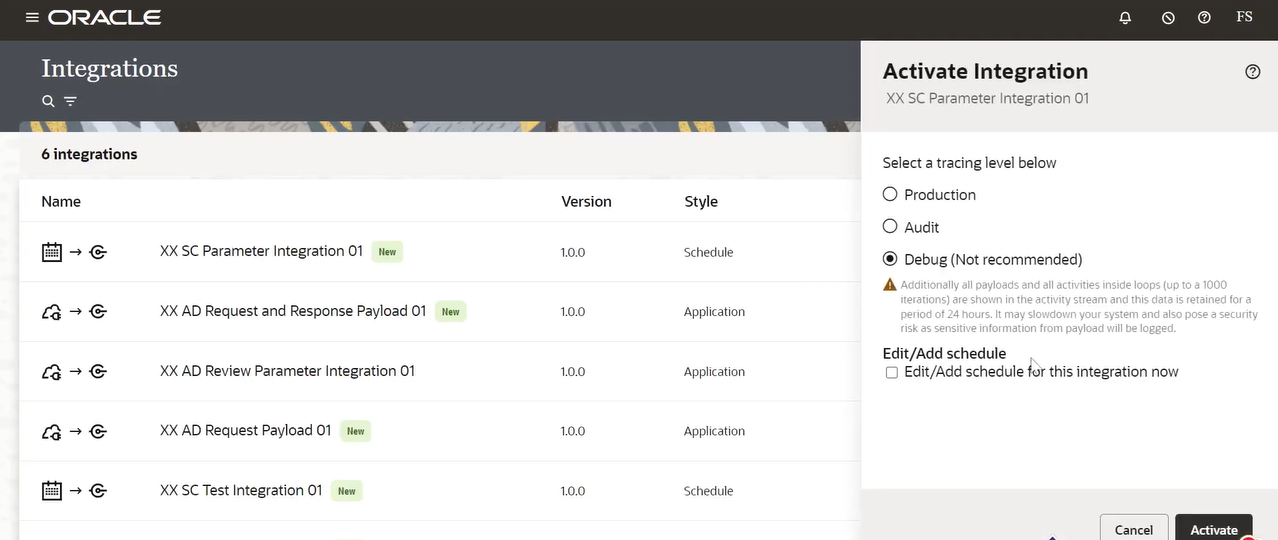
After completing the integration design and resolving any validation issues, the next step is to activate the integration so it can run in the environment. From the Integrations list, the scheduled integration is selected, and the Activate Integration panel opens on the right side of the screen.
In this panel, you are asked to choose a tracing level. The tracing level controls how much runtime information Oracle Integration captures while the integration is executing. There are multiple options available, each serving a different purpose. Production tracing is typically used for live environments where minimal logging is required, while Audit and Debug levels provide progressively more detailed information.
In this step, the Debug option is selected. This level captures detailed payload and activity information, which is useful during development and testing. It allows you to closely observe how the integration behaves and verify that parameters, loggers, and scheduled actions are working as expected. However, this level is not recommended for long-term use in production due to the volume of data generated.
Below the tracing options, there is an Edit/Add schedule option. This allows you to define or modify the schedule for the integration at the time of activation. For scheduled integrations, this step is important because it determines when and how often the integration will run automatically.
Once the tracing level is selected and scheduling options are reviewed, the integration can be activated. Activation makes the integration available for execution based on its schedule and enables monitoring through activity streams and logs.
With the integration activated, it is now ready for runtime execution and observation. The next step typically involves monitoring the integration runs and reviewing logs to confirm successful processing.
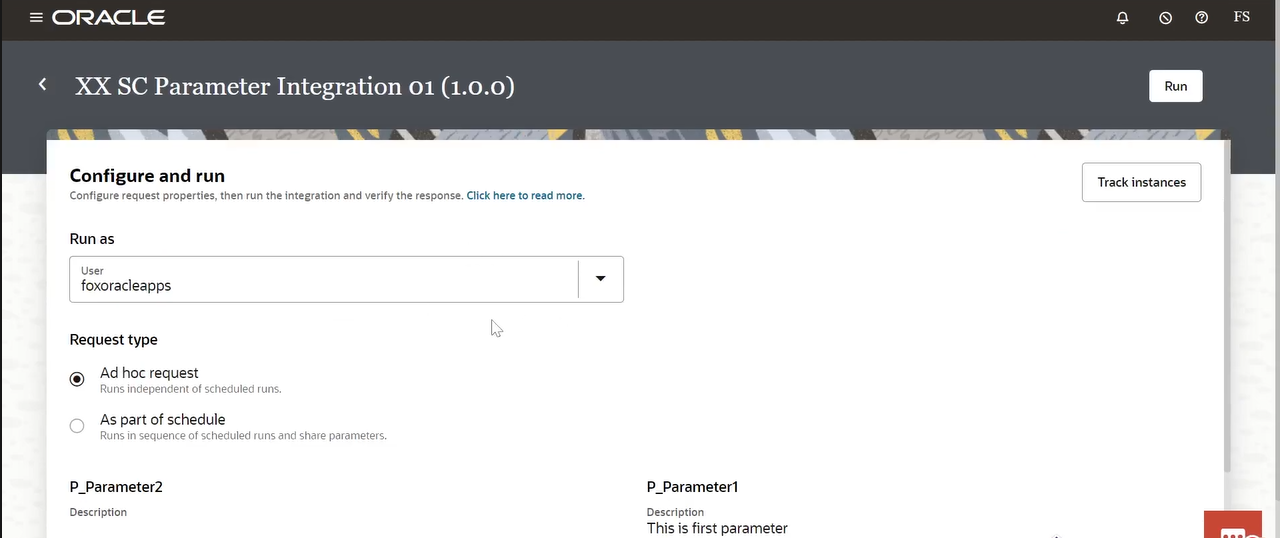
Run the Integration and Provide Input Parameters
After completing the design and configuration, the integration is ready to be activated. From the Integrations list page, the newly created scheduled integration is selected, and the Activate Integration panel opens on the right side.
In this panel, you are asked to choose a tracing level. Tracing controls how much runtime information is captured when the integration runs. The available options include Production, Audit, and Debug. Debug provides the most detailed information and is useful during testing, while Production is typically used in live environments to reduce log volume and improve performance.
Since this is a scheduled integration, there is also an option to edit or add a schedule during activation. This allows you to define when and how often the integration should run. Configuring the schedule at this point ensures that the integration executes automatically according to business requirements.
Once the appropriate tracing level is selected and the schedule is confirmed, the integration can be activated. Activation moves the integration from design mode into a runnable state, making it available for execution and monitoring.
Verify Execution and Review Runtime Logs
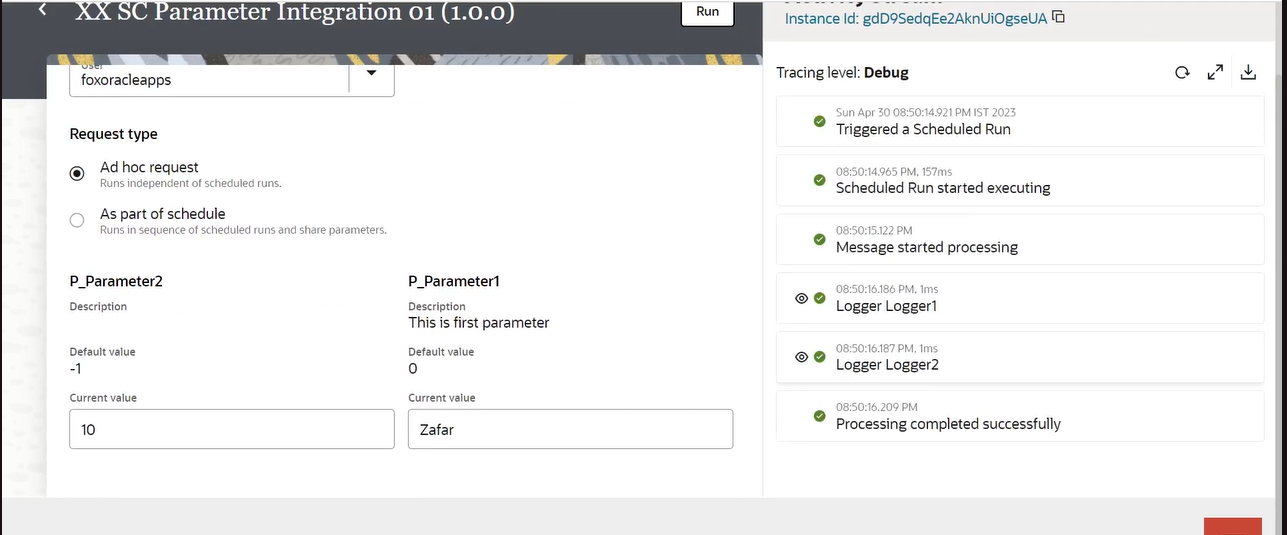
After triggering the run, the integration execution details are displayed on the right side of the screen under the instance tracking view. This section shows the instance ID, tracing level, timestamps, and the sequence of execution events.
You can see confirmation that the scheduled run was triggered, followed by messages indicating that processing started and completed successfully. Each logger action configured in the integration appears as a separate log entry, confirming that the logger steps executed as expected.
The successful completion message indicates that the integration ran without errors. Reviewing these logs helps validate that parameters were received correctly and that the flow executed in the intended order. This final verification step is critical before relying on the integration for automated or scheduled execution.
With this, the scheduled integration setup, execution, and validation process is complete.