Computer Build - Step-by-Step 2
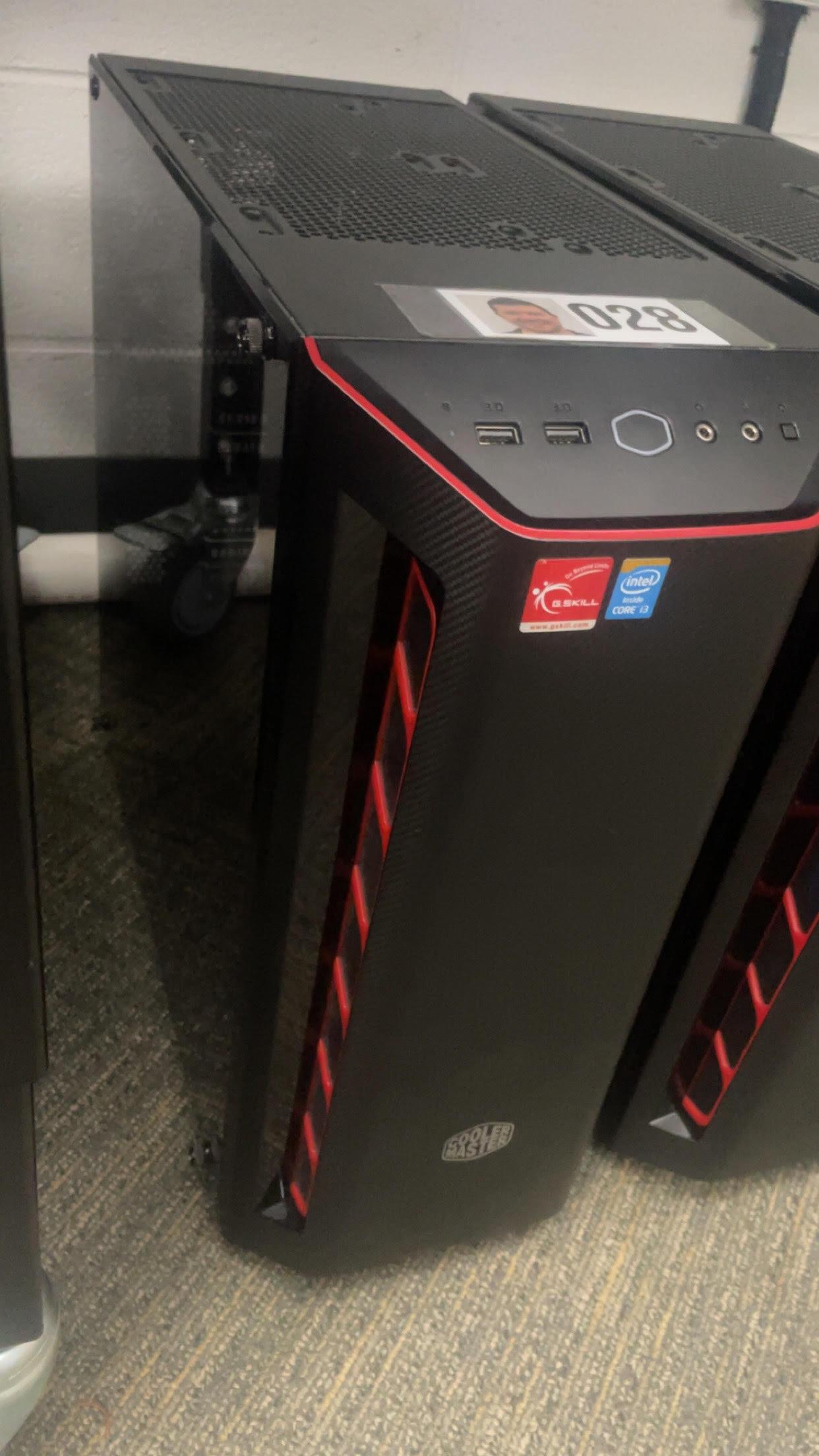
In this tutorial, I will go through the steps I took to build my PC from the beginning. The goal of building my computer was to understand every component that goes into a computer build. Building your own PC gives you control over your own design and performance. This tutorial will walk through every step from beginning to end on how to assemble a PC.
Supplies
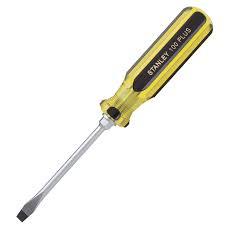

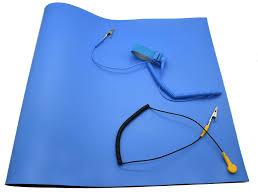
Some supplies needed are,
- Thermal paste
- Screwdriver
- Anti static mat (Recommended)
- little bin to hold screws
The Power Supply
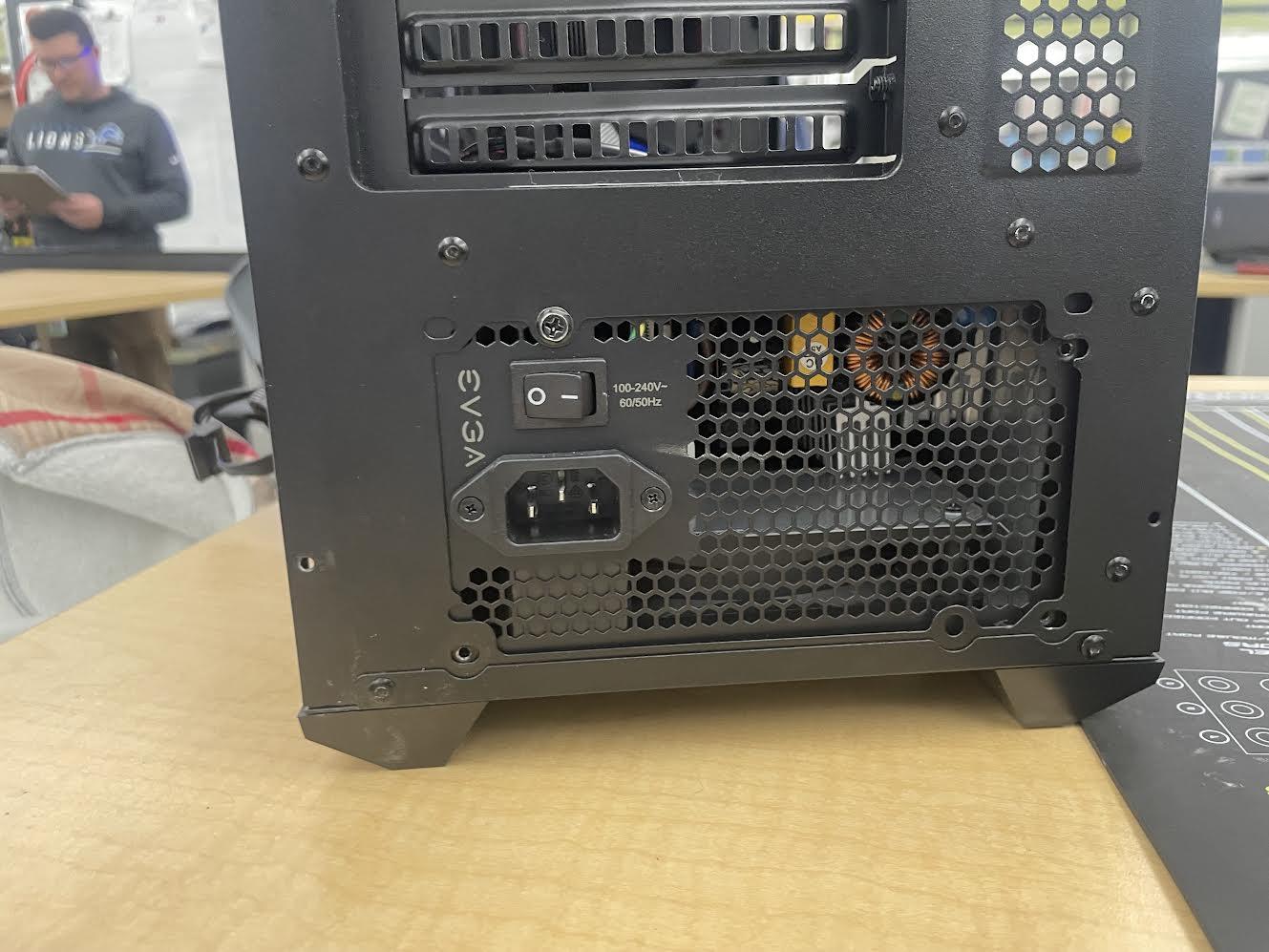
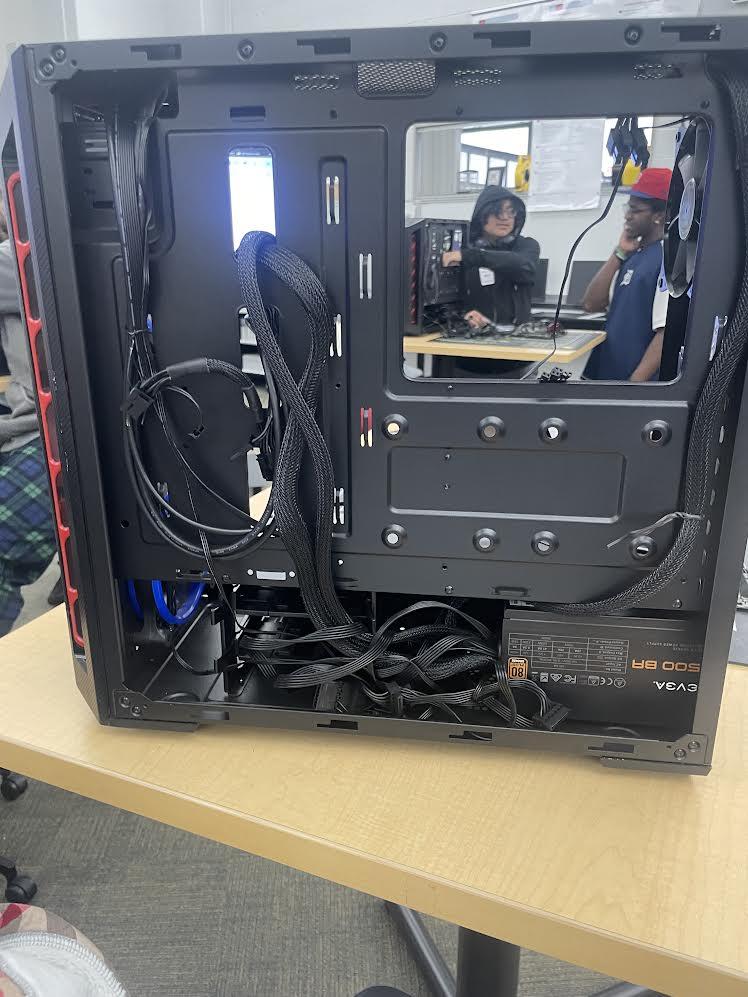
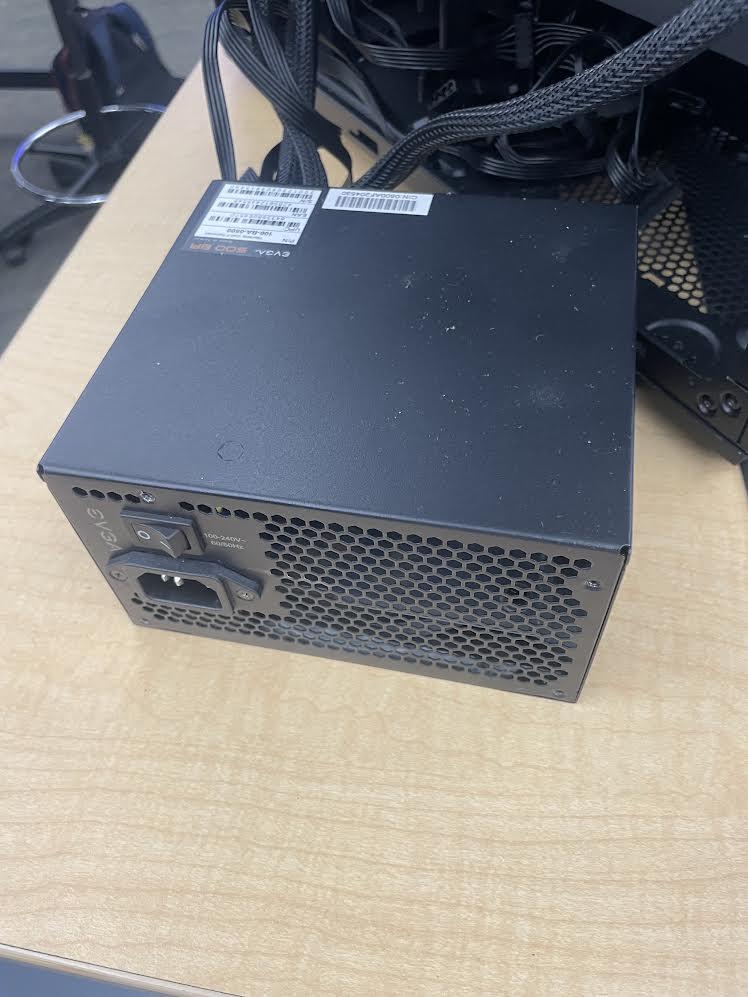
- Put the power supply in its spot in the case( typically at the bottom of the case)
- Make sure it's seated correctly at the bottom, Improper seating will cause screws not to go in.
- Screw the power supply in, Screw it in tight.
- Bring the cords through
CPU Instalation
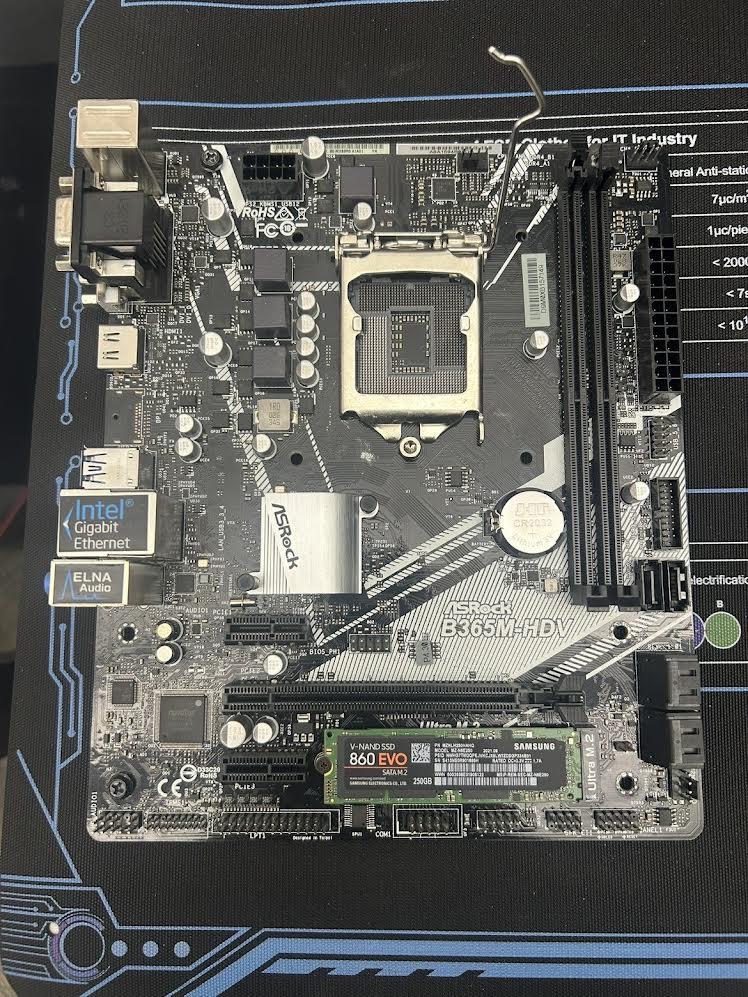
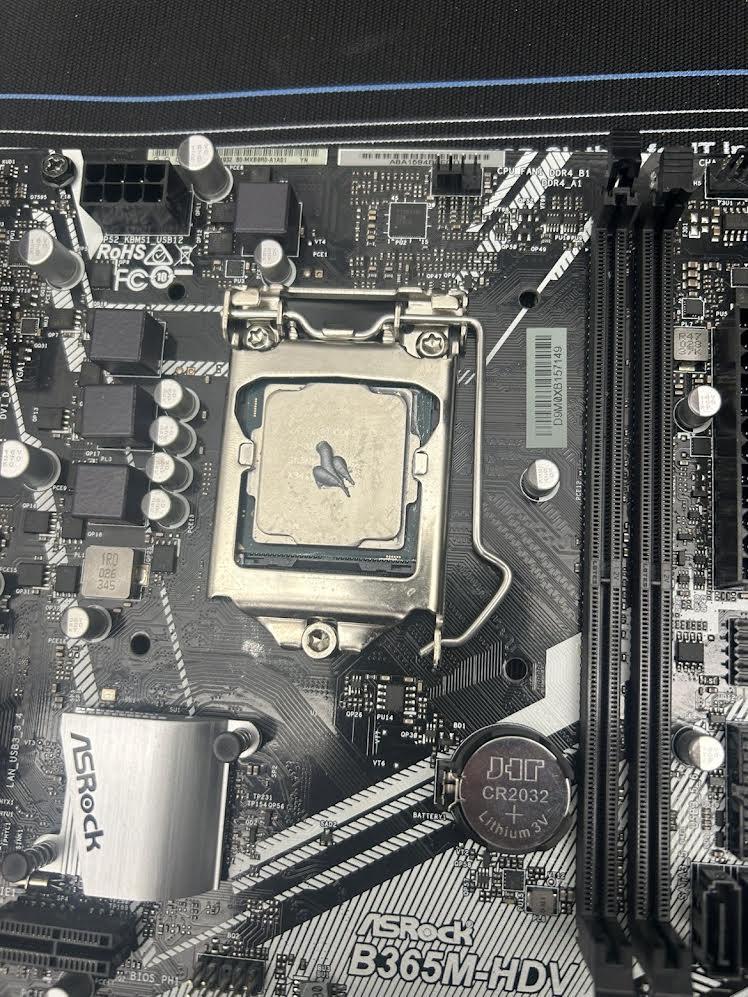
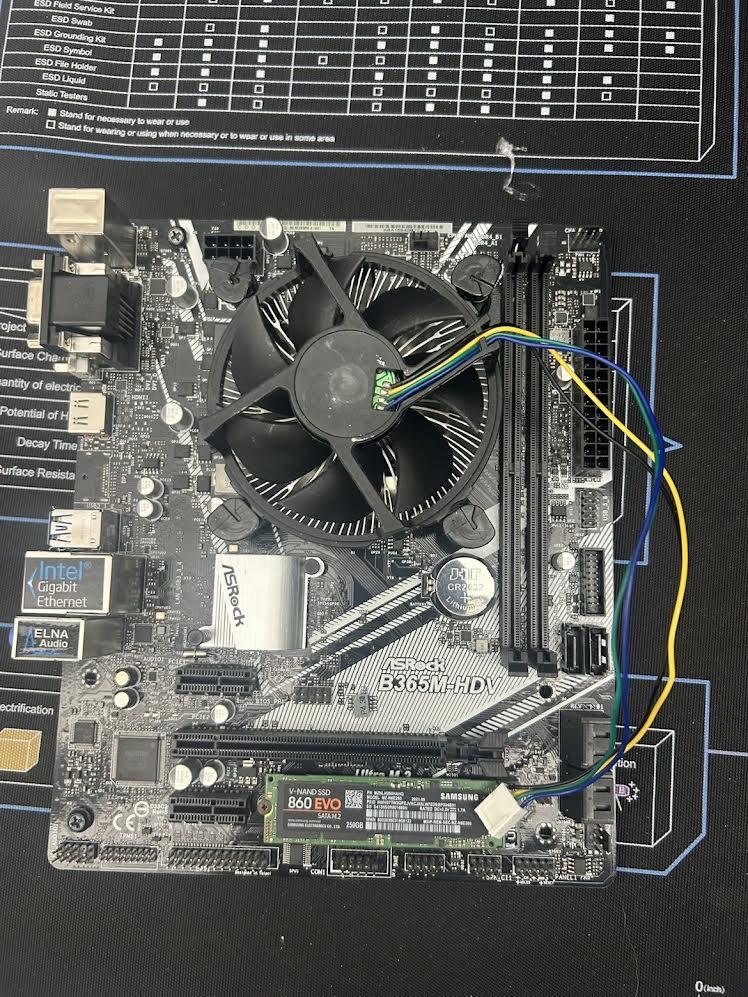
Before you touch anything, ground yourself by using a anti static wrist wrap.
- Open CPU socket
- Make sure the tringles on the CPU and socket align
- Place the CPU in gently
- Push down the lever so it locks in
- Add thermal paste(Pea sized drop)
- Install the cooler
Motherboard
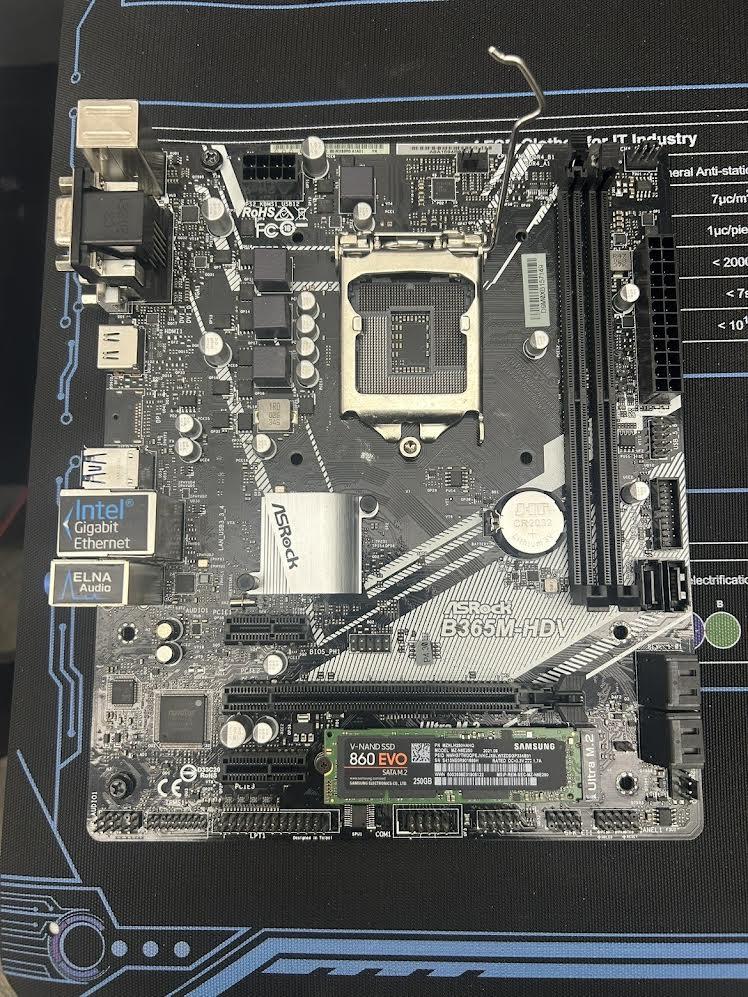
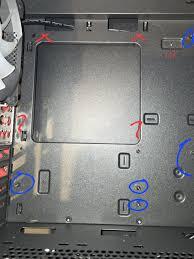
Screwing in the mother board correctly is very important because it prevents the board from shorting against the PC case.
- Find the holes in your case that match the motherboard size
- Screw the stand off holes in
- Make sure they fit properly, don't over tighten it
RAM Installation.
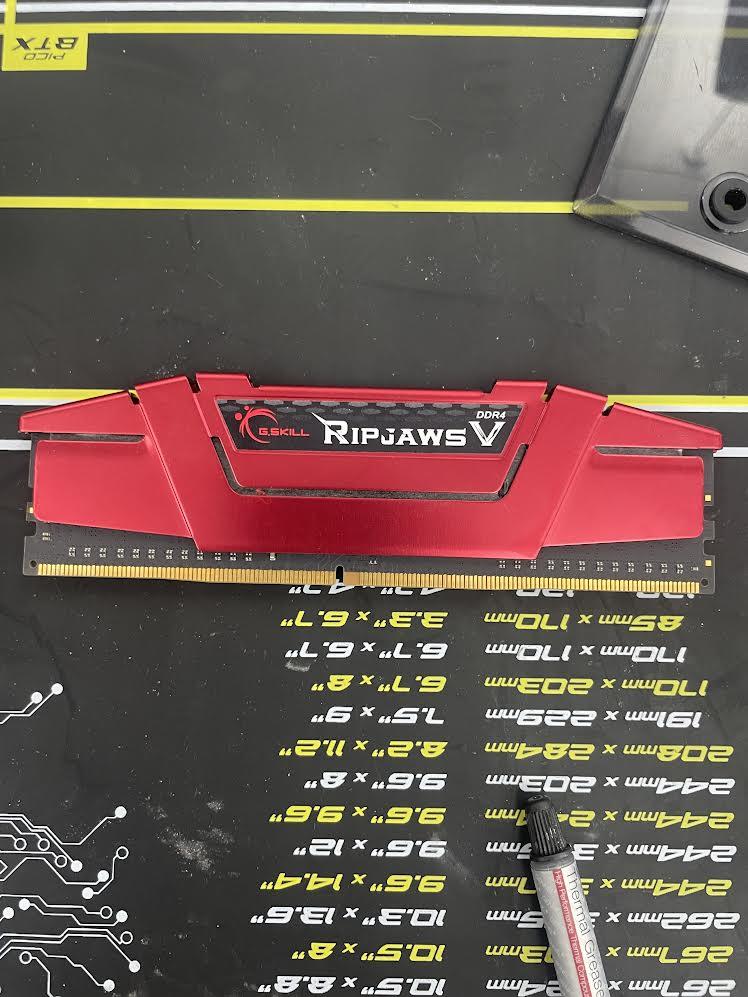
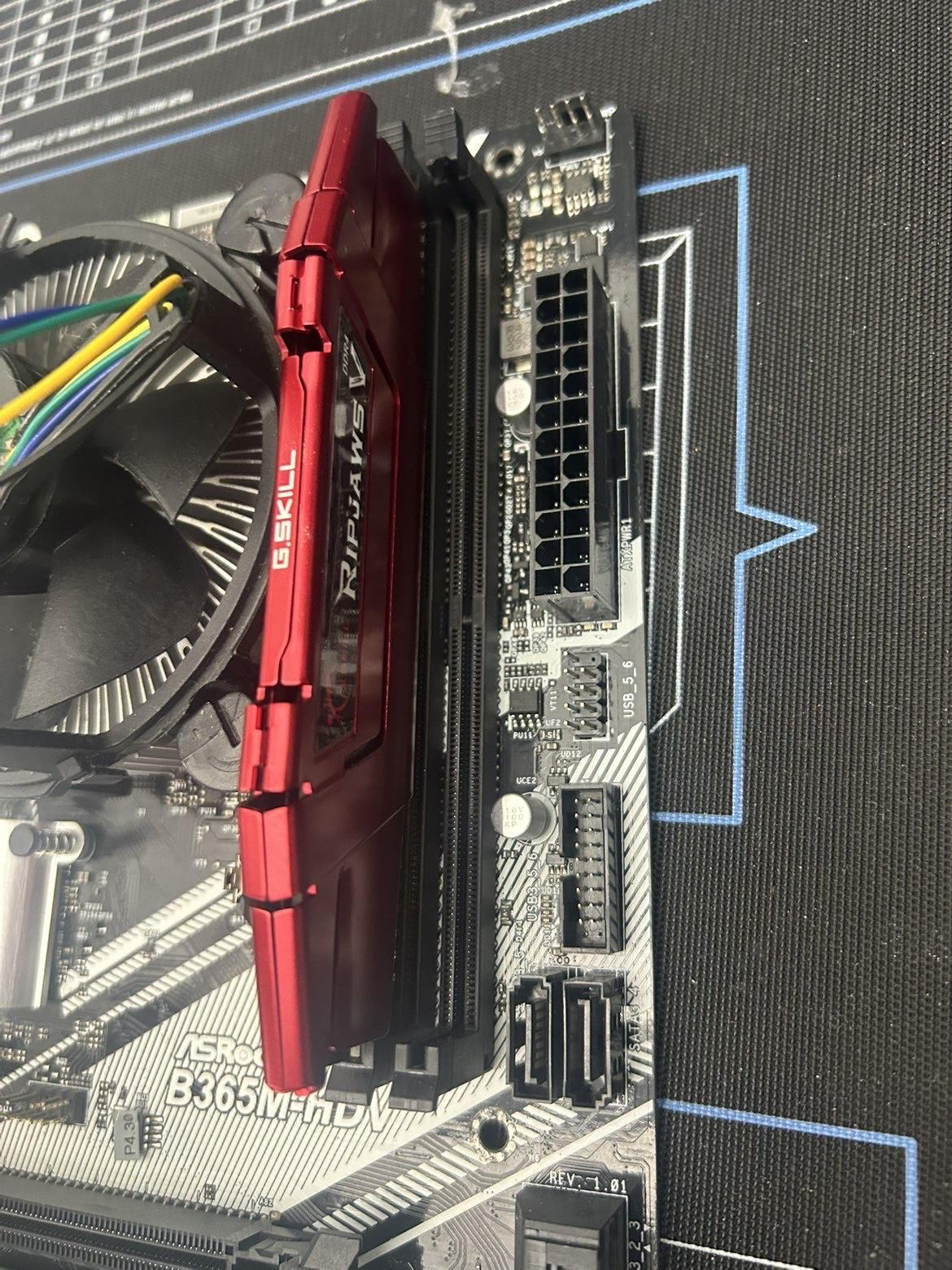
The RAM is the short term memory for task, If it is not installed correctly, the computer may not boot, crash, or have slow performance.
- Open the RAM slots by pushing the clip forward- only one of the clips open
- Align the notch on the Stick with the slot
- Press it down until you hear a click
Cables Management

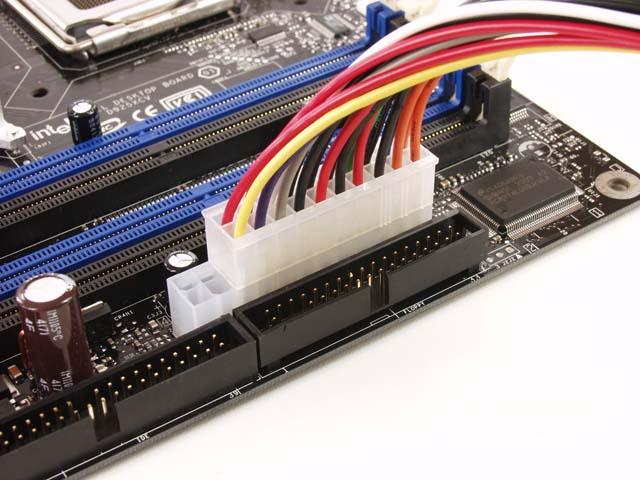
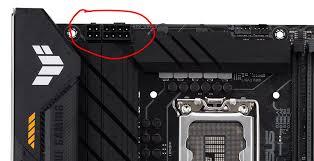
The power supply unit connects to components using specific cables.
- 24-pin Motherboard Power
- Typically on the right side of the motherboard
- Align the clip on the cable with he latch on the connector, press it firm until it clicks into place
- 4/8 pin- CPU power
- Typically at the top left corner of the motherboard
- Plug in the 8-pin cable from the power supply- press in until it locks in place.
SSD
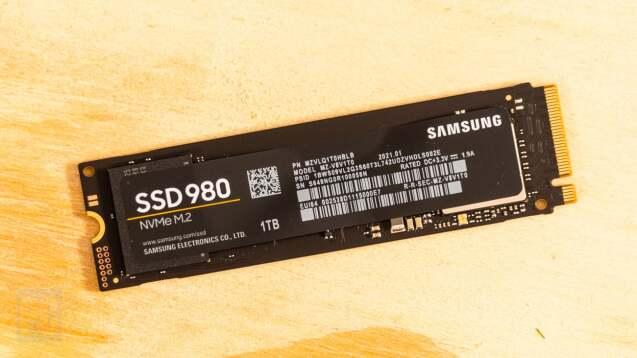
The SSD is found on the motherboard
- Look for a small, flat slot labelled M.2
- Typically near the middle or bottom of the board.
- The SSD slides in at an angle and is secured with a tiny screw.
Beep Codes
Command beep codes,
- 1 beep - everything is good
- No beep- Power or motherboard issue
- Continuous beeps- RAM not installed properly
- 1 long, 2 short- GPU error
PC Build Is Complete
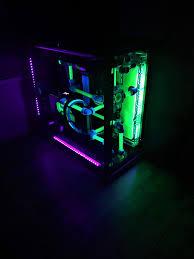
The PC build is complete. Before closing the case, double check that all cables are secure, fans are spinning, and no wires or screws are loose.
Power it on and make sure it everything lights up and runs. If you see your BIOS screen, you're all set.