Comprehensive Step-by-Step Guide to Using Oracle Integration Cloud for Seamless Integration Development
by Suryajaya999 in Design > Software
44 Views, 0 Favorites, 0 Comments
Comprehensive Step-by-Step Guide to Using Oracle Integration Cloud for Seamless Integration Development
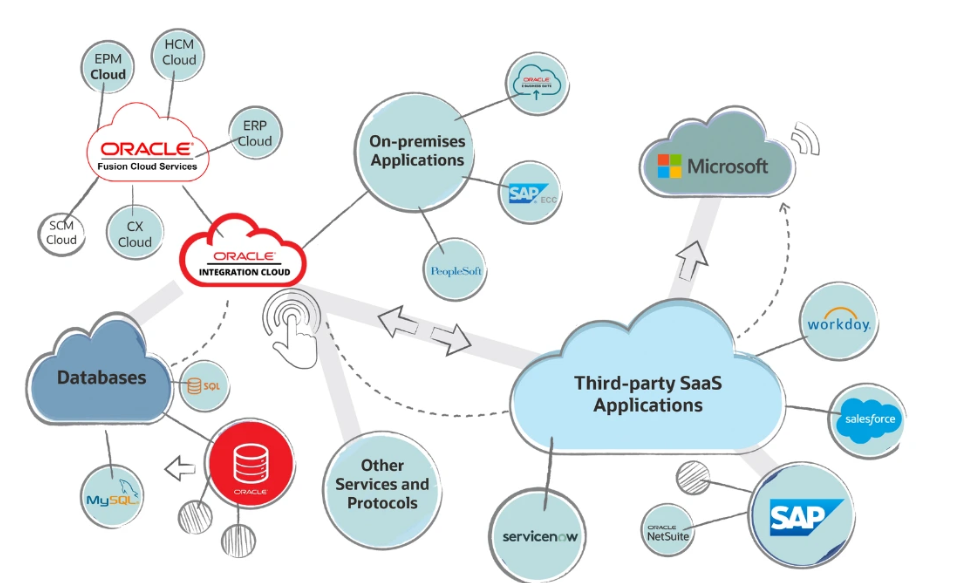
This training material provides a structured overview of how to work with Oracle Integration Cloud (OIC), a platform used to connect applications, automate processes, and manage data flows across enterprise systems. The document walks learners through the essential steps involved in building and maintaining integrations, starting from logging into the platform to monitoring and troubleshooting active workflows.
Each section focuses on one key stage of the integration lifecycle—navigation, configuration, mapping, activation, testing, and monitoring—explained in a neutral, practical manner suitable for beginners and intermediate users. The material is intended to serve as a hands-on learning reference for individuals who are starting to work with OIC or need a step-by-step understanding of how integrations are created and managed within the platform.
Supplies
Before beginning the exercises in this training guide, learners should have the following:
Technical Requirements
- Access to an Oracle Integration Cloud (OIC) environment
- Valid user credentials (username, password, MFA if applicable)
- Pre-configured connections (REST, SOAP, ERP Cloud, HCM Cloud, FTP, Database, etc.) — typically prepared by an admin
- Stable internet connection
- A modern web browser (Chrome, Edge, Firefox)
Knowledge Requirements (Recommended)
- Basic understanding of APIs (REST/SOAP)
- Familiarity with enterprise applications such as ERP, HCM, SCM, or databases
- Fundamental knowledge of JSON, XML, or structured data
- Awareness of business processes that will be integrated
Optional Tools
- Sample payload files for testing
- API documentation for trigger/target systems
- Mapping documentation from business or functional teams
These prerequisites help ensure that learners can follow the training steps smoothly and execute hands-on activities within OIC.
Functions of Oracle Integration Cloud
Oracle Integration Cloud provides a range of capabilities that support application connectivity, process automation, and data movement. The major functions include:
1. Application Integration
- Connects cloud, on-premise, and third-party applications
- Uses pre-built adapters for common enterprise systems
- Supports both real-time and scheduled data exchange
2. Process Automation
- Automates multi-step business tasks
- Allows visual workflow design
- Supports conditional logic, branching, and orchestration
3. API Management
- Exposes integrations as secure APIs
- Handles authentication, throttling, and rate controls
- Supports versioning and managed API lifecycle
4. Data Mapping and Transformation
- Visual drag-and-drop mapper
- Transformation functions (string, date, math, conditions)
- Support for complex schemas (JSON, XML, nested structures)
5. Monitoring and Troubleshooting
- Real-time visibility into integration runs
- Error logs, payload tracing, and performance metrics
- Diagnostic information for failure resolution
6. Connectivity and Adapters
- ERP Cloud, HCM Cloud, CRM, databases, file systems
- REST/SOAP endpoints
- Messaging adapters (queues, topics)
7. Secure and Controlled Execution
- Role-based access control
- Audit logs
- Secure credential storage
Log in to Oracle Integration Cloud
.png)
This step explains how to perform 'Log in to Oracle Integration Cloud' inside Oracle Integration Cloud. Follow the instructions carefully to complete the workflow.
Accessing Oracle Integration Cloud (OIC) is the first essential step before you begin creating integrations, managing connections, or monitoring workflows. This section provides a clear and detailed explanation of how to log in successfully, what each screen represents, and how to ensure a smooth start to your Oracle Integration Cloud experience.
Logging in begins with navigating to your organization’s dedicated Oracle Integration Cloud environment URL. This link is usually provided by your system administrator during onboarding. When you open the URL in your browser, you are redirected to Oracle’s secure sign-in page, where your identity is authenticated to protect your cloud resources.
Once the login page loads, enter your assigned username—often an email ID or a cloud-specific ID—and then type your password carefully. Oracle may require additional authentication steps depending on your organization's security settings. This can include multi-factor authentication (MFA), such as receiving a verification code via mobile or email. Completing this verification ensures that only authorized users gain access to the integration workspace.
After authentication, Oracle Integration Cloud welcomes you with its intuitive home dashboard. This dashboard acts as the central point from which all tasks are initiated. Here you will find navigation tiles such as Integrations, Connections, Monitoring, Design, and Settings. Each section provides tools that help you build, manage, and optimize integration workflows.
If you are logging in for the first time, it is recommended to review your user profile settings to confirm that your time zone, language, and accessibility preferences are correctly set. These preferences ensure consistency when designing integrations, scheduling flows, and troubleshooting logs.
In case you encounter login issues—such as incorrect credentials, forgotten passwords, or page load errors—you may use the Forgot Password option or reach out to your administrator for account reset assistance. Ensuring proper access is crucial, as Oracle Integration Cloud relies on authenticated user sessions for security and audit purposes.
By following the login steps carefully, you establish a secure entry into the OIC environment, making you ready to proceed with building integrations, configuring endpoints, and performing end-to-end workflow automa
Navigate to Integrations Workspace
.png)
This step explains how to perform 'Navigate to Integrations Workspace' inside Oracle Integration Cloud. Follow the instructions carefully to complete the workflow.
Once you have successfully logged into Oracle Integration Cloud (OIC), the next step is to locate and enter the Integrations Workspace, which is the central environment where all integration flows are created, designed, and managed. This workspace acts as the foundation for every automation and data-exchange process you build inside OIC. Navigating to it correctly ensures you have access to the full suite of integration tools available within the platform.
After landing on the OIC home dashboard, you will notice multiple functional areas represented through tiles or menu items. The Integrations section is typically labeled clearly and is positioned prominently to help users access it quickly. Click on the Integrations tile or select it from the left-side navigation menu. This action takes you directly into the Integrations Workspace.
The Integrations Workspace provides a well-organized layout that includes tabs such as Integrations, Connections, Lookups, Adapters, and Packages. The main Integrations tab displays all existing integration flows created within your environment. Here, you can view both active and inactive integrations, check their status, filter by style (App-Driven, Scheduled, B2B, etc.), and identify ownership or last modified details.
At the top of the workspace, you will find options to Create new integrations. This is where you can choose the integration pattern that suits your requirement—whether it’s application-driven, scheduled, event-based, or a custom flow. The workspace also includes search and filter capabilities to help you quickly locate specific integrations when working in complex or large environments.
Navigating through the Integrations Workspace also helps you understand the flow lifecycle. Each integration card or list entry provides essential information such as activation state, tracking details, and quick-access icons for editing, cloning, or monitoring performance metrics. This allows developers and administrators to manage workflows efficiently without switching between multiple screens.
If you are new to OIC, spending a few minutes exploring the workspace layout can significantly improve your productivity. Familiarity with this environment allows you to quickly build integrations, troubleshoot issues, and maintain seamless business processes.
By following this navigation step accurately, you ensure that you are in the right place to begin designing and managing integration workflows within Oracle Integration Cloud.
Create a New Integration
.png)
This step explains how to perform 'Create a New Integration' inside Oracle Integration Cloud. Follow the instructions carefully to complete the workflow.
Creating a new integration in Oracle Integration Cloud (OIC) is one of the core actions that allows you to connect applications, automate processes, and streamline data flow across systems. This step guides you through understanding what happens when you initiate the creation of an integration and how each option prepares you for building a complete workflow.
Once you enter the Integrations Workspace, you will notice the Create button positioned at the top of the page. This button acts as the starting point for building any new integration. When selected, OIC presents several integration patterns designed to support different business scenarios. These include App-Driven Orchestration, Scheduled Orchestration, Basic Routing, File Transfer, and other specialized templates depending on your environment. Each pattern is tailored to help you design a workflow that matches your automation needs—whether you want to trigger processes based on incoming events, run scheduled jobs, or simply route data between two endpoints.
Selecting an integration type opens a new configuration window. The first step is to provide essential details such as the Integration Name, Identifier, and Description. These fields help you organize your projects and make it easy to track and maintain integrations over time. A meaningful description is especially important in environments where multiple developers collaborate, as it clarifies the purpose and functionality of the integration at a glance.
Once the integration is created, OIC takes you into the Integration Designer, a visual editor where you build your workflow step by step. This drag-and-drop environment allows you to add trigger connections, map data between systems, configure flow logic, apply transformations, include conditional branches, and define error-handling actions. The designer helps you build integrations visually, making complex logic easier to understand and manage.
As you work, OIC automatically organizes your flow components into a structured layout. You can add adapters, assign endpoints, and perform field mappings using the integrated mapper tool. The platform also provides validation features, ensuring that your integration meets necessary requirements before activation. This prevents run-time errors and ensures smooth deployment once the integration goes live.
Creating a new integration is more than just starting a workflow—it sets the foundation for seamless communication between applications. By following this step carefully, you ensure that your integration is properly configured, structured, and ready for advanced development and automation in Oracle Integration Cloud.
Configure Trigger Connection
.png)
This step explains how to perform 'Configure Trigger Connection' inside Oracle Integration Cloud. Follow the instructions carefully to complete the workflow.
Configuring a trigger connection is a crucial step in building an integration within Oracle Integration Cloud (OIC). The trigger connection defines how your integration will start—whether it listens for an event, receives data from an external system, or responds to an API request. This step ensures that your integration has a clear starting point and knows exactly when and how to initiate the workflow.
After creating a new integration and entering the Integration Designer, the first task is to establish the trigger. The trigger is the entry point of your flow, and OIC provides a wide range of adapters to support various applications and systems. These adapters include REST, SOAP, FTP, Oracle ERP Cloud, Oracle HCM Cloud, database adapters, message queues, third-party applications, and more. Selecting the correct adapter ensures your integration aligns with the business requirement.
Once you click the Trigger placeholder in the designer, OIC displays the list of available connections. These connections are pre-configured by administrators or developers and contain authentication details, endpoints, and protocols. You simply choose the connection that represents the system that should initiate the integration. For example, if your flow begins with an incoming REST API call, you would select the REST connection configured for your environment.
After selecting the connection, OIC walks you through a configuration wizard. This wizard allows you to define the specifics of the trigger, such as:
- The type of action (e.g., receive request, listen for event, poll data).
- The expected input payload structure.
- The operation or endpoint to be invoked.
- The security policies or authentication rules.
- Additional properties like request parameters, media types, or header details.
These configurations ensure that OIC can interpret incoming data correctly and pass it into your workflow without issues.
As part of best practices, you should review the sample payload or schema associated with the connection. This schema becomes the basis for downstream mappings and transformations, so accuracy at this stage is important. If the connection requires custom fields or parameters, they can be defined within the configuration window.
Once the trigger configuration is complete, OIC visually displays the trigger icon in your integration flow, indicating that the starting point is successfully set. From here, you can proceed to define the next steps in your automation, such as adding invoke connections, applying transformations, or creating business logic.
By configuring the trigger connection carefully, you ensure that your integration begins reliably and handles incoming data in a structured, secure, and predictable manner—setting the foundation for the entire workflow that follows.
Configure Target Connection
.png)
This step explains how to perform 'Configure Target Connection' inside Oracle Integration Cloud. Follow the instructions carefully to complete the workflow.
Configuring the target connection in Oracle Integration Cloud (OIC) is a key step that defines where your integration will send data once it has been processed. While the trigger determines how the integration starts, the target connection determines the destination—whether it is an application, database, API, cloud service, or file system. Setting this connection correctly ensures that your integration delivers information to the right endpoint in the right format.
After you have configured the trigger and designed the initial flow, the next step inside the Integration Designer is to add an Invoke action. This invoke represents the outbound call from OIC to the target system. When you click the Invoke icon, OIC displays a list of available connections, similar to the trigger configuration. These connections include REST and SOAP APIs, ERP Cloud adapters, HCM Cloud adapters, database adapters, FTP/SFTP, message queues, and various third-party services.
Choose the connection that corresponds to the system or application where the processed data must be delivered. Once selected, OIC launches a configuration wizard to capture specific details about the operation you want to perform. This may include selecting an endpoint, choosing a business object, defining an operation such as create, update, delete, or sending a message or file. Each target adapter provides distinct options based on the type of system it connects to.
In this step, you also define the expected output structure, which becomes the schema for mapping your integration’s data. The wizard guides you through specifying request parameters, headers, authentication rules, and any custom fields required by the target application. Ensuring that these details match the target system’s requirements is important for avoiding run-time errors and guaranteeing smooth integration execution.
OIC allows you to preview or modify the automatically generated data structure. This structure will be used later in the mapper tool to transform the incoming data into the appropriate outbound format. If the target application requires specific field formatting or mandatory attributes, you can configure them at this stage.
Once the configuration is completed, the target connection appears in your integration flow, visually linking it to the trigger and other processing steps. This provides a clear overview of the data path from start to finish.
Configuring the target connection accurately ensures that your data reaches the correct destination securely, reliably, and in a format that the target system can process without issues. With this setup complete, you can move on to mapping, business rules, tracking fields, and final activation of your integration.
Map Data Fields
.png)
This step explains how to perform 'Map Data Fields' inside Oracle Integration Cloud. Follow the instructions carefully to complete the workflow.Mapping data fields is one of the most important steps in building an integration within Oracle Integration Cloud (OIC). This step determines how information received from the trigger connection is transformed and passed to the target connection. Proper mapping ensures that every piece of data is correctly aligned, formatted, and delivered to the system you are integrating with. Without accurate mapping, integrations may fail, produce incorrect results, or cause inconsistent data flow across applications.
Once both the trigger and target connections are configured inside the Integration Designer, you will see a flow connecting the inbound request to the outbound service call. To define how data should move between these two systems, click on the Mapper icon positioned between the trigger and the invoke connection. This opens the OIC Mapper tool, a visual environment where you can see a source structure on the left side (data coming in) and a target structure on the right side (data going out).
The mapper allows you to drag and drop fields from the source to the target. This simple interaction defines a data path that OIC will follow during runtime. You can map single fields, nested objects, lists, or entire structures depending on your integration needs. If the target system expects specific fields, you ensure they are mapped from the appropriate source data elements.
Beyond basic drag-and-drop, OIC provides a rich library of functions to transform data. These functions include string manipulation, mathematical operations, conditional logic, date formatting, value concatenation, and more. For example, if your target requires a formatted date or a combined name string, you can apply these transformations directly within the mapper using expression builders.
When mapping complex structures, OIC ensures data consistency by validating field compatibility. If a mandatory target field is left unmapped, the validation tool alerts you to ensure that no critical data is missing. This helps prevent errors during integration execution.
Another important aspect of mapping is handling optional fields, default values, and conditional mapping. You can configure advanced expressions to set fallback values when source fields are empty or to include data only under certain conditions. This flexibility ensures your integration behaves intelligently and adapts to real-world data variations.
Once the mapping is complete, you save your work and return to the Integration Designer. The mapped path becomes an essential component of the integration flow, representing how data moves from the initiating system to the destination system.
By mapping data fields carefully and thoughtfully, you ensure that your integration delivers accurate, meaningful, and fully aligned data—enabling smooth communication between applications and supporting reliable end-to-end automation.
Activate the Integration
.png)
This step explains how to perform 'Activate the Integration' inside Oracle Integration Cloud. Follow the instructions carefully to complete the workflow.
Activating an integration in Oracle Integration Cloud (OIC) is the final and essential step before your workflow becomes operational. Until an integration is activated, it remains in a design or draft state and cannot process real-time or scheduled data. Activation effectively publishes your integration, validates its configuration, and prepares it to run securely and efficiently in a live environment. This step ensures that the integration is fully ready for execution and capable of handling the business workflows it was designed for.
After completing the design, mapping, and connection configurations within the Integration Designer, navigate back to the main Integrations page. Here, you will find your newly created integration listed with a status indicator showing that it is currently inactive. To activate it, click on the Activate icon next to the integration name. This action initiates a series of automated checks performed by OIC.
During activation, OIC validates the entire workflow to ensure that all required fields, connections, mappings, and operations are correctly defined. If any mandatory components are missing or misconfigured, the system will display an error message, allowing you to correct the issue before activation continues. These validations help prevent runtime failures and ensure the integration performs reliably in production.
If no issues are detected, OIC proceeds with activation. For integrations that include tracking or monitoring fields, OIC prompts you to select specific business identifiers. These identifiers help you trace transactions later when monitoring execution logs. Setting meaningful tracking values—such as order numbers, customer IDs, or event timestamps—provides better visibility during troubleshooting and runtime analysis.
Once the activation is complete, the integration status changes from Inactive to Active, indicating that it is now fully deployed. For scheduled integrations, the activation also enables the defined schedule to begin running based on the configured frequency. For app-driven or event-driven integrations, activation makes them available to receive incoming requests from external systems or APIs.
With the integration active, you can monitor its behavior using the Monitoring dashboard. This dashboard allows you to review runtime logs, inspect payloads, track errors, and ensure that the workflow is executing as expected.
Activating the integration is not just a procedural step—it is the moment your configuration moves from design to real-world operation. By completing the activation process carefully, you ensure that your integration is stable, monitored, and ready to support business processes with accuracy and reliability.
Test the Integration Flow
.png)
This step explains how to perform 'Test the Integration Flow' inside Oracle Integration Cloud. Follow the instructions carefully to complete the workflow.
Testing the integration flow is a critical step in Oracle Integration Cloud (OIC) that ensures your integration performs exactly as expected before it is used in a production environment. This step verifies the accuracy of your mappings, the reliability of your connections, and the overall logic of your workflow. By conducting a thorough test, you can identify and resolve any errors early, ensuring a smooth and seamless end-to-end automation process.
After activating your integration, navigate to the Monitoring section of OIC. This dashboard provides tools to test, trace, and review integration behavior. For app-driven integrations—such as those triggered through REST or SOAP—you can use the Test button directly from the Integration details page. This opens a testing interface where you can submit sample input payloads that simulate real-world data. The system processes this input through your designed workflow, allowing you to observe how each step behaves.
For scheduled integrations, testing can be performed by manually invoking the schedule or temporarily adjusting the timing to trigger an immediate run. This helps verify that the automation works in a real execution cycle and follows the expected schedule patterns.
When running the test, OIC captures detailed logs that show the flow of data from the trigger through each mapping, transformation, and invocation. After the test completes, open the Tracking or Run Details view to examine the transaction. Here, you can verify:
- Whether the trigger received the correct input
- How data fields were mapped and transformed
- Whether the target system responded successfully
- Any warnings, errors, or validation issues
- The execution time and performance of the flow
If any step fails, OIC provides error messages and payload snapshots to help you identify the root cause. You can then return to the Integration Designer to adjust mappings, modify configurations, or update logic based on the test results.
Testing also helps confirm that authentication credentials, API endpoints, database connections, and business rules function correctly under real conditions. This validation is crucial, especially when integrating enterprise applications like ERP Cloud, HCM Cloud, or third-party services.
Once the integration performs successfully in testing—with no errors and consistent output—you can be confident that it is ready for operational use. Thorough testing reduces risks, improves accuracy, and ensures that the workflow delivers reliable results in production.
By completing this step carefully, you ensure that your integration flow is not only functional but also stable, predictable, and optimized for real-world usage.
Monitor and Troubleshoot Integrations
.png)
This step explains how to perform 'Monitor and Troubleshoot Integrations' inside Oracle Integration Cloud. Follow the instructions carefully to complete the workflow.
Monitoring and troubleshooting integrations in Oracle Integration Cloud (OIC) is an essential ongoing activity that ensures your workflows remain healthy, reliable, and efficient. Once an integration is activated and tested, it moves into real-time operation, where it interacts with live business data. The monitoring process helps you track performance, identify issues early, and maintain seamless communication between connected systems.
To begin monitoring, navigate to the Monitoring dashboard within OIC. This dashboard provides a comprehensive, real-time view of all active integrations, including their status, recent runs, processing times, and any errors encountered during execution. Each integration transaction is logged with detailed input and output data, allowing you to trace the complete journey of every request processed by the workflow.
The Tracking page displays key information such as unique business identifiers, timestamps, execution status, and operation history. These insights help you quickly determine whether a transaction was successful, failed, or partially completed. Clicking on a specific instance opens a detailed breakdown of each step within the flow, enabling you to analyze transformations, view payloads, and understand how data moved through the system.
In cases where an integration encounters errors, OIC provides clear diagnostic messages pointing to issues such as authentication failures, incorrect mappings, unreachable endpoints, or missing fields. These error logs are crucial for troubleshooting because they highlight exactly where the integration stopped and what caused the problem. You can also download payload details for deeper technical analysis, especially when dealing with complex APIs or external systems.
Beyond error detection, monitoring also helps optimize performance. If an integration frequently runs slower than expected or experiences processing bottlenecks, reviewing the runtime metrics allows you to identify patterns and adjust your configurations accordingly. This may involve optimizing mappings, adjusting schedules, or improving the efficiency of the target system interactions.
If an error is detected, troubleshooting typically involves returning to the Integration Designer to update configurations, revise mappings, or correct connection settings. After making adjustments, you can re-test and re-activate the integration to ensure the issue is resolved. OIC’s monitoring workflow supports a continuous improvement cycle, allowing teams to maintain stable integrations and reduce operational downtime.
Effective monitoring and troubleshooting not only ensure reliability but also strengthen the overall integration architecture. By consistently observing system behavior and addressing issues proactively, you help guarantee accurate data flow, improve business process automation, and maintain high performance across connected applications.
Implementing a complete integration workflow in Oracle Integration Cloud (OIC) requires careful planning, structured execution, and continuous monitoring. Each step—logging into OIC, navigating the Integrations Workspace, creating new integrations, configuring trigger and target connections, mapping data fields, activating flows, testing end-to-end behavior, and monitoring performance—works together to ensure seamless, accurate, and secure data flow across enterprise systems. When carried out effectively, these processes enable organizations to automate business operations, reduce manual work, improve data consistency, and enhance overall efficiency.