Complete UI Comparison of Oracle Integration Cloud Gen2 Vs Gen3
by Suryajaya999 in Design > Software
13 Views, 0 Favorites, 0 Comments
Complete UI Comparison of Oracle Integration Cloud Gen2 Vs Gen3

Oracle Integration Cloud (OIC) has rapidly evolved to meet the growing needs of modern enterprises. With the release of OIC Gen3, Oracle has introduced a completely redesigned user interface, improved navigation flow, and a more intuitive development experience. For developers, integration specialists, and consultants, understanding the differences between Gen2 and Gen3 is essential for smoother migrations, faster development, and better productivity.
In this guide, we provide a visual and functional comparison of OIC Gen2 and Gen3 using real UI screenshots. You will explore how the Home Dashboard has transformed, how the navigation structure has improved, and how the new Design Canvas introduces a cleaner and more efficient workflow. Whether you're new to OIC or transitioning from Gen2, this guide will help you understand the enhancements and confidently work with the latest OIC Gen3 environment.
Supplies
1. Oracle Cloud Account
- Access to Oracle Integration Cloud (Gen2 and/or Gen3)
- Admin or Developer role permissions
2. Screenshots of OIC UI
- Home Dashboard (Gen2 & Gen3)
- Navigation Menu
- Design Canvas
- Fusion Applications (Optional)
3. Image Editing Tool (Optional)
- Canva / Figma / Photoshop
- Used for cropping, labeling, or enhancing UI screenshots.
4. Internet Browser
- Chrome / Edge / Firefox
- For accessing the OIC environment and taking screenshots.
5. Documentation Tools
- Notepad / Google Docs / Word
- For writing descriptions and comparing features.
6. Instructables Account
- To publish your tutorial with images, steps, and explanations.
Explore the OIC Gen3 Home UI
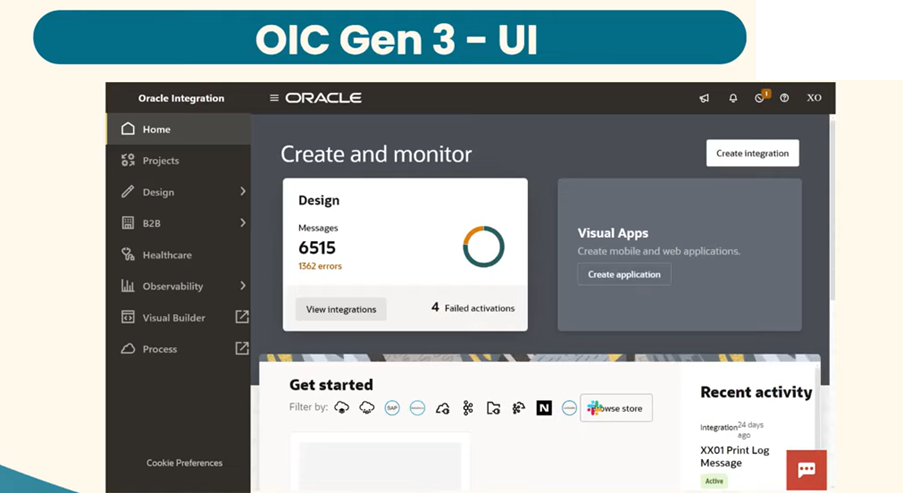
The first screenshot displays the Oracle Integration Cloud (OIC) Gen3 Home User Interface, showcasing Oracle’s redesigned and modernized layout. This version introduces a more structured, visually balanced interface, making navigation smoother and development workflows more efficient.
At the center of the screen, the Create and Monitor dashboard provides a quick overview of integration activity. It highlights important statistics such as:
- Total Messages processed
- Number of Errors
- Failed Activations
- Quick access to View Integrations
This gives users an instant understanding of system health and performance without navigating deeper into menus.
To the right, the Visual Apps section offers a direct entry point for creating mobile and web applications. With the Create Application button, developers can immediately begin building UI extensions using Visual Builder.
The left-side navigation panel has been redesigned with clearer labels and improved iconography. Key modules include:
- Home
- Projects
- Design
- B2B
- Healthcare
- Observability
- Visual Builder
- Process
This organized layout helps users find the right workspace quickly, reducing time spent navigating between tools.
At the bottom portion of the screen, the Get Started area provides access to connectors, recipes, accelerators, and commonly used integrations. This makes it easier for beginners and experienced developers to discover prebuilt components and accelerate project development.
Overall, the Gen3 Home UI emphasizes simplicity, speed, and usability, offering a cleaner interface with improved visual grouping and more intuitive access to key features.
Explore the OIC Gen2 Home UI
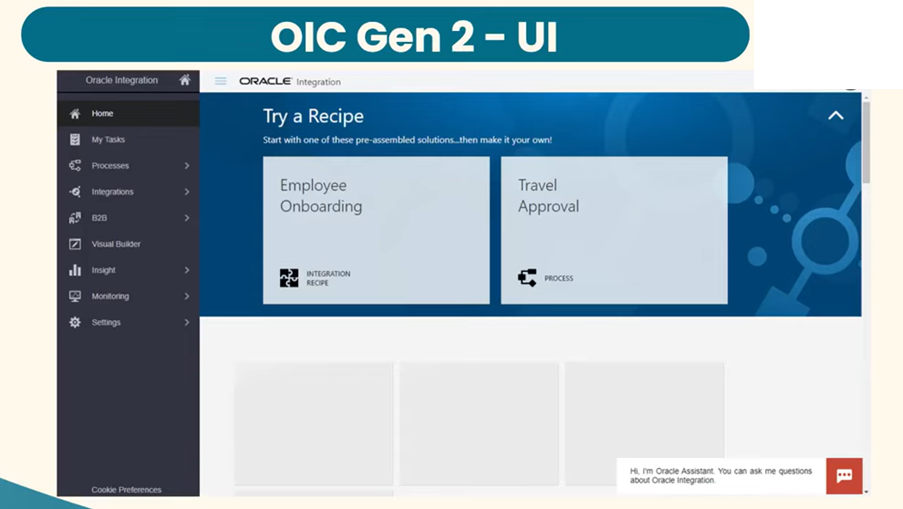
The second screenshot represents the Oracle Integration Cloud (OIC) Gen2 Home User Interface, which uses a classic blue-themed layout and a simpler navigation design compared to Gen3. The centerpiece of this screen is the “Try a Recipe” section, where Oracle provides pre-assembled integration templates to help users begin quickly. Common examples displayed include:
- Employee Onboarding
- Travel Approval
These recipes act as guided starting points, allowing users to understand integration patterns without building everything from scratch.
On the left side, the navigation panel lists essential OIC Gen2 modules such as:
- Home
- My Tasks
- Processes
- Integrations
- B2B
- Visual Builder
- Insight
- Monitoring
- Settings
The menu uses a traditional layout with text-based labels and older icon styles, making it simple but less visually optimized compared to Gen3.
At the bottom right, the Oracle Assistant appears as a chatbot icon, providing quick help and guided instructions to new users.
Overall, this UI reflects the earlier generation of Oracle Integration Cloud—functional, straightforward, and beginner-friendly, but lacking the modern visual clarity and advanced layout offered in OIC Gen3.
Navigate Through the OIC Gen3 Home Dashboard
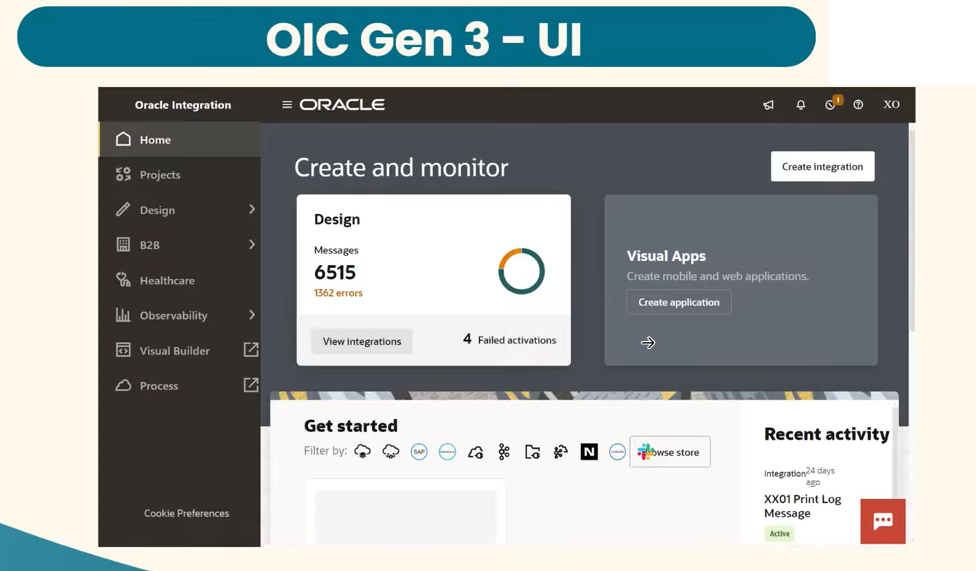
This screenshot continues to highlight the modern layout of the OIC Gen3 Home Dashboard, showcasing how Oracle has simplified access to integration tools and monitoring features. The interface is designed to help users quickly locate essential modules and take action without unnecessary navigation.
At the top, the Create and Monitor panel remains a central element, summarizing integration activity. It displays:
- The total number of messages processed
- Error count for quick issue identification
- Failed activations, helping monitor deployment health
- A direct View Integrations button for faster access
To the right, the Visual Apps tile provides a streamlined entry point to build mobile and web applications. The Create Application button ensures developers can start building UI extensions directly from the home screen.
On the left navigation bar, the Gen3 menu includes key sections such as:
- Projects
- Design
- B2B
- Healthcare
- Observability
- Visual Builder
- Process
Each module is represented with improved icons, making the interface clean and visually consistent.
At the bottom, the Get Started section gives users instant access to commonly used resources, connectors, and accelerators. This helps both beginners and professionals begin crafting integrations quickly, without searching through multiple menus.
Overall, Step 3 highlights how OIC Gen3 brings clarity and structure to the dashboard, ensuring users can monitor activity, create integrations, and access tools more efficiently from a single unified interface.
Working With the OIC Gen2 Design Canvas
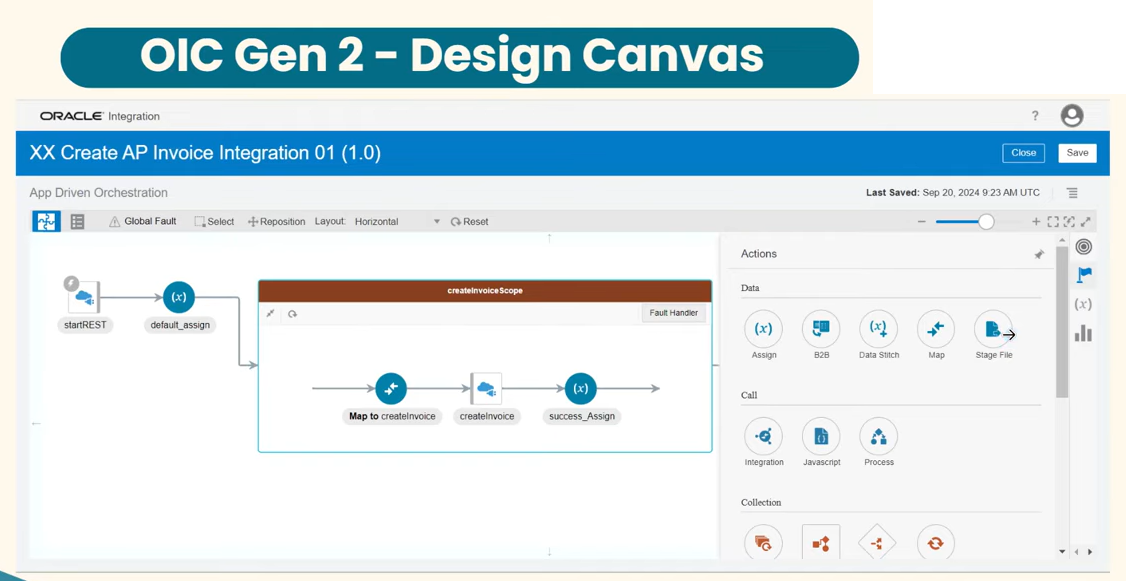
The screenshot highlights the OIC Gen2 Design Canvas, which is the workspace used to build and orchestrate integrations. This version of the canvas uses a traditional layout with a clear left-to-right flow, making it easy to understand how data moves through each integration step.
At the top, we see the integration name “XX Create AP Invoice Integration 01 (1.0)”, which indicates that this flow is an App-Driven Orchestration. Gen2 visually separates the integration into distinct sections, helping developers identify scopes, actions, and error-handling points at a glance.
Inside the canvas, the flow begins with the startREST trigger, which initiates the integration whenever a REST call is made. Immediately after that, a step named default_assign prepares initial variables or default values before entering the main processing sequence.
The highlighted section, createInvoiceScope, contains several core activities:
- Map to createInvoice – A mapping action that transforms incoming data to match the structure required for invoice creation.
- createInvoice – A call activity representing communication with an external system or application where the invoice is actually created.
- success_Assign – A final data assignment that prepares the success response message.
On the right side, the Actions Panel provides access to essential components, organized into categories:
Data Actions
- Assign
- B2B
- Data Stitch
- Map
- Stage File
Call Actions
- Integration
- Javascript
- Process
Collection / Utility Tools
These include looping, decision-making, and error-handling actions.
The canvas itself features a toolbar at the top, offering controls such as Reposition, Layout, Horizontal View, Reset, and Zoom Controls, allowing developers to fine-tune the workflow visually.
OIC Gen2’s Design Canvas is well-structured but uses a flat, older-style UI. Although fully functional, it lacks the modern visual polish and improved usability found in OIC Gen3. Still, many organizations continue to use Gen2 for its reliability and familiar layout.
Explore the OIC Gen3 Design Canvas
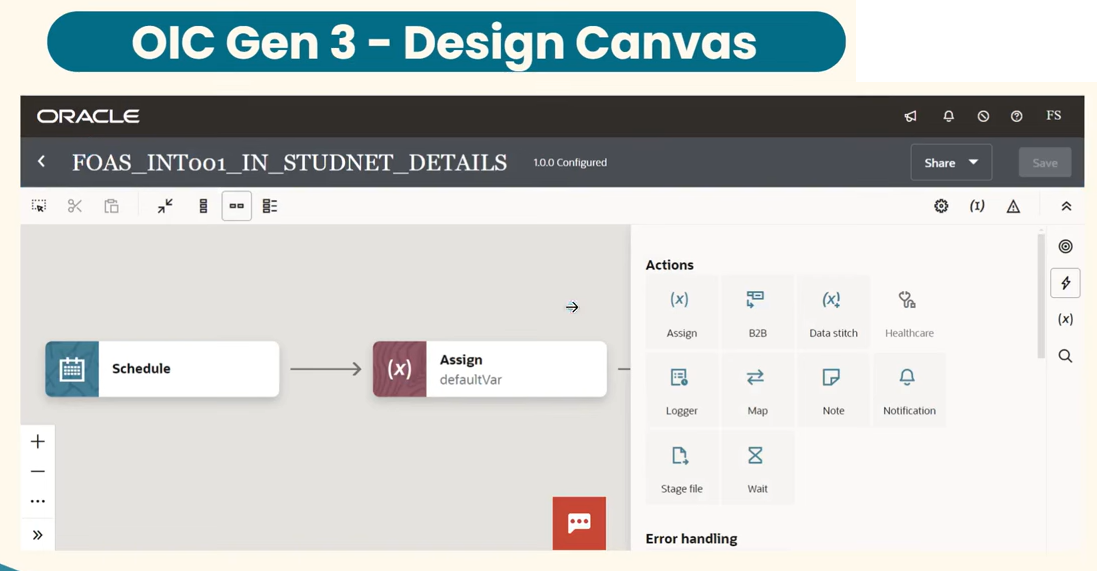
The OIC Gen3 Design Canvas showcases a major UI evolution, offering a more intuitive and visually appealing way to build integrations. In the screenshot, the integration named FOAS_INT001_IN_STUDNET_DETAILS is open in the editor, configured with version 1.0.0.
One of the most noticeable upgrades in Gen3 is the clean, minimalist design, which removes unnecessary borders and clutter. Each integration step is represented with modern card-style components, such as:
- Schedule Trigger (left side)
- Assign Activity (with maroon highlight)
These cards are larger, clearer, and provide improved readability compared to Gen2’s compact icons.
The upper toolbar includes refined tools like:
- Zoom controls
- Canvas alignment options
- Grid and layout toggles
- Undo/redo
- Integration-level settings
This improved arrangement makes navigation more efficient, especially in large or complex flows.
On the right side, the Actions Panel is completely redesigned. It uses spacious tiles with soft shadows and clear icons. Categories include:
General Actions
- Assign
- B2B
- Data Stitch
- Healthcare
Utilities
- Logger
- Map
- Note
- Notification
File & Scheduling
- Stage File
- Wait
Below this panel, Oracle added a dedicated Error Handling section, allowing easier configuration of fault-handling logic.
The Gen3 design canvas focuses on:
- Faster model building
- User-friendly spacing
- Better activity visibility
- Cleaner drag-and-drop interactions
- A consistent look aligned with Oracle Redwood design system
Overall, Gen3 delivers a more streamlined development experience, helping developers work faster with fewer clicks and better UI organization.
Navigate the Oracle Fusion Vision Home Workspace
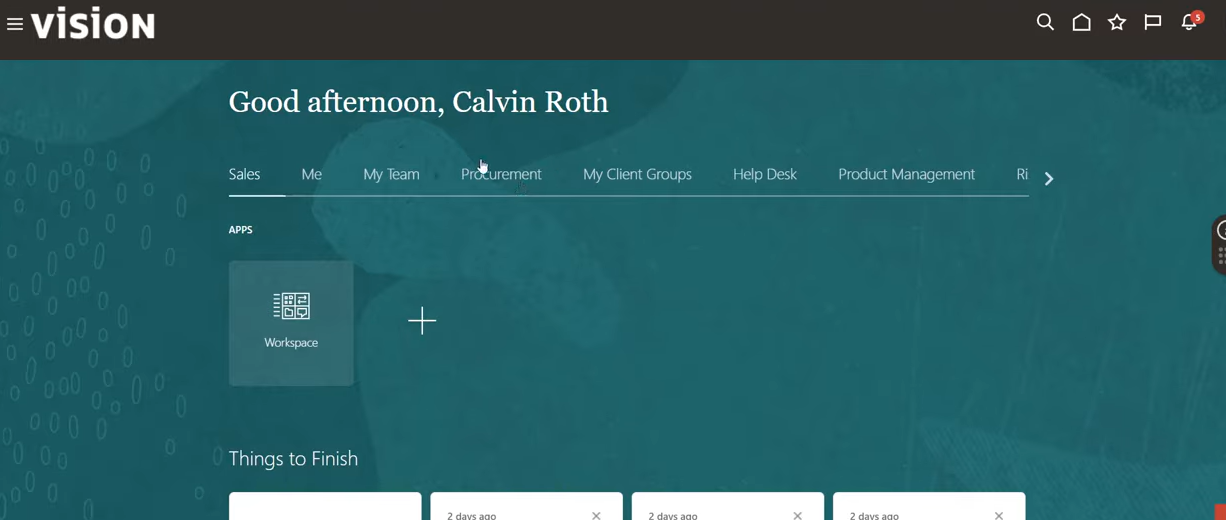
The screenshot displays the Oracle Fusion Vision Home Workspace, a central landing page used across various Oracle Fusion Cloud applications such as Sales, Procurement, HCM, and Financials. This screen follows Oracle’s modern Redwood Design System, offering a clean, spacious layout with a soft teal background and an intuitive navigation structure.
At the top of the interface, the welcome message “Good afternoon, Calvin Roth” personalizes the user experience. Directly beneath it, the horizontal navigation tabs provide quick access to major application areas, including:
- Sales
- Me
- My Team
- Procurement
- My Client Groups
- Help Desk
- Product Management
These tabs allow users to move effortlessly between functions without navigating back to the main menu.
In the center of the screen, the Apps section highlights the Workspace tile, which acts as a hub for accessing tasks, dashboards, and business objects. The “+” symbol next to it suggests the ability to add new apps or shortcuts for frequently used modules, improving workflow efficiency.
Further down, the Things to Finish area lists pending tasks or follow-up items assigned to the user. Each task card includes a timestamp—such as “2 days ago”—helping users prioritize activities that require immediate attention. This functionality supports better task management and helps maintain productivity within Fusion applications.
The interface also includes controls for notifications, bookmarks, search, and user preferences at the top-right corner of the screen. These icons create a consistent and familiar experience across all Oracle Cloud modules, ensuring that users can easily locate essential utilities.
Overall, this screenshot demonstrates how Oracle Fusion provides a unified, user-friendly, and visually engaging workspace, designed to help users manage business processes efficiently while maintaining a clean and distraction-free interface.
Exploring the Create and Track Dashboard in OIC Gen3
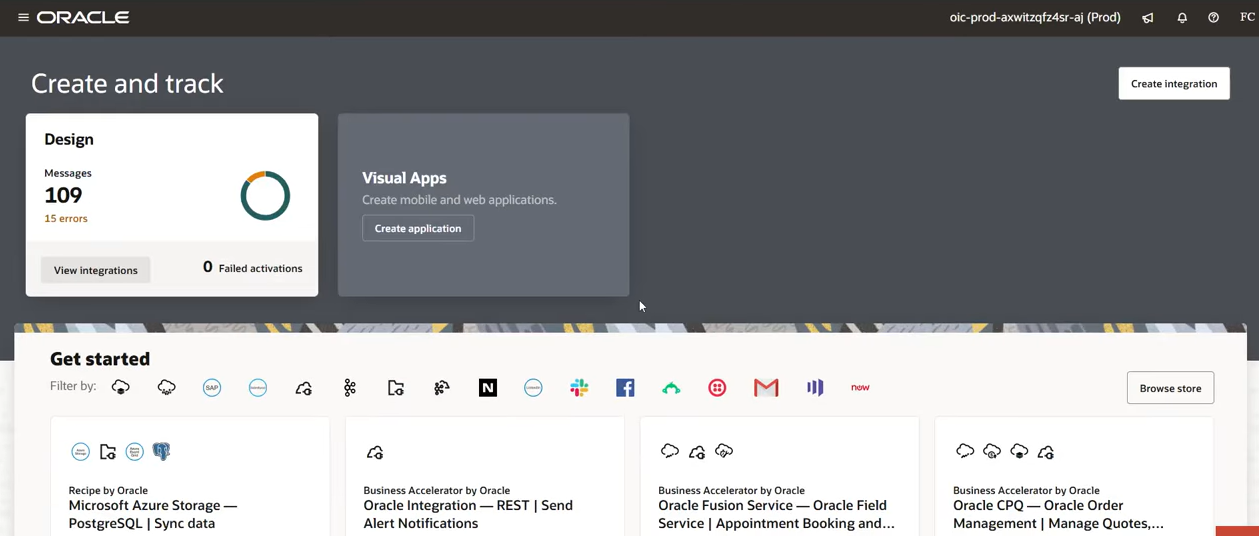
The seventh screenshot highlights the Create and Track dashboard in the Oracle Integration Cloud (OIC) Gen3 environment. This interface offers a modernized workspace where users can view integration activity, start new development tasks, and browse available accelerators with ease. The layout is structured to provide a balance of monitoring insights and quick-access development tools.
At the top of the screen, the Design activity card presents real-time information about the current integration workload. This includes:
- Total Messages processed
- Number of Errors detected
- Failed Activations count
The circular graph on the tile provides a quick visual summary, helping developers assess system health at a glance. Below the metrics, the View Integrations button offers direct access to the integrations workspace for more detailed insights and troubleshooting.
To the right, the Visual Apps panel allows users to launch the Visual Application Builder by clicking Create Application. This supports building custom extensions, dashboards, and mobile-ready applications that integrate seamlessly with backend systems.
The Get Started section below is redesigned for user convenience. It includes icon-based filters and categorized recommendations such as:
- Cloud connectors
- Integration patterns
- Recipes and accelerators
- External services like Slack, Gmail, Salesforce, and more
These ready-made components help developers accelerate project development, reducing the time needed to build integrations from scratch.
A Browse Store button on the right offers access to Oracle’s Integration Store, where users can discover new business accelerators, prebuilt adapters, and templates.
Overall, this section of the OIC Gen3 UI emphasizes efficiency and accessibility. It centralizes critical tools and real-time integration insights, ensuring that developers can start new tasks, troubleshoot issues, and explore available resources without unnecessary navigation steps.
Navigating the OIC Gen3 Left Panel & Visual Builder Access
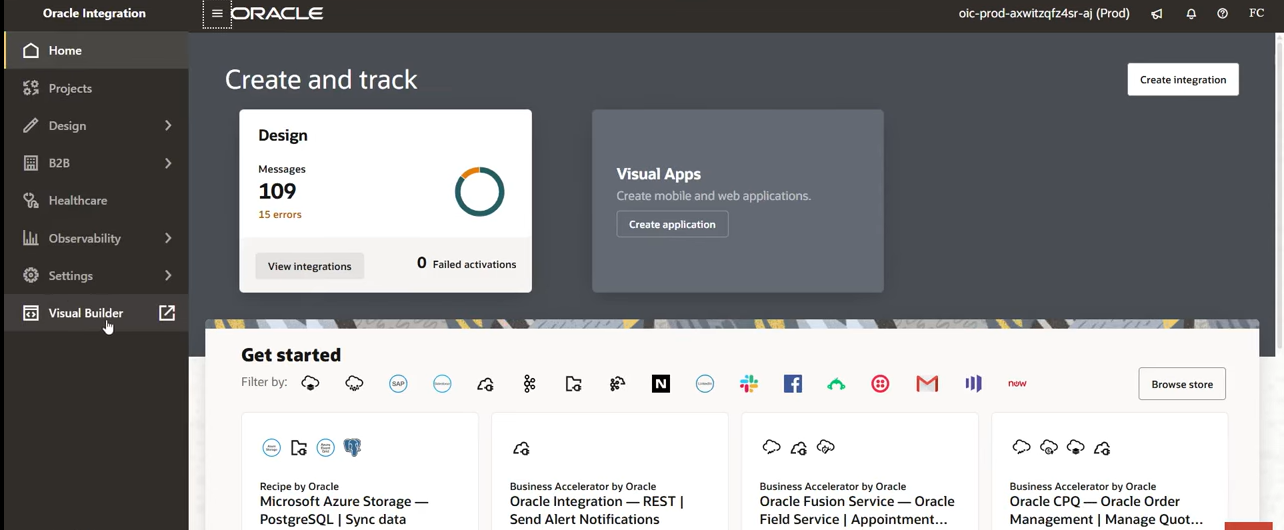
The eighth screenshot highlights the left-side navigation panel within the OIC Gen3 environment and demonstrates how users can directly access Visual Builder from the same workspace. This part of the interface plays a crucial role in guiding developers to different functional areas without switching tabs or digging through multiple layers of menus.
On the top portion of the screen, the familiar Create and Track dashboard is visible, showing the current integration statistics for the environment — including total messages processed, error counts, and failed activations. This quick insight helps developers monitor the health of their integrations while navigating through the platform.
The left navigation bar is one of the most significant improvements in OIC Gen3. It brings a clean, organized structure with clear module labels, making it easier to locate tools such as:
- Home
- Projects
- Design
- B2B
- Healthcare
- Observability
- Settings
Each module is represented with consistent Redwood-style icons, improving visual recognition and reducing user confusion.
At the bottom of this menu, the Visual Builder option is prominently featured. By selecting this, users can seamlessly transition from integration workflows to application development. Visual Builder enables developers to:
- Create web and mobile apps
- Build UI extensions for Fusion applications
- Connect apps directly to integrations
- Manage design elements visually without heavy coding
This unified navigation experience allows users to manage backend integrations and frontend apps within the same interface, significantly improving productivity.
Below the main dashboard, the familiar Get Started section displays featured connectors, accelerators, and integration recipes. This acts as a launchpad for exploring ready-to-use components that speed up development.
Overall, Step 8 emphasizes the efficiency, structure, and accessibility introduced in OIC Gen3, allowing developers to move between features with minimal effort.
Explore the Integrations Page in OIC Gen3
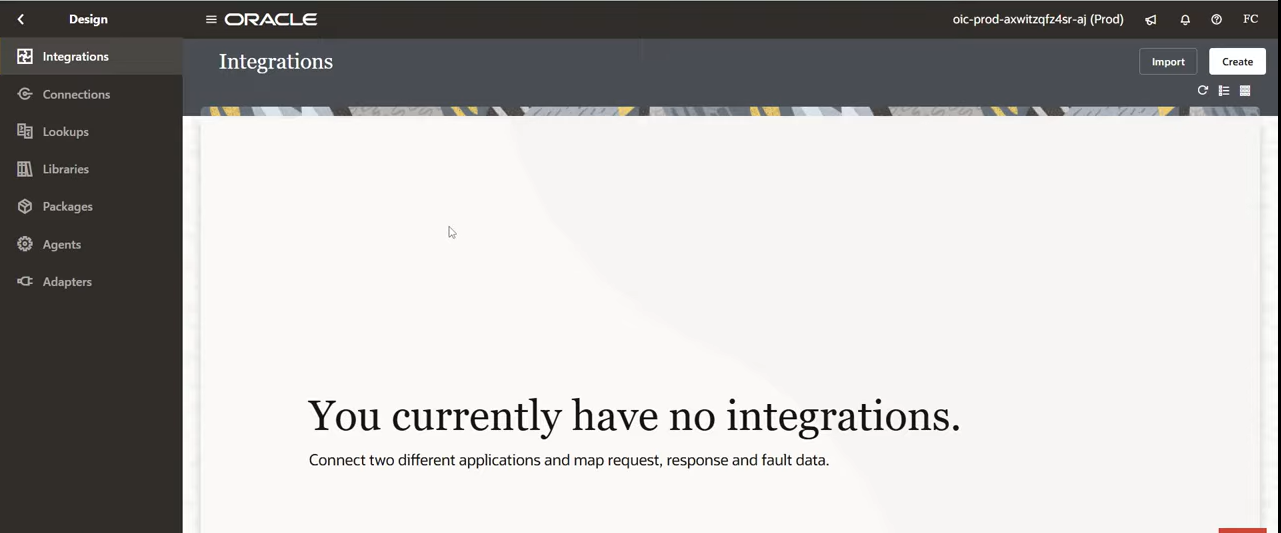
we arrive at the Integrations Workspace inside the Oracle Integration Cloud Gen3 environment. This screen is often the very first place new developers and integration specialists interact with when they begin building flows. The screenshot clearly shows that there are no integrations created yet, which is exactly how a fresh OIC environment looks before any projects are developed or deployed.
At the top, you will see the Design header, indicating that you are inside the development section of OIC. The left-side menu displays several important design components such as:
- Integrations
- Connections
- Lookups
- Libraries
- Packages
- Agents
- Adapters
Each of these plays a foundational role in how integrations are built and managed. For example, Connections allow you to link OIC with external applications, while Adapters provide specialized tools for systems like REST, SOAP, Oracle ERP, and databases.
In the center of the screen, the message “You currently have no integrations” is displayed. This is normal for a new or clean environment. It simply means no integration flows have been created, imported, or activated yet. For beginners, this screen becomes the starting point to begin developing your first integration by clicking the Create button located at the top right.
From here, users can choose different integration patterns such as:
- App-Driven Orchestration
- Scheduled Integrations
- REST Triggers
- File-Based Integrations
This workspace is designed to be clean and distraction-free, making it easier for fresh developers to focus on their first task—creating a reliable integration flow. The layout in Gen3 is more minimalistic and modern compared to Gen2, giving a more comfortable and approachable experience, especially for someone just beginning their OIC journey.
This step marks the transition from exploring the UI to finally starting your integration development, making it an important milestone for any new OIC learner or professional.