Colorado Flag Magnet
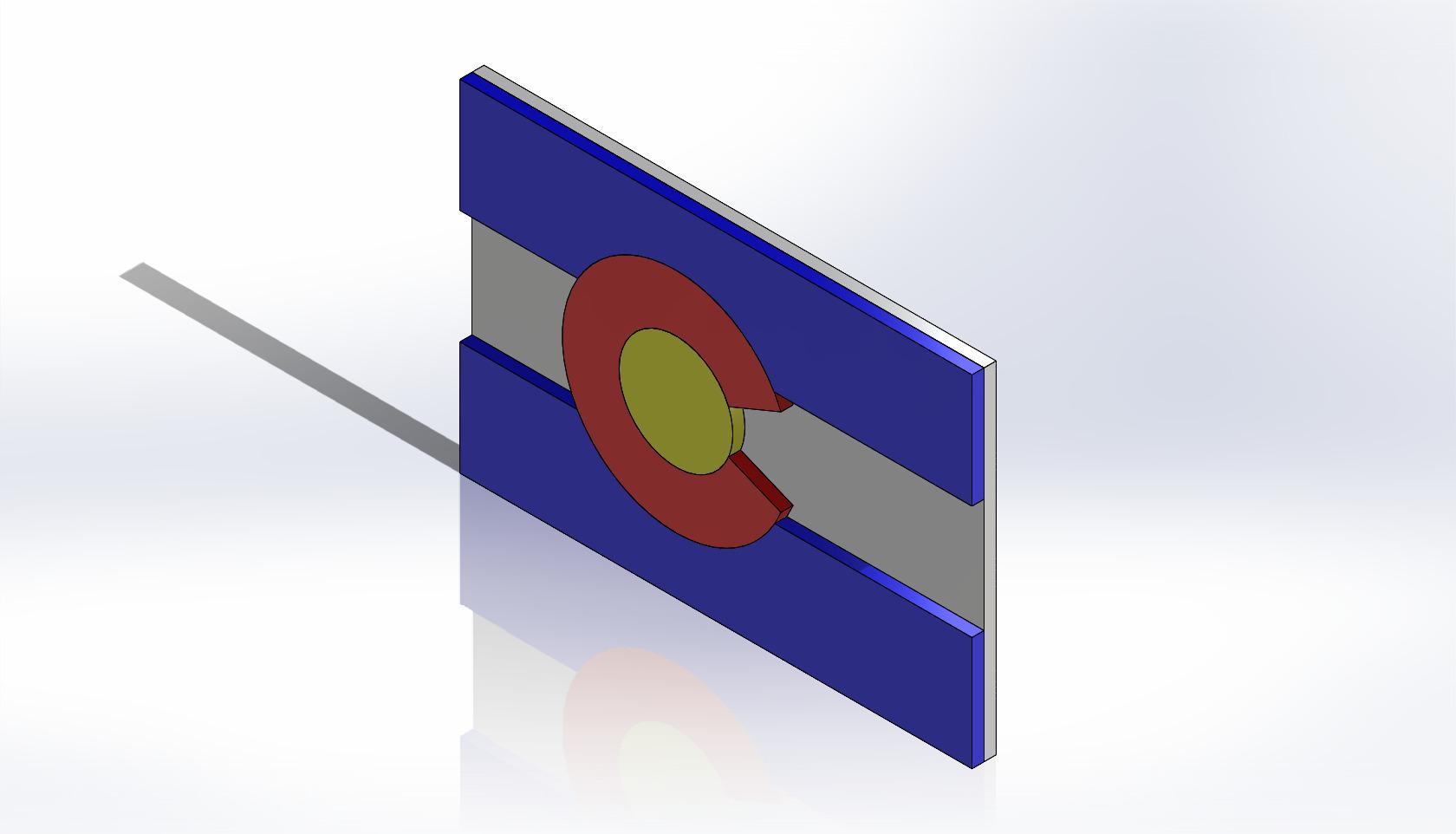
With the right materials and the correct amount of patience, you can create a Colorado Flag that can be placed on any magnetic surface. Being 3-1/3 inches tall, 5 inches wide, and 3 mm thick, your Colorado Flag will look beautiful wherever you place it.
Supplies
The supplies you will need will be,
- Baltic Birch Wood
- Laser Cutter (24 x 12)
- DXF Files
- Colored Stains(Blue, Red, White, Yellow)
- Wood Glue
- Different colored wood stains
- Hot Glue
- Paper Towels
- CoralDraw(CAD software)
- Magnet
- USB Drive
- Sand Paper
Moving DXF Files


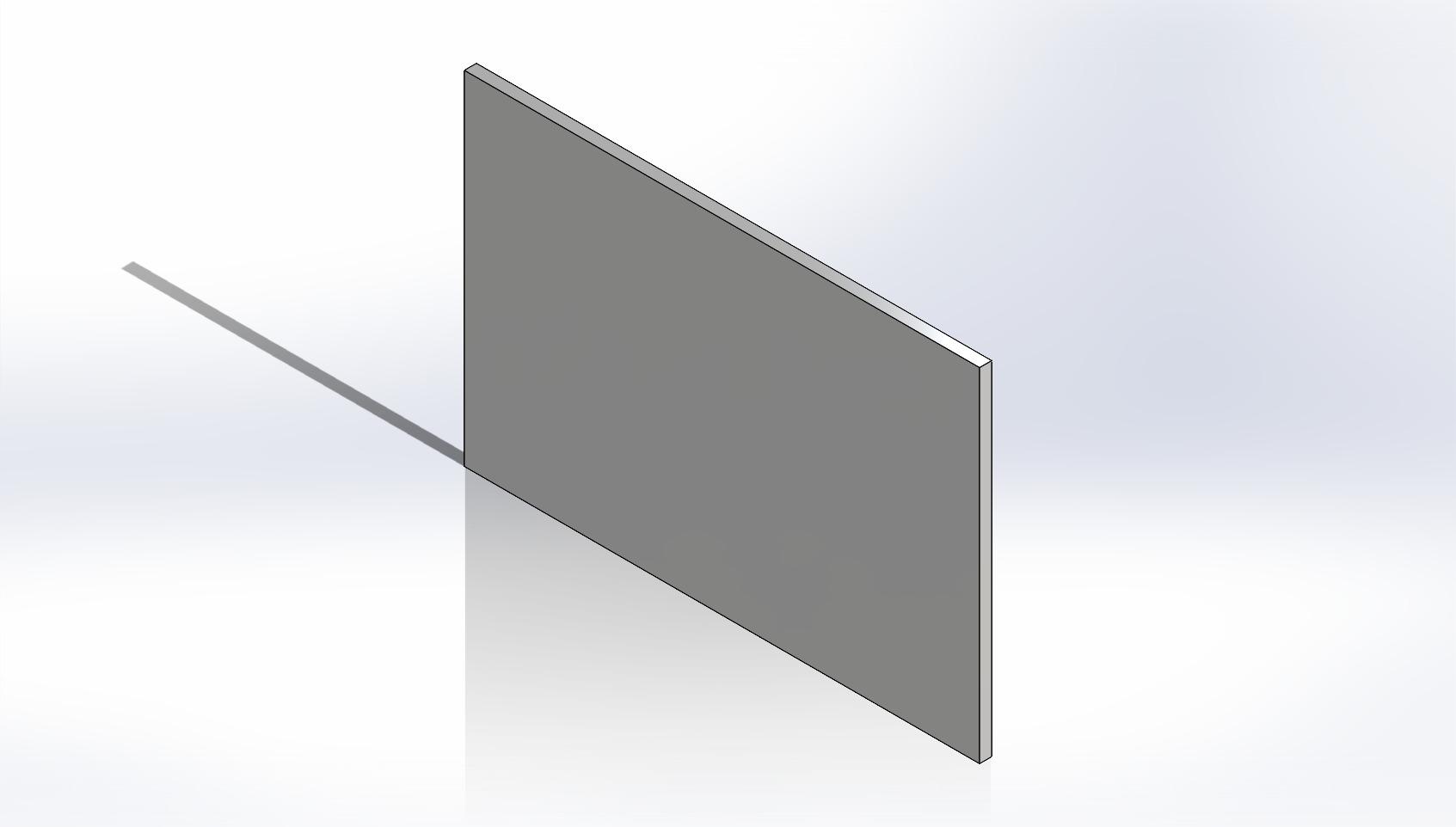
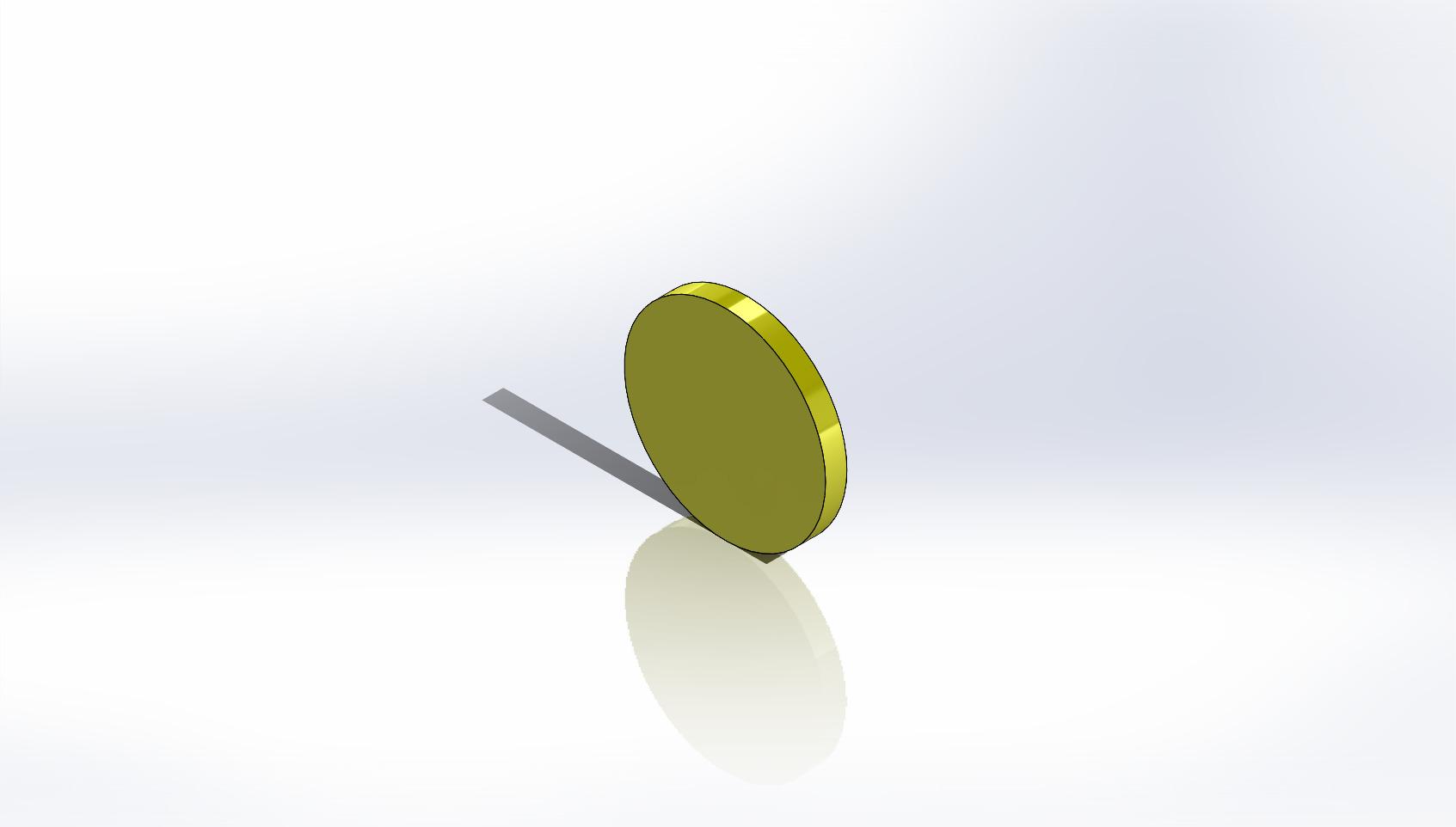
Download the DXF files included in this step and export them onto a USB drive. Take this USB drive and stick it into the device that will be hosting the VLS 3.60 software. Then transfer the files from the USB drive to the computer.
Note: If the device you are using is downloading the DXF Files and sending the files to the VLS 3.60 software, you will not need to use the USB drive and you may skip the moving process.
Set Up Files for VLS 3.60 Software
For step two, you are going to want to open the CAD software CorelDraw. While in the CAD software you are going to need to create a new file. Once you have created a new file, a group of settings will show up on the screen. For these settings you should,
- Name your file for organization
- Make sure the primary color mode is RGB
- Have the dimensions match the Laser Cutter (24 x 12)
Once you have created this new file and selected the correct settings, you are going to want to import the DXF files. To do this you are going to want to select file in the top left corner, click import, and locate and import it into the CAD software. This step can be repeated as many times as needed. CTRL + I can be used to skip the first two parts of the importing process.
- File -> Import -> Select File(s) -> Import
Just like when you create a new file, a group of settings will show up. You should choose inches as the unit and have the scale set to 1:1. After you have selected your settings you will have to click the document to determine where the file will go, the position can be adjusted after inserting the file to whatever desired location.
After you have your files imported into the CAD software, you need to select all the lines, change the stroke color to red (255, 0, 0), and have the width of the line be hairline.
Once all of these tasks are complete use can send your newly created file to the VLS 3.60 software. To do this press the CTRL + P and select where you want to print it. Once you have done this, if you don't already have the VLS 3.60 software open, open it and you have the file loaded on the screen.
Prepare Laser Cutter for Cut
At this point you should have the DXF files in the VLS 3.60 software and have the lines be red. The first thing you are going to want to do is press the power button located in the top right area of the screen. If your Laser Cutter is connected correctly, this should turn on the machine. The next thing to do is put your wood in the machine. It is best to tape the wood down so that it doesn't move when cutting. Make sure the wood you are trying to use fits in the laser cutter.
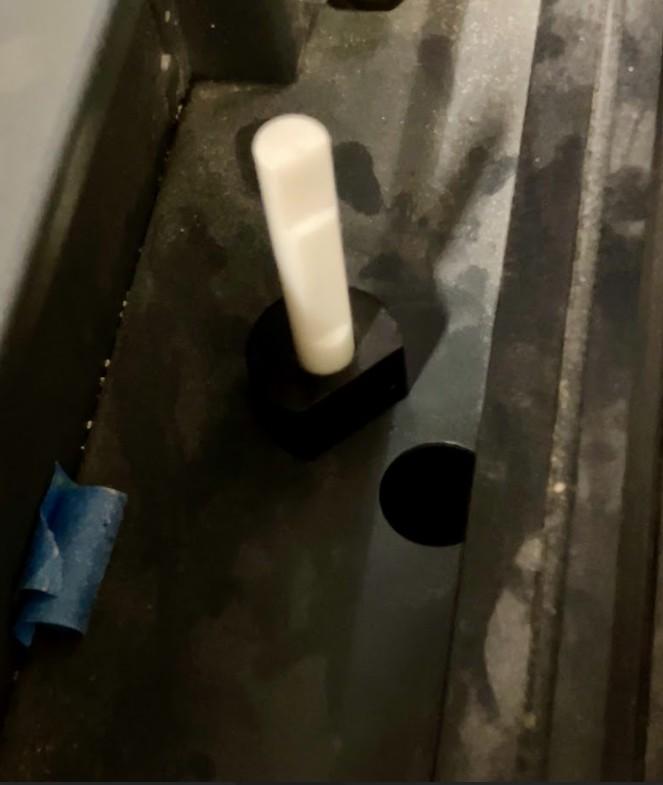
To prepare the machine for cutting, you are going to need to adjust the height of the Laser to be 2 inches above the cutting surface. There is a tool located on the left side of the machine that will help with this. Place the tool under the laser and adjust the height of the laser by using the arrows on the outside of the machine. Once the box area of the laser is perfectly matched up with the notch on the tool, the laser can be considered level. The tool is relatively hard to find.
The next step is to relocate the laser so that it cuts over the wood. To do this, press the arrow button that is located in the middle of the 5 buttons on the VLS 3.60 software on the right of the screen. Once this button is pressed you can use the arrow buttons below the green button to adjust the position of the laser
Once this is complete, connecting the piece to the laser is important. To line up the piece to the laser, click the white box in the top right of your piece until it turns blue. Then click the To Pointer button to connect the laser and the piece.
After this, the power and speed of the laser will affect if the laser cuts through the wood all way. By doing this, click the settings button at the bottom right of the screen, click red, change the power to be 100% and the speed to be 12-14%, then click ok to confirm the settings.
- Click Setting -> Click Red -> Change power to 100% -> Change speed to 12-14% -> Click OK
Once this is all complete, you are ready to move on to the next step.
Cutting the Piece
Once you have set the laser cutter up, close the laser cutter lid and press the green button to start cutting. If the lid is open the laser will not activate. Once the laser cutter finishes cutting, open the lid and use tape to try and take the piece(s) out of the laser cutter. If you can not take it out cleanly with the tape, it is best to run the laser cutter again. Keeping the lid open in parts you know are cut is important so use don't melt the base of the laser cutter. Repeat the steps of trying to get the pieces out until they are out of the laser cutter. Once you have cut the piece(s) the should remove the excess wood and set it aside for future use.
If you have done everything correctly so far you should have four pieces of wood that look like the different parts of the Colorado flag and scrap wood.
Sanding and Staining the Pieces
If the pieces are rough and uneven, sanding them is smart so it becomes easy to apply the stain and feels good to the touch.
Take your newly cut pieces outside and get them prepared for staining. You are going to use paper towels to apply the stain to the pieces. When staining, DO NOT MIX THE STAIND. This will ruin them and make them unusable. To prevent this, use different paper towels for different colors. Once you have covered your pieces in the different stains, let them dry for 12-24 hours to prepare them for the next step.
Connecting the Pieces.
After you cut the pieces out, you must connect them together with wood glue. When wood glueing you should use an even amount of glue and make sure they're together in the proper state. After this, you should apply pressure by using clamps or a heavy object so that the pieces connect properly. If excess glue were to seep out of the sides, use a flat heads screwdriver to scrape away the glue residue. It is important to watch the piece for a few minutes so you don’t miss any excess glue.
Connecting Magnets
Once the board is dry and glued together, the next step is to glue the magnets on the back. Apply hot glue on the back of the board in a central position and then place the magnet on the glue. Do this in a quick motion to prevent the hot glue from becoming dry and not sticking to the magnet.
If you have done everything correctly you should have a completed Colorado Board Magnet at your disposal.