Building and Testing a REST-Based Integration in Oracle Integration Cloud
by Suryajaya999 in Design > Software
7 Views, 0 Favorites, 0 Comments
Building and Testing a REST-Based Integration in Oracle Integration Cloud

Oracle Integration Cloud (OIC) is a powerful platform designed to simplify how organizations connect applications, automate processes, and streamline data flows across systems. Whether you are integrating cloud applications, exposing REST APIs, processing files, or orchestrating complex business logic, OIC provides a visual, low-code environment that makes integration development faster, more scalable, and easier to maintain.
In this project, we walk through the complete end-to-end process of building a functional REST-based integration from scratch. You will learn how to create an integration, configure REST endpoints, set up operations, define request and response structures, map data, and add essential activities such as loggers and notifications. We also cover how to activate the integration, run test calls, and monitor each execution using the Activity Stream.
This step-by-step guide is designed for beginners, functional consultants, technical developers, and anyone who wants to understand how real integrations are designed and tested in OIC. With clear screenshots and thorough explanations, you’ll gain practical knowledge to build your own integrations confidently.
By the end of this tutorial, you will have a fully working integration, complete insights into its execution flow, and the foundational skills needed to create more advanced automation solutions within Oracle Integration Cloud.
Supplies
To complete this Oracle Integration Cloud (OIC) project, you will need the following:
- Oracle Integration Cloud Access
- A valid OIC instance with permissions to create, edit, activate, and test integrations.
- User Credentials
- Login credentials with Integration Developer or Administrator privileges.
- Email Account
- Required for testing Notification actions within the integration.
- API Details (Optional)
- Any sample REST API details if you want to extend the project beyond the demo setup.
- Stable Internet Connection
- Ensures smooth navigation through the OIC console during configuration and testing.
These basic supplies are sufficient to build, configure, and test REST-based integrations using OIC.
Accessing the Integrations Dashboard in Oracle Integration Cloud
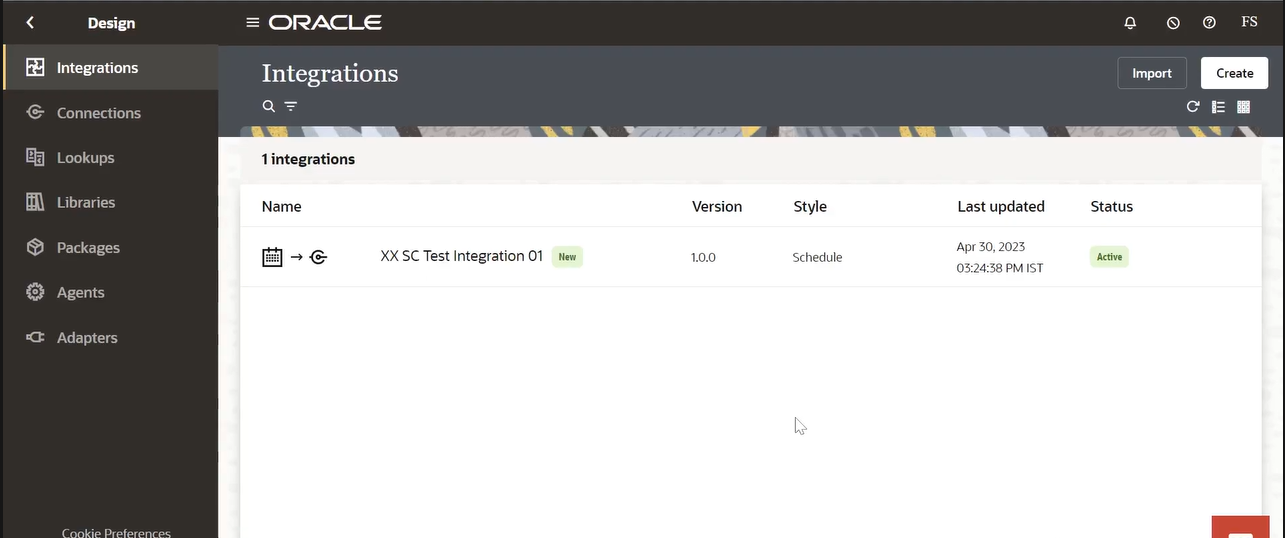
In this step, we begin by navigating into the Integrations Dashboard within Oracle Integration Cloud (OIC). This dashboard acts as the central hub where all your integrations—whether active, paused, scheduled, or newly created—are displayed and managed. The screenshot above shows the typical layout you will encounter when you first arrive at this section, giving you a complete overview of your existing integration projects.
When you open OIC and click on the Design tab (visible on the left navigation panel), you will find several modules such as Connections, Lookups, Libraries, Packages, Agents, and Adapters. Among these, the Integrations module is the most critical for building, deploying, and monitoring workflows. Selecting it brings you to the screen displayed in the image.
In the screenshot, you can see a sample integration titled “XX SC Test Integration 01”, labeled as New, with version 1.0.0, configured in Schedule style. The “Schedule” type indicates that this integration is designed to run automatically at specific intervals rather than being triggered manually or via an API call. This is especially useful for regular operations like daily extractions, batch data transfers, or automated syncs across systems.
On the right-hand side of the integration entry, you can see the Last Updated timestamp, showing when this integration was last modified. This is important especially when you are working in collaborative environments where multiple developers might update the same project. The Status column shows the integration marked as Active, which means it is currently enabled and running as expected.
On the upper right corner of the dashboard, you will find two important buttons: Import and Create.
- The Import button is used when you want to upload an existing integration (usually in .iar format). This is helpful when migrating from one environment to another or when sharing a reusable integration with a team.
- The Create button is used when you want to build a new integration from scratch. Clicking this opens a wizard that allows you to select integration type, configure triggers, define flows, and connect with various systems.
This dashboard also includes the search bar at the top, allowing you to quickly locate an integration by name, status, or keyword. This becomes extremely helpful when your workspace contains dozens or even hundreds of integrations.
Understanding this screen is important because it serves as your starting point for creating, monitoring, and managing all integrations in Oracle Integration Cloud. Whether you are developing a new workflow, troubleshooting an existing one, or simply checking the health of your automations, the Integrations page provides everything you need at a glance.
Before moving to the next step, always ensure you are logged into the correct environment—such as Development, Test, or Production—since OIC environments often look similar. A wrong update in Production could trigger incorrect data transfers or workflow disruptions.
By mastering the Integrations Dashboard, you gain the foundation necessary to build advanced integrations, automate business processes, and manage complex workflows efficiently within Oracle Cloud.
Creating a New Scheduled Integration in Oracle Integration Cloud
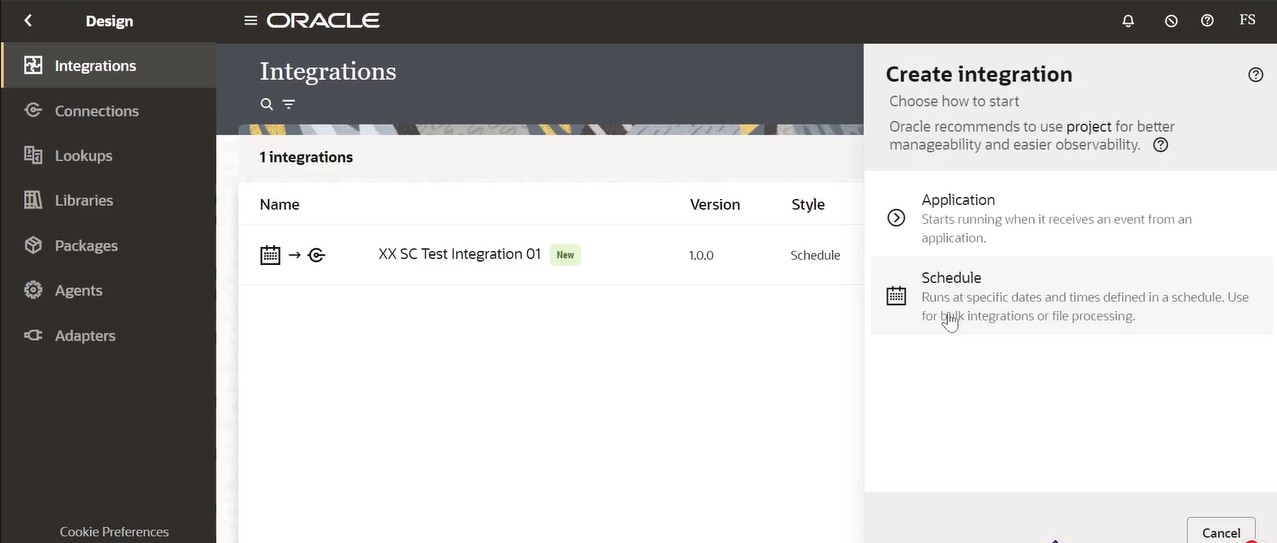
In Step 2, we move forward by creating a brand-new integration inside Oracle Integration Cloud (OIC). The screenshot shows the Create Integration panel, which appears after clicking the Create button from the Integrations Dashboard. This is one of the most important steps because it defines how your integration will behave and what type of trigger it will use.
When you click Create, OIC presents two main options for starting an integration: Application and Schedule. Each option serves a different purpose based on how and when you want your integration to run. The interface is designed to clearly guide you through these choices so that you select the correct starting point for your business use case.
The Application option is used when your integration must run in response to an event from an external system. For example, if you need OIC to execute a flow whenever a new record is inserted into an ERP system, when an API is called by another application, or when a webhook sends data, you would choose the Application trigger. This is ideal for real-time or event-driven processes.
In contrast, the option highlighted in the screenshot—Schedule—is used for integrations that need to run at specific intervals. This could be daily data loads, weekly consolidation jobs, hourly synchronization routines, or large batch file processing tasks. By selecting the Schedule option, you are telling OIC that the integration should not wait for external events but should operate based on the time frequency you configure later in the process.
The panel also explains this at the bottom: “Runs at specific dates and times defined in a schedule. Use for bulk integrations or file processing.” This makes scheduled integrations perfect for high-volume, repetitive, or time-based tasks where manual intervention is not required. Most enterprise-level workflows—especially those involving file transfers, reports, or scheduled updates—heavily rely on this type of integration.
Choosing the correct integration style is important because it affects the overall design of the flow. Scheduled integrations do not begin with a trigger connection; instead, they start directly with an orchestration that runs automatically. This gives developers more control over the internal logic, such as reading files, invoking other connections, performing lookups, mapping data, or writing back to target systems.
In the screenshot, the mouse pointer is positioned over the Schedule option, indicating that you are about to start building a time-based integration. After selecting this, OIC will prompt you to provide essential information such as the integration name, identifier, version, and description. These details help you track, manage, and differentiate your integration from others in the dashboard.
Another important point visible in the panel is Oracle’s recommendation to use a project for better manageability and observability. Although optional, using projects allows you to group related integrations, connections, and resources together. This becomes extremely helpful in large environments where multiple business processes run simultaneously.
By the end of Step 2, you have officially initiated the creation of a new integration and selected the correct trigger type. This sets the foundation for building the full workflow in the next steps, including configuring properties, adding actions, mapping data, and defining how the integration will execute.
This step is critical because it determines the overall behaviour of your automation. Whether you're processing files, synchronizing records, or running batch jobs, choosing the correct integration type ensures the system performs exactly as expected. With the Schedule trigger selected, you are now ready to define the internal structure and logic of your integration in the next step.
Defining the Integration Details in Oracle Integration Cloud
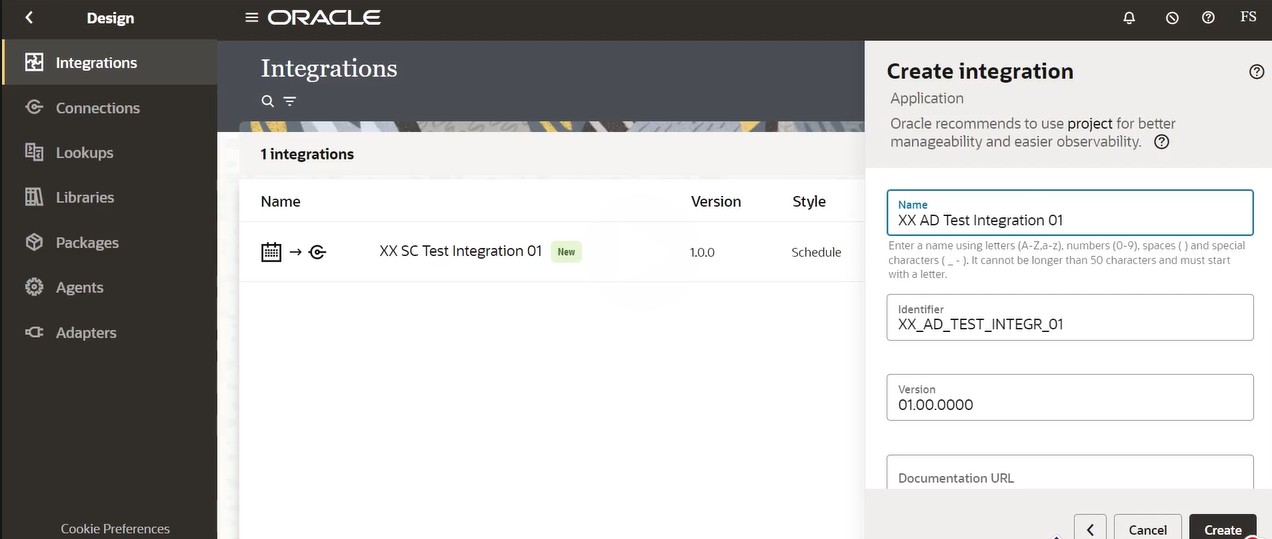
After selecting the type of integration in the previous step, the next stage is to define the basic configuration details for your new integration. The screenshot shows the Create Integration panel where the Name, Identifier, Version, and other metadata fields are filled out. These details form the identity of your integration and ensure it is uniquely recognized within Oracle Integration Cloud (OIC).
At the top of the panel, you see the Name field where the integration name has been entered as “XX AD Test Integration 01”. Choosing a meaningful and standardized name is extremely important in OIC, especially in environments where many developers collaborate. A clear naming convention helps identify the purpose, module, and sequence of the integration. In this example, the prefix "XX AD" could represent a custom namespace or a department-specific code. The suffix "01" typically denotes the version or sequence of the integration within a given group.
As soon as the name is entered, OIC automatically generates an Identifier. In the screenshot, the identifier created is “XX_AD_TEST_INTEGR_01”. Identifiers serve as the technical name for the integration in the backend and follow a strict format: uppercase letters, underscores, and numbers only. These identifiers cannot be changed afterward, so ensuring accuracy at this stage is critical. They are used internally for tracking, deployment, and migration activities.
Below the identifier, the Version field is displayed with a default value of “01.00.0000”. OIC uses a versioning system that helps you maintain multiple iterations of an integration. This is useful when releasing updates, fixing bugs, or managing test and production versions. By separating versions clearly, you avoid accidental overwrites and ensure the system can rollback to previous stable versions when necessary. Although the initial version number is automatically assigned, you can modify it to match your team’s versioning guidelines.
Oracle also provides optional fields such as Documentation URL. Although not filled in this screenshot, this field can link to external documentation, functional design documents, or Confluence pages. Adding documentation links can drastically improve collaboration because team members can quickly understand the integration’s purpose and dependencies without searching manually.
On the right side of the screen, you can still see the main dashboard showing existing integrations. This dual view makes it clear that OIC allows you to create new integrations without leaving your main workspace. The left-side panel, featuring modules such as Connections, Lookups, Libraries, Packages, and Agents, remains visible and accessible, reflecting OIC’s streamlined UI design.
Clicking the Create button at the bottom will officially create the integration shell. At this point, OIC will navigate you into the integration designer where you can begin building the actual flow. This includes configuring triggers (for Application type), defining schedules (for Scheduled type), adding actions, performing data mapping, and connecting to external systems.
This step is essential because it lays the foundation for the technical identity of the integration. Without completing these details correctly, managing or migrating the integration later becomes difficult. Proper naming, versioning, and identification are key aspects of professional integration development.
By completing Step 3, your integration now exists within the OIC environment with a clearly defined name, identifier, version, and optional documentation references. You are now ready to begin structuring the internal components of your integration in Step 4, where the actual workflow logic starts to take shape.
Opening the Integration Canvas and Understanding the Designer Workspace
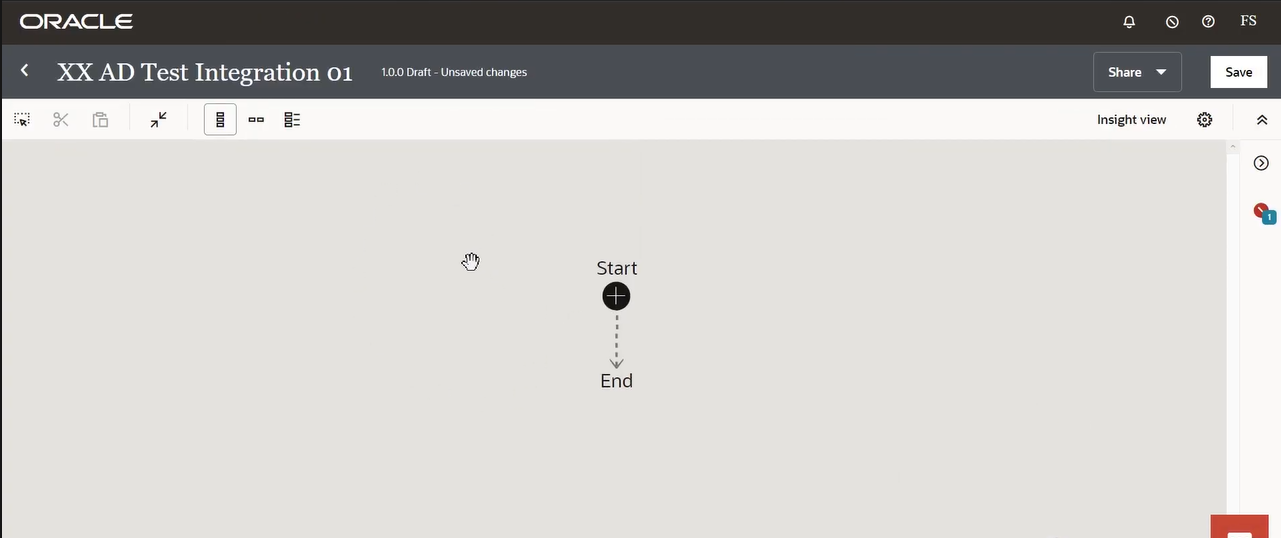
Once you complete the initial setup and click Create, Oracle Integration Cloud takes you directly into the integration design canvas. This environment is where all the functional logic of your integration will be built. The screenshot shows the interface immediately after opening the integration named “XX AD Test Integration 01”, which is currently in Draft state with unsaved changes. This clean, empty canvas is the starting point for orchestrating actions, triggers, mappings, and connections.
At the center of the workspace, you can see two key elements: Start and End. These represent the beginning and the termination points of your integration flow. For scheduled integrations, the Start node functions as the entry point triggered automatically by the schedule you will define later. Since no actions or connections have been added yet, Start is directly linked to End with a dotted placeholder path.
The presence of the Start node also indicates that this is an orchestration-style integration, meaning you can add multiple steps such as invoking connections, looping through data, assigning variables, reading files, transforming payloads, and more. The dotted line will eventually be replaced with a structured sequence of activities once you begin inserting integration steps.
Across the top of the screen is the toolbar, containing several useful functions. The icons include zoom controls, cut/copy/paste options, and formatting tools that help manage large or complex integration flows. These tools become increasingly valuable as integrations grow in size, especially when dealing with multiple branches and conditional logic. You can also toggle between different layout modes depending on the complexity of your design.
On the right-hand panel, Oracle displays important information like alerts, validation warnings, or insights about your integration. In your screenshot, there is an alert icon showing “1”, indicating there is an informational message or suggestion that may need your attention once you proceed further. This panel becomes essential while testing and troubleshooting your integrations because it points out issues such as missing connections, invalid mappings, undefined variables, or incorrect configurations.
In the upper-right corner, you can also see buttons such as Share and Save.
- Save ensures your changes are stored in the OIC environment. Since integrations often require multiple design iterations, saving regularly prevents accidental loss of work.
- Share allows team members or administrators to collaborate on the same integration, depending on permissions.
The left side of the screen shows the navigation breadcrumb, making it easy to return to the home Integrations Dashboard whenever needed. Above the canvas, you can see the name of your integration along with its version, in this case 1.0.0 Draft, reminding you which version you are currently editing.
The large grey workspace offers ample room for building end-to-end workflows. From here, you can drag actions into the canvas, configure connections, add data mappings, set up loops, and apply decision logic. The flexibility and visual clarity of this designer make it user-friendly even for complex enterprise-level processes.
This step is important because it sets the foundation for all the development work that follows. Before adding any logic, developers must understand how to navigate the canvas, where to find options, and how to structure workflow components. With the Start and End nodes visible, you are now ready to inject your first activity—whether that is a file read, variable assignment, scheduled logic, or a connection call.
By completing Step 4, you have officially reached the core design space of Oracle Integration Cloud. In the next steps, you will begin adding meaningful operations to transform this blank flow into a fully functioning integration.
Configuring the REST Endpoint – Basic Information Setup

In this step, you begin defining the core details of your REST endpoint within the integration flow. The screenshot displays the REST configuration wizard, which appears when you add a REST trigger or REST action into your integration. Although your integration type is scheduled, the interface in the image shows a REST setup being added—likely as an invoke action within the flow. This setup allows your integration to call external REST APIs or consume REST services as part of its process.
At the top of the panel, the wizard is divided into 10 structured steps, guiding you through the complete REST configuration process. You are currently in Step 1: Basic Info, which focuses on defining the endpoint name and describing its functional purpose. These details are crucial because they act as the foundation for how this REST call will be identified and used throughout your integration.
The field “What do you want to call your endpoint?” is where you assign a clear and meaningful name for the REST action. In the screenshot, the name entered is “star”. While short, this entry serves as a placeholder for now. Ideally, this name should reflect the actual operation being performed—such as “GetEmployees,” “PostDataToService,” “ReadFileStatus,” or “TriggerAPI.” A clean naming convention ensures clarity when the integration grows or when multiple REST calls exist within the same workflow.
Below this, the wizard asks: “What does this endpoint do?” This field is used to describe the purpose of the REST call. Adding a detailed description is beneficial for documentation, troubleshooting, and team collaboration. Even though it's optional, providing context—such as “This endpoint fetches user details from the external API” or “This service posts order data to the ERP system”—helps future developers understand the intent behind this call.
To the right of the wizard, you can see a progress bar with numbered steps. These tabs include sections such as Request Configuration, Request Parameters, Request Headers, Response Headers, CORS setup, Operation Summary, and more. Completing them step-by-step ensures your REST call is properly defined with all required structures, input parameters, authentication settings, and output formats.
The interface allows you to cancel or save your progress using the Cancel and Done buttons located on the top right of the configuration window. Since REST integration setup typically includes multiple technical details, the structure of the wizard minimizes errors by forcing developers to complete fields in sequential order.
At the top of your integration designer, you can still see the main toolbar with the option to Save your integration. Remember that while configuring actions like REST calls, it is a good practice to save your work frequently to avoid losing progress, especially since integrations often involve various steps and conditional logic.
On the right side of the screen, the alert indicator shows there is an informational message or warning. These alerts often notify you about missing mandatory configurations, inconsistencies, or validation problems. When configuring REST endpoints, these alerts are helpful because they point out issues like missing request payloads, unsupported methods, or undefined response structures.
Completing the Basic Info step establishes the foundation for your REST call. Once the name and description are set, you will proceed to the next stages of defining resource URLs, selecting HTTP methods such as GET, POST, PUT, or DELETE, configuring authentication, setting up request payloads, and mapping responses.
By finalizing Step 5, you have officially begun building communication capability inside your integration. REST actions allow your workflow to interact with external systems, fetch data, push updates, or trigger processes beyond OIC. In the next step, you will continue configuring additional technical properties of this REST endpoint to ensure smooth execution during runtime.
Configuring the REST Resource – Defining the Operation and Relative URI

After completing the basic information in the previous step, the REST configuration wizard moves into Step 2: Resource Configuration. This section is crucial because it defines how your REST call interacts with the target system. In other words, you specify what operation the REST action will perform and where it will be directed.
At the top of the REST wizard, you can see the step indicator highlighting the number 2, confirming that you are now configuring the resource. The panel displayed on the screen contains multiple fields that help Oracle Integration Cloud understand the structure and behavior of this REST invocation.
The first field you encounter is “Provide an operation name”, which is auto-filled as default. This is the system-generated operation name; however, it is highly recommended that you replace “default” with a more meaningful name. For example, if your REST call retrieves data, you might use “GetDetails,” “FetchRecords,” or “RetrieveStatus.” If it posts data, names like “CreateRecord,” “PushPayload,” or “SubmitRequest” work better. Naming the operation correctly ensures clarity when reviewing or debugging the integration later.
Below this, the wizard asks: “What does this operation do?”
This description box gives you an opportunity to document the purpose of the REST operation. While this field is optional, it is extremely helpful when others collaborate on the same integration. Adding explanations such as “This operation retrieves order details from the external API” or “This call posts user data to the service endpoint” helps maintain clarity and reduces confusion for future developers or administrators.
The most critical part of this step is the field titled:
“What is the endpoint’s relative resource URI?”
This is where you define the specific path that OIC will call on the external service. The example text in the screenshot suggests a typical REST-style format like /orders/{order-id}/items/{item-id}. This field determines which resource or endpoint your integration will access on the target server.
Depending on the API you are calling, the URI may be simple or more complex. Examples include:
- /getEmployees
- /api/v1/customers
- /orders/{orderId}
- /updateStatus
- /file/upload
The relative URI attaches to the base URL configured for the connection later in the setup. For example, if your base URL is https://example.com/api, and your relative URI is /users/list, then the full request path becomes:
https://example.com/api/users/list
Entering the correct URI is essential because even a minor error—like an extra slash, incorrect parameter name, or uppercase/lowercase mismatch—can cause the REST call to fail.
The layout on the screen still shows other steps in the REST wizard such as Request Parameters, Request Headers, Response Configuration, CORS setup, and more. These will be configured in the subsequent steps. The Cancel and Done buttons remain visible at the top right, allowing you to either exit without saving or proceed forward.
In the top-right corner of the integration designer, you still have the Save option, but it is advisable not to save until completing the REST setup. Partial configuration may generate validation errors that slow down your work.
On the right-hand side, an alert icon with a notification count indicates that there may be warnings or missing required fields. These alerts help guide you through the process and ensure a properly configured integration before activation.
This step is significant because the operation name and URI define the backbone of your REST interaction. OIC relies on these details to build the structure of the HTTP request, validate mappings, and determine how the integration communicates with external systems.
By completing Step 6, you now have the operation framework defined, which means your integration knows what operation is being executed and where it is being sent. In the next steps, you will continue configuring the request details, headers, parameters, and payload structures to finalize the REST setup.
Reviewing the REST Configuration – Final Summary Before Completion

After completing all the required fields in the REST configuration wizard, Oracle Integration Cloud brings you to the final stage—Step 10: Summary. This step provides a complete overview of all the details you have configured for your REST endpoint. The screenshot clearly shows the Summary panel, which acts as a final verification point before saving and adding the REST action into your integration flow.
This summary screen is important because it consolidates everything from the previous steps, including the basic information, the operation details, request and response configurations, headers, and any CORS-related settings. Reviewing this screen helps ensure accuracy and completeness, reducing the chances of errors during testing or runtime.
At the top, the wizard’s progress bar highlights step 10, confirming that you have reached the final stage of the REST setup. Each numbered circle—from 1 to 9—represents configuration sections such as Resource Configuration, Request Parameters, Request Headers, Response Definition, Operation Security, and more. Once these steps are completed, OIC brings you to the final review screen.
The Summary section in the screenshot displays key information such as:
- REST endpoint summary – This is the generated summary title.
- starREST – The endpoint or operation name you entered earlier (in this case, “star”).
- Description – Any description text you added to explain the purpose of the endpoint.
This high-level summary ensures the basic details are correct before proceeding. If anything appears incorrect—such as a wrong endpoint name, missing URI, or incorrect HTTP method—this is the moment to go back and fix it.
Below this main summary header, you can see a collapsible section titled Endpoint Summary. Expanding this section provides an even deeper breakdown of all technical configurations, such as:
- HTTP method selected (e.g., GET, POST).
- Resource URI.
- Query parameters configured.
- Request headers.
- Response structure or schema.
- Any security settings applied.
- CORS policies, if configured.
This comprehensive recap is particularly valuable in enterprise integrations where precision is essential. Even a small mistake—like a missing header or incorrect parameter—can cause REST calls to fail. Reviewing the summary ensures all configurations align with the API specification provided by the external system you are integrating with.
The top-right corner of the wizard includes Done and Cancel buttons.
- Clicking Done finalizes the REST configuration and inserts the REST action into your integration flow.
- Clicking Cancel discards the setup, which is useful if you realize the configuration is not needed or must be re-done from scratch.
On the right-hand side of the screen, you still see the alert icon with one active message. This may indicate incomplete configurations or recommendations detected by the system. Addressing these alerts before clicking Done ensures you avoid errors during validation.
In the background, the main integration designer canvas remains visible. You can see the name of your integration at the top—XX AD Test Integration 01—along with its status 1.0.0 Draft, and an unsaved changes indicator. This means you must save your integration after completing the REST configuration to ensure your progress is not lost.
Completing this summary step marks a critical point in the workflow. It signifies that your REST action is fully defined and ready to be included in the orchestration sequence. Once inserted into the flow, you can map inputs, connect actions, loop through responses, and build the full business logic around this REST operation.
By completing Step 7, you have officially finished configuring and reviewing your REST endpoint. In the next steps, you will proceed to incorporate this REST action into the main integration flow and continue building the overall automation logic.
Configuring Business Identifiers and Mapping the REST Response
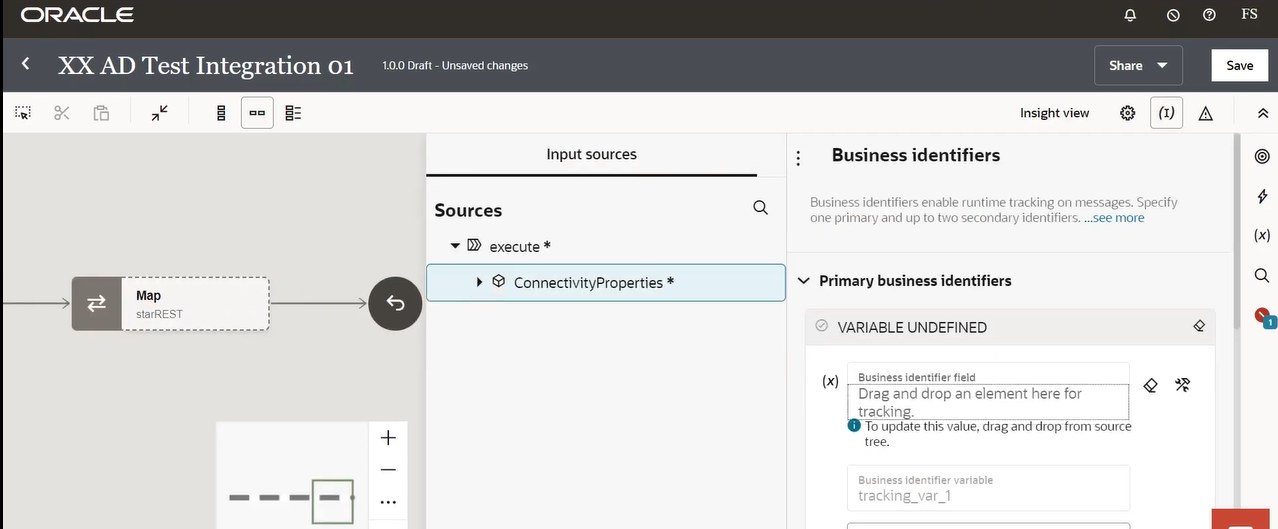
After completing the REST endpoint configuration and adding it into your integration flow, the next step is to set up Business Identifiers and review the mapping structure. The screenshot reflects this stage clearly, showing the mapping activity on the left and the Business Identifiers panel on the right. This step is essential for enabling effective monitoring and traceability within Oracle Integration Cloud (OIC).
On the left side of the screen, you can see the Map (starREST) activity. This mapping step is automatically generated when you include a REST action in your integration. Its role is to allow you to map incoming REST response elements to downstream integration components. Although the mapping window itself isn't fully visible in the screenshot, the layout indicates that you are currently selecting source elements for assignment or tracking.
In the center, under Input Sources, OIC displays the available source structures that originate from the REST response or the previous steps in the integration. In this example, you can see the expandable node execute and a child node labeled ConnectivityProperties. This tree represents available fields that can be mapped, referenced, or used as tracking identifiers.
The right-hand panel is the most significant part of this step: Business Identifiers. Business Identifiers are powerful OIC features that allow you to track messages at runtime. They act as markers, making it easier to search, troubleshoot, and analyze integration instances in the monitoring dashboard. Oracle allows you to define one primary identifier and up to two secondary identifiers.
In the screenshot, the section Primary business identifiers is visible, showing the message:
VARIABLE UNDEFINED
This indicates that no identifier has been configured yet. To create one, you must drag a meaningful field from the Sources panel (left side) and drop it into the box that says:
“Drag and drop an element here for tracking.”
Business identifiers should always be chosen based on values that uniquely help identify a message instance. Examples include:
- Order ID
- Invoice number
- Employee ID
- Request ID
- File name
- Transaction ID
These identifiers make monitoring easier, especially when hundreds or thousands of instances run daily. By defining one, you enable OIC to categorize each message in a traceable manner.
Below the drop zone, OIC automatically generates a variable name, such as tracking_var_1, ensuring internal consistency. You can rename this variable if needed, based on your naming conventions.
The purpose of this step is not limited to tracking; it also helps in debugging. When errors occur, having a meaningful identifier allows you to search for the failed instance quickly instead of manually sifting through large logs.
At the top-right of the screen, you see the Save option. It’s important to save the integration after configuring identifiers because these settings affect runtime visibility. Any changes made without saving will cause OIC to re-validate the integration, which might generate additional warnings.
On the rightmost side, you'll also see a notification icon (with one alert). This usually signals that a required field is missing, a mapping is incomplete, or an identifier is not yet defined. OIC uses real-time validation to help developers create error-free integrations.
Overall, Step 8 is about enhancing the observability of your integration. While mapping handles data transformation, business identifiers focus on monitoring clarity. Together, they significantly improve the manageability and debugging experience during integration runtime.
By completing this step, you ensure your integration is more traceable and easier to monitor. This becomes invaluable when your integration is promoted to production, where business users rely on clear tracking to validate transaction flow.
Adding Logger and Notification Actions to Enhance Monitoring and Workflow Visibility
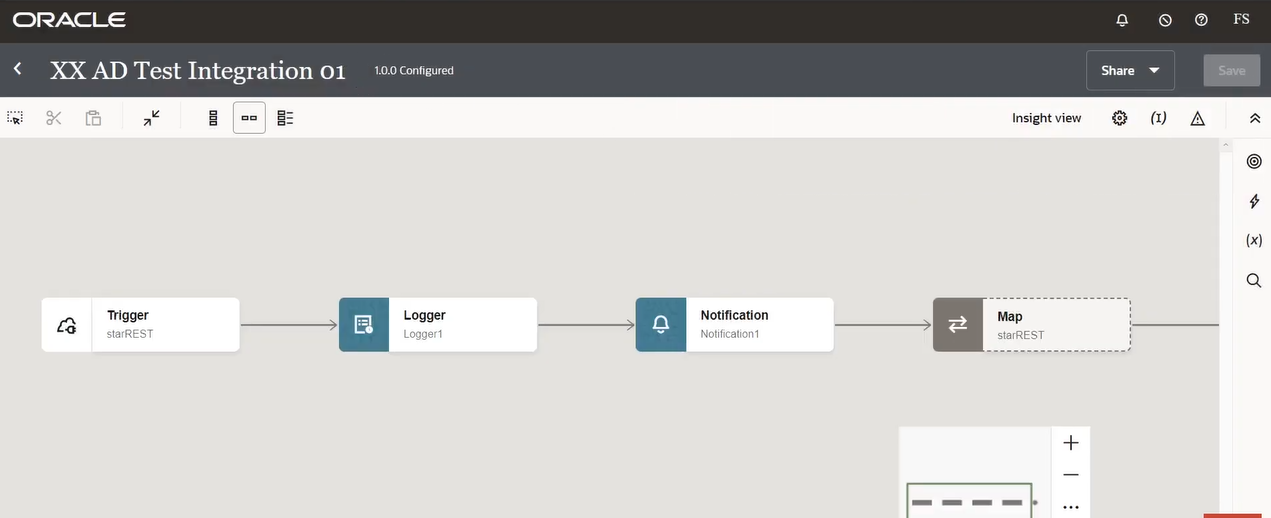
After configuring the REST trigger and completing the mapping and tracking setup, the next step is enriching your integration flow with additional actions that enhance visibility, traceability, and user communication. The screenshot shows a crucial part of the orchestration where two components—Logger and Notification—have been added between the Trigger and Map steps.
This step plays a significant role in ensuring that your integration provides clear insights during runtime and delivers important updates to administrators or assigned recipients.
On the left side of the flow, you can see the Trigger (starREST) component, which marks the beginning of the integration. As soon as the integration is invoked, the workflow moves into the next component, the Logger, labeled as Logger1. The Logger action is one of the most commonly used tools in OIC because it allows developers to print meaningful messages into the activity stream. These messages become extremely helpful during development, debugging, and monitoring. A Logger can output variable values, text messages, condition results, or any dynamic payload being handled at that point in the workflow.
By placing the Logger action immediately after the trigger, you ensure that the integration captures the incoming request details early in the process. This allows you to troubleshoot issues such as incorrect input data, malformed payloads, or unexpected values. When the integration fails at a later step, the Logger provides a checkpoint that helps identify whether the issue originated at the trigger level or deeper in the flow.
Next in the sequence, the flow moves into a Notification activity named Notification1. This step is designed to send a message, typically an email, to relevant stakeholders. Notification actions are very useful in scenarios where real-time updates are needed—such as acknowledging that an integration has been triggered, warning administrators of an unexpected condition, or confirming the successful completion of specific operations. Oracle Integration Cloud allows you to customize the content of the notification, including subject lines, body text, dynamic variables, and values retrieved earlier in the flow.
By placing a Notification between the Logger and the Mapping step, you create a natural checkpoint. This ensures that the system sends a message before proceeding with more complex operations like mapping the REST response, performing conditional logic, or invoking downstream systems.
Following the Notification is the Map activity, identified as Map (starREST). This step continues to transform the incoming data as originally configured. From the screenshot, you can see that the integration is currently 1.0.0 Configured, meaning the design has been validated successfully up to this point.
At the top-right corner of the designer, you also see controls like Share, Save, and the Insight View toggle. Saving frequently is recommended here because integrating Logger and Notification steps often requires configuration validations, and you do not want to lose progress due to unsaved changes.
Overall, Step 9 demonstrates how to strengthen your integration by adding meaningful checkpoints and user communication mechanisms. These enhancements are not only important for development and testing but also essential for production environments where administrators rely heavily on logs and notifications to understand workflow behavior, detect issues early, and confirm the successful execution of tasks.
By completing Step 9, your integration becomes more traceable, more transparent, and more user-aware. It gains the ability to log internal states, notify stakeholders, and provide a clear progression path before executing mapping or further transformation steps.
Activating the Integration and Selecting the Appropriate Tracing Level
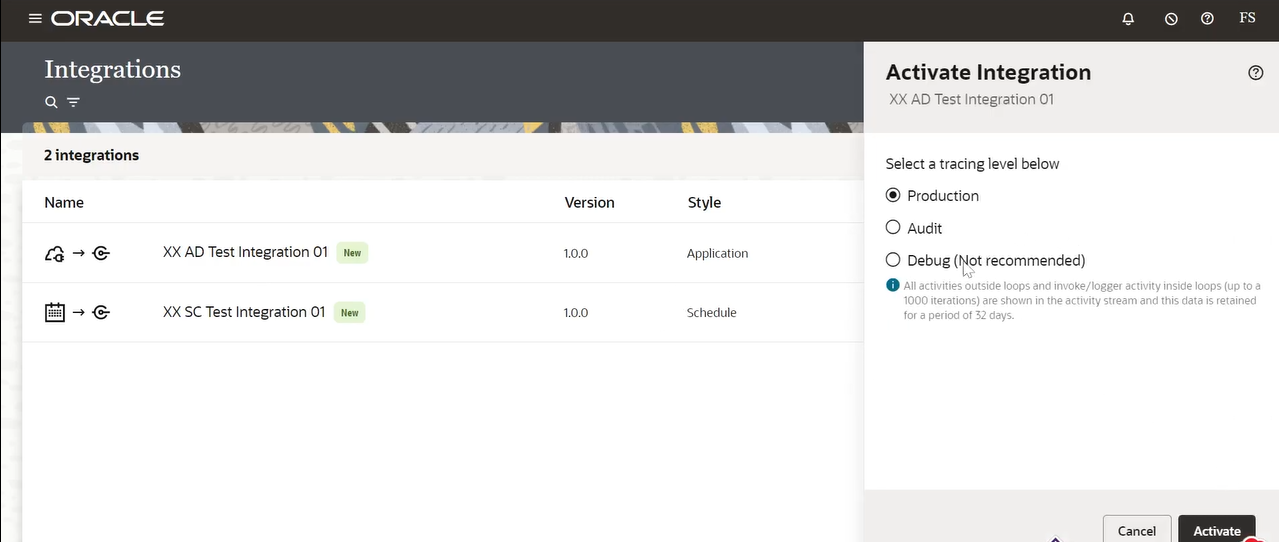
The final stage in building your integration is activation. Once all components—including triggers, mappings, loggers, notifications, and business identifiers—have been configured and validated, the integration becomes ready for deployment. The screenshot represents this critical moment where you activate XX AD Test Integration 01 and choose the appropriate tracing level, which determines how much runtime information Oracle Integration Cloud (OIC) logs and stores.
On the left side of the screen, you can see the Integrations Dashboard, displaying two integrations:
- XX AD Test Integration 01 (Application style)
- XX SC Test Integration 01 (Scheduled style)
Both integrations are marked New, indicating they have not been activated yet. Once activated, the status will change to Active, meaning the integration is live and ready to be triggered or scheduled. The right side of the screen shows the Activate Integration panel, which appears after selecting the integration and clicking the Activate button.
This panel is extremely important because it asks you to choose a Tracing Level. Tracing determines how much information the system captures during execution and how long it is stored. OIC provides three options:
1. Production (Recommended)
This is the default and recommended tracing mode for production environments. It logs only essential information required to monitor the health of integrations without collecting unnecessary details. It minimizes performance impact and ensures smooth, optimized execution. The logs retained in this mode are efficient and adequate for most real-world operations.
Production tracing is best used when:
- The integration is stable
- No major debugging is required
- The environment is running live business transactions
2. Audit
The audit tracing level captures more detailed information compared to Production. It tracks request and response payloads, making it useful for compliance and auditing purposes. This is commonly used when business processes require traceability and verification.
Audit tracing is suitable for:
- Financial workflows
- Data-sensitive integrations
- Scenarios requiring regulatory audit trails
3. Debug (Not recommended)
The third option is Debug, and as shown in the screenshot, it is clearly marked Not recommended. Debug mode logs highly detailed information, including:
- Every operation inside the integration
- Loop-level iterations (up to 1000)
- Logger outputs
- Payloads at each step
While Debug mode is extremely helpful during development or troubleshooting, it has two significant drawbacks:
- High performance impact — Excessive logging slows the integration and consumes system resources.
- Short-term retention — Debug logs are stored only for a limited period, typically 32 days, as mentioned beneath the option.
Use Debug mode only when:
- You are troubleshooting errors
- You need to inspect payloads in-depth
- You are diagnosing unexpected behavior
Because of these risks, Debug mode should not be used in production systems.
Finalizing Activation
At the bottom of the panel, you can see Cancel and Activate buttons. Clicking Activate finalizes the setup, after which OIC deploys the integration.
Once activated:
- The integration becomes available for runtime execution.
- Monitoring features begin tracking results based on the selected tracing level.
- The integration's status changes from New to Active.
- Any triggers (REST, schedule, events) become functional.
This step marks the official completion of your integration build. With tracing enabled appropriately, you ensure that runtime behavior is visible and manageable without compromising performance.
By completing Step 10, your integration is deployed, traceable, and ready for execution. You have successfully configured, enhanced, and activated a fully functional Oracle Integration Cloud workflow.
Testing the Integration Using the Built-In “Configure and Run” Panel

Once your integration is activated, the next crucial step is to test and validate its behavior. Oracle Integration Cloud provides a powerful built-in testing interface called Configure and Run, allowing you to simulate requests, pass parameters, and verify outputs without using external tools. The screenshot shows the testing screen for your integration XX AD Test Integration 01 (1.0.0).
At the top of the test panel, you can see the exact REST endpoint URL generated for this integration. In this case, the method is GET, and your endpoint path is:/ic/api/integration/v1/flows/rest/XX_AD_TEST_INTEGR_01/1.0/test
This URL is extremely important because you can use it externally for API clients like Postman, cURL commands, application integrations, or browser testing (for GET calls). Oracle automatically constructs this URL using the identifier, version, and resource URI defined during the REST configuration stages.
Below the endpoint section, the screen displays the Request configuration area. This panel allows you to pass any inputs required by the integration before executing it. The interface is divided into several tabs:
1. URI Parameters
This tab shows any path parameters defined in your REST resource. In your screenshot, the message indicates:
“This request does not have URI parameters.”
This means your endpoint does not require any dynamic values such as IDs or keys in the URL path. Since you are using a simple GET endpoint with no parameters, this tab remains empty.
2. Headers
This tab is used when the API requires custom HTTP headers. Examples include authorization tokens, API keys, content types, or correlation identifiers. For your integration, no headers appear to be required at test time.
3. Body
If your endpoint accepted JSON or XML input, this tab would allow you to paste the request payload. Since this is a GET request, which typically does not send a body, this section remains disabled.
4. cURL
This tab is extremely useful for developers. It provides a ready-made curl command that you can copy and run directly in a terminal to test the API externally. The cURL command includes the full endpoint path and request method.
5. Integration Properties
This section lets you dynamically assign values to any integration-level properties configured earlier. These could be parameters such as environment names, file paths, or flags used during execution.
On the right side of the screen, two important buttons appear:
- Endpoint Metadata – This displays structural information about the endpoint, such as expected request format and sample responses.
- Track Instances – This button redirects you to the monitoring dashboard, where you can view the execution logs, status, payloads, and business identifiers for each run.
At the top right, the Run button is visible. Clicking this triggers the integration immediately. Once executed, the lower half of the page will show the Response section, where you can:
- Inspect output payloads
- View headers returned by the integration
- Check for errors or warnings
- Confirm that the Logger and Notification steps executed properly
- Verify that business identifiers were passed correctly
This real-time execution helps ensure your integration is functioning exactly as expected. If any issues arise—such as missing values, authorization failures, or unexpected payloads—the test interface highlights them clearly so you can fix and retest quickly.
Testing inside OIC using this panel is extremely beneficial because it eliminates the need for external tools during early development. It also guarantees that all system configurations (connections, mappings, triggers, etc.) are recognized by Oracle before deploying integrations into production environments.
By completing Step 11, you have successfully reached the validation phase of your integration workflow. This ensures the logic, response behavior, and end-to-end flow are working correctly before moving into monitoring and lifecycle management.
Reviewing the Activity Stream to Verify End-to-End Execution

After running the integration using the Configure and Run panel, the next crucial step is reviewing the Activity Stream. The Activity Stream provides a real-time, detailed execution log of each event inside your integration. This step ensures your flow is running exactly as designed and helps you verify that every action—trigger, logger, notification, mapper—is functioning correctly.
In the screenshot, the Activity Stream appears on the right side of the screen while the testing interface remains on the left. This combined view allows you to submit the request and immediately observe how the system processes it.
At the top of the Activity Stream, you can see the Instance ID (for example: OFMb3ec_Ee2dZJFHKCu3Ug). Each execution of your integration generates a unique instance ID. This ID is extremely valuable for:
- Debugging issues
- Tracking specific runs
- Sharing logs with team members
- Comparing test results
Directly below the instance ID, you see the Tracing level: Debug label. Earlier, when you activated the integration, you selected Debug tracing—this is why you can now see detailed, step-by-step internal logs. Debug mode provides a deep insight into how your integration moves through each activity.
The log entries shown in the Activity Stream include timestamps, descriptions, and green check icons, which indicate successful completion. Let’s break down the entries visible in your screenshot:
1. Wire Message received by Trigger starREST
This means the integration successfully received a request at the REST endpoint. Since your integration uses a GET method, no request body was expected. The wire message confirms that the incoming request was accepted without issues.
2. Message started processing
Immediately after the trigger, OIC begins orchestrating the workflow. This confirms that the integration pipeline has started executing actions in sequence.
3. Logger – Logger1
This log entry indicates that your Logger action executed successfully. Whatever message you configured inside the logger—static or dynamic—was captured and recorded. This is extremely helpful for verifying input values, flow progress, or debugging variable states.
4. Message received by Notification Notification1
This means your Notification action (Notification1) was reached. At this stage, the integration constructed the notification message based on your configuration.
5. Message sent by Notification
This confirms that OIC successfully delivered the notification (usually an email). This is a critical checkpoint that demonstrates outbound communication was triggered without errors.
6. Message received by Data Mapper
This indicates the workflow has moved forward to the Mapping activity. It means the REST response or context data is now being processed, transformed, or passed to the next step of the integration.
Each of these logs provides validation that your integration’s internal workflow is performing as expected. A full debug trace like this not only confirms successful execution but also gives you a clear storyboard of the transaction life cycle.
On the left side of the screen, the Configure and Run panel still shows the request tabs (URI Parameters, Headers, Body, cURL, Integration Properties). Since this integration does not require input parameters or body content, the Body tab clearly states:
“This request does not have a body.”
This is normal for a simple GET-style integration.
The combination of the test request and the Activity Stream provides a powerful testing environment where you can:
- Validate the functional correctness of each step
- Confirm business identifiers work
- Ensure notifications are sent
- Check log outputs
- Verify mapping execution
- Identify performance timings for each component
Step 12 confirms that your integration not only runs but runs correctly from start to finish. This validation is essential before moving the integration into production or handing it over to users.