Building an Automatic Toll Gate With Arduino and RFID
by ElectroScope Archive in Circuits > Arduino
85 Views, 0 Favorites, 0 Comments
Building an Automatic Toll Gate With Arduino and RFID
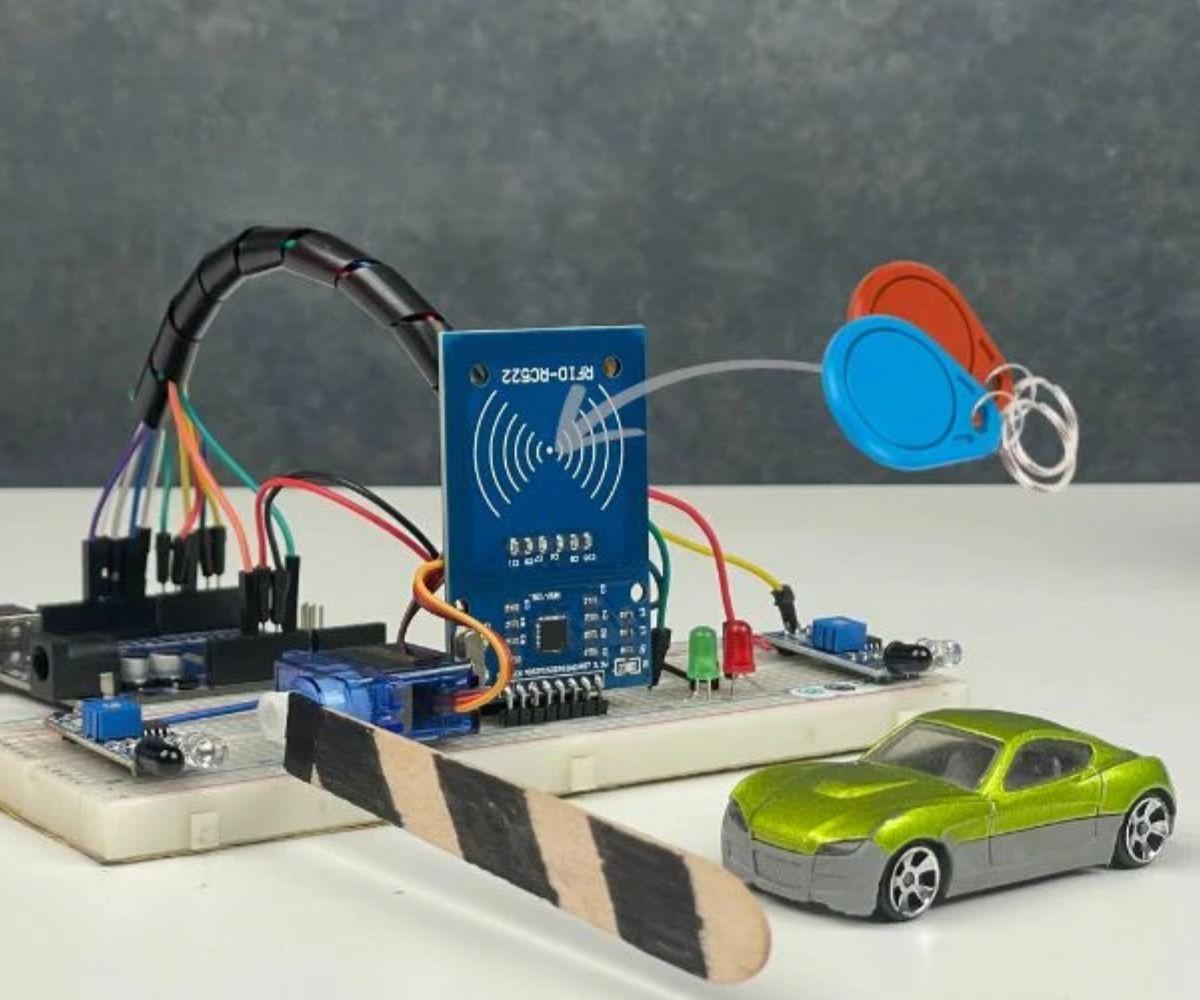
I recently built this automatic toll gate system using Arduino, and it turned out to be way more fun than I expected. The basic idea is simple: a car pulls up, scans an RFID card, the system checks if there's enough balance, deducts the toll, and opens the gate. Then it waits for the car to pass and closes everything back up. It's like a mini version of those highway toll systems, but sitting on your desk.
The whole project uses components you can grab pretty easily - an Arduino Uno, an RFID reader, a couple of IR sensors, a servo motor for the gate, and some LEDs for visual feedback. Nothing fancy or expensive. I had most of this stuff already lying around from other projects.
Supplies
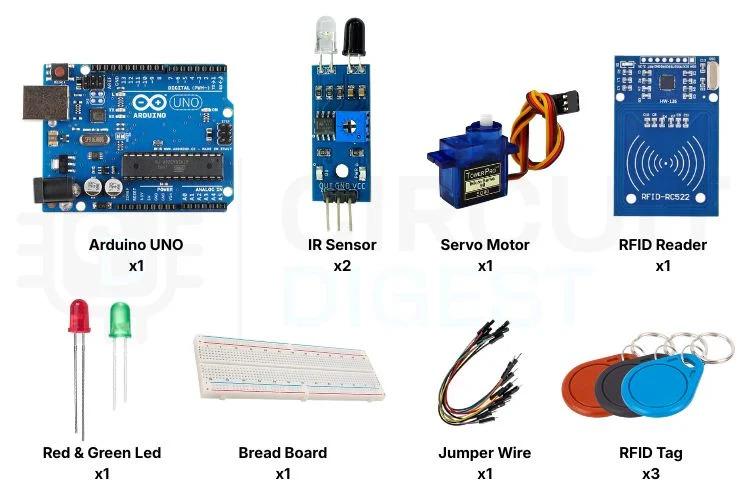
- Arduino Uno
- RC522 RFID Reader Module
- 3 RFID cards or tags
- 2 IR sensor modules
- 1 SG90 Servo motor
- 1 Red LED
- 1 Green LED
- Breadboard
- Jumper wires
- USB cable for Arduino
The RFID reader is the RC522 module that runs on 3.3V - that's important because if you hook it up to 5V you might fry it. The IR sensors work on 5V and they're the ones that detect when a car (or in my case, a toy car) is at the entry or exit point.
How It Actually Works
Before we start wiring things up, here's what happens when the system runs. The entry IR sensor sits there waiting. When it detects something, the Arduino starts looking for an RFID card. You tap your card on the reader, and the Arduino reads the unique ID.
I programmed three different cards into the system, each with its own balance stored as just a number in the code. Card 1 starts at 500, Card 2 at 300, and Card 3 at 0 (this one's for testing the "insufficient balance" scenario). The toll is set to deduct 20 each time. These are just arbitrary values you can change to whatever makes sense for your setup.
If your card has enough balance, the Arduino subtracts the toll amount, turns on the green LED, and rotates the servo motor 90 degrees to open the gate. The second IR sensor at the exit watches for the vehicle to pass through. Once it clears the gate, the servo rotates back to close it, the green LED turns off, and the red LED comes back on. System resets and waits for the next car.
Wiring Everything Together
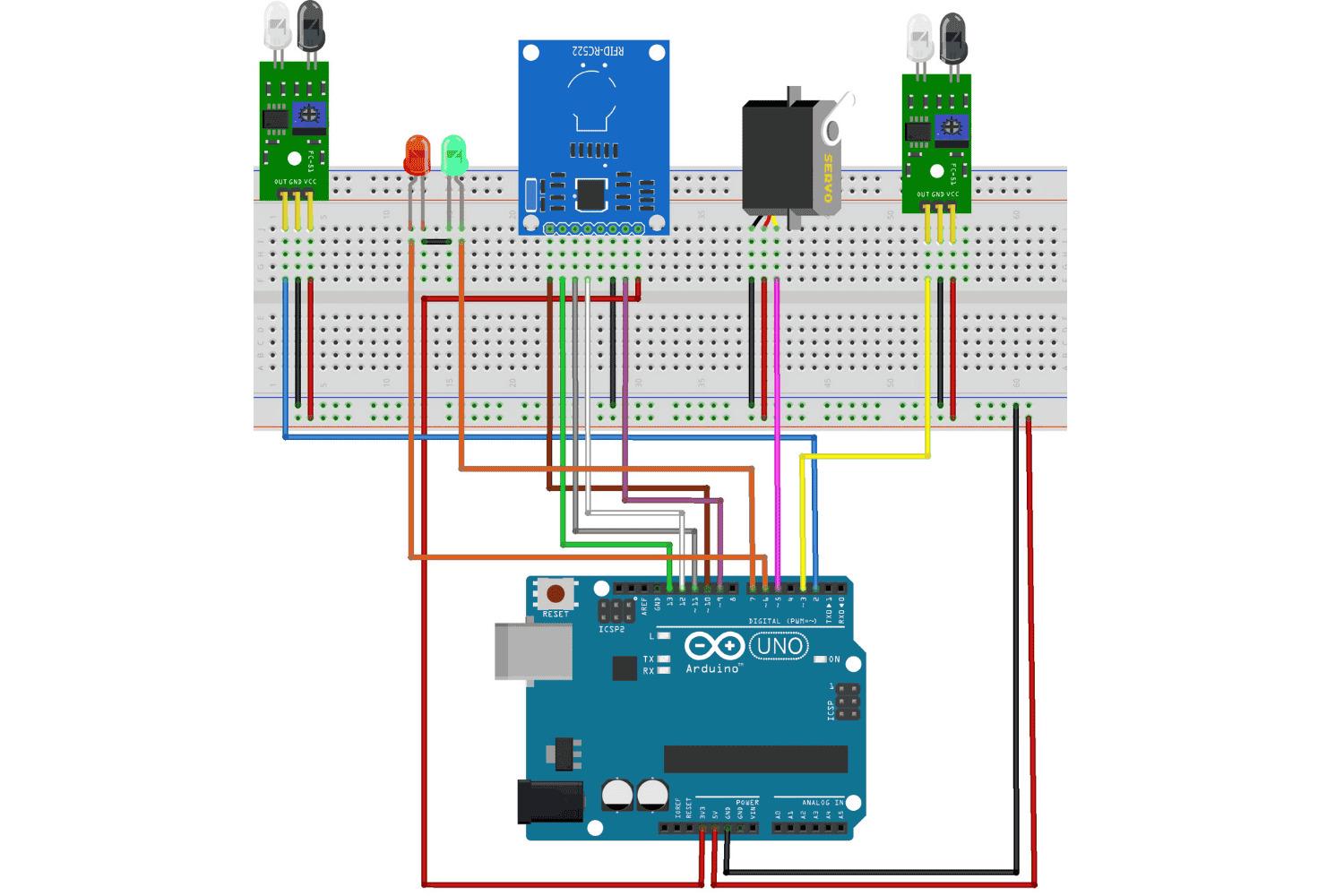
This is where it gets hands-on. I started with the RFID reader because it has the most connections.
RFID RC522 to Arduino:
- SDA to pin 10
- SCK to pin 13
- MOSI to pin 11
- MISO to pin 12
- GND to GND
- RST to pin 9
- 3.3V to 3.3V (not 5V!)
I can't stress enough - use the 3.3V pin on the Arduino. I almost made this mistake and caught it just in time. The module will work initially on 5V but you'll damage it eventually.
IR Sensors:
The entry sensor output goes to pin 2, and the exit sensor output goes to pin 3. Both sensors need 5V power and ground. If your IR sensors have potentiometers on them (mine did), you can adjust the detection range by turning those little screws. I set mine to about 10-15cm detection range.
Servo Motor:
- Signal wire to pin 5
- Red wire (VCC) to 5V
- Brown wire (GND) to GND
LEDs:
The red LED goes to pin 6 and the green LED to pin 7. Don't forget current-limiting resistors if your LEDs need them - I used 220 ohm resistors. Both LED grounds connect to the Arduino ground rail.
The circuit looks messy at first with all those wires, but if you take it one component at a time it's not bad. I used different colored jumper wires to keep track of what's what - red for power, black for ground, and other colors for signals.
Programming the Arduino
You'll need three libraries for this project. Open the Arduino IDE and install them through the Library Manager:
- SPI (usually comes pre-installed)
- MFRC522 (for the RFID reader)
- Servo (usually comes pre-installed)
The code is organized into sections. First, we define all the pins:
Then we create objects for the servo and RFID reader, and set up our card data. You need to get the actual UID from your RFID cards - I'll show you how in a minute:
To find your card's UID, you need to run a test sketch first. In the Arduino IDE, go to File > Examples > MFRC522 > DumpInfo. Upload that to your Arduino, open the Serial Monitor, and scan each of your cards. It'll print out a bunch of info including the UID - a series of bytes like "DE AD BE EF". Copy those values into your Tag arrays.
The setup function initializes everything:
The main loop keeps the gate closed and red LED on by default. When the entry IR sensor triggers, it waits for an RFID card:
I wrote helper functions to compare the card UIDs and handle the payment logic:
The openGate function handles the actual gate operation:
Testing It Out

I built a small cardboard frame to mount the servo as an actual gate arm. Just a popsicle stick attached to the servo horn works great. Position your IR sensors so the entry one can detect a vehicle approaching, and the exit one sits beyond where the gate arm would be.
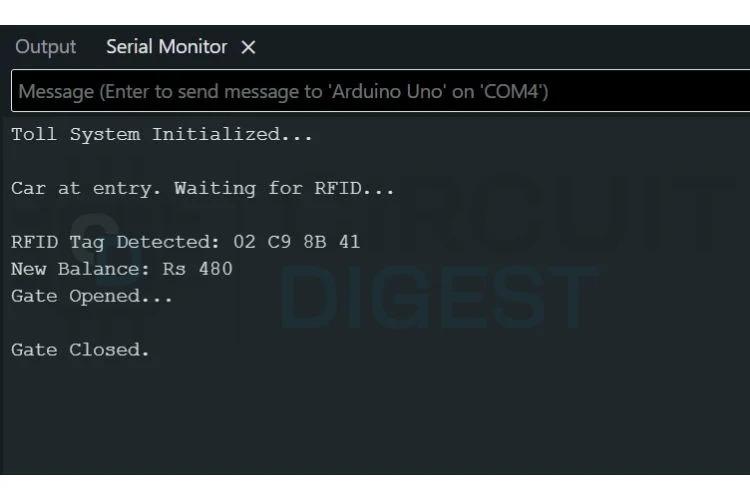
When you power it up, open the Serial Monitor and set it to 9600 baud. You should see "Toll gate system ready". The red LED should be on and the gate closed.
Place something in front of the entry sensor. You should see "Vehicle detected. Scan RFID card..." Now tap your RFID card on the reader, keeping it within about 5cm of the antenna. If everything's wired correctly, you'll see the card get recognized, the balance deduction happen, and the gate will open with the green LED turning on.
Move your object past the exit sensor. The gate should close and the red LED should come back on. The Serial Monitor will show "Vehicle passing..." and then "Gate closed". Pretty satisfying to watch it work!
Try scanning Card 3 (the one with 0 balance) and you'll see the red LED flash three times and get an "insufficient balance" message. Good to test that the denial logic works too.
When Things Don't Work
RFID reader not detecting cards: This was my first issue. Double-check that you're using 3.3V, not 5V. Also make sure all the SPI wires (MOSI, MISO, SCK, SS) are connected firmly. Sometimes breadboard connections can be loose. The card needs to be within about 5cm of the reader antenna. If you're still having trouble, upload the DumpInfo example sketch to verify the reader itself is working.
Servo not moving: If the servo doesn't move at all, it might not be getting enough power. The Arduino's 5V pin might not supply enough current if you have a lot of other stuff connected. Try powering the servo from a separate 5V source (but keep the grounds connected). Also verify the signal wire is on pin 5 and that you're calling gateServo.attach(SERVO_PIN) in setup.
IR sensors always triggered: These sensors have a potentiometer you can adjust. If they're too sensitive, they'll trigger on anything, even ambient light. Turn the pot screw to decrease sensitivity until they only detect objects within your desired range. I also found that shielding them from direct sunlight helps a lot. Test them by watching the onboard LED - it should only light up when something's actually in range.
Gate closes too fast: If the gate closes before your test object fully passes, increase the delay in the openGate function. I set mine to 1000ms (one second) after the exit sensor triggers, which gives plenty of clearance. You can make this longer if needed.
Wrong card gets recognized: Make absolutely sure you copied the UIDs correctly from the DumpInfo sketch. They need to match exactly, including the order of the bytes. Print out the scanned UID in your code to compare:
Balance doesn't update: The balance should decrease each time a valid card is scanned. Check the Serial Monitor to see the new balance being printed. Remember that the balances reset to their starting values every time you power cycle the Arduino. If you want them to persist, you'd need to store them in EEPROM, but that's beyond this basic version.
Making It Better
Once you have the basic version working, there are tons of ways to expand it. I'm thinking about adding a 16x2 LCD display to show the balance and toll amount as you scan. That would make it much more user-friendly than having to check the Serial Monitor.
You could also add WiFi with an ESP8266 module and log all the transactions to something like ThingSpeak or a Google Sheet. Or add an SD card module to keep local logs. A buzzer for audio feedback would be nice - different tones for success versus denied access.
For a more realistic demo, you could set up multiple lanes with separate systems. Or implement variable toll rates - maybe higher amounts during certain hours, or different rates for different card types.
The balances could be stored in EEPROM so they persist when you power off the Arduino. Right now everything resets when you unplug it. You could also add buttons to "recharge" the cards without having to re-upload the code.
If you really wanted to get fancy, you could write actual data to the RFID cards themselves instead of just reading their UIDs. The RC522 can write to certain types of cards, so you could store the balance on the card rather than in the Arduino's memory.
Final Thoughts
This Automatic Toll Gate System Project Using Arduino took me about three hours from start to finish, including the time I spent troubleshooting my initial wiring mistakes. It's a good intermediate Arduino project - not too simple, but not overwhelming either. You learn about SPI communication with the RFID module, basic sensor input, servo control, and how to structure a program with multiple components working together.
The best part is seeing everything work as a system. Each component does its job, and when you put them all together, you get this satisfying automated process. It definitely gave me ideas for other automation projects.
The code structure makes it easy to customize. Want to add more cards? Just add another Tag array and balance variable, then add another else-if block in the checkAndProcess function. Want to change the toll amount? Just modify the tollAmount variable. Want the gate to open to a different angle? Change the 90 in gateServo.write(90) to whatever you want.
If you build this, the Serial Monitor is your best friend for debugging. Add print statements everywhere to see what's happening at each step. I probably had "Serial.println" scattered all over my code while I was testing, then cleaned it up later.
One thing I learned is that the IR sensors can be finicky depending on what material you're trying to detect and the lighting conditions. Dark objects work better than shiny ones. And definitely test the range adjustment before you glue anything down permanently.