Build a Computer!
.jpg)
The reason you would want to build your own computer is to ensure its desired functionality is to your personal standards. For example, if you are looking for a gaming computer, you may select different parts than if you were building a 3D animation computer.
Supplies
In this instruction manual:
- Ensure Proper Safety Measures
- Computer Case
- The Power Supply
- The CPU
- Application of Thermal Paste
- Installation of Heat Sink/Cooling Fan
- Install of Mother Board
- Install of Fan(s)
- Install The RAM (Note The Notch on The Stick & Slot!)
- Install The Graphics Card (If Relevant)
- Plug In The Cables
- Verify It Posts
Ensure Proper Safety
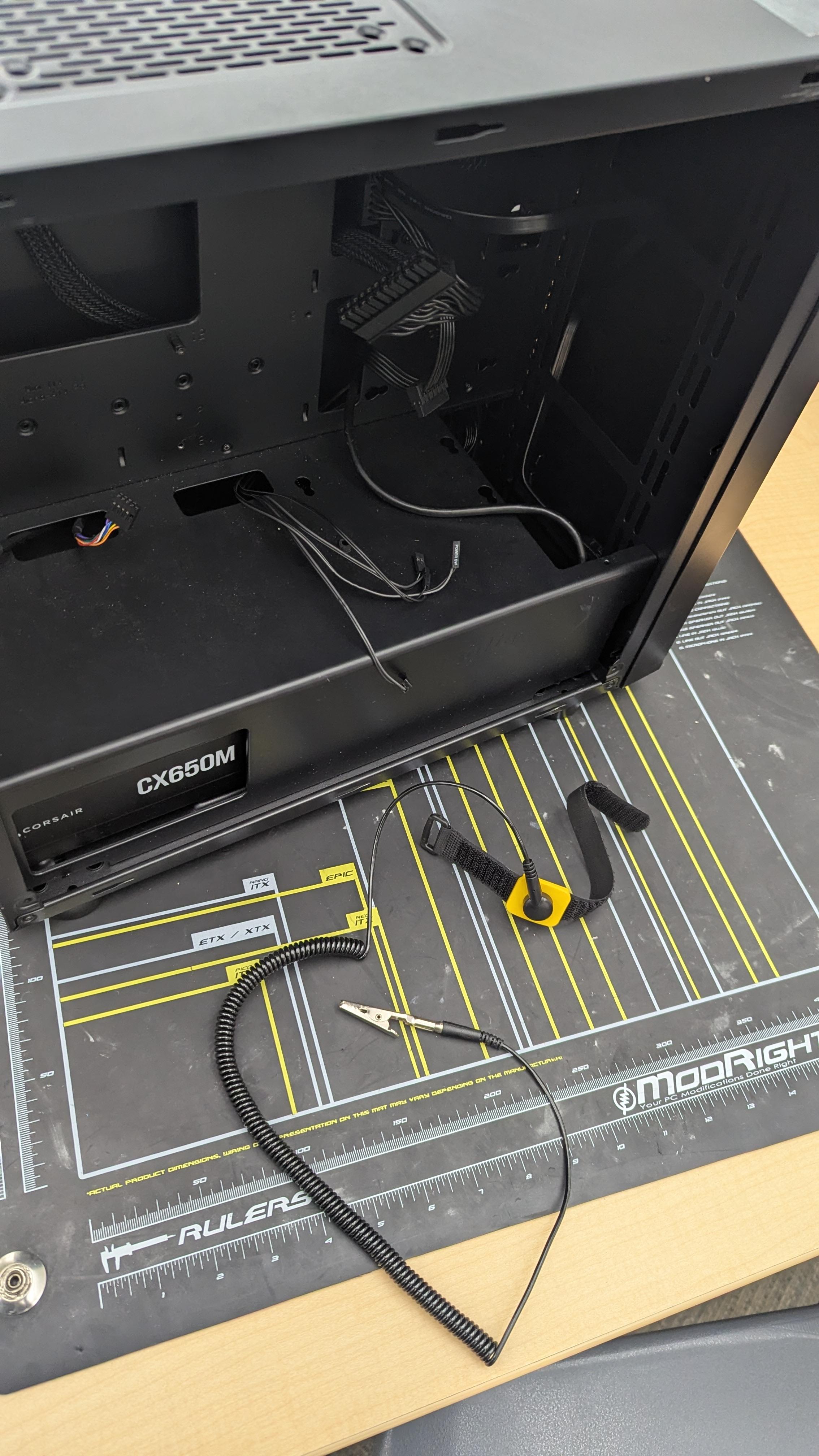
Be prepared to assemble your computer by placing the case upon an anti static mat, make sure to have your anti static wrist band on standby as you will need it momentarily.
Computer Case


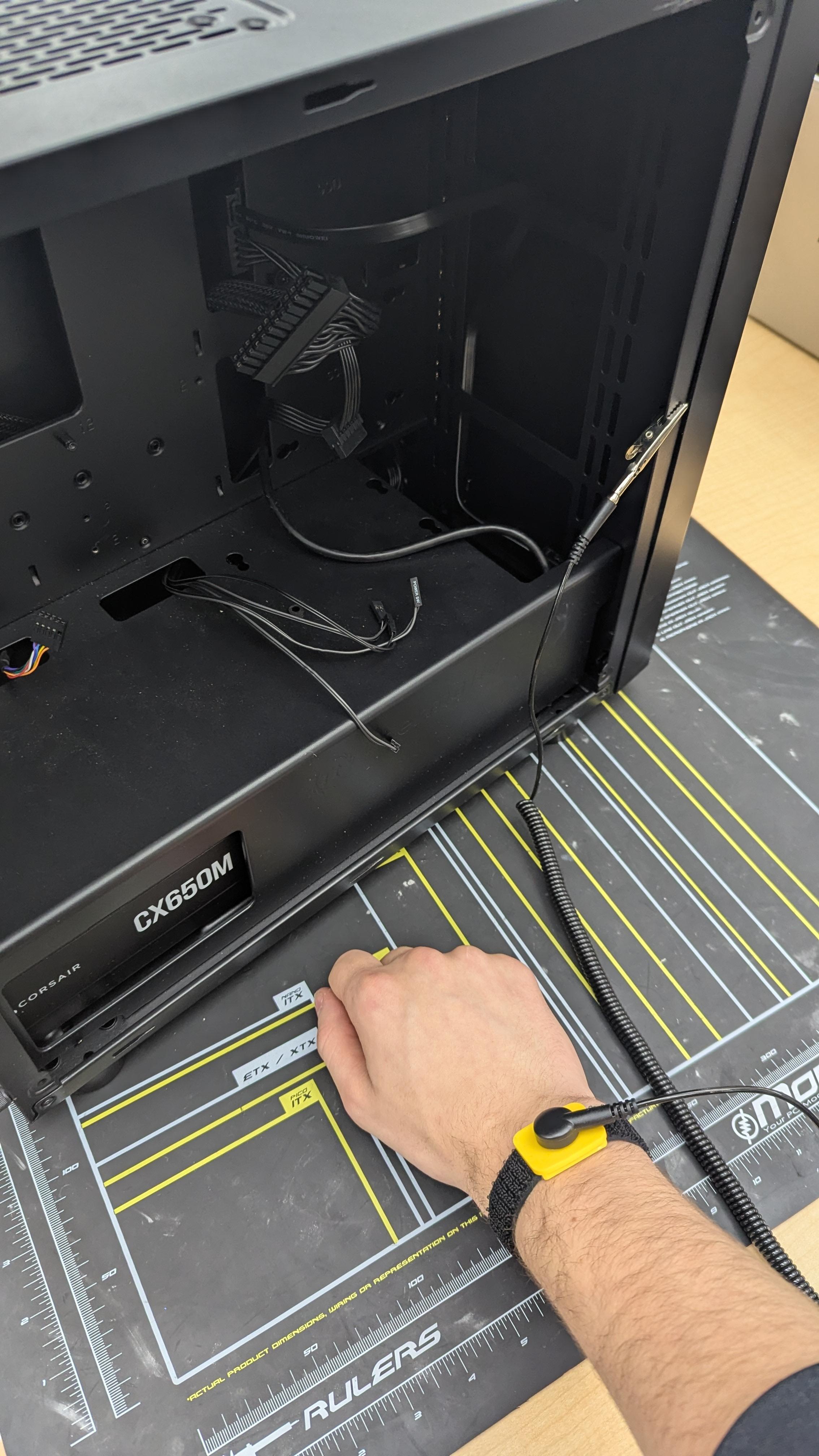
Place the empty computer case on top of the anti static mat to begin.
Remove the side panel on the computer case by unscrewing the screws holding it in place, after unscrewing, slide the panel toward the backside of the PC and then pull away from the PC.
Place the panel off to the side, you will not need it for a while.
Now equip your anti static wrist band and clip it to the outer case on the computer case.
Power Supply (P.S.)
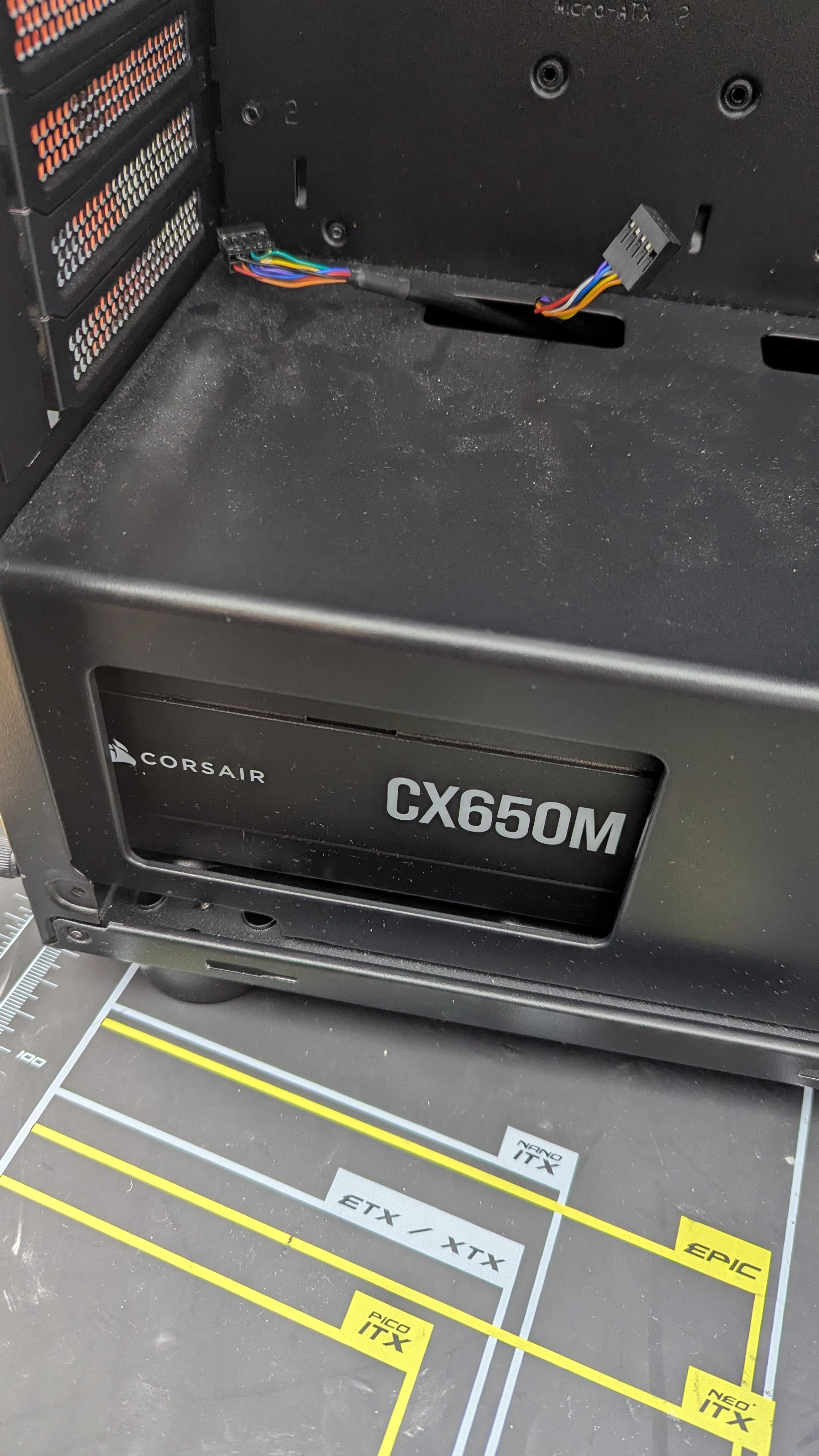
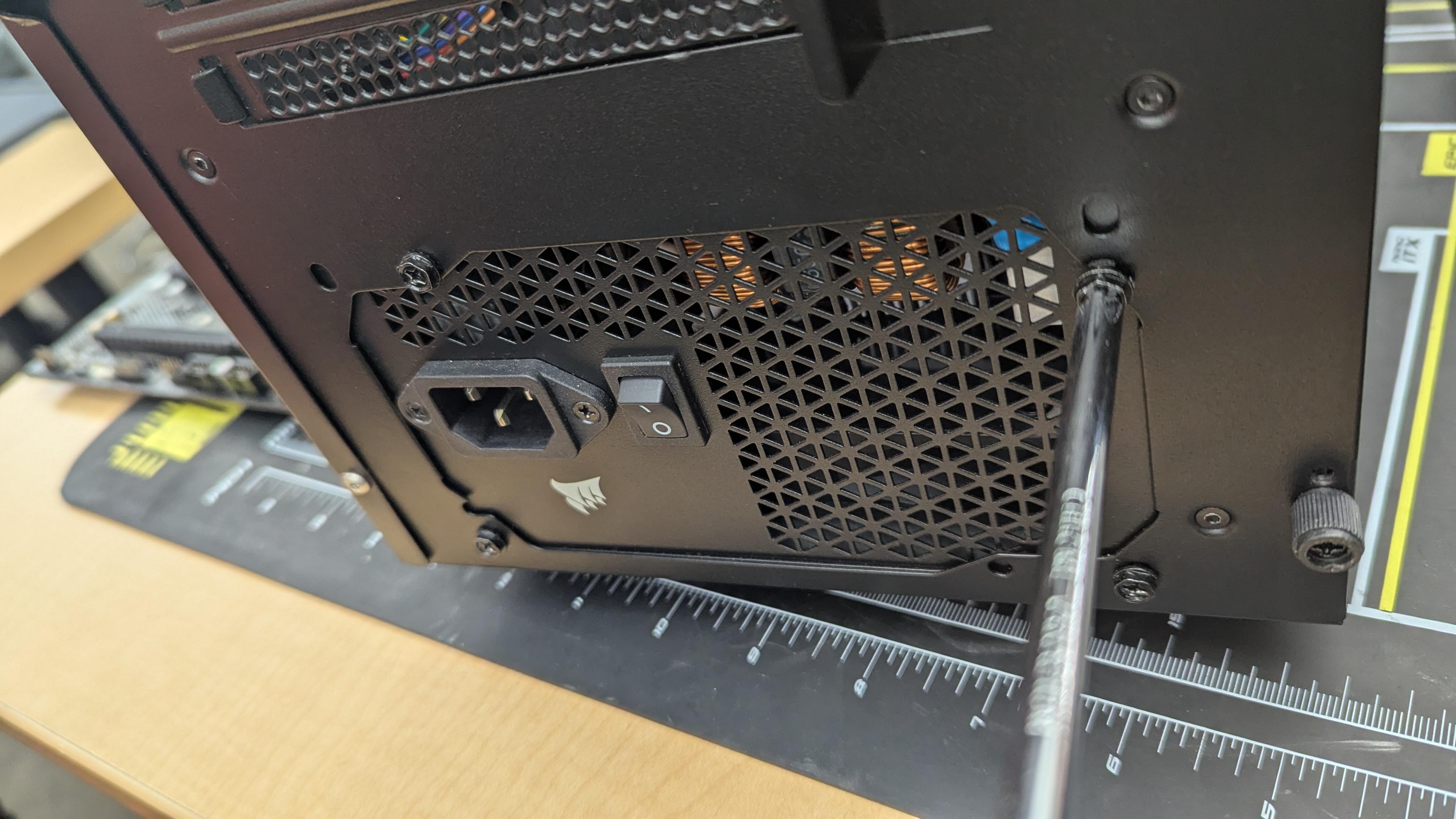
With your case open, gingerly place your P.S. on the bottom of the case towards the back side so that the cables are inside the case.
then take the four screws and attach the P.S. to the case using the conveniently place screw holes.
CPU

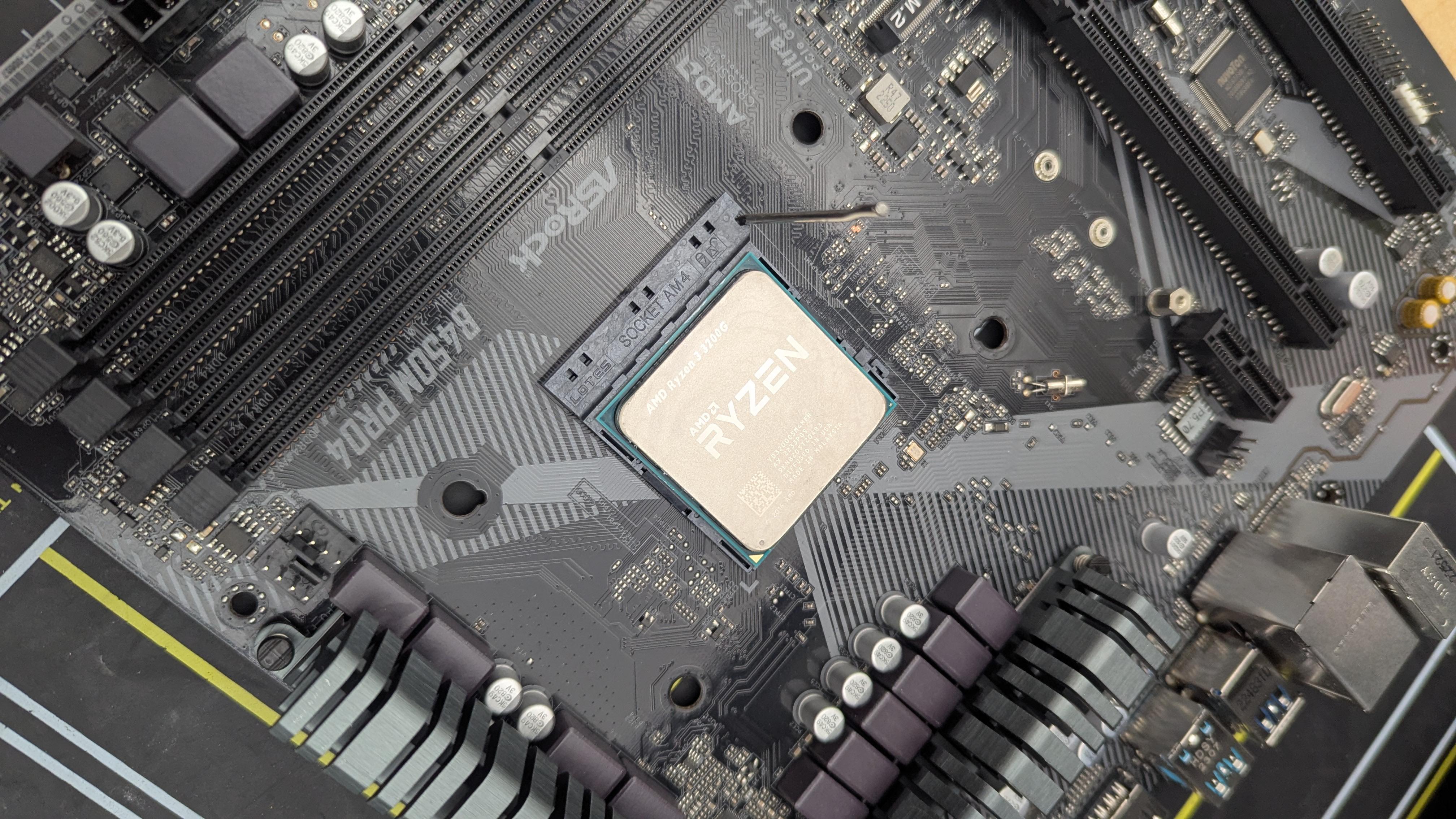
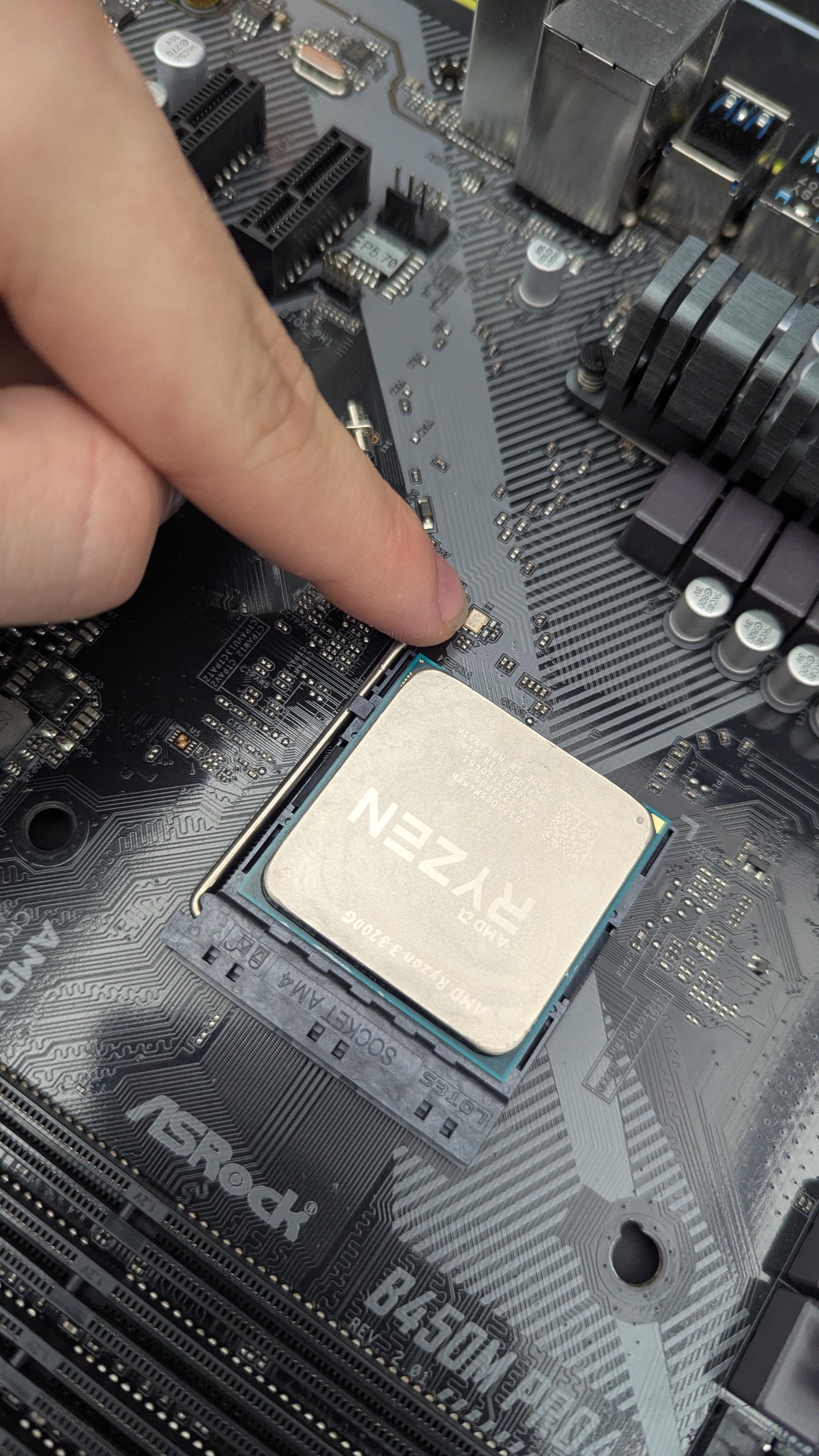
While you have you Mother Board in front of you, take your CPU and place it in the socket, ensure the gold triangle on the CPU is aligned with the triangle on the socket.
Make sure you have the appropriate CPU for the socket on your mother board!
After you have the CPU in its proper place, use the clamp (metal lever arm) and push it downwards towards the Mother Board, slide the arm under the lip so that it does not come back up. Pushing the arm down may require some force.
Thermal Paste
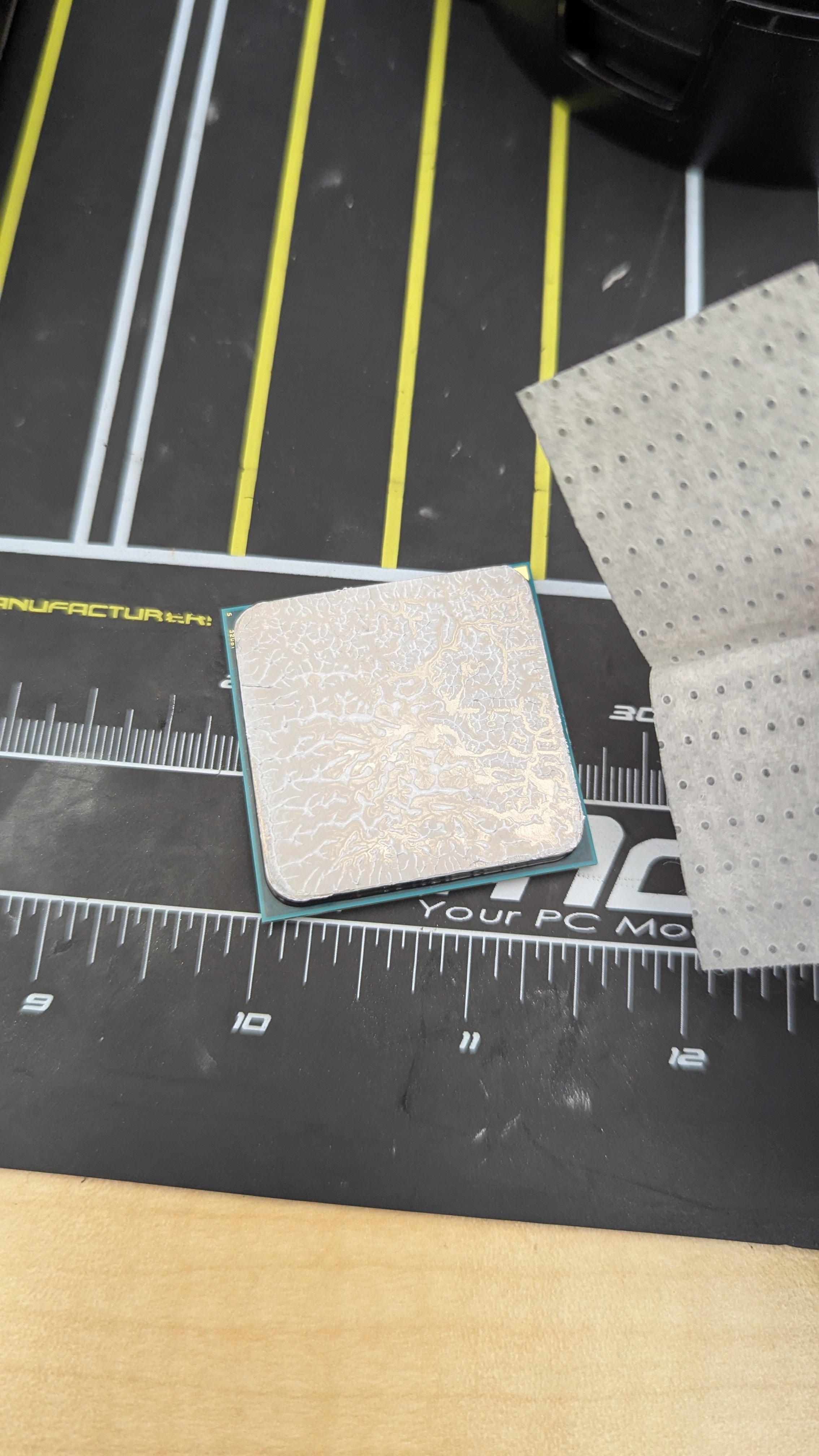
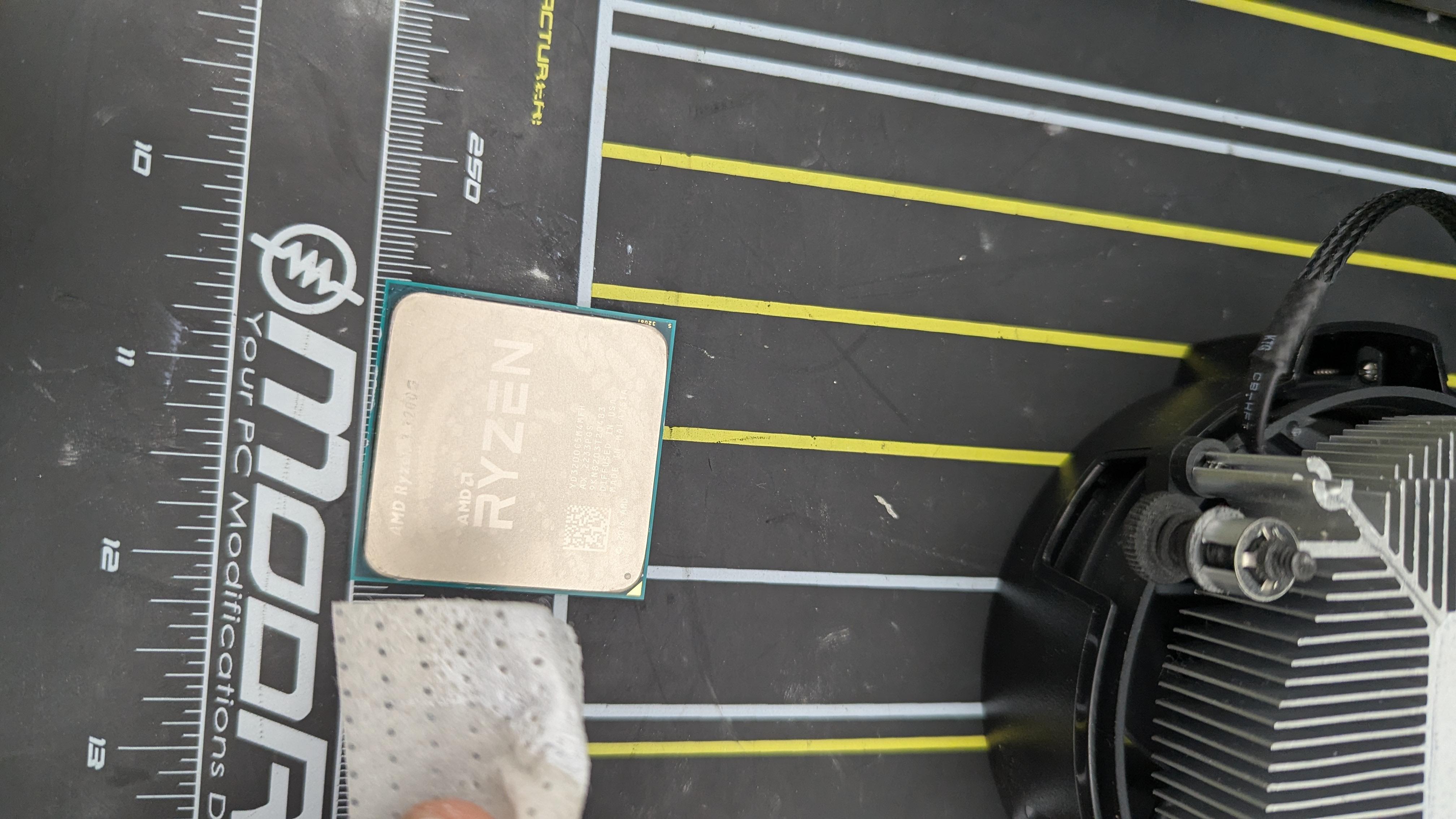
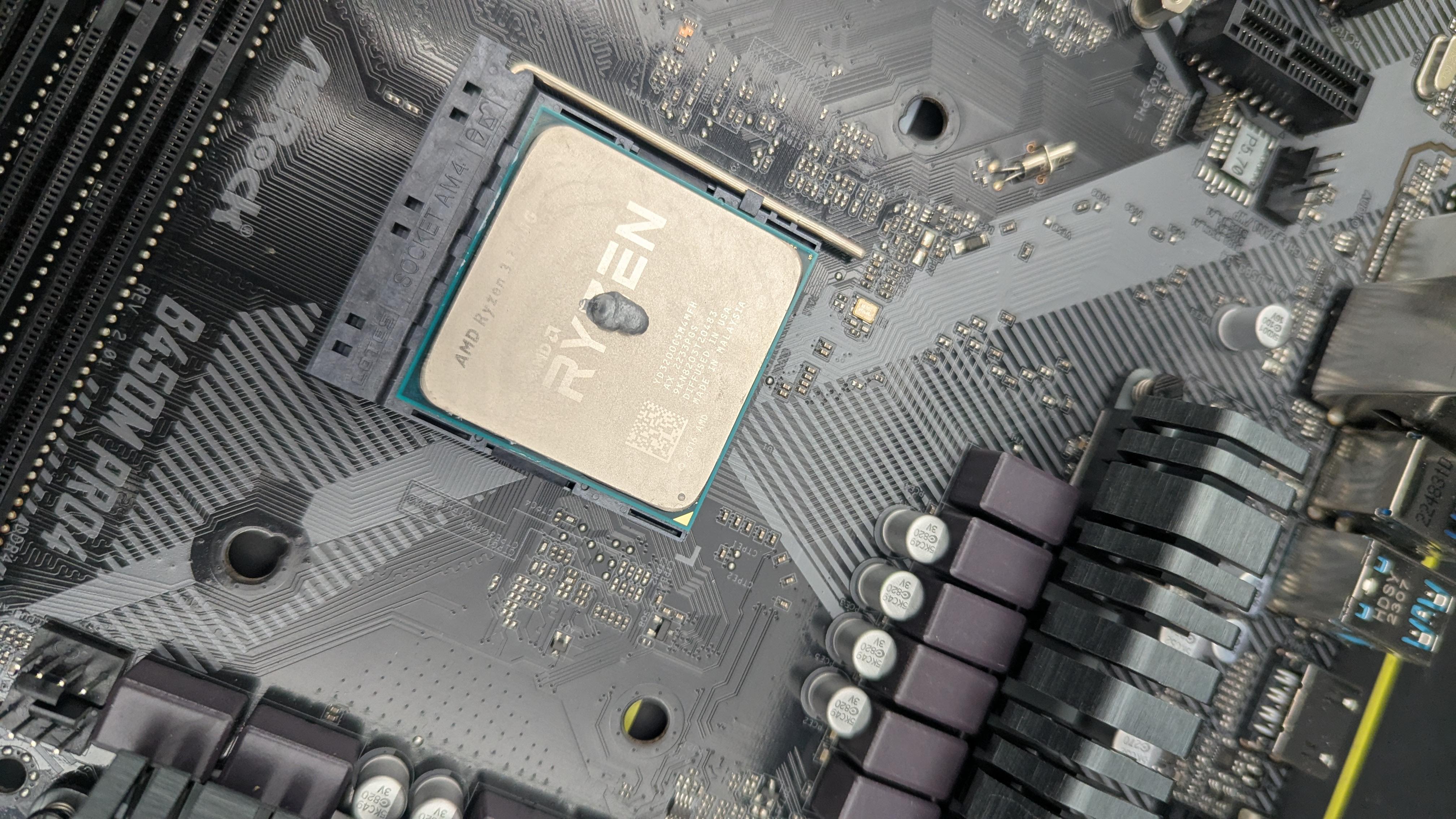
Now that the CPU is in, we must put thermal paste on it!
Clean the top of the CPU with an alcohol wipe to make sure there is no additional thermal paste on the CPU.
Now that it is clean apply a pea-sized dot of thermal paste in the center on top of the CPU.
Heat Sink/Cooling Fan
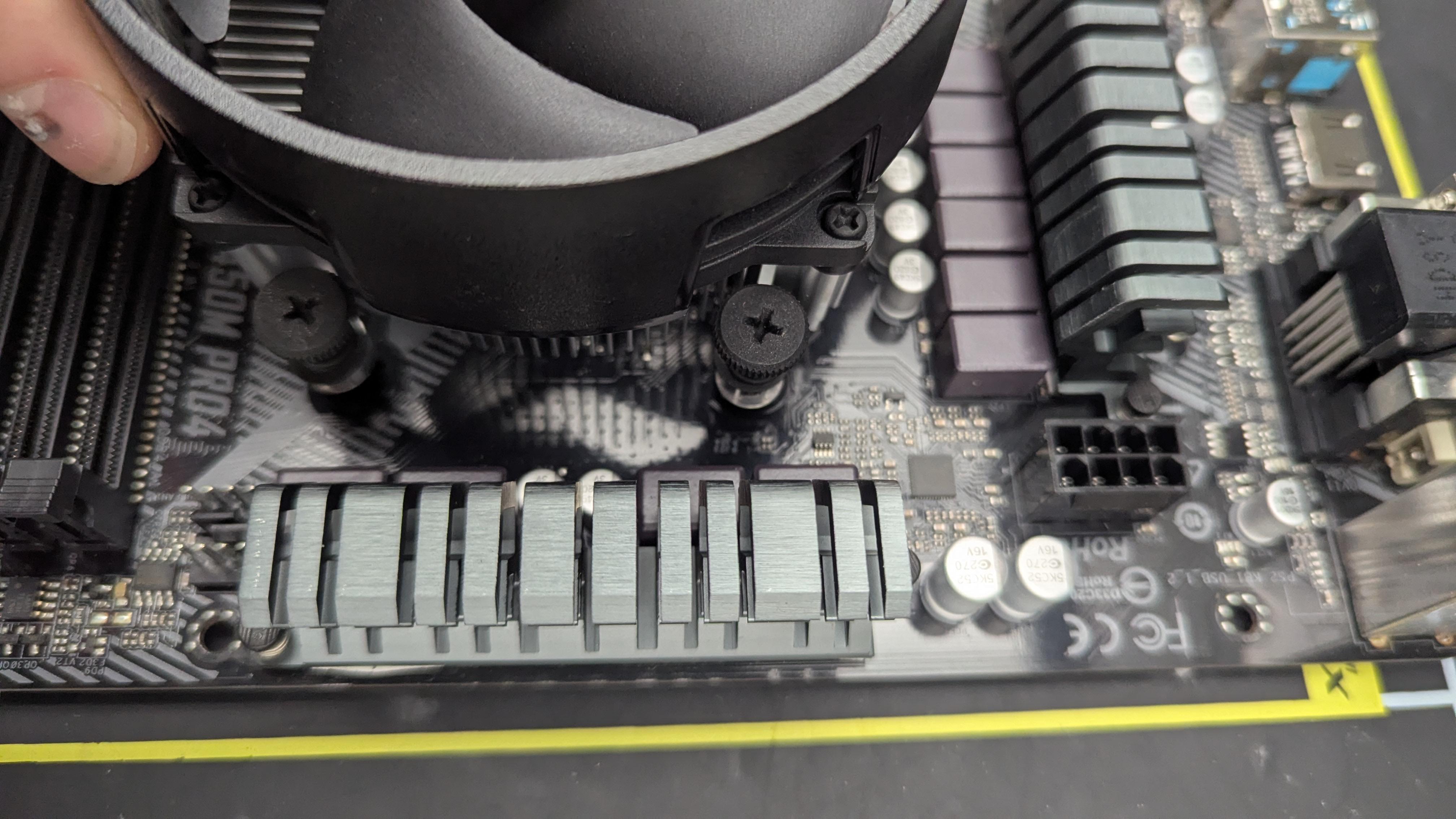

With the thermal paste on the CPU we can put the heat sink on.
Place the heat sink directly on top of the CPU so that the thumb screws line up with the standoff holes on the mother board.
Now screw in the thumb screws, make sure they are not so tight that you can't undo them with your fingers.
Install Mother Board

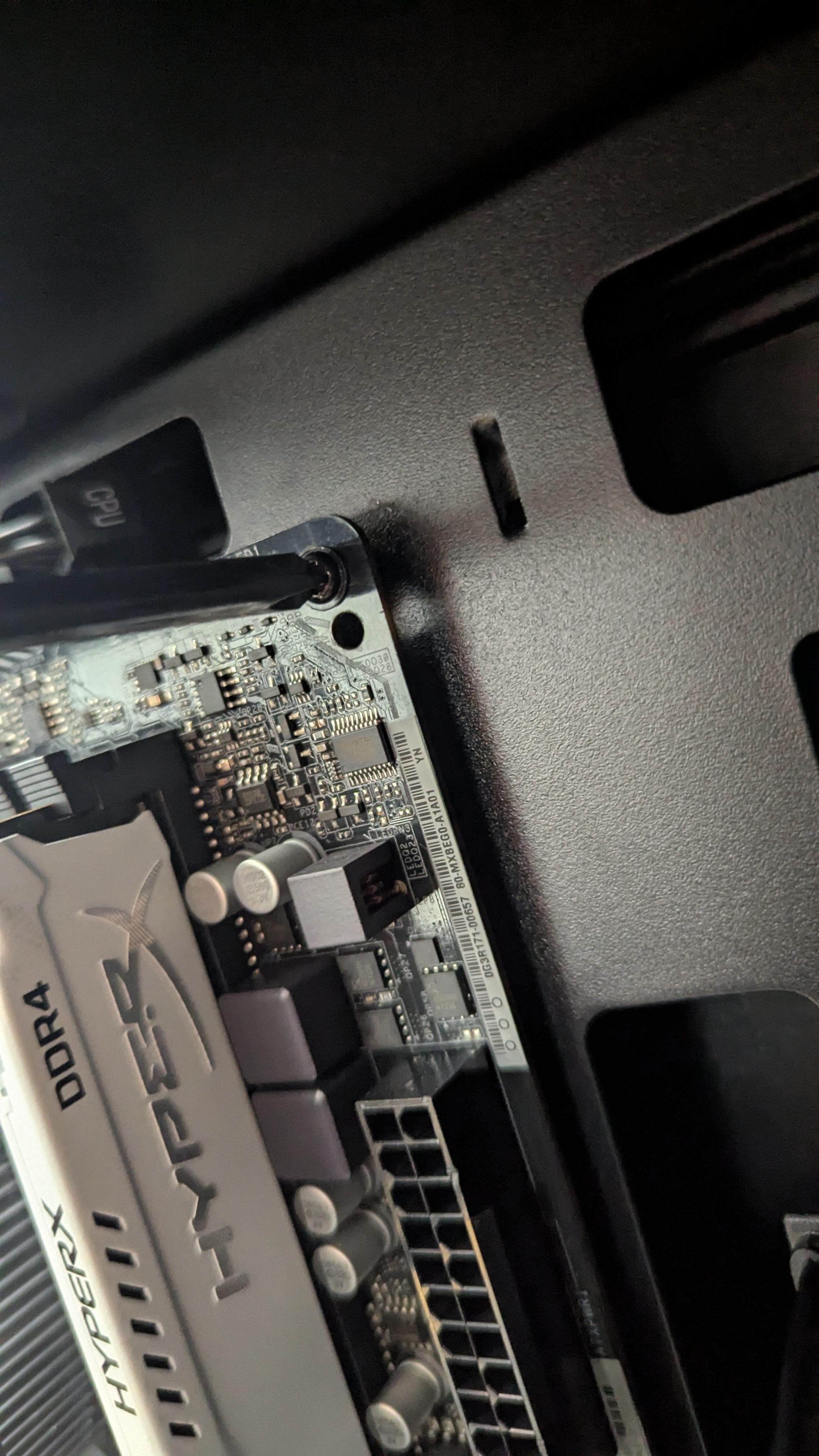
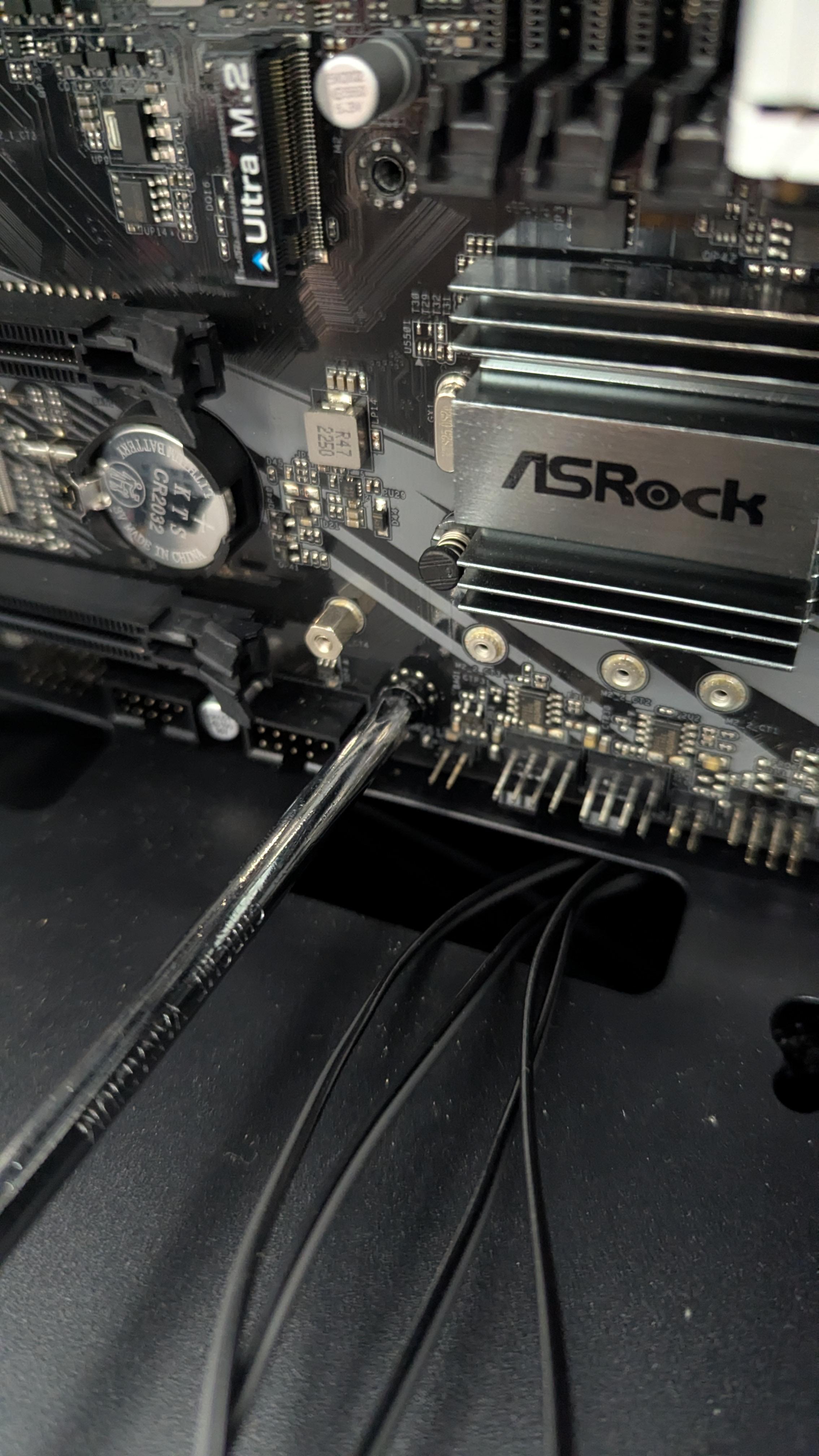
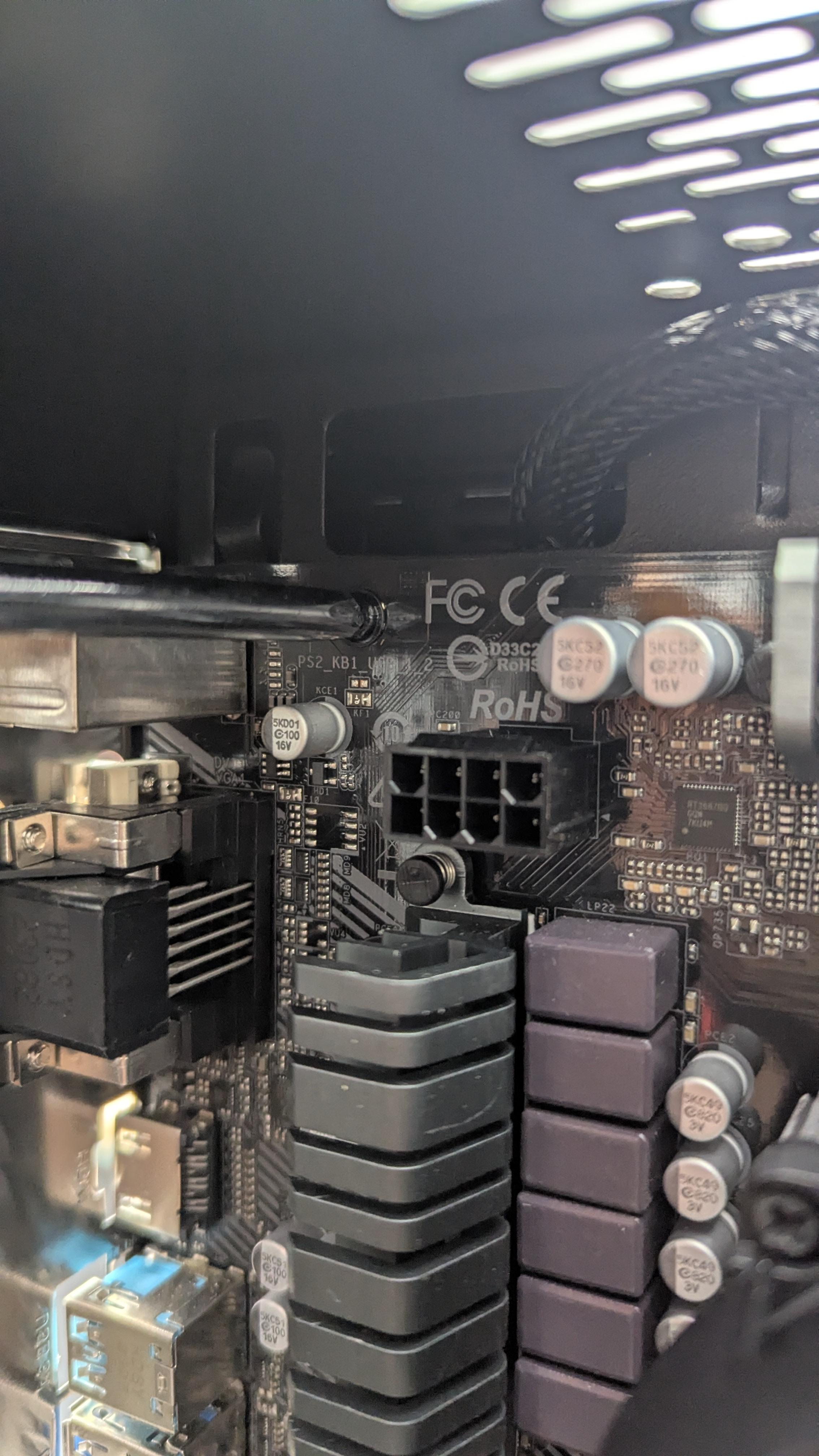
With the computer case still open slot the Mother Board into place while lining up the IO slot with the various plugs and such present on the Mother Board.
Once the Mother Board is in its correct place utilize the four or five screws and accompanying screw holes to secure the Mother Board in place.
Install Fan(s)
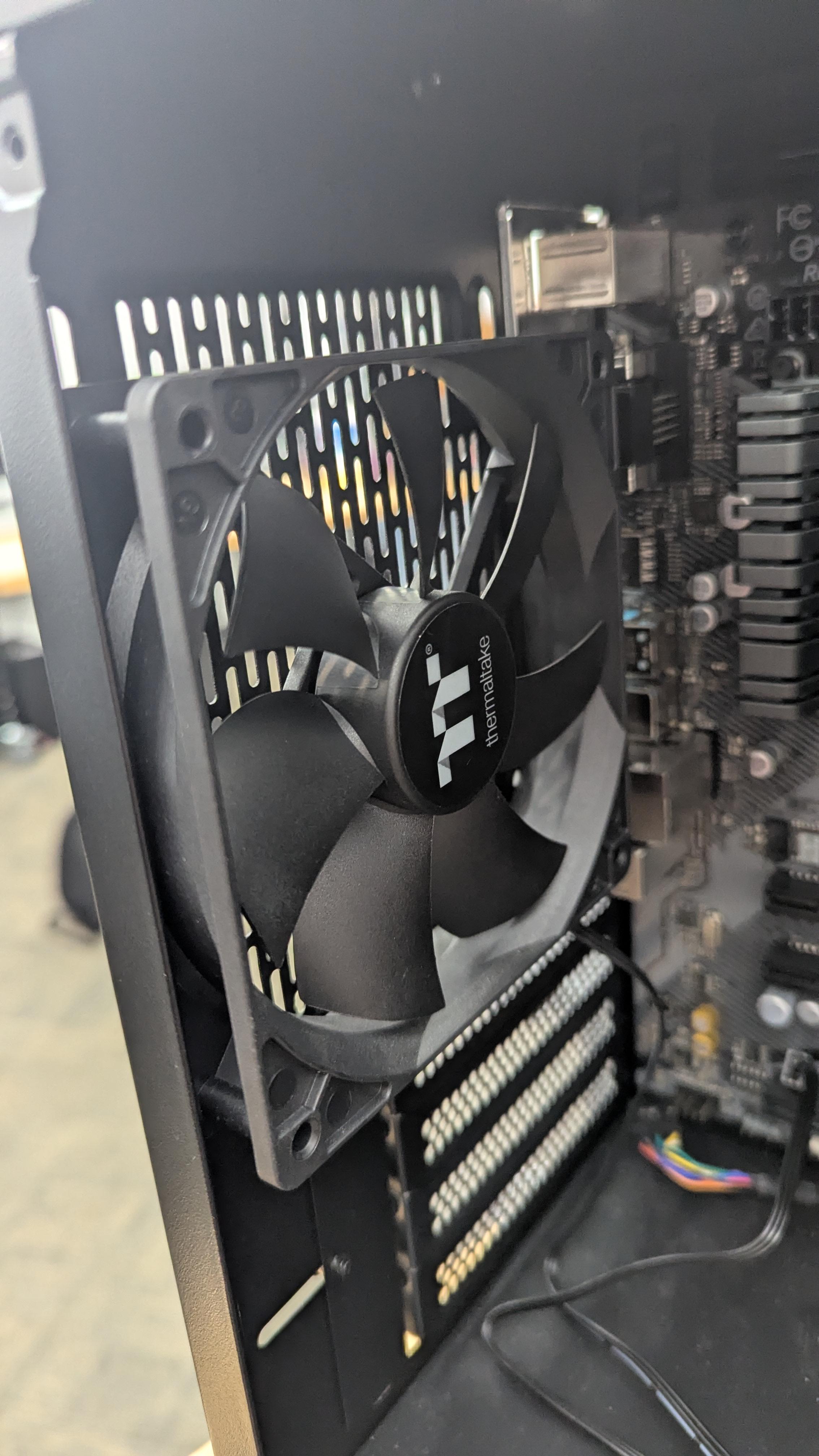
Using the appropriate screws attach the fan to a open vent on the side of the computer case.
RAM
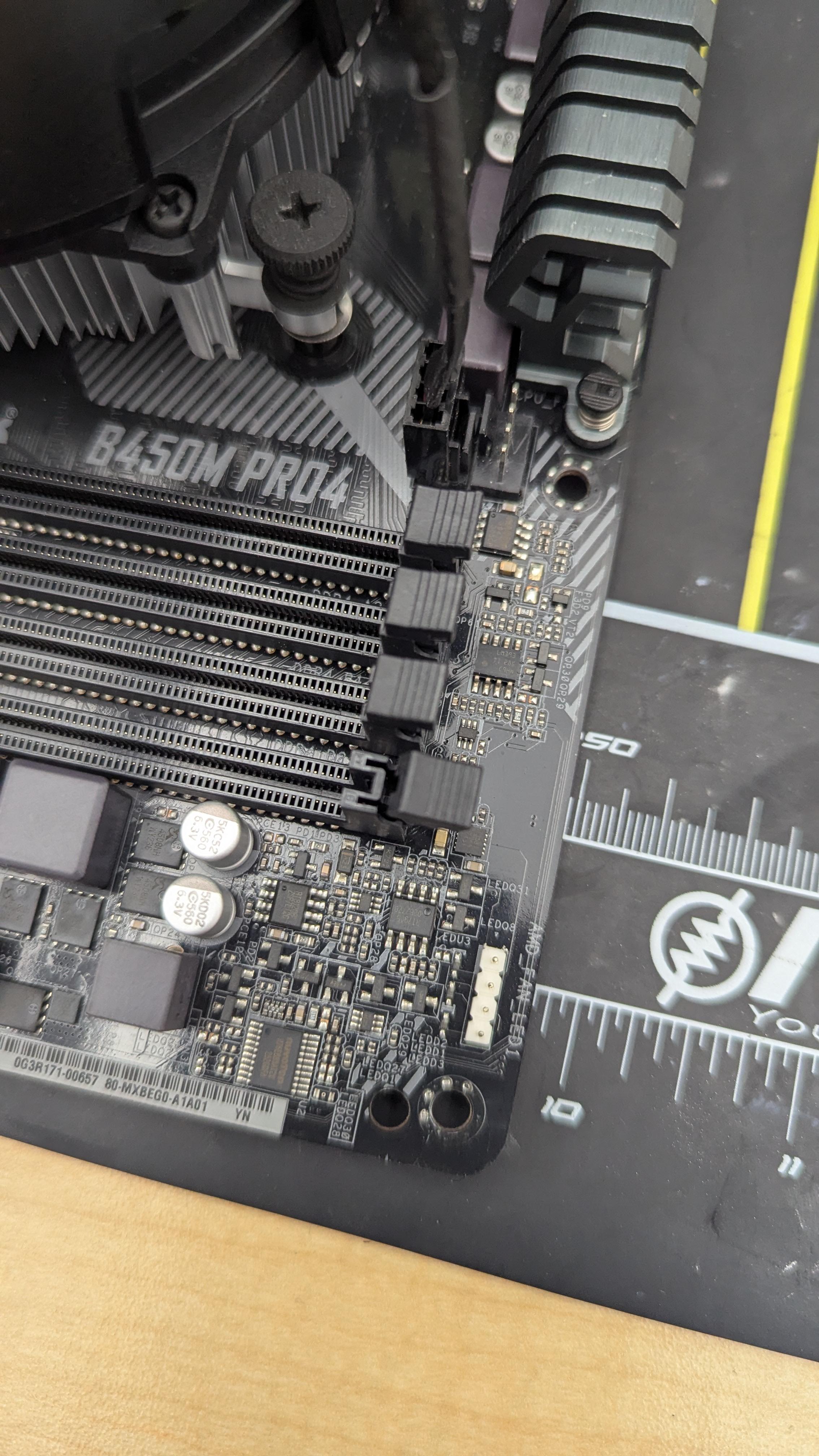
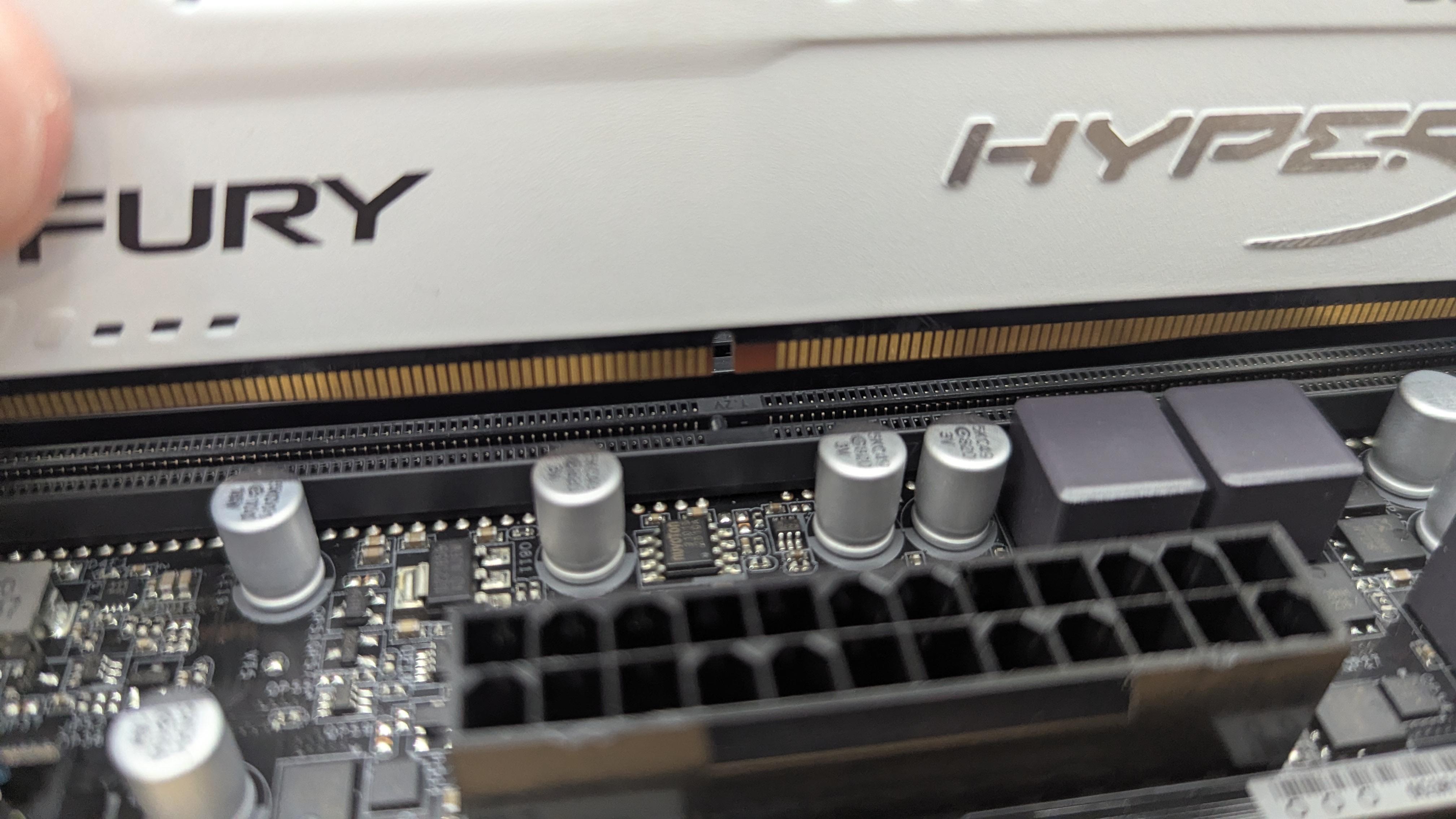
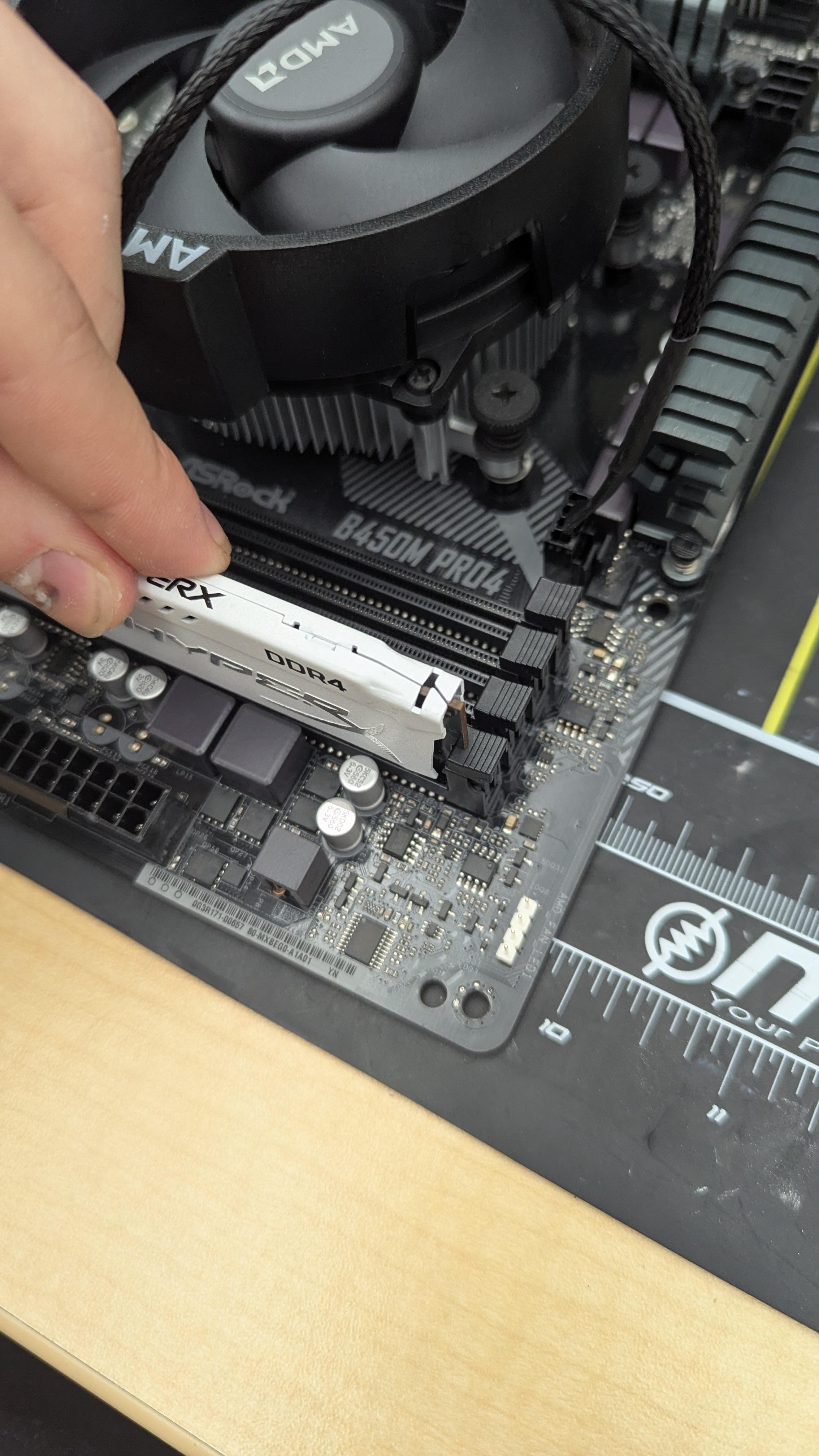
Take your RAM stick and place it in to the RAM slot.
You must first ensure the latches on the slot are open, and that the notch on the stick aligns with the slot.
Push down on both sides of the stick until the latches click into place, this may require some force.
Graphics Card
The installation of a graphics card is optional, skip this step if you do not have one.
Locate the PCI_E slot and repeat the same steps as when you installed the RAM.
Plug in the Cables
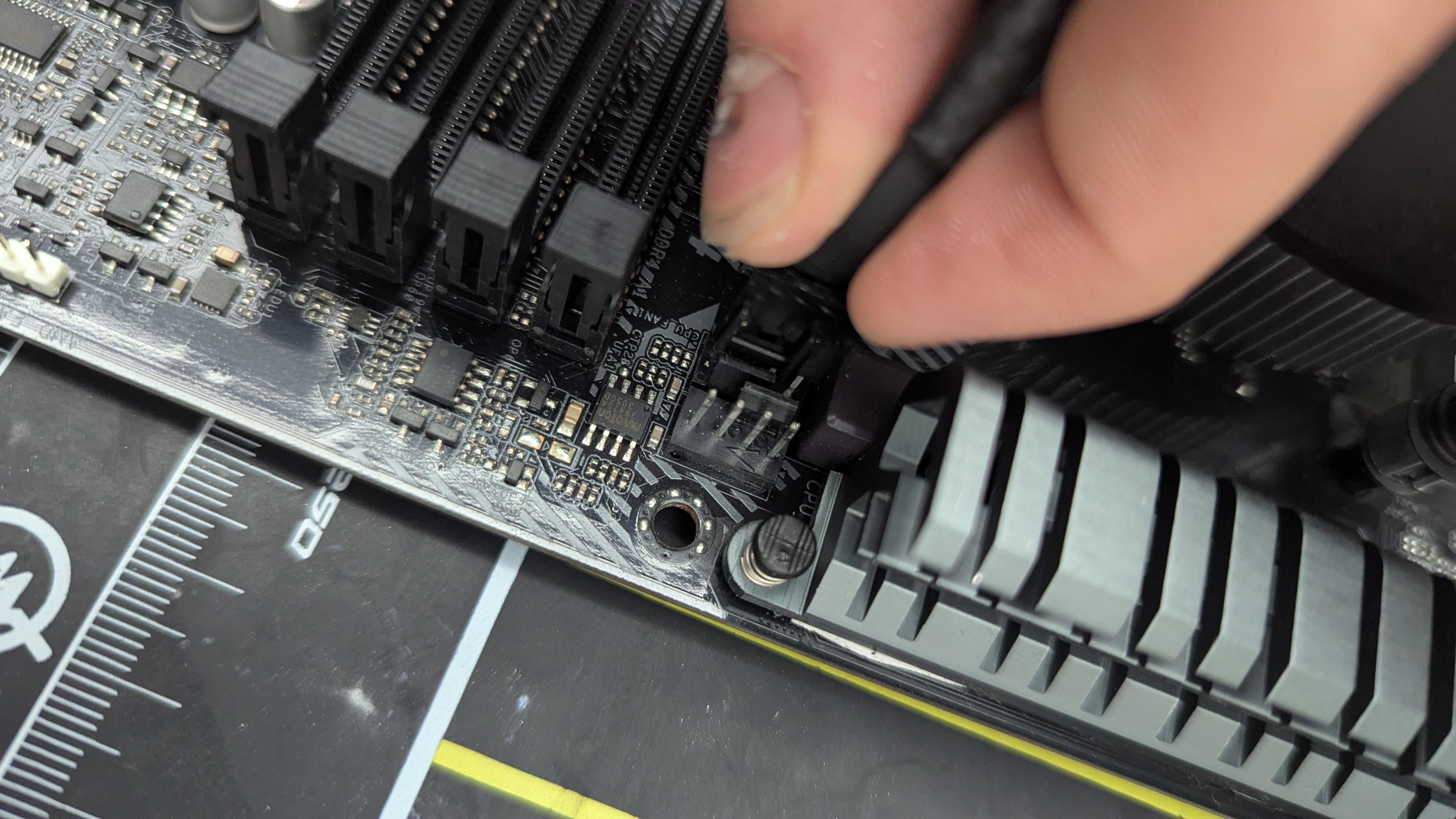


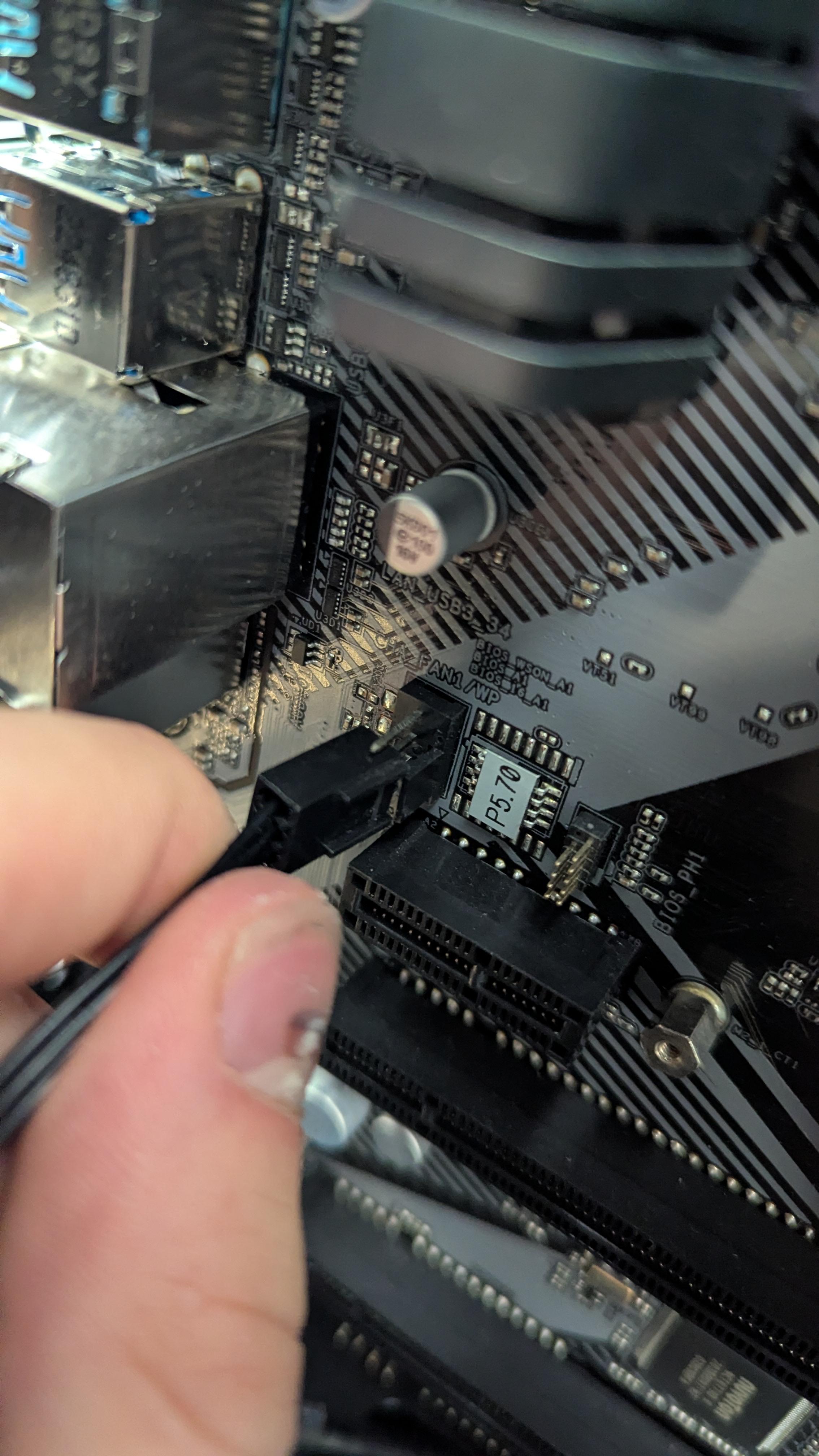
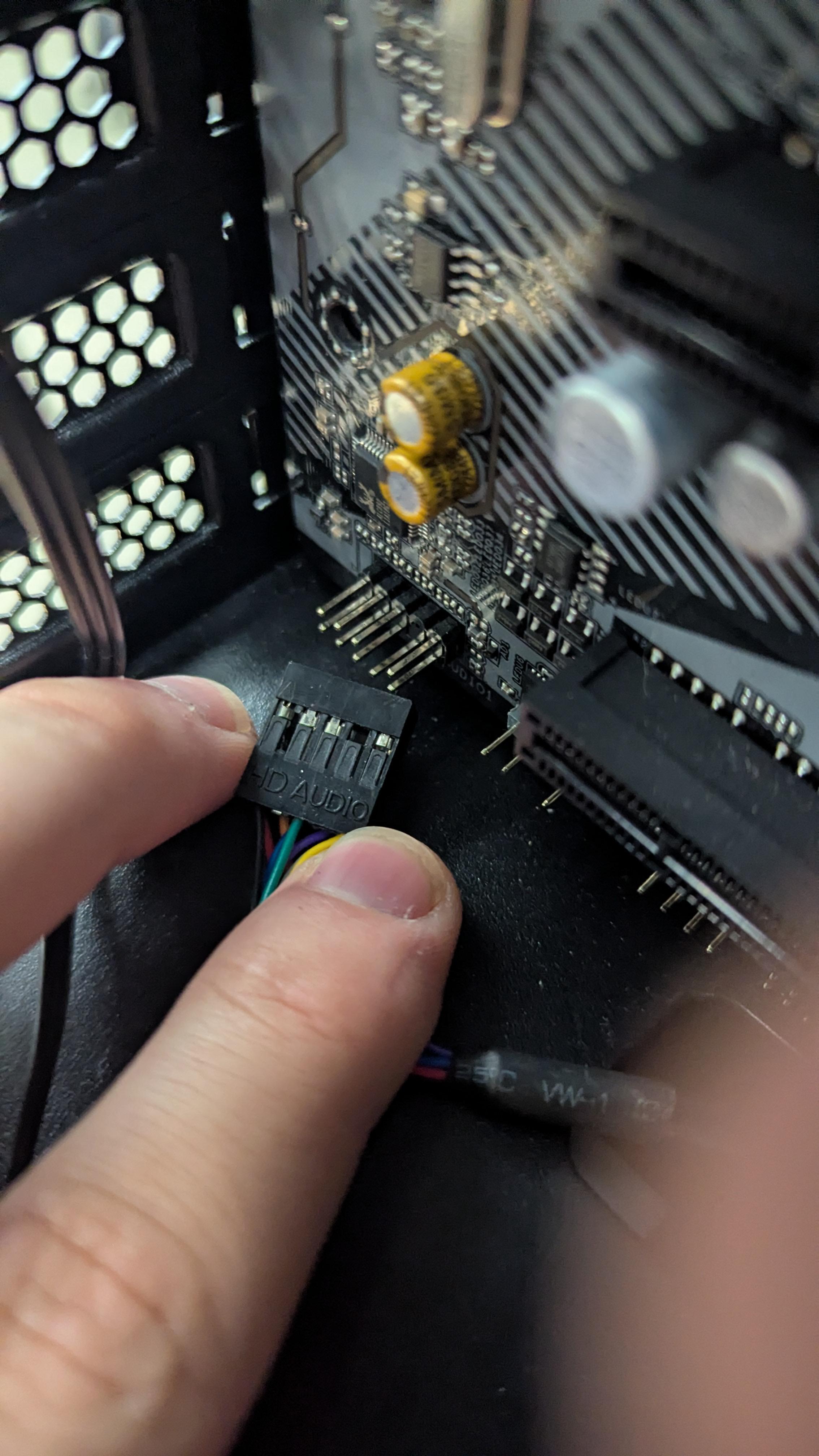
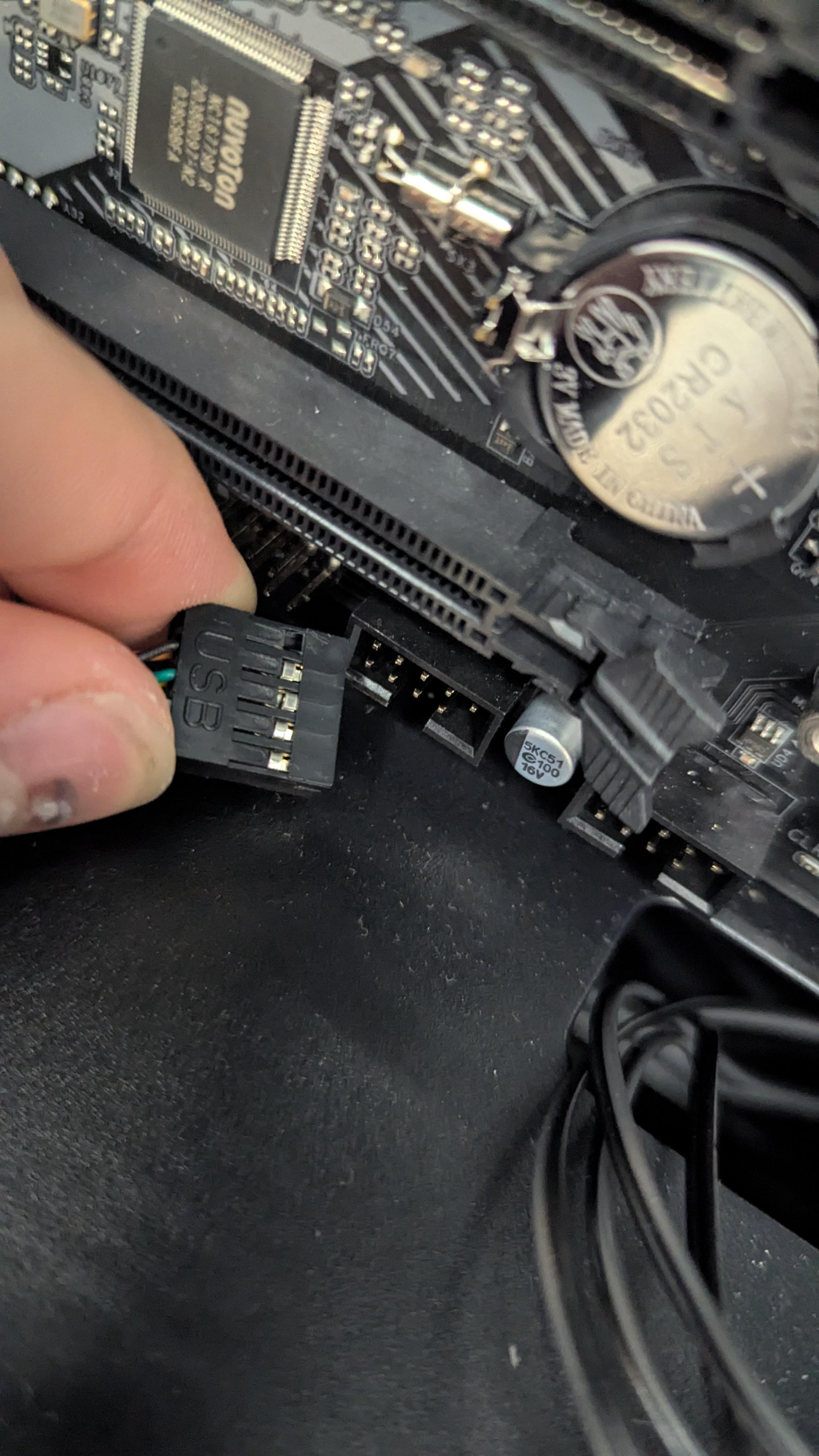
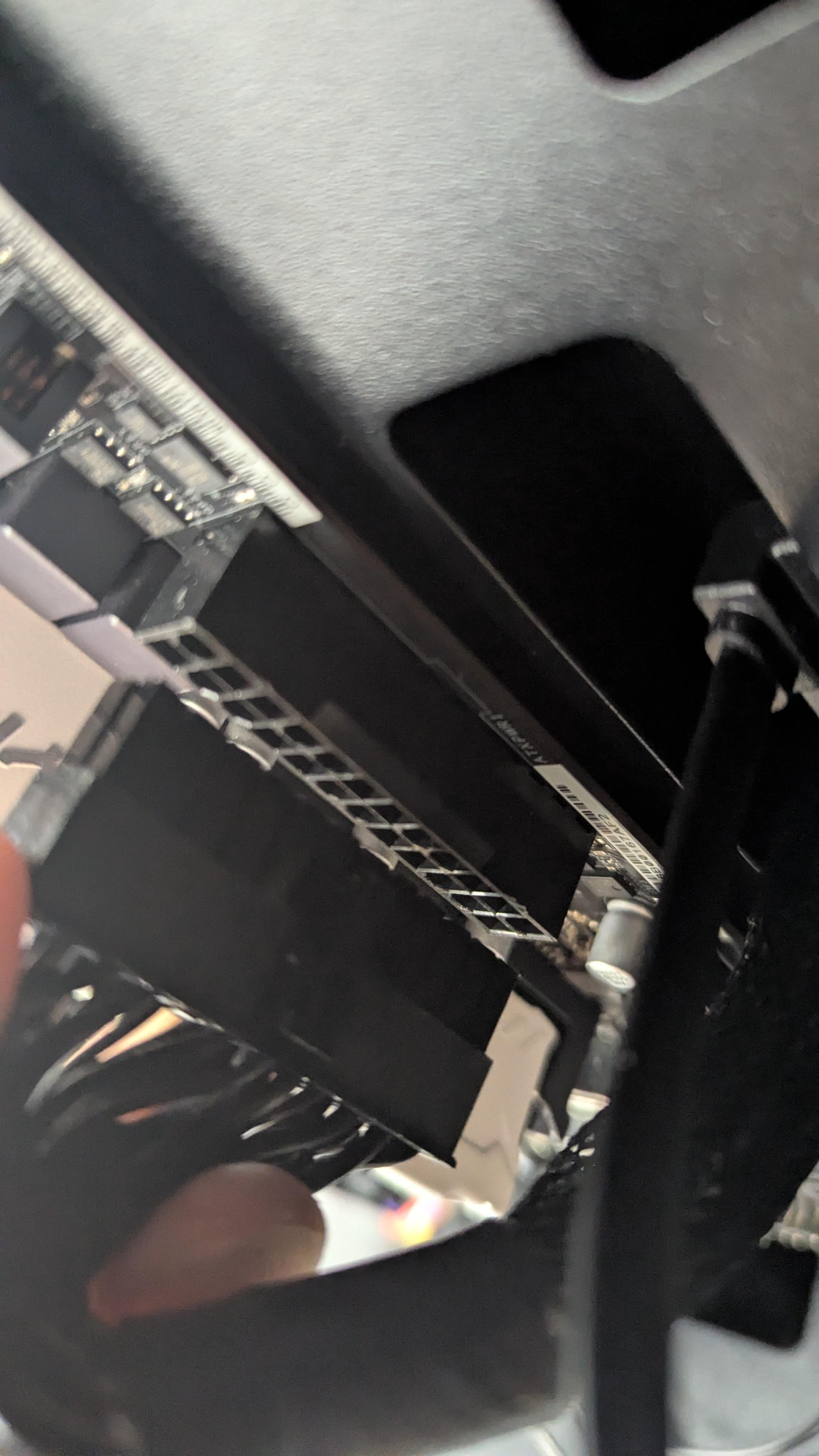
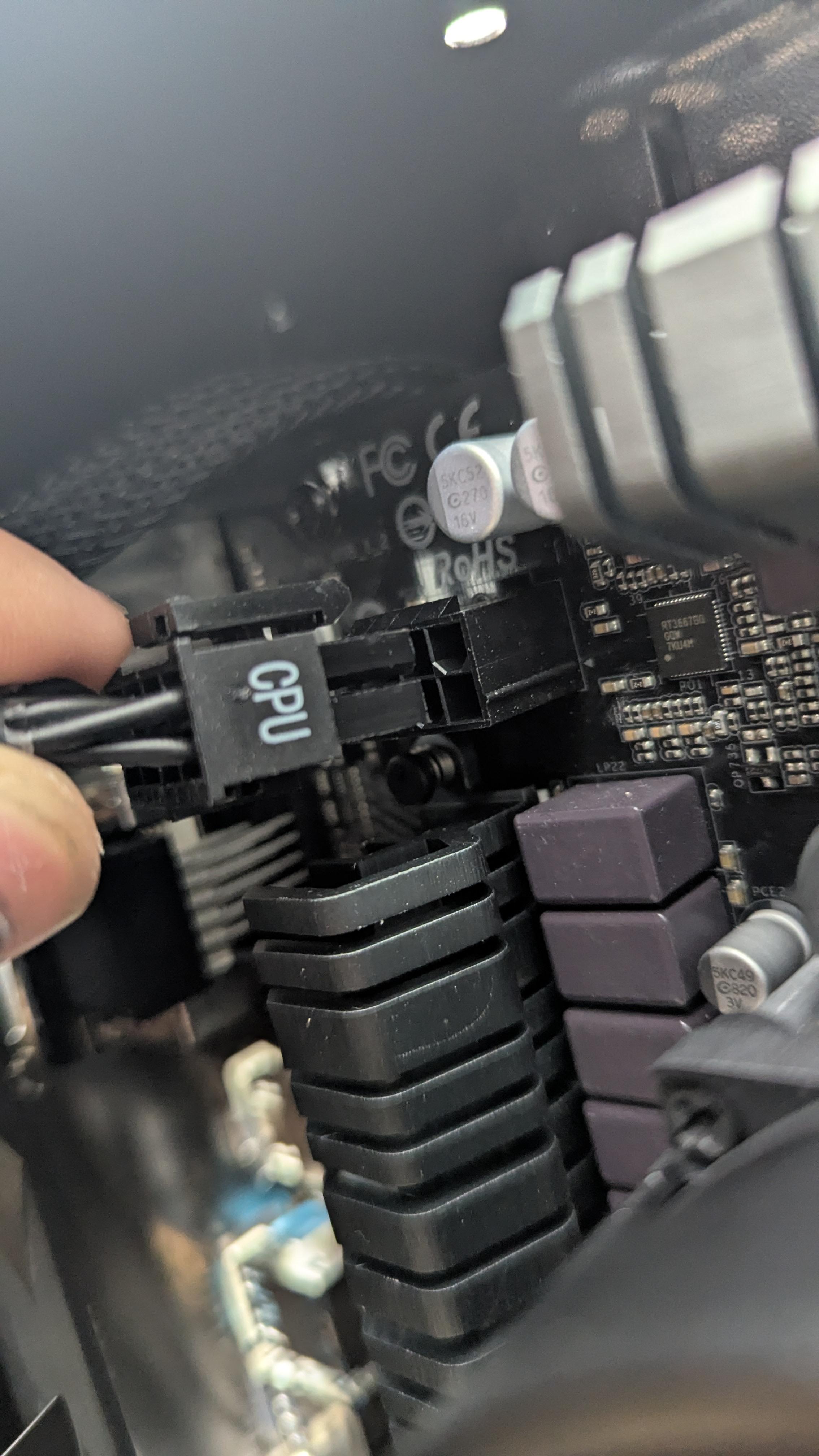
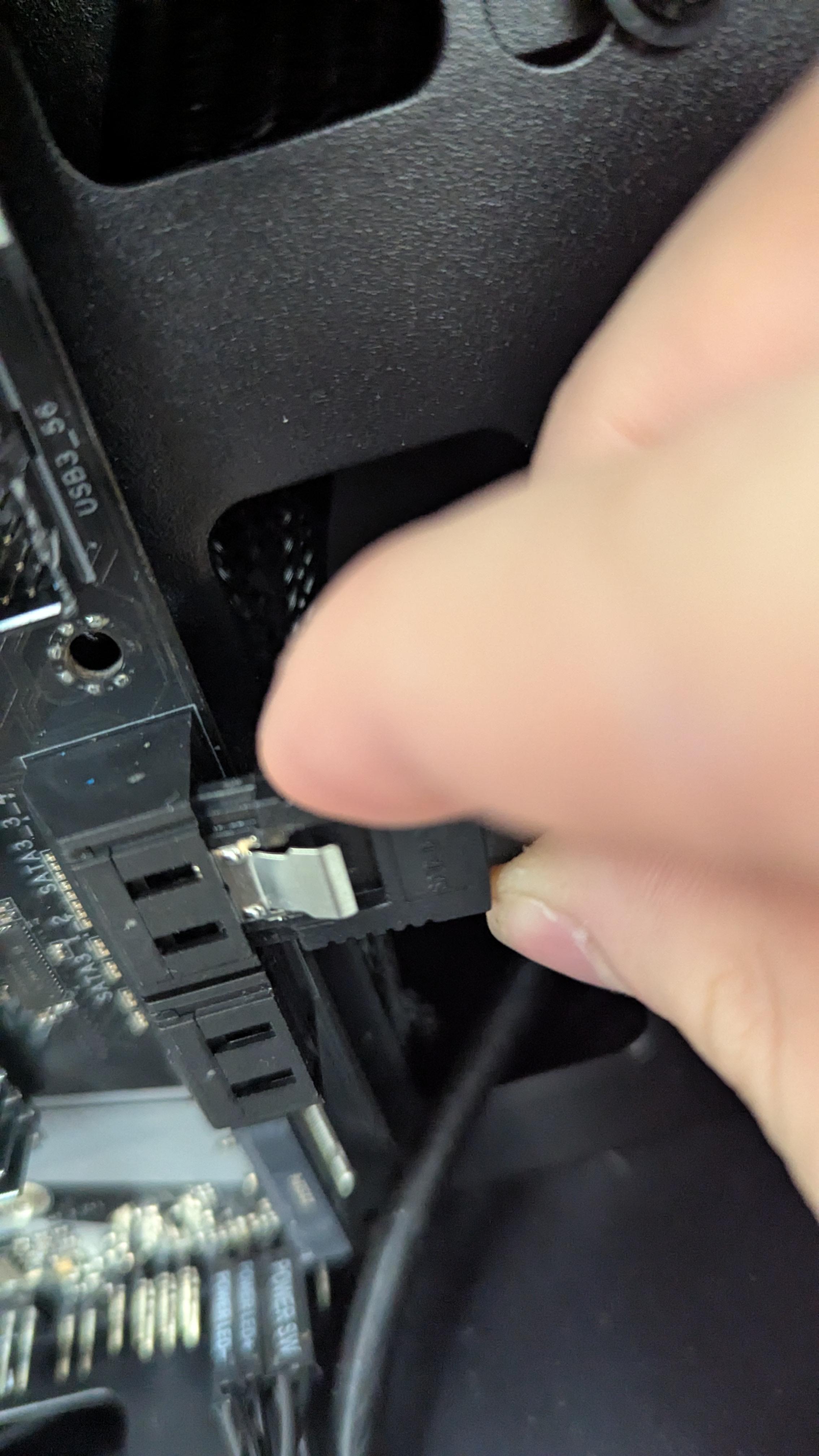

Now comes the cables, this step can be tricky so if at any point you are confused which plug goes where, refer to the Mother Boards Manufacturers Manuel to locate the correct slot.
Do not apply to much force to the cables or their respective pins, the are delicate and cannot be easily replaced if they are broken!
Verify the Machine POSTs
With every thing properly assemble put the cases side panel back on by reversing the steps that were previously taken to remove it.
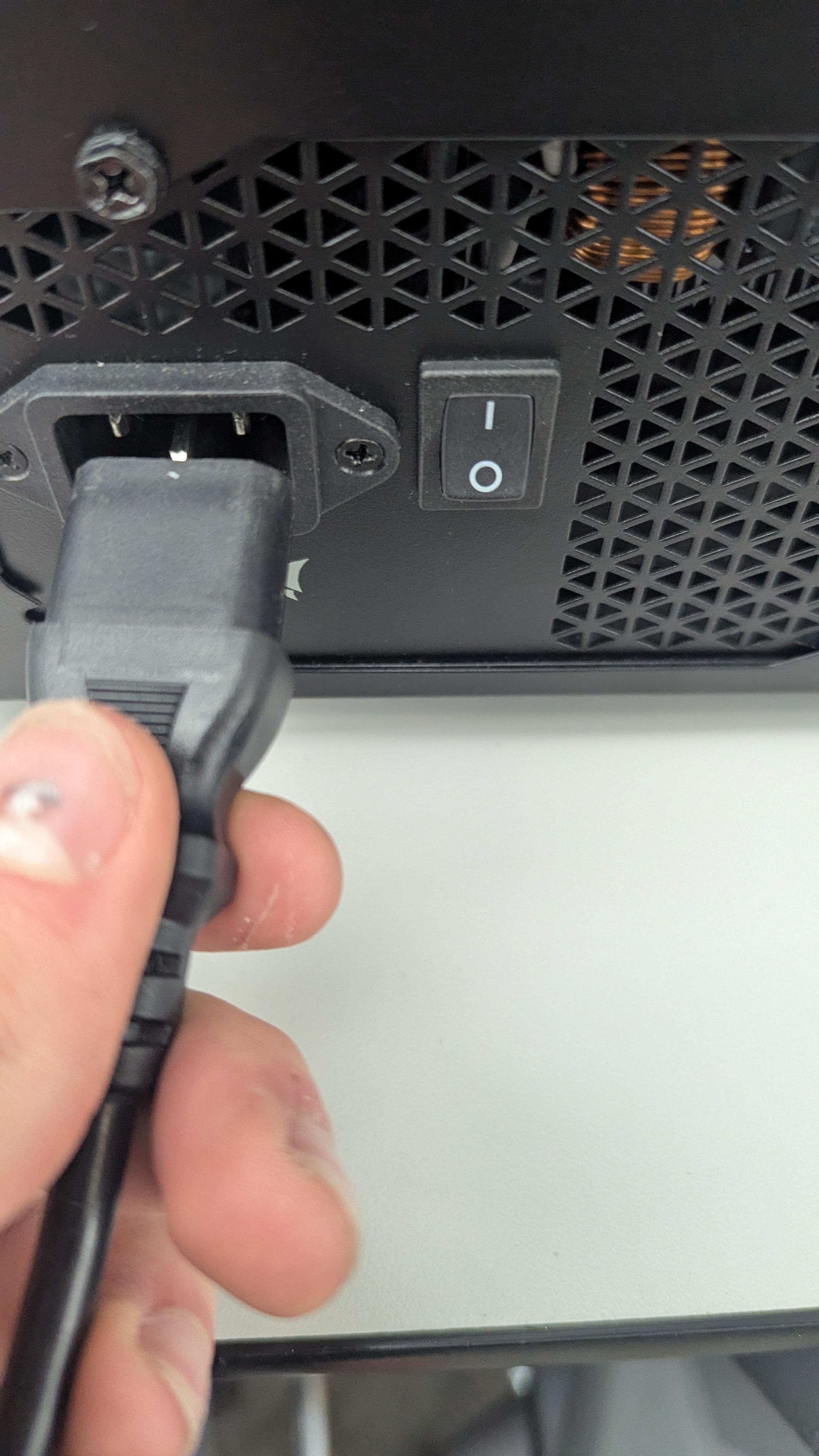
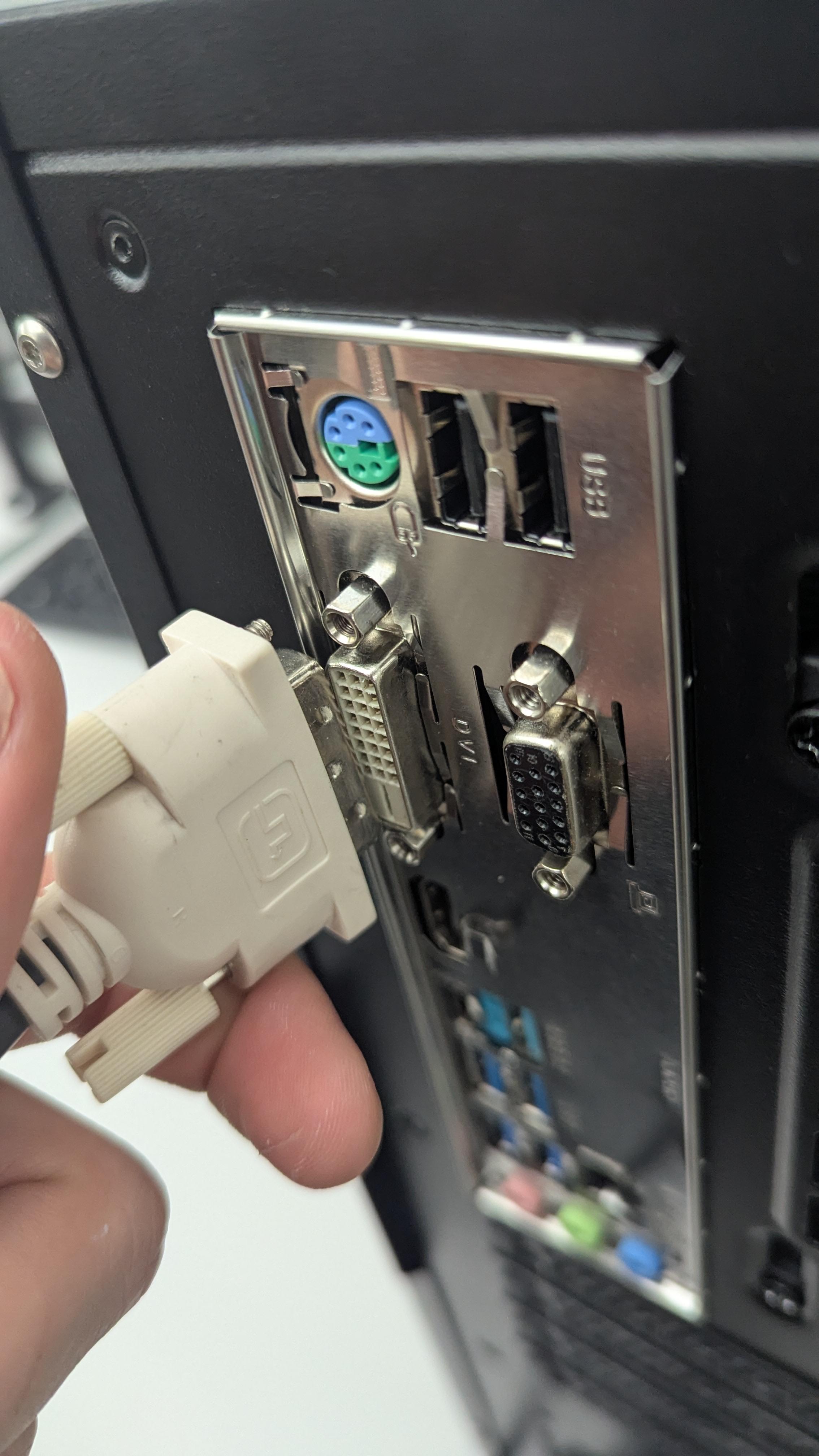
Now plug in the power cord to the power supply and flip the rocker switch to the on position. The use a VGA or a HDMI cable to plug the monitor in to the correct port on the back of the PC.
When the computer turns on it will display the BIOS setting screen.
Congrats! You have properly assembled a computer a are now ready to equip it with an O.S. of your choice!