Basic Use Roland BN2 20A Sticker Maker and VersaWorks
by Made Studio in Craft > Printmaking
1233 Views, 8 Favorites, 0 Comments
Basic Use Roland BN2 20A Sticker Maker and VersaWorks
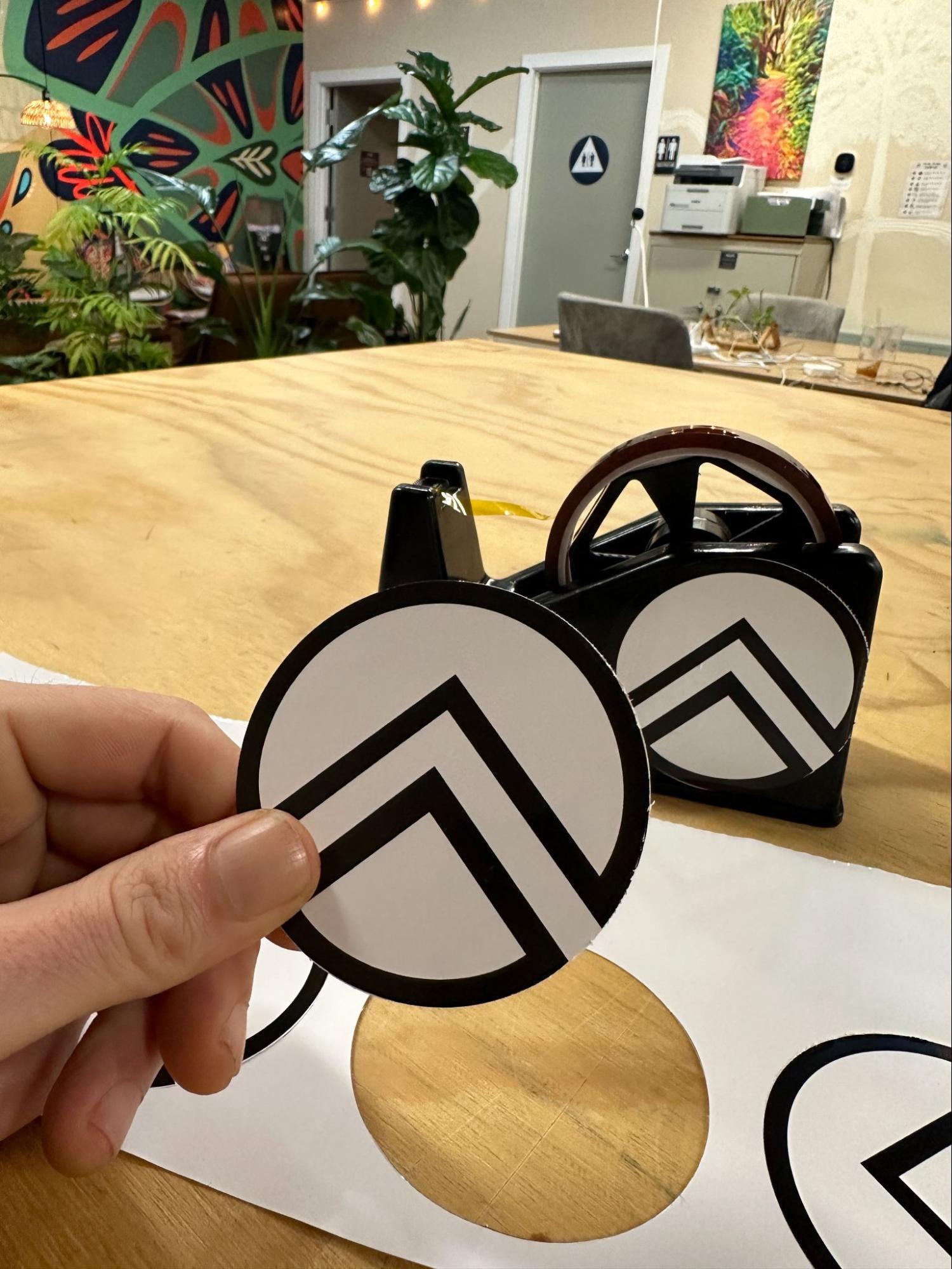
An introduction to the basic use of the Roland BN 20A sticker maker using adobe illustrator for file preparation.
Supplies
Roland BN2 20A sticker machine
Computer
Roll of Sticker Paper
Open Illustrator
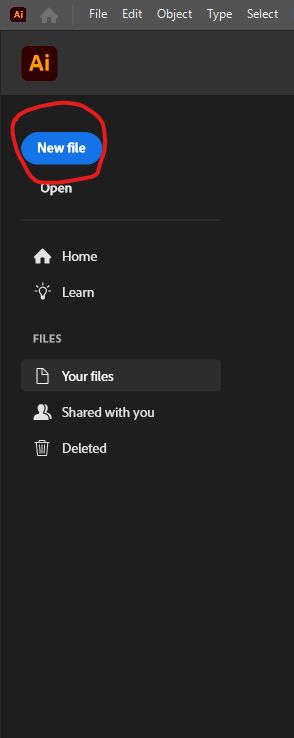
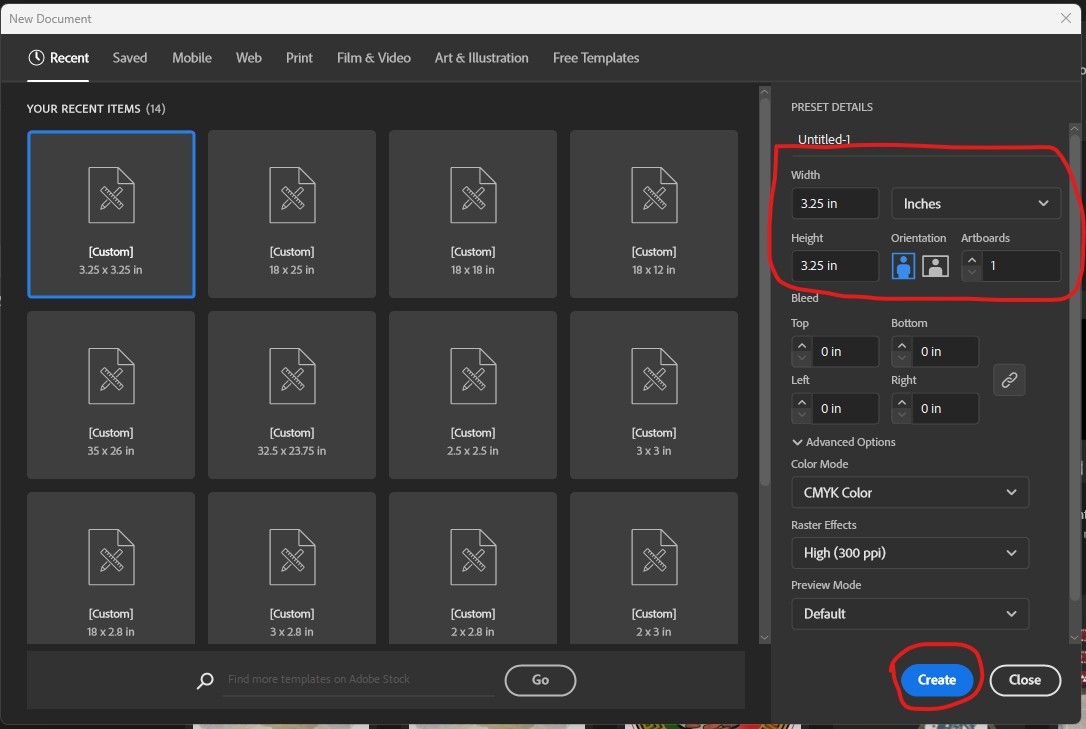
Open New File and Set Size of Canvas
Tip: Set the size of the canvas to be 0.25 inches larger than your desired sticker size.
Place Sticker
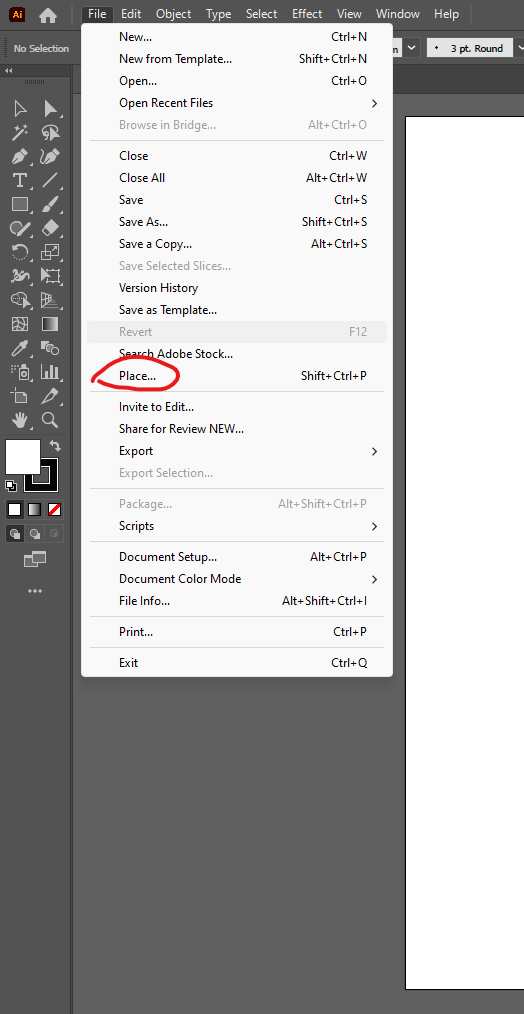
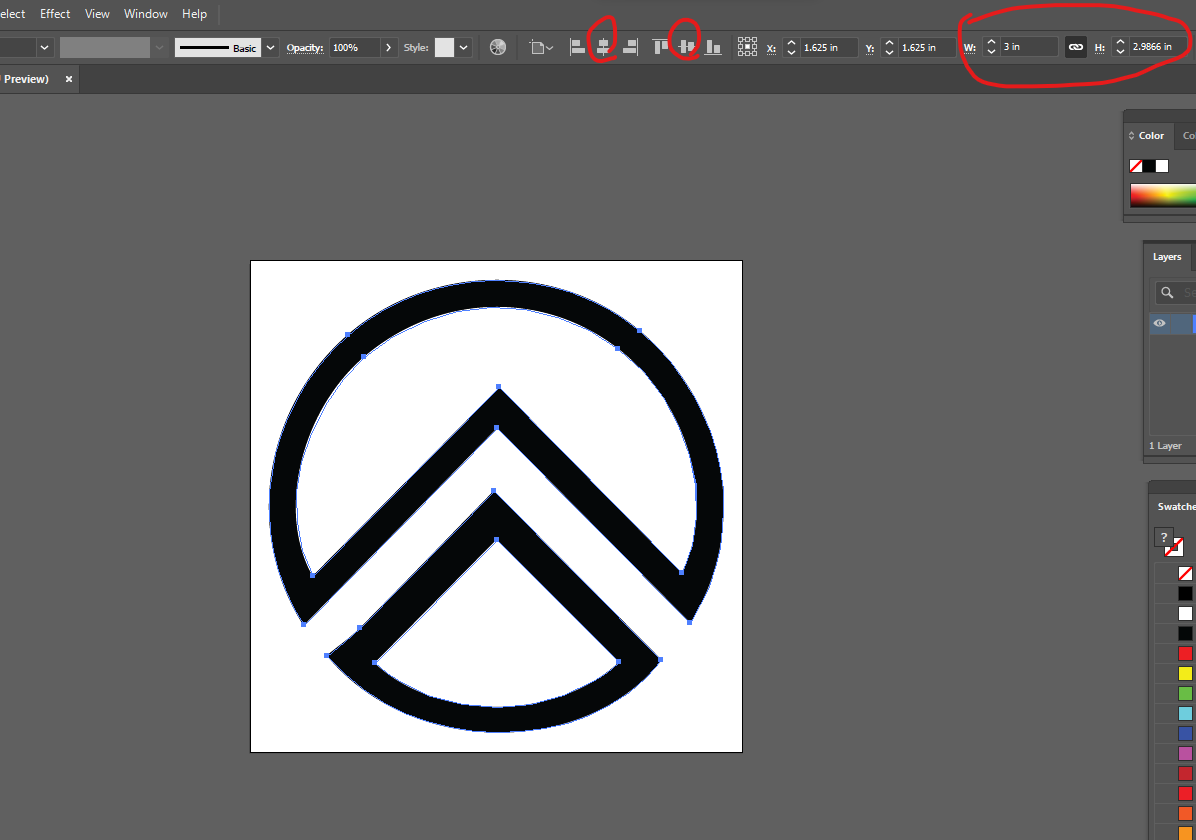
Place sticker image file and resize as necessary
Tip: Use the Properties tab located on the left of the screen to input exact dimensions for your image. Also you can use alignment buttons to center the image on the canvas.
Shape Tool
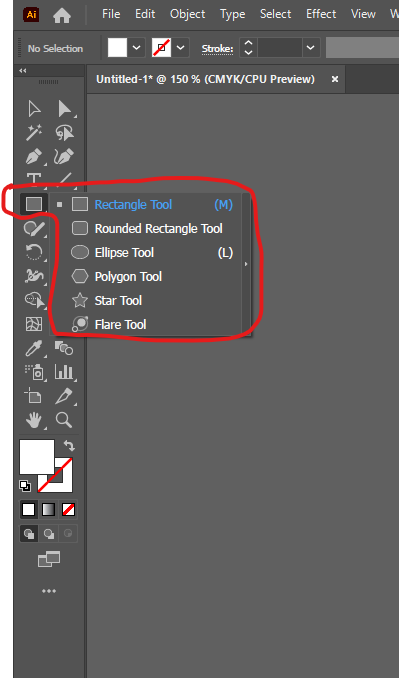
Use the shape tool to create cut lines for your sticker.
Tip: Use simple shapes like rectangle, rounded rectangle or ellipse to get the best cut results. Right click on the shape tool to change which shape it draws.
Change Appearance
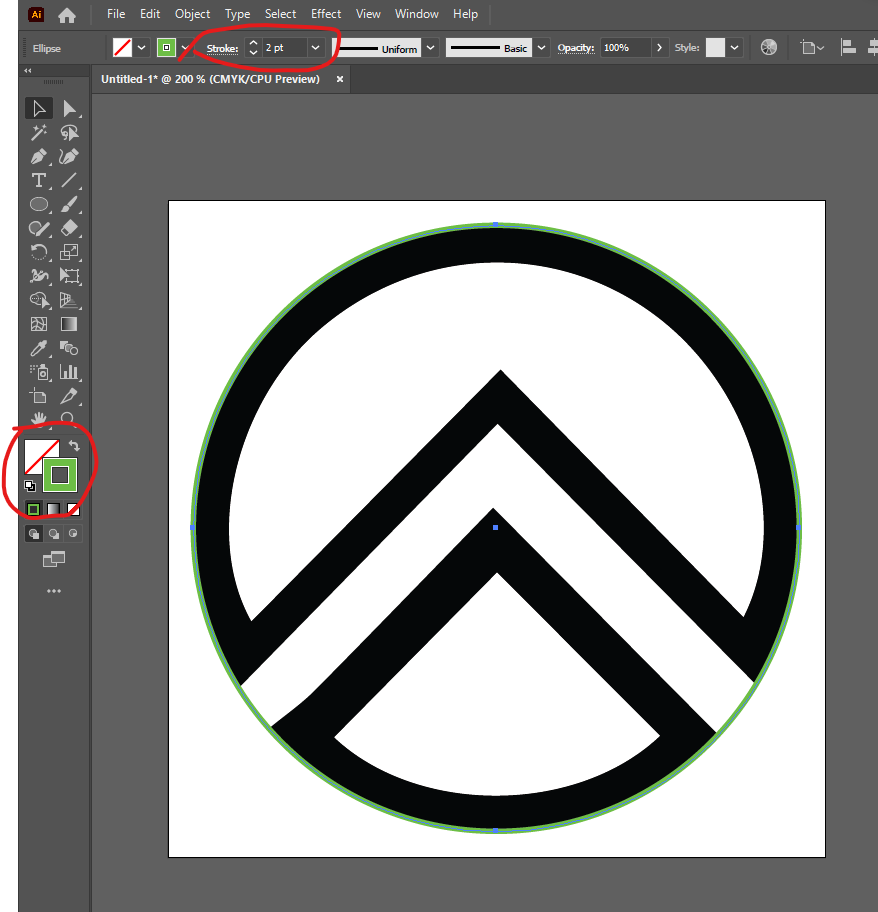
Set appearance properties of your shape to make it easier to visualize your sticker cut.
Tip: Make sure the Stroke property is in front by clicking it once. It should look like the example image.
Tip #2: The color you choose does not matter, but it is recommended to choose a color that is contrasting from your imported image
Black Arrow
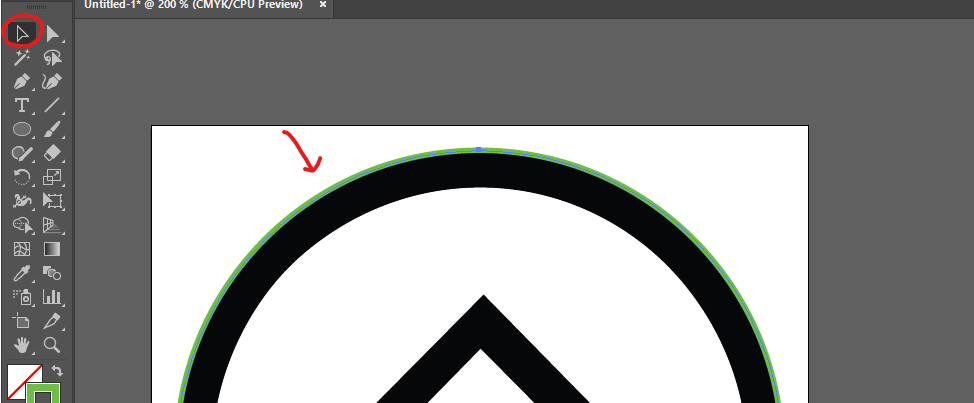
Select your shape with the black arrow open the Swatches Tab
Tip: If you do not see the Swatches tab, reset your workspace by clicking Window>Workspace>Essentials Classic or Reset Essentials Classic
Swatch
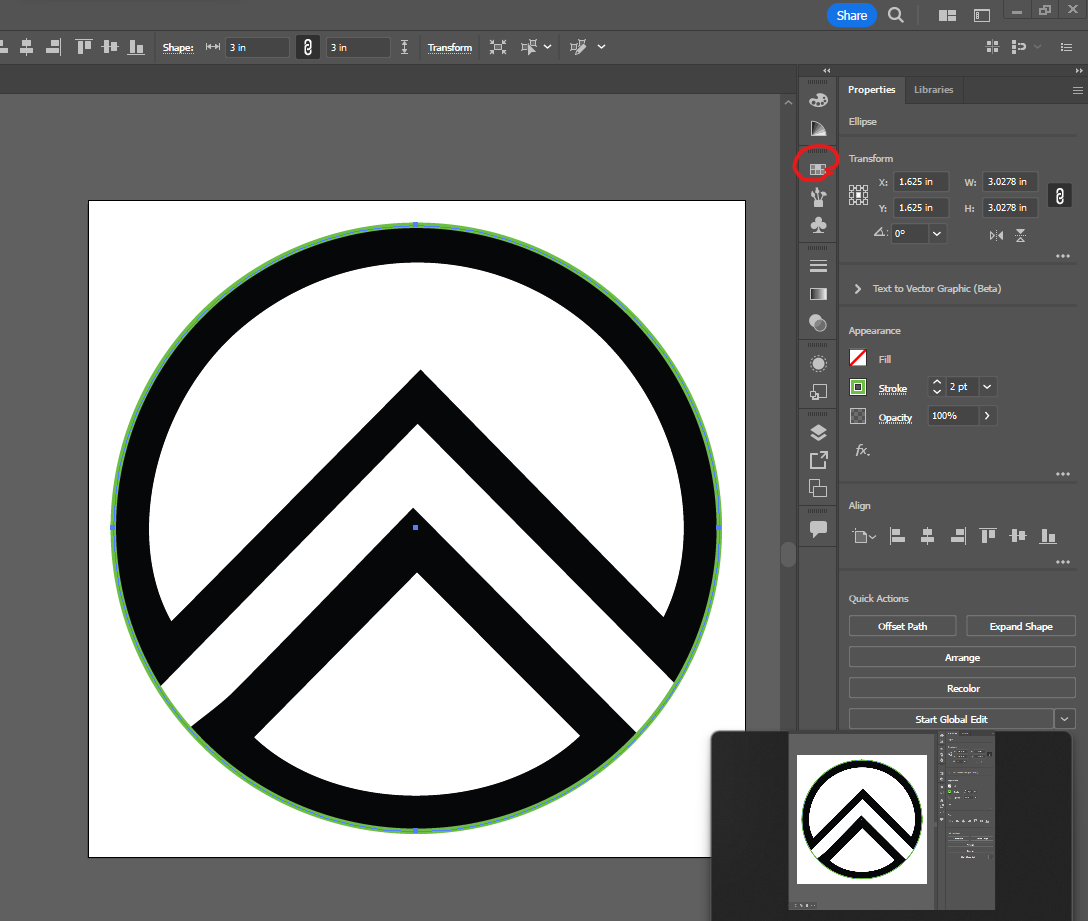
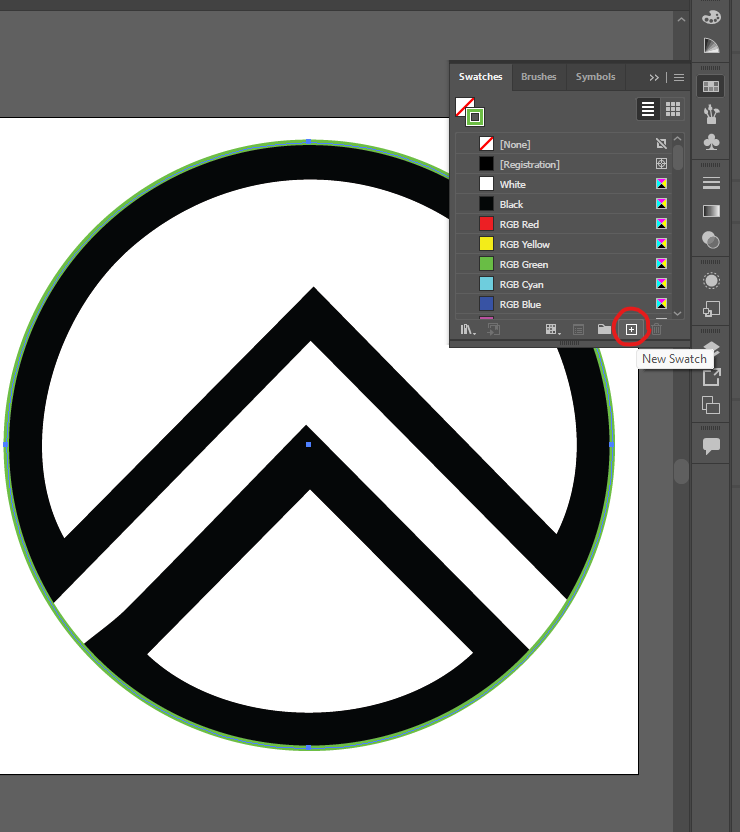
Select the Add Swatch Symbol (plus sign)
Name Swatch
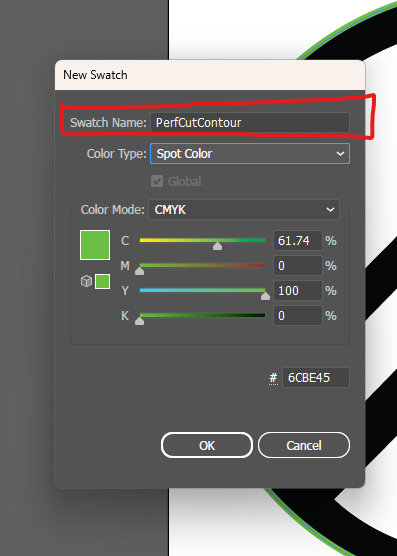
In the pop-up, name the Swatch “PerfCutContour” or “CutContour”
Tip: Spell the name exactly as shown above, otherwise printer will not recognize the cut
Tip #2: If you would not like to cut all the way through the sticker paper, and only the vinyl top layer, name the Swatch “CutContour”
Spot Color
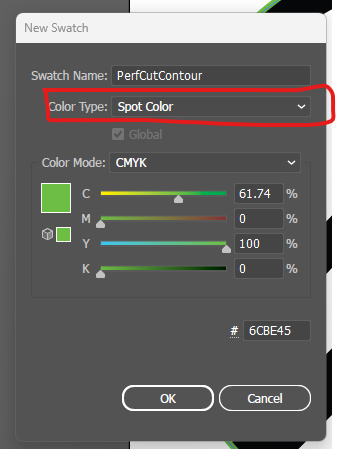
Select “Spot Color” in the dropdown menu
Save As
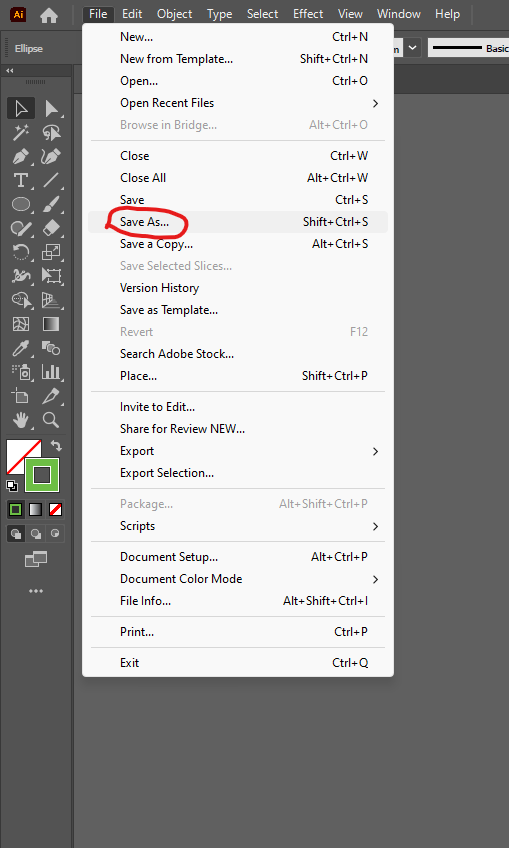
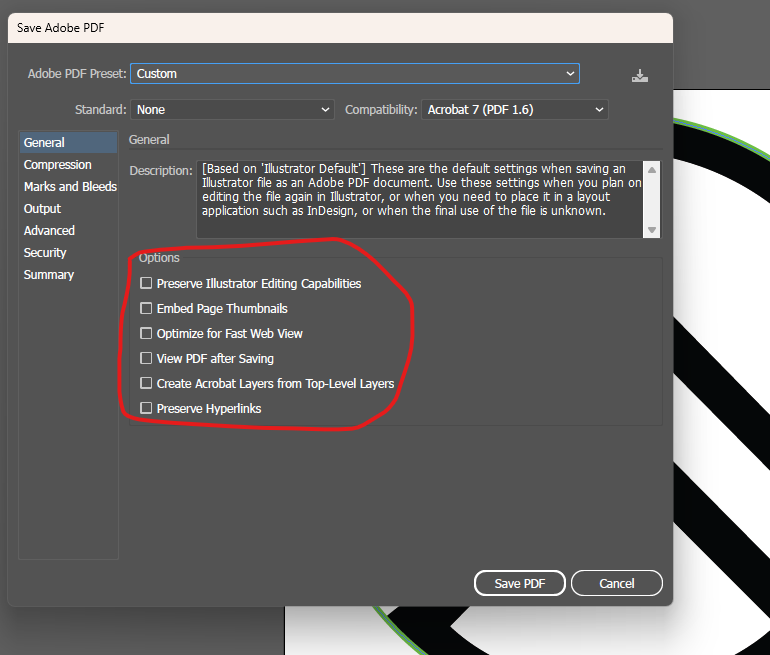
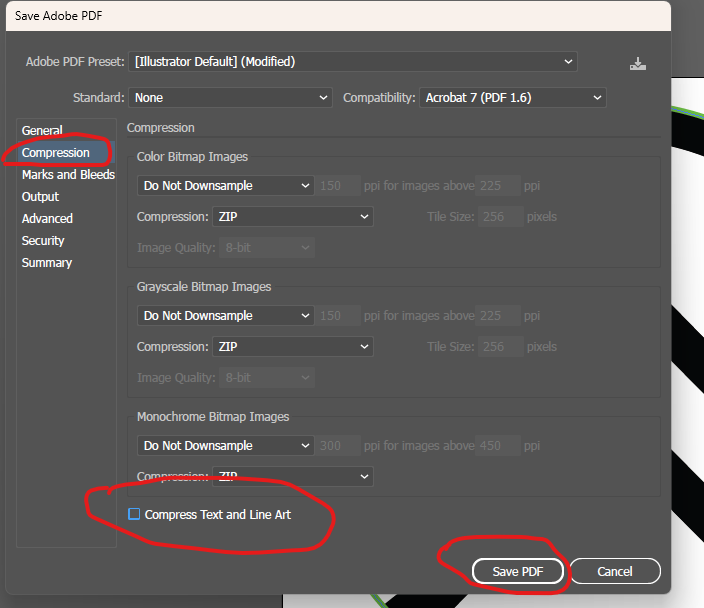
Save as PDF
(File -> Save As -> PDF)
Tip: Uncheck all the boxes in General and Compression sections.
VersaWorks
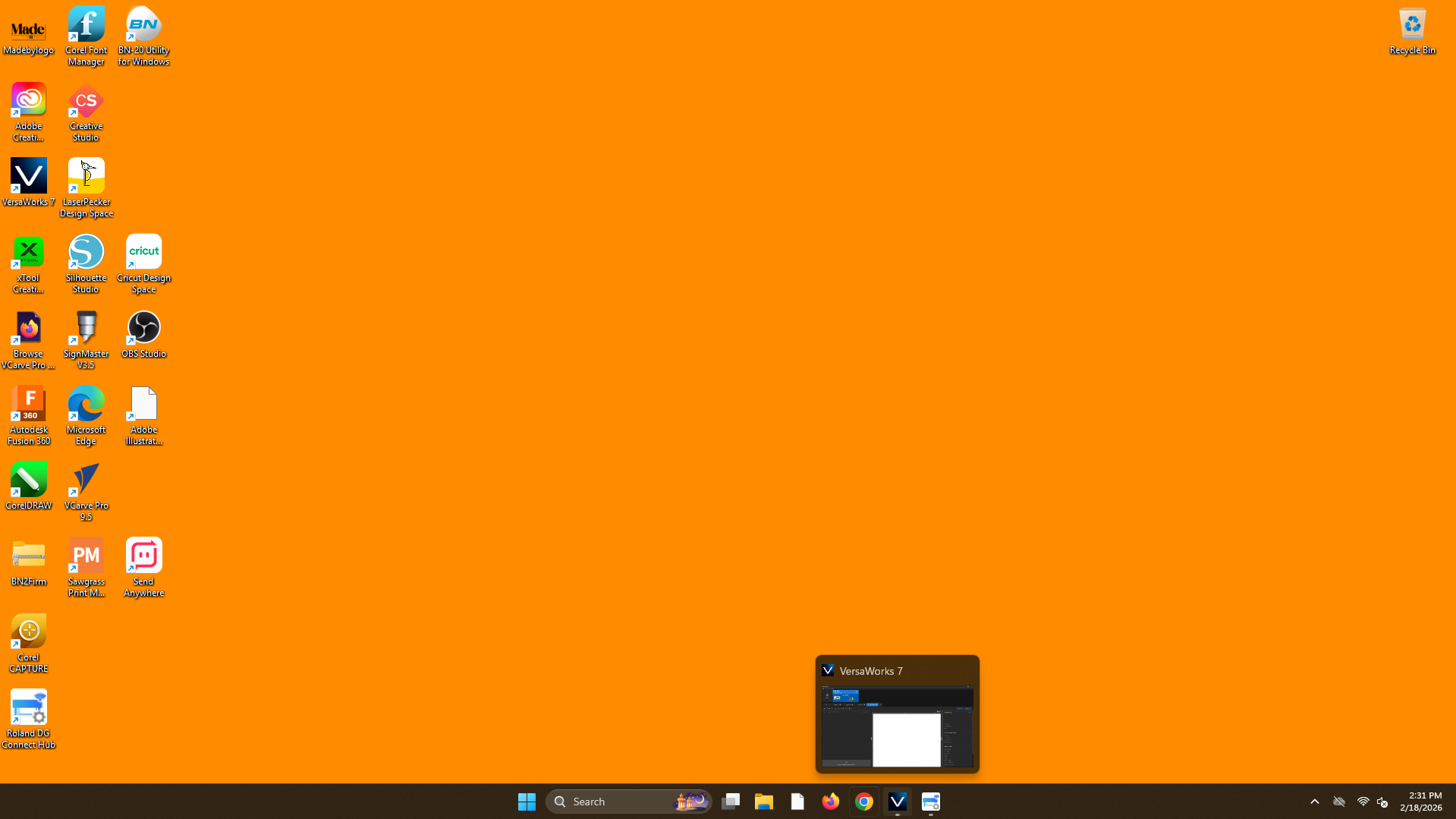
Open VersaWorks at the bottom of desktop
Add to Que
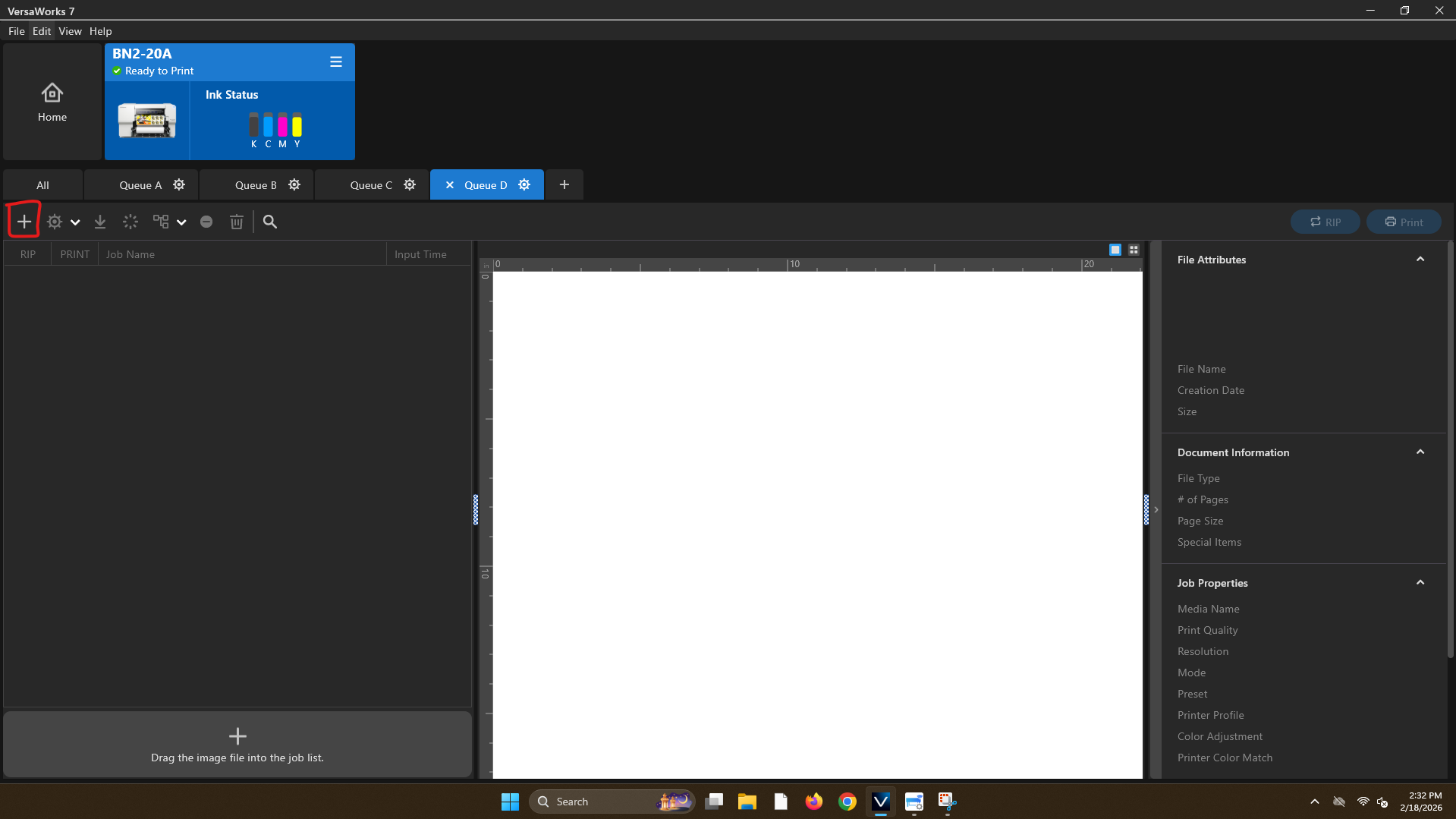
Use the plus button to add your job to the que
File
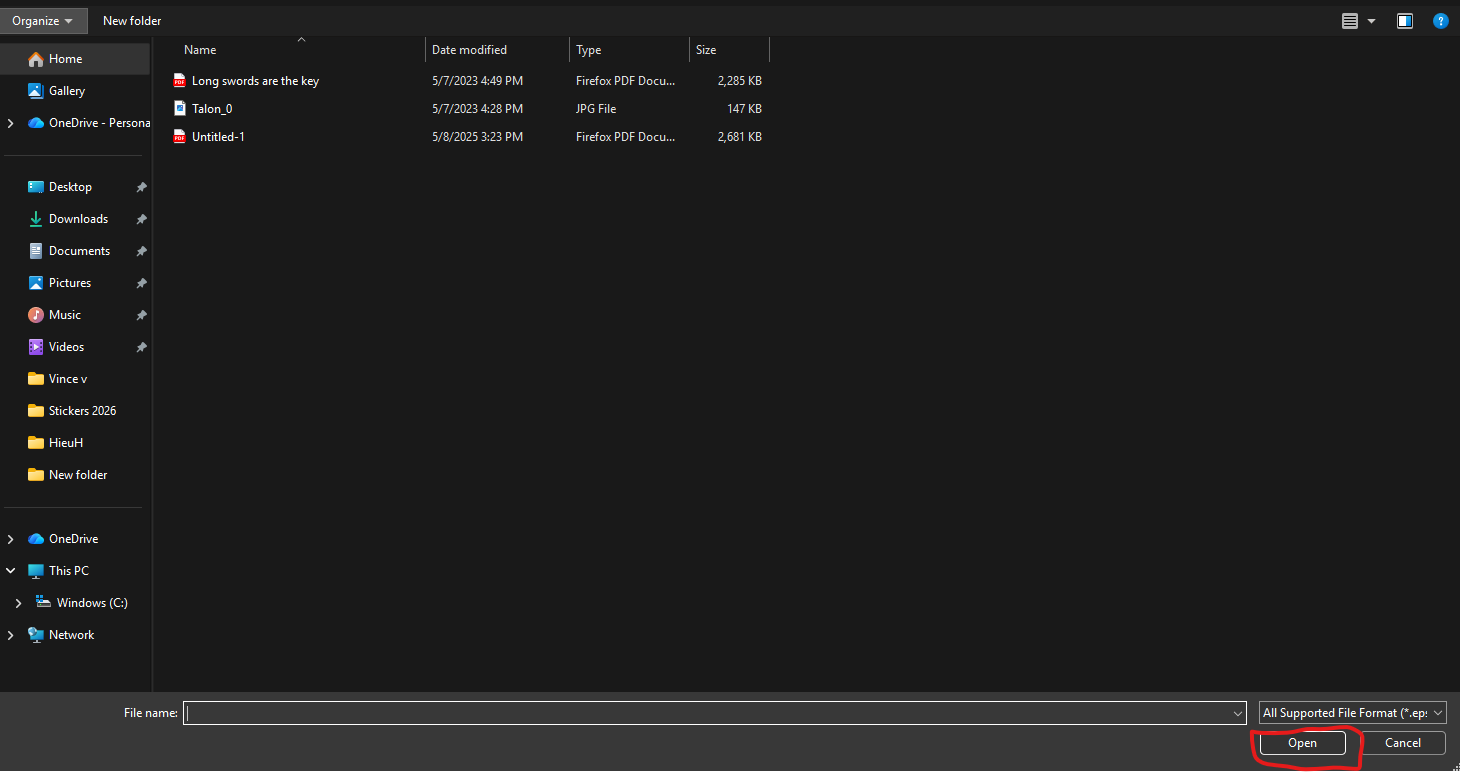
Locate your file using the file explorer and hit open.
Settings
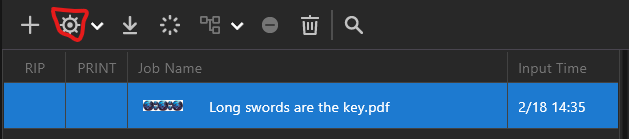
Select your file and right click and hit settings or use the cog wheel.
Copies
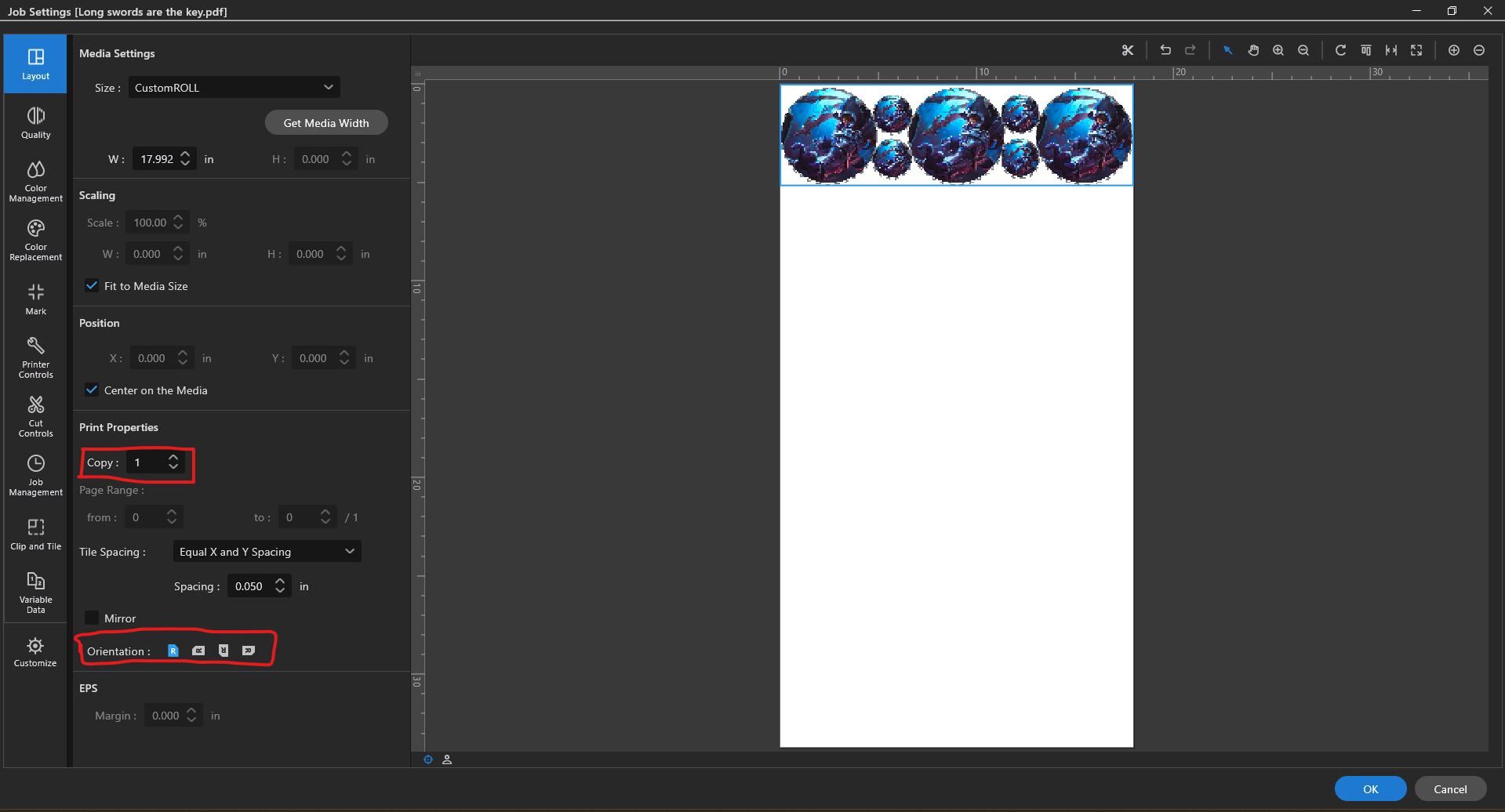
Here we can add more copies and rotate the file add as many of the copies as wanted.
Cut Settings
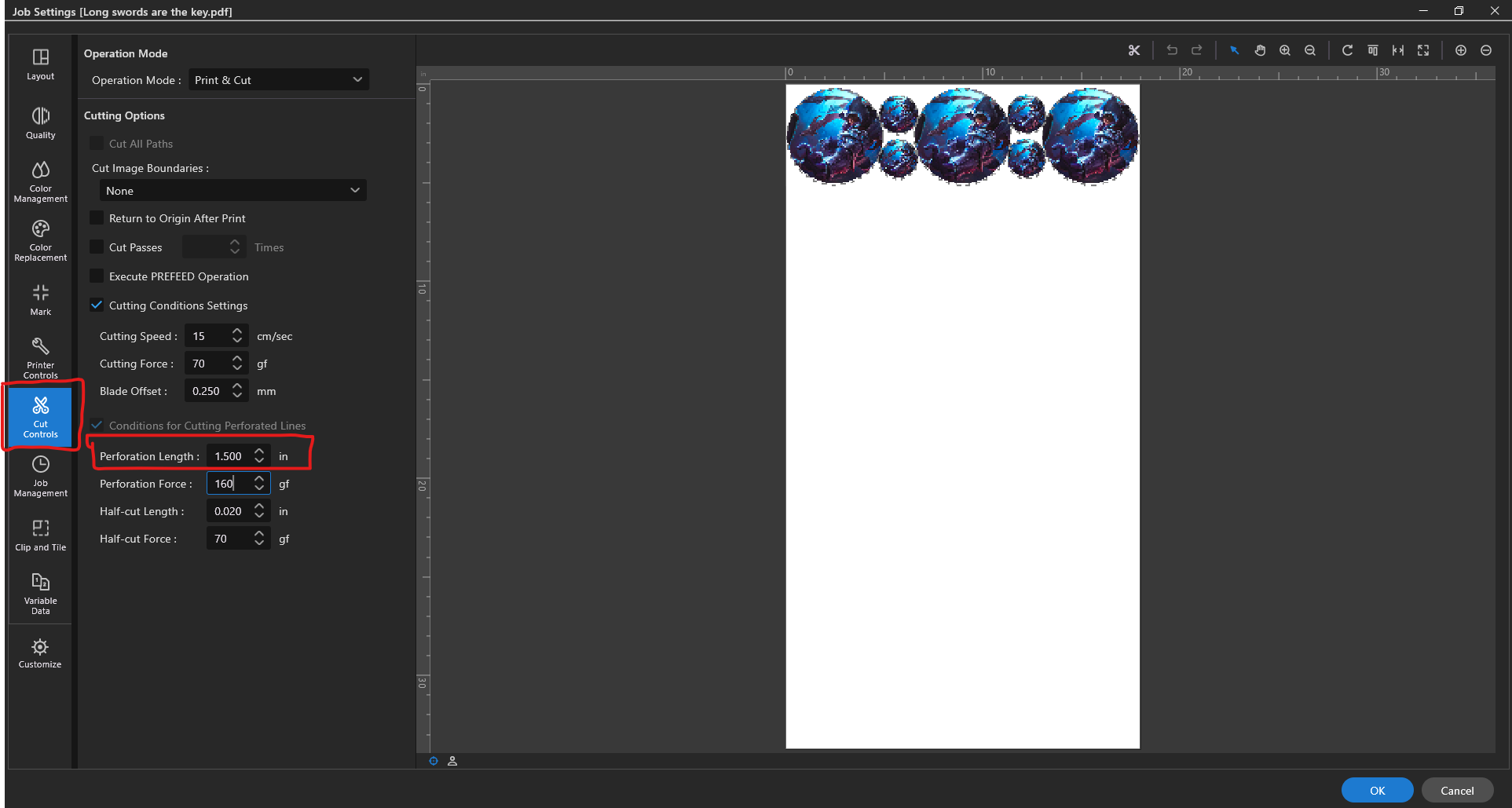
Click on cut settings on the left. Here we can adjust pressure but these settings will generally be saved correctly as shown the only thing that is really variable between prints is the perforation length if your doing a PerfCutContour this is the distance between tabs when cutting all the way through. If your sticker is smaller a smaller distance maybe be need and if it is large you can get away with less perforations. Once done you can click OK.
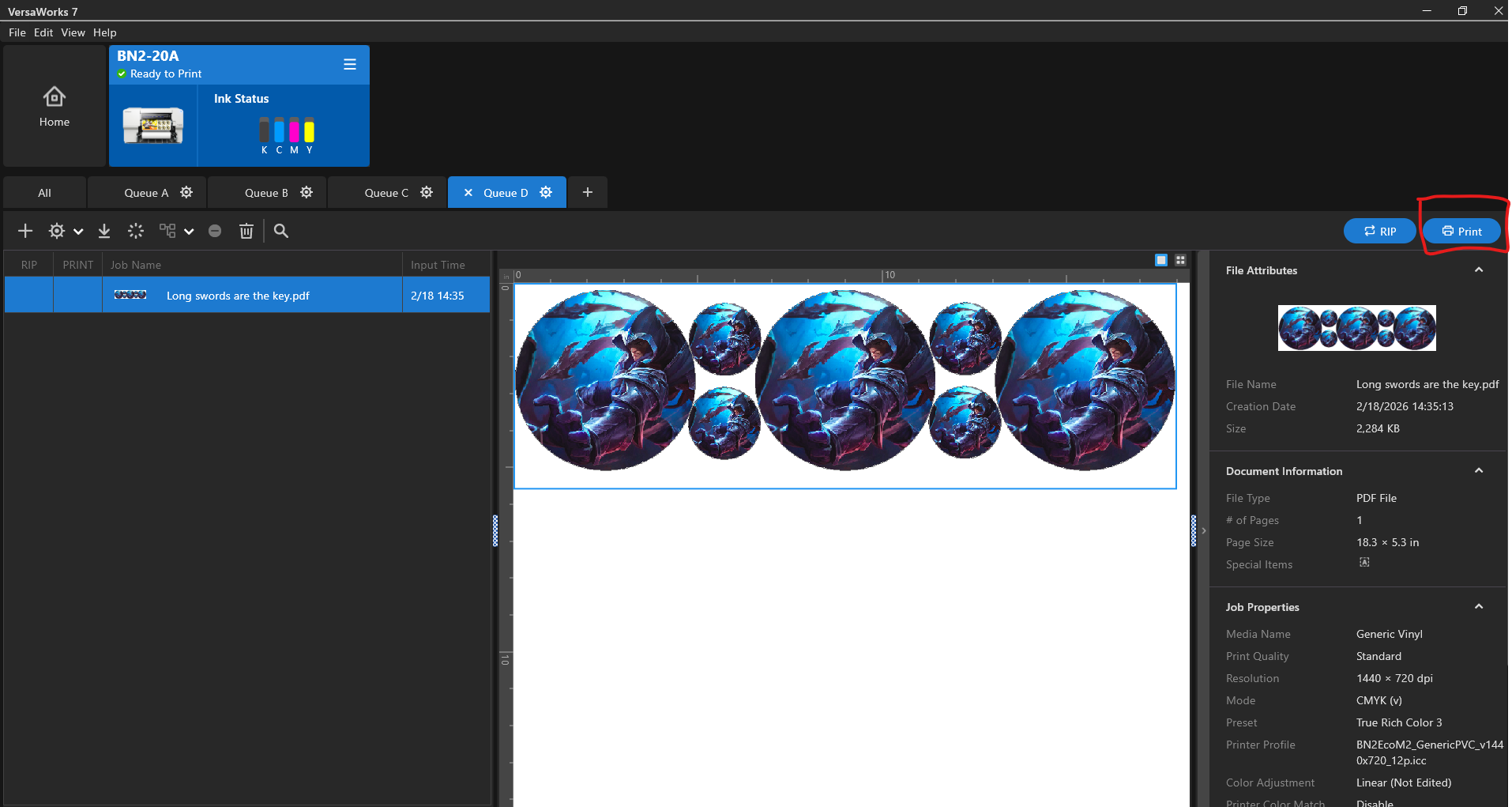
Everything should be good to go now simple click print on the right and your stickers should start momentarily.