An Accessible, Ultra-Low-Power TV Remote Using an ATtiny84
81 Views, 2 Favorites, 0 Comments
An Accessible, Ultra-Low-Power TV Remote Using an ATtiny84
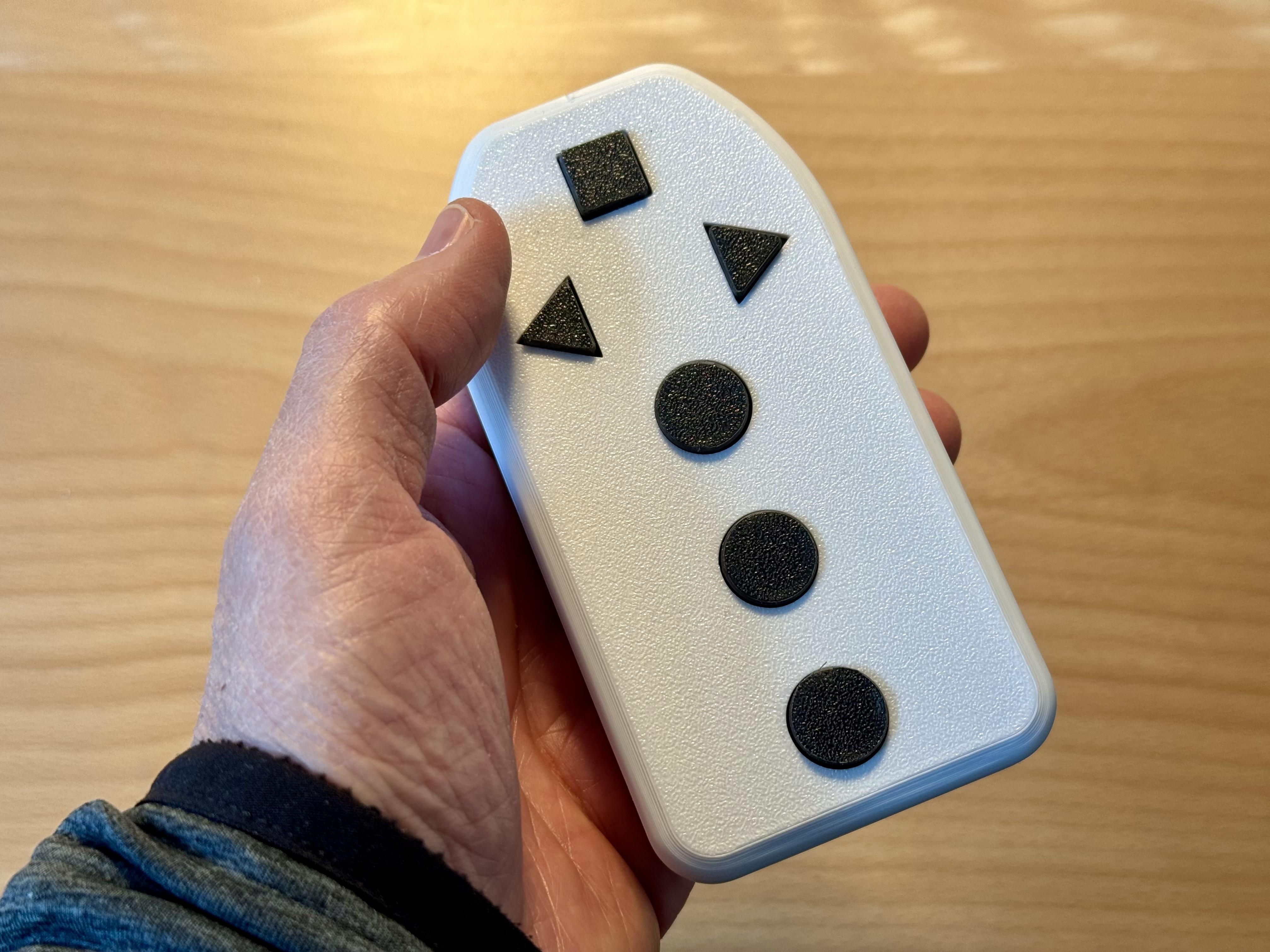
Modern TV remotes are often full of tiny buttons and complicated features. This project shows how to build a simple, tactile, and accessible TV remote for visually impaired users that focuses only on what really matters: power, volume, and three direct channel buttons.
The remote was specifically designed for Philips televisions and uses the RC6 infrared protocol for full compatibility.
Using an ATtiny84 and careful low-power design, the remote consumes only a few microamps in sleep mode and can run for years on two AA batteries. The hardware is built on a custom PCB and fits into a 3D-printed enclosure.
This project is part of a small collection of minimalist, accessibility-focused devices (DAB+ radio, talking clock) and is completely open source. All files and sources are available on GitHub.
Project Overview
In this project, you will build a simple, tactile, and ultra-low-power TV remote control for visually impaired users that runs for years on two AA batteries.
Parts & Tools
To build this remote control, you only need a small number of components. The goal of the design is simplicity, low cost, and ultra-low power consumption.
Electronic Parts
- ATtiny84 (or ATtiny84A) microcontroller
- IR LED
- NPN transistor for driving the IR LED
- 2 resistors
- 6 tactile push buttons
- Battery holder for 2× AA batteries
- 6-pin ISP programming header
- Custom PCB (Gerber files are provided in the GitHub repository)
Mechanical Parts
- 3D-printed enclosure (STL files are provided)
- M2 Screws
Tools
- Soldering iron and solder
- Side cutters / tweezers
- Multimeter (for basic checks and troubleshooting)
- AVR ISP programmer
- Computer running VS Code and PlatformIO for compiling and flashing the firmware
- 3D printer (or access to one)
All design files (PCB, enclosure, and firmware) are open source and available in the GitHub repository, so you can either reproduce the project exactly or adapt it to your own needs.
Capturing the IR Codes (Optional)
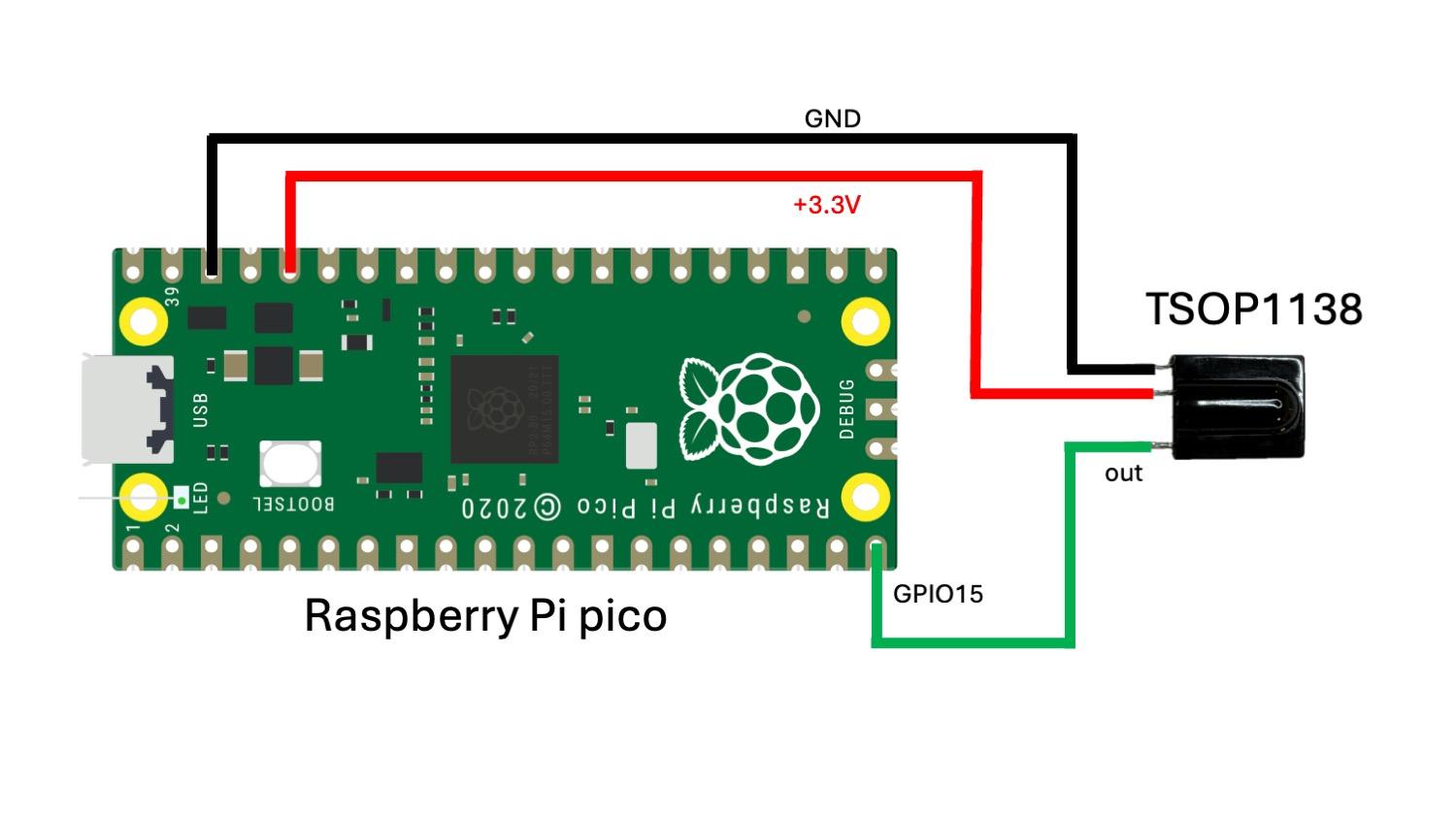
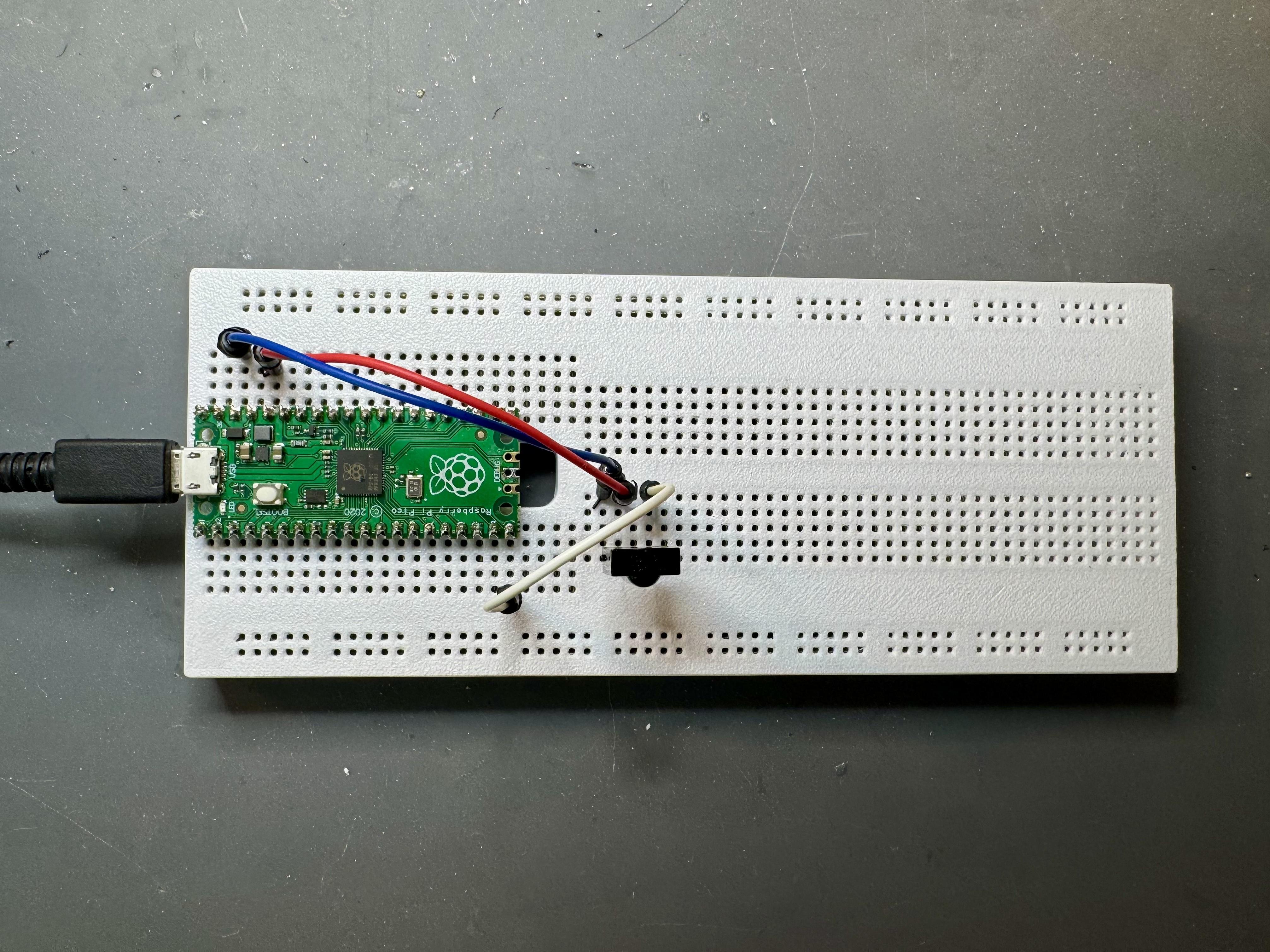
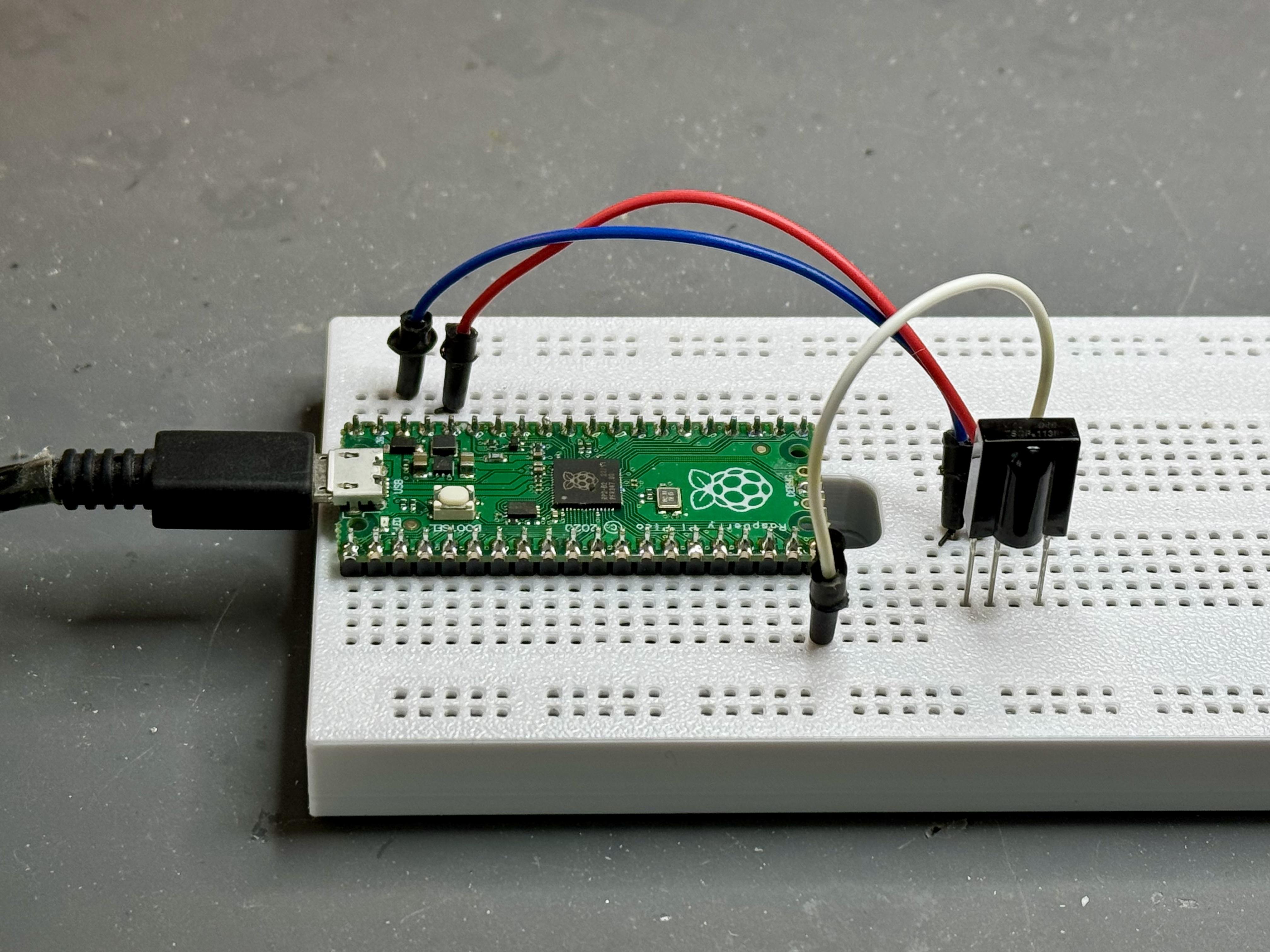
This step is only needed if you want to adapt the remote to a different TV or a different IR protocol. If you use the provided firmware and code definitions (Philips TV set, RC6 Code), you can skip this step.
To capture the IR codes from an existing remote control, this project includes a small helper tool based on a Raspberry Pi Pico and a TSOP1138 IR receiver module. The software prints the detected IR protocol and the received codes to a serial terminal.
Build up the simple electronics on a breadboard (see schematics). Connect the IR receiver module to GPIO15. Simply point your original remote at the IR receiver and press the buttons you want to use. The tool will show you which protocol is used and the corresponding codes (serial output). These values can then be used to modify the firmware of the ATtiny84 remote control.
Firmware Setup & Low-Power Concept
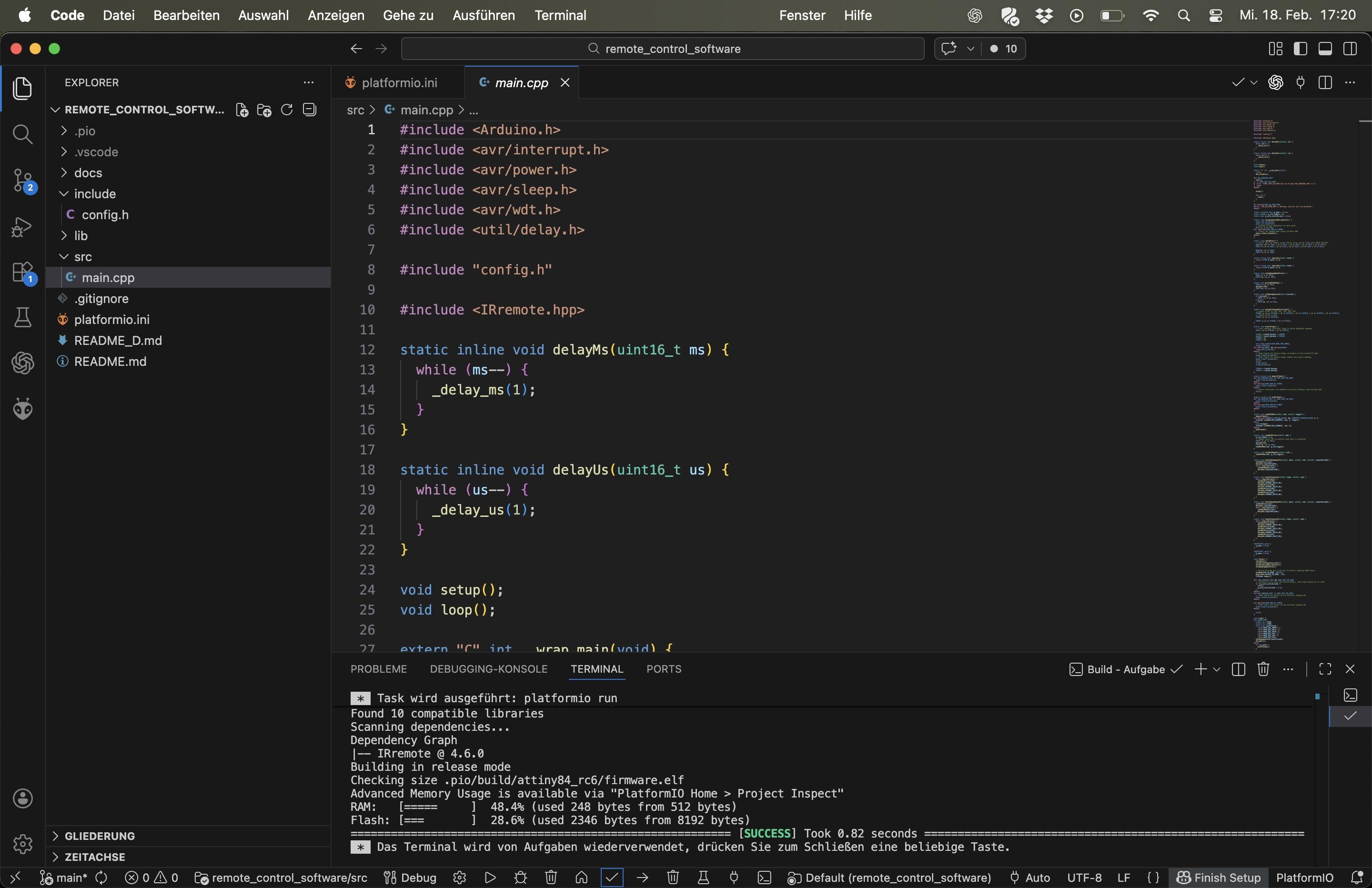
The firmware for the ATtiny84 is located in the /remote_control_software folder of the GitHub repository. The project is set up to be used with PlatformIO in Visual Studio Code, which provides a convenient environment for building and flashing the firmware.
To get started, install Visual Studio Code and the PlatformIO extension, then open the /remote_control_software folder as a project. PlatformIO will automatically load the configuration and toolchain.
Adapting the remote to a different TV means changing the IR protocol and codes in the source code. This is not just a simple setting and requires modifying the firmware. You can either do this manually by editing the code, or use an AI-assisted coding tool to help with the changes. I had very good experiences using Codex for this kind of task.
A key part of the firmware is its ultra-low-power design: the ATtiny84 spends almost all of its time in sleep mode and only wakes up when a button is pressed. This is what enables the remote control to run for years on two AA batteries.
In the next steps, you will compile and flash this firmware onto the microcontroller.
The PCB
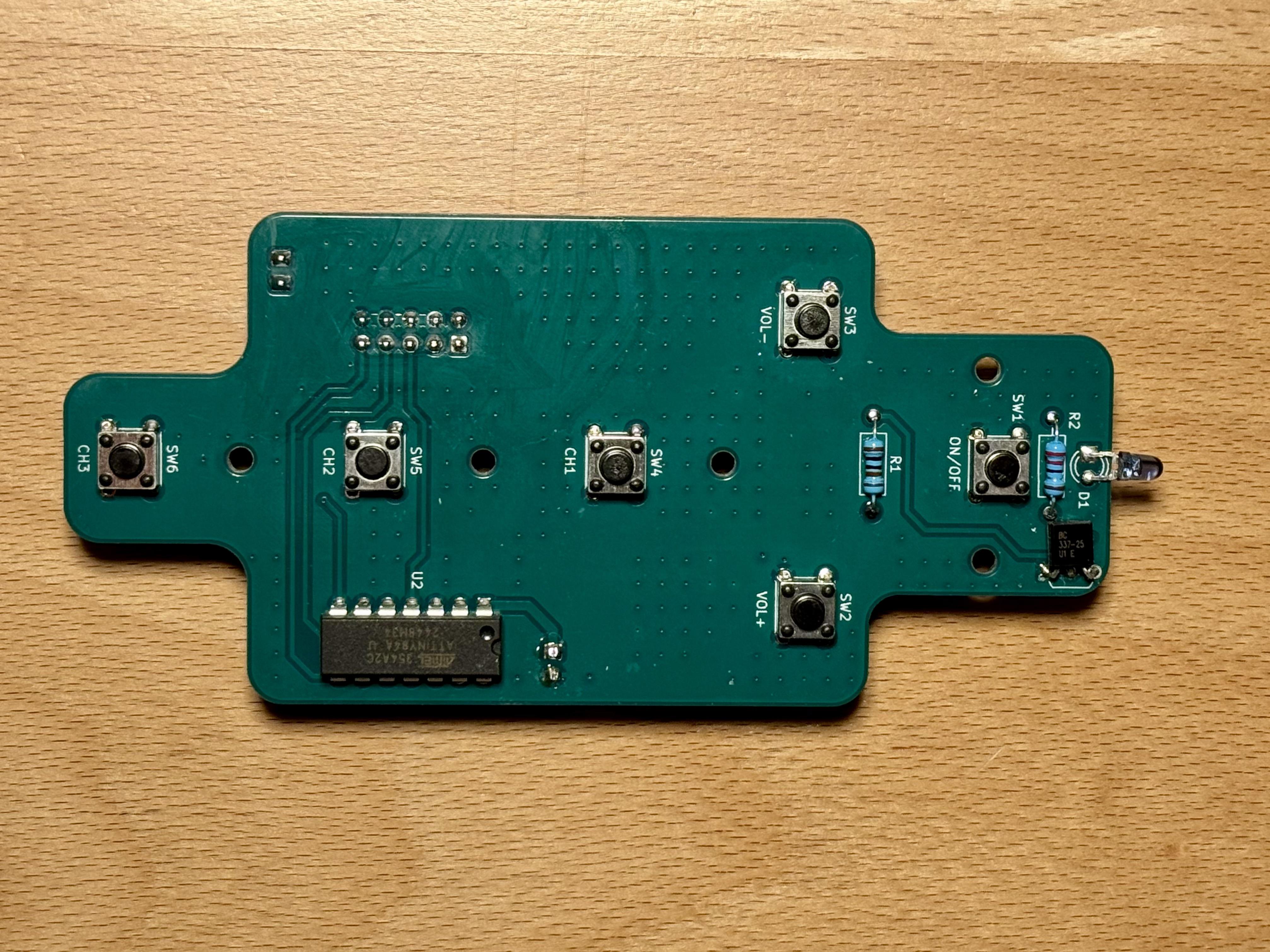
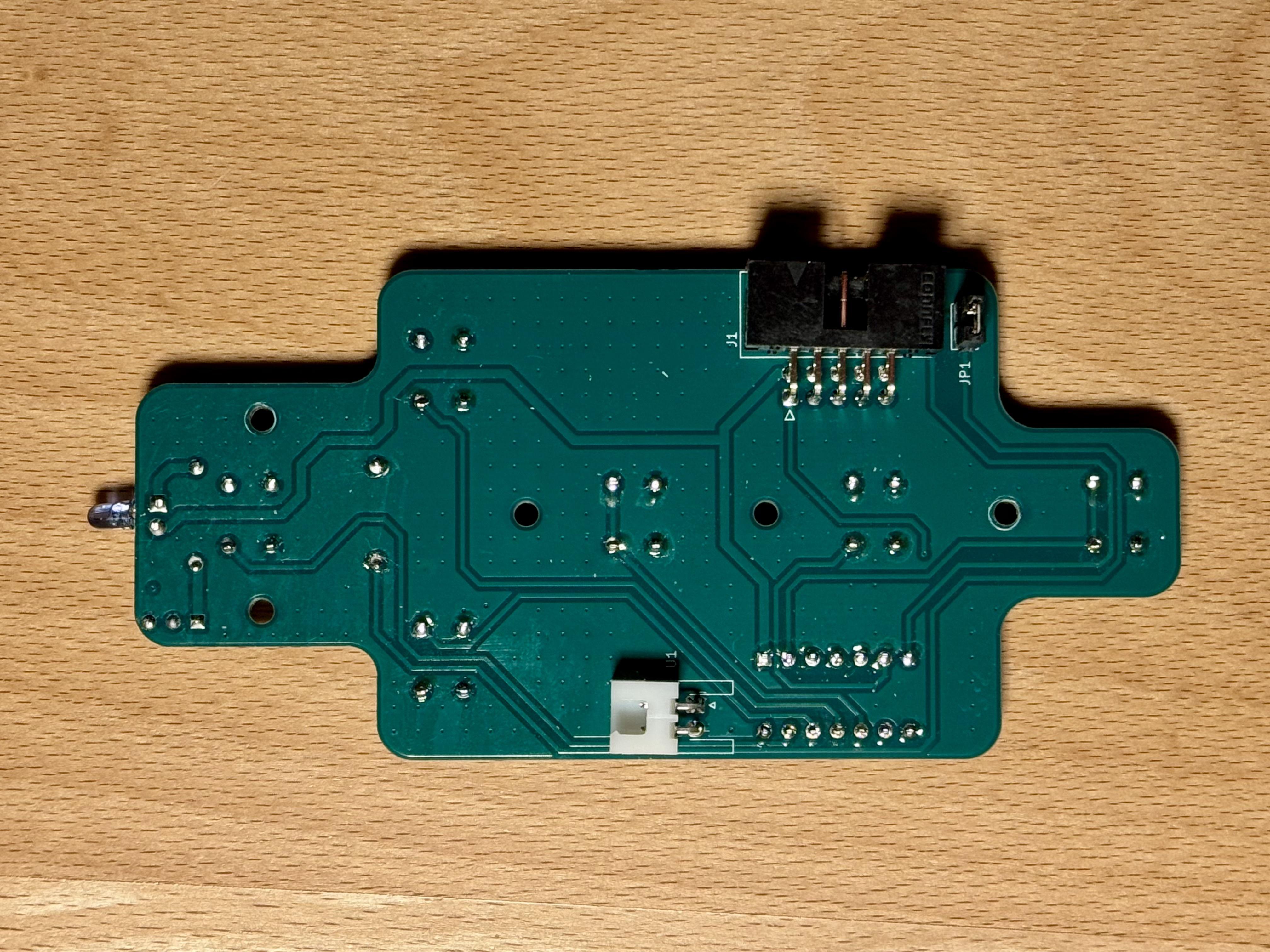
The remote control is built on a small, custom PCB. All design files, including schematics, layout, and Gerber files, can be found in the /remote_control_electronics folder of the GitHub repository.
You can either manufacture the PCB yourself or order it from a PCB fabrication service using the provided Gerber files. No special requirements are needed; this is a simple two-layer board designed for easy hand assembly.
Before ordering or assembling the board, take a quick look at the silkscreen and component orientation, especially for the ATtiny84, the transistor, and the IR LED, to avoid assembly mistakes later.
The board is designed for easy hand assembly. Start with the smallest components (resistors and the ISP header), then add the ATtiny84, the transistor, the IR LED, and finally the push buttons and the battery connector.
3D Printing the Parts
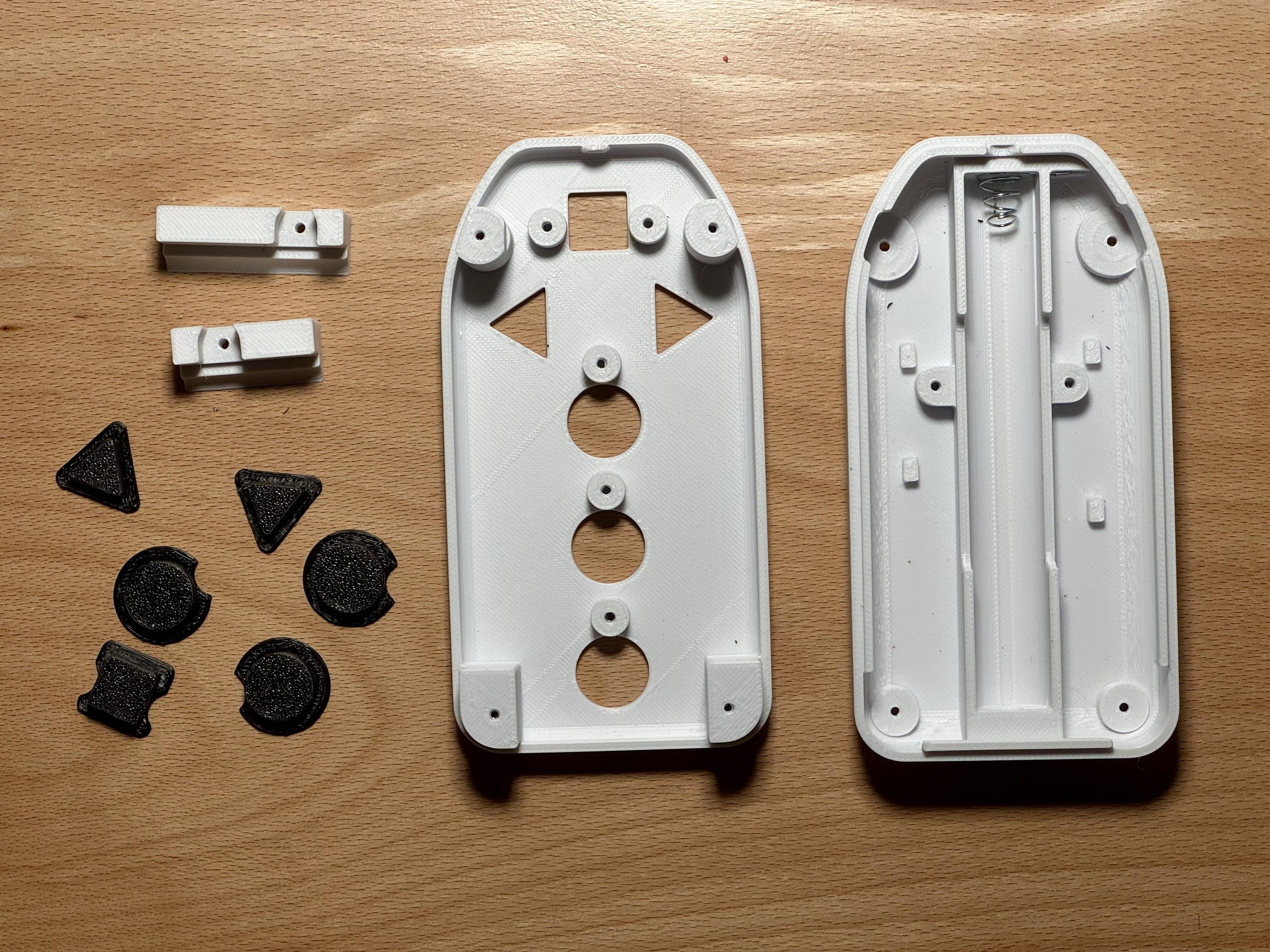
The enclosure for the remote control is 3D printed. It was designed with Autodesk Fusion. All STL files, as well as the original Fusion design files, can be found in the /mechanical_design folder of the GitHub repository.
The parts can be printed on a standard FDM 3D printer without any special requirements. PLA works well, but you can also use PETG or another material of your choice.
For both the top and bottom parts of the enclosure, a few M2 nuts have to be inserted during the print. To do this, set up pause commands in your slicer at the appropriate layer heights, insert the nuts, and then resume printing.
After printing, remove any stringing or rough edges and do a quick test fit of the buttons and the PCB to make sure everything fits properly before final assembly.
Assembling the Remote Control
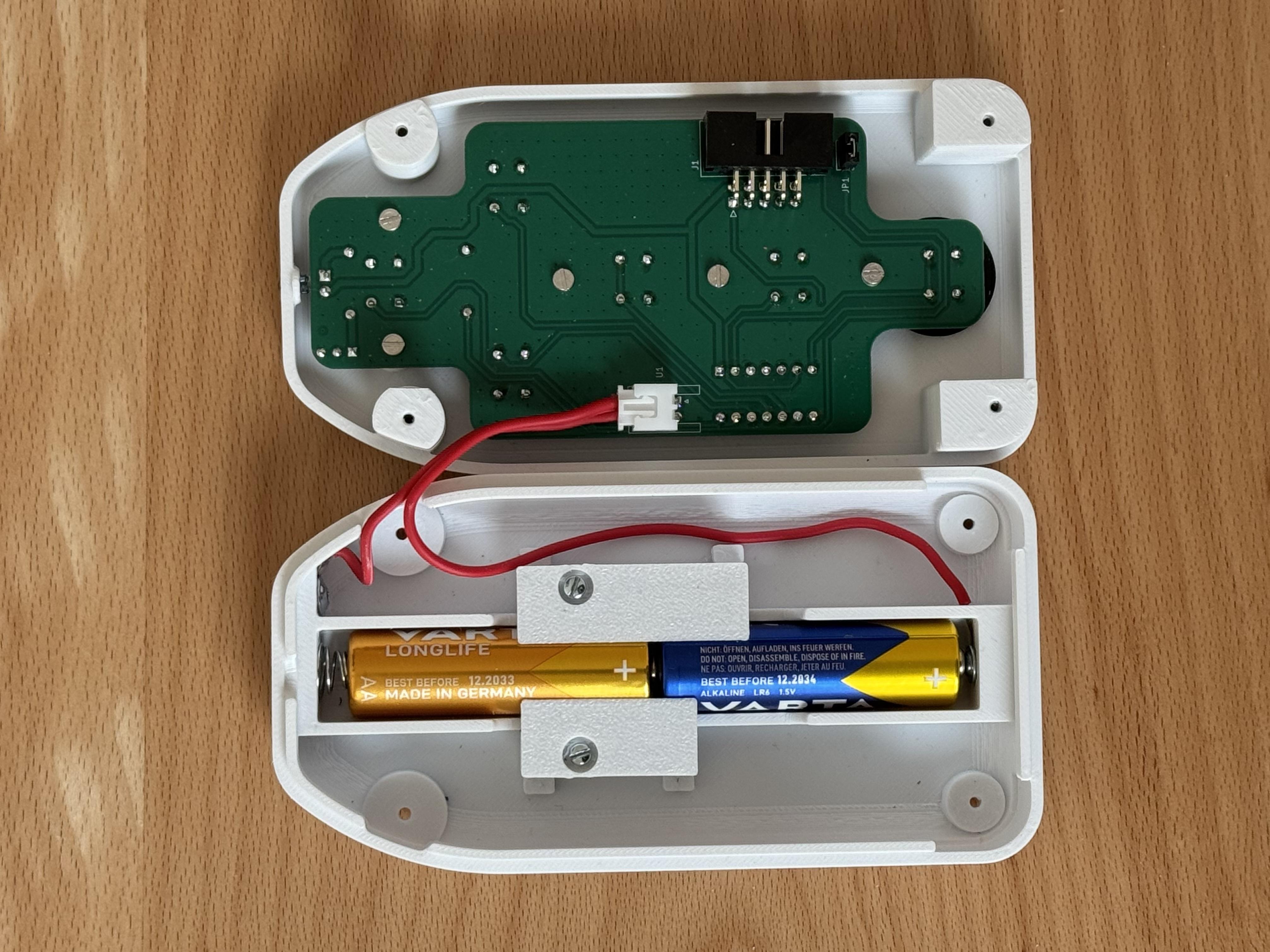
Now it’s time to assemble the remote control. Refer to the photos in the documentation to see how all parts fit together.
Start by placing the PCB and the buttons into the 3D-printed enclosure. Make sure all buttons move freely and align correctly with the openings in the case before closing it. Use M2x7 screws to connect the parts.
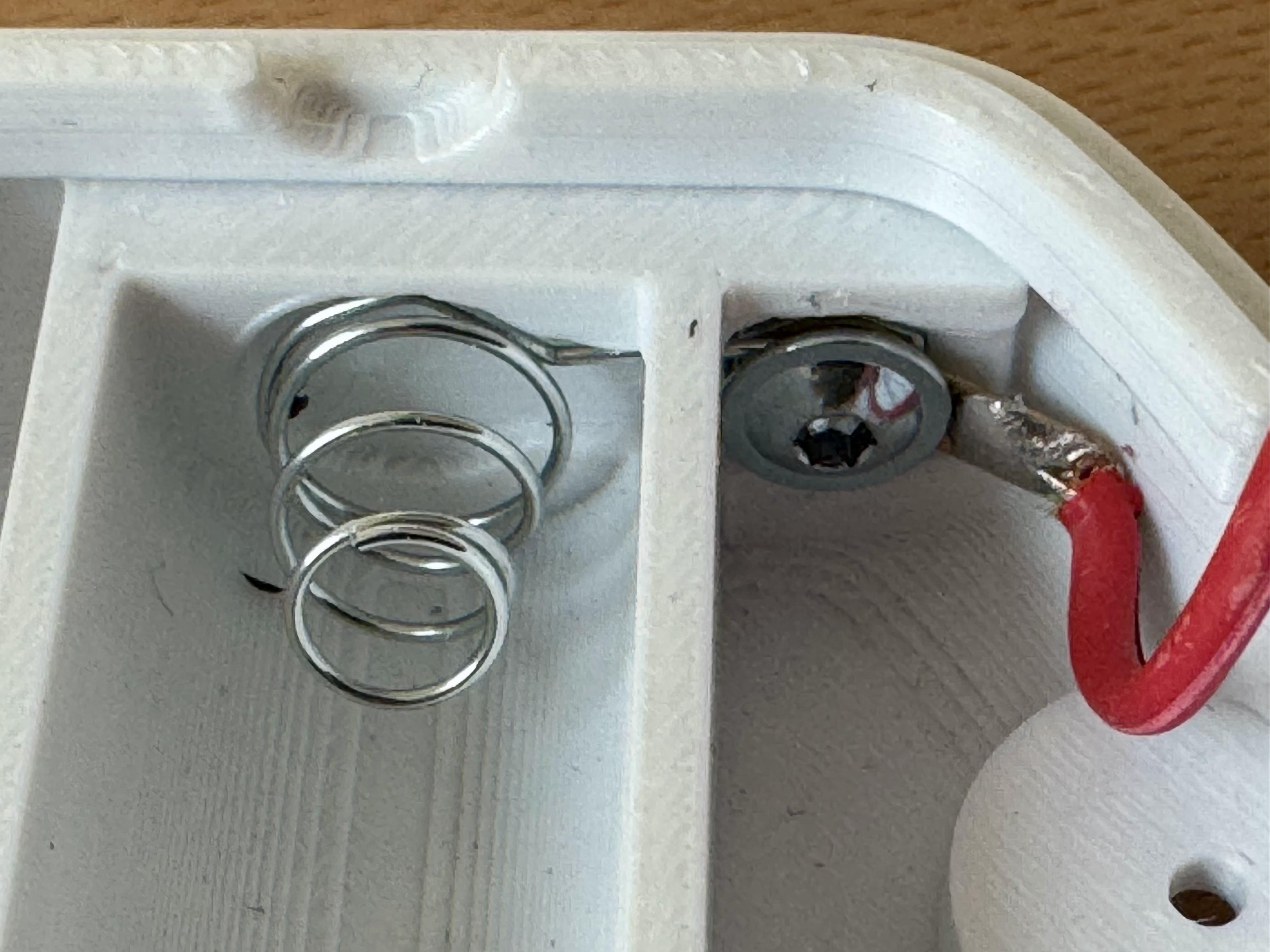
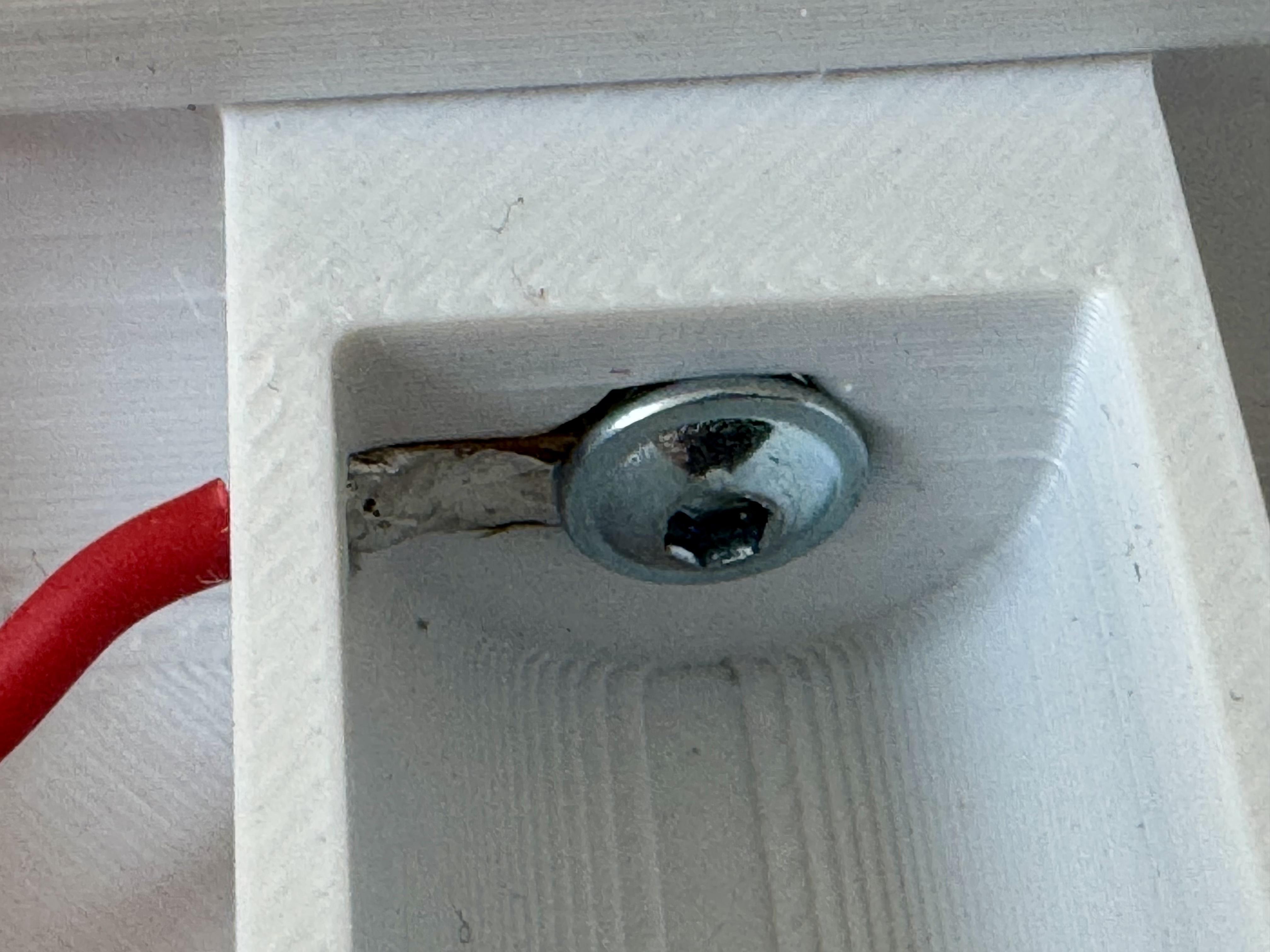
A special detail is the battery contacts. Instead of using a complete battery holder, this design uses the spring from a standard AA battery holder, which is removed from a commercially available part. For both battery contacts, place an M3 nut into the corresponding recesses in the printed enclosure parts.
Solder the wires to cable lugs, then fix them to the M3 nuts using short M3 screws. This creates robust and reliable battery contacts. The photos show this assembly step in detail.
Once everything is in place, close the enclosure and secure it with the screws. The remote control is now mechanically complete and ready for programming in the next step.
Setting the Clock Fuse to 8 MHz
Before uploading the firmware, the ATtiny84 has to be configured to run at 8 MHz using its internal oscillator. This is done by setting the fuse bits once using avrdude. You only need to do this a single time for each microcontroller.
Connect your ISP programmer to the board and open a terminal.
First, read out the current fuse settings:
avrdude -c usbasp -p t84 -U lfuse:r:-:h -U hfuse:r:-:h -U efuse:r:-:h
To configure the ATtiny84 for the internal 8 MHz clock (with clock divider disabled), program the low fuse like this:
avrdude -c usbasp -p t84 -U lfuse:w:0xE2:m
Finally, read the fuses again to verify that the setting was applied correctly:
avrdude -c usbasp -p t84 -U lfuse:r:-:h -U hfuse:r:-:h -U efuse:r:-:h
After this step, the microcontroller is correctly configured and ready to be programmed with the firmware in the next step.
Programming the ATtiny84
Programming the remote is done directly from Visual Studio Code using PlatformIO. Connect your ISP programmer to the ATtiny84 board.
In VS Code, open the /remote_control_software folder as a PlatformIO project. Once it is loaded, you can build and upload the firmware with a single click: press the “right arrow” (Upload) button in the bottom PlatformIO toolbar.
After the upload finishes, the firmware is on the ATtiny84 and the remote is ready for testing.
Using and Adapting Your Remote
Your remote control is now ready to use. Insert the batteries and test the basic functions: power, volume up, volume down, and the three channel buttons. A simple way to check if the IR LED is working is to look at it through a smartphone camera while pressing a button—you should see a faint flashing light. You can also use the TSOP1138-based test setup described earlier to reliably verify that the correct IR signals are being transmitted.
If the TV does not react, first check the battery contacts, the polarity of the IR LED, and the solder joints on the PCB. Also make sure the correct IR codes are configured in the firmware.
One of the strengths of this project is that it is easy to adapt. You can modify the firmware to support a different TV, change the button assignments, or adjust the number of channels. The enclosure can also be customized or redesigned to better fit your needs.
All source files for hardware, firmware, and mechanics are open source and available on GitHub. This project is part of a small collection of minimalist, accessibility-focused devices (DAB+ radio, talking clock), and you are encouraged to improve it, adapt it, and share your own versions.