Add Recording Indicator Light to NextPVR (Linux)
by bm_00 in Circuits > Computers
13 Views, 0 Favorites, 0 Comments
Add Recording Indicator Light to NextPVR (Linux)


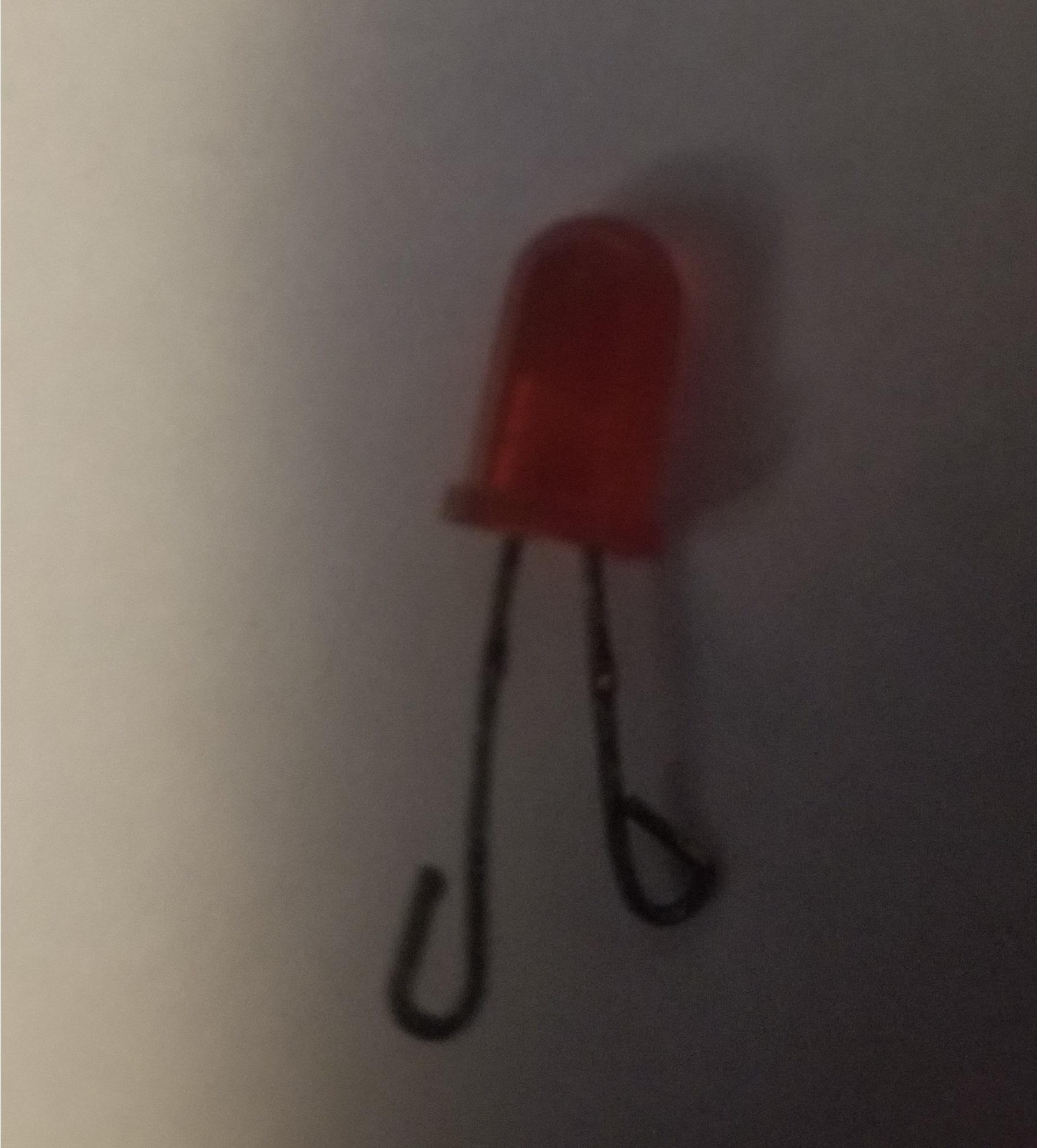


This version of the Instructable is for those running NextPVR on a Linux based host.
Many of us have a PVR/DVR/HTPC device for our personal media needs. This is great but often they are missing a few elements to make it more like a commercially purchased product. An example of this is a Recording Indicator Light and/or Tuner Indicator Lights. These indicator lights can easily be added to any device running NextPVR as a PVR backend. . All that's needed is a Serial RS232 COM port.
This guide was developed & designed using an Ubuntu based Linux distribution. The exact steps & configuration may vary depending upon your Linux type & flavor. The default text editor used is nano.
Arduino based support will be added at a later date
Supplies
Required:
- 1x PC running NextPVR as Backend
- 1 x Rs-232 COM Serial port or Serial port Header or USB-Serial Adapter
- Various lengths of wire
- 2 LED Light Bulbs of desired color
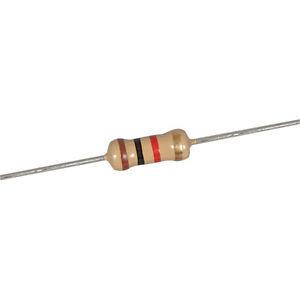
- 2x 1KOHM resistors
- Electrical Tape
- (Optional) Soldering Iron
- (Optional) Various DC Male Headers(Such as found on cordless phone batteries, Dupont headers)
Python Installed on your Linux installation (A guide to Python installation/configuration will not be provided).
Find Your RS232 COM Port
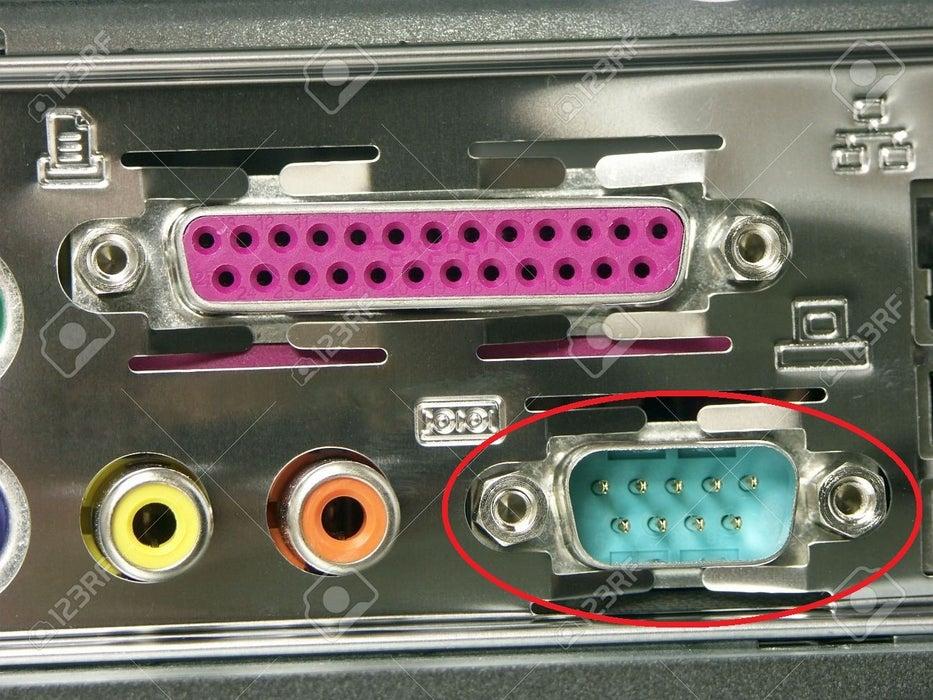
Check if your computer has either an external RS-232 COM Port or an Internal COM port header.
To determine if you have a physical port look on the back of your computer for a jack that has 9 pins and looks like the light blue port circled in the above picture.
To determine if your motherboard has an internal RS-232 Serial port header web search your motherboard model number and look at its specifications//manual. Look for something called Serial Port/COM/Serial Header. If you find it then you have one, if not you will need a USB to Serial adapter.
If you have neither available on your computer then you can purchase a USB to Serial adapter. They can be found for around $10. Most modern ones work with Linux.
Connect Wires to Serial (RS-232) Port
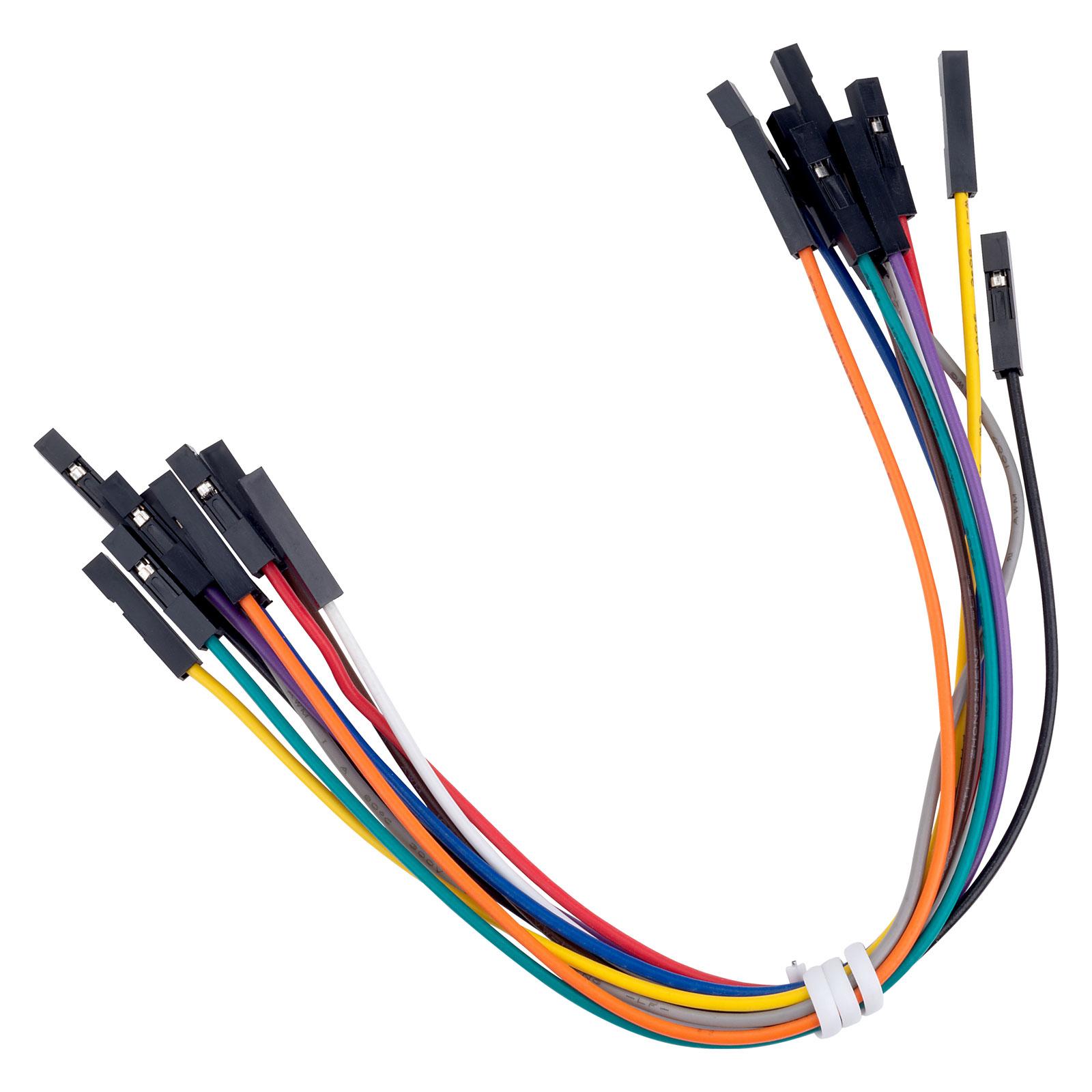
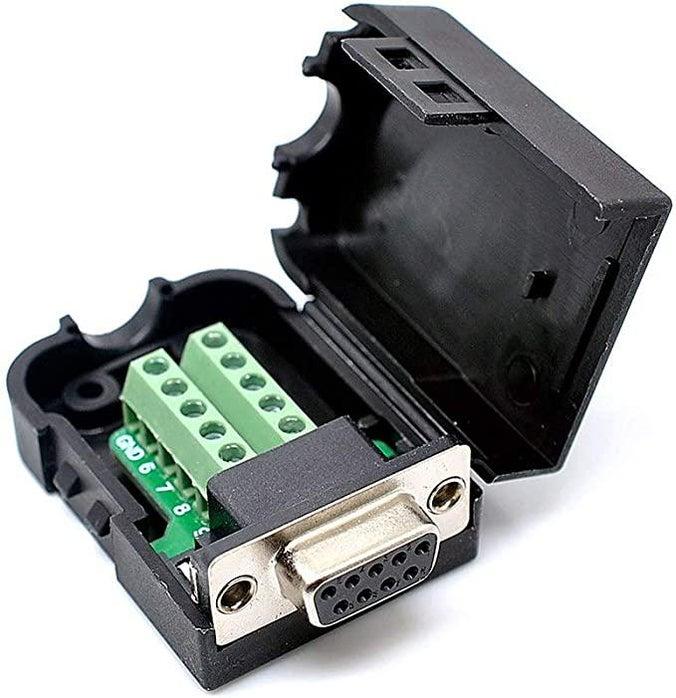
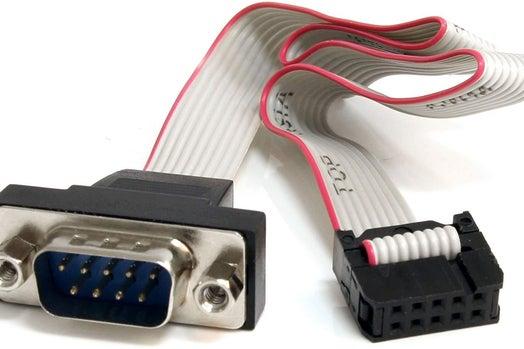
There are multiple ways to connect the wires to your physical RS-232 Serial port. The internal header method is preferred as it keeps all components inside of the case. The options are:
Physical Port
Purchase a Female Serial break out end such as This.
Cut apart and splice an old serial cable from a device such as a modem or This.
Wrap wire around pin and solder/tape in place.
Use Dupont wire headers.
Header
Purchase a Serial Header to Serial Port panel mount/pci expansion bracket such as This and use one of the methods from above
Purchase a Serial Header to Serial Port panel mount/pci expansion bracket such as This and splice the LED into the wire.
Use Dupont wire headers on DTR, RTS, GND Pins
Which Pins Do I Use?
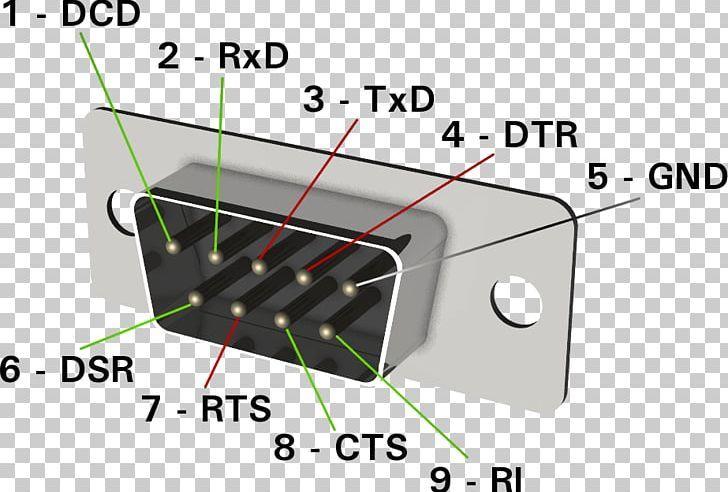
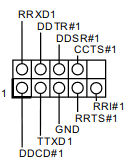

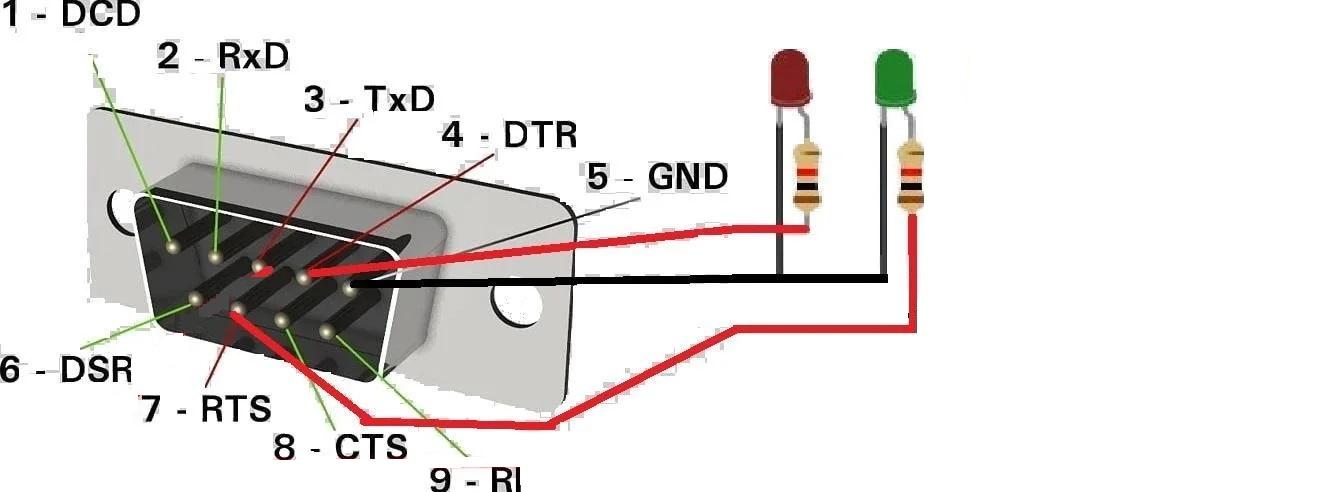
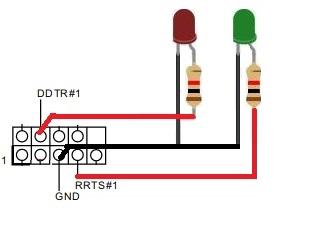
A single RS-232 Serial port can control 2 LED lights. You can add more serial ports to the computer for more lights as needed.
In order to drive the two LED's the pins DTR & RTS (and GND) are needed to control the corresponding lights. Below is how to connect the LED's.
Physical Serial Port:
Consult the diagrams.
Using your desired method of connection(from step 2) to connect the wires to the corresponding pin
The positive leg of the LED(usually longer leg) connects to a 1 KiloOhm resistor(see image) then to the DTR or RTS pin. The negative(Shorter leg) connects to ground (GND).
Header:
Consult the pinout from your motherboard manual. Different motherboards may use different pin outs. The above diagram is a common pinout. Check don't assume!
Once the pin out is determined, connect the wires to the corresponding pin desired.
The positive leg of the LED(usually longer leg) connects to a 1 KiloOhm resistor(see image) then to the DTR or RTS pin. The negative(Shorter leg) connects to the ground or GND.
Python, Pip, PYSerial
Python is required to run the LED control scripts. Python is likely installed on your Linux distribution by default but if not it will need to be installed. Python Version 3 or higher is required.
Python:
Check if installed (via terminal):
If Python is not installed:
- Try to install via your distributions package manager. Open package manager & search for python3.
- Another great resource to install python is: https://docs.python-guide.org/starting/install3/linux/
- Do a web-search for Install python3 on *your_linux_distribution*
Pip:
- Check if Pip is installed with command (via terminal)
or
- Check if Pip is installed with command (via terminal)
- If found it will return the path to Pip/Pip3. If not found there will be no result meaning Pip must be installed. If not found visit: https://pip.pypa.io/en/latest/installation/ for installation assistance.
PYSerial:
Run:
If you encounter errors try the command:
The above command IS NOT recommended and may break your system. It should only be used as a last resort.
Check the installation with:
You should receive any output including its version & location.
NOTE: Your Distribution & Python configuration may require PipX rather then Pip. See https://pipx.pypa.io/stable/installation/
Finding the Serial Port
To view all Serial ports on your Linux distribution run the command:
You will get a list of ports in return.
- If using a USB to Serial adapter your adapter is likely /dev/ttyUSBx where x is the port number. Often this is /dev/ttyUSB0 or /dev/ttyUSB1
- If using a hardware Serial port your port is likely /dev/ttySx where x is the port number. Often this is /dev/ttyS0 or /dev/ttyS1
You may also try the command:
This should provide a much smaller list of ports available. Look for the one that is /dev/ttySx & lists a base_baud rate.
This guide's port is located at /dev/ttyS0
NextPVR Scripts
In order to make NextPVR turn the LED Lights On & Off we need to create some files. There are 6 files we can create. Each has a different purpose but all can control an LED light for a different function.
ParallelProcessing.sh Runs when a recording begins. (Will be used to turn on red LED)
PostProcessing.sh Runs when a recording ends. (Will be used to turn off red LED)
PostCancel.sh Runs when a recording is canceled (Will be used to turn off red LED)
UpdateEPG.sh Runs when EPG(Electronic Programing Guide update begins. (Will be used to turn on green LED)
PostUpdateEPG.sh Runs when the EPG update completes. (Will be used to turn off green LED)
Wakeup.sh Runs when PC is waken up from sleep (Not used in this Instructable).
For this Instructable we will be using 5 of the scripts indicated above. The process is the exact same for the other scripts. You can pick & choose which ones you need.
These scripts are located at /var/opt/nextpvr/scripts. This directory requires super user(sudo) access to write to.
Configure LED Control Scripts
Separate ON & OFF scripts are required to control each LED. These scripts can be placed anywhere on your machine you would like. I created the directory /home/scripts/ledcontrol to store my scripts.
DTRLEDOn.sh
1) Open nano via command:
2) Copy and Paste the following into the blank document
3) Replace the'/dev/ttyS0' with your desired serial port.
4) Note the logic is inverted (0 = ON, 1 = OFF). Some USB to Serial adapters invert this logic again so (0 = OFF, 1=ON).
5) Press CTRL + S to save file.
6) Press CTRL + X to exit file.
DTRLEDOff.sh
1) Open nano via command:
2) Copy and Paste the following into the blank document
3) Replace the'/dev/ttyS0' with your desired serial port.
4) Note the logic is inverted (0 = ON, 1 = OFF). Some USB to Serial adapters invert this logic again so (0 = OFF, 1=ON).
5) Press CTRL + S to save file.
6) Press CTRL + X to exit file.
RTSLEDOn.sh
1) Open nano via command:
2) Copy and Paste the following into the blank document
3) Replace the'/dev/ttyS0' with your desired serial port.
4) Note the logic is inverted (0 = ON, 1 = OFF). Some USB to Serial adapters invert this logic again so (0 = OFF, 1=ON).
5) Press CTRL + S to save file.
6) Press CTRL + X to exit file.
RTSLEDOff.sh
1) Open nano via command:
2) Copy and Paste the following into the blank document
3) Replace the'/dev/ttyS0' with your desired serial port.
4) Note the logic is inverted (0 = ON, 1 = OFF). Some USB to Serial adapters invert this logic again so (0 = OFF, 1=ON).
5) Press CTRL + S to save file.
6) Press CTRL + X to exit file.
Fix the Permissions (LED Scripts)
In order for these scripts to be run they need to be made executable. To do so:
1) Navigate to where you stored your LED control scripts. Ex. /home/scripts/ledcontrol/ via terminal
2) Run:
3) There should be no output in terminal
4) Repeat the same chmod +x for DTRLEDOff.sh, RTSLEDOn.sh , RTSLEDOff.sh
Note: If you have not made all the files that's fine, only make the ones you have executable.
Create a Script(nextPVR)
ParallelProcessing.sh
1) Open nano via command:
2) Copy and Paste the following into the blank document
3) Replace the' /home/scripts/ledcontrol/DTRLEDOn.sh with the path to your DTRLEDOn.sh Script
4) Press CTRL + S to save file.
5) Press CTRL + X to exit file.
PostProcessing.sh
1) Open nano via command:
2) Copy and Paste the following into the blank document
3) Replace the /home/scripts/ledcontrol/DTRLEDOff.sh with the path to your DTRLEDOff.sh Script
4) Press CTRL + S to save file.
5) Press CTRL + X to exit file.
PostCancel.sh
1) Open nano via command:
2) Copy and Paste the following into the blank document
3) Replace the /home/scripts/ledcontrol/DTRLEDOff.sh with the path to your DTRLEDOff.sh Script
4) Press CTRL + S to save file.
5) Press CTRL + X to exit file.
UpdateEPG.sh
1) Open nano via command:
2) Copy and Paste the following into the blank document
3) Replace the /home/scripts/ledcontrol/RTSLEDOn.sh with the path to your RTSLEDOn.sh Script
4) Press CTRL + S to save file.
5) Press CTRL + X to exit file.
PostUpdateEPG.sh
1) Open nano via command:
2) Copy and Paste the following into the blank document
3) Replace the /home/scripts/ledcontrol/RTSLEDOff.sh with the path to your RTSLEDOff.sh Script
4) Press CTRL + S to save file.
5) Press CTRL + X to exit file.
Fix the Permissions (nextPVR Scripts)
In order for these scripts to be run they need to be made executable. To do so:
1) Navigate to /var/opt/nextpvr/scripts/ via terminal
2) Run:
3) There should be no output in terminal
4) Repeat the same chmod +x for ParallelProcessing.sh, PostProcessing.sh , PostCancel.sh , UpdateEPG.sh, PostUpdateEPG.sh,Wakeup.sh, and all other files you have created.
Note: If you have not made all the files that's fine, only make the ones you have executable.
Try It Out
Manually test each of your .sh files by running it. To do so:
Test LED Control Scripts:
1) Open terminal
2) Navigate to the directory where you stored your LED control scripts. EX:
3) Type
4) Click Enter key
5) The LED should light up
6) Repeat same process for DTRLEDOff.sh, RTSLEDOn.sh, & RTSLEDOff.sh
Test NextPVR Scripts:
1) Open terminal
2) Navigate to the NextPVR scripts directory:
3) Type
4) Click Enter key
5) The LED should light up
6) Repeat same process for ParallelProcessing.sh, PostProcessing.sh , PostCancel.sh , UpdateEPG.sh, PostUpdateEPG.sh,Wakeup.sh, and all other files you have created.
Wait... Python Is Available on Windows!
These python scripts will also work on Windows!
- You will need to install Python, Pip, & PySerial
- Instead of /dev/ttyS0 you will use COMx with X being the port number. Use device manager to find your port.
- Create .bat files instead of .sh. Leave out the #!/bin/bash
- No need to make the batch files executable
- NextPVR scripts are located at: C:\Users\Public\NPVR-Data\scripts
- You may need to edit permissions to run these files. See steps 7 & 8 for help. https://www.instructables.com/Add-Recording-Indicator-Light-to-NextPVR
- If you need help drop a comment or send a message. Happy to assist.