AMBI 1.0: the Ambient Environment Buddy
by CapeGeek in Circuits > Microcontrollers
104 Views, 0 Favorites, 0 Comments
AMBI 1.0: the Ambient Environment Buddy
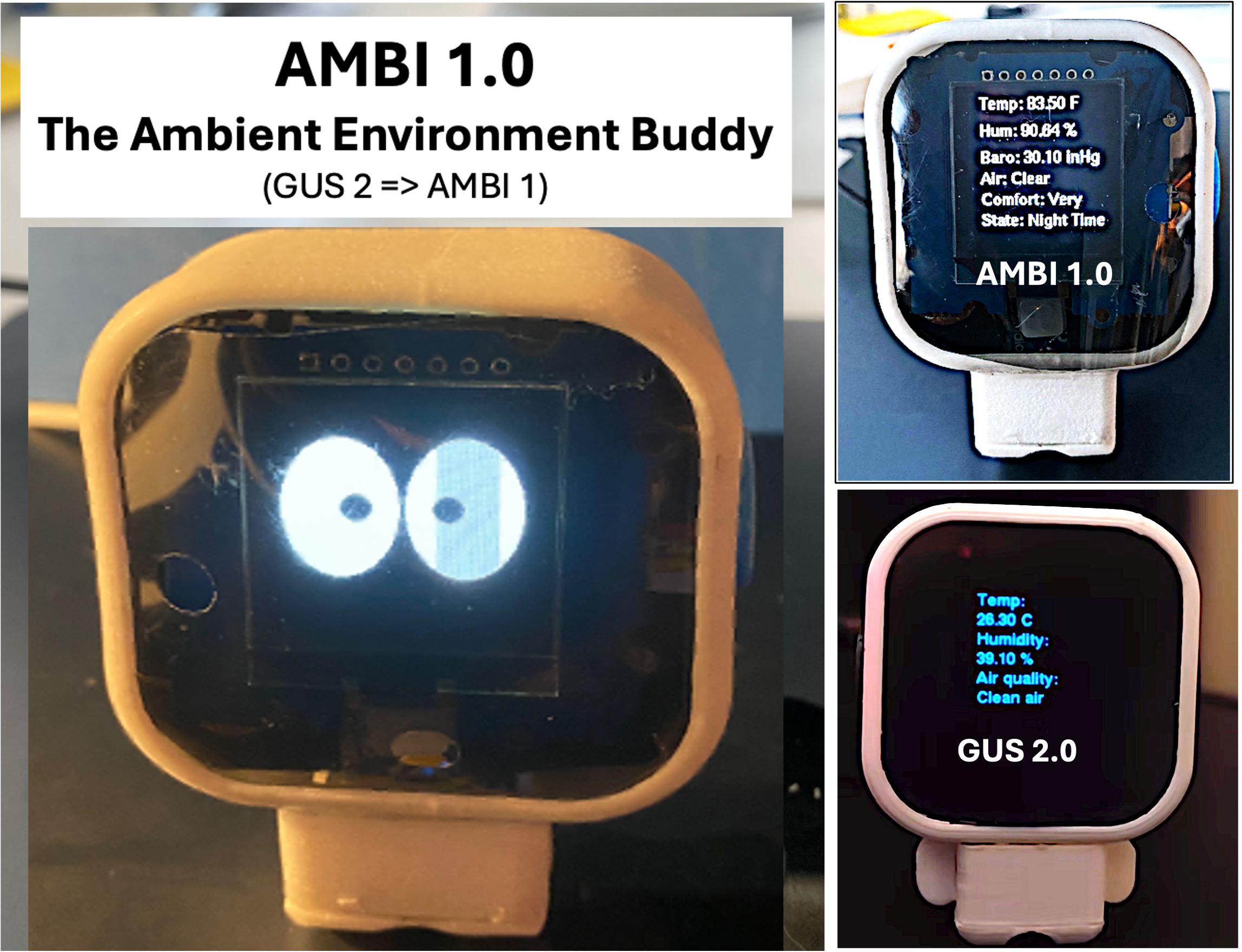
The AMBI Vision:
A frequent early microprocessor project is the classic weather station that typically reads sensors and reports with values and graphs. Later projects often involve increasingly complex vision, speech, and gesture sensing, and recently, machine learning. My interest lies in exploring a more minimalist alternative. Instead of adding complexity, the direction is to explore fusing simple sensors, context, and time to provide local environmental awareness without demanding attention.
The GUS Instructable, posted last year, caught my attention as an example of a desktop companion that integrates multiple sensors to interpret a room’s environment—but goes a step further by expressing an overall sense of comfort through a clever, winking eyelid display. I saw GUS as a step beyond simple sensor reporting displays—transforming raw readings into information that feels intuitively useful.
AMBI's basic job is to figure out the overall comfort level of the local environment. It starts by reading the air quality, humidity, and temperature data from the sensors. Then it checks how many sensor readings are currently outside preset comfortable zones. Then it calculates a "comfort score" ranging from 0 to 4. A score of 0 means the best comfort level, while a score of 4 indicates the worst comfort level. The score is visually displayed by the height of the eyelid display. Good comfort is shown by full-open eyelids. At the same time, AMBI detects if there is any hand or body movement. If there is, it switches from the eyelid display to full-open eye for a few seconds, followed by a digital display of the current sensor readings. These include the temperature, humidity, barometric pressure, air quality, comfort level, and if it is day or night.
I was also drawn to the physical design: a compact desktop case with a charming OLED eye and a surprising amount of capability packed into a tiny box driven by an XIAO processor. The popular Dasai Mochi adaptations share a similar kawaii aesthetic, but like the basic weather station, they remain archetypes without sensor fusion. GUS goes further by providing meaningful environmental awareness.
Like artists studying the classics, I’ve always found value in learning through imitation. AMBI is my interpretation of extending the GUS concept. Specifically:
- Changed the DHT22 sensor to a BME280, which is more accurate and compact, and added BAROMETRIC PRESSURE.
- Add a light intensity sensor to sense the daytime/night context
- Replace the touch sensor with a PIR sensor to trigger the display mode and sense occupant frequency
- Reverse the scale and eyelid calculations to go from a low to high (1 to 5 versus 5 to 1)
- Modify the comfort calculation function to include the new sensor and context data
- Provide the hooks to extend the common-sense interpretations further
While this was a rewarding project, it isn’t one for beginners. The biggest challenge is cramming everything into the small case, along with the relatively complex software. Credit and thanks to Arpan Mondal for the original GUS design. AMBI is my attempt to build on that foundation and, hopefully, encourage others to continue the evolution.
Gus 2.0 - Uses Emotions to Indicate Room Health. https://www.instructables.com/Gus-20-Uses-Emotions-to-Indicate-Room-Health/.
Supplies
XIAO ESP32 S3, C6 (or other small microcontroller): Link to purchase
SH1107 1.12 inch OLED display: Link to purchase
Air quality sensor: Link to purchase
BME280 Pressure, Temperature, Humidity Sensor (pin card version): Link to purchase
Grove mini PIR Motion Sensor: Link to purchase
Grove Phototransistor Light Sensor: Link to purchase
Polaroid Sheet: Link to purchase
JB SuperWeld Light-activated Superglue: Link to purchase
Plastruct 1/4"x1/4" right-angle ABS plastic strip: Hobbylinc.com (or most hobby stores)
Foam Sheet 9"X12" 2mm thick: Michaels.com, This could be cardboard or thin foam core sheet
Grove - Universal 4 Pin Buckled 5cm I2C Cables Link to purchase
Grove-I2C Hub Grove Interface Expansion Board (optional) Link to purchase
3D Printed Case (Fusion 360 Design): See the 3D design in GUS 2.0 Instructable: https://www.instructables.com/Gus-20-Uses-Emotions-to-Indicate-Room-Health/
Capability Overview
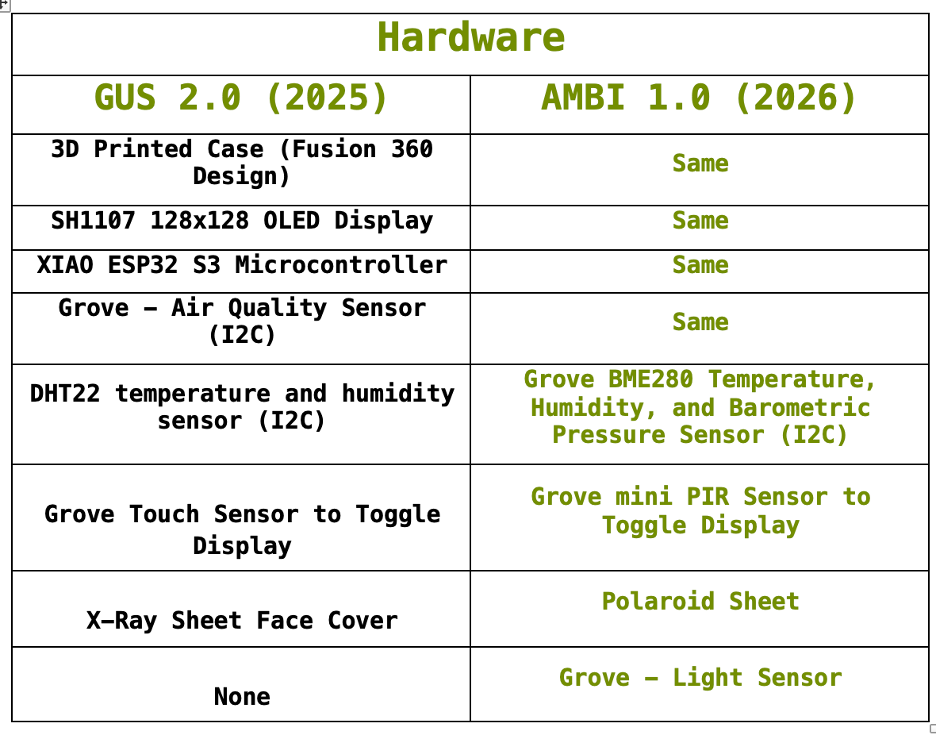
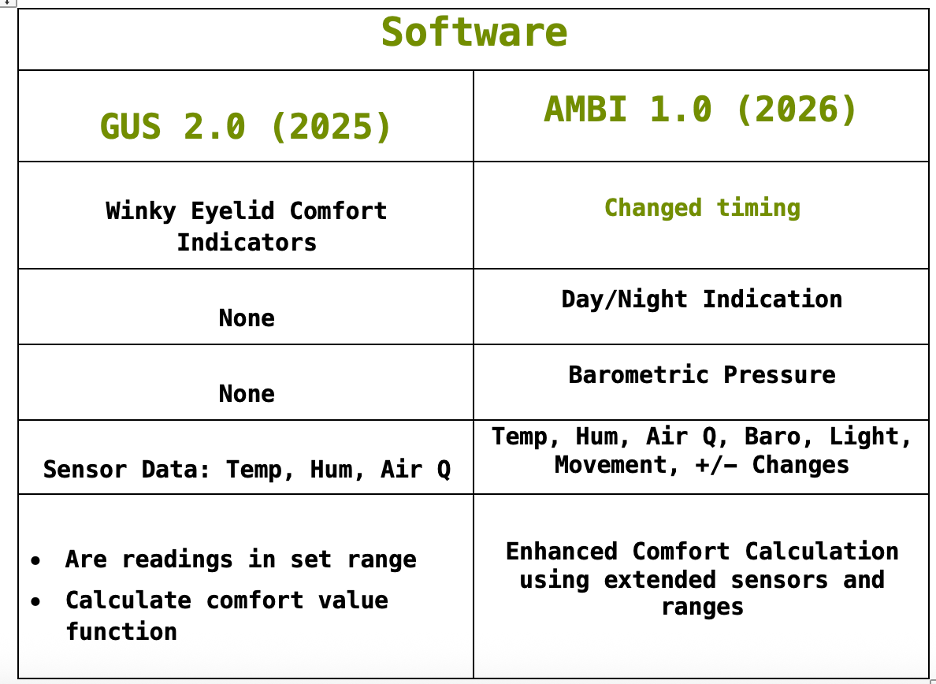
The AMBI enhancements are described in the charts above. This started with the sensors. The DHT22 sensor was upgraded to the newer BME280 to add barometric pressure sensing. A light intensity sensor was added to sense day vs. night context. The touch sensor was replaced with a PIR motion sensor. There were reliability issues sensing touch through the plastic case, and the PIR sensor could sense room hand or body motion. This was used to add hand motion triggering between display modes.
A small change was to use a commercial Polaroid sheet, instead of less available X-ray film, for the display front cover.
Software modifications added the details of for the new sensors and reversed the order of the comfort scale to give a more intuitive ordering from level 1 to 5, instead of the reverse. I also extended the data fusion and comfort calculation. Hooks are also in place to add sensors and enhance the sensor fusion in future versions.
Reusing the Gus Case
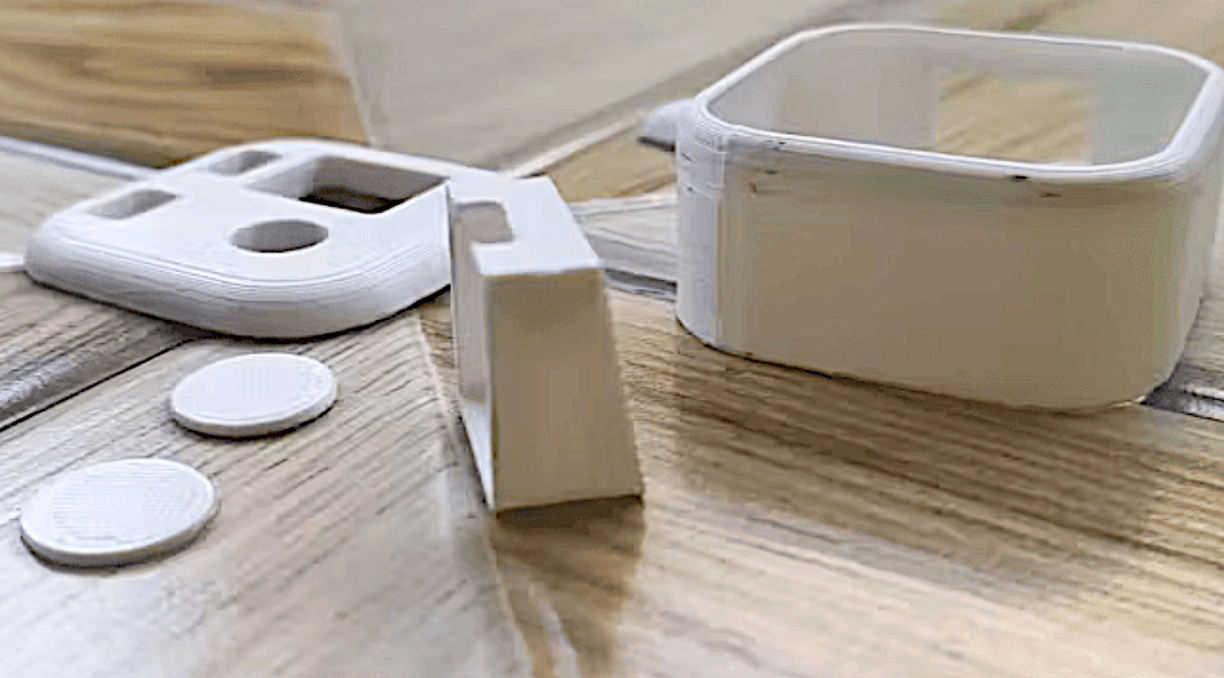
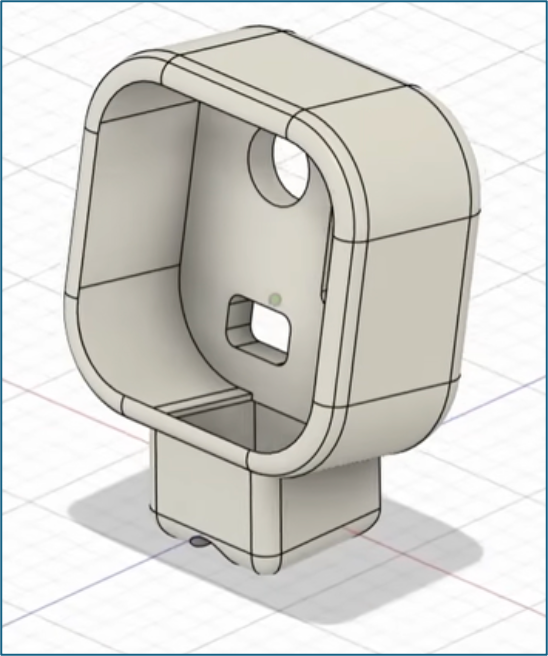


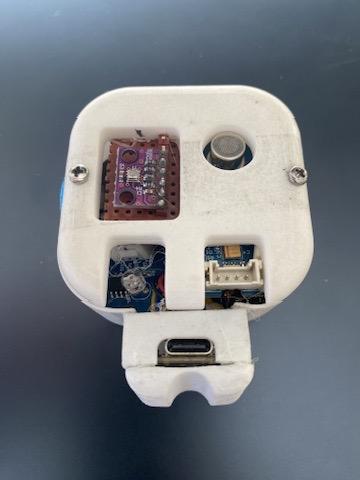
The case for AMBI was an important decision. Although any suitable case would work, I suggest the original 3D printed case described in the original GUS Instructable, as shown in the first picture here. This was cleverly designed in Fusion 360 to accommodate all the components. The cute profile and small size were what first attracted me to the project. I did a brief search of Thingiverse.com to see if any alternatives caught my eye, but there weren't at that time.
I do not have a 3D printer, so I sent the files as posted in the original article to a 3D printing house. There was no problem with the existing files, so I received a set of five parts in short order. Refer to the original GUS Instructable for detailed instructions on the assembly.
I did a couple of modifications that may be helpful. The small bottom stand is fairly thin. I considered several alternatives to attach it to the main body. I found that SuperGlue didn't stick well, and 5-minute epoxy was messy. In the end, I used light-activated JB SuperWeld, as shown in the second picture here. It was an excellent solution as it hardens instantly when flashed with the attached IR source.
The pictures also show the small bottom piece that needs to be attached to the bottom of the stand. I was concerned about gluing this permanently, as I would probably need to take the bottom on/off if modifications were needed to the microprocessor that fit in the bottom stand. It is jumping ahead, but later when I needed to attach this piece, I finally used a narrow line of clear silicon rubber on the bottom piece so I could pry it open if necessary. A small band of hot glue would also work.
I was worried about needing to re-open the back and bottom parts of the case, so SuperWeld wasn't a good solution for those parts. I made the back plate removable, with screws, versus more permanent gluing. To do this, I added two small angle brackets with JB Weld to the sides of the case made from 1/4"x1/4" Plaststrut, with a small 1/16" screw hole. The brackets are shown in the second picture here. I drilled two matching clearance holes in the back panel so I could screw it in place on the back with small self-tapping screws. The third picture shows the screws in the finished back panel. The other components shown on this piece will be described later.
While the original GUS write-up did not include making the panel removable, I found it necessary to reopen to modify the connections to the I2C sensors. This is described in more detail below.
Initial System Check Out
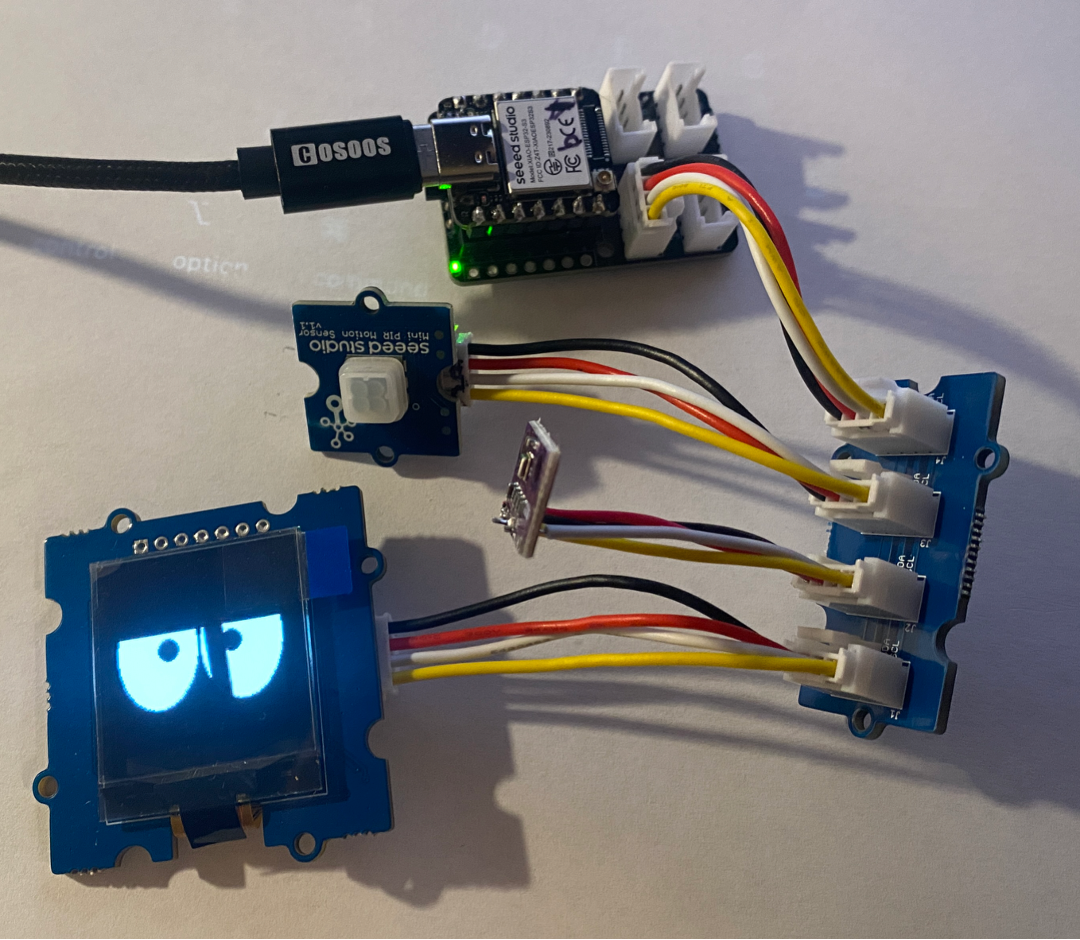
The completed AMBI assembly is a very compact, interconnected collection of components. Once assembled, it is very difficult to modify connections or change components if there is a problem. As a result, it is advisable to first assemble all the hardware components and download the software to make sure the entire system operates successfully. The hardware can be connected either the old-fashioned way on a pin-plug breadboard or by using an XIAO Extension Board with I2C jumper connectors between the boards. This is the method shown in the photo above. To run the devices, you will need to jump ahead of the hardware assembly to the software steps in Step 5. Once you have confirmed you have all the right parts and the software works correctly, then you can screw the back and glue the bottom to proceed with the next step from here.
This early experience made several potential problems clear. One was to make sure you understand the I2C connections on the module. If you use the unmounted BME280 chip board, the order of the I2C pins on the PCB board is not the standard order on the I2C jumpers, so you will have to do a custom re-wiring. A second potential problem will arise if you use a different OLED display. The display software will have to be changed to match the new display. If you are not familiar, this can be a challenge. My advice is to stick to the recommended 126x126 display. A third problem was that downloading to the XIAO microprocessor from the Arduino IDE can take multiple tries. Even if the compiling is OK, the loading can get hung up. Make sure you have the right device and port selected, and the baud rates match.
Hardware Assembly
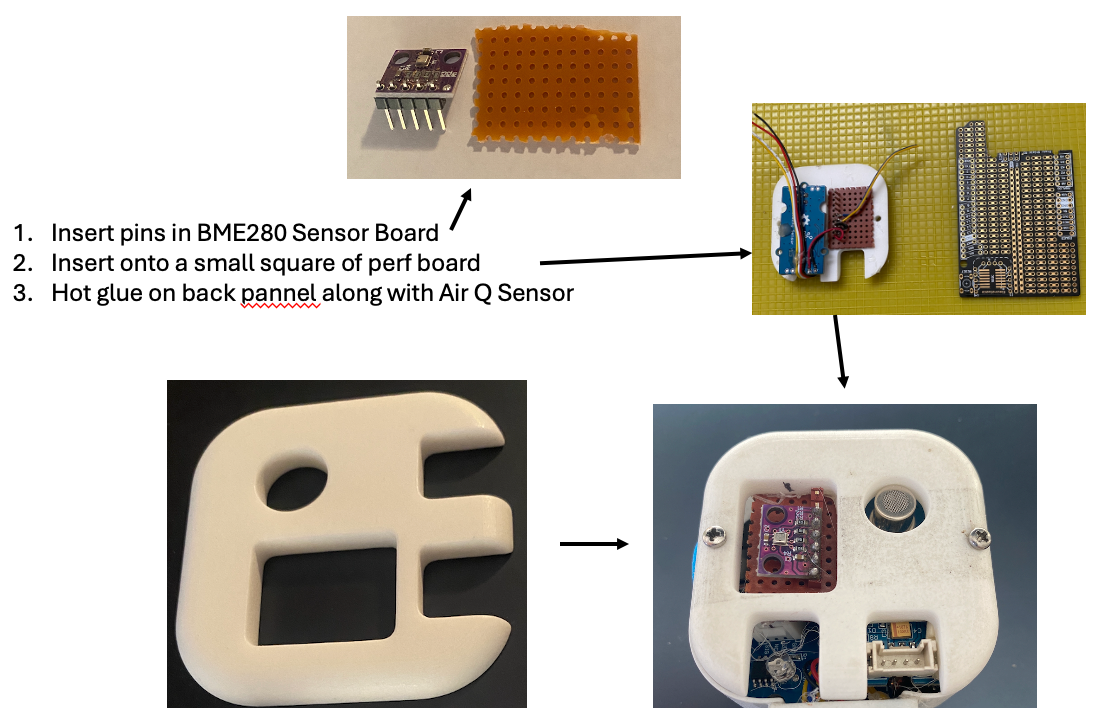
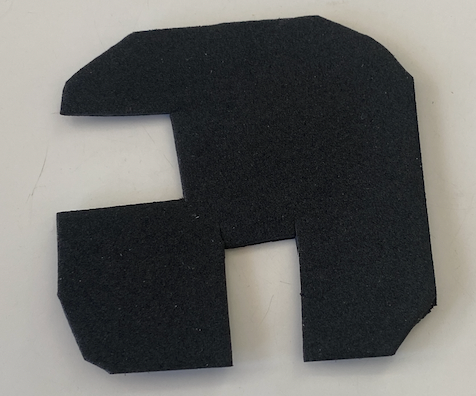

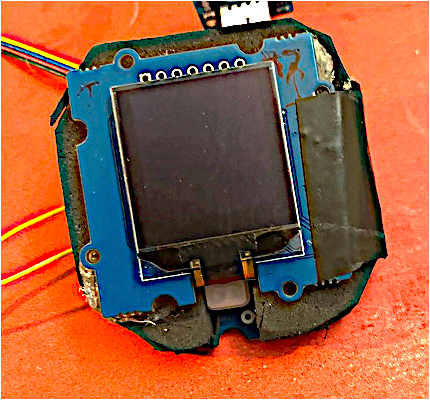
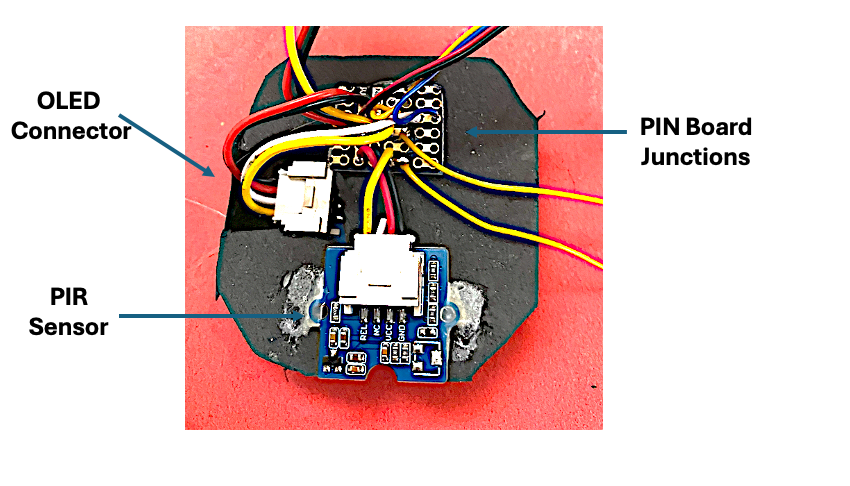

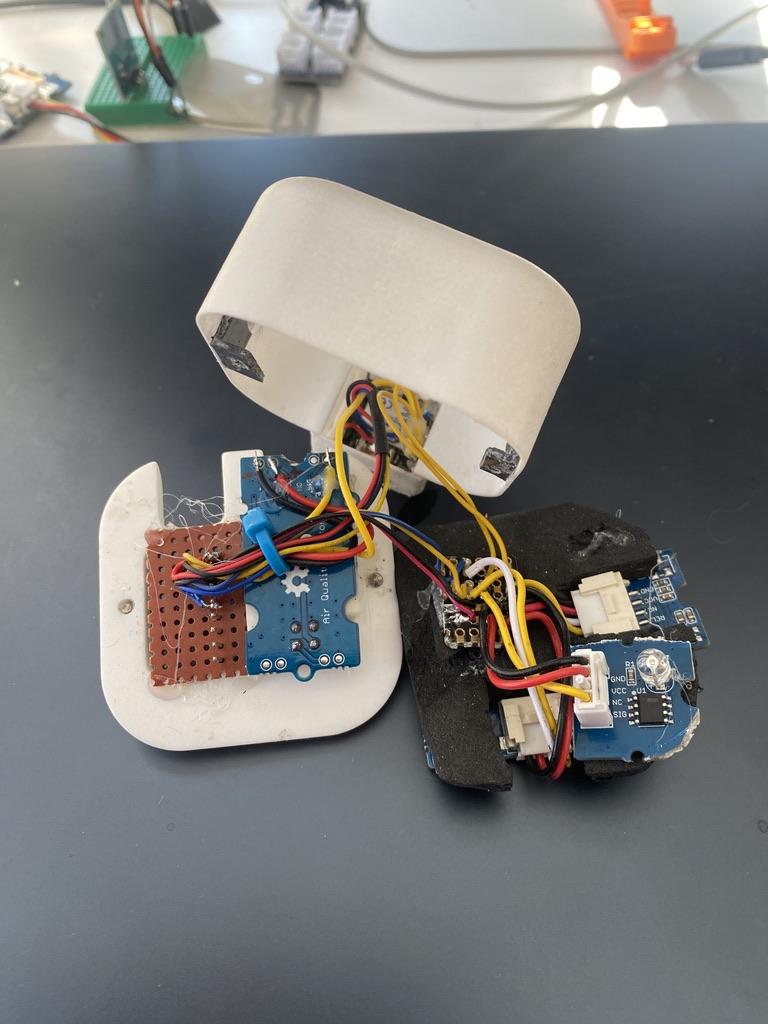
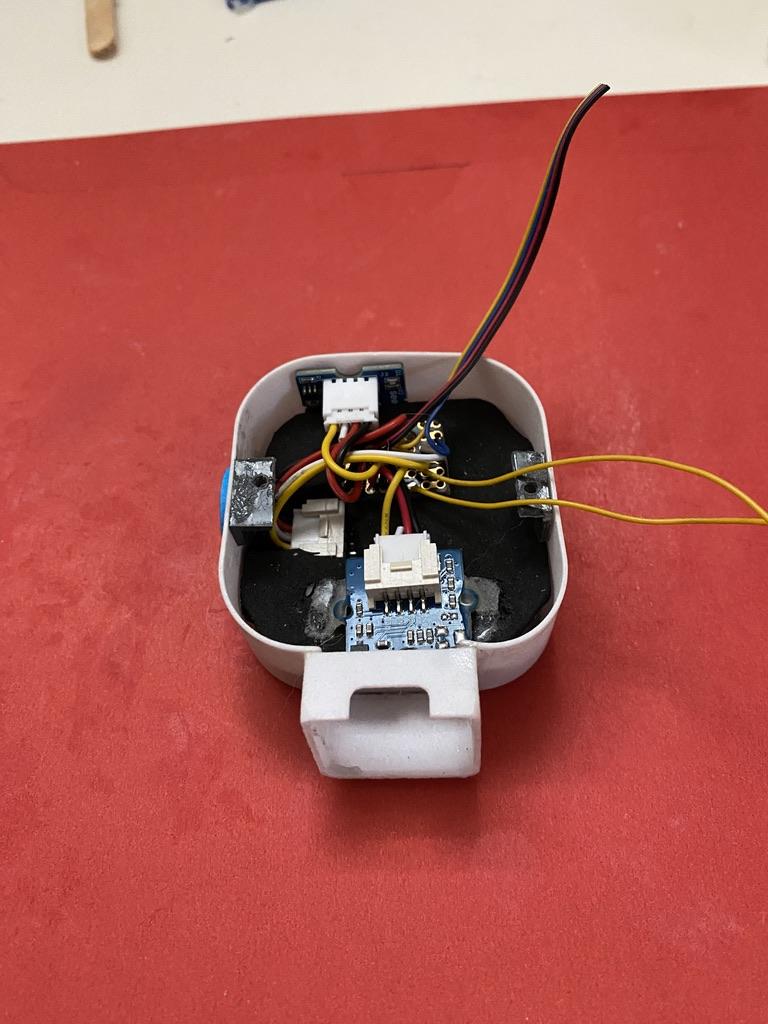
Connecting the hardware and cramming it into the small case is a challenge. Unlike software construction, where even a misplaced comma is a mistake, all the steps below are just suggestion for you to refine. This is by far the hardest part of the construction. There are two major steps: attaching sensors to the back panel and constructing the front panel assembly.
Mounting the BME280 sensor and Air Q Sensor on the back plate of the case (shown in the first picture)
While GUS used the DHT22 Temperature/Humidity sensor, this project uses the BME280 temp, humidity, and barometric pressure sensor. While there is a Grove BME280 device with an I2C connector, this is too large for the compact case. Instead, the chip/board configuration has to be used, which requires customized mounting. The mounting method is shown in the first picture, which is completely different from that in the GUS Instructable. The pin strip is soldered onto the bare board. This is then hot-glued across the square hole on the back plate of the case that was originally made for the DHT22 sensor. This gives exposure for the sensor on the back of the case and exposure to the connector pins, which will be inside the case. The Air Quality sensor is also hot-glued, as in the GUS, on the back of the board. An I2C connector and cable are plugged into the Air Q sensor.
Constructing the front panel assembly with the OLED display, PIR, and Light sensors.
The first step is to cut a square of semi-ridged material to act as the OLED display backboard. I used a piece of 2mm thick high-density foam, cut from an 8"x12" sheet from a hobby store. This is shown in the second photo above. But, this could be thin foam core or another material. You can make a paper pattern first by turning the case over on a sheet of paper and drawing around the opening with a pencil to make a pattern slightly smaller, so it will slide in. Cut this out, leaving about an extra 1/16", so it matches the inside dimension. First, push this in to test the fit and then repeat once you get a good fit.
Once you have a good pattern, set it on top of your sheet of Polaroid plastic for a front face plate, and cut out a piece the same size. This should look like the dark, rounded square in the second picture above. This will be pushed in first in the case to sit in front of the OLED display and give the display a more professional look. Notice the round hole. This was punched out with a paper punch to provide an opening for the PIR sensor. Come back to do that punching after you have the PIR sensor placed in the next step. Notice that the Polaroid square will have to be oriented so its polarization angle is aligned correctly with the display, or it will not let much light through. You will also need to use a paper punch to punch out a small opening near the bottom to expose the PIR sensor.
Next, use the pattern to cut out the rounded square from the foam sheet. It needs to be able to be pushed forward and fit snugly inside the case to hold the OLED display for viewing from the front.
Place the display on the foam square and note the position of the I2C connector on the back. Cut out a slot for the socket so the display can lie flat, with the viewing side facing forward. Make sure you orient the top of the display correctly. You will also need to cut out a second, smaller slot for the PIR sensor, as shown in the photo. This will make more sense as you move into the paragraph below. Attach the display to the foam with a couple of dabs of hot glue. The final front side is shown in the fourth picture.
Next, flip the display over. Place the PIR sensor on the back side so the sensor faces through the hole towards the front. Use a dab of hot glue to fasten the sensor in place, as shown in the 5th photo above.
Connect the sensors to the XIAO processor on a PCB pin board
The fifth picture also shows a small square of PCB pin board that has been cut to fit as shown and attached to the top right of the foam square with a dab of hot glue. Skipping details, but this board is used to connect the common I2C lines from the sensors and XIAO. Insert the I2C jumper cables into the display and PIR sensor sockets. Cut the two cables from the display and PIR sensor long enough to reach the PCB board. Now cut the length of wires to connect the Air Q and BME280 sensors and connect to the common wires on the PCB board. The final assembly should look like picture six.
The next step is to slide the XIAO processor into the base, as shown in picture seven. Then gently slide the display into the case, with the front of the display facing outward. Be careful to depress the foam as you slide it over the plastic angle bracket. The result should be like the last picture above.
At this point, you should plug in the USB-C cable into the XAIO jack and check that everything works as it should when you download the software. Once checked out, you can screw on the back panel and attach the bottom foot plate with a small ring of silicon rubber or hot glue as suggested previously.
Software
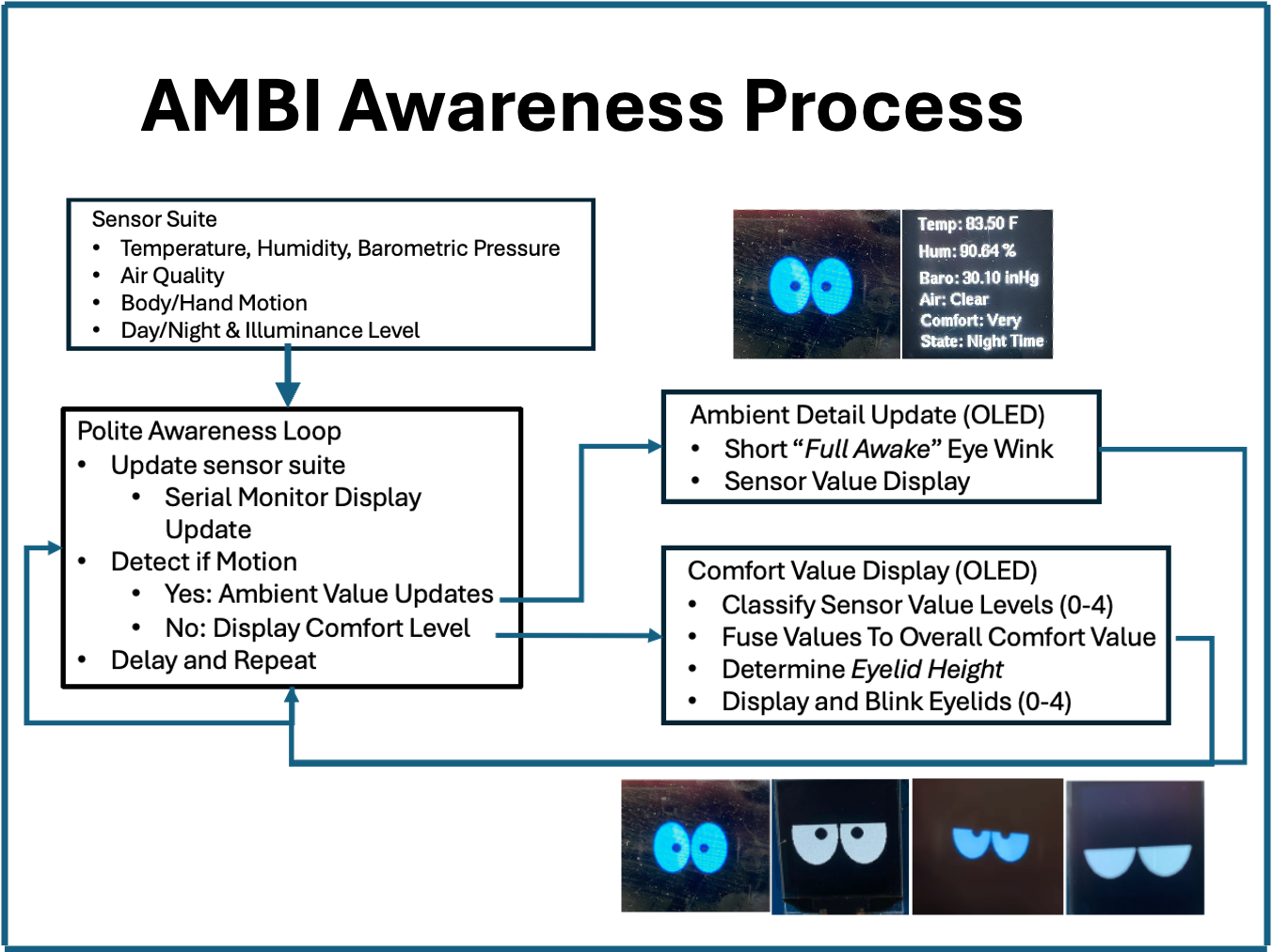
The job of the software is to figure out the overall comfort level of the local environment. A simple diagram of the nearly 300 lines of Arduino code. It starts by reading the air quality, humidity, and temperature data from the sensors. The code has pre-set "comfortable ranges" for each of these readings. Then, it checks how many of the sensor readings are currently outside those comfortable zones. Based on this, it calculates a "comfort score." This score ranges from 0 to 4. A score of 0 means the best comfort level, while a score of 4 indicates the worst comfort level. The score is visually represented by the height of the eyelid display. More comfort is shown by full-open eyelids. This is not a complex decision process, but it seems to mirror how many make this determination.
Downloads
Thoughts for AMBI 2.0
From the start, AMBI 1.0 was seen as a starting point for more advanced versions. Here are a few thoughts on enhancements and lessons learned.
- As much as I am attracted to GUS's cute container design, I'd like to add several more sensors, but it is definitely stuffed to the limit. A new design is in order, but I would like to maintain the kawaii aesthetic of GUS or Mochi
- A future possibility is to replace the current I2C jumpers with a small custom PCB and pins to connect the multiple sensors.
- While the eyelid height variation is cute, it would be great to extend the winky repertoire to add some playful personality, like in Mochi.
- Add Bluetooth or ESP-NOW to add more sensors, possibly in remote XIAO devices.
- Continue to explore simple fusion processes that make more use of context and time.