A Portable Workout Machine That Turns Working Out Into Electricity!
by efazbhuiyn1 in Workshop > Energy
571 Views, 8 Favorites, 0 Comments
A Portable Workout Machine That Turns Working Out Into Electricity!
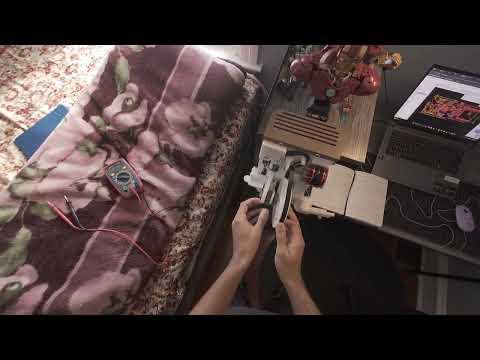
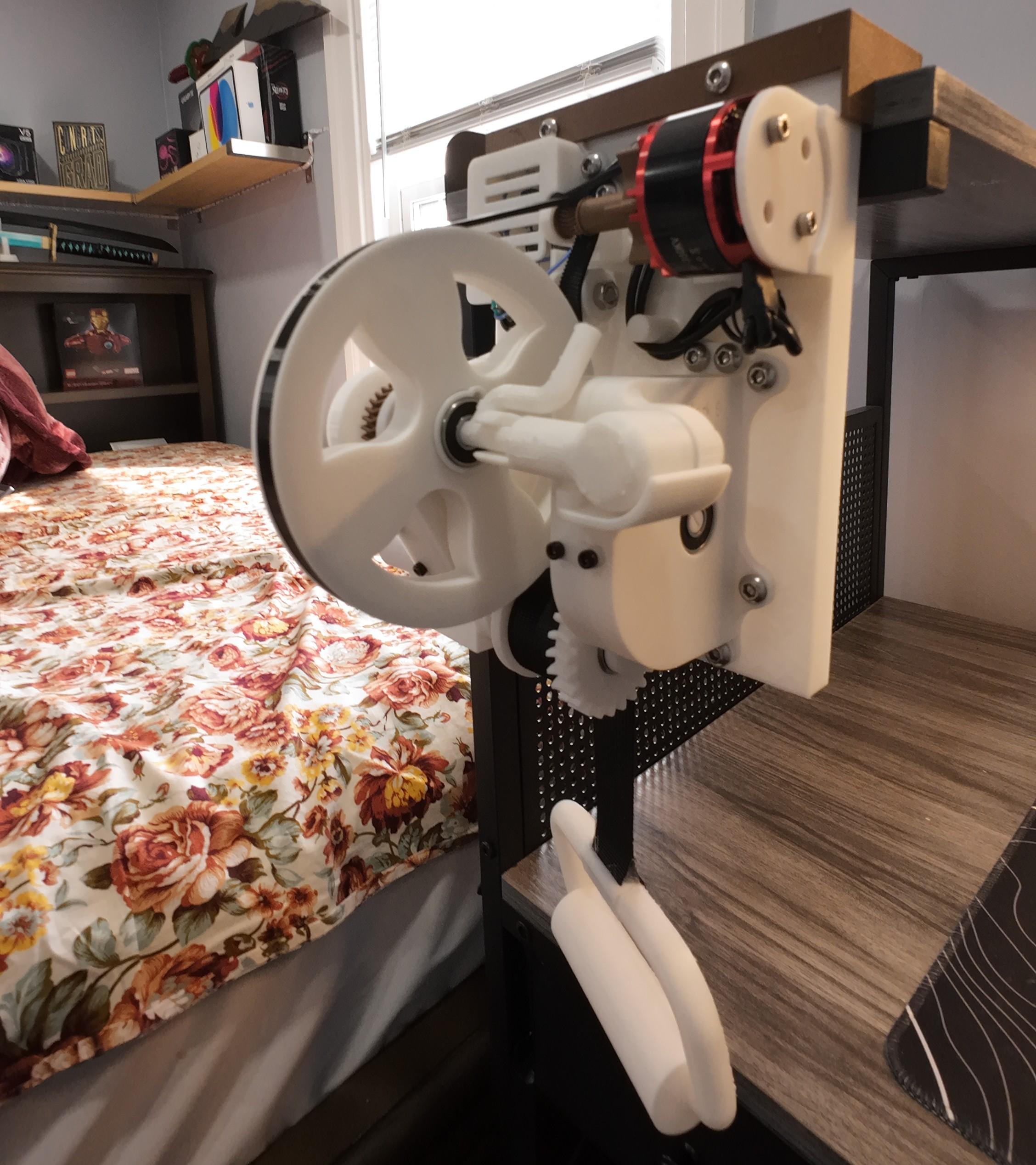
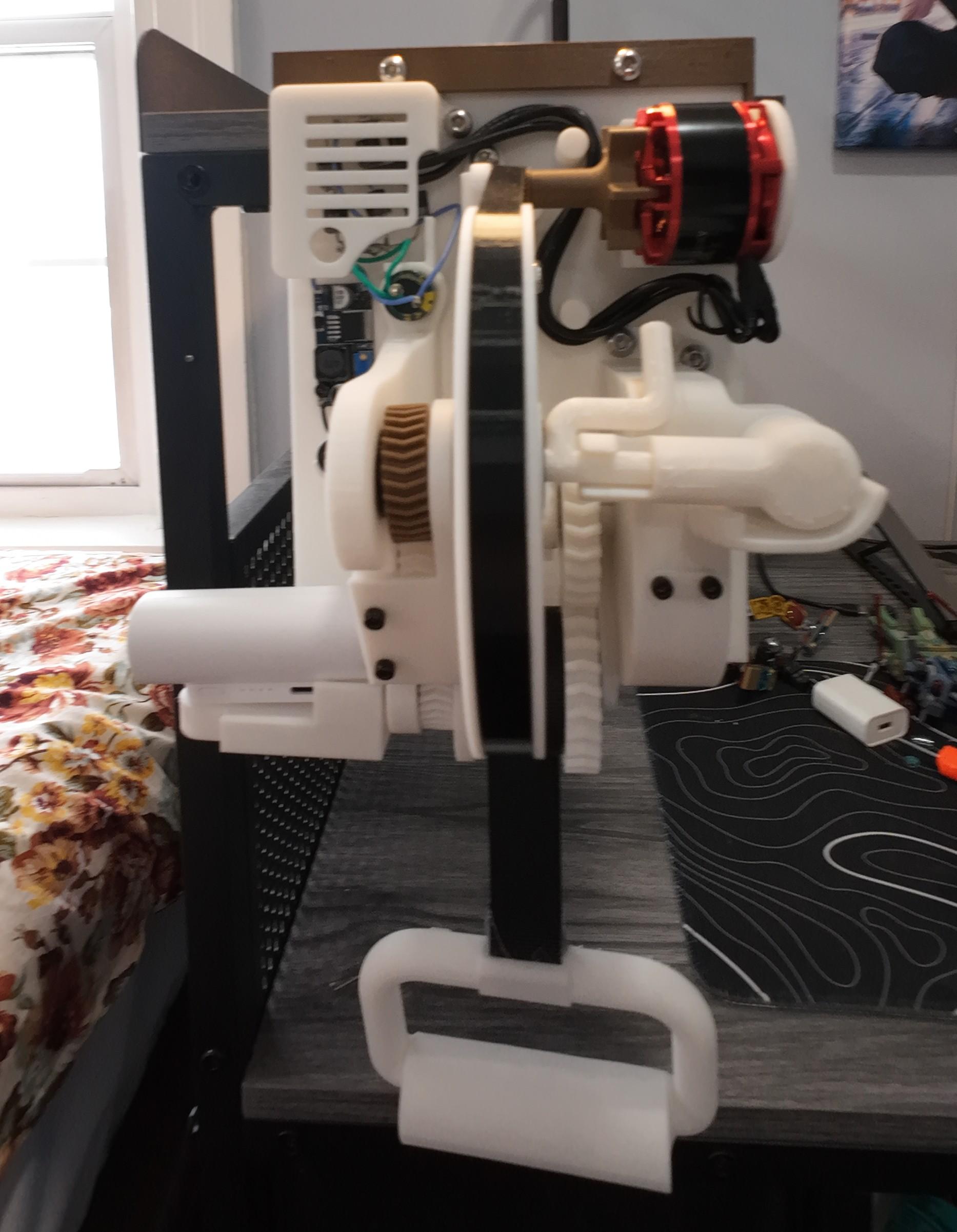
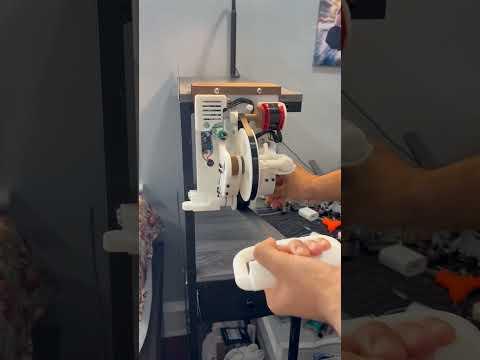

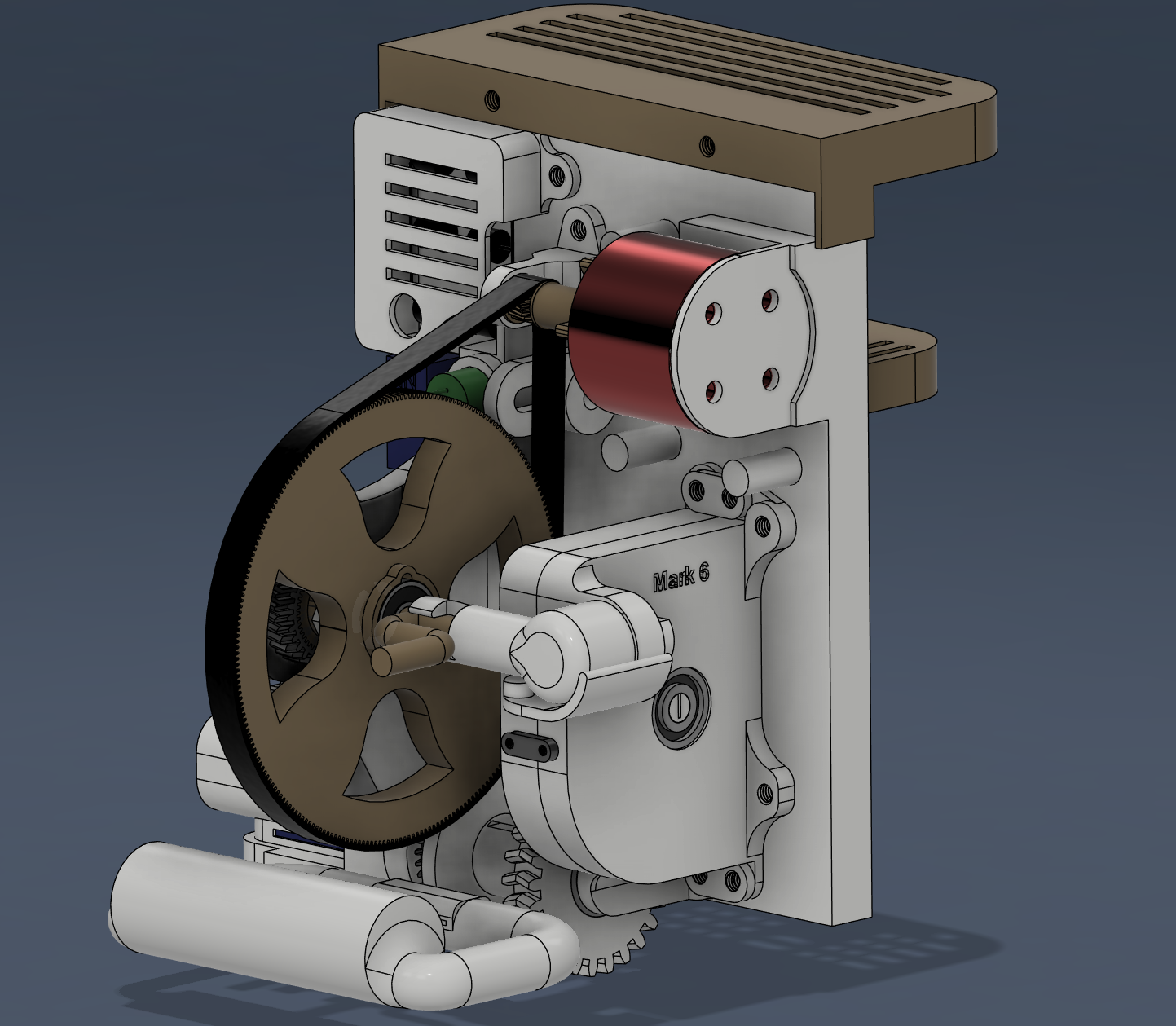

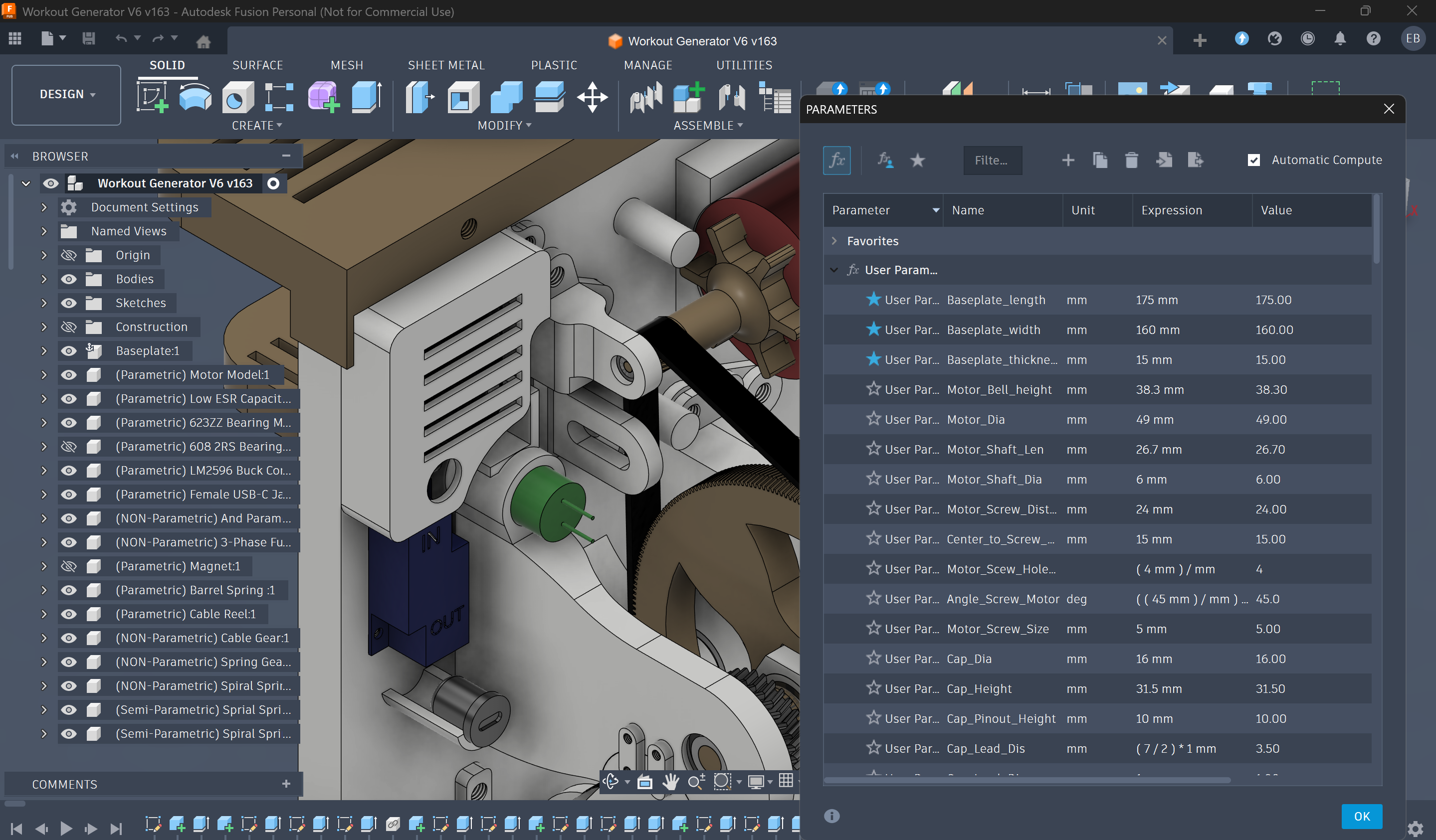
Hi there! My name is Efaz, I'm a Mechanical Engineering Student freshmen at Drexel University. I'm passionate about energy generation and renewable energy sources! This instructable is an attempt to improve my Portable Workout Energy Generator, which turns the energy we humans put in to workout into electricity that we can use! I uploaded this to Instructables last time. Check it out here. But compared to the V5, this version mainly attempts to align with more of the mechanical physics, where the previous version did not do so well. This version is an attempt to make the project more lightweight, use less and cheaper material, generate more consistent output, and finally, allow interchangeable resistance gears so the user can swap out "weights" for more resistance. The key point of this version is to try implementing this interchangeable system to be multi-compatible with whatever resistance gear the user designs by adding an Idler Tensioner. This tensioner can easily be adjusted and allows multiple gears to be fitted without causing inconvenience by going through a 3D printed belt drive system. Now, ideally, for this design, I also wanted whoever wished to replicate the design to be able to use their own parts instead of strictly buying the ones I got. To do this, I wanted the entire design to be parametrically influenced by user set parameters, so for example, if someone had different size bearings, they could update the file's parameter for "bearing size" and the entire design would update all of the sketches, and extrusions that reference that variable, to accomodate it into the design so the user could resuse that bearing or tolerance variables, to allow the design to be printed accordingly to the user's own 3d printer tolerances. Perfect fits if you will. However, later on, while working on this project, the extensive cross-referencing of these global user-adjustable input parameters caused the entire project to have long rebuild times to accommodate it. This resulted in the file constantly crashing or leading to downstream failures when the parameters were modified. Even attempts at trying to influence gear module parameters lead to downstream failures. Overall, this ended up causing software instability, and so I ditched this idea. For allowing users to create belt sizes to be compatible with the gears they create, a video will be uploaded to teach users how to do that using Fusion 360.
So, what is this project for those who don't know?
This is a portable workout energy generator machine designed to train multiple muscle groups in the human body, being portable and versatile while also generating electrical energy that can charge power banks or phones, you name it. This was designed mainly for students who have hectic schedules that are so harsh on them that whenever they do end up being free, it would end up being really late or be a inconvience to go. The goal of this project is to make a portable, lightweight workout machine that is compact enough to fit in a backpack for travel, and mountable in any room. This allows any student to get a workout in anywhere, anytime, while generating energy to charge electronics later. This instructable documents my progress and my thoughts on this iteration, as well as showing you how I did it! I'd appreciate any helpful feedback or thoughts of your own on what to improve for Mark 7!
Supplies

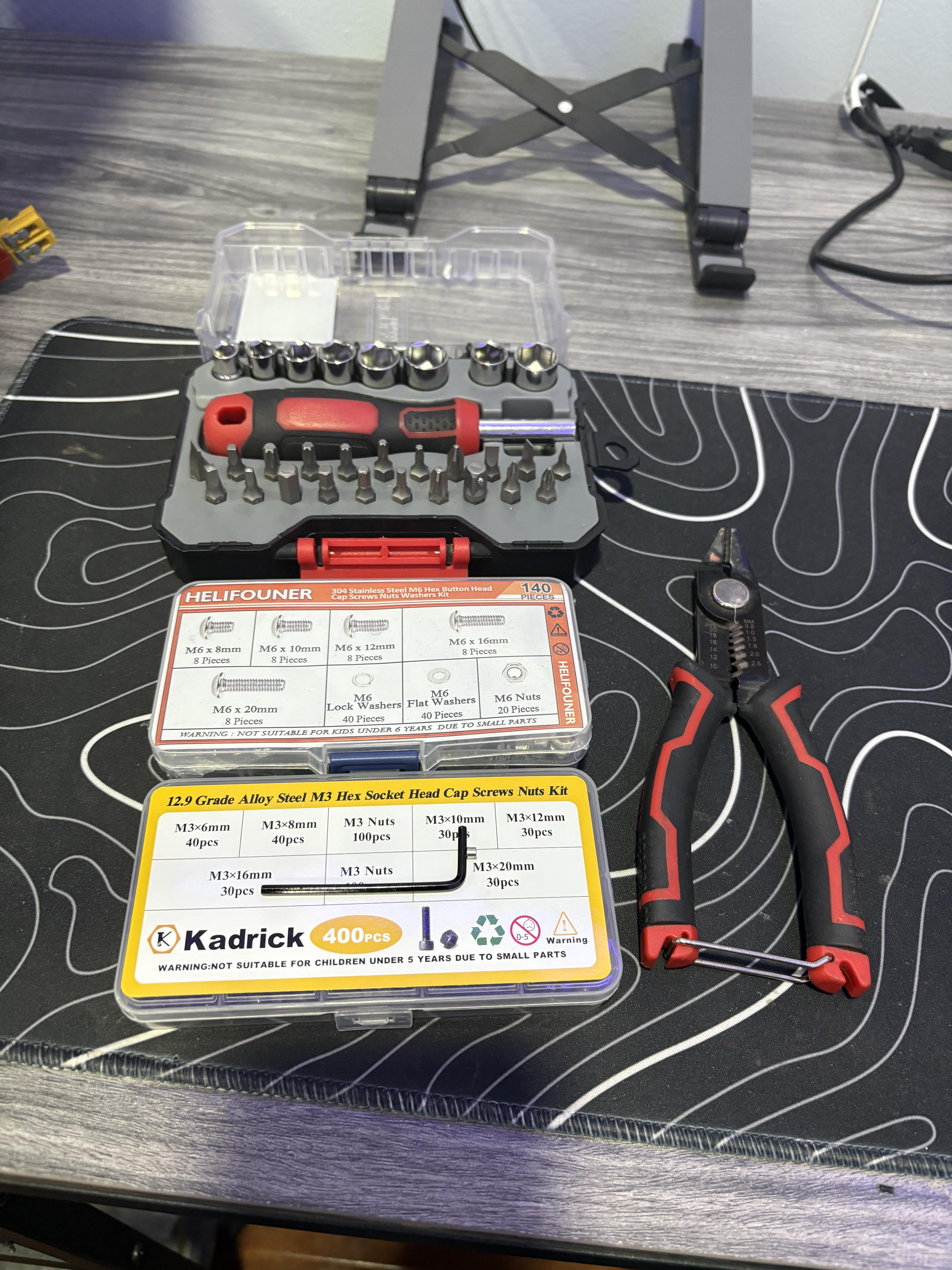
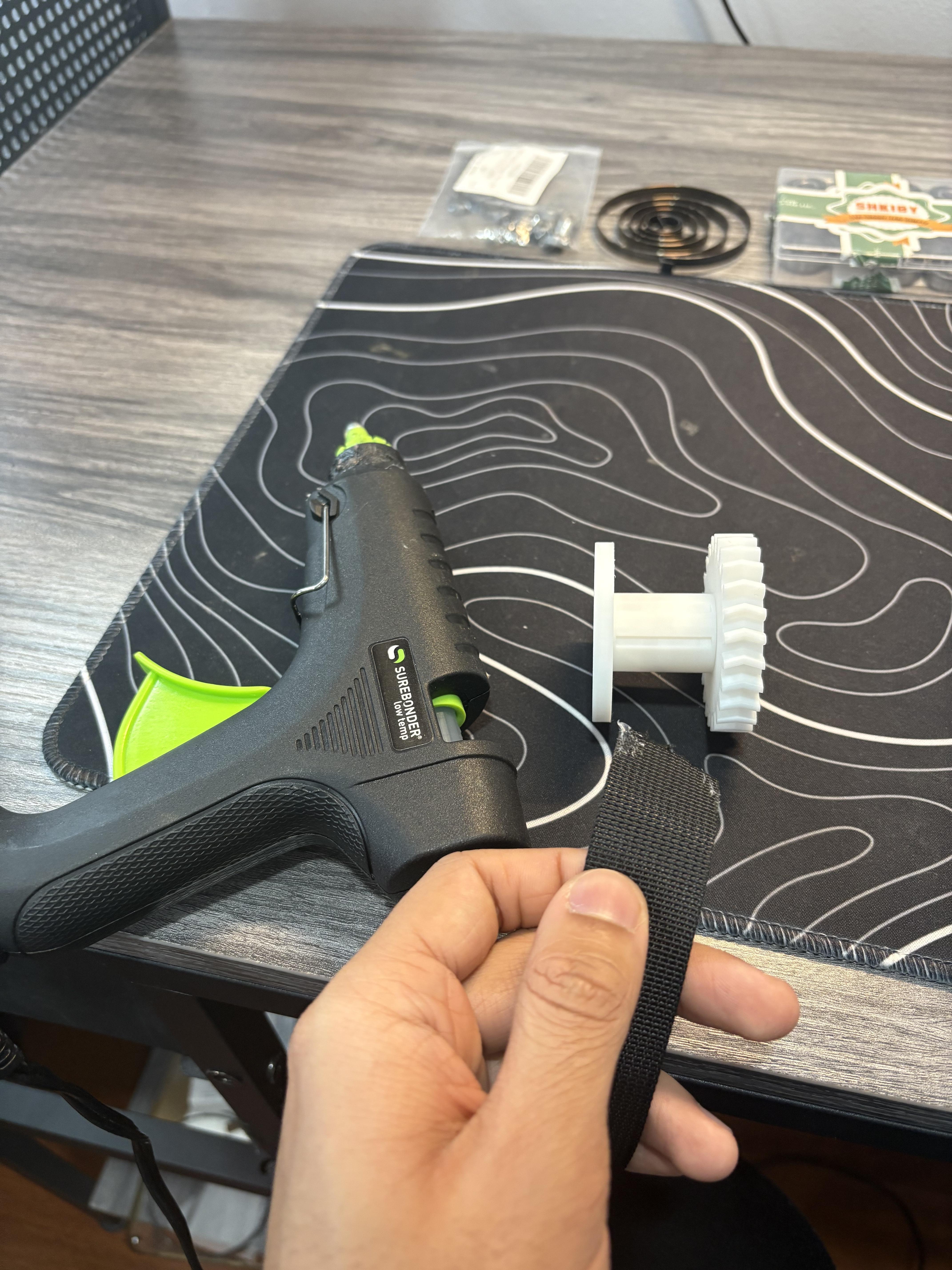
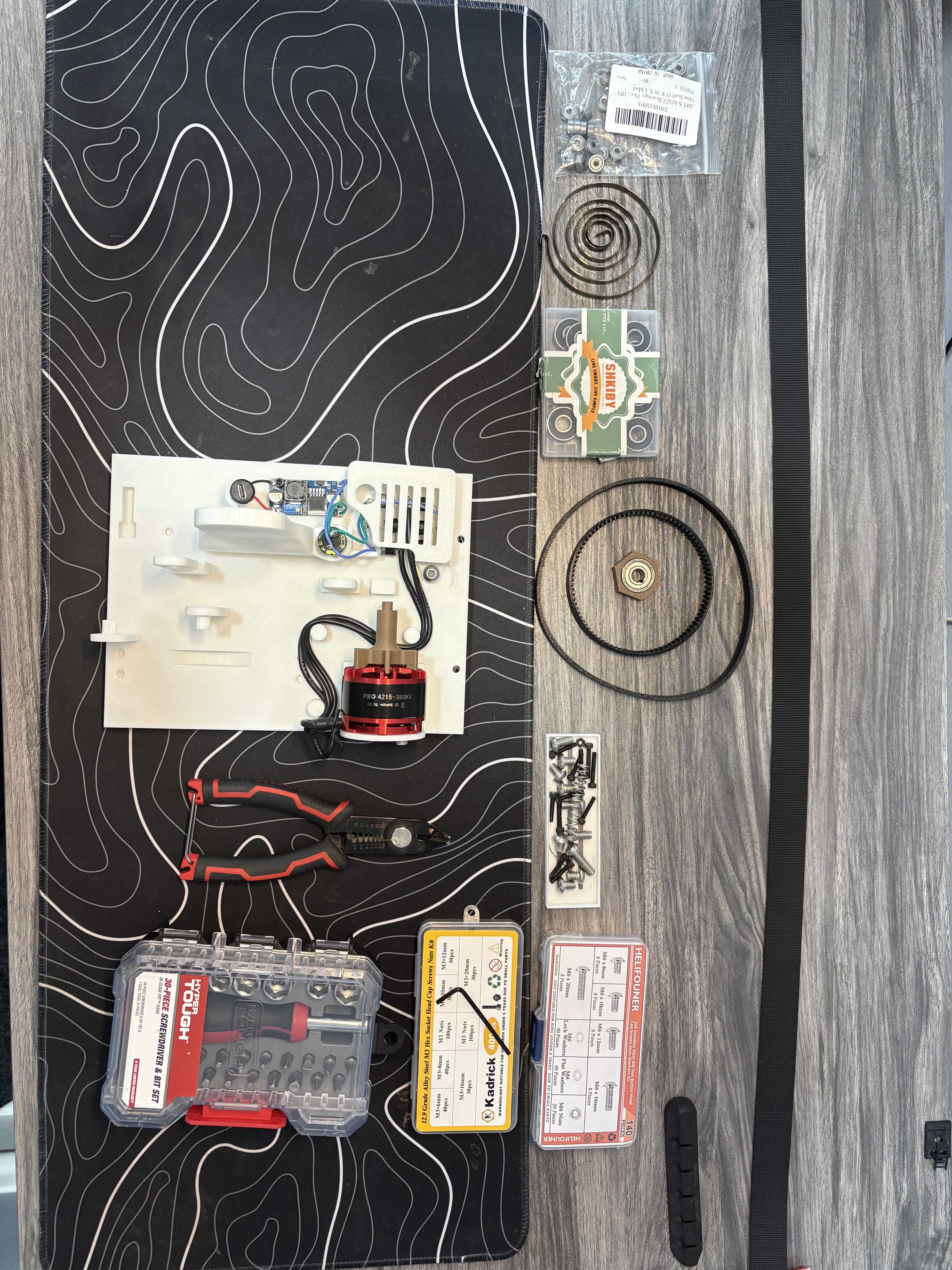
For the majority of the supplies list, almost everything is the same part as the previous model V5/Mark5 with only a few new parts and tools to build it, as well as some to customize it. I'd recommend double checking this list as there is only a few new parts needed as if you had build the previous model, you can reuse those same parts. Check out the supplies list section of the V5/Mark5 here as reference.
This project was designed using Fusion 360 using its parametric modeling capabilities to frame the system to allow components to adjust based global parameters to drive dimensions such as tolerance variables to allow the file to adapt to any 3D printer or adapt to new bearing sizes. Python scripts were also used to generate gears more effectively then manually to improve the iteration speed and accuracy of the gears themselves.
Software Tools
- A slicer to 3D print Parts ( I use Bambu Slicer, use the slicer applicable to you)
- THIS IS REQUIRED IF YOU WISH TO GENERATE YOUR OWN RESISTANCE GEAR AS WELL AS BELT DRIVE SYSTEM --> Fusion 360 PYTHON Script Version GF Gear Generator Download This script allows you to generate double helical gears which is what is primary used for this project due to their angled geometry which cancels out the axial forces generated when consistent torque is applied. You will use the "Simple/Double Helical Gear" Option to generate the desired gear. Here is a short tutorial on how to use this script: How to Design Double Helical Gears in Fusion 360 By 3D Printer Academy Tutorials
Mechanical Parts/Tools
- 3D Printer
- M3 Screw Kit
- M6 Screw Kit
- M3/M6 Hex Drivers or Allen Keys
- One Way Clutch Bearing (1)
- Spiral Return Spring (1)
- 608-2RS Bearing Set
- 623ZZ Bearing Set
- 1-inch wide, 3.25-Feet-Long Hook and Loop Strap (1)
- 1KG PLA (any color)
- 1KG PETG (OPTIONAL but recommended for a few parts) (any color)
- 1KG TPU (any color)
- Compression Spring (1)
- Soldering Iron
- Soldering Tin + Wire
- Multimeter
- Hot Glue Gun and Sticks
Electronic Supplies
- Buck Converter (1)
- 35V 4700uf Capacitor (1)
- Low KV Motor (1) (Includes M4 screws and M4 Allen Key)
- Diodes (6)
- Power Bank With USBC Input (1)
- USB-C Male to Male Cable (1)
Majority of the parts were designed with the intent of being printed out of PLA only, the design has been tested and does work with PLA. But some parts are recommended to be printed out of PETG. But it is not a requirement for this design. Otherwise, the belt must be printed out of TPU.
Highly recommend allowing all parts to print with a Outer-Brim and Auto support for parts that as it could yield better results.
Some key tips for prepping your slicer for this project would be:
- Lower acceleration speeds (if applicable to your slicer), overall and initial layer print speed reduced to 25mm/s.
- Layer height for small parts should be very low; for Smaller parts, I recommend printing them at 0.15mm or lower per layer.
- Layer height for the majority of PLA parts could be printed as large as it does not matter for them, I'd recommend 0.15mm or above for every layer; even small PLA parts are ok to be printed in that range.
- But I highly recommend printing all PLA Gears at 0.1mm layer heights.
- This is my preference, but I prefer to manually set my supports since my slicer always overdid it for me in the past. I'd recommend a Top Z distance of 0.25-0.3 and the same for the Bottom Z distance if applicable to your slicer.
- All parts were printed at 10% infill with a Gyroid infill pattern BUT the following parts. Please print parts PLA14, (PLA18 + PLA19 (Split to objects if needed)), PLA21, PLA22 at 30% infill or more, for better rigidity. Print these parts in PETG if applicable, if not print with PLA at 30% infill. If using PETG then 15% or more is fine.
- I would highly recommend following the picture for better visual input on what to do, especially for more visual learners.
All Parts will be Indexed as PLA(Part Number) for easier reference. They will not have a PETG reference name but during steps I will recommend if a certain part should be printed in PETG. Otherwise all parts will be referenced as PLA(Part Number).
Overall, this project has 41 PLA parts and 1 TPU Belt.
Downloads
Parameters and Calculating Belt Sizes
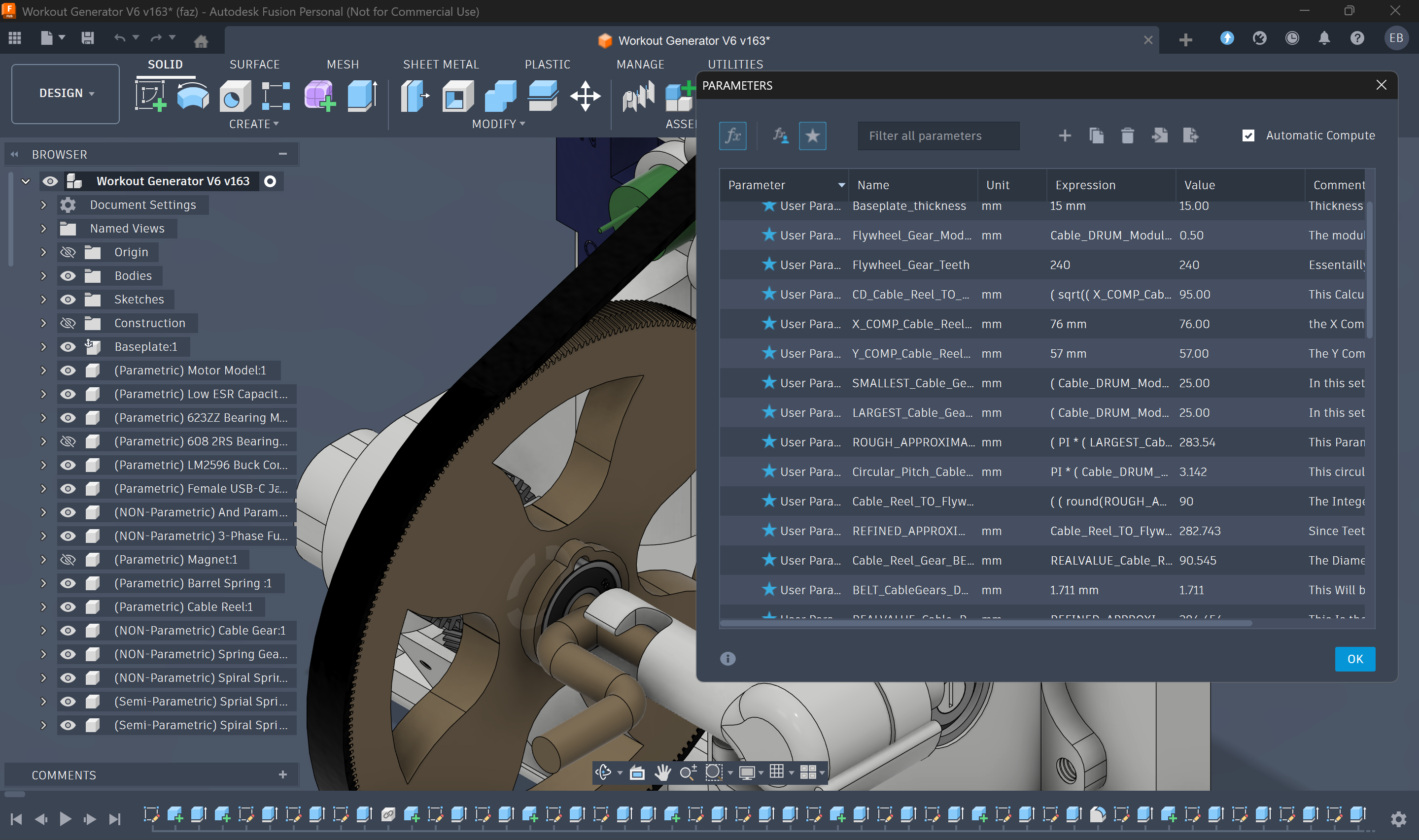
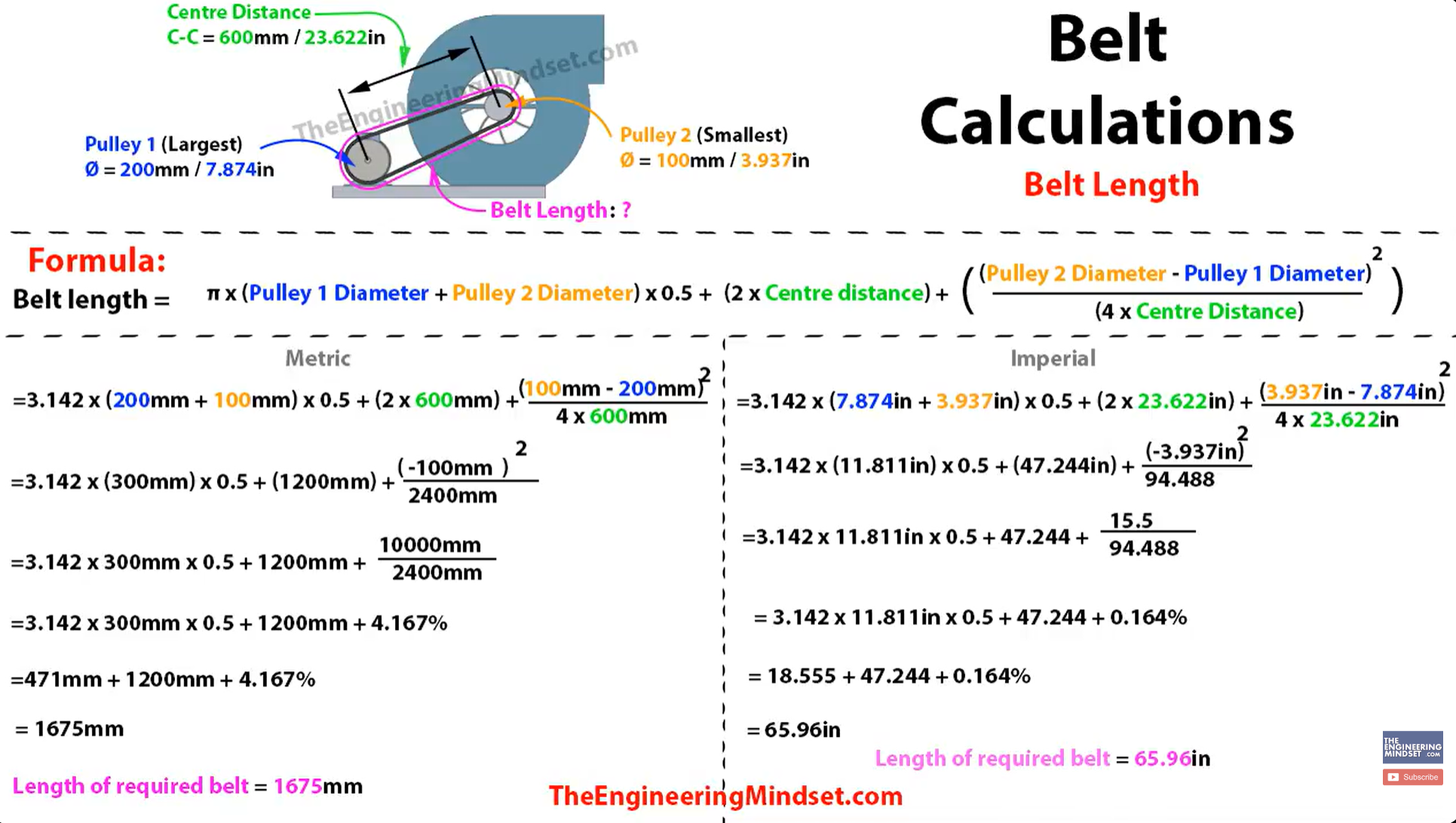

Feel free to skip this step to actually see me go through the process of building. This is mainly where I will talk again about the parameters I input and its capabilities.
Add pictures on circular pitch size, belt diameter, and tooth count as well
As previously stated, this design was an attempt at allowing a fully user-defined parametric design. So it could be multi-compatible with any on-hand parts the user had. Of course, due to the software instability and constant downstream failures. This capability was scrapped. So, for this project, I had mentioned I would talk about how to design certain components, since this instructable will not include the scrapped parameter-driven file for user-changeable inputs. Although you will still need to get the same electronics, screws, etc. You can still change the resistance gear types and incorporate new belts into the design for much smaller/looser/tighter versions of the belt. This step will focus on how the equations needed to design a belt work, as they have been modified with the help of online sources to augment the machine's capability, as well as be 3D printed out of TPU. It can also work for any gears based application, to be honest, though.
Belt Length Calculation Tutorial on YouTube by The Engineering Mindset
The photos of the equation to calculate belt length between 2 gears are linked, and this tutorial teaches you how to use this equation to calculate the belt length needed for 2 gears to mesh, as well as incorporates things such as center-to-center distances that the user can freely define. For this machine, the center distance is 95mm. The linked tutorial uses pulleys, but we use gears, so instead of using the overall diameter of the gears, we will use something called pitch diameter. Pitch diameter can be calculated by:
Pitch Diameter (d) = Module(m) * Teeth(z)
This allows you to calculate the pitch diameter before using the Python gear script generator in Fusion 360. But the reason why this is so important is that one, you must declare what module size you use beforehand (The output flywheel gear to motor gear module is 0.5). Two, you must figure out what teeth to use. The RPM of the motor shaft increases when you put more torque into the system like this. For instance, if you make a gear with 240 teeth that drives a gear with 20 teeth. You made an overdrive gear ratio that can spin this smaller 20-tooth gear 12 times faster, but it costs 12 times more torque to spin the large gear in order to spin this smaller gear. The motor gear has 20 teeth in this design. In the same way, if you made a 200-tooth gear, it would cost 10 times more torque to spin 10 times faster, which is where the variable resistance idea comes from. You get more muscle resistance the higher up in teeth count you go. Just make sure you have a clearly defined ratio. This machine uses a 12:1 overdrive gear ratio. For the Belt Length equation linked in the photos above. Let P1 or D = Largest Gear Pitch Diameter, and let P2 or d = Smallest Gear Pitch Diameter.
Once you have the total belt length. Call it a "rough approximation" because we will need it to calculate the belt's teeth count, which MUST be an integer, not a decimal. Now we need another variable to calculate the belt teeth count first. It's called Circular Pitch.
Circular Pitch = PI * m
Now the circular pitch defines the spacing of the teeth on the belt, and both gears must have the same circular pitch; otherwise, it will not work. No matter what module sizes of both gears must be the same; only teeth count can change! Now we can get into calculating the total number of teeth needed on the belt.
Tooth Belt Count = Belt Length / Circular Pitch
Now, when you do this expression, and if you get a decimal, not an integer, it is false. because for example, you can't have half a tooth, so round to the nearest whole number to get a full number count of teeth. Then do this with the new declared teeth count that you defined:
Refined Belt Length = Tooth Belt Count * Circular Pitch
Now you have a more refined belt length that will fit a uniform amount of teeth. In order to get it to be uniform, we must print the belt in a circle, not a line, in order to have it mesh properly due to the circular geometry of the gear. To get the diameter of the belt for WHERE the teeth will lie:
Belt Gear Diameter = Refined Belt Length / PI
These are the necessary equations you will need to 3D print a working belt out of TPU. Linked to this step is a video that can show you how to make a belt in Fusion 360 for 3D Printing while also referencing the equations stated here.
Electronics + Baseplate Setup

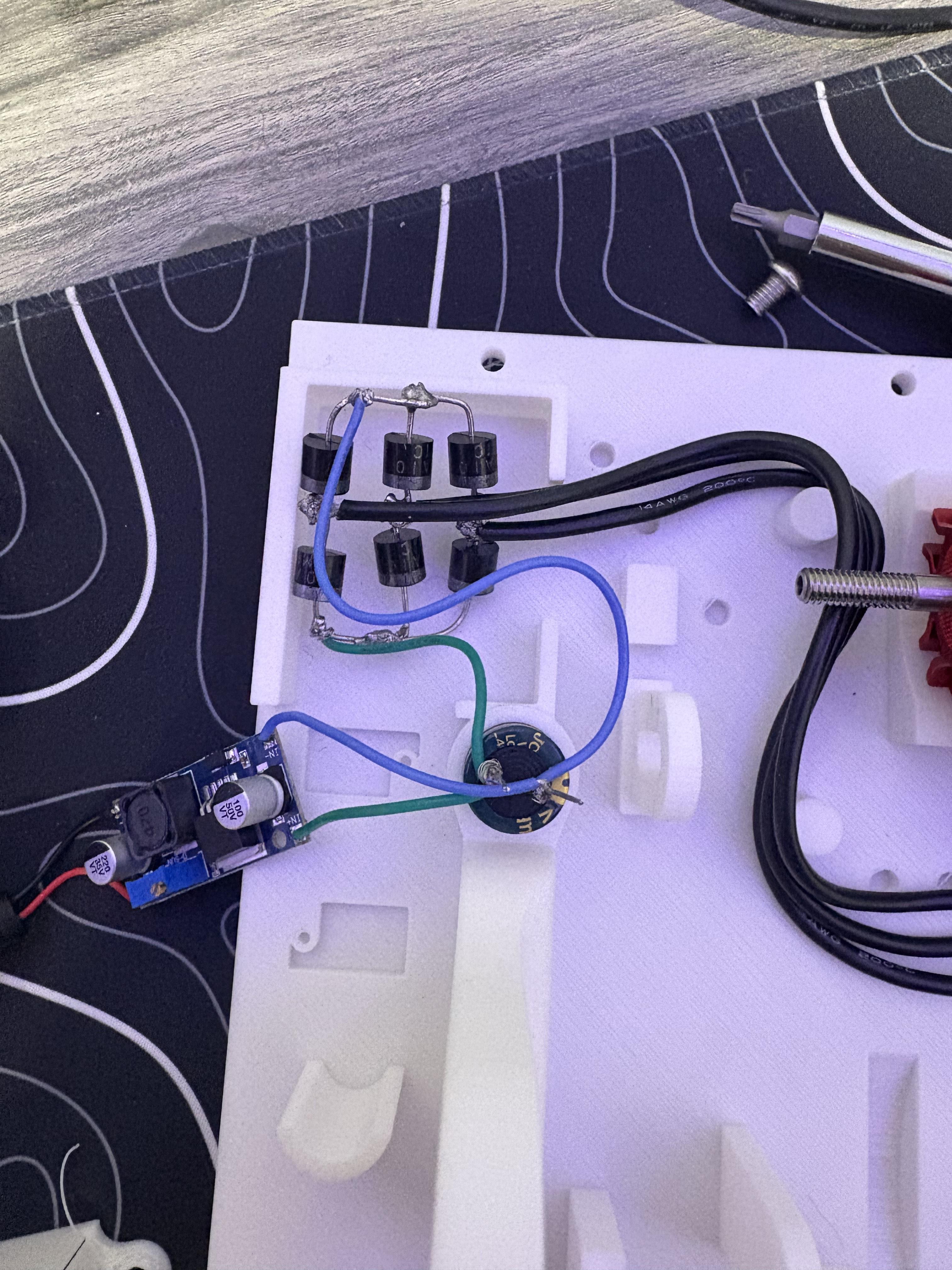
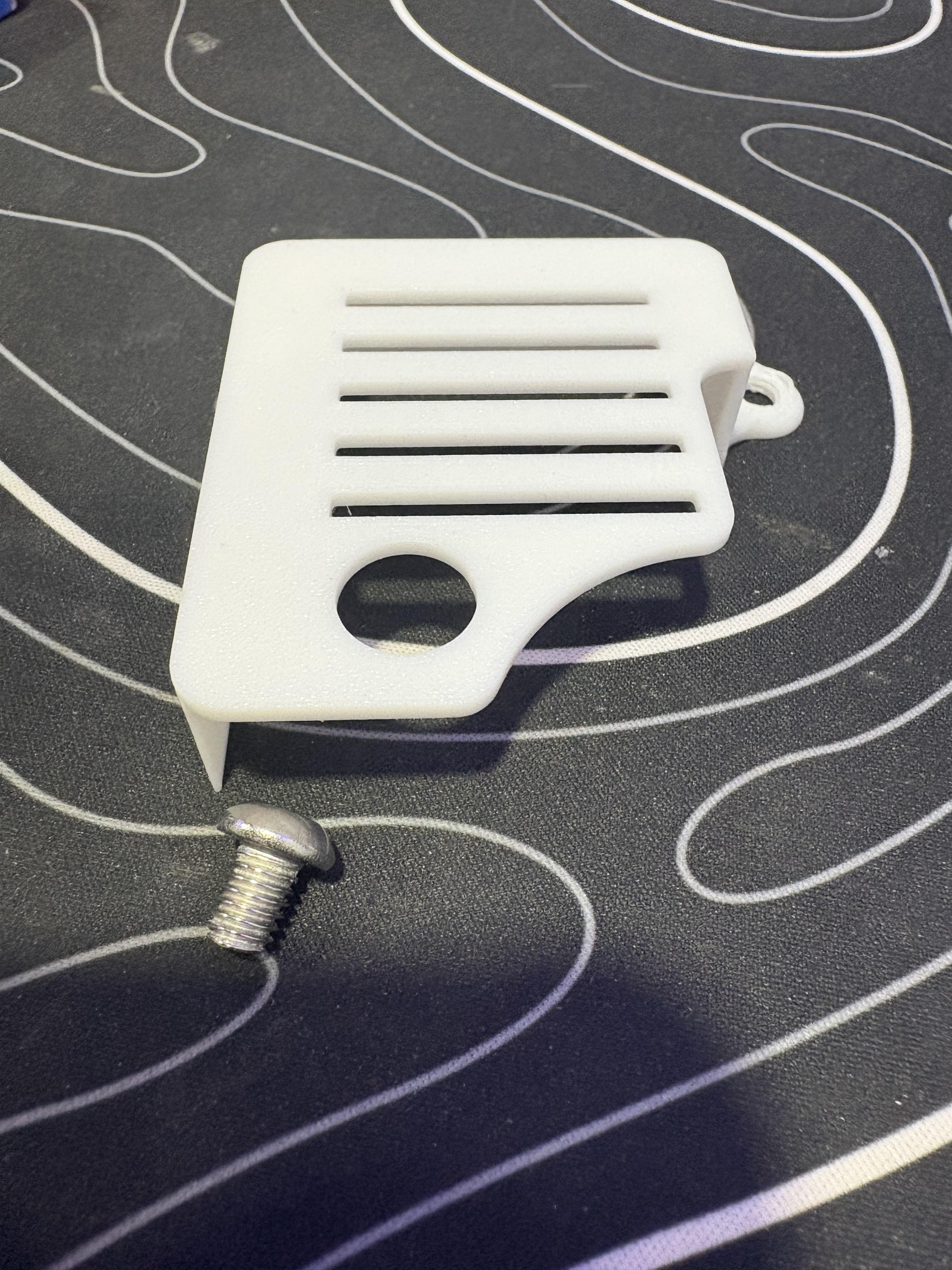
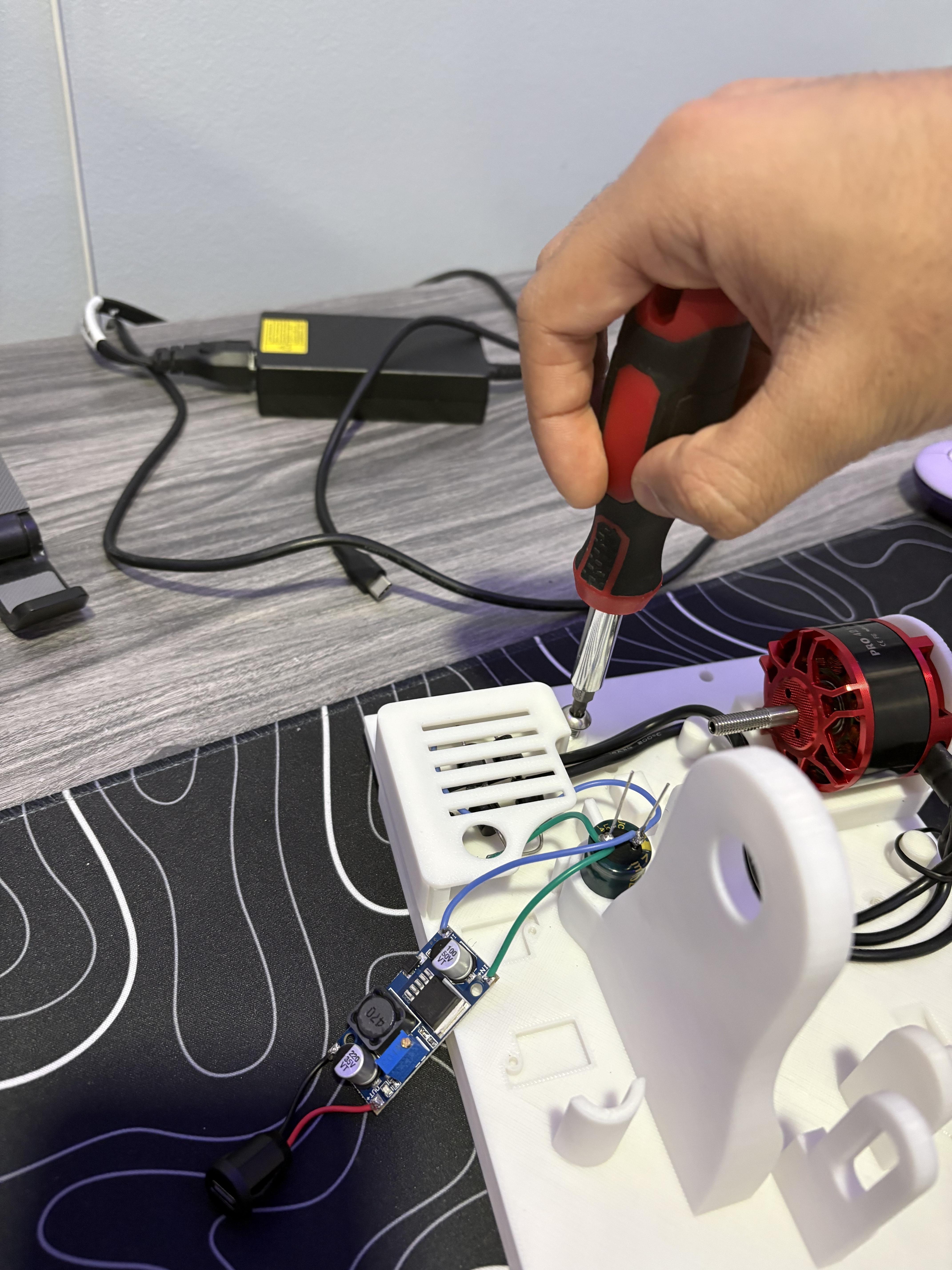
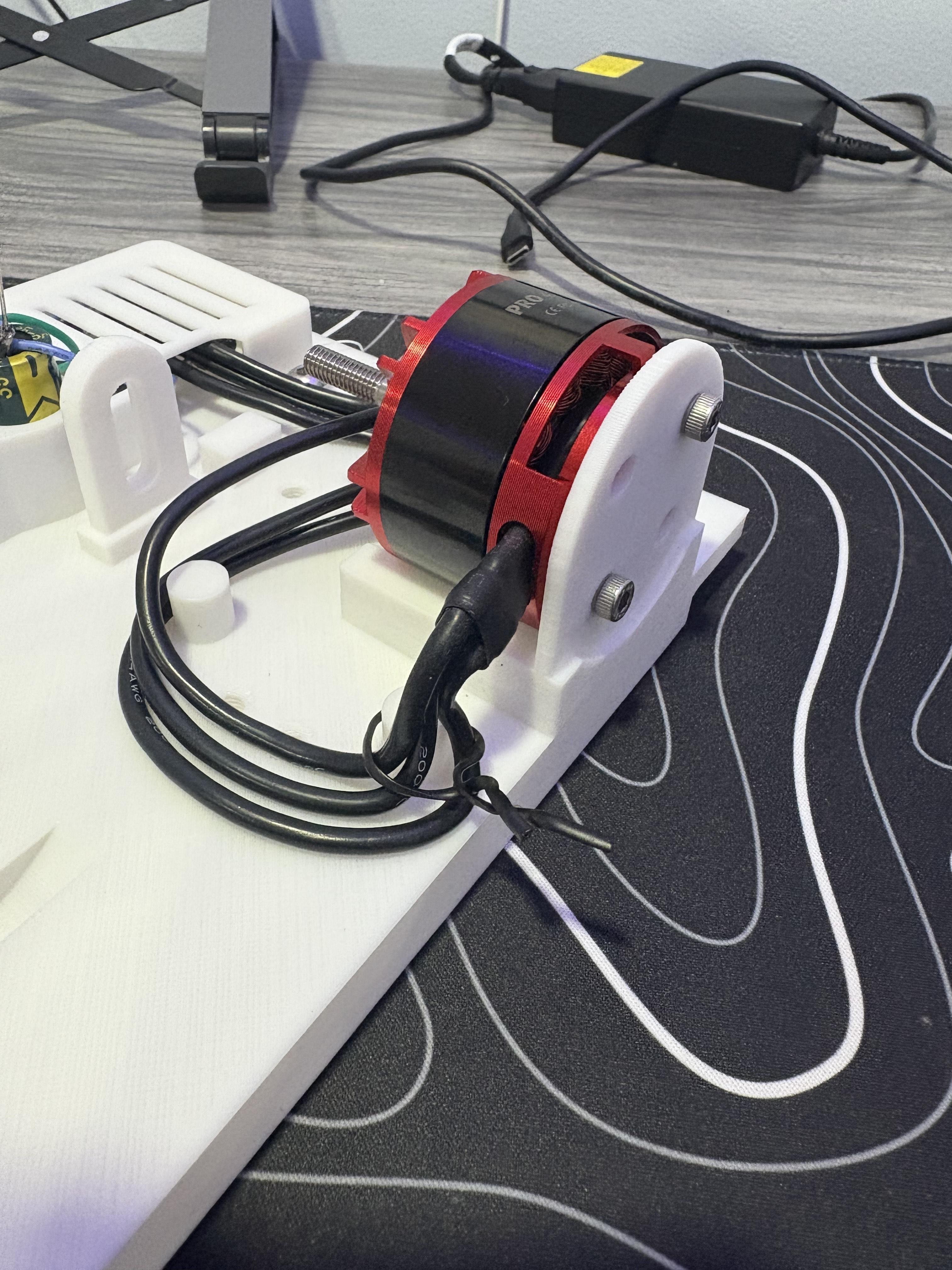
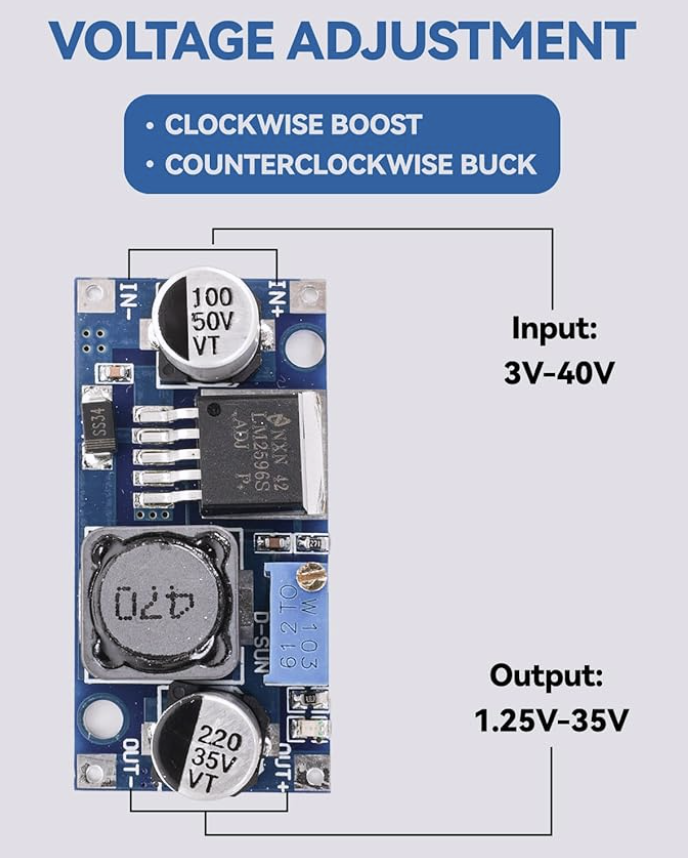

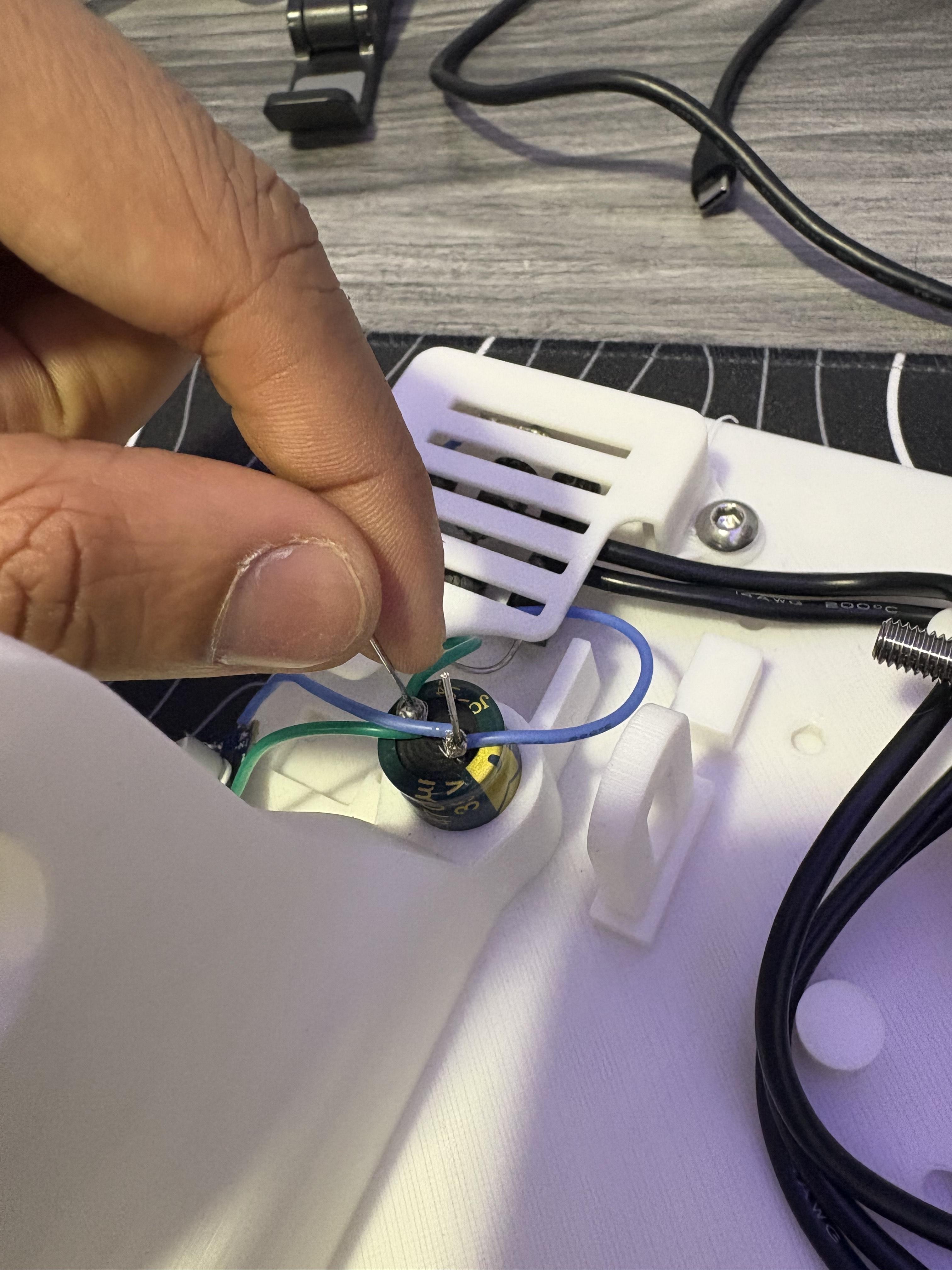
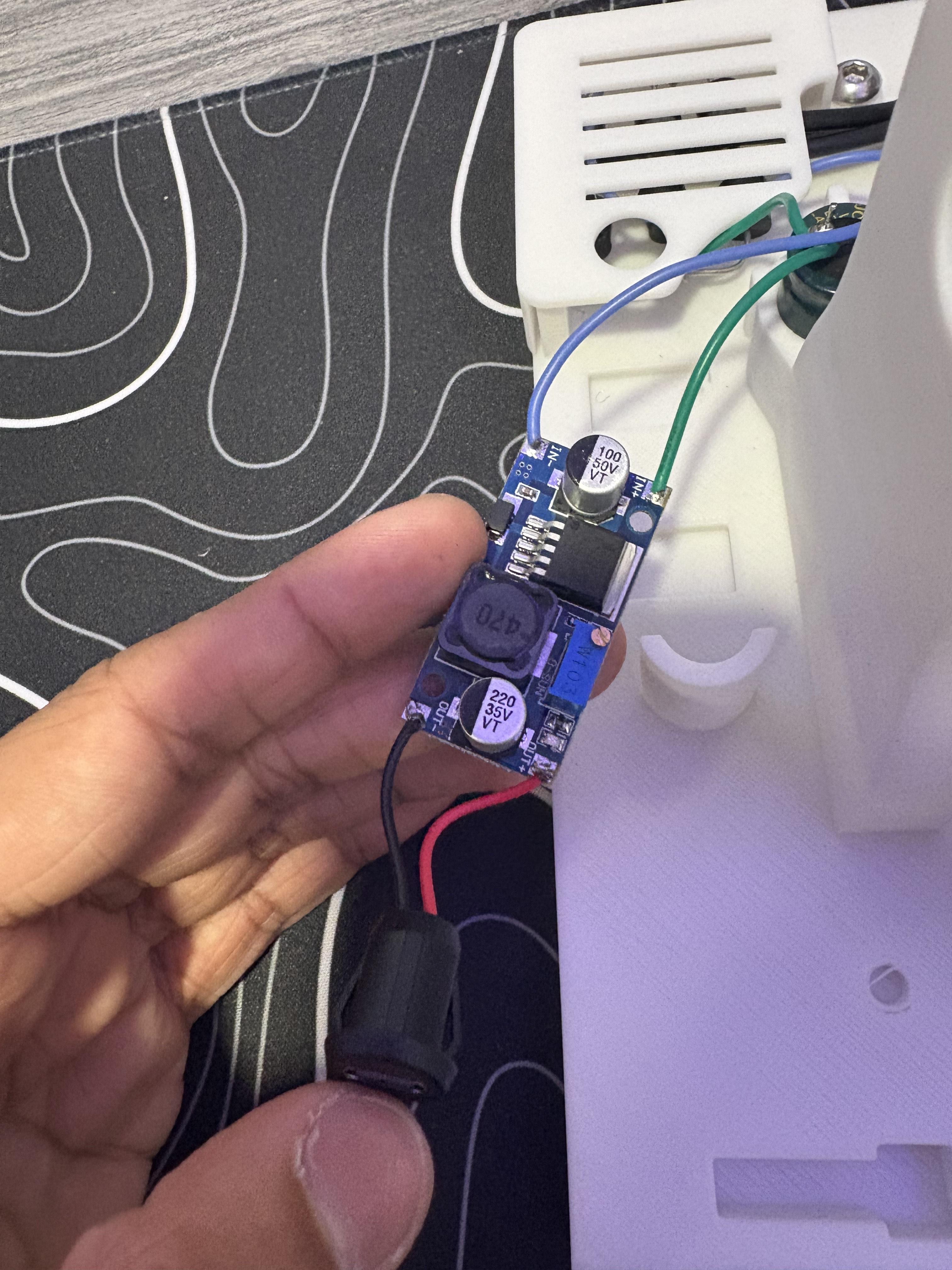
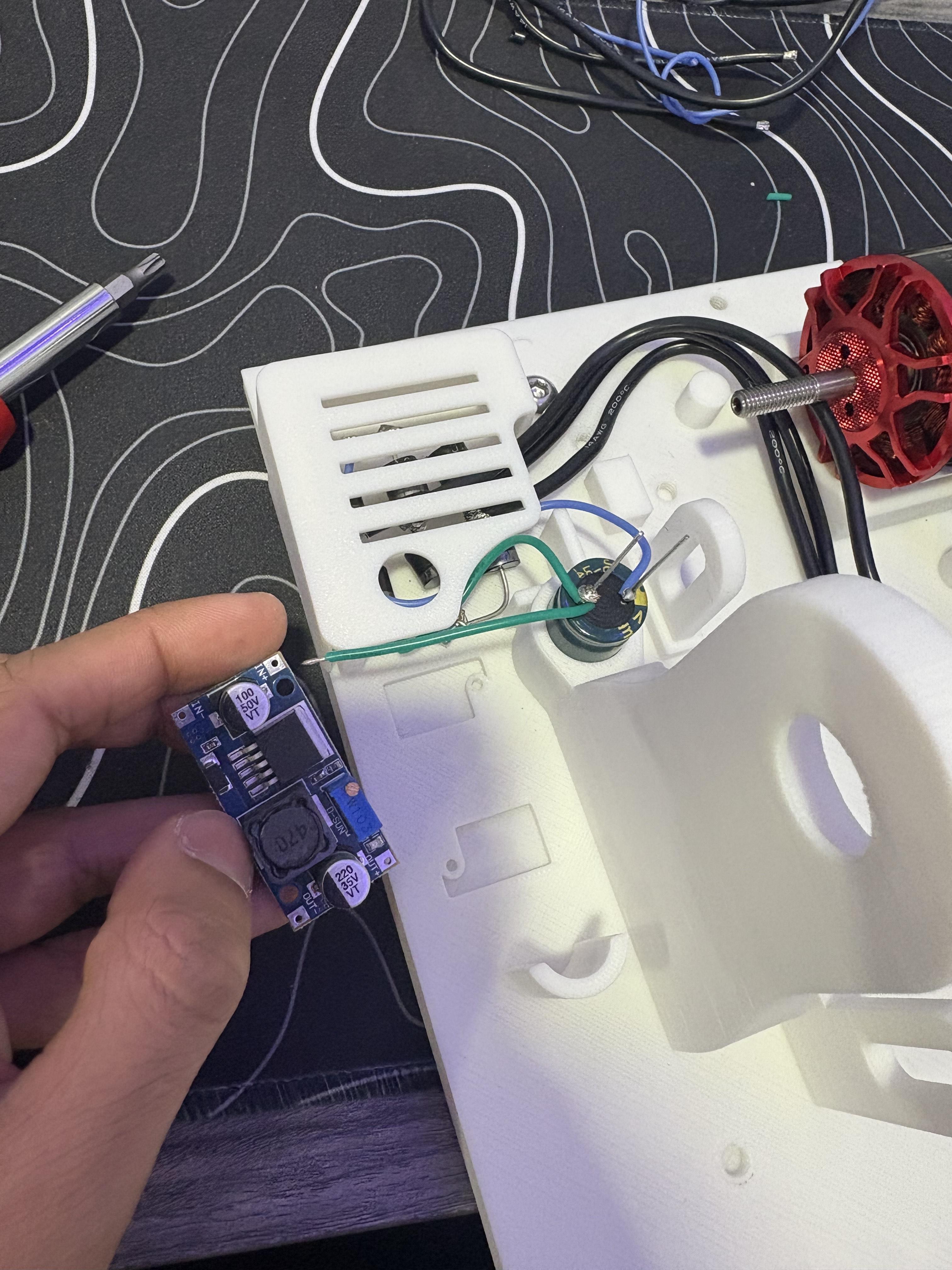
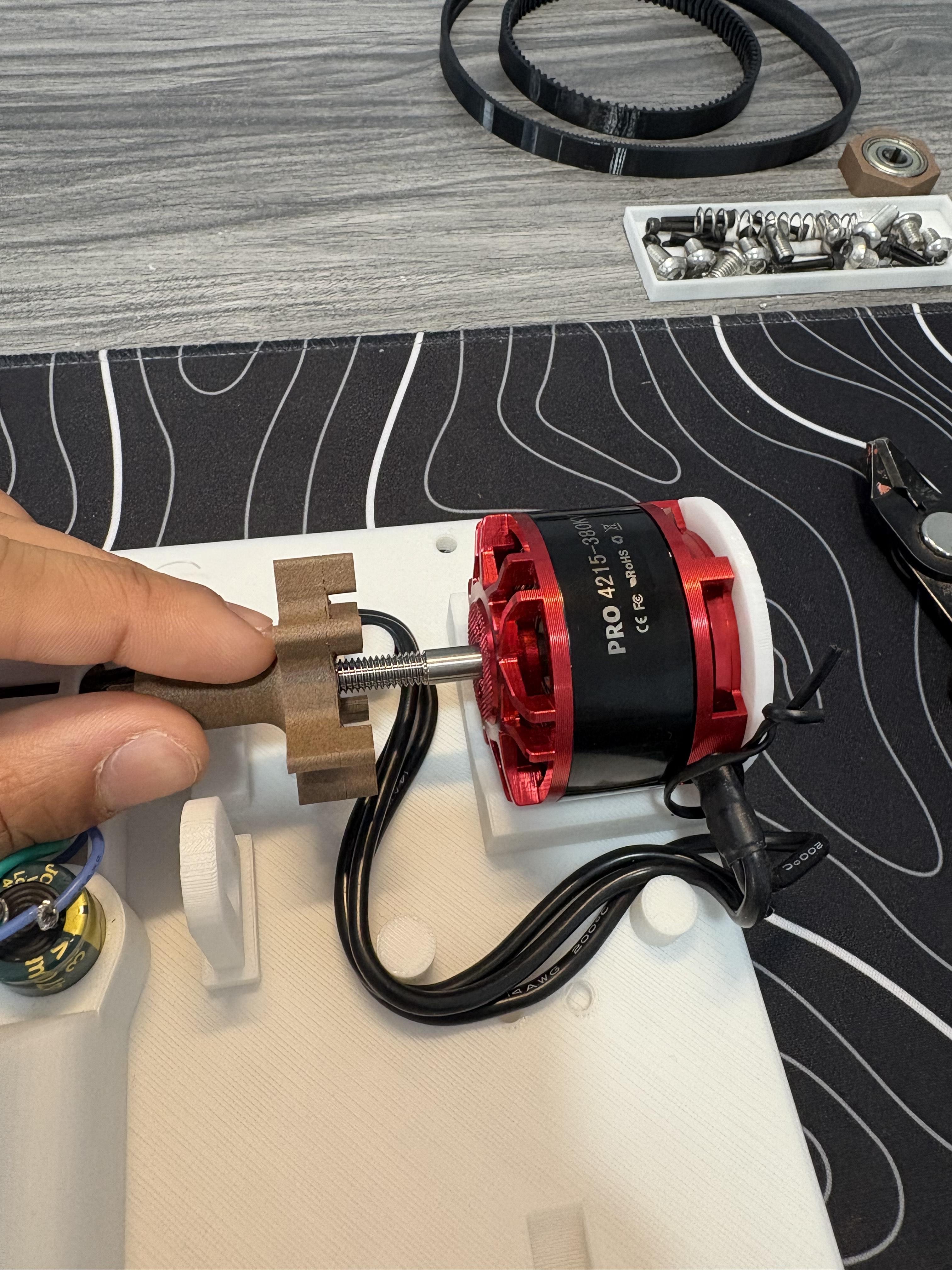
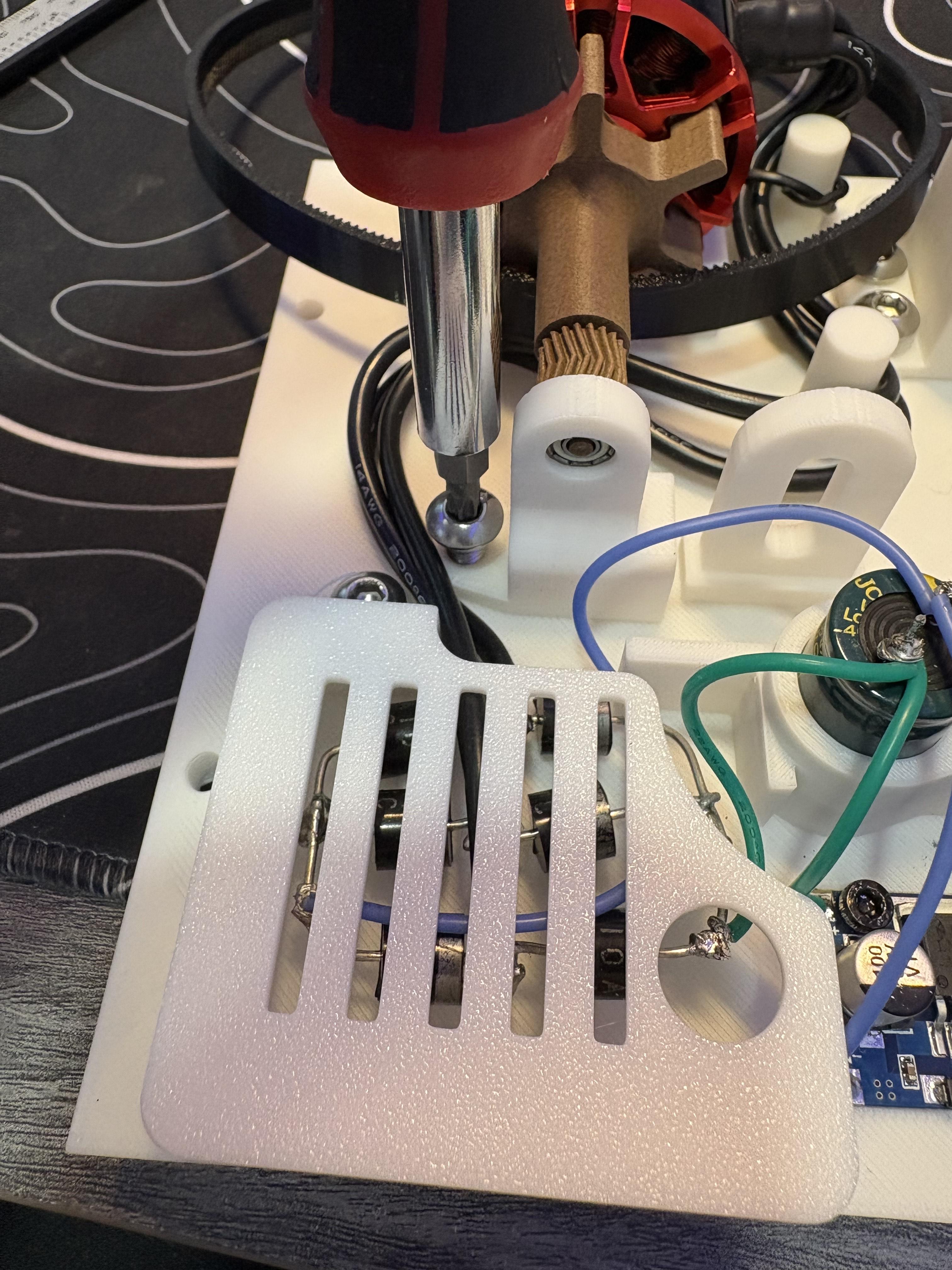
For this step the wiring is exactly the same as the previous prototype V5/Mark5. Except one difference is this version uses a buck converter to ensure more consistent voltage output that reduces voltage spikes while turning excess voltage into extra current that the devices can absorb. Feel free to reference it's wiring steps as it is more in-depth here. The photos above showcase the wiring happening directly on the build plate and quite frankly is what I recommend. My previous prototype was mainly to test my calculations on the rate of energy I could produced based on specific information about the motor. It gave me a rough calculation of the amount of voltage and current the machine could produce at a certain RPM, and it was right. Which is why with this model I cut up the wires more and shortened them down as much as I could. Please refer to the photos as much as possible. Grab PLA1 and set it down on a desk, you will notice from a top side view their is a rectangular frame to the left end of the top corner and right below it, a cylinder with a hole extruded upward. In that cylinder will lie the capacitor and in the rectangular frame, the completed 3-Phase Bridge Rectifier. Just keep this in mind while going forward. Now using the provided M4 screws given by the motor and the M4 Allen key, screw the motor in to the motor plate on PLA1. Taking the completed rectifier, PLA20 and (1) M6 8mm screw, place the rectifier in the rectangular cage, place PLA20 over it and align its M6 screw hole with the plate's screw hole. Proceed to secure the cage down to PLA1 Then, loop the wires of the motors through the extrusion pipes on the baseplate. Proceed to place the capacitor down to its cylindrical port on the build plate, wire up the positive (GREEN WIRE) and negative (BLUE WIRE) leads of the rectifier onto the corresponding leads of the capacitor. Unlike the previous version, I wired the positive and negative output leads that normally went straight to the female USB-C port to the buck converter instead. This buck converter was implemented to protect external circuits from being fried from a high generated voltage spike should the user provide pulls with more torque. This would augment the rest of the energy to current should the directed voltage requirement be met, providing more current as well when charging external devices. Moving on, solder the output leads of the buck converter to the corresponding positive and negative leads of the USB-C female port. I forgot to take pictures of me wiring up the rectifier but there is a image of the wiring diagram of the rectifier for reference. But for now, hot glue the female USB-C port onto the linear rail pointing upward. We will later adjust the output voltage of the buck converter. Finally for now, grab PLA15 and align its ports onto the motor bell ports.
The photos above show further visual input of aligning the buck converter screws onto the plate, as well as more input of where the capacitors is placed. If more direction is needed, I have a video linked to this step that should show briefly as to how I assembled PLA1 with the electronics onboard.
Understanding the Electronics a Bit More

 (1).png)
 (1).png)
 (1).png)
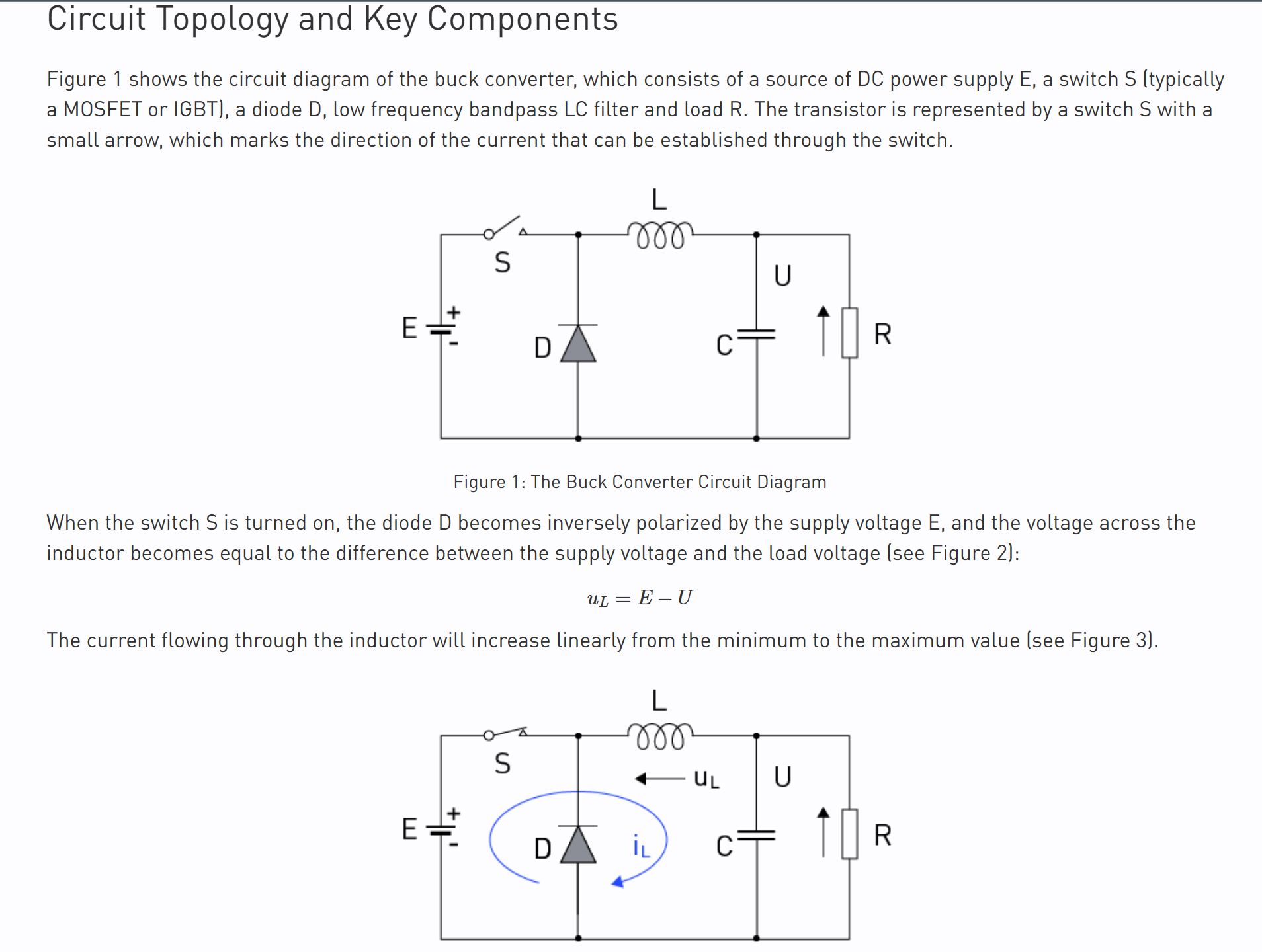
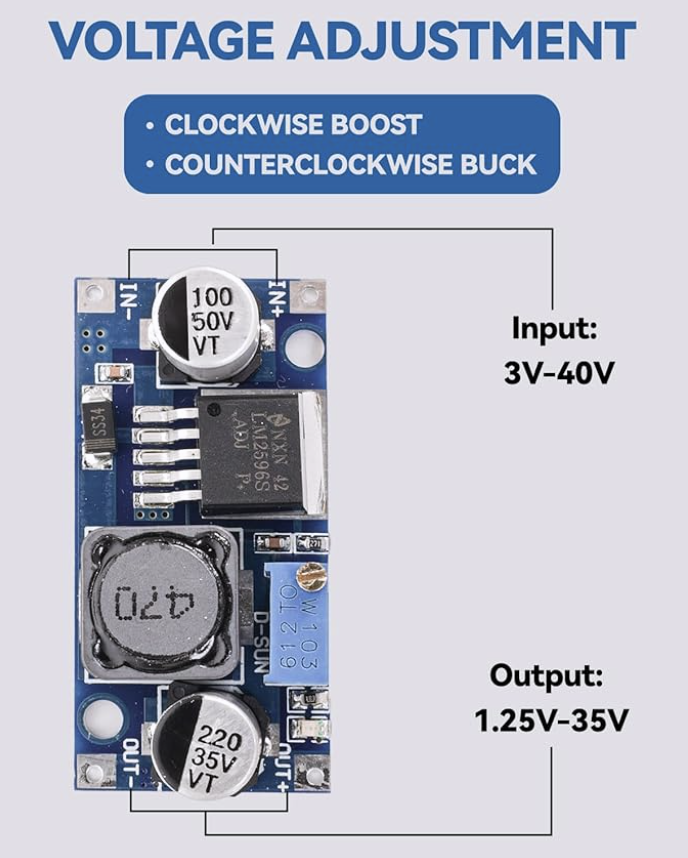

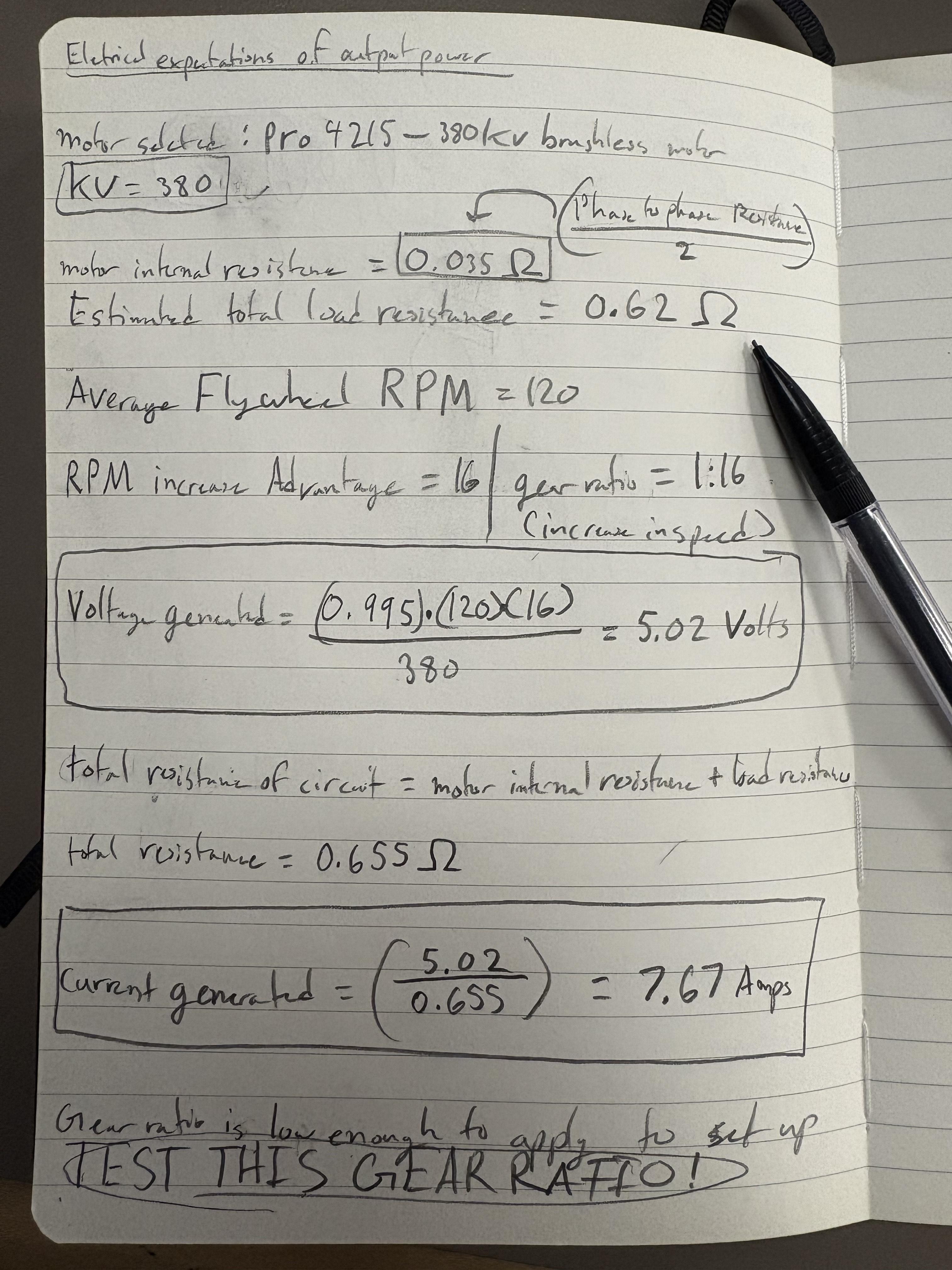
This is just an explanation of my thoughts on the electronics and what might need to change in the next version. It's very similar to the last prototype in terms of electronic components; it just uses a larger capacitor and a buck converter.
For this, a explanation of understanding will be listed here and a reminder of how the diodes are wired up if the photo did not help: Without going deep into the science, the motor generates a "back EMF," but for now, we will refer to it as voltage being generated by the motor, as it is essentially acting as our main generator in this setup. So this motor is called a BLDC motor, and it generates AC voltage when spun. A rectifier essentially converts AC voltage to DC, which many handheld or portable circuits require, such as power banks or phones. The motor has 3 wires called phase wires, for this setup, its ok to wire them between any end of the rectifiers. To get a better explanation, I would recommend taking a look at the photos. Rectifiers are commonly seen in items such as power bricks, which we use to charge our devices. In our case, we can call our motor an unpredictable wall outlet. It has surges of AC voltage running through it, and a rectifier takes those surges and turns them into a usable DC voltage that can charge our devices. You can see with this version, we have a large 35V 4700uf capacitor connected to the positive and negative terminals of the rectifier. This version has increased capacitance and allows us to store more energy through the bursts of energy we will generate for every pull we do on the machine. Now, the ends of the capacitors are connected to another input terminal. This terminal is the input side of the buck converter. For this specific project, if you look at the buck converter, one side has a 50V capacitor while the opposite side has a 35V capacitor. The terminal closest to the 50V capacitor is the input side, which is where the capacitors should be wired up to. The buck converter's role is to provide a stable 5V output instead of voltage spikes near 5V, making it safer for external devices to receive a charge, and as a bonus, it takes any excess voltage generated and regulates it not as just a stepped-down voltage but as increased current if the excess voltage allows it, for energy cannot be created. This makes the overall process safer and, if you generate a lot of power, faster charging times. For this setup, I wired a female USB-C connector to the output terminal of the buck converter( the 35V capacitor side).
If you wish for a better understanding than this, I have linked a few photos that express my thoughts on motor back emf generation, current, and reverse polarity. You can find out how the buck converter works from here. A more in-depth view on how rectifiers work, as well as a better understanding of why the system was so unstable due to the requirement of such a large torque for my wanting of a higher RPM. I hope you can read my handwriting:(
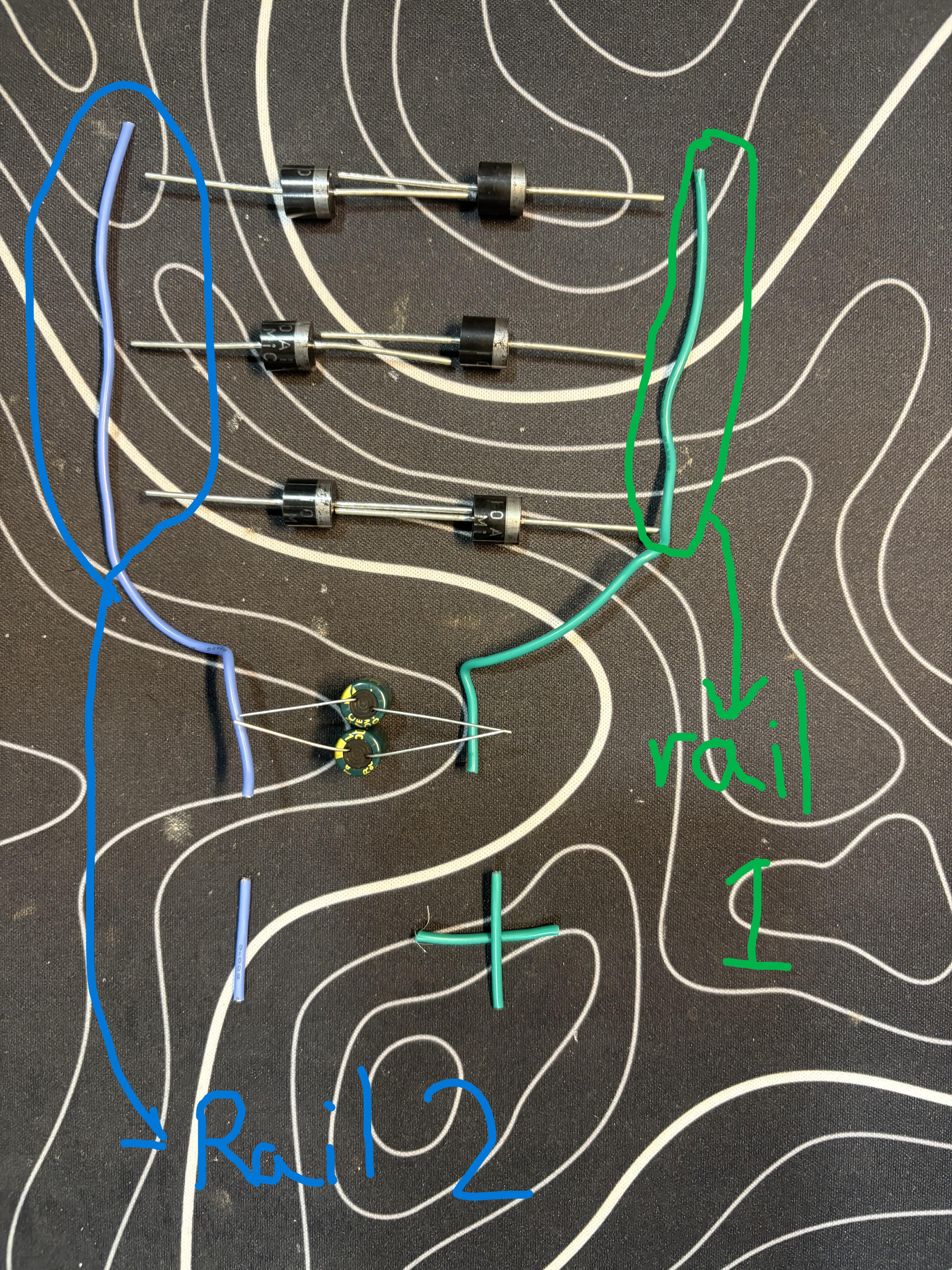
Wiring Expanded if photos didn't help: For this circuit, place the diodes out as shown in the photos. In one of the photos, I have mapped out the circuit with green and blue wires. Green represents positive, while Blue represents negative. First, create 3 pairs of diodes, each having 2 diodes each. Wire them in series or connect one positive side of a diode to another diode's negative side. Check the orientation of them in the photo. Now with your 3 pairs of diodes, which have their 2 diodes each connected, connect the 3 pairs in a parallel configuration, essentially, if you look at the pairs, the ends of the pairs have one end sticking out with the striped side and the other end with a no strip side. connect them. Now connect the phase wires to the middle leads of the rectifiers, between the pairs of diodes. The picture can help. Now, spin the motor with your hands, and for safety purposes, use a multimeter and measure the voltage difference between Rail 1 and Rail 2. You can identify these rails by looking at the pictures above; one of them will list the rails I am talking about. The rail producing a negative voltage will be marked as ground, and the one producing a positive voltage will be marked power. In my case, the green wire in the photo was positive, and the Blue wire was negative. Connect 2 capacitors in parallel, their positive leads and their negative leads. Connect the positive leads of the capacitors to your defined positive rail and the negative leads of the capacitors to your defined ground rail. Now connect the leads to the input side of the buck converter, and then the output side of the buck converter to the female USB-C connector. This completes the circuit.
Setting Up the Cable Reel
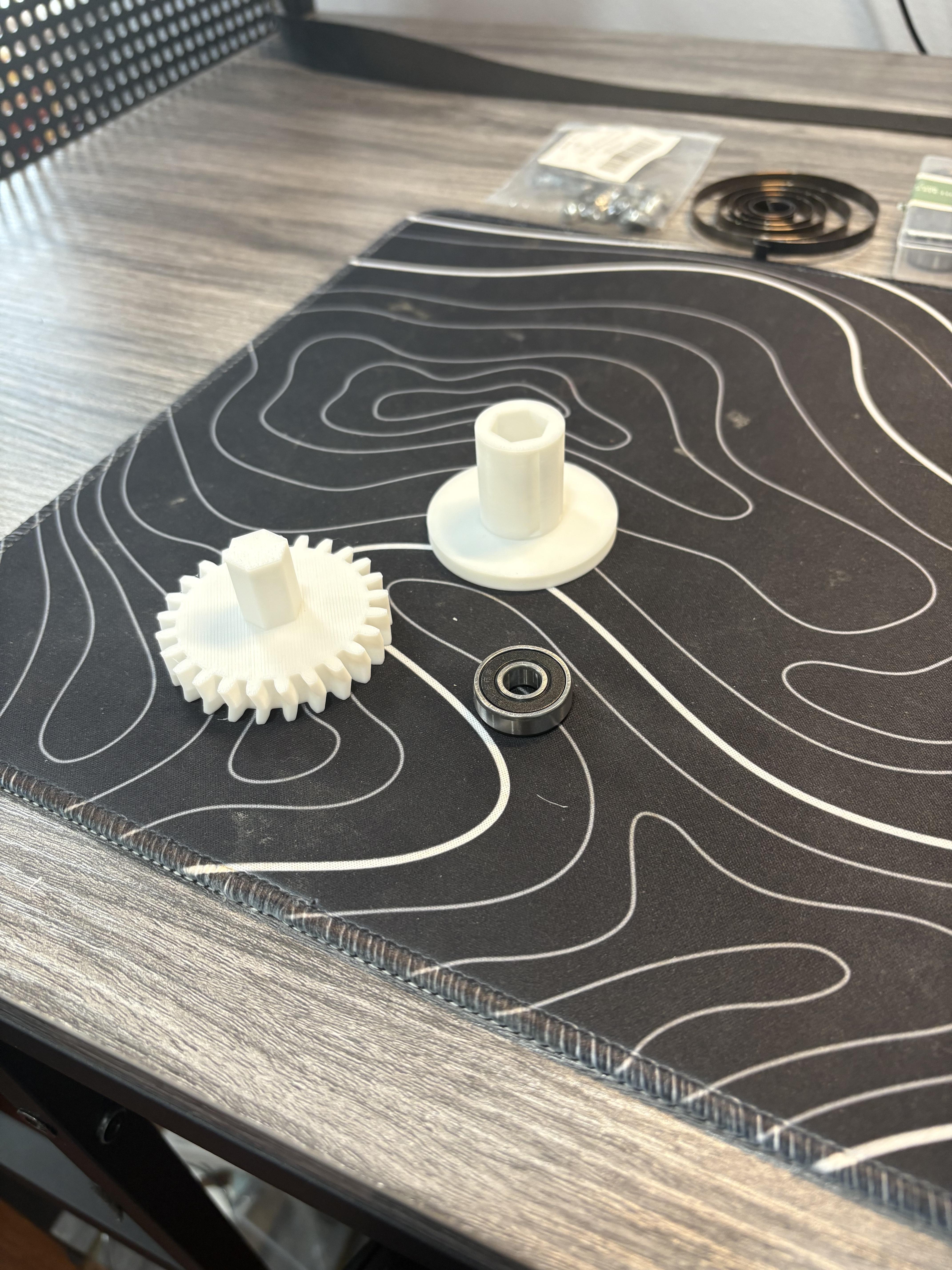
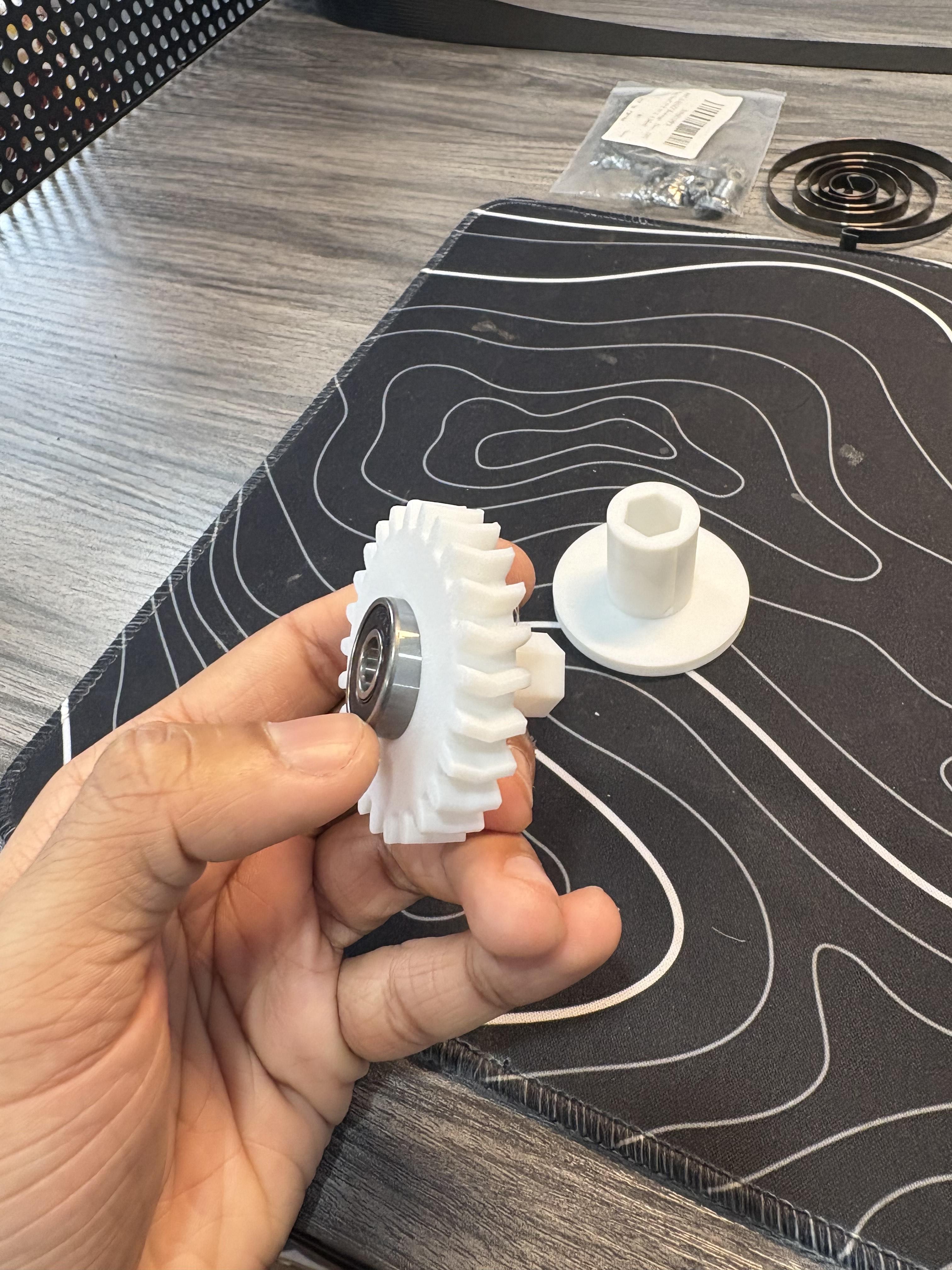
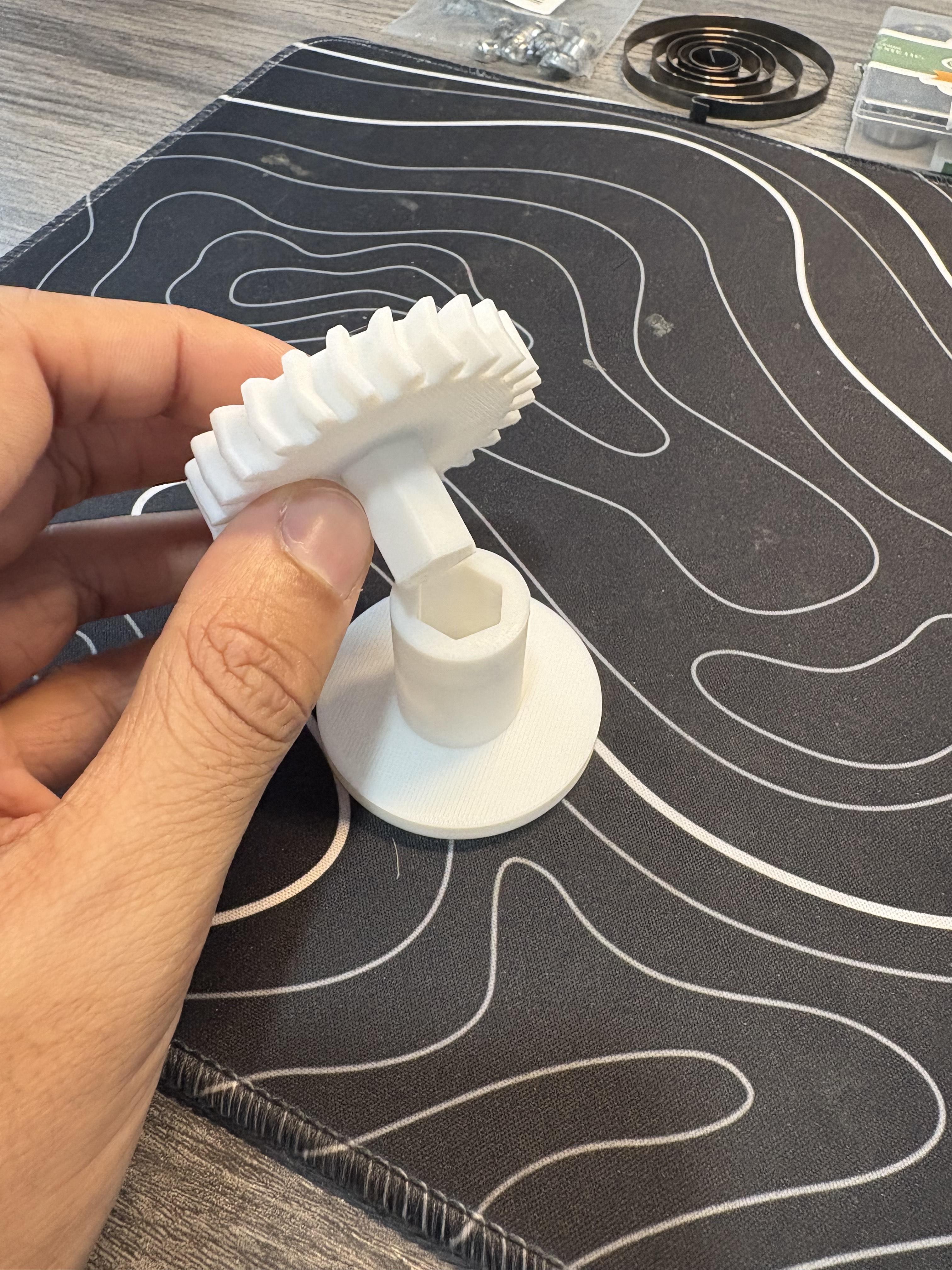
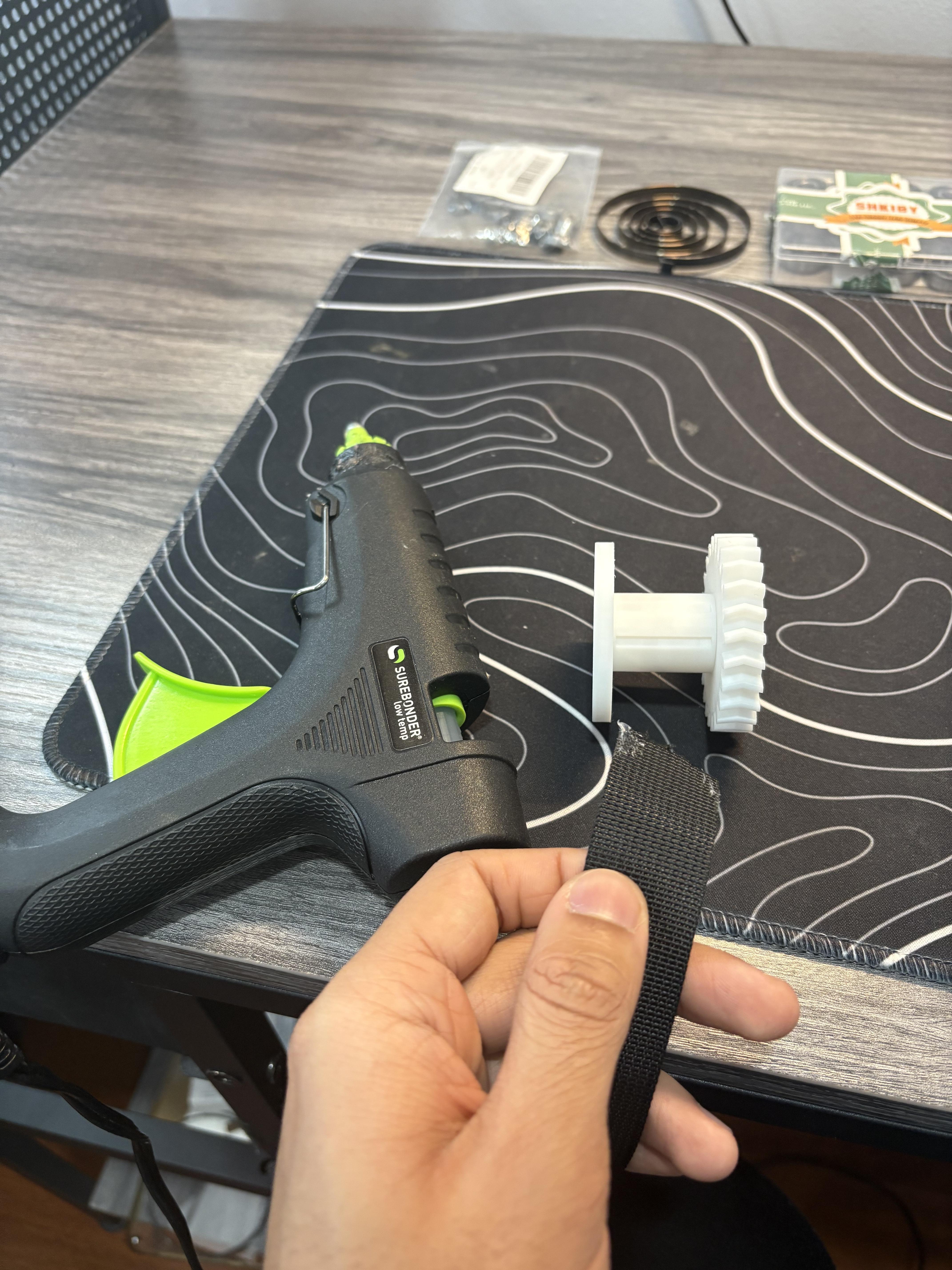
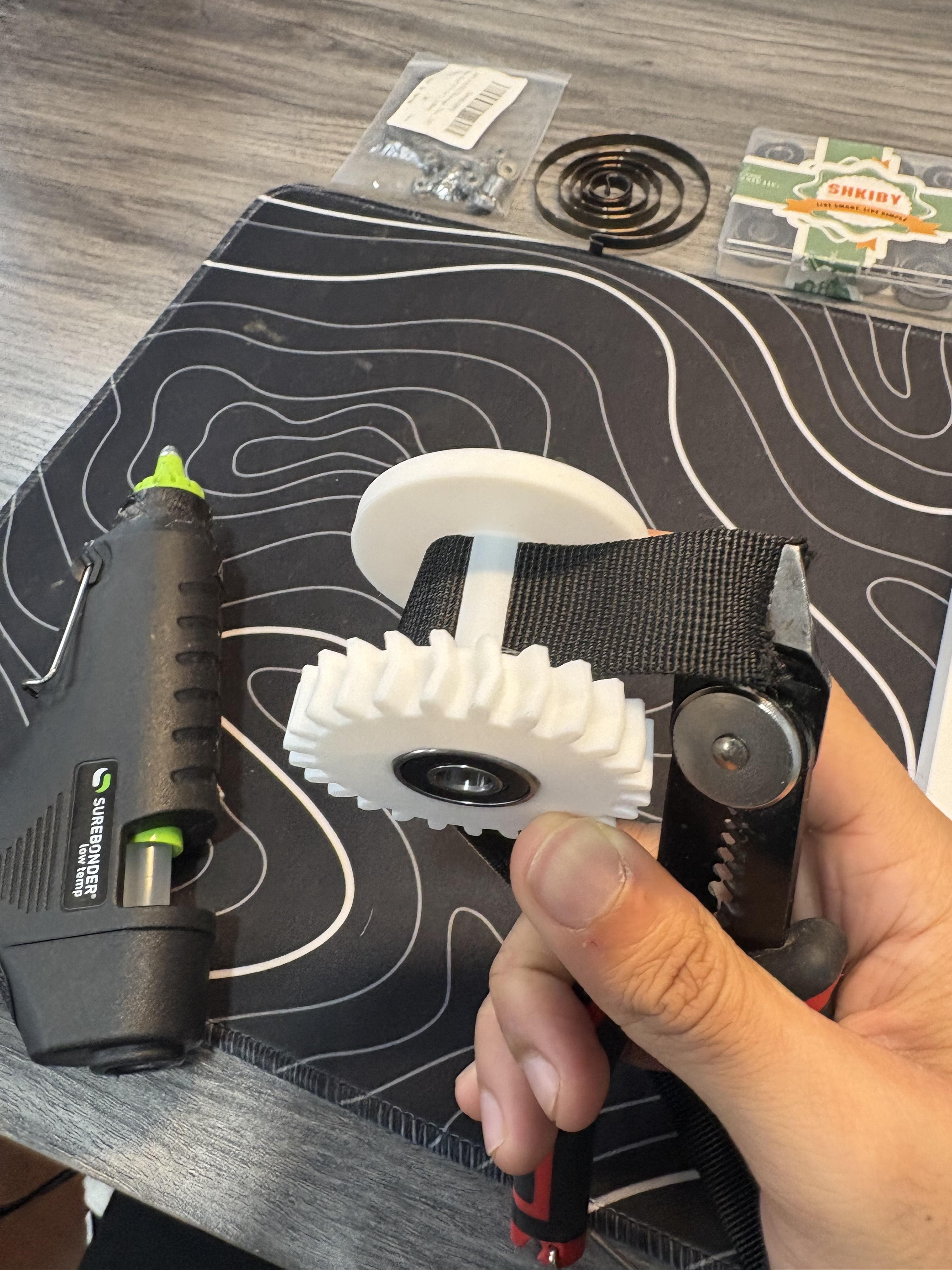
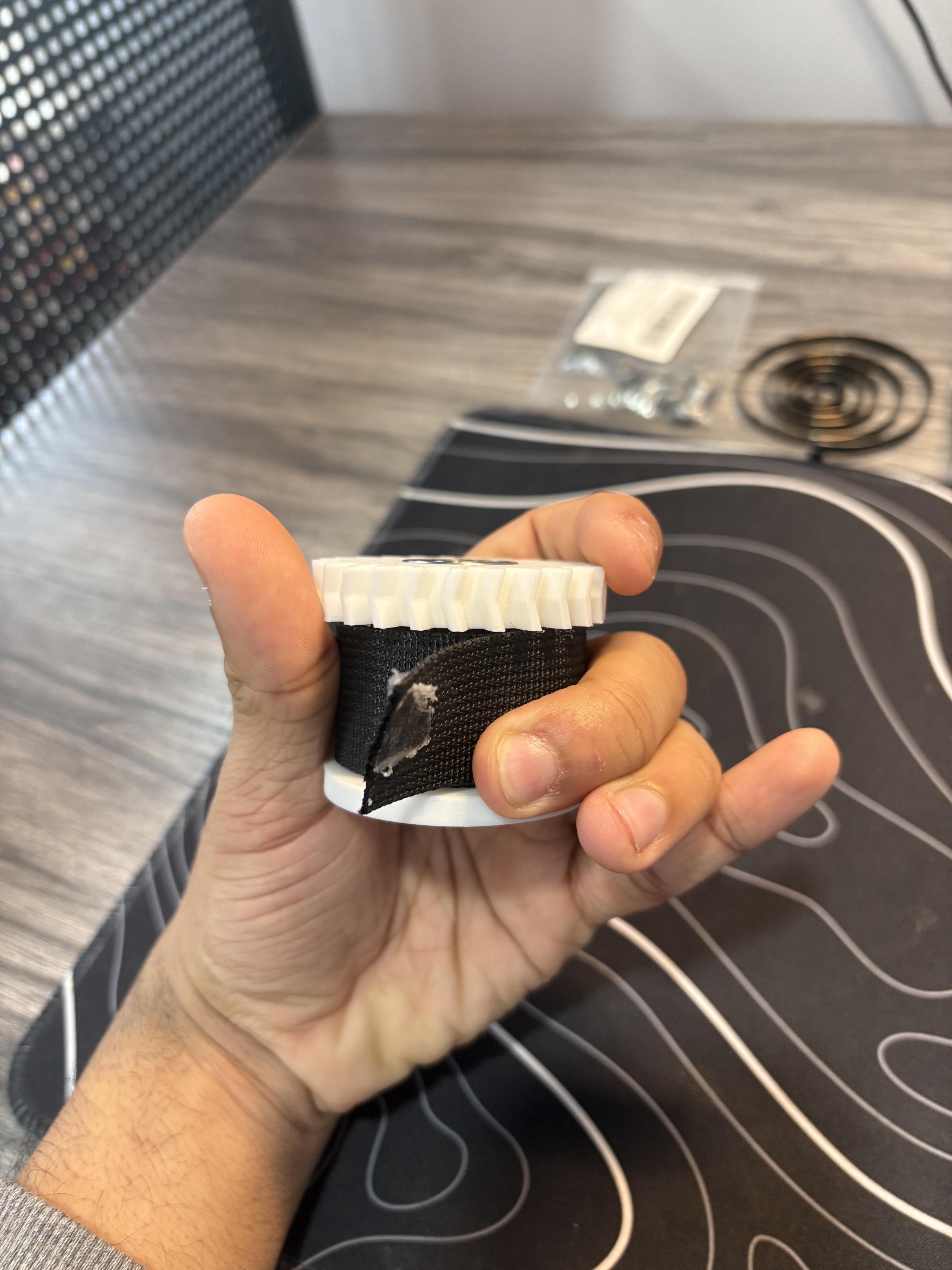
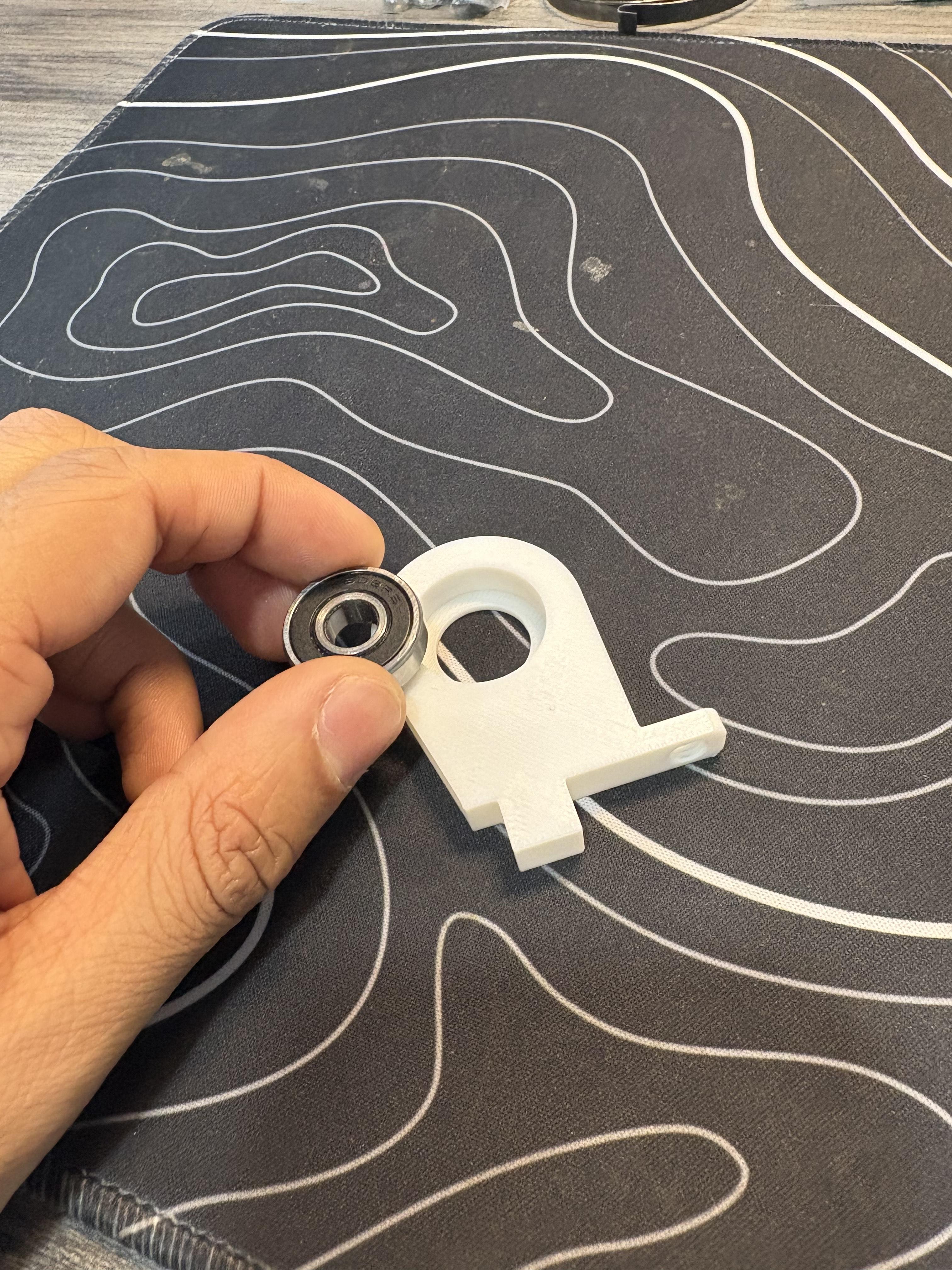
Begin by grabbing (1) 608 2RS Bearing, PLA4 and PLA5 plug the bearing into PLA5 then align the male hexagonal shaft of PLA5 to PLA4's female hexagonal shaft, I'd recommend adding a little bit of hot glue before pressing down. Grab your 1-inch wide, 3.25-Feet-Long Hook and Loop Strap pull it through the rectangular hole on PLA4. It will be very tight, so putting one corner through and using pliers to force the rest of the cable to come through might help. Only pull a bit out of the hole and glue it down on the axle. Then wrap it all the way around the axle. We will need this part for the next step.
Completing the Cable Reel + Attaching the Handle
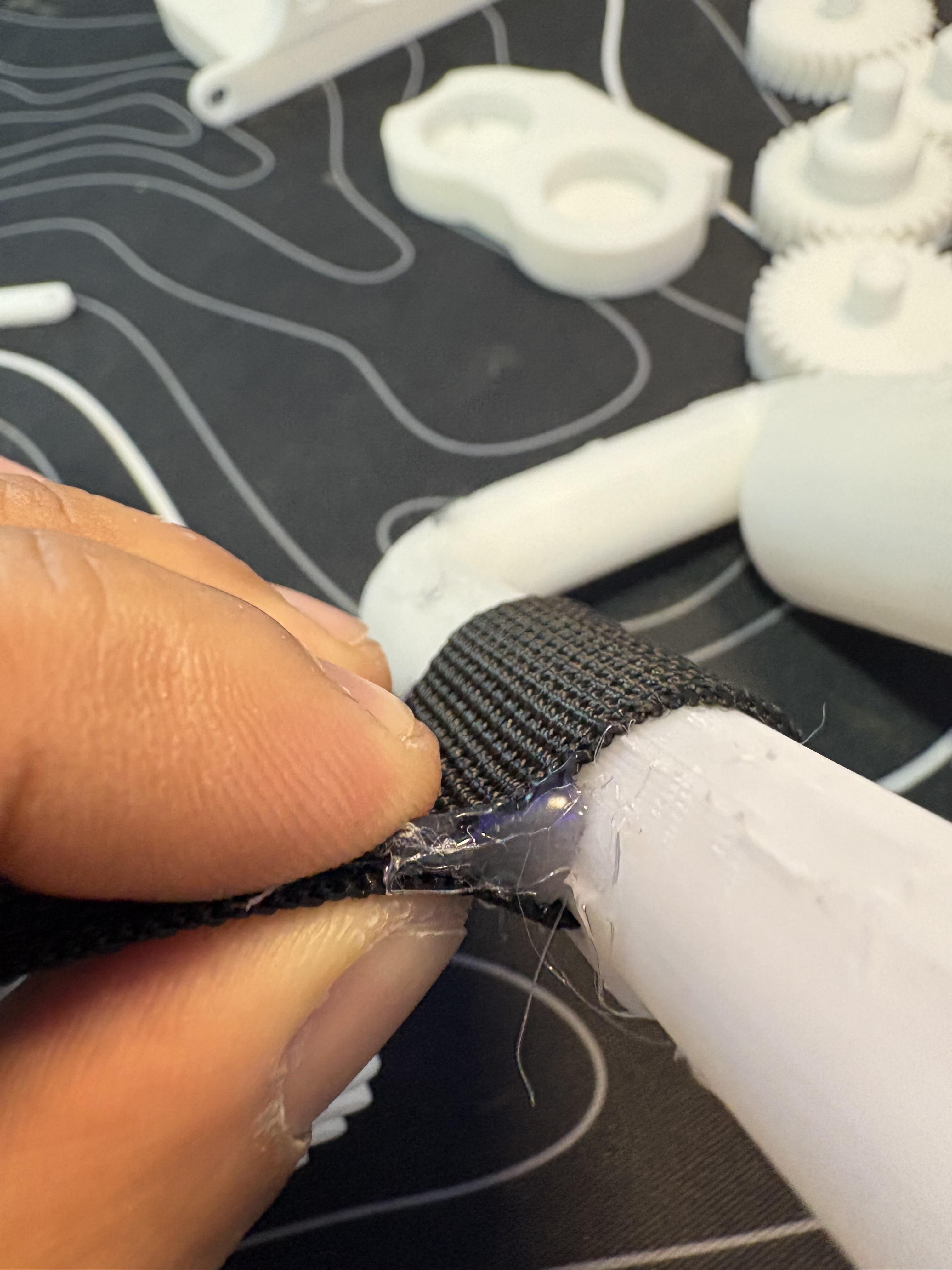
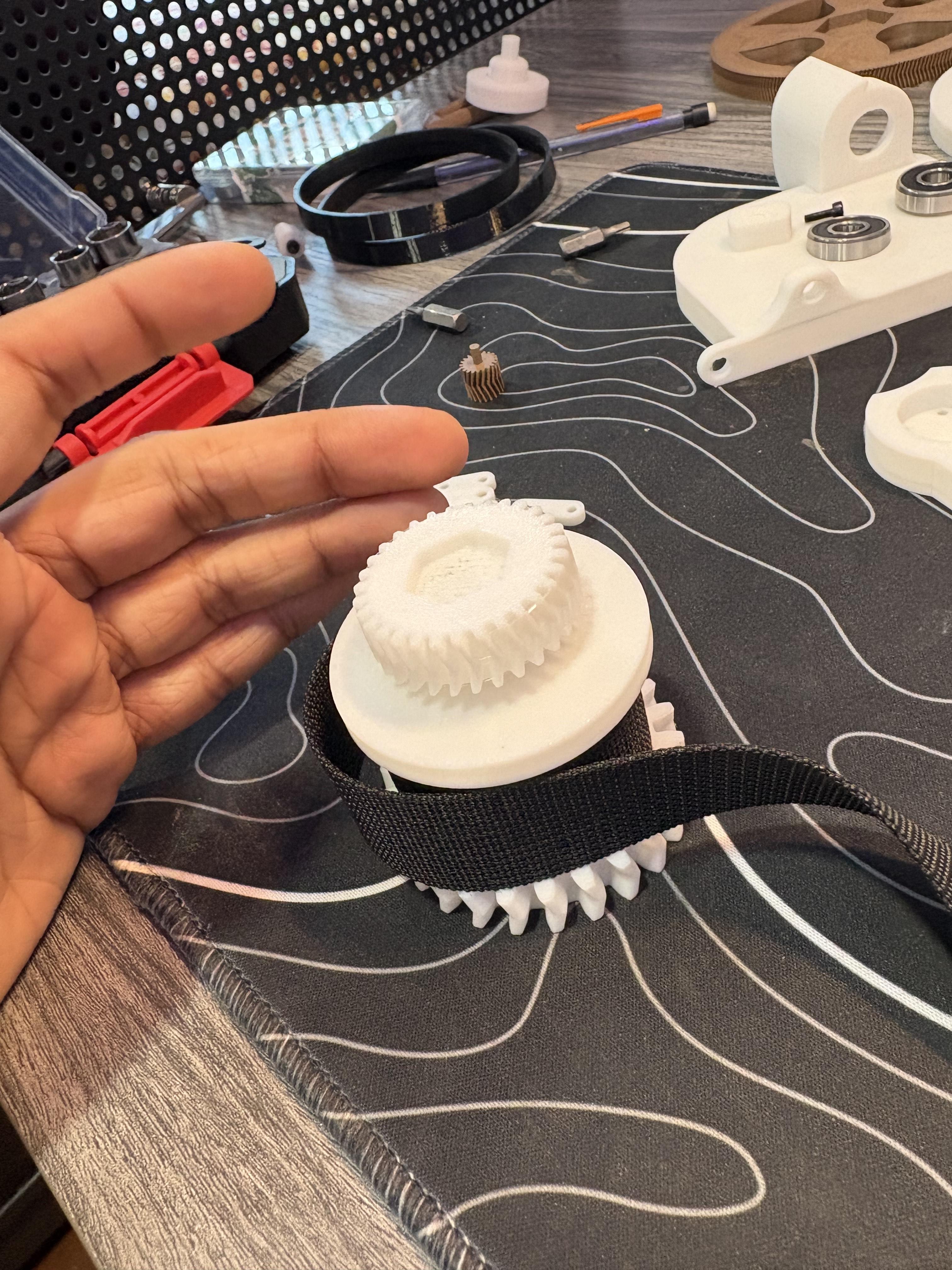
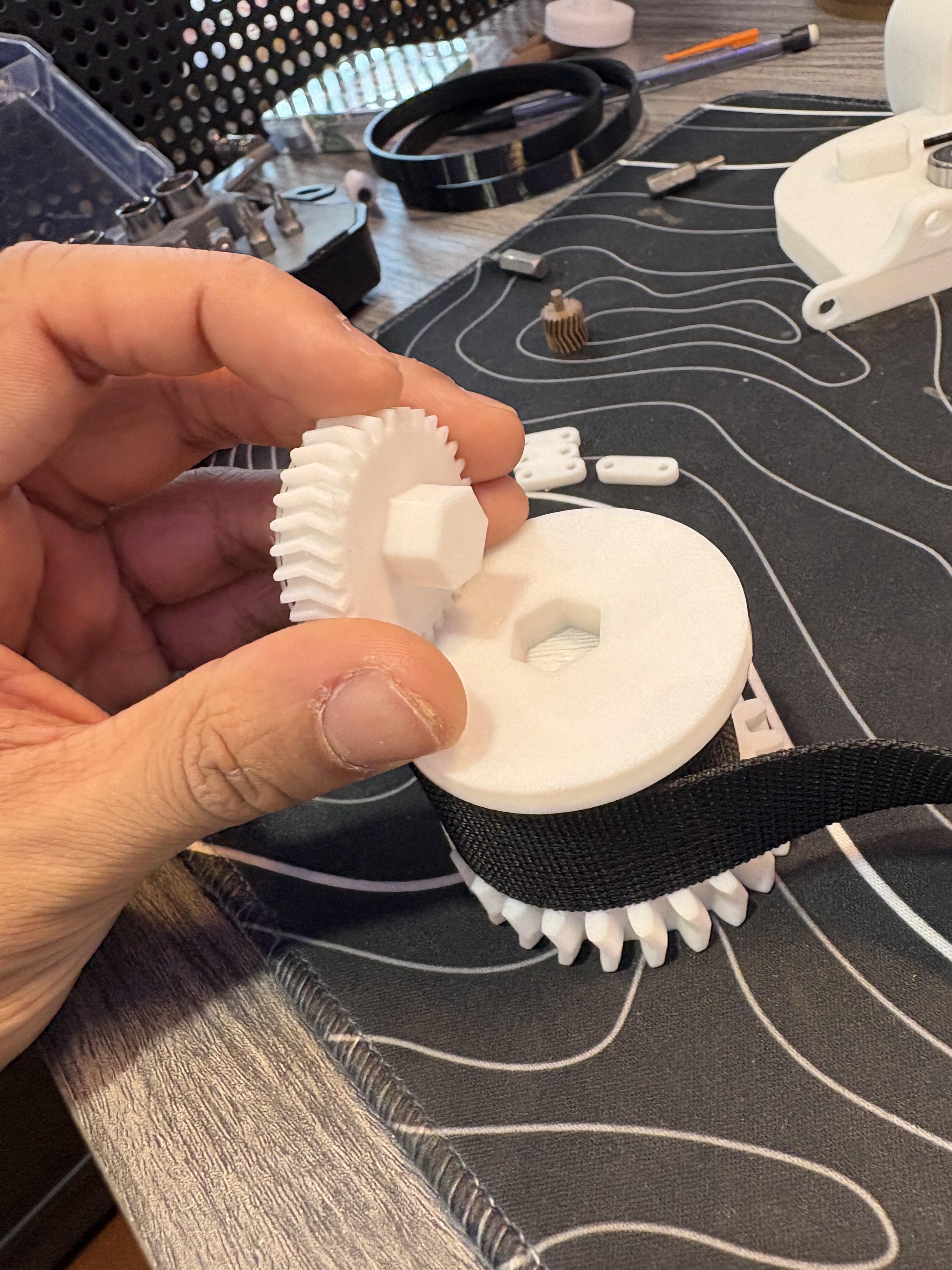
For this step, grab the sub-completed cable reel, and take the end of the cable and run it through PLA28 just like before, I recommend using pliers and guiding a corner through the rectangular hole since it is a little tight. Then wrap a little bit of the cable around the handle where the rectangular hole is, and make a hook. Use hot glue to glue them together to make the cable secured onto the handle. Grab PLA29 and insert it's male hexagonal shaft into the female hexagonal shaft of PLA4. Put this combo aside for now.
Installing the Spring Gear
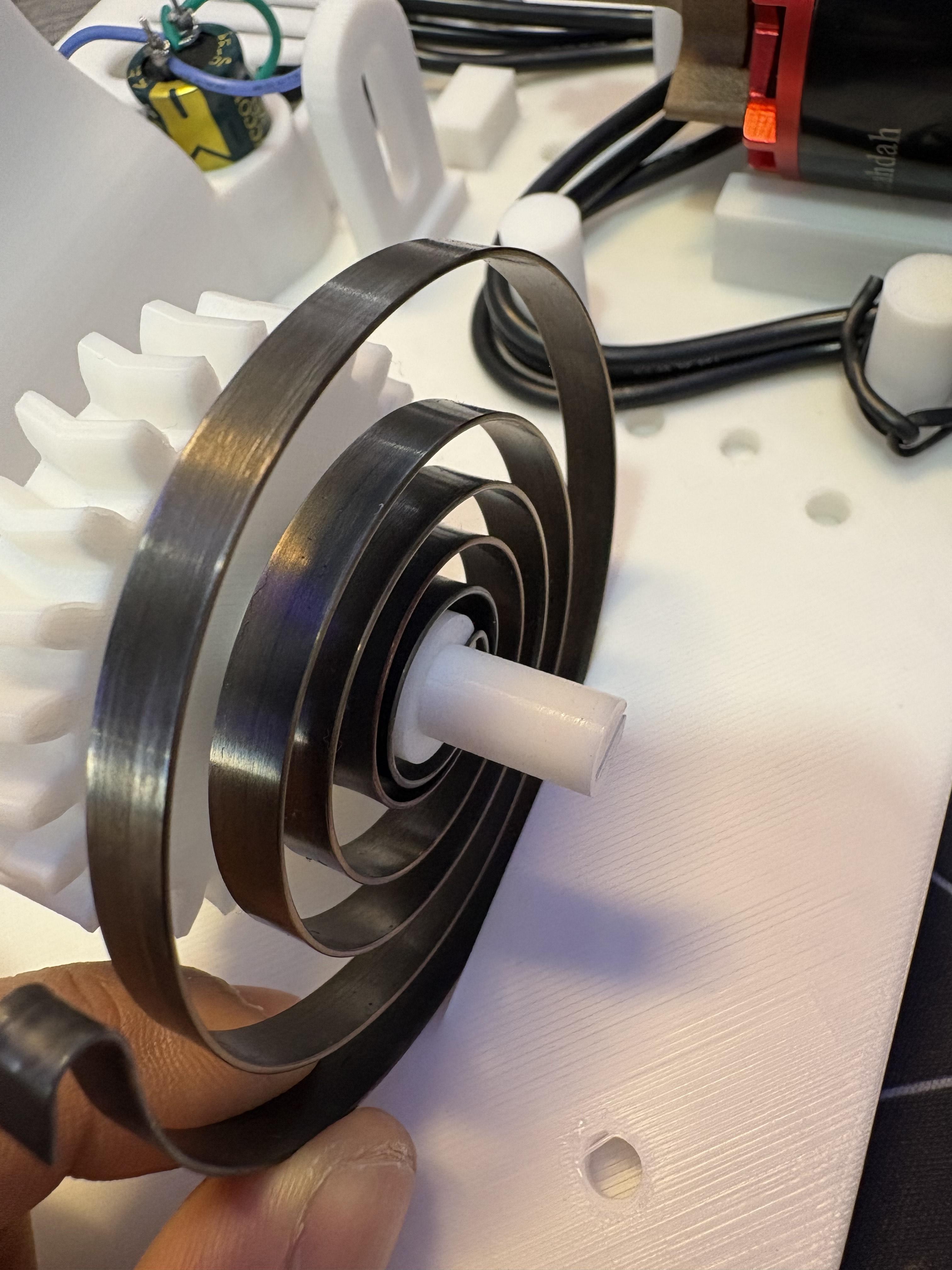
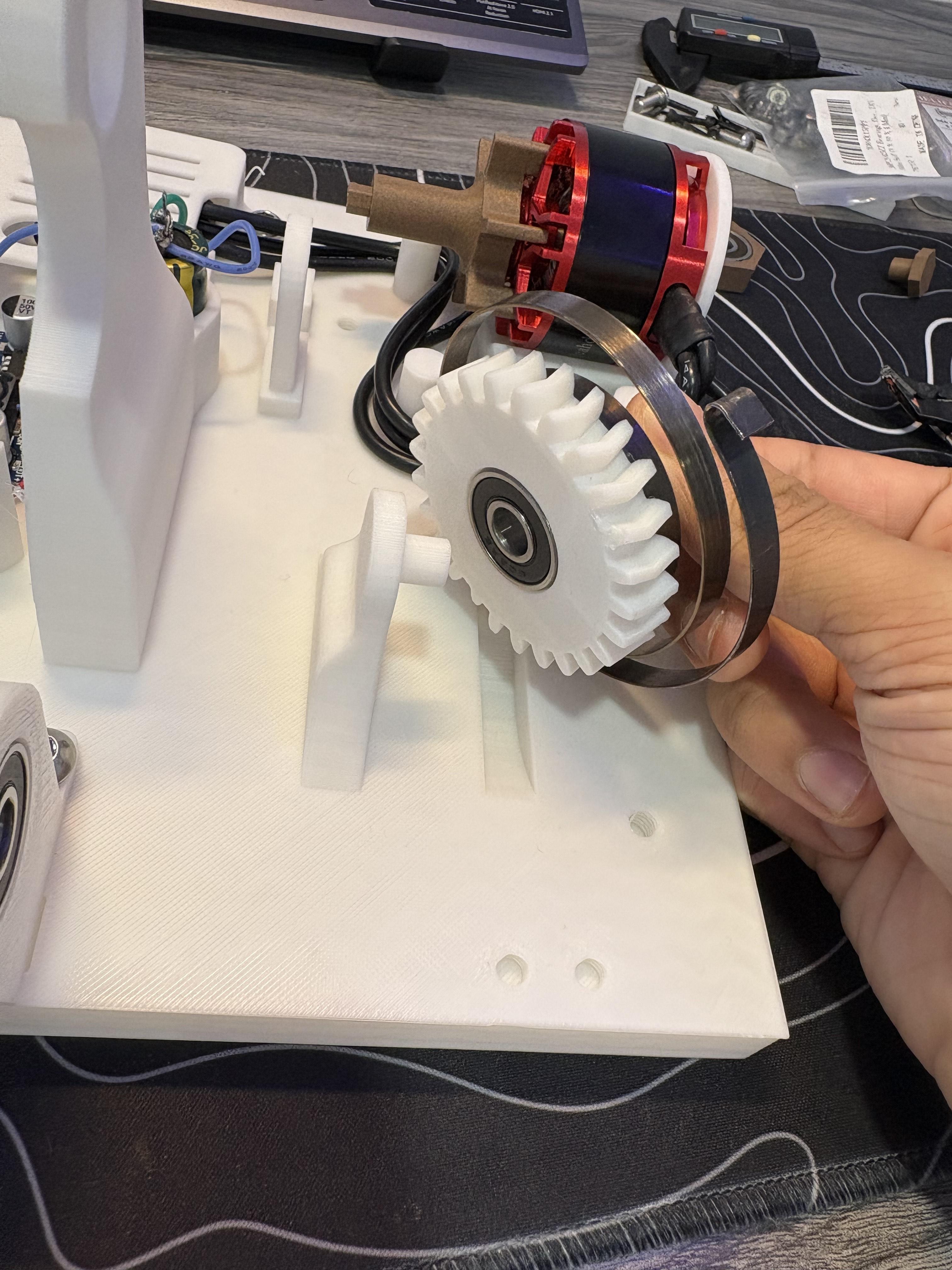
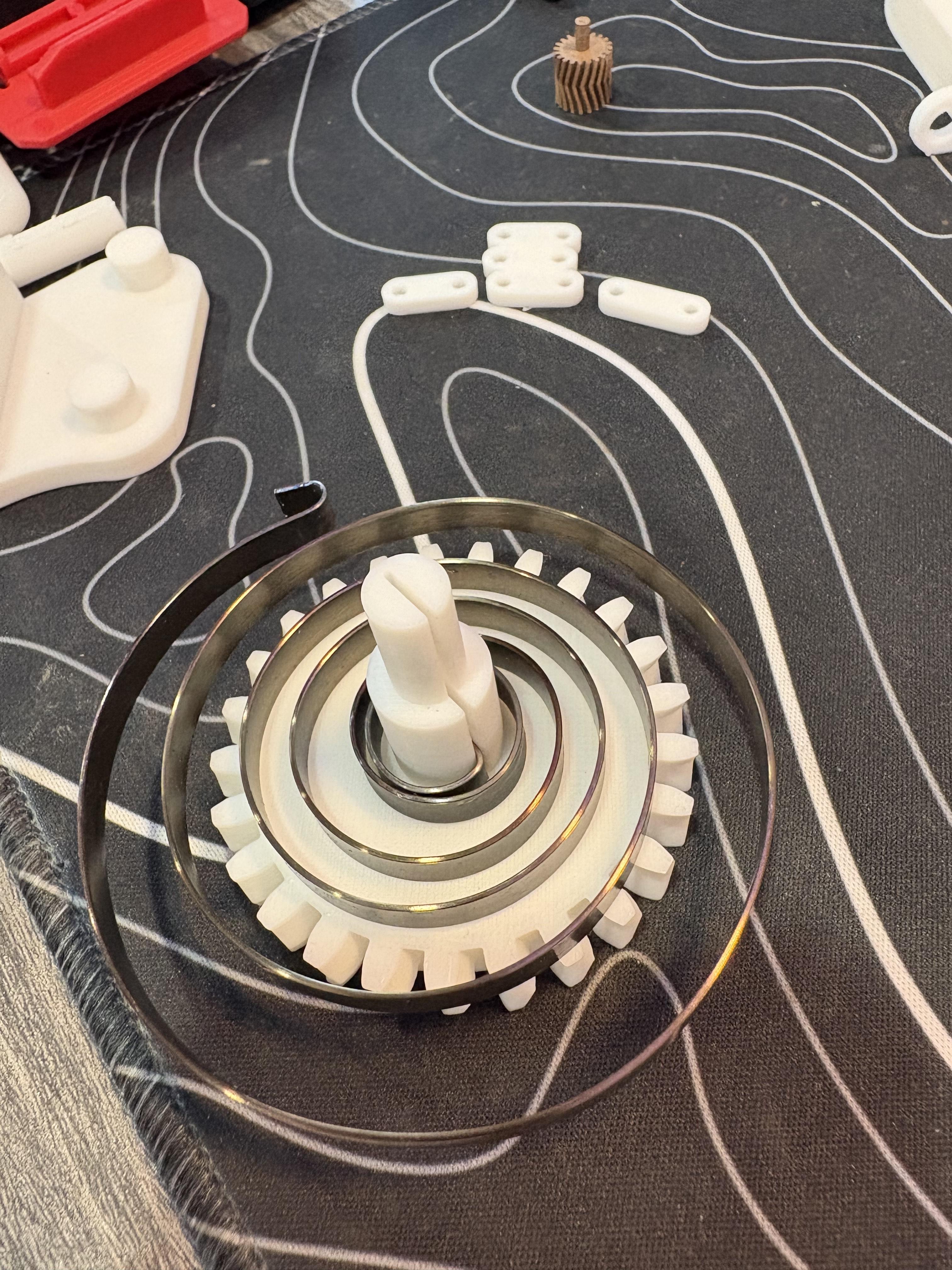
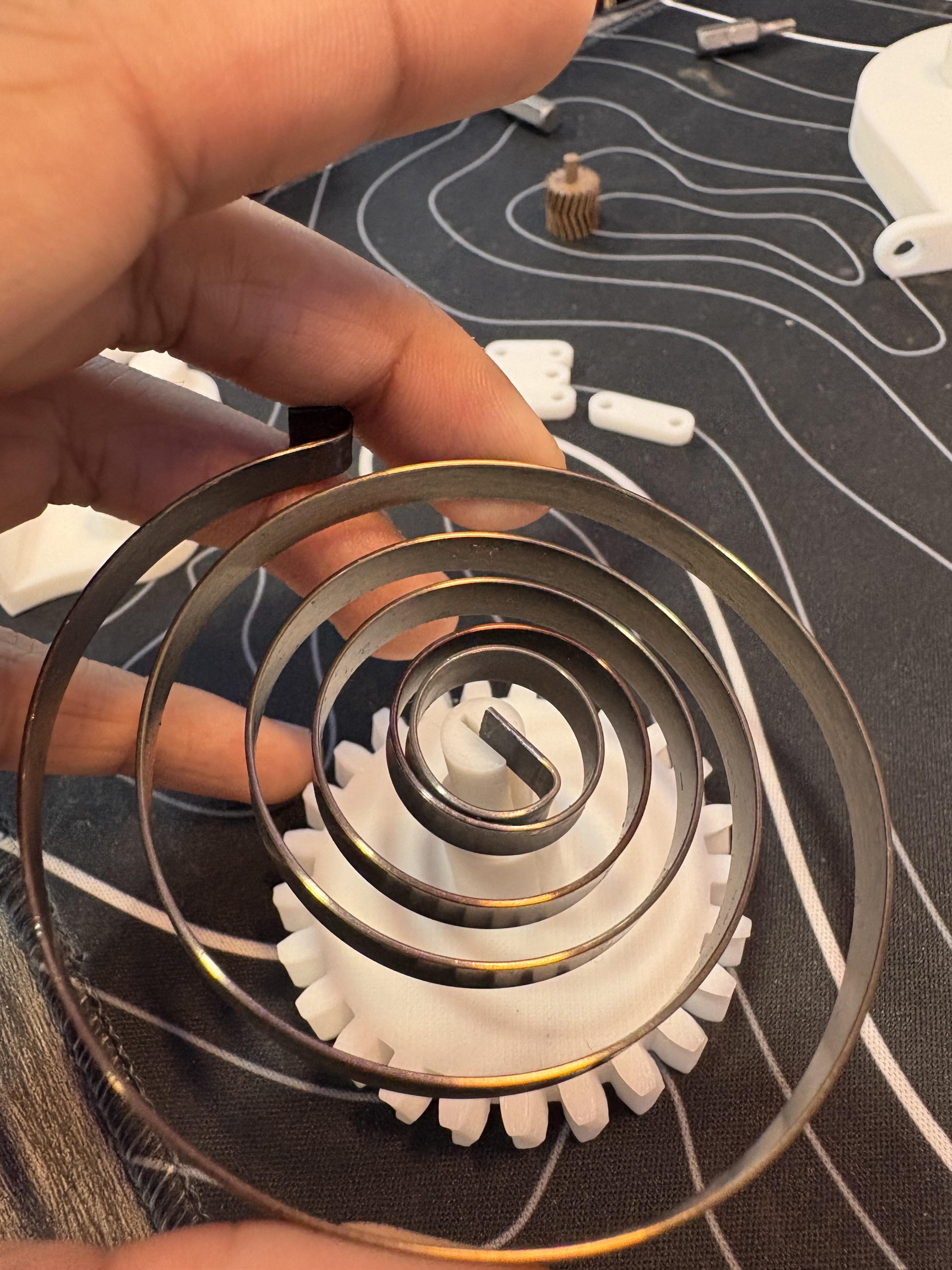
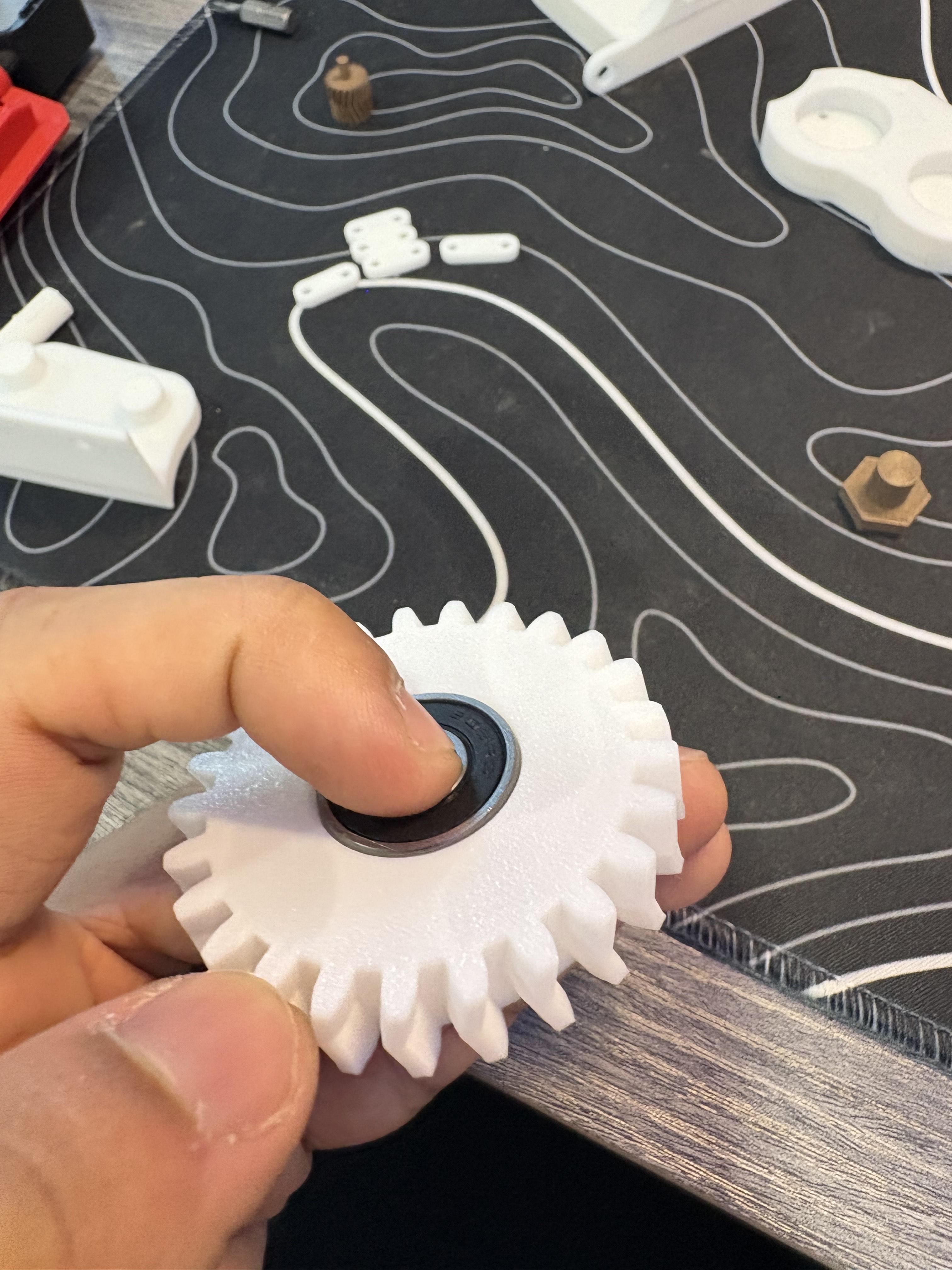
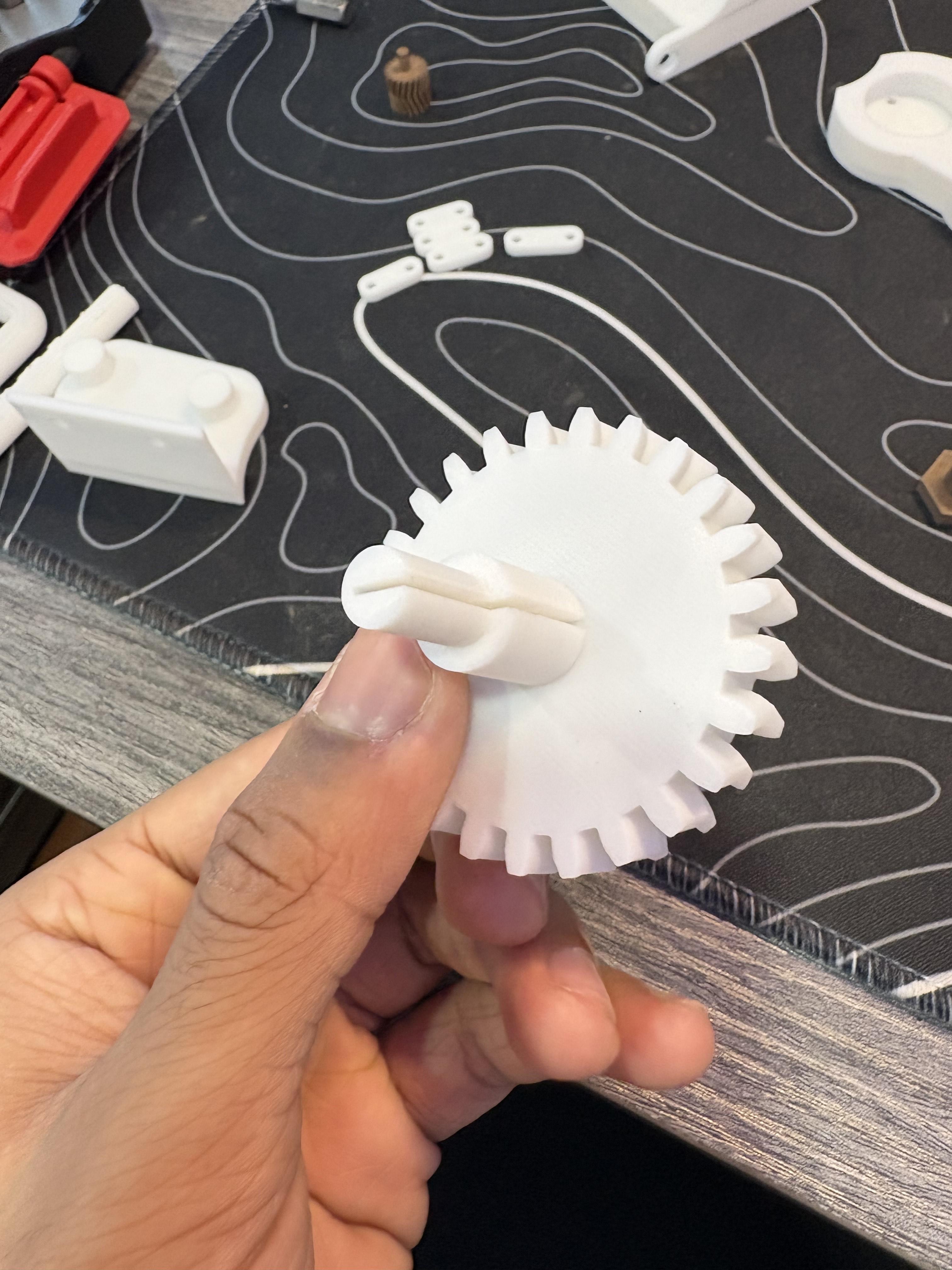
For this step grab (1) 608 2RS Bearing, (1) Spiral Return Spring and PLA6. Take the bearing and plug it behind PLA6, then pay close attention to the extruding port. It has a rectangular extrusion that goes to the base of the gear, this is so the spiral spring can slide down on it. Take the spiral spring and align it with the position of the rectangular extrusion and push down. It will naturally slide down but once installed it wont be perfectly flush and for good reason. Take the newly completed spring gear and you will notice on the baseplate(PLA1) that there appears to be a semicircular extrusion inward to the baseplate. this is where the spiral spring resides, thus where the axle of the spiral gear is seen. Please refer to pictures for a better visual on it. Align PLA6's bearing onto the axle right before the semicircular extrusion, it will take some wiggle but once you push it in, the spring should automatically shoot up to stay within the boundaries of the semicircular extrusion.
Setting Up the Spring Gear Enclosure
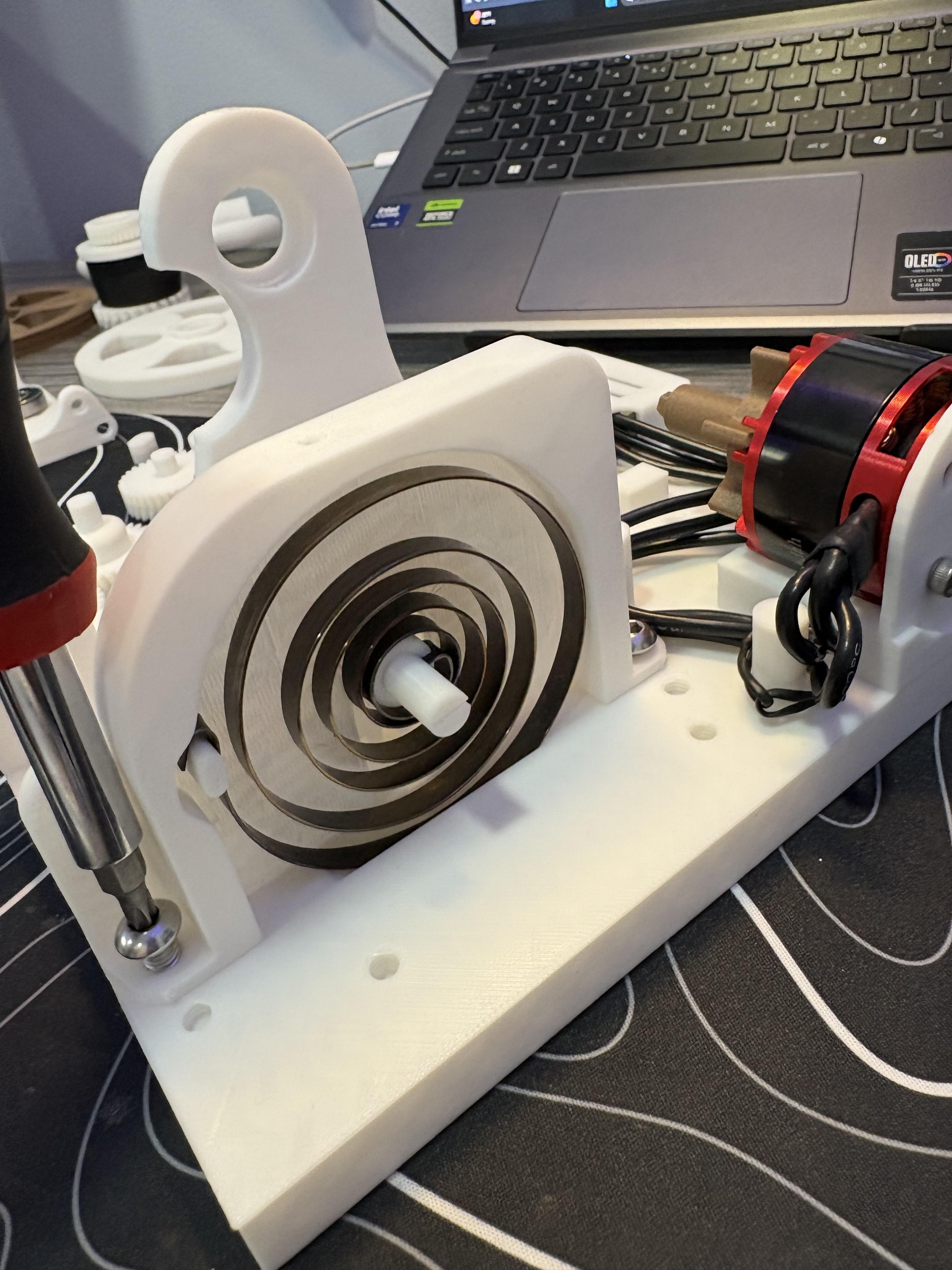
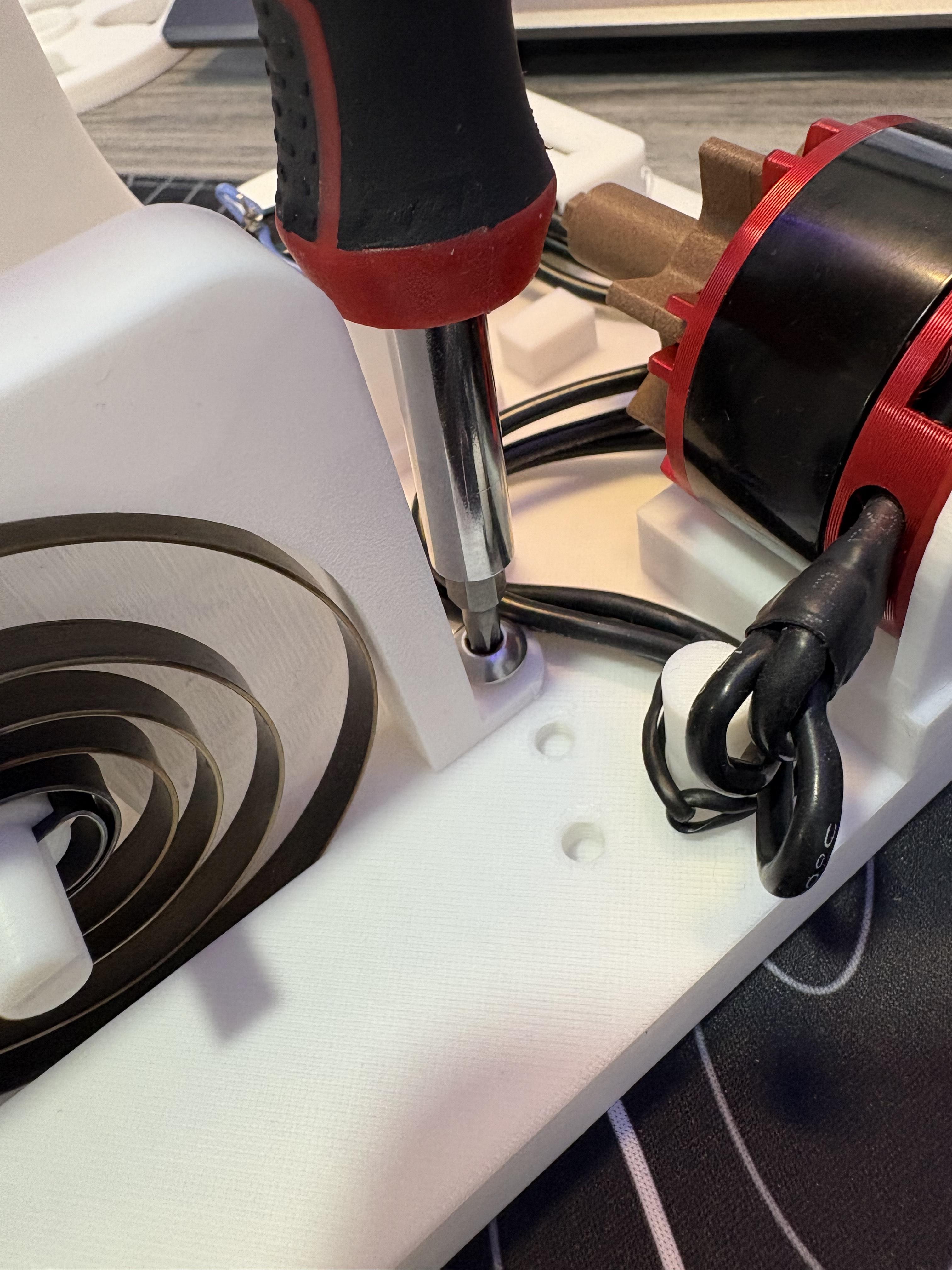
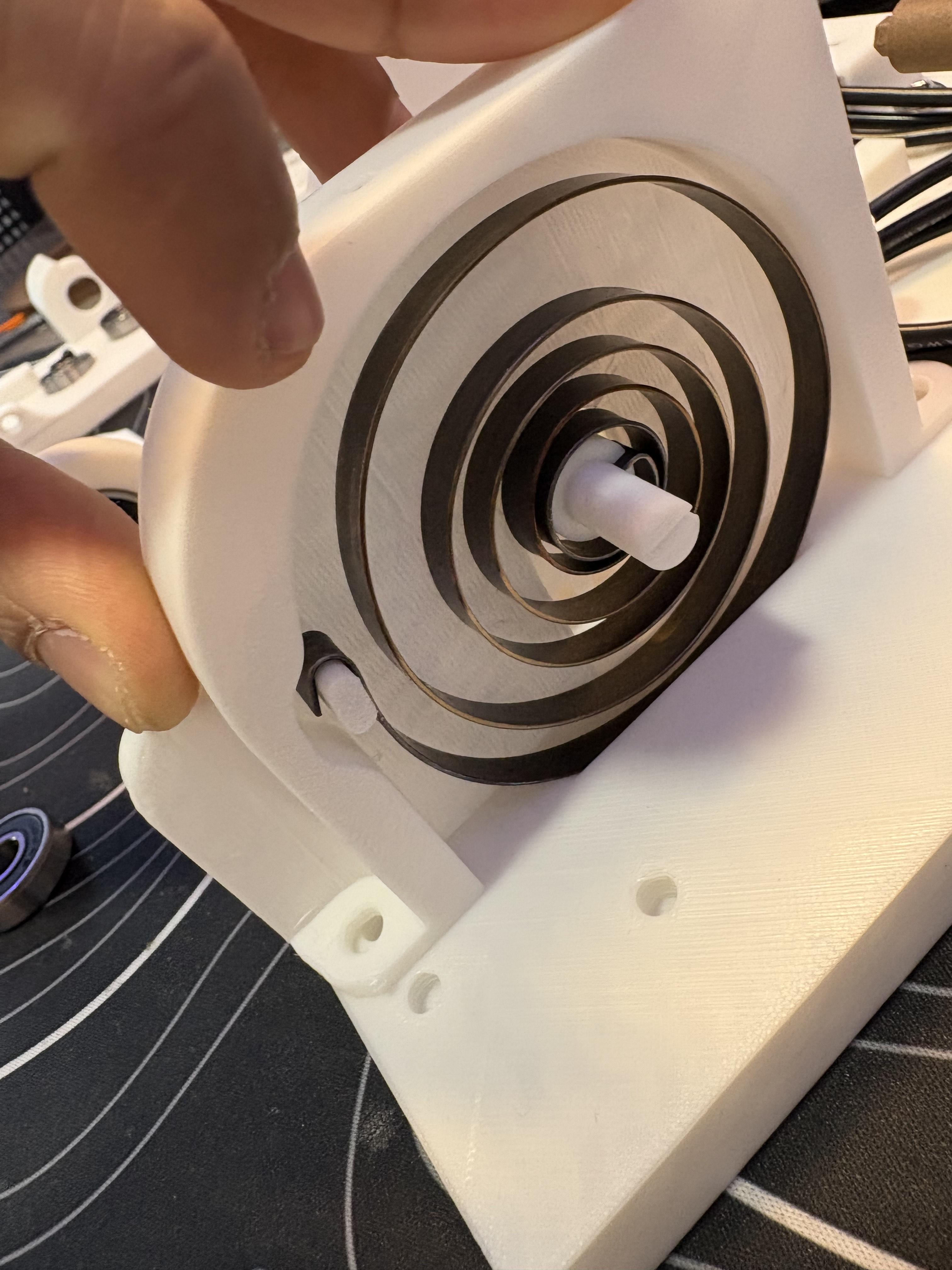
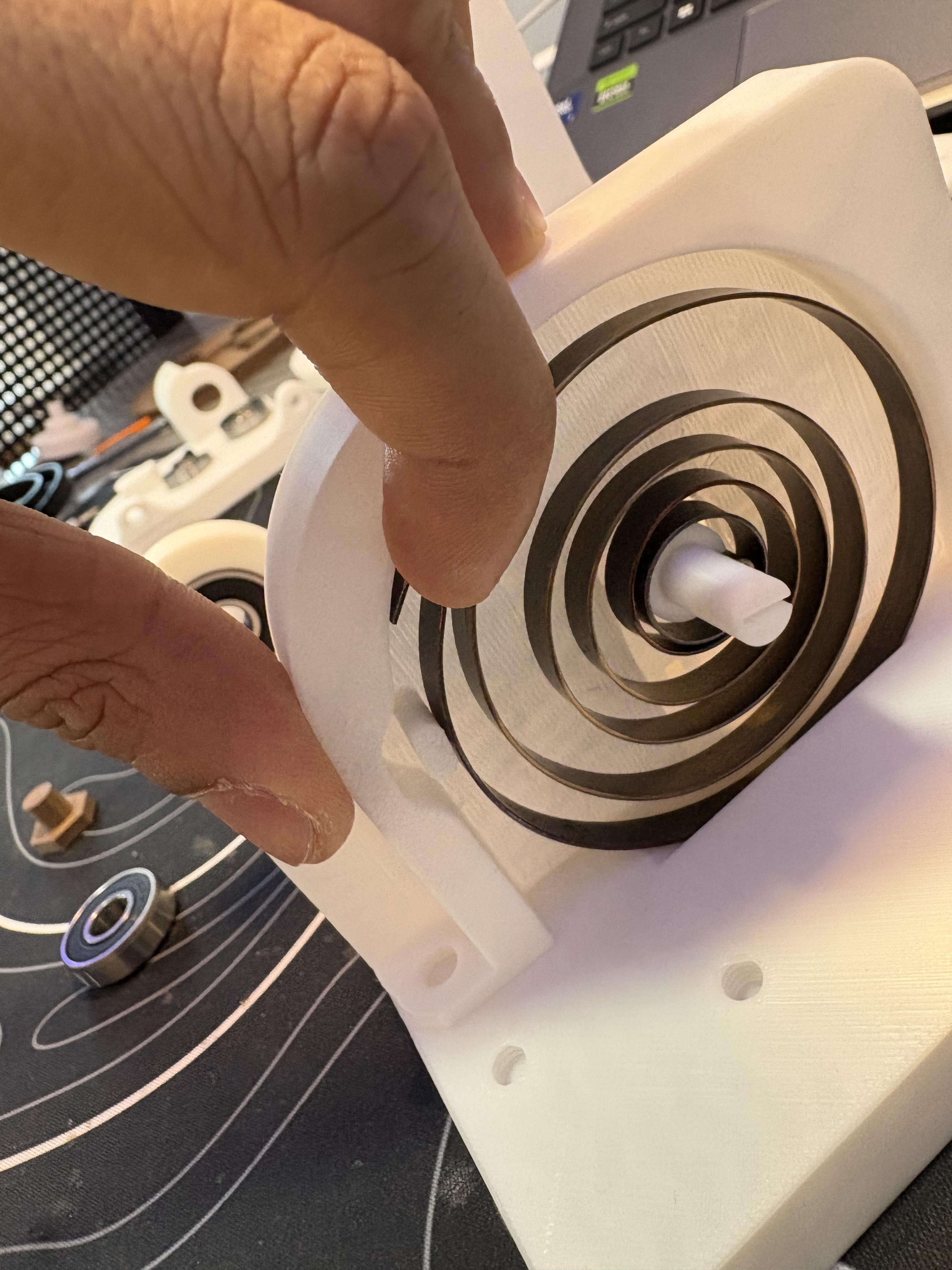
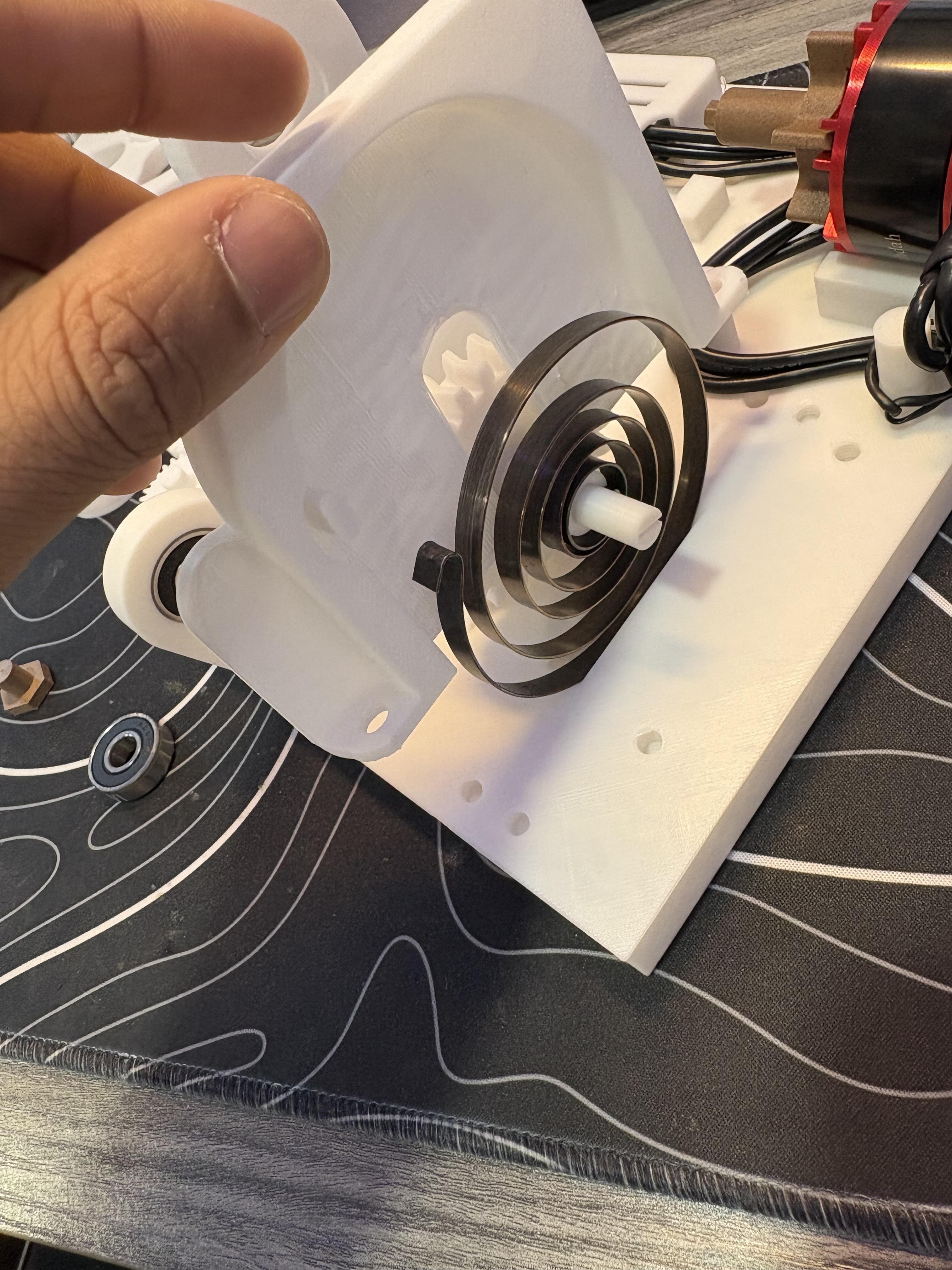
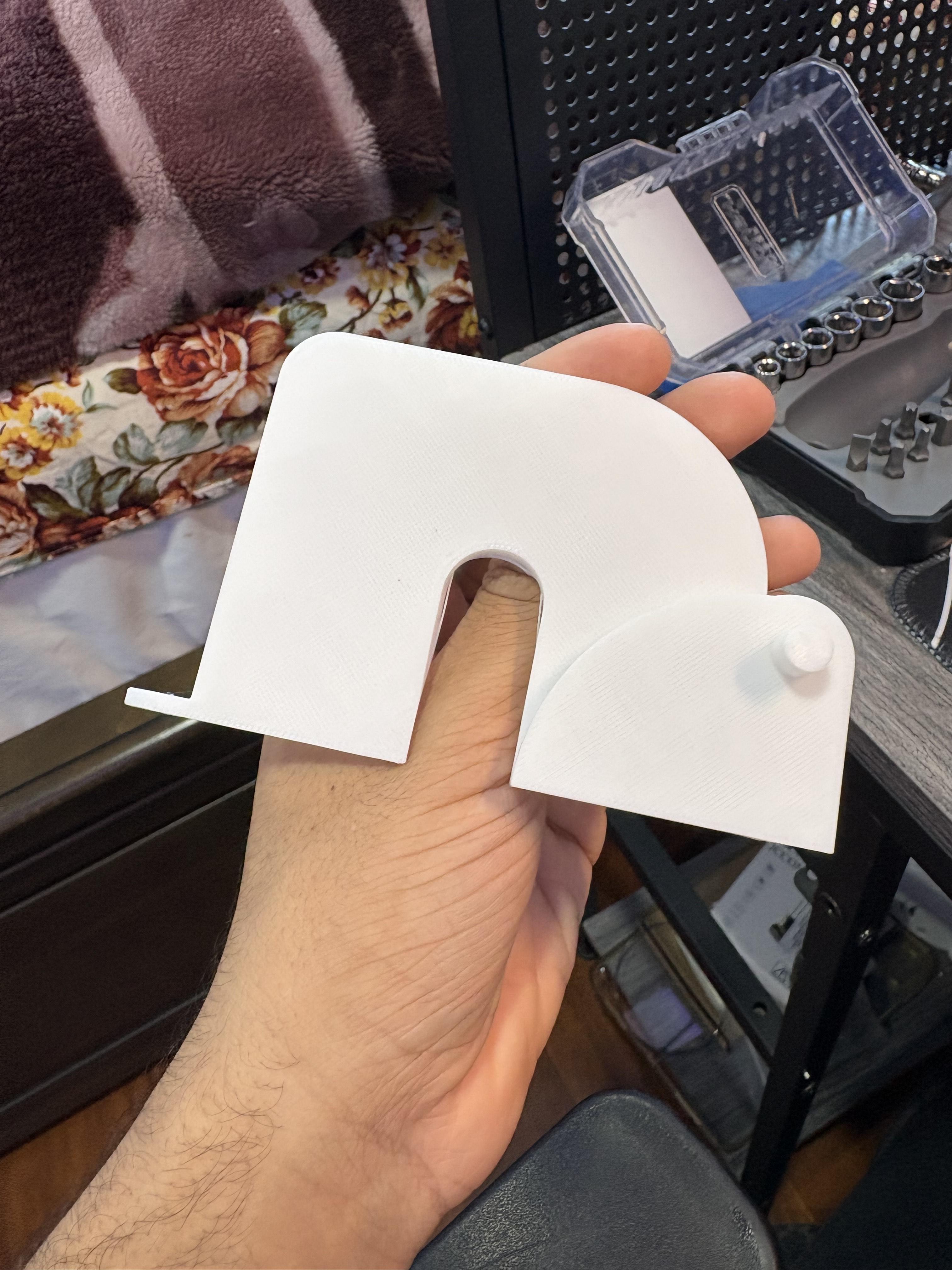
For this step grab PLA7 and (2) M6 8mm screws. If you look on both sides of PLA7, there appears to be one side where a axle sticks out and another that looks like the input of a cage, alight the cage input side to the spiral spring, as that is where the spiral spring rests. slide the shaft cut out of PLA7 down PLA6. Notice the 2 bottom tabs of PLA7 align with 2 holes on a Parallel direction on PLA1. take the M6 8mm screws and screw down both sides but not all the way, rather loosely as they will come off shortly to add securing brackets later.
You will notice a peg extruding outwards in the spiral spring enclosure. This peg allows the hook of the spiral spring to latch on and stay secure. We will secure it more later but rotate the spiral spring until it's hook latches on to this peg.
Mounting the Cable Reel Onto Baseplate
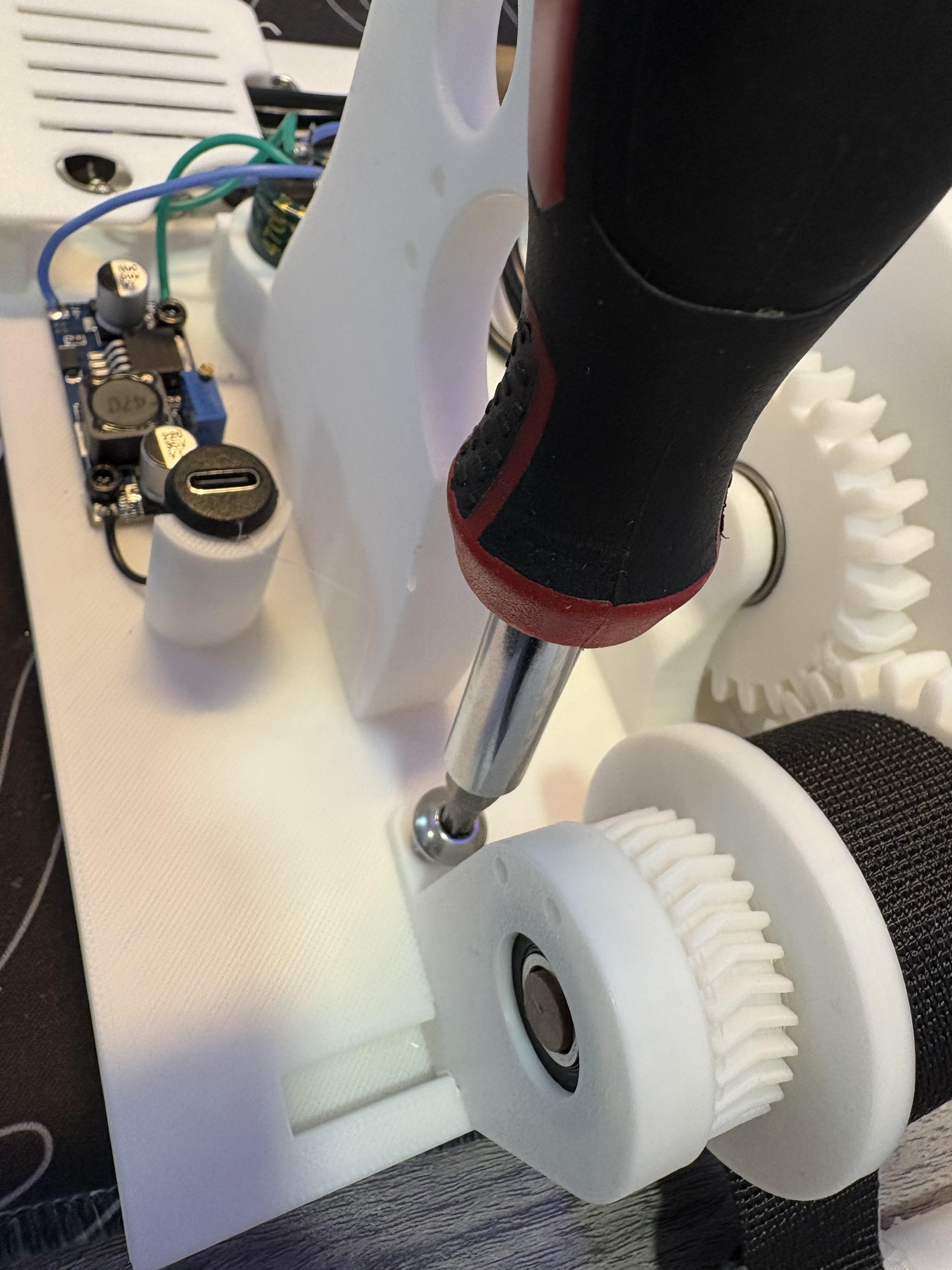
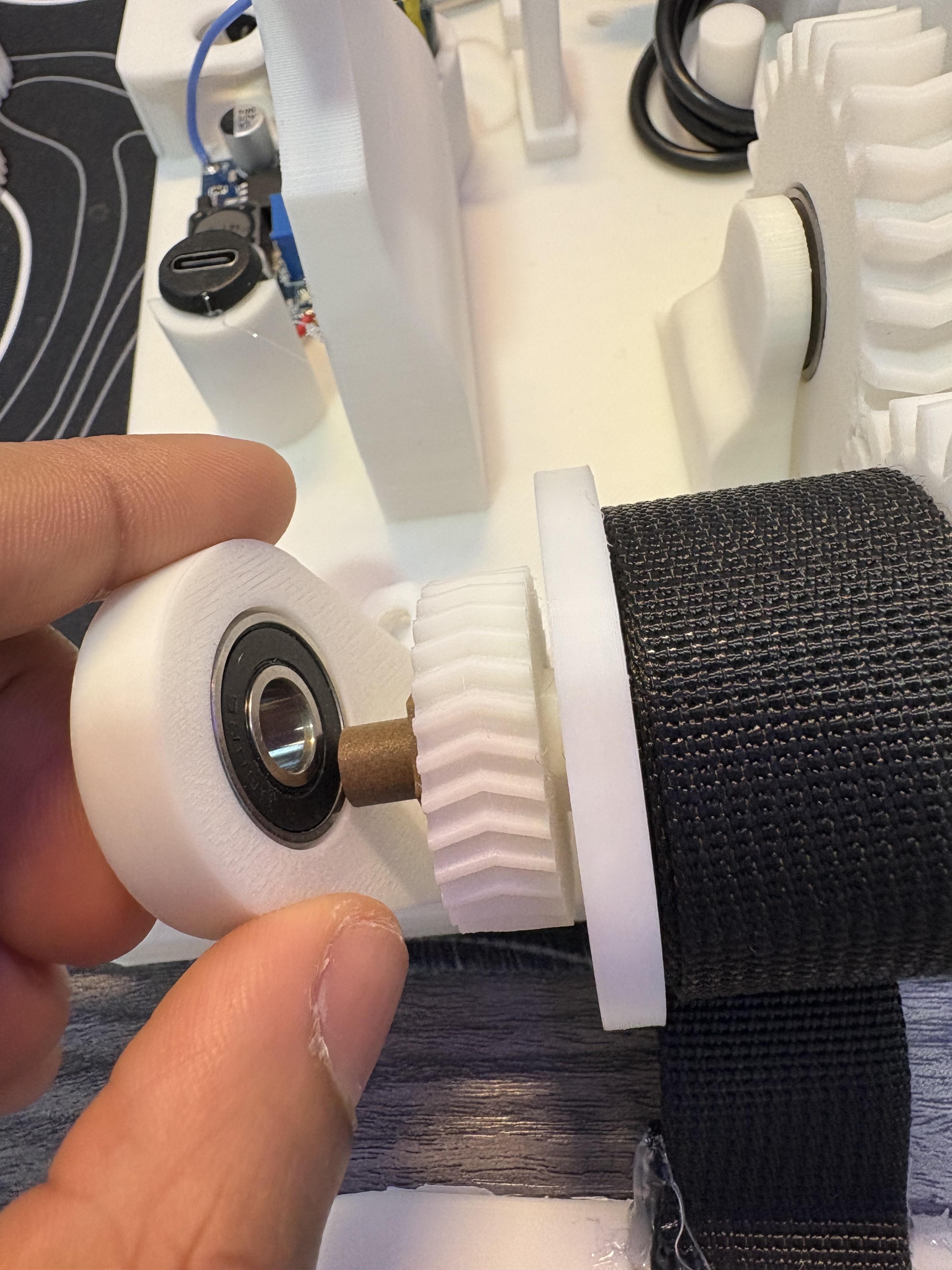
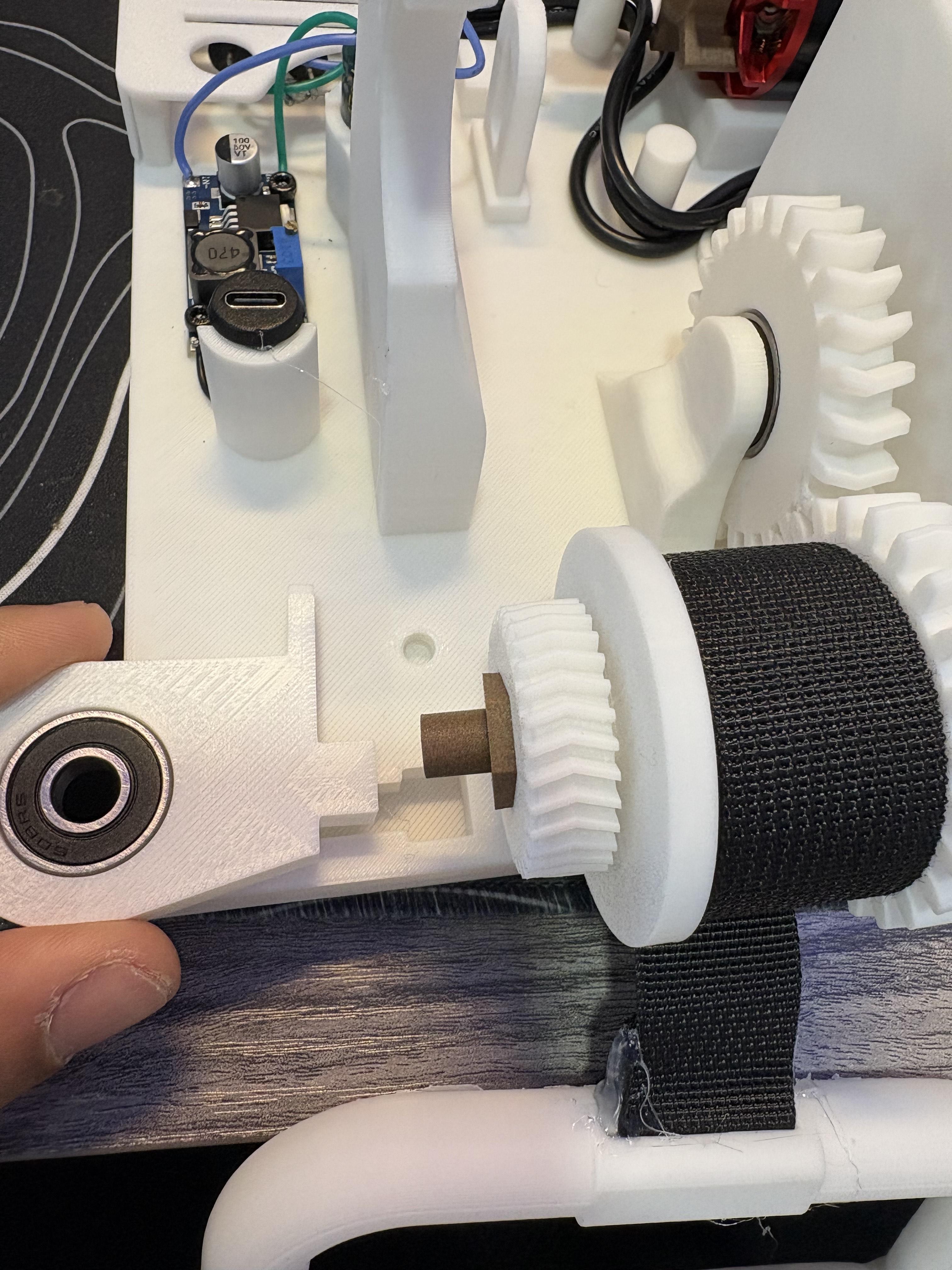
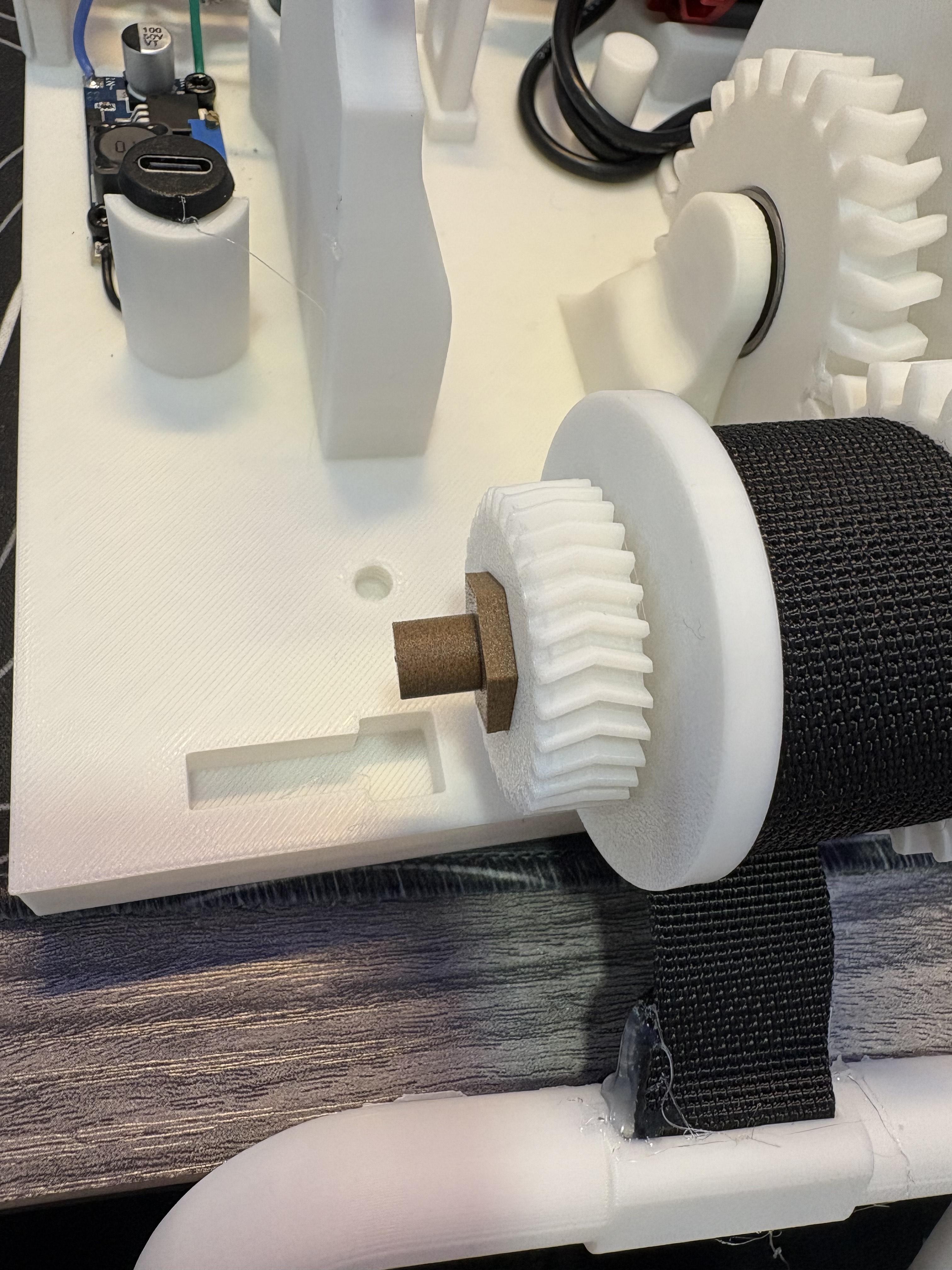
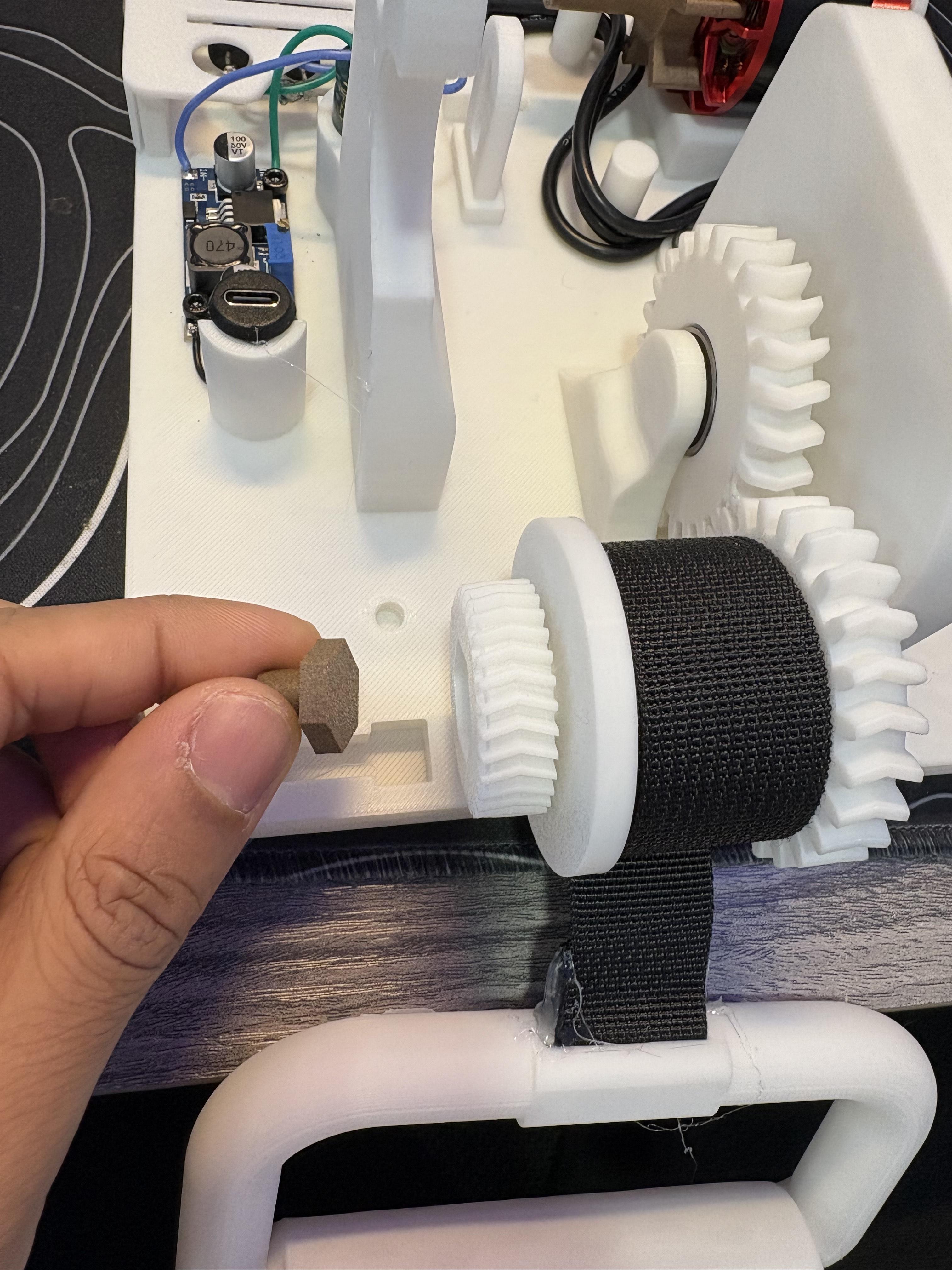

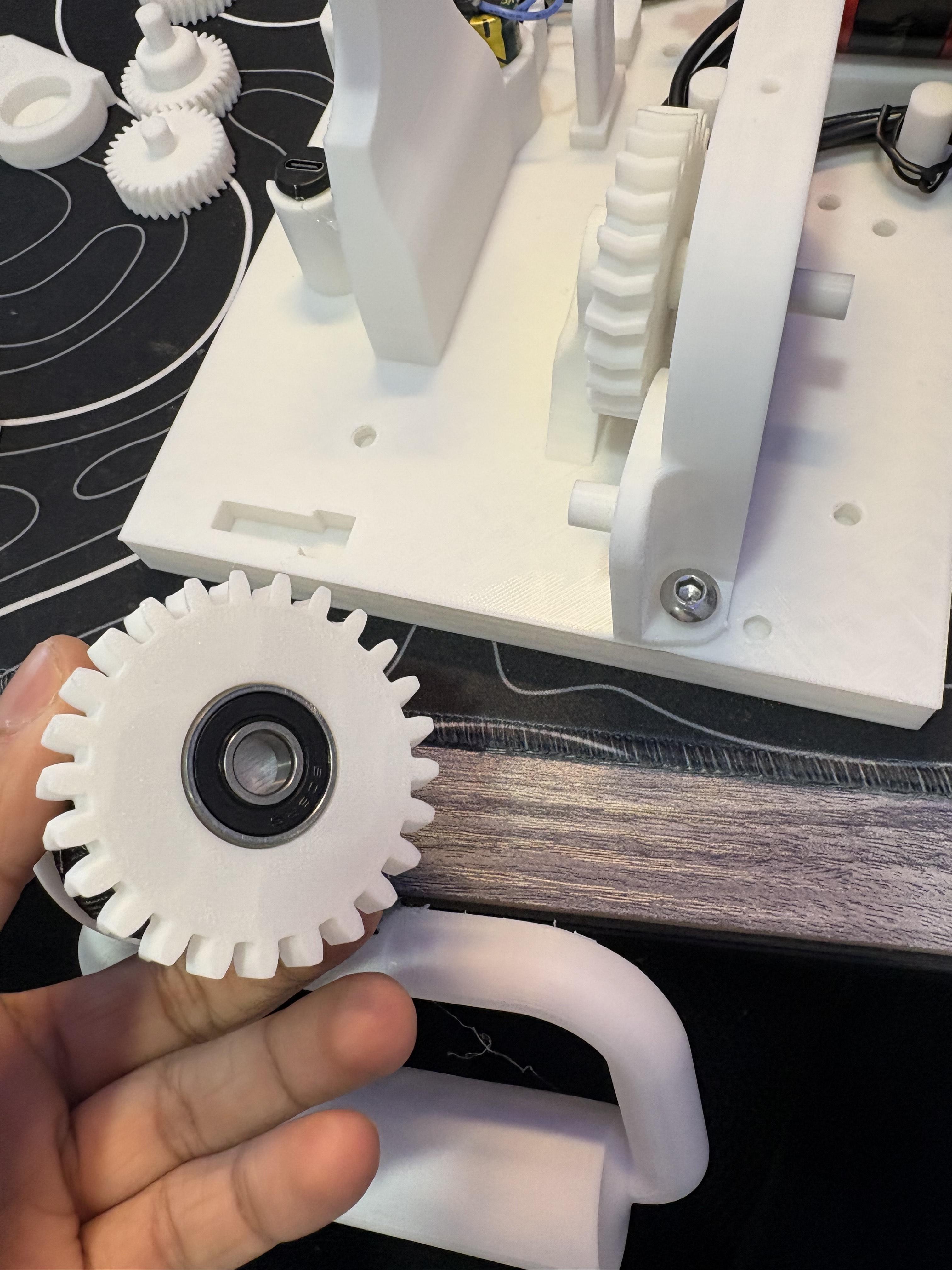
for this step, you will need the cable reel + handle combo that was put aside earlier, (1) 608 2RS Bearing, (1) part from PLA18 + PLA19 (Split into objects if needed) (either one works they are the same part), PLA3, (1) M6 8mm screw.
SOMETHING THAT MUST BE SAID. I have updated some parts of the model before working on this instructable, this was to allow more connections mainly for example the pictures of PLA1 are very identical to the PLA1 in the file, its just with more screw holes. Do not worry the instructables will be showcasing the exact methods to set this up. and all the files are updated to their newest versions.
Take the completed cable reel and align its bearing input hole to the axle that sticks out of PLA7. It should slide it pretty firmly. Grab any PLA18 or PLA19 and push it's hexagonal extrusion into PLA29's female hexagonal extrusion. Take 1 bearing and place it into PLA3's bearing hole, pull PLA3 to the completed cable reel. You will notice the bearing's input hole must allow the shaft to enter while also having PLA3's rectangular extrusion enter PLA1. It will take some wiggling but attempt it by first sliding the rectangular extrusion in first then the axle through the bearing. You will then notice the tab on PLA3 will align with one of the screw holes on PLA1. Secure it with a M6 8mm screw.
Setting Up Transfer Mechanism
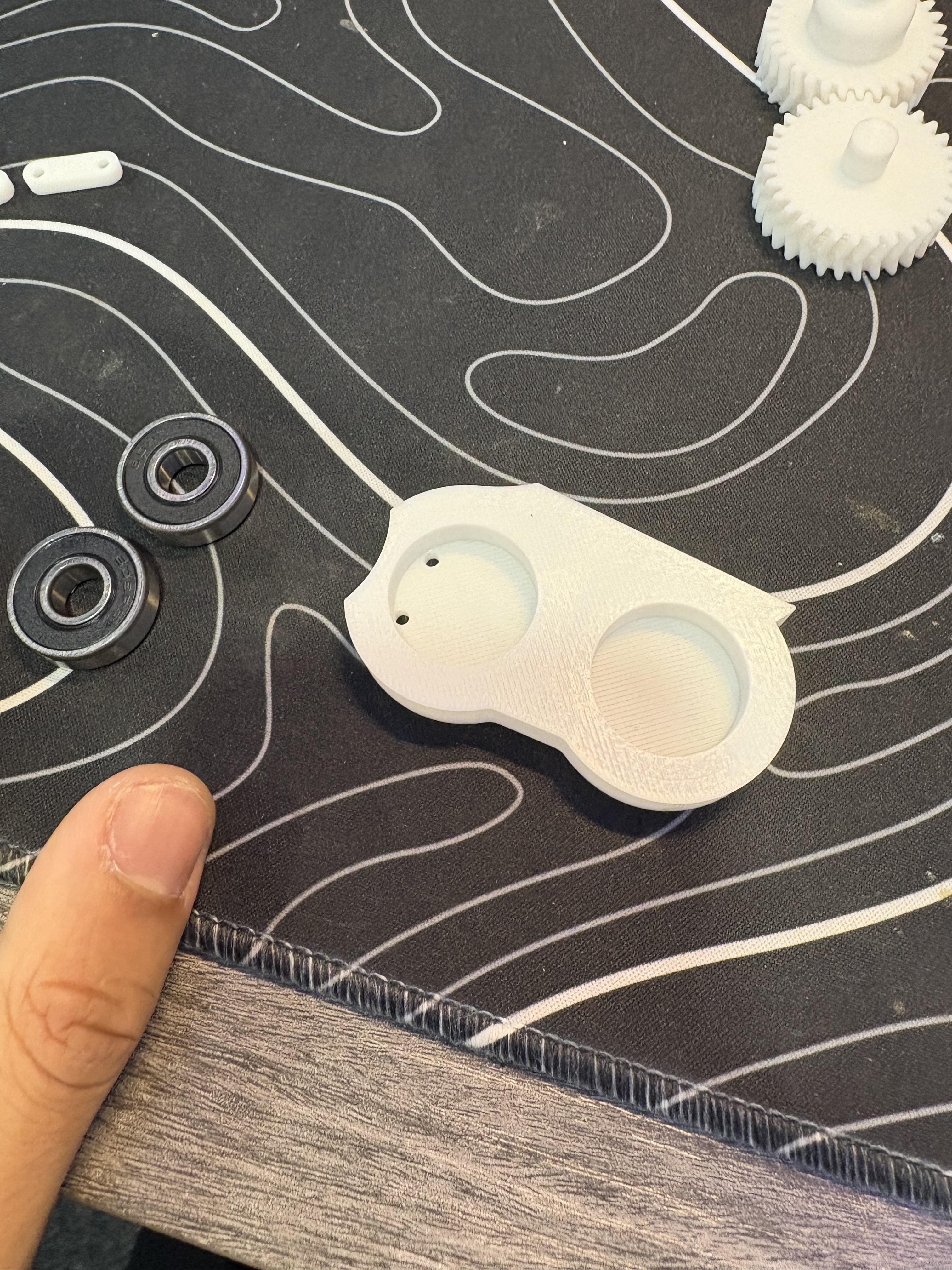
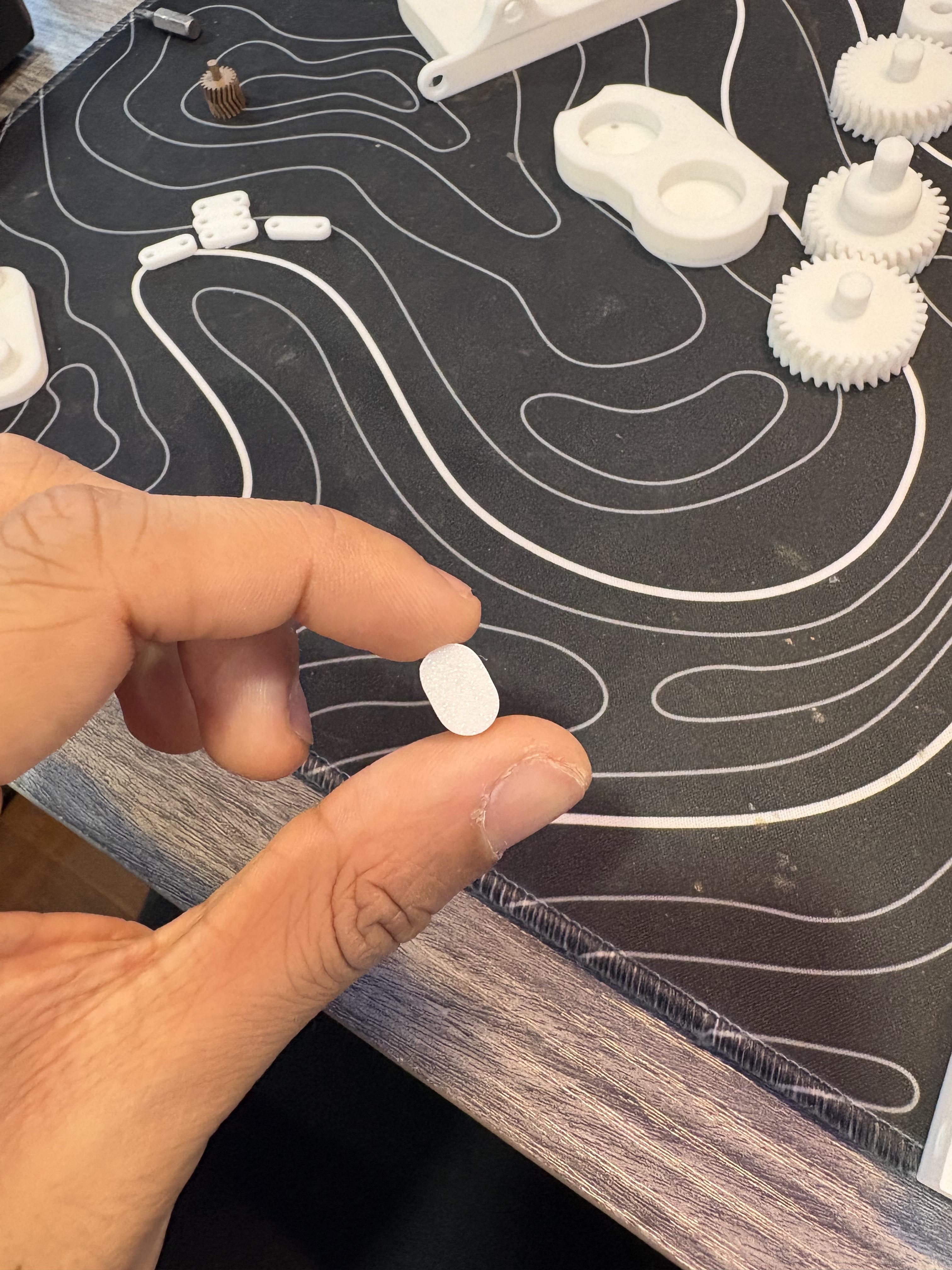
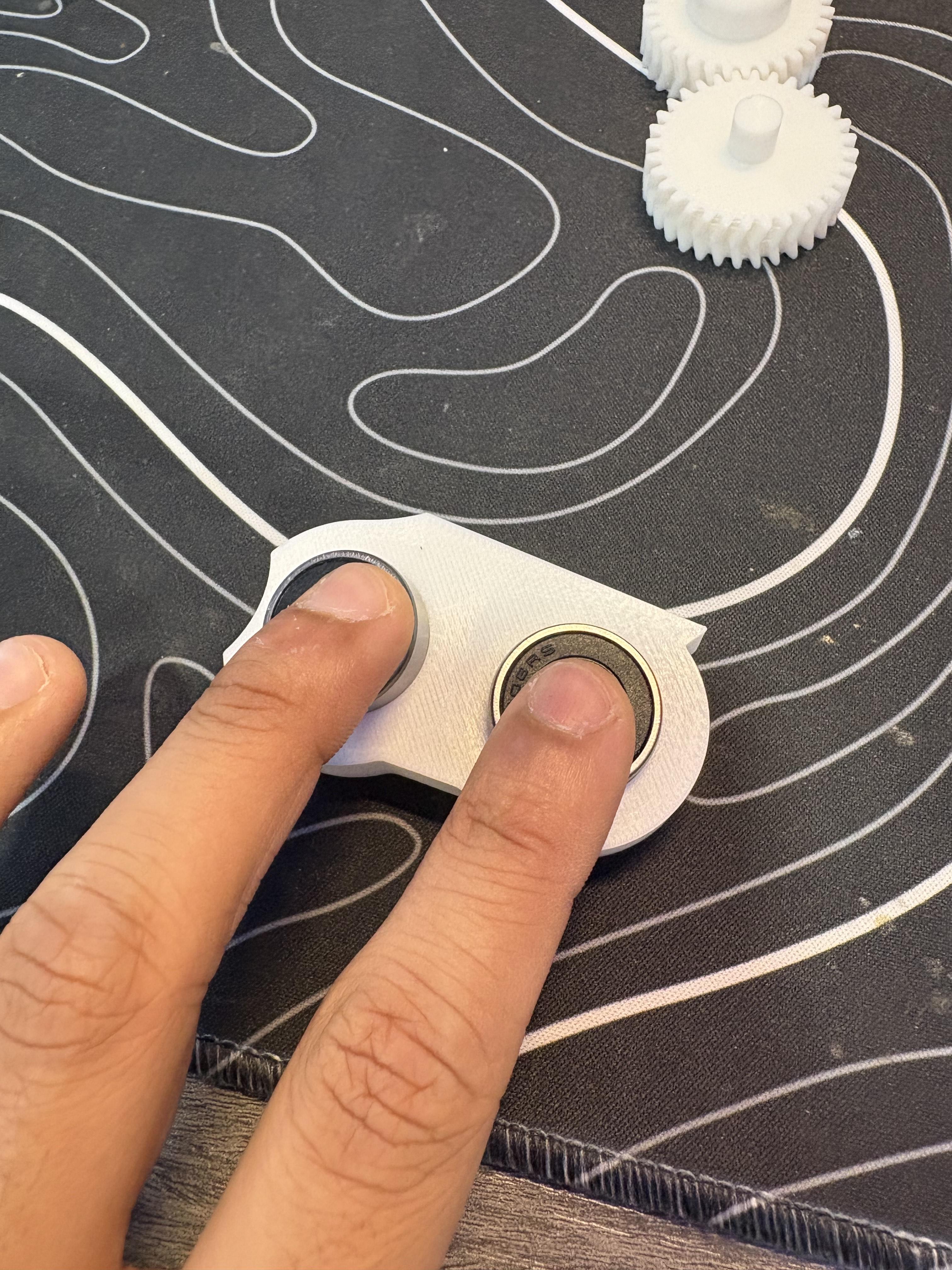
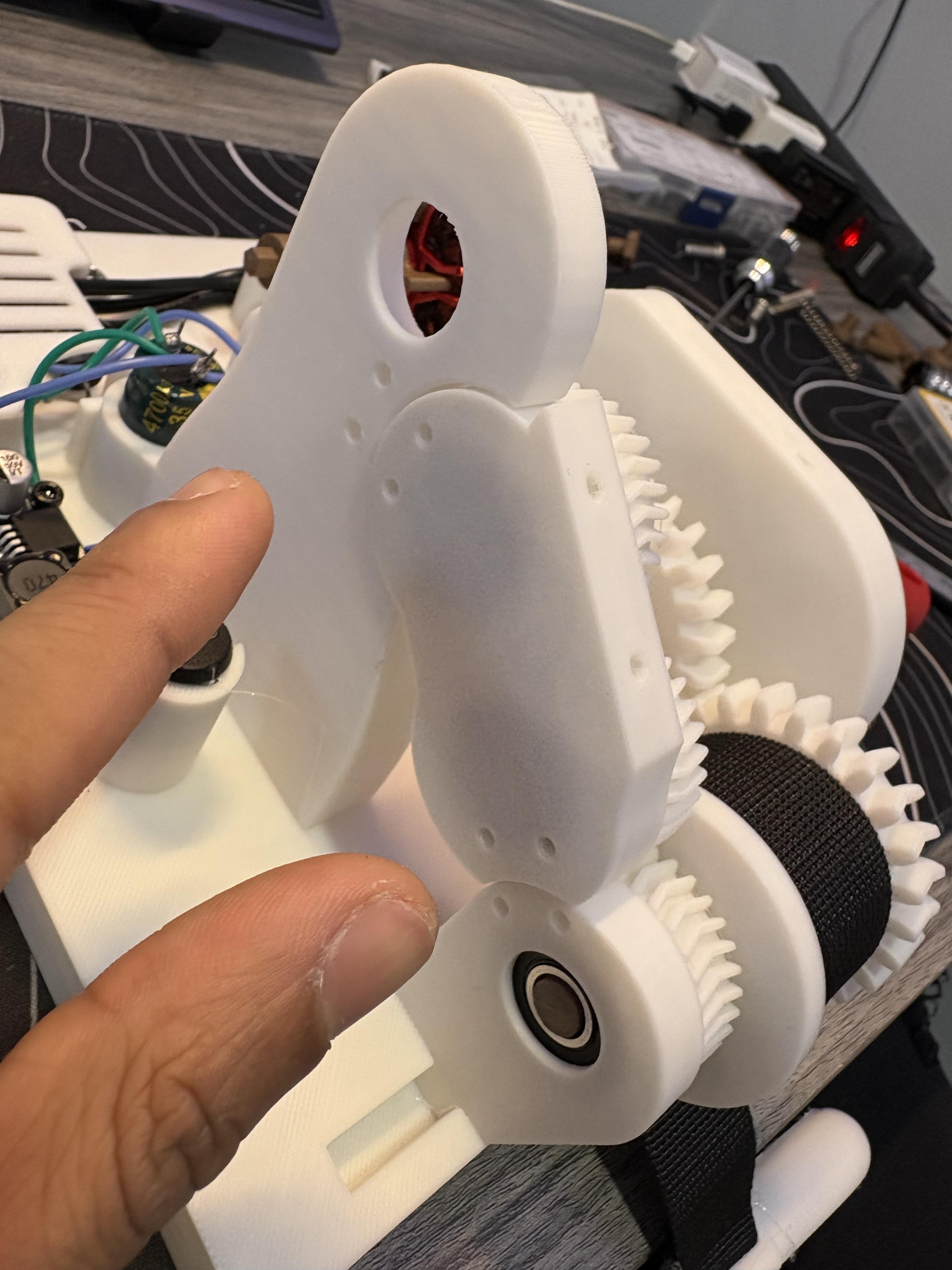
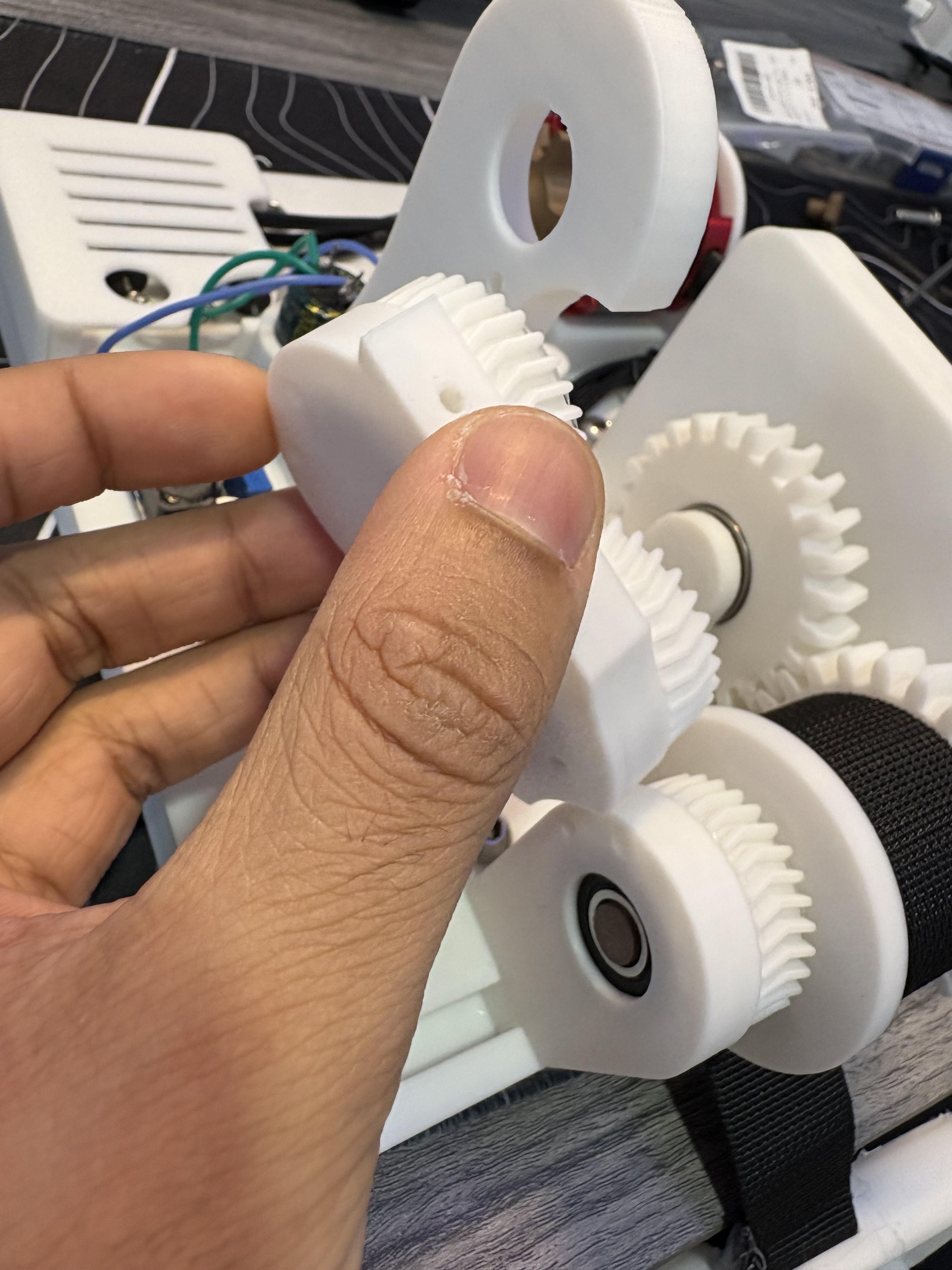
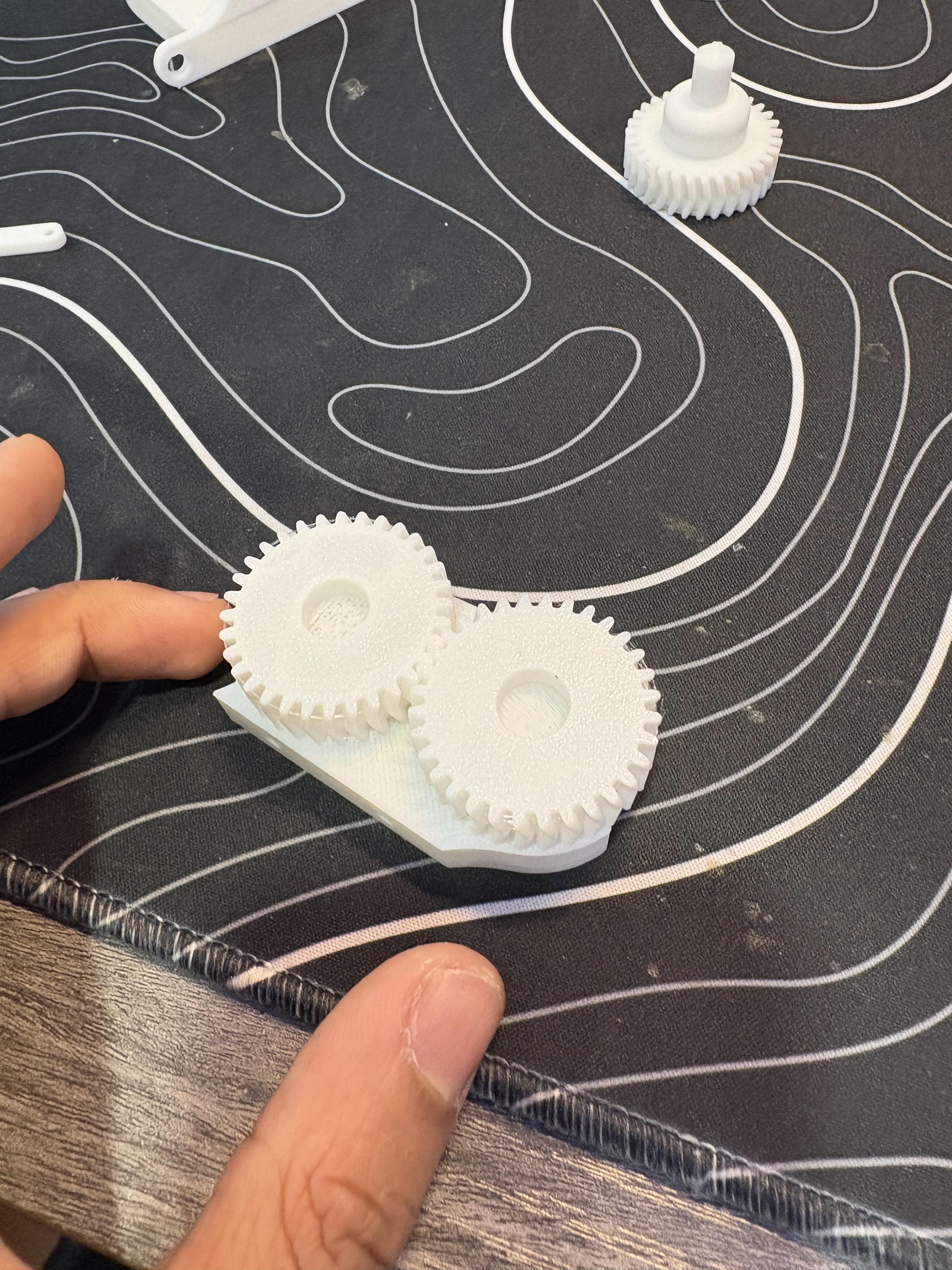
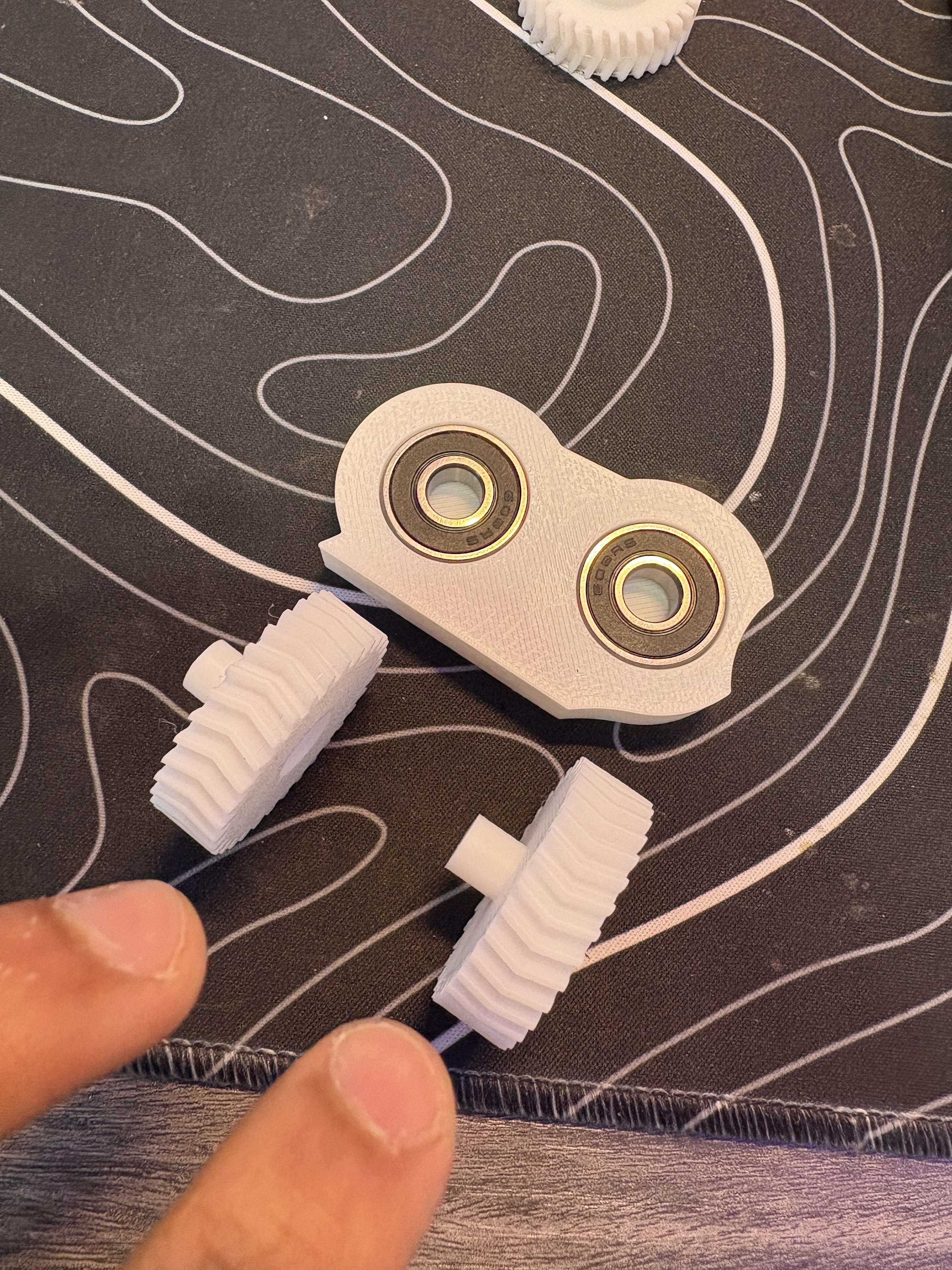
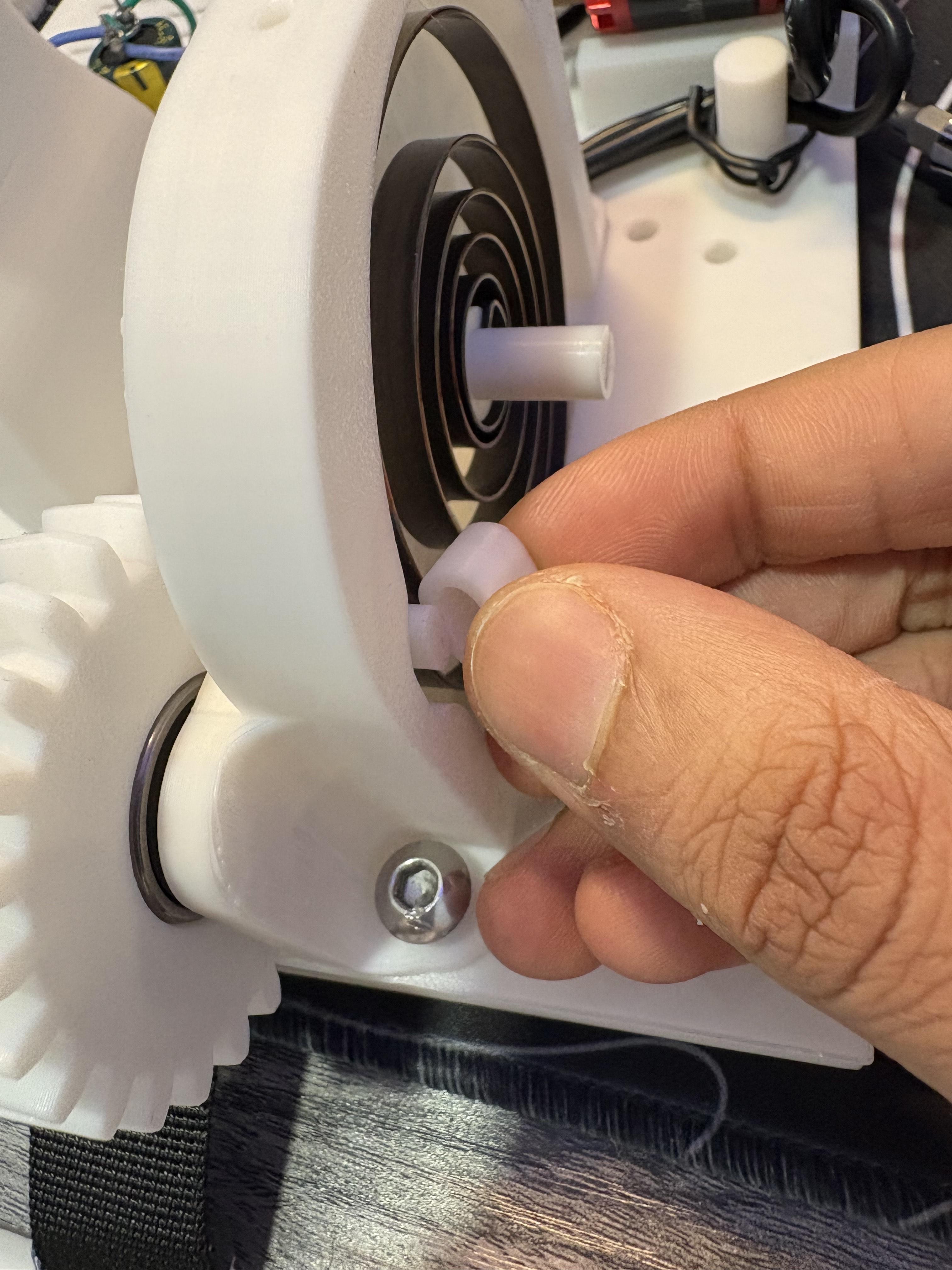
This is where we add multiple gears to transfer the force of the pull stroke to the output shaft where the resistance gear is connected. You will need (2) 608 2RS Bearings, PLA33, PLA8, PLA30 and PLA31
Grab 2 bearings and put them both into the bearing holes of PLA33, grab PLA30 and PLA31 and pay close attention to the direction their teeth point. These gears must mesh together while aligning on the shafts. but keep in mind the side with the semicircular cutout is the side where the cable reel gear will need to mesh to. I'd recommend aligning the gears that way in a chain, as the direction of motion for the output gear does not matter. The beginning of the chain however does. A image shows the direction and holes the gears are attached to. Plug PLA30 and PLA31 into the corresponding holes. Take this transfer gear mechanism and push it through between PLA7 and PLA1 (please check picture to understand this reference better). Due to the tolerances, PLA33 should be able to sit comfortably on top of PLA3.
Quick detour, take PLA8, and go back to where the spring is located on the baseplate(PLA1) you will notice a spot where the spiral springs hook attaches too. If you haven't already, rotate the spiral spring until the hook latches onto the shaft. then push PLA8 right on top of it. When you screw the other side of the sprial spring chassis, the lid will push and maintain pressure on PLA8 so the spring can never spiral out of control or flip out inside the chamber.
Securing the Transfer Mechanism
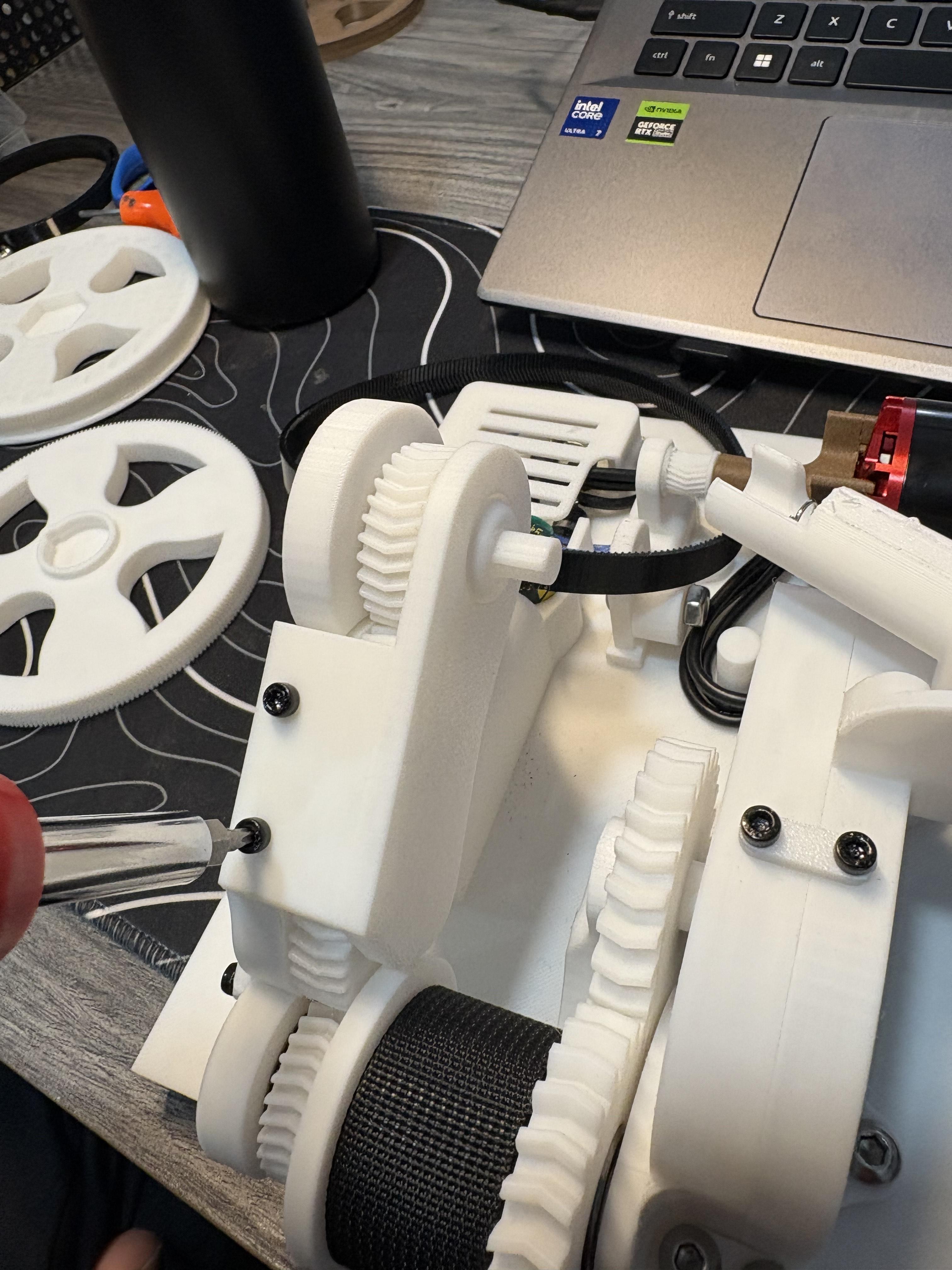
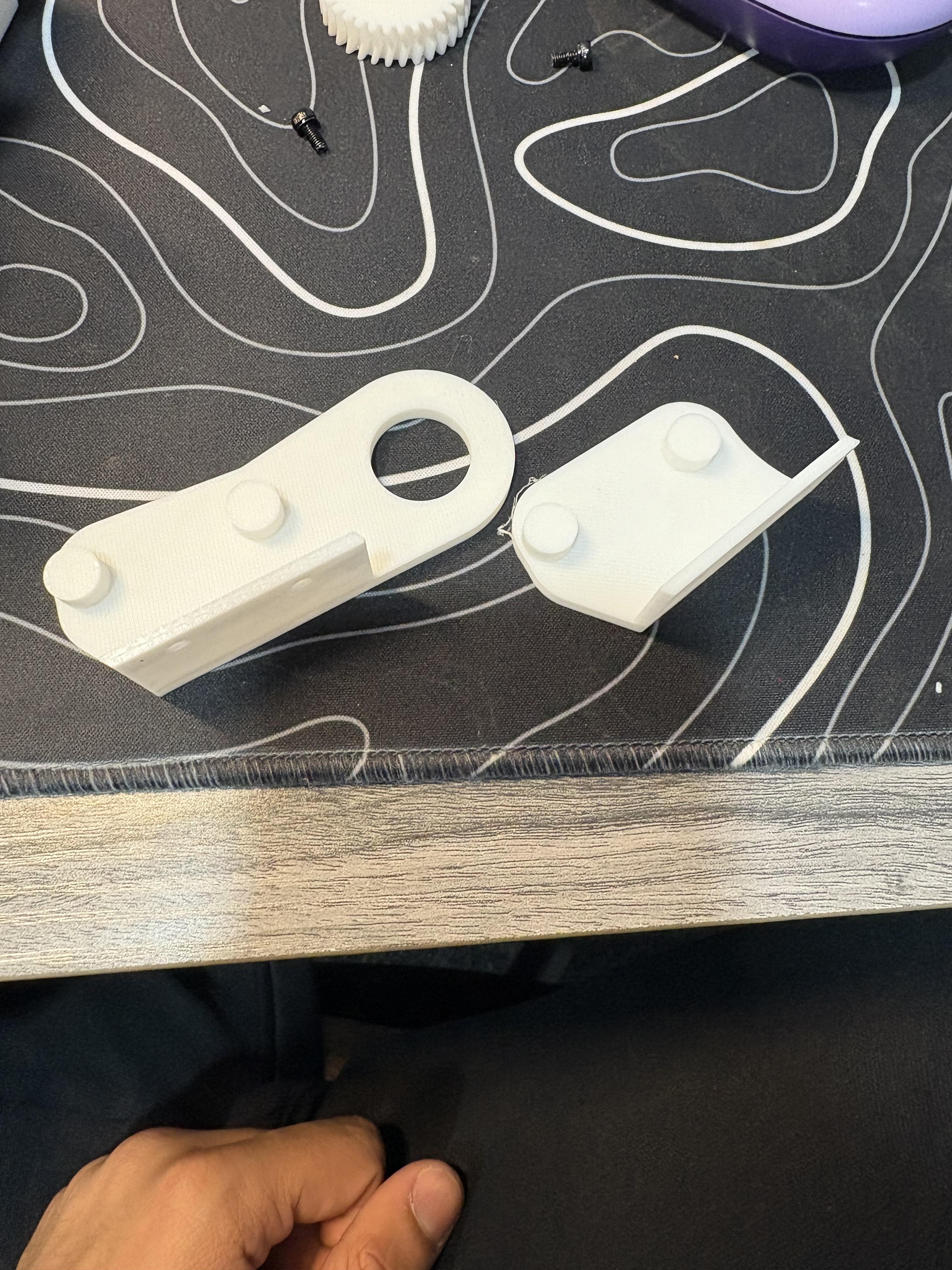
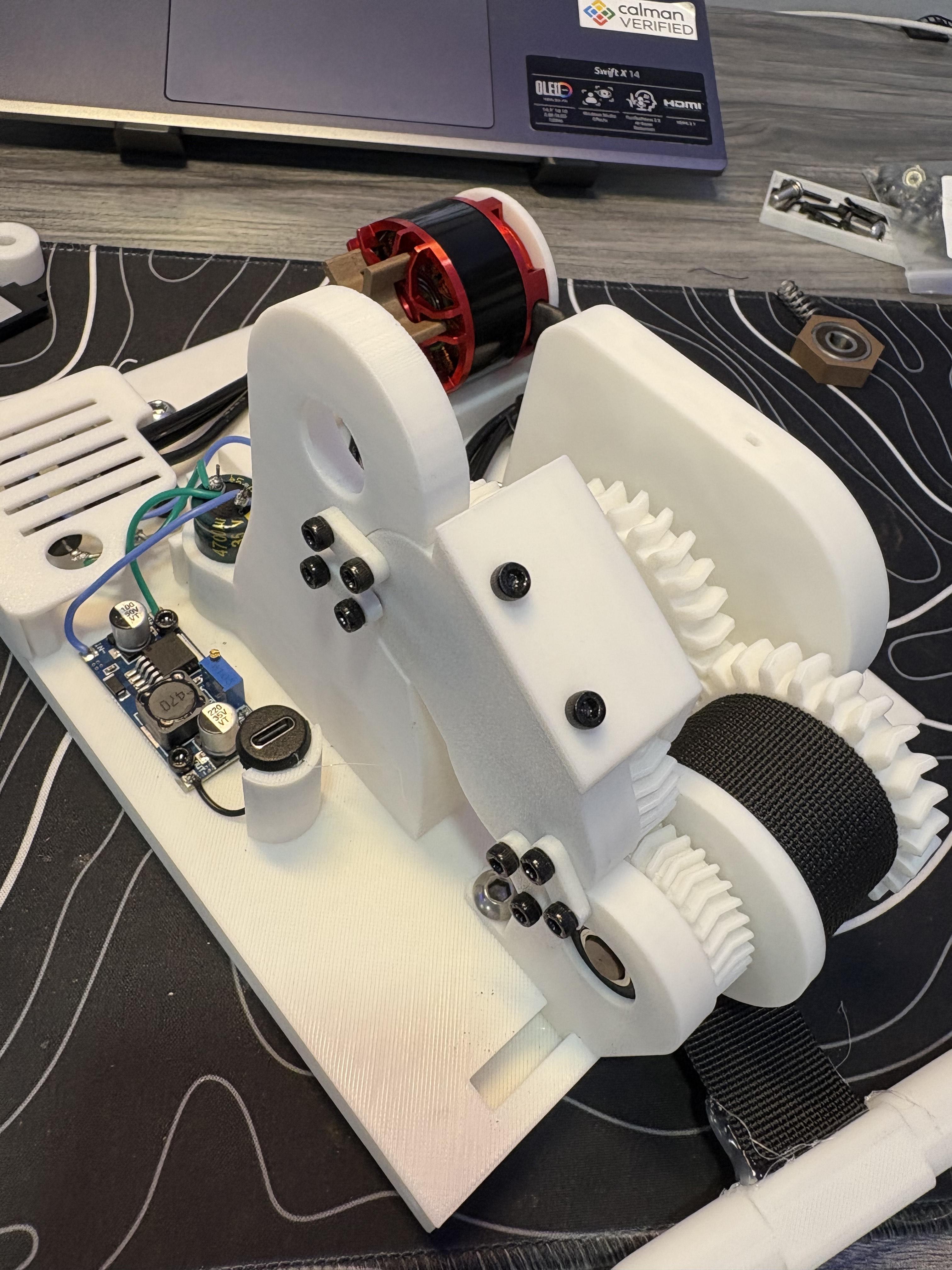
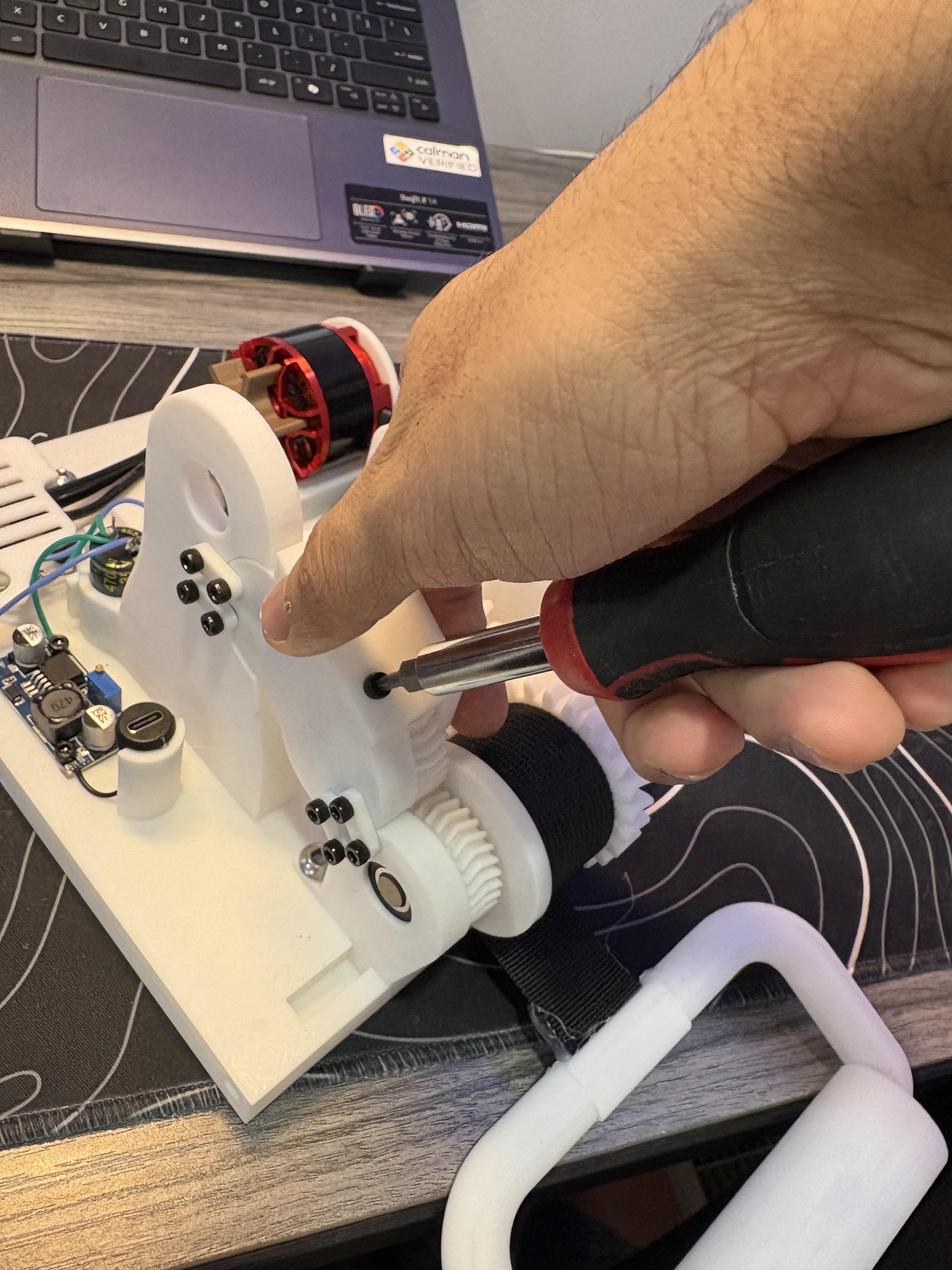
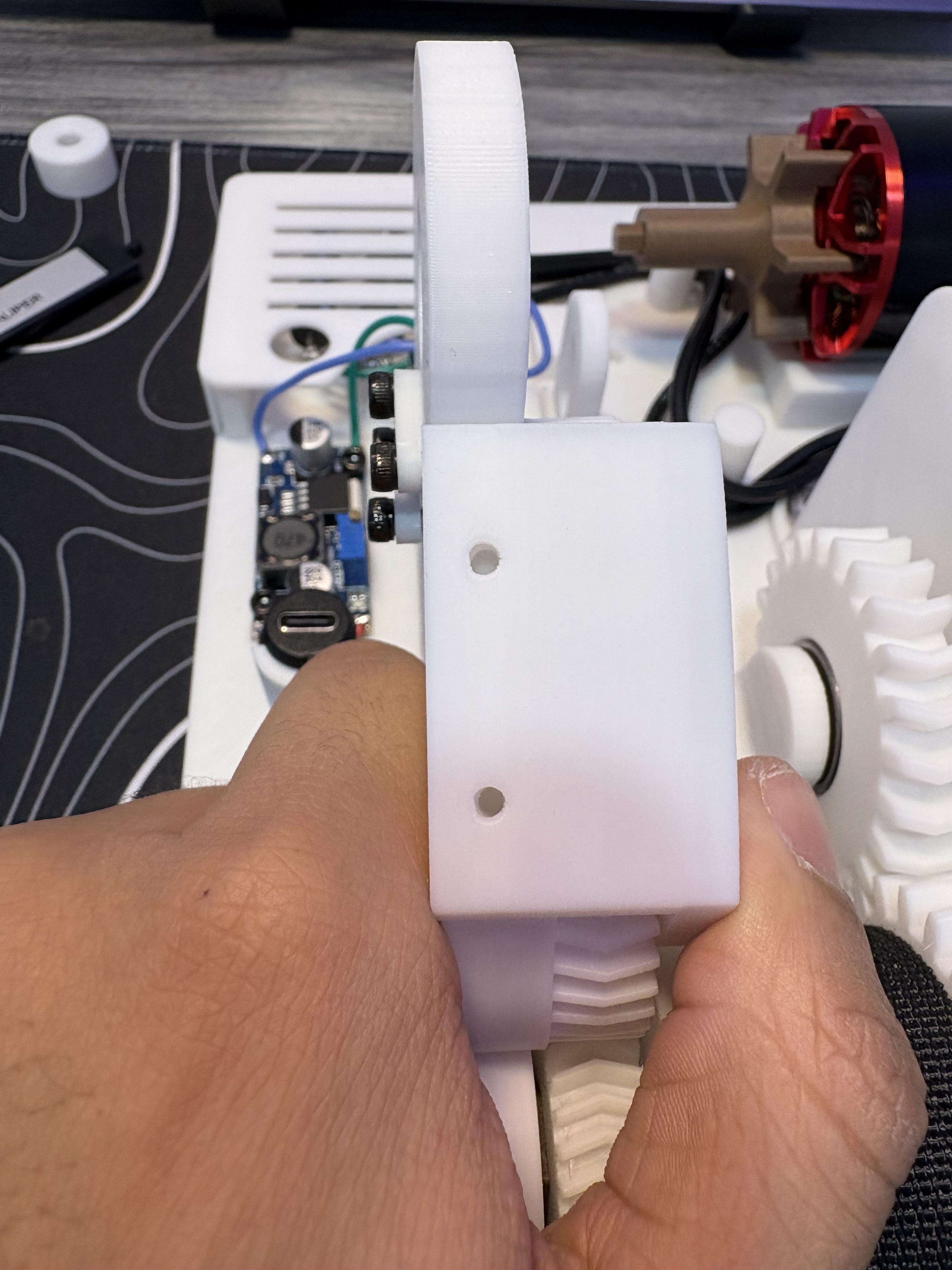
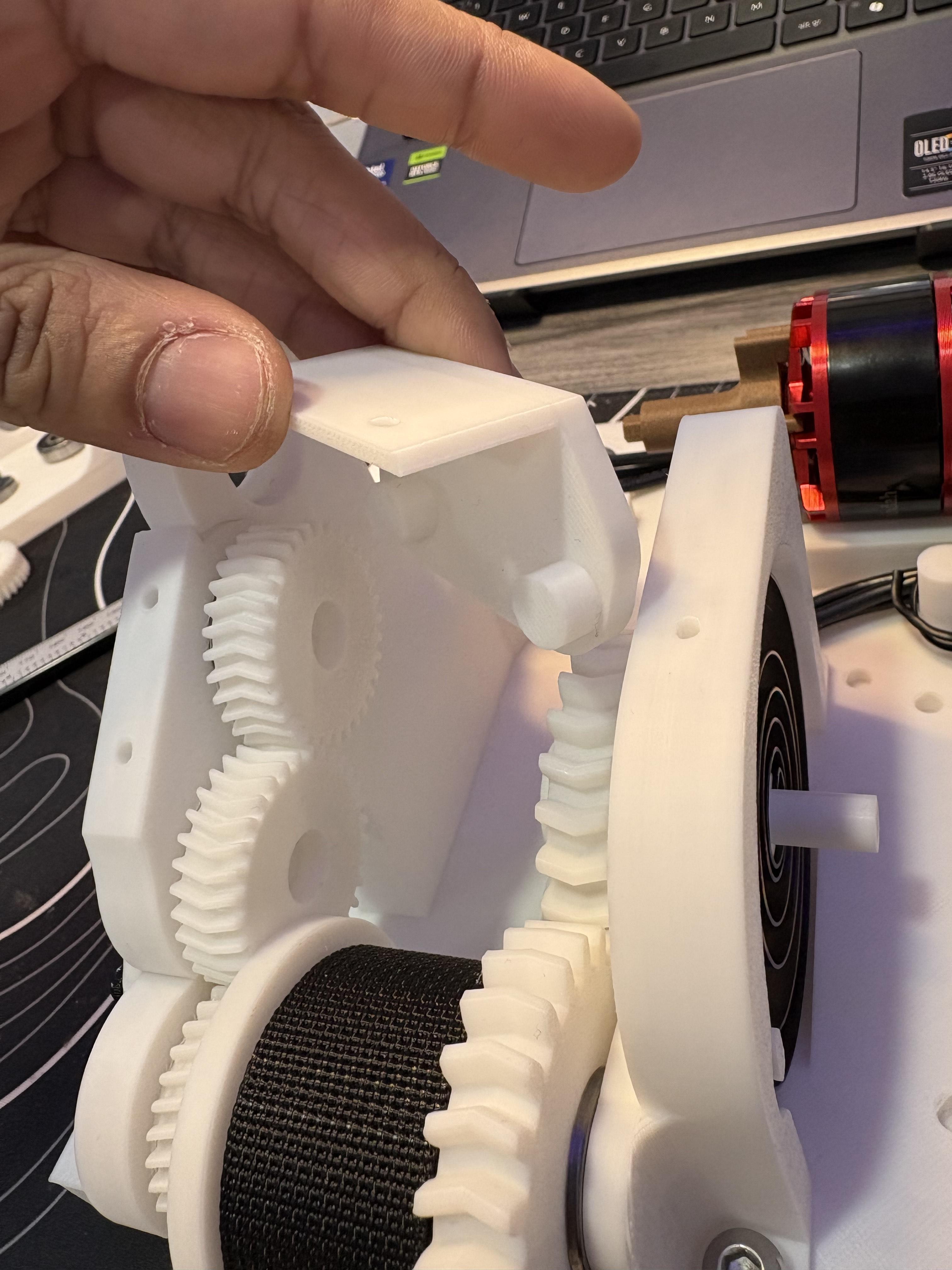
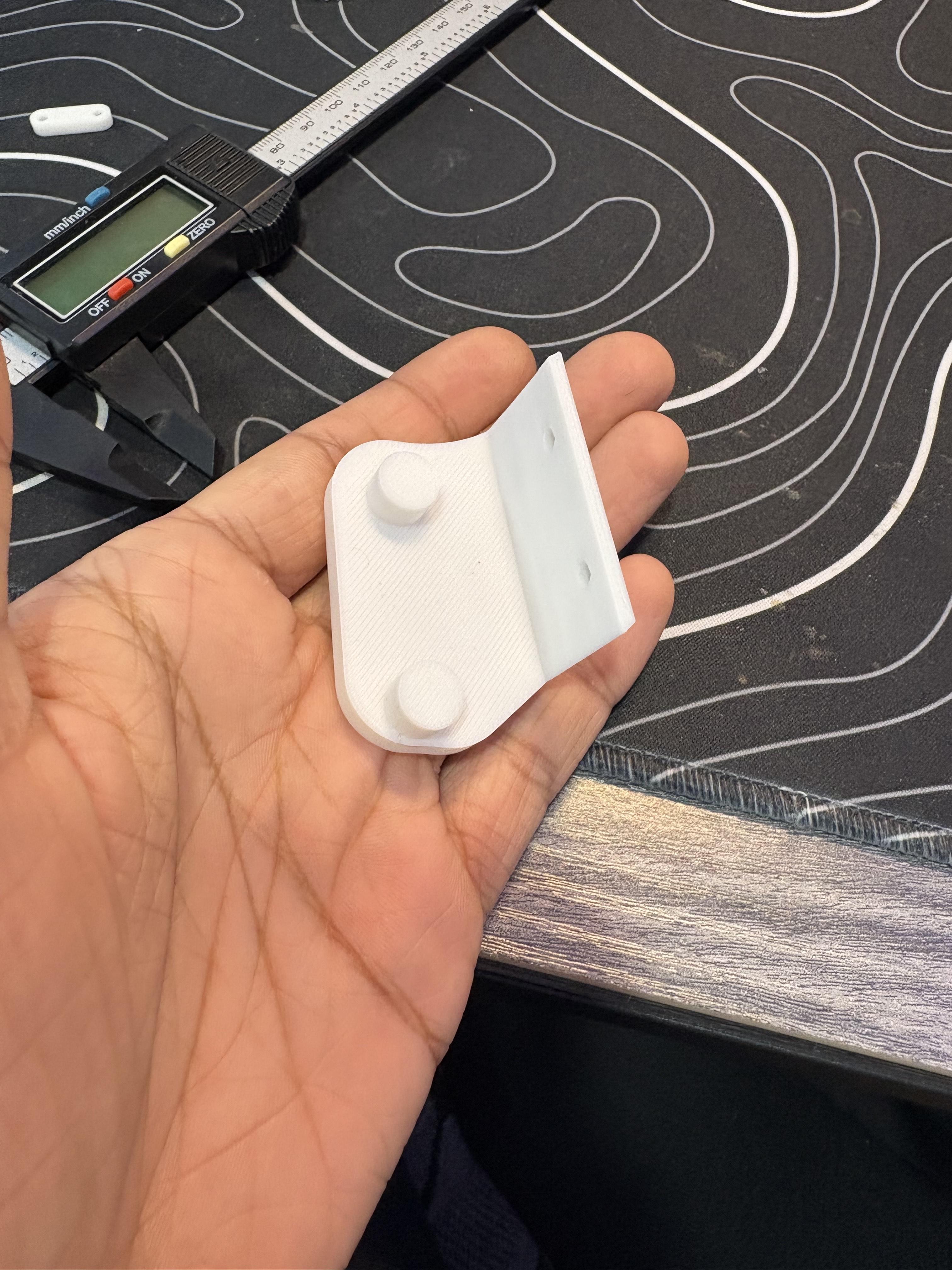
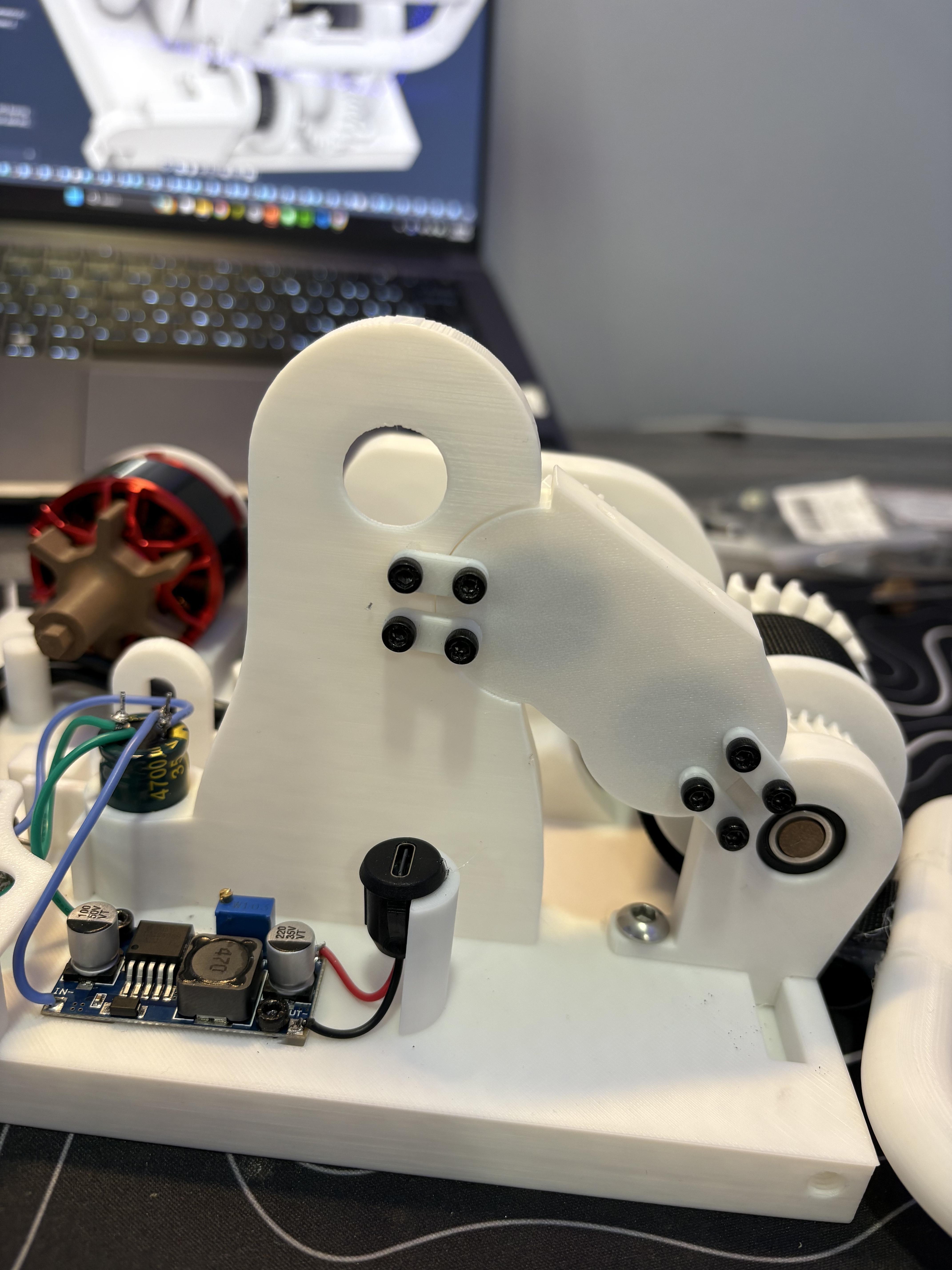
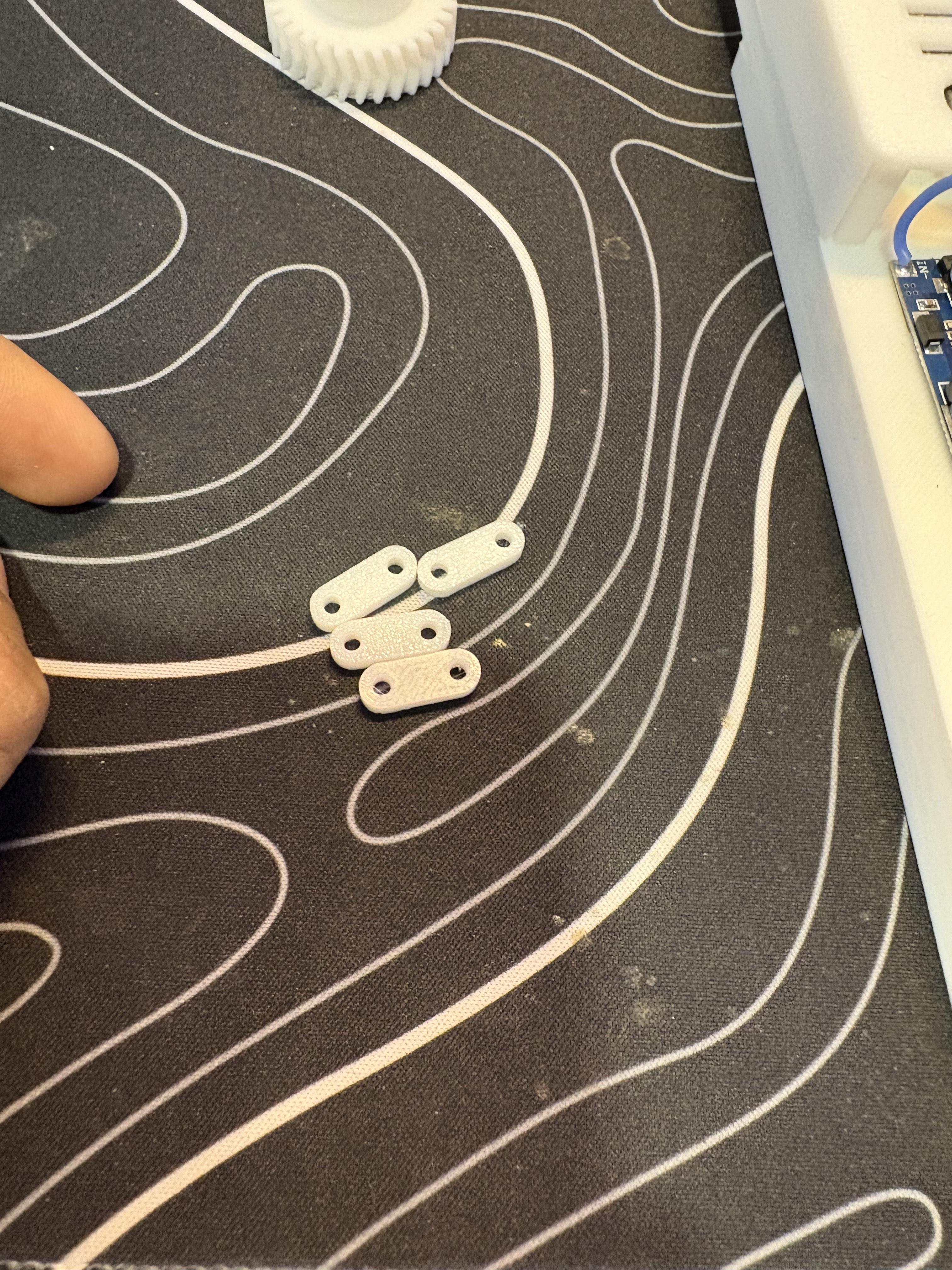
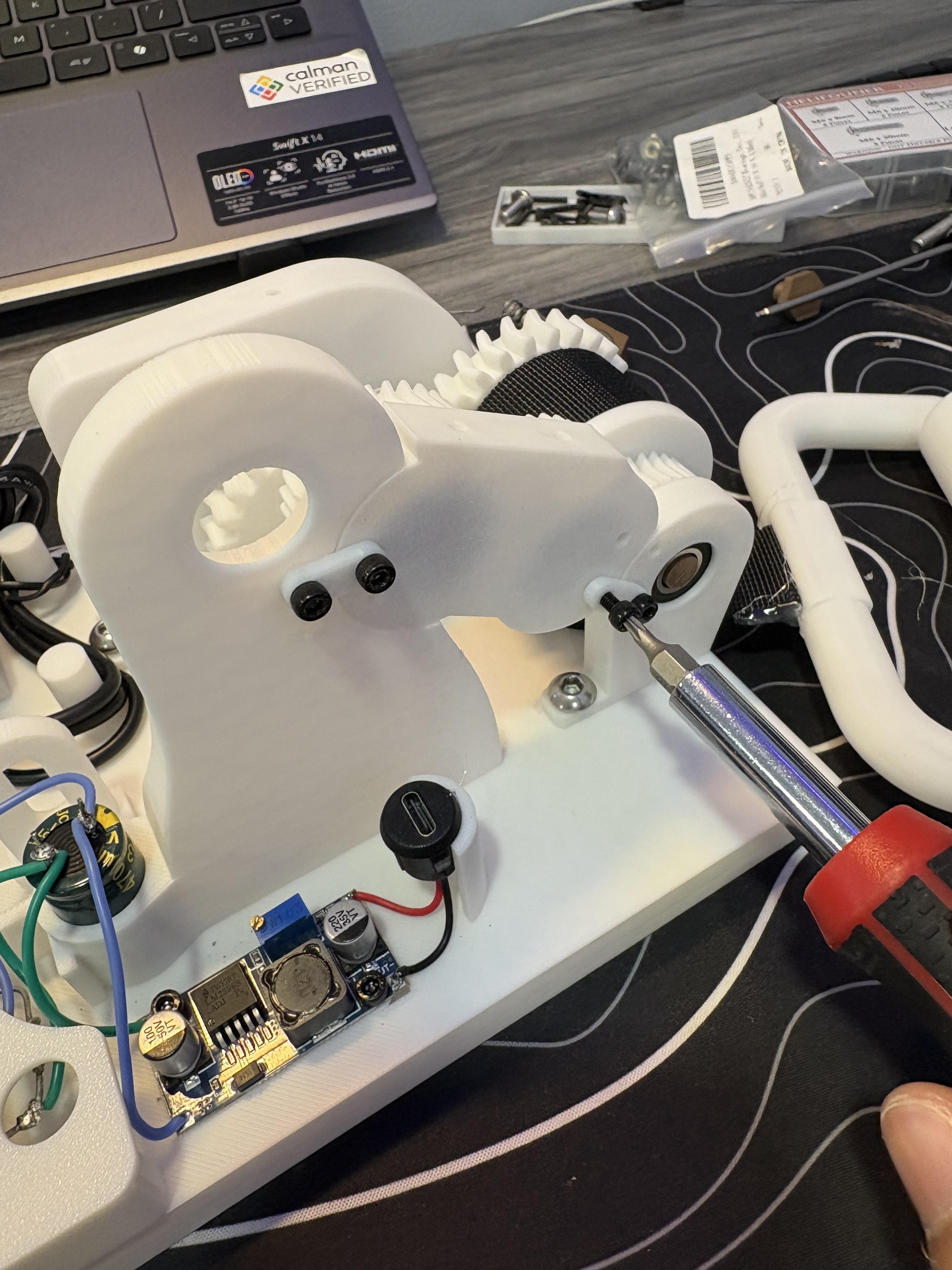
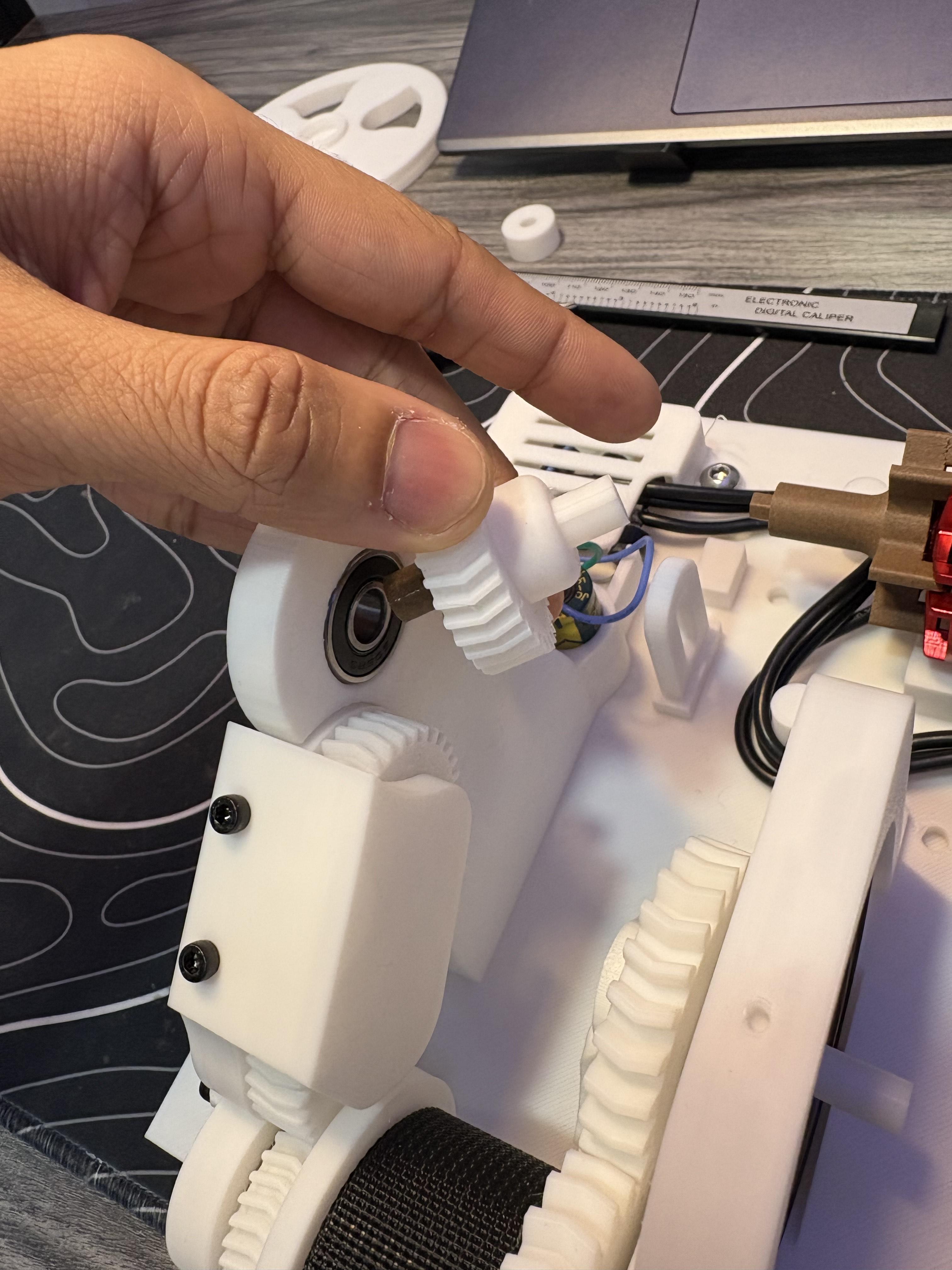
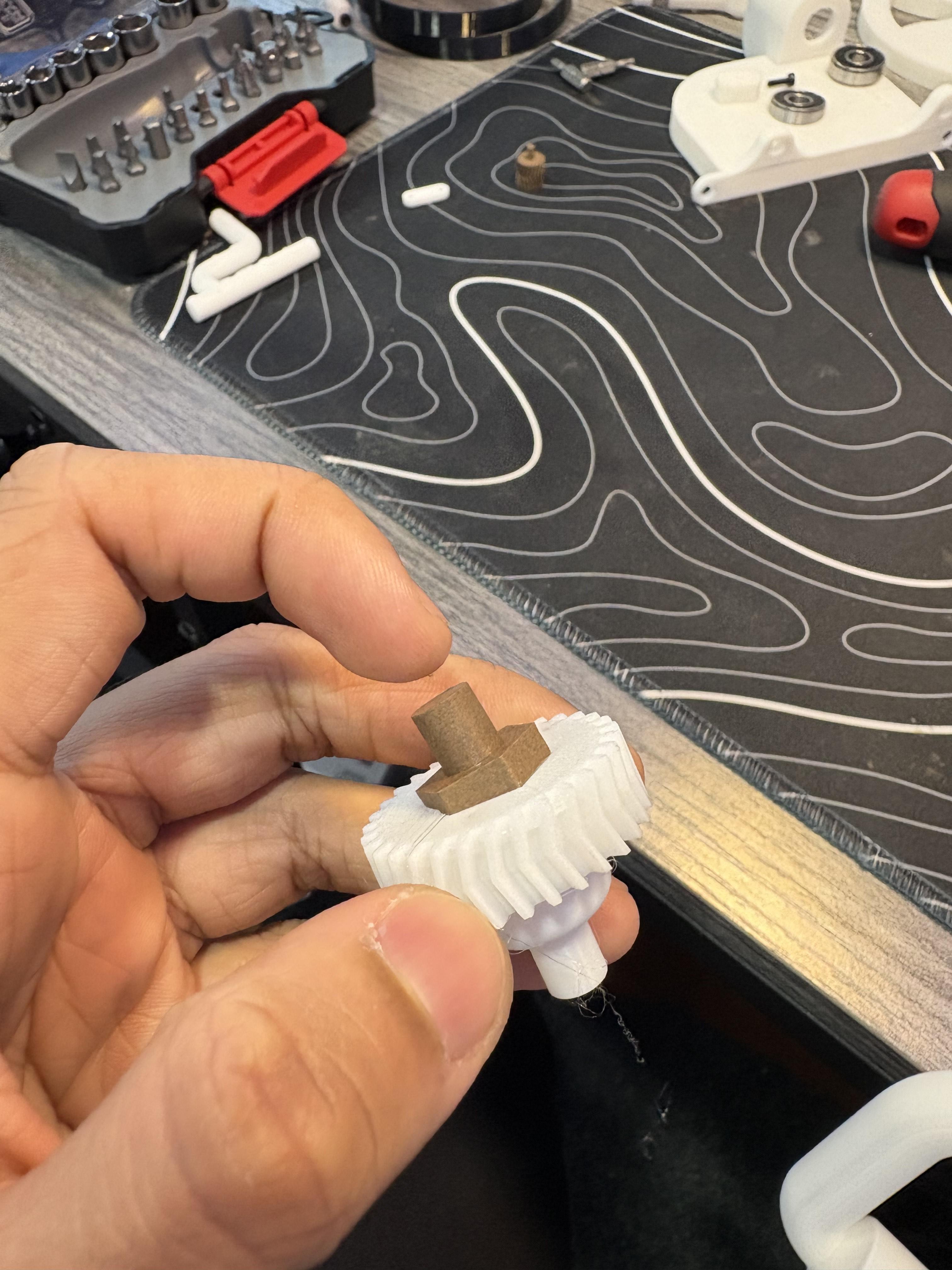
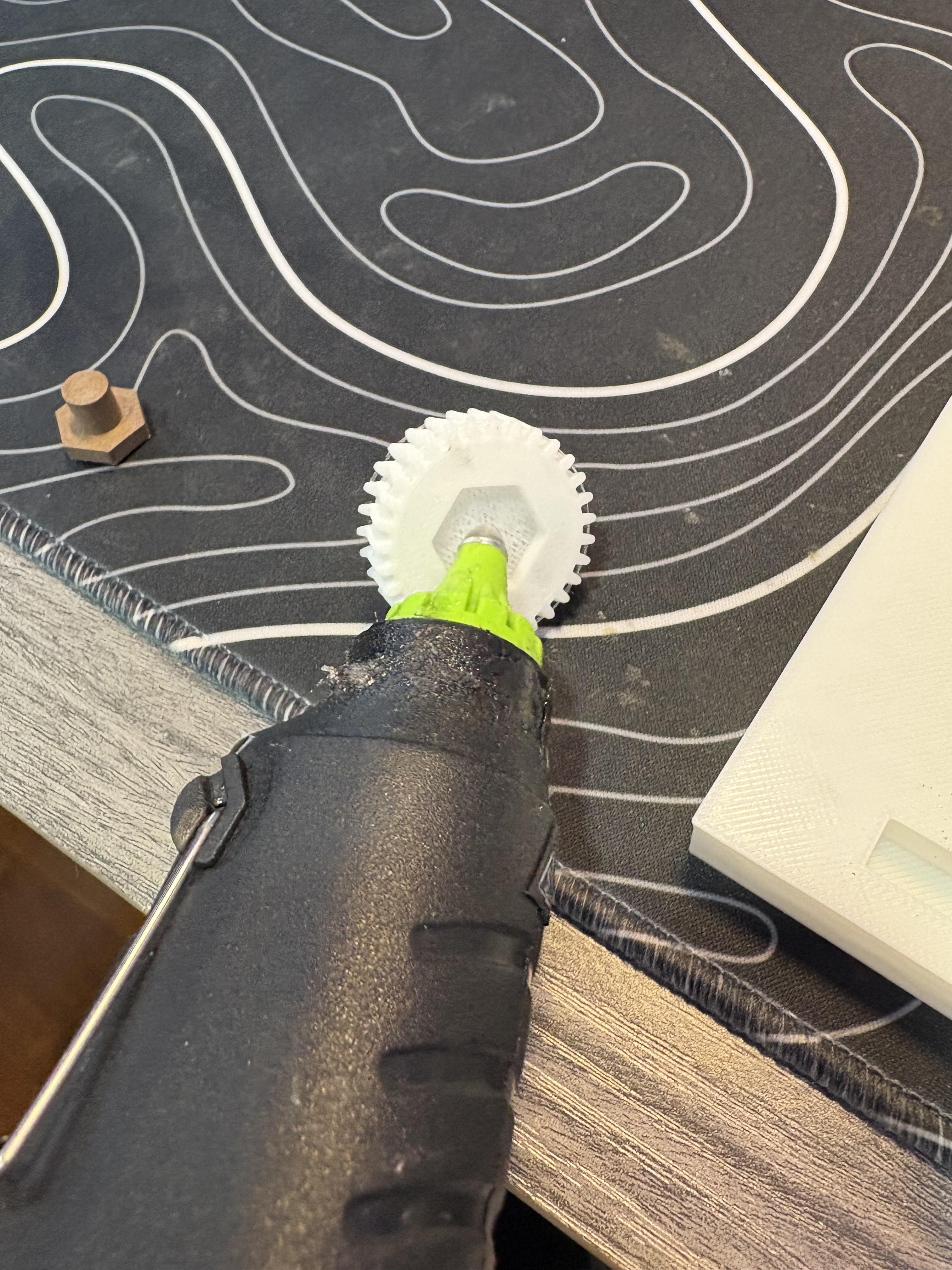
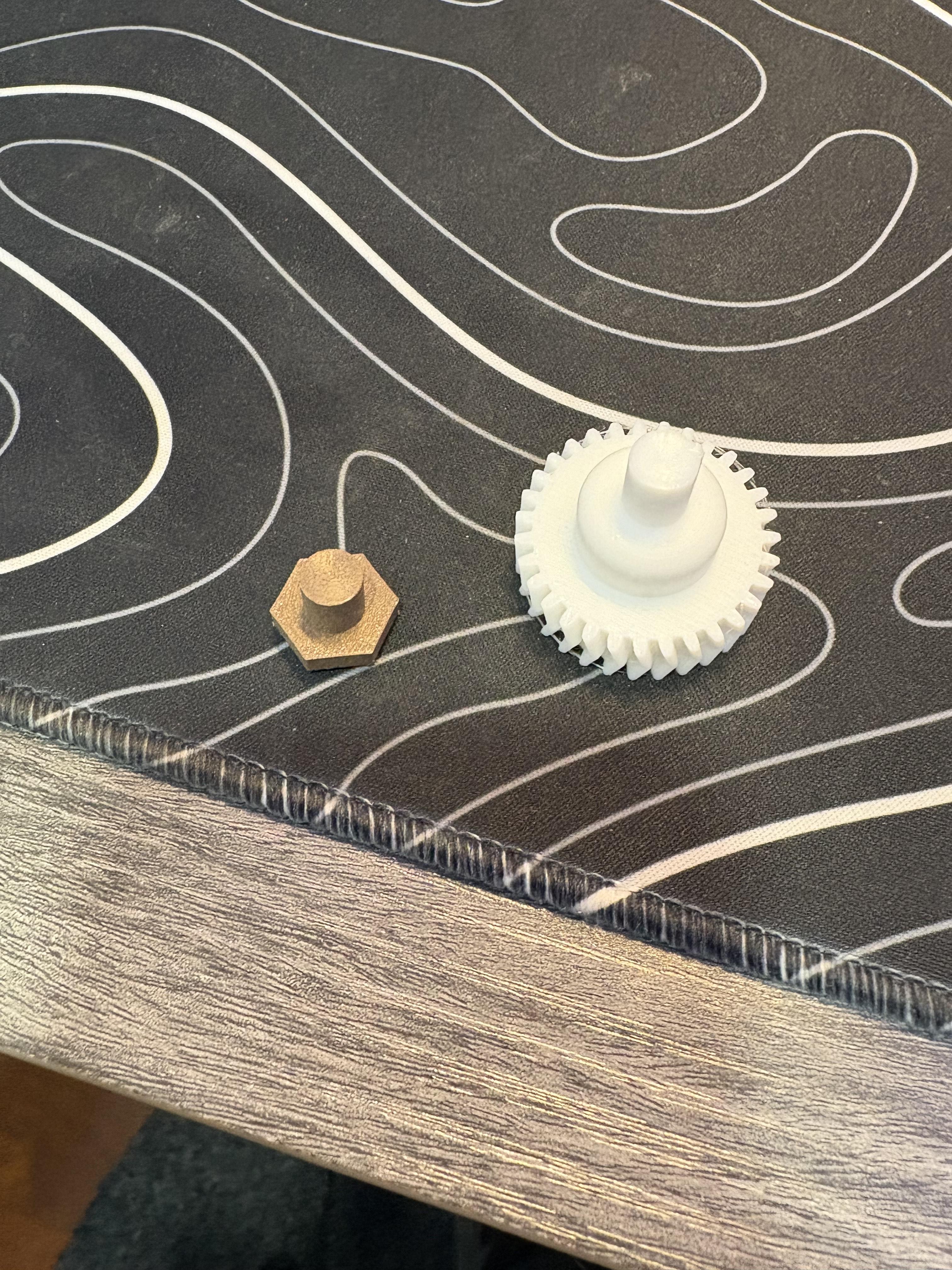
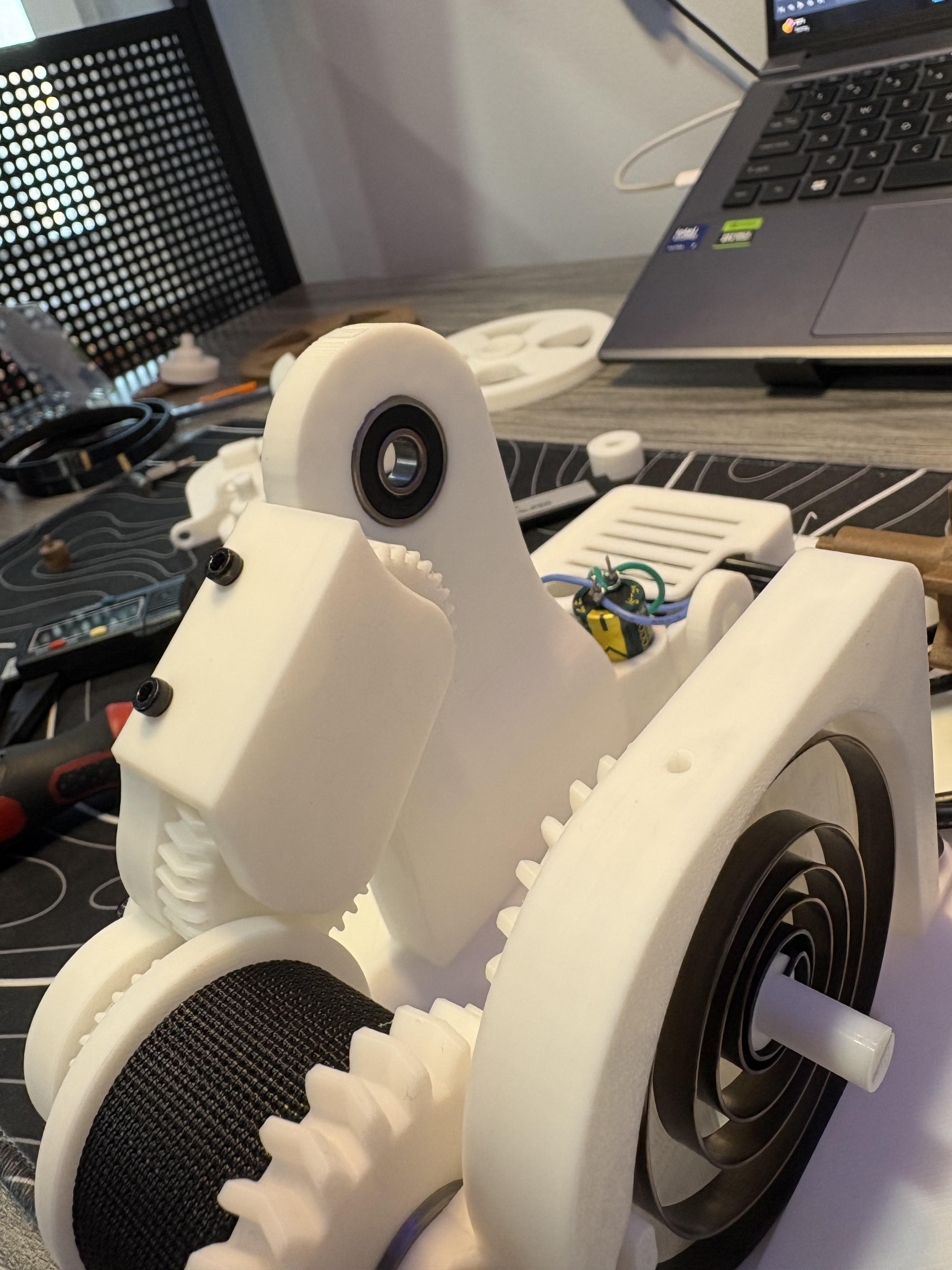
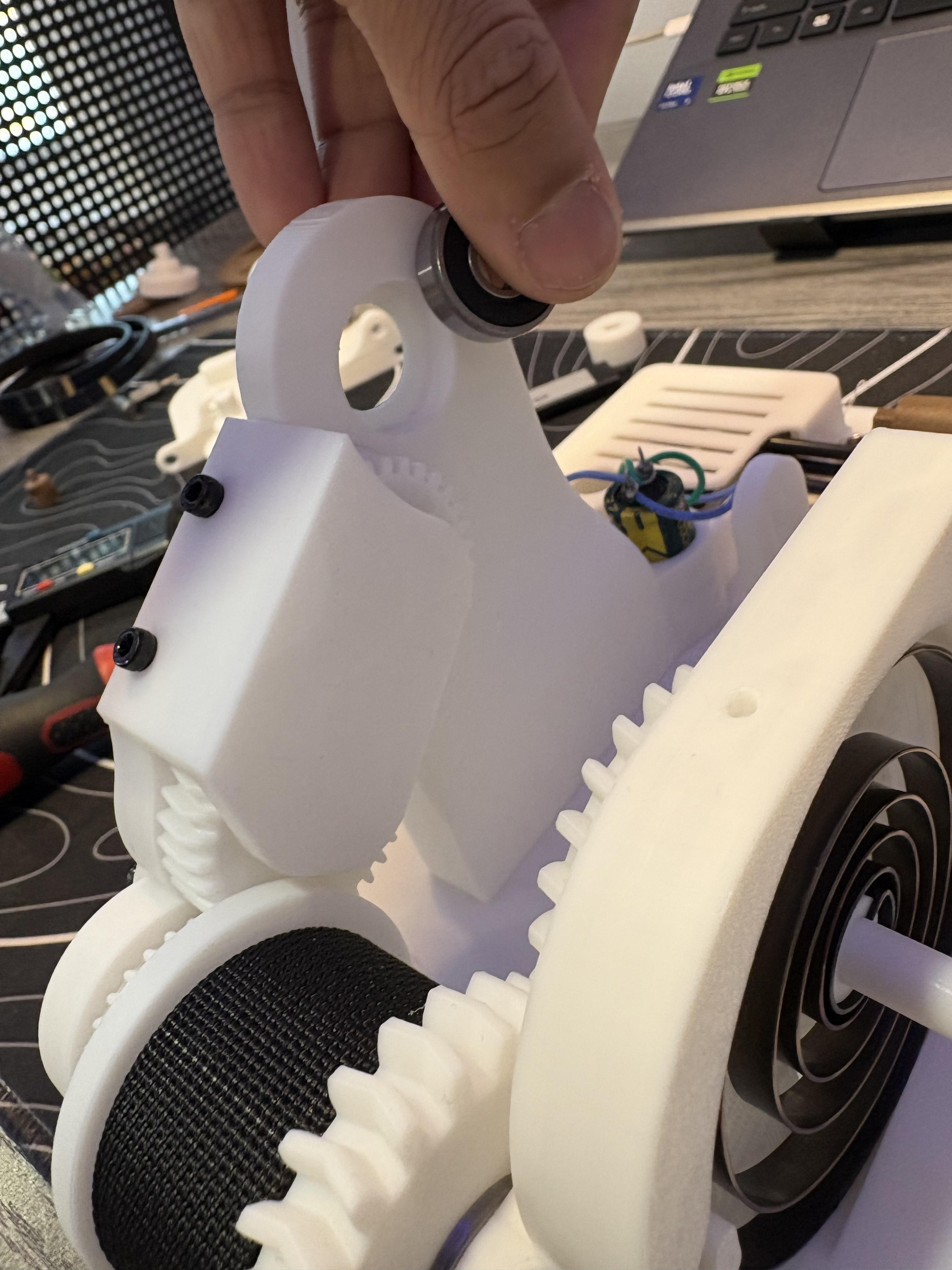
This step has a updated file that simply makes things such as alignment better, otherwise no major differences setup process is exactly the same. There is a picture that has the improved PLA34 up against the older version. Both have the same function of securing the axles to the gears except one makes sure the output gear doesn't bend off due to excessive torque. But the setup process is the same. Now sorry for this step having so many pictures but the process is very related to each other.
For this step you will need PLA34, PLA32, PLA35, PLA36, PLA 37, PLA 38 either one of PLA18 or PLA19, (10) M3 6mm screws and (1) 608 2RS Bearing . To start, grab either one of PLA18 or PLA19, then plug their hexagonal extrusions with some hot glue into the female hexagonal port of PLA32. Take a bearing and plug it into to the bearing hole that sits above PLA33 from the side that faces the spiral spring enclosure. Grab PLA 35, PLA 36, PLA 37, PLA 38 and (8) M3 6mm screws. Begin screwing the brackets(PLA 35, PLA 36, PLA 37, PLA 38) on the side of PLA33. Corresponding screw holes when properly placed should align as for instance, on the semicircular portion of PLA3 has a few screw holes that will align with the brackets. Screw them down completely on both sides. Then grab PLA34 and align its extruded axles to the input holes of PLA30 and PLA31. Once pushed into the holes, grab (2) M3 6mm screws, and screw on the flat top portion where the screw holes align with the holes on top of PLA33. Secure it down thoroughly.
Setting Up the Other Side of the Spring Enclosure
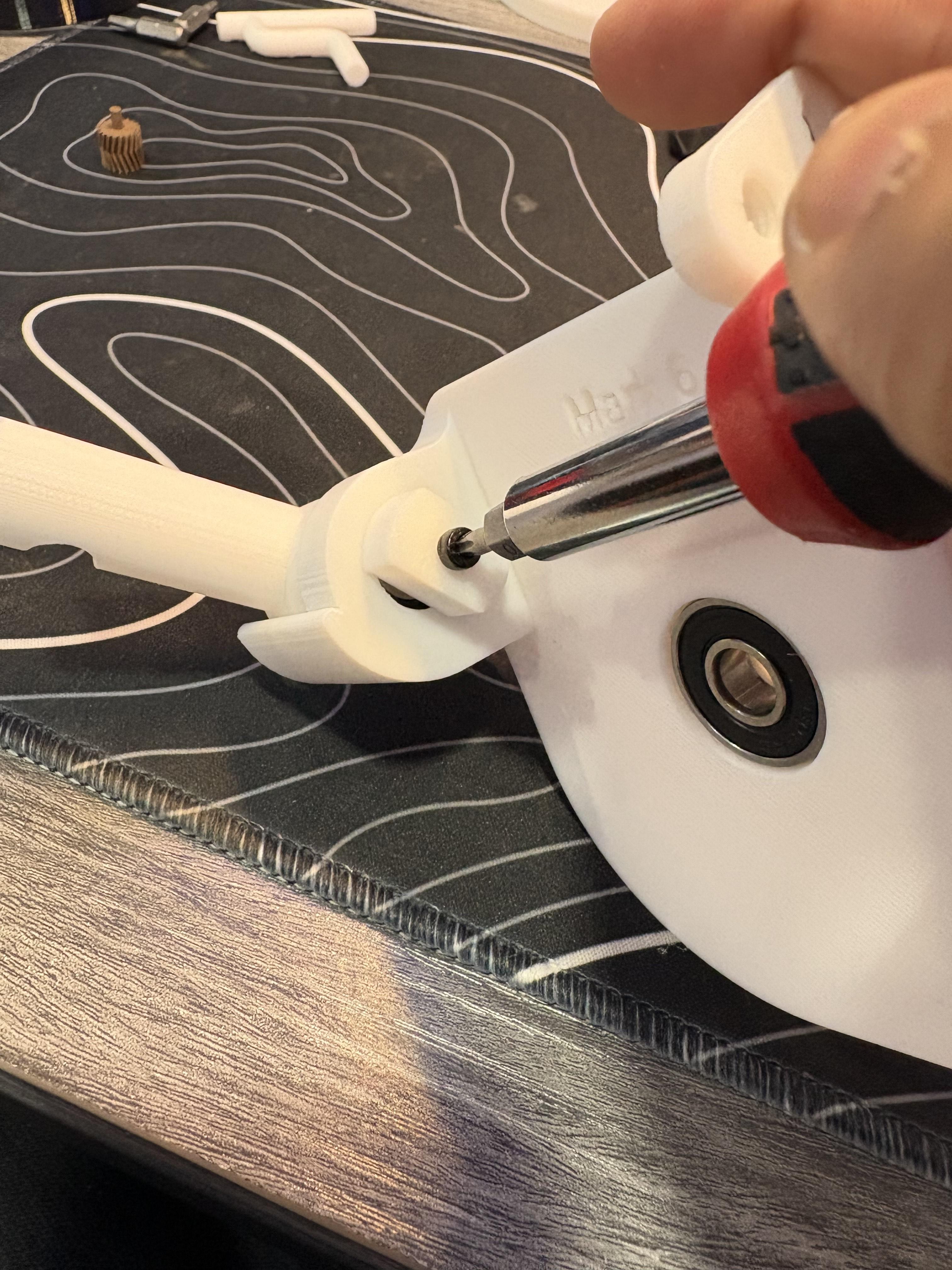
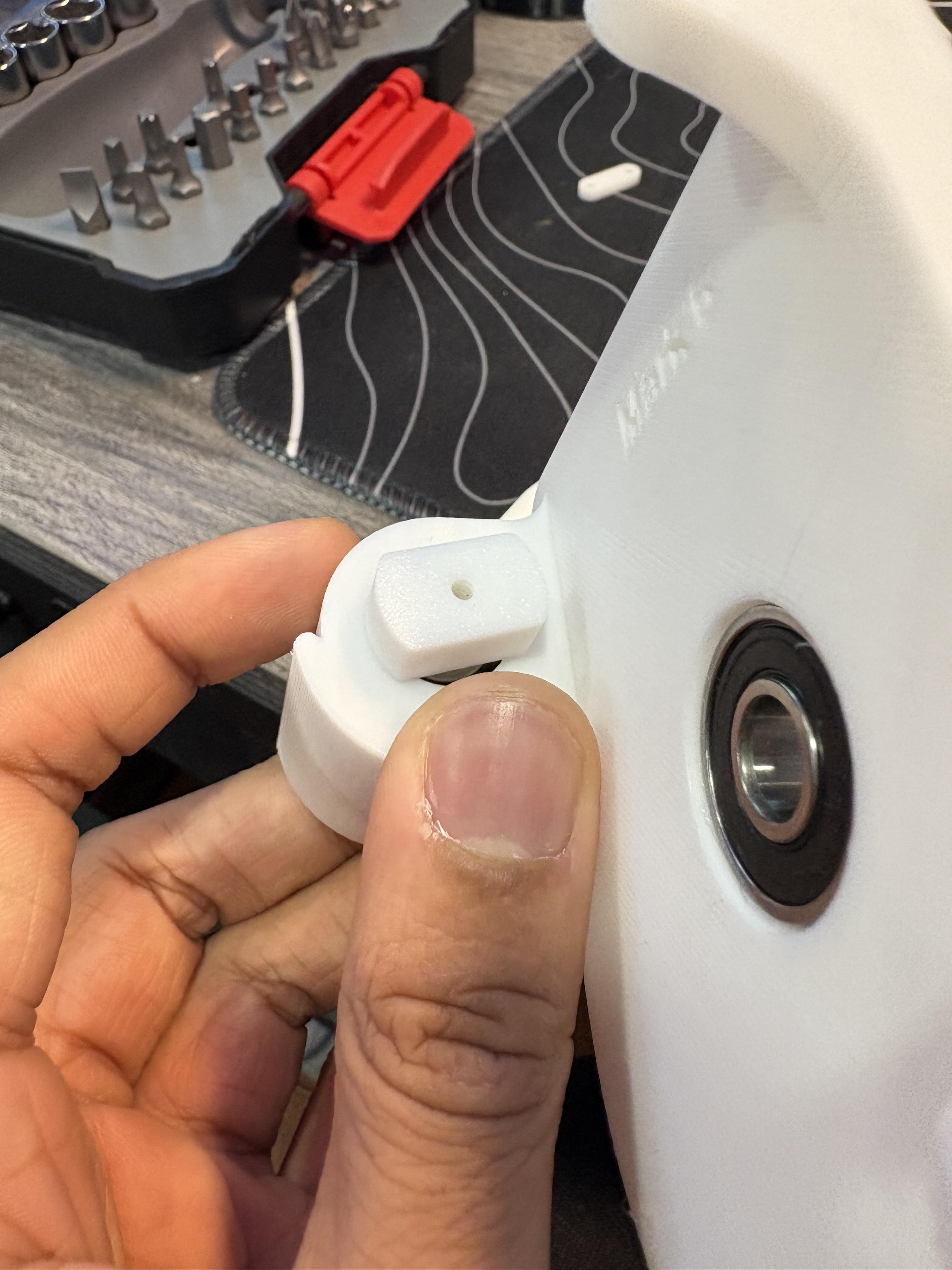
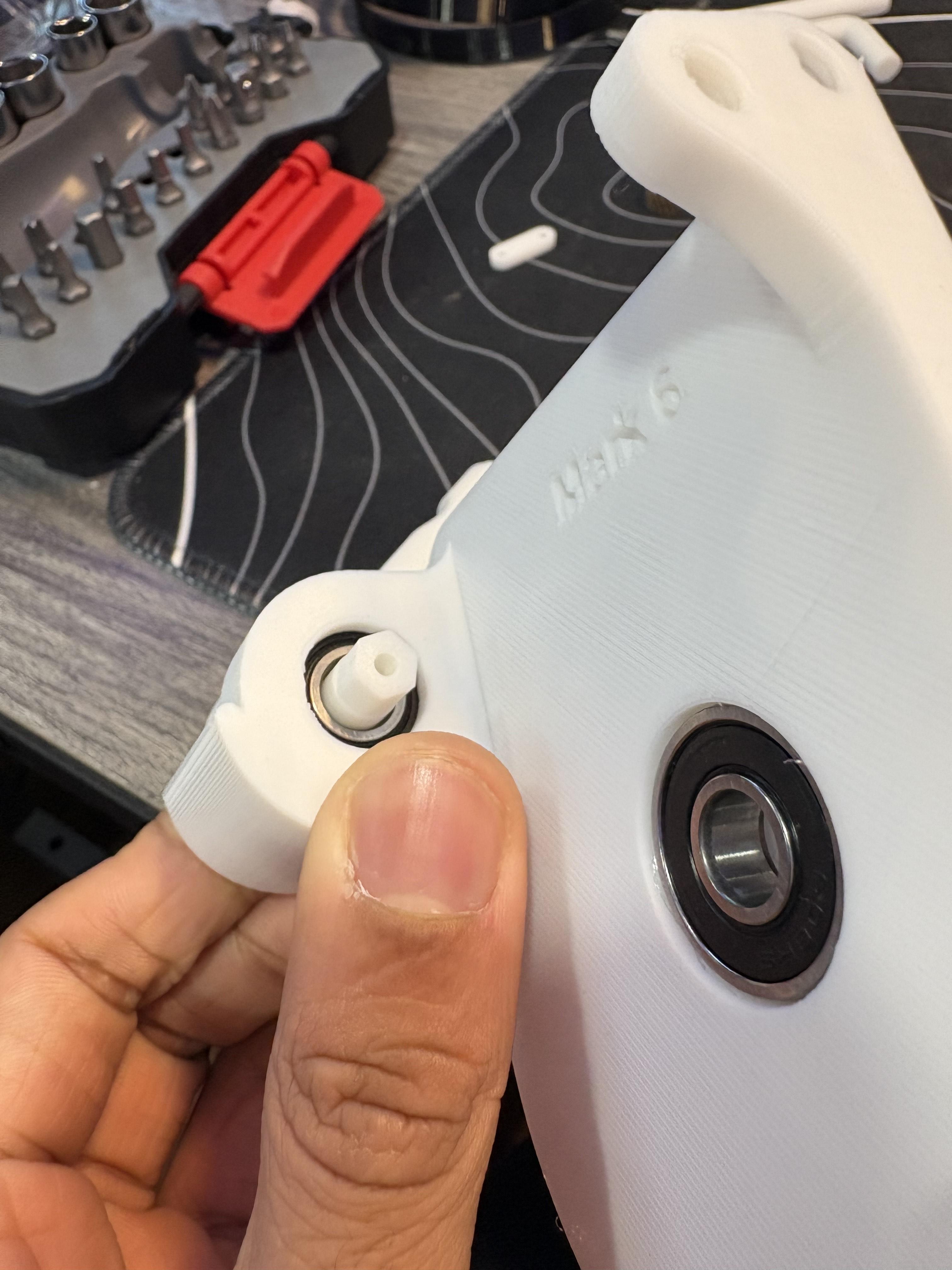
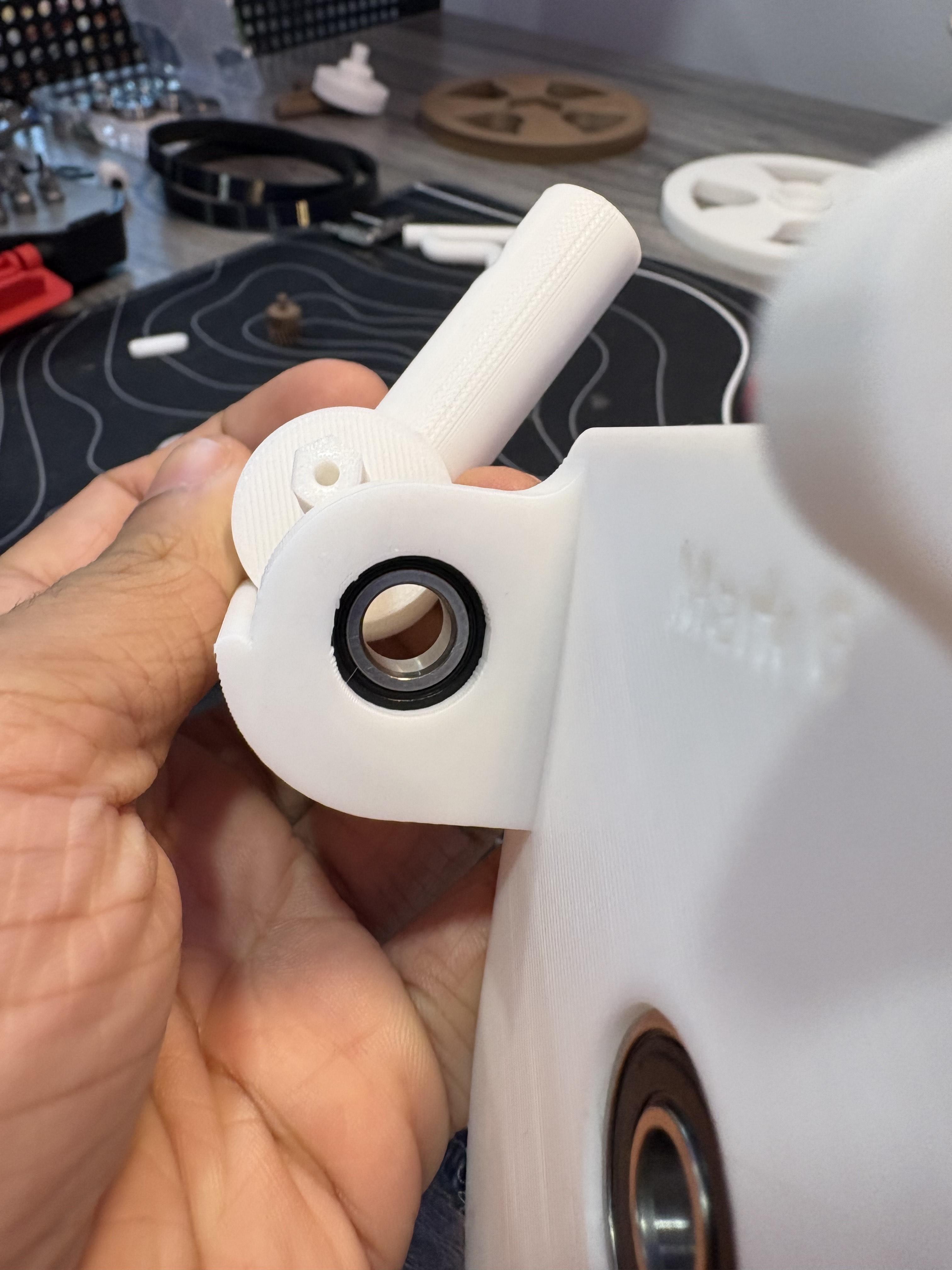
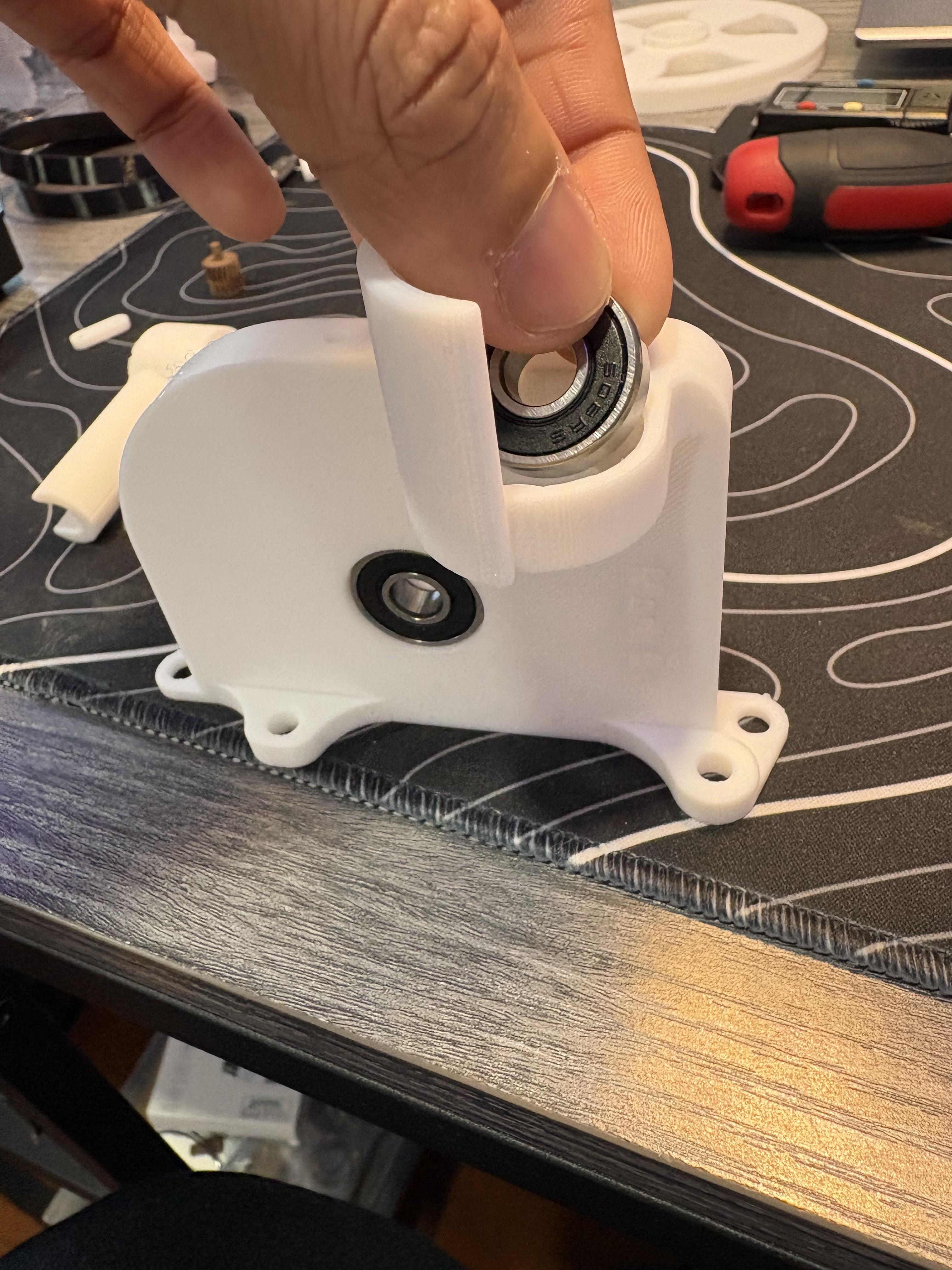
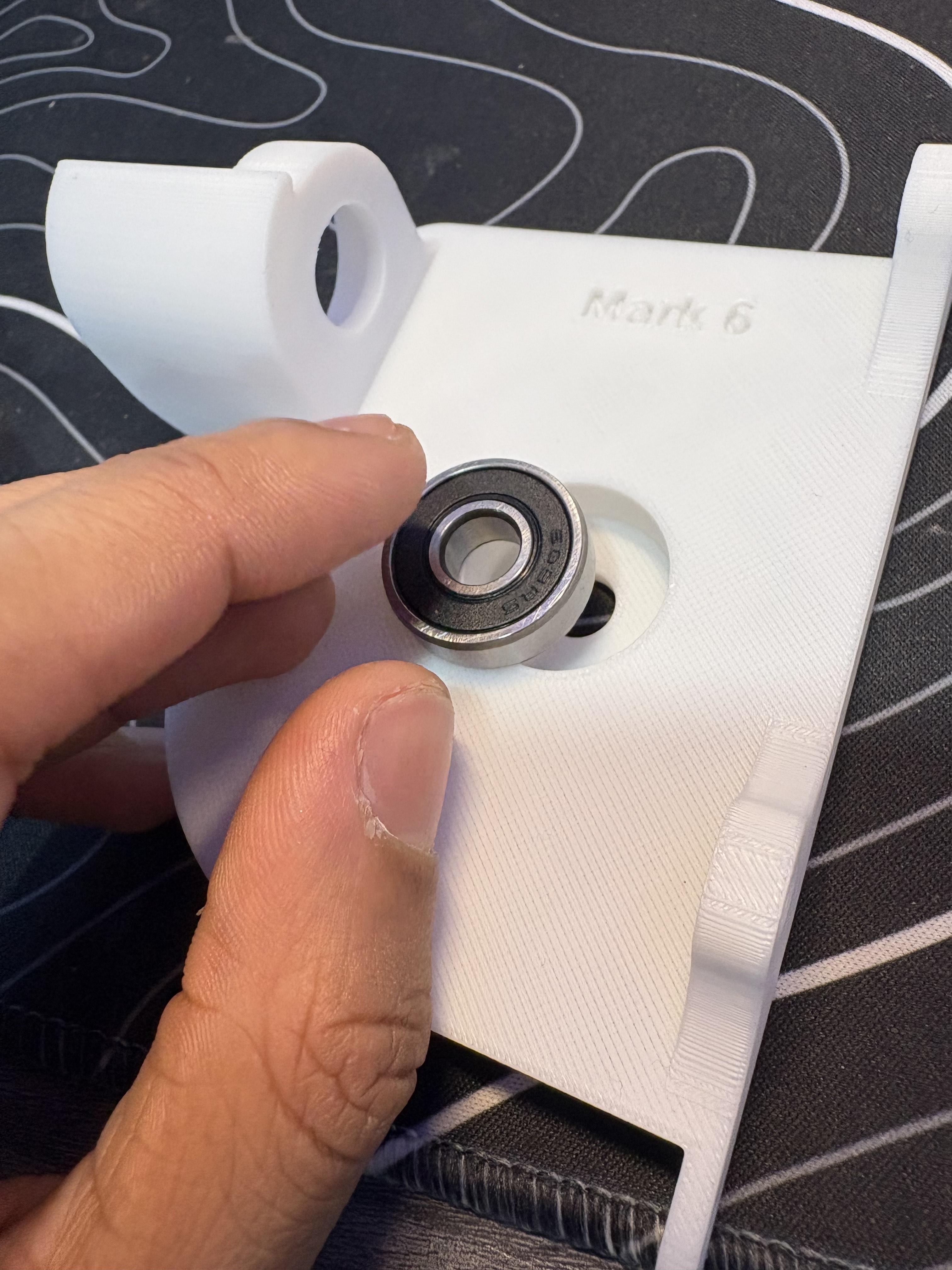
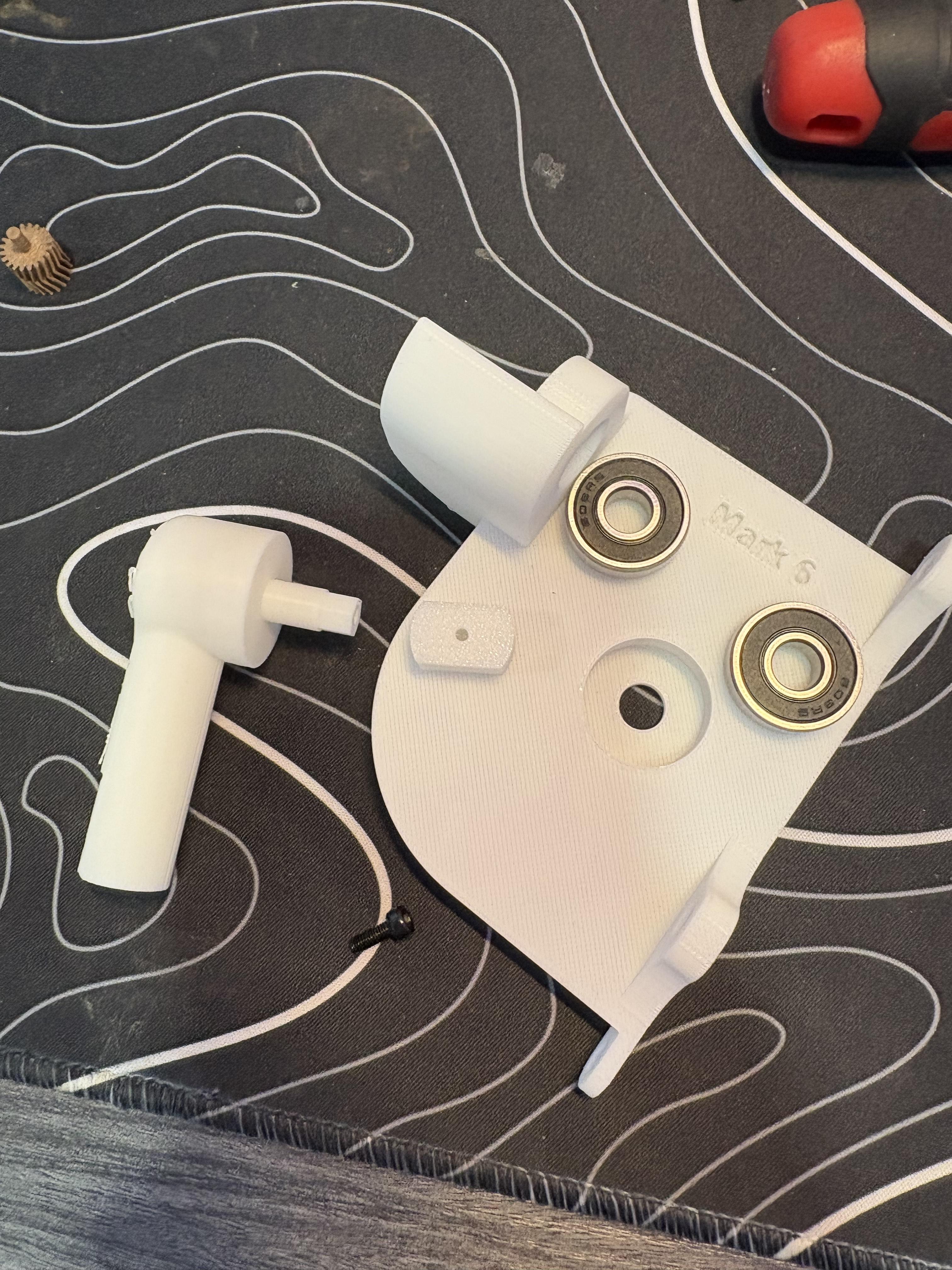
For the other side of the spring enclosure, you will need PLA9, PLA13, PLA11, (2) 608 2RS Bearings and (1) M3 10mm Screw
Grab a Bearing and push it down PLA9 under where it says "Mark 6". Flip the side and allow PLA9 to stand on its own with its screw brackets aligned with the table you work on. You will notice another bearing hole. Push down another bearing on that hole. Then grab PLA11 and push the hexagonal shaft through the bearing hole on that very side. Once pushed through, take PLA13, align its hexagonal hole to the hexagonal shaft of PLA11 and push down. Secure it to that axle with (1) M3 10mm Screw.
Finishing the Spiral Spring Enclosure
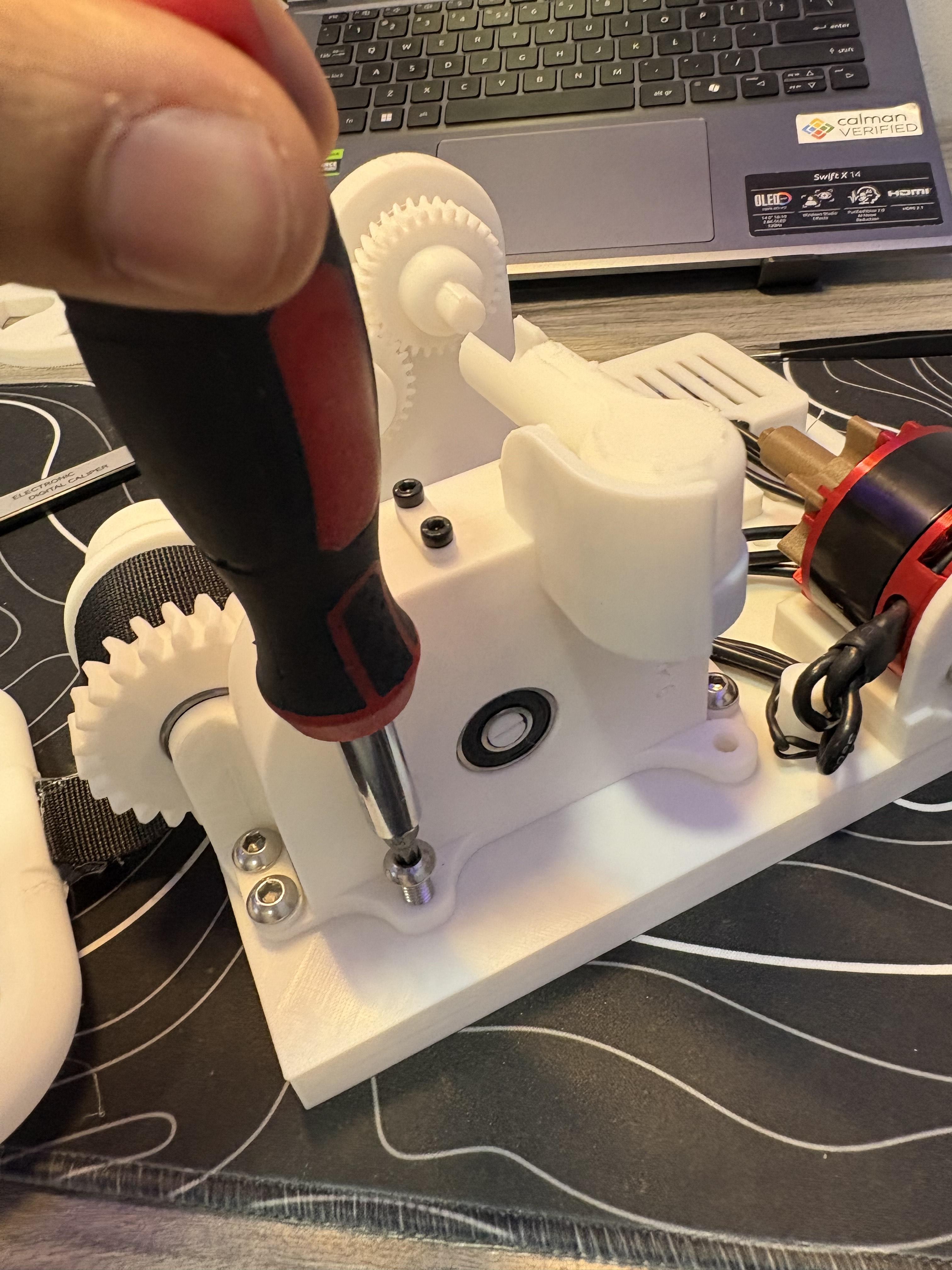
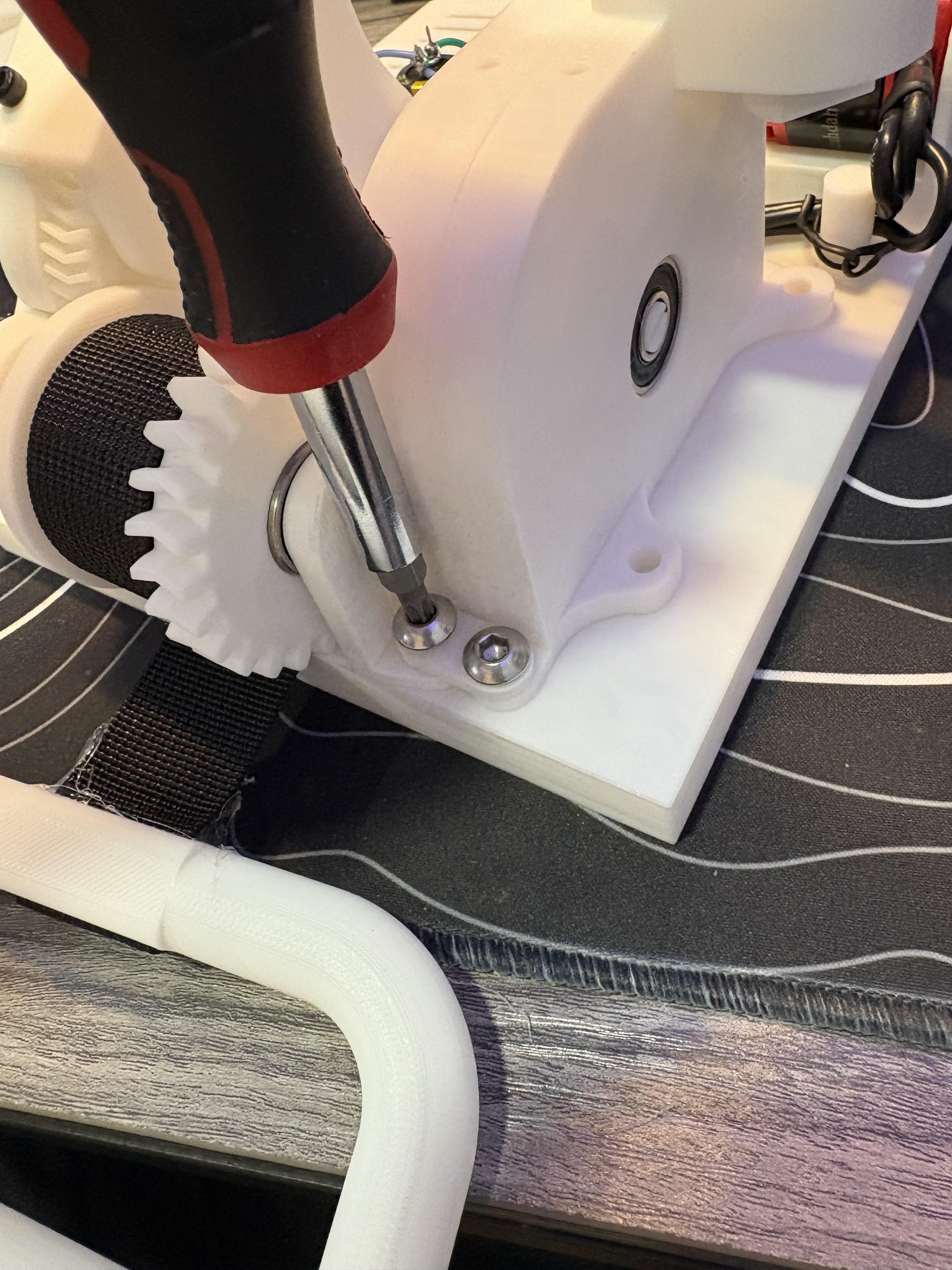
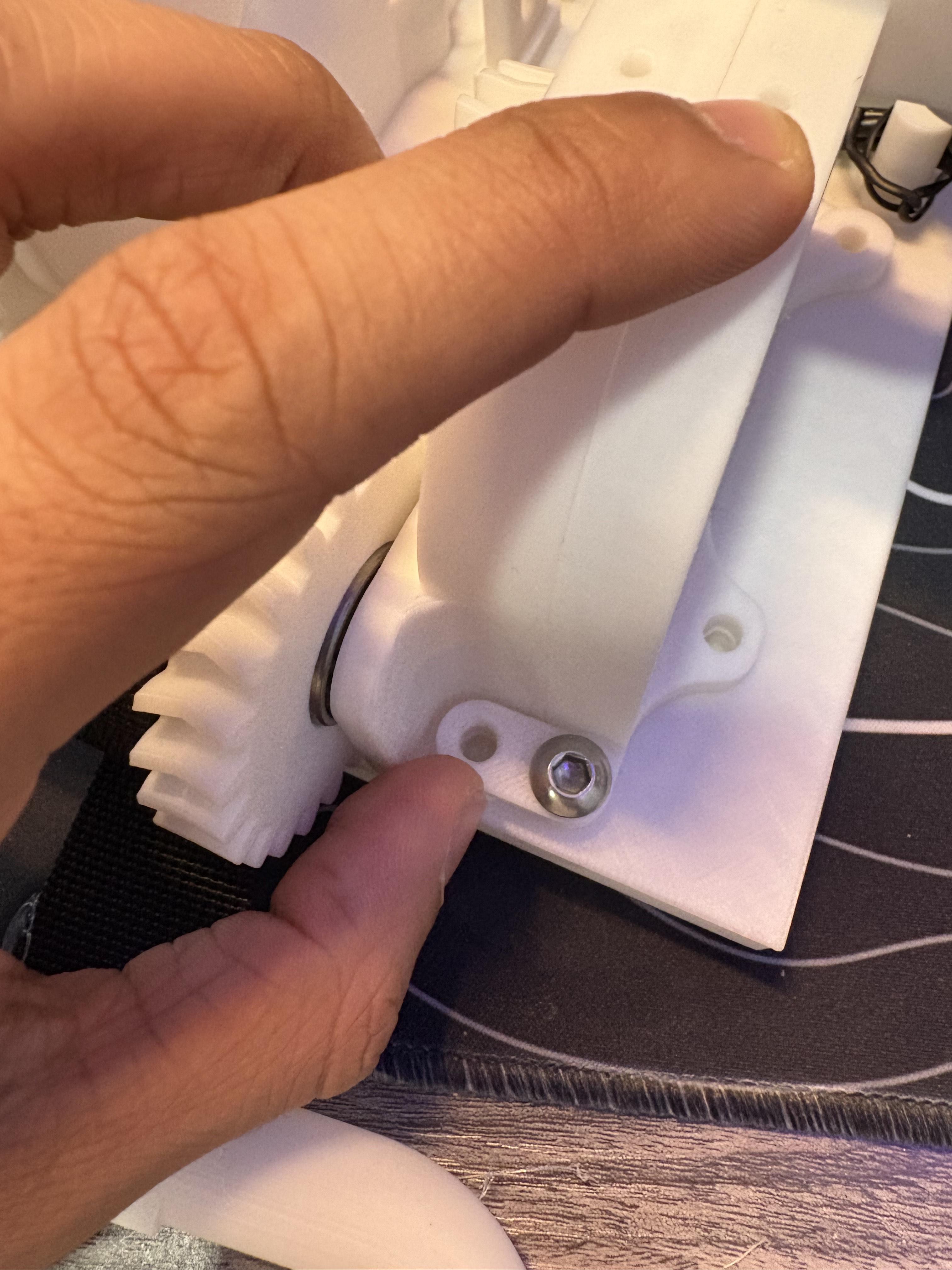
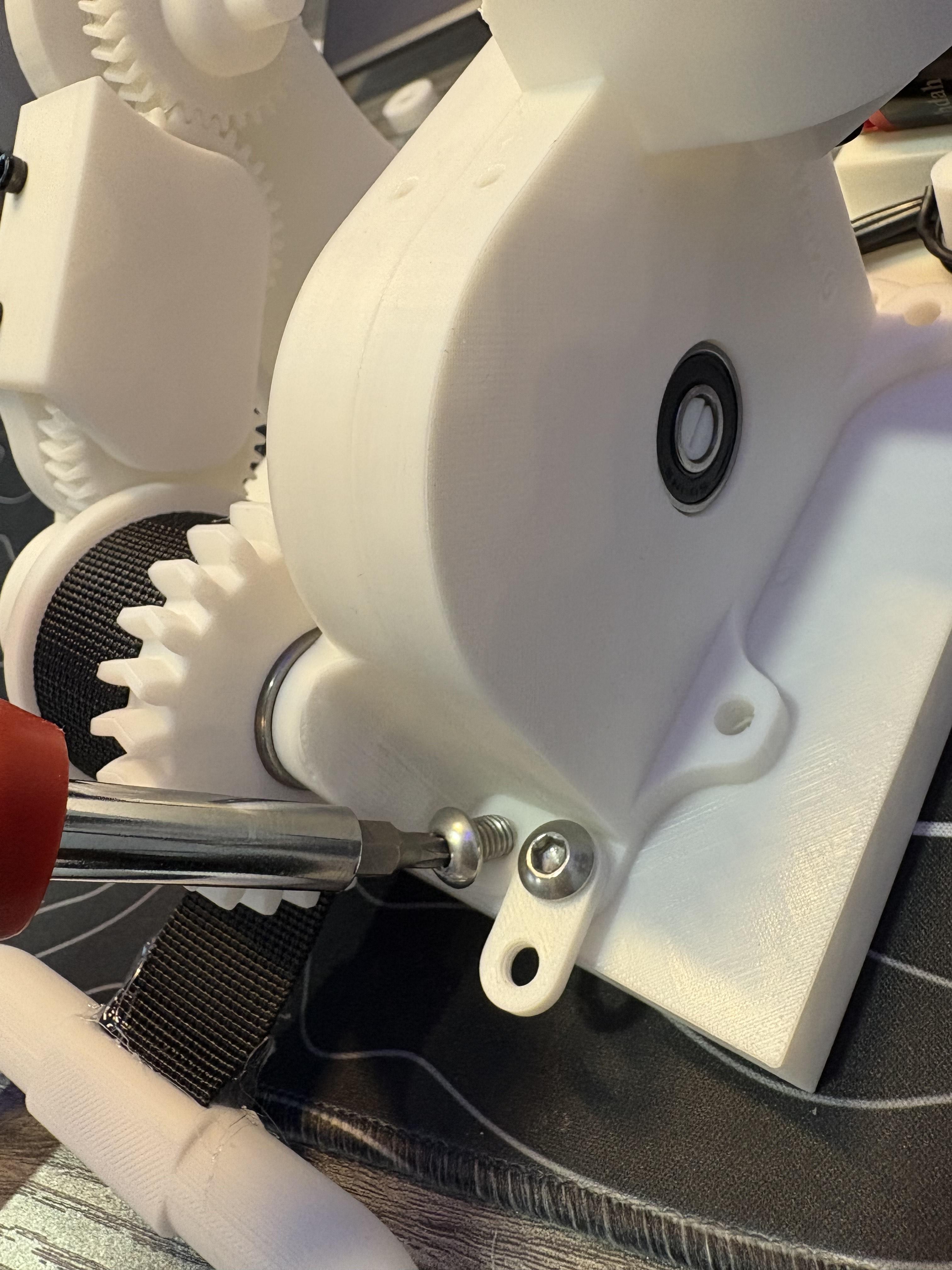
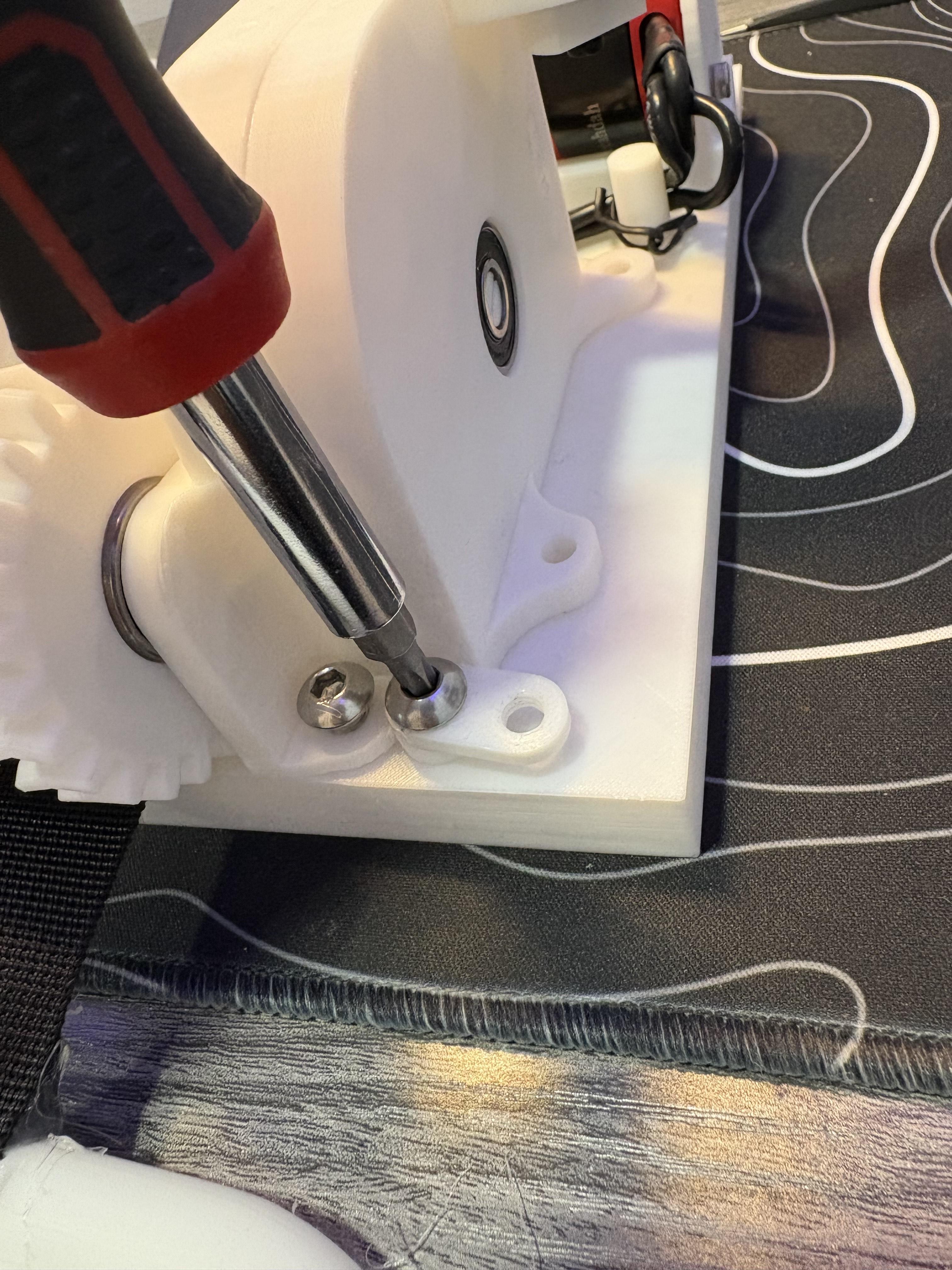
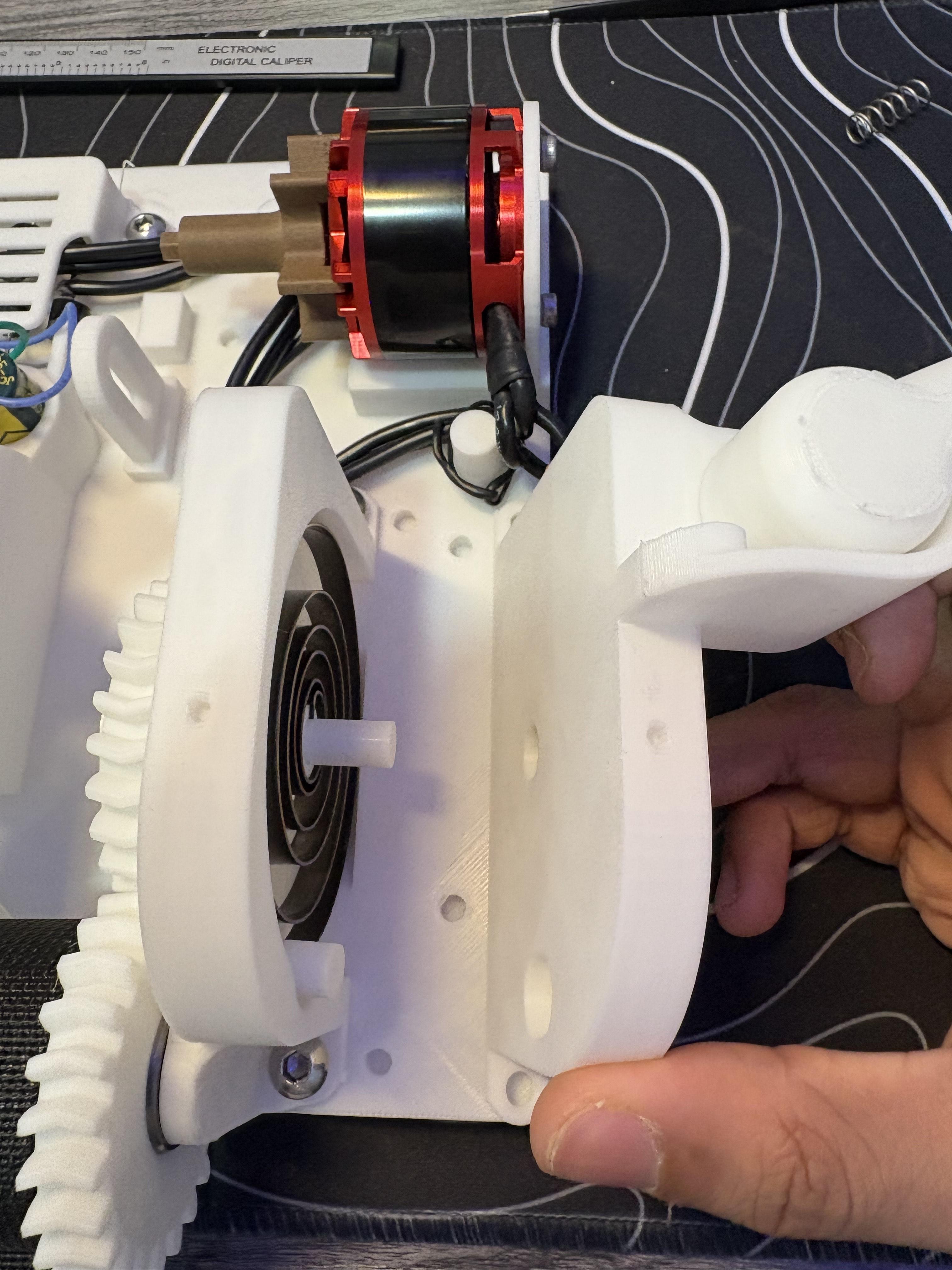
For this Step, you will need the previously set up side from the last step, PLA16, PLA17, PLA39, (2) M6 8mm screws, (2) M6 10mm screws, (2) M3 6mm screws
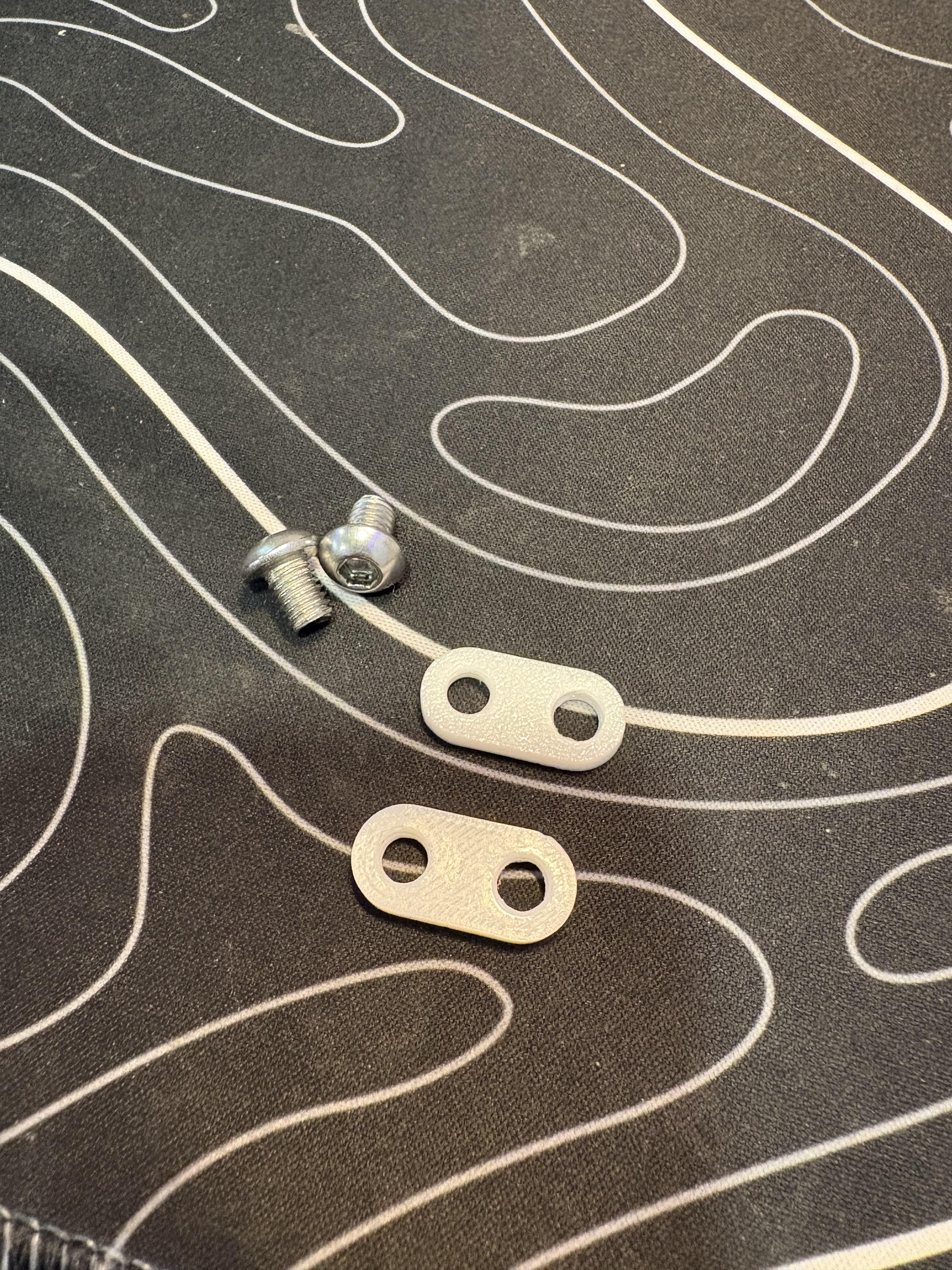
Align the completed PLA9's circular extrusion from the all 3D printed side, where you don't see the bearing, you will notice the hole aligns with the spiral spring gear shaft, as well as the previously mounted cap, (PLA8). Push them inward together and it should sit nicely. Notice how the brackets on both enclosure sides seem to be next to each other. Their screw holes are next to each other on top of PLA1. Previously I mentioned not to screw PLA7 all the way down. This was so the brackets could be installed properly. Keep the loose screws on PLA 7, but take (2) M6 8mm screws and place either PLA16 or PLA17 (Brackets) on top of the tabs on PLA9. Screw them down, but not to tight. you can then rotate the brackets to the side of PLA7. Now unscrew the screws on PLA7 and then realign the brackets to the hole on the tab of PLA7. Screw down again but this time you can screw both screws tightly. Repeat this process for the opposing side as well near the motor.
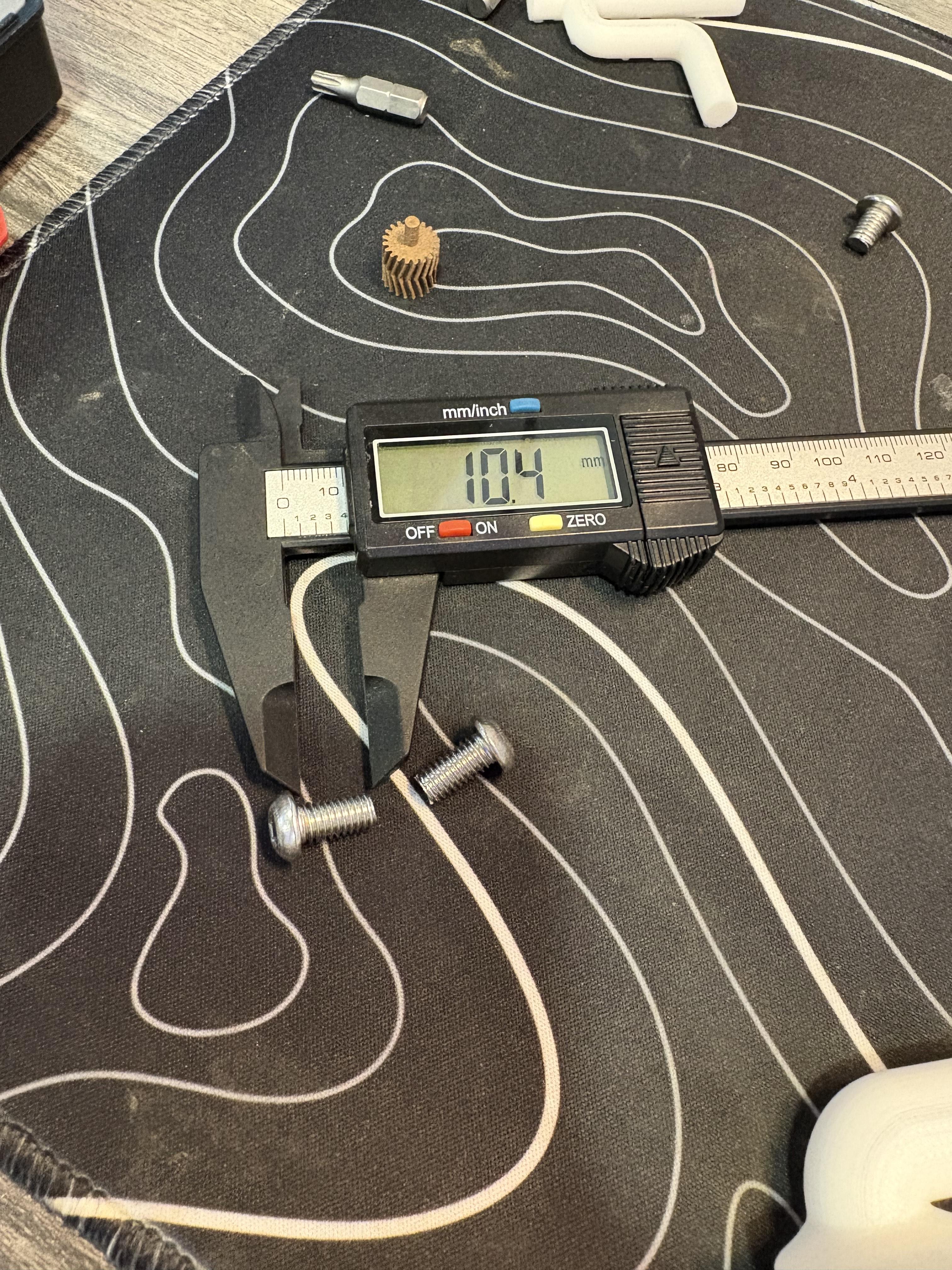
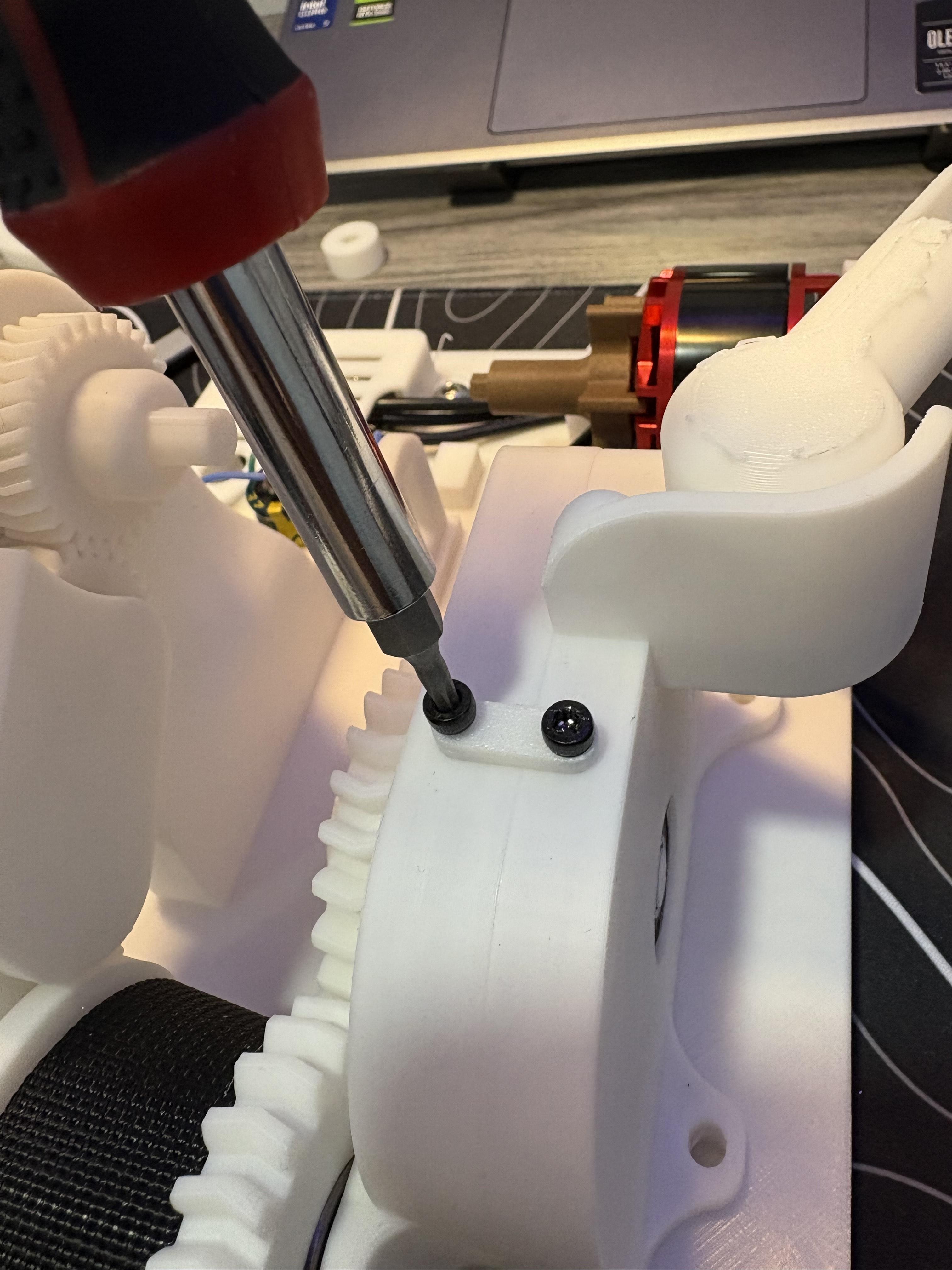
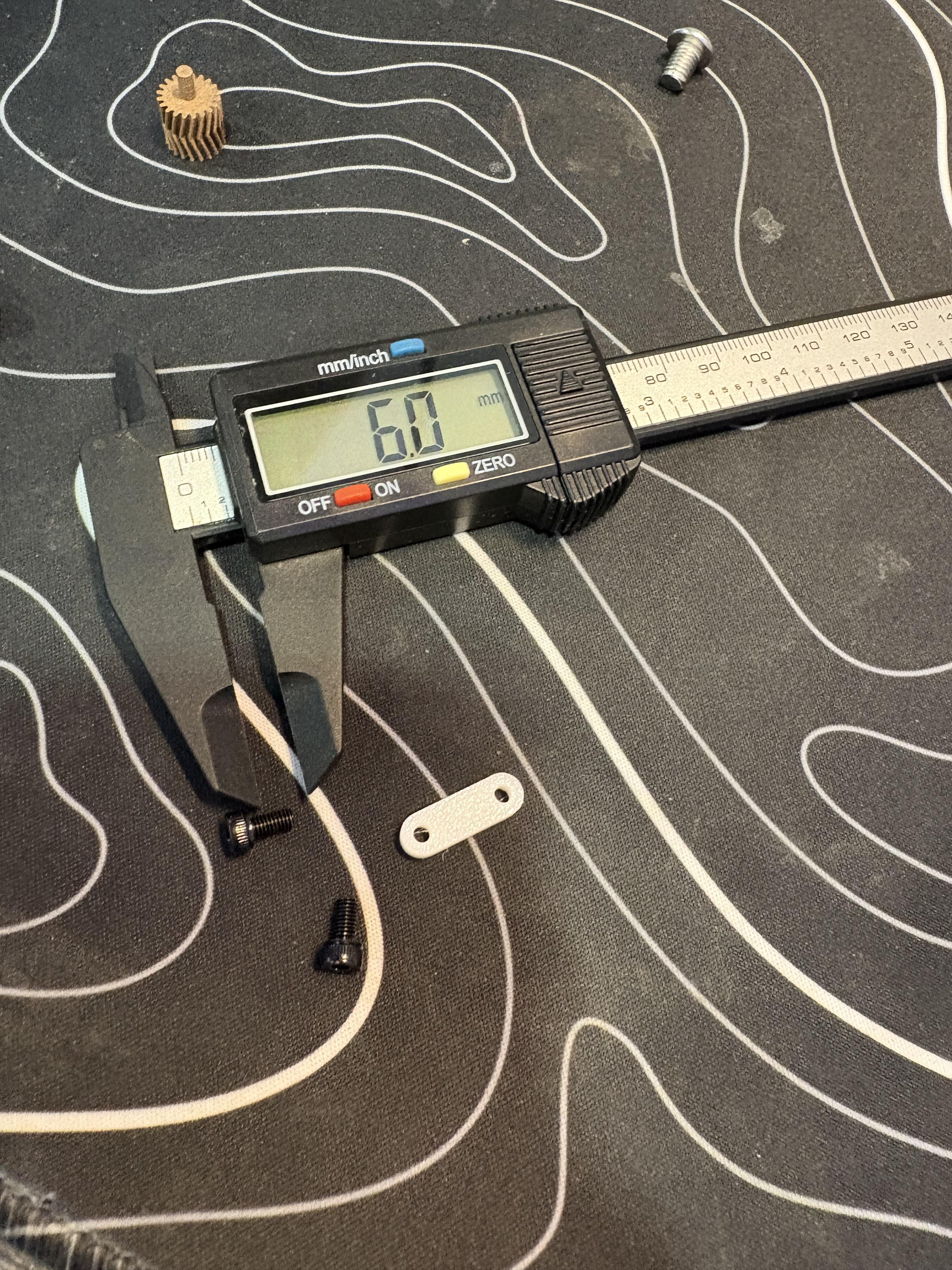
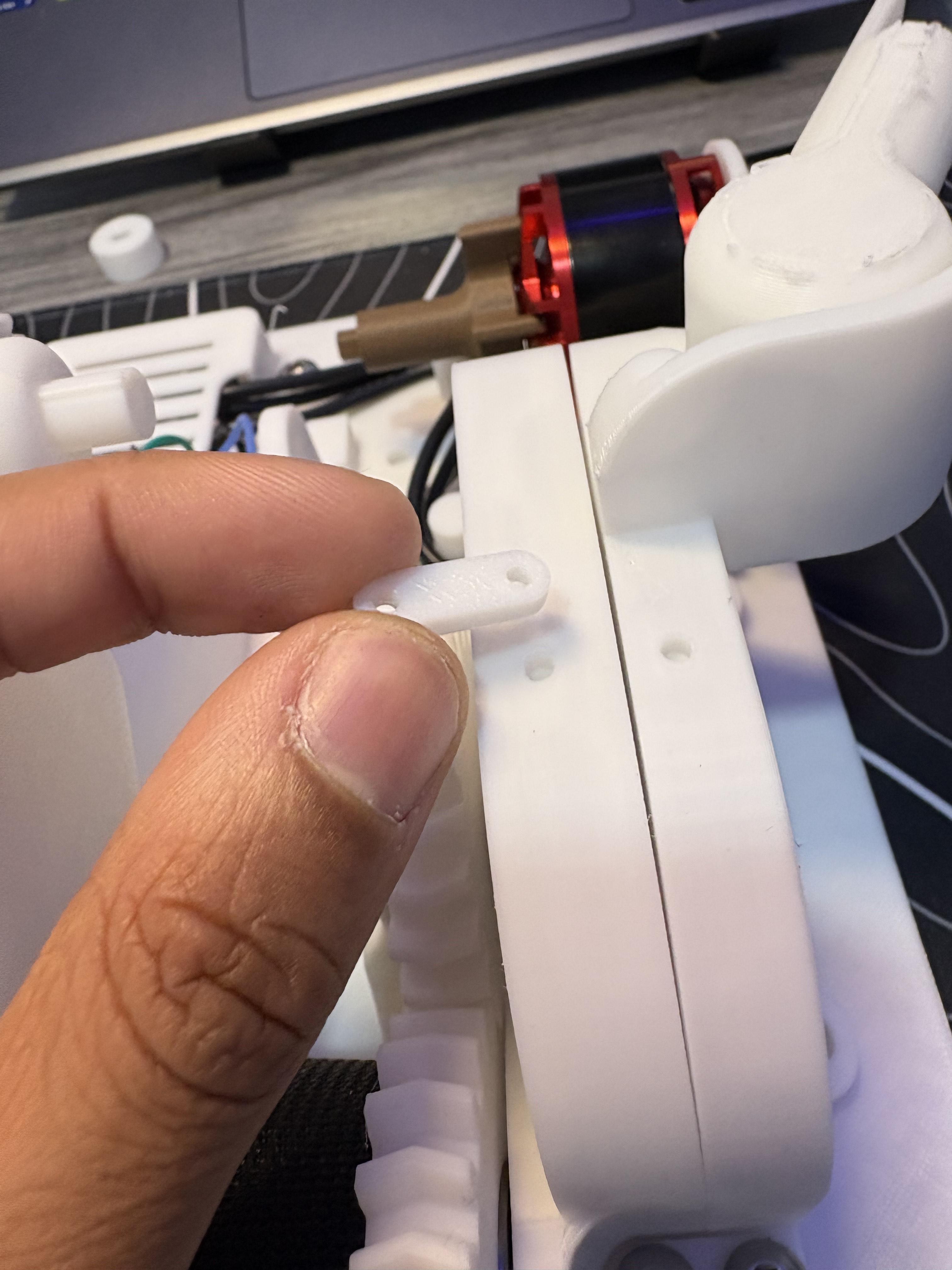
On PLA9, once mounted to PLA1, you will notice 2 tabs that are below the side where it says "Mark 6". Take (2) M6 10mm screws and secure them down to PLA1. Then grab PLA39 and looking at it from a topside view, where the rotating arm is located you will see 2 holes in parallel on top of both enclosure frames. Put down PLA39 onto these holes and take (2) M3 6mm screws and secure them down.
Installing Motor Gear and Belt
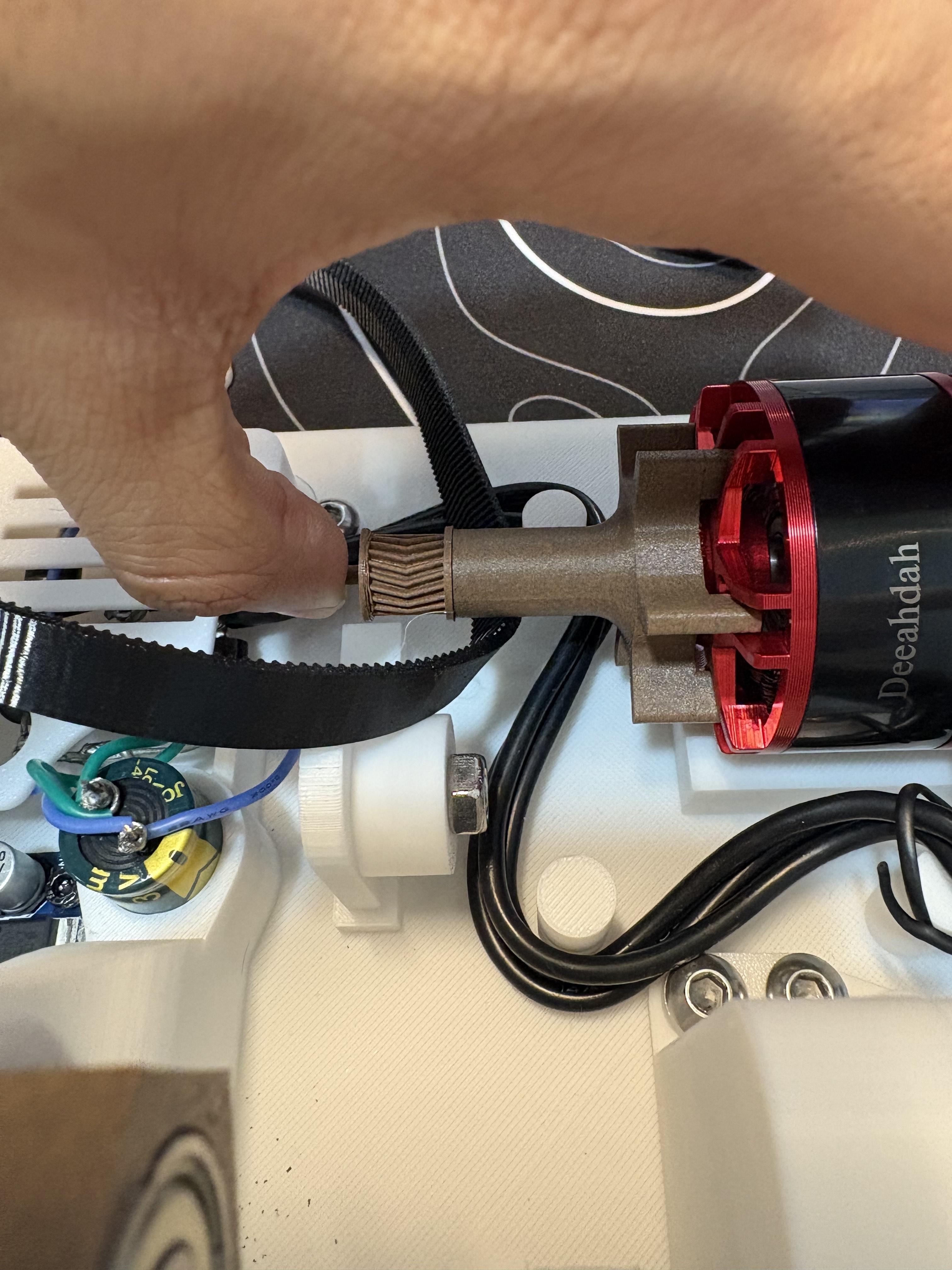
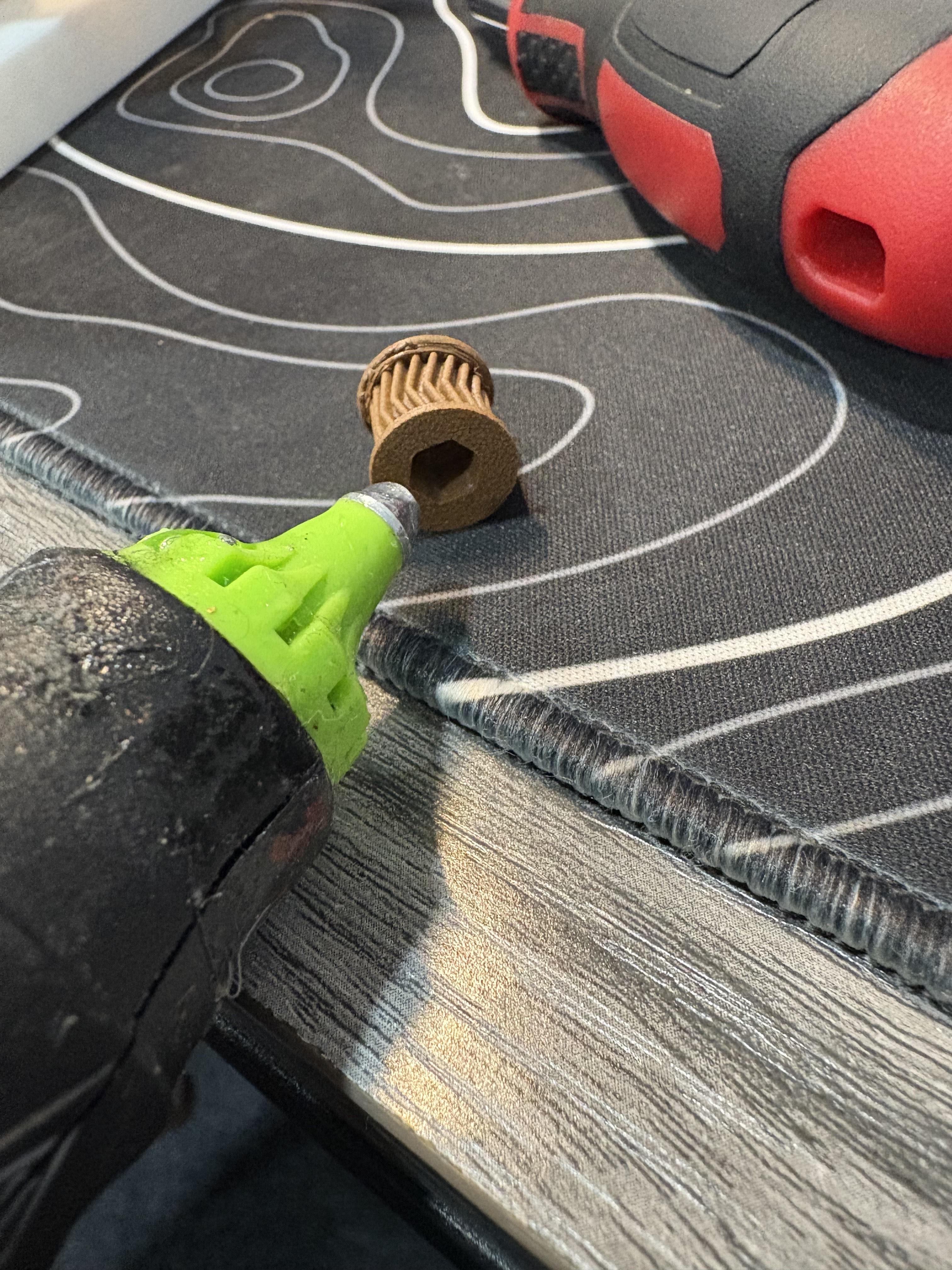
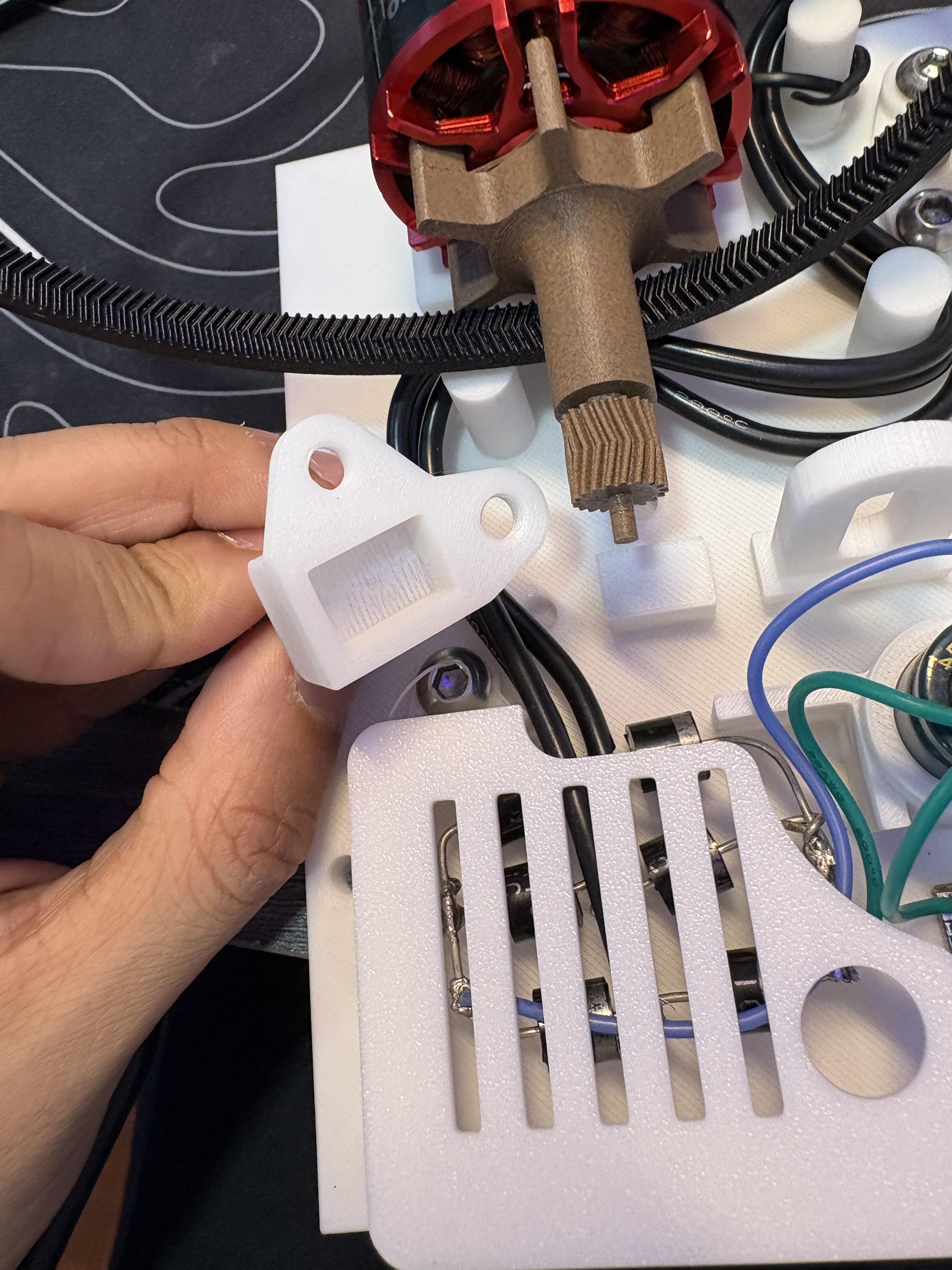
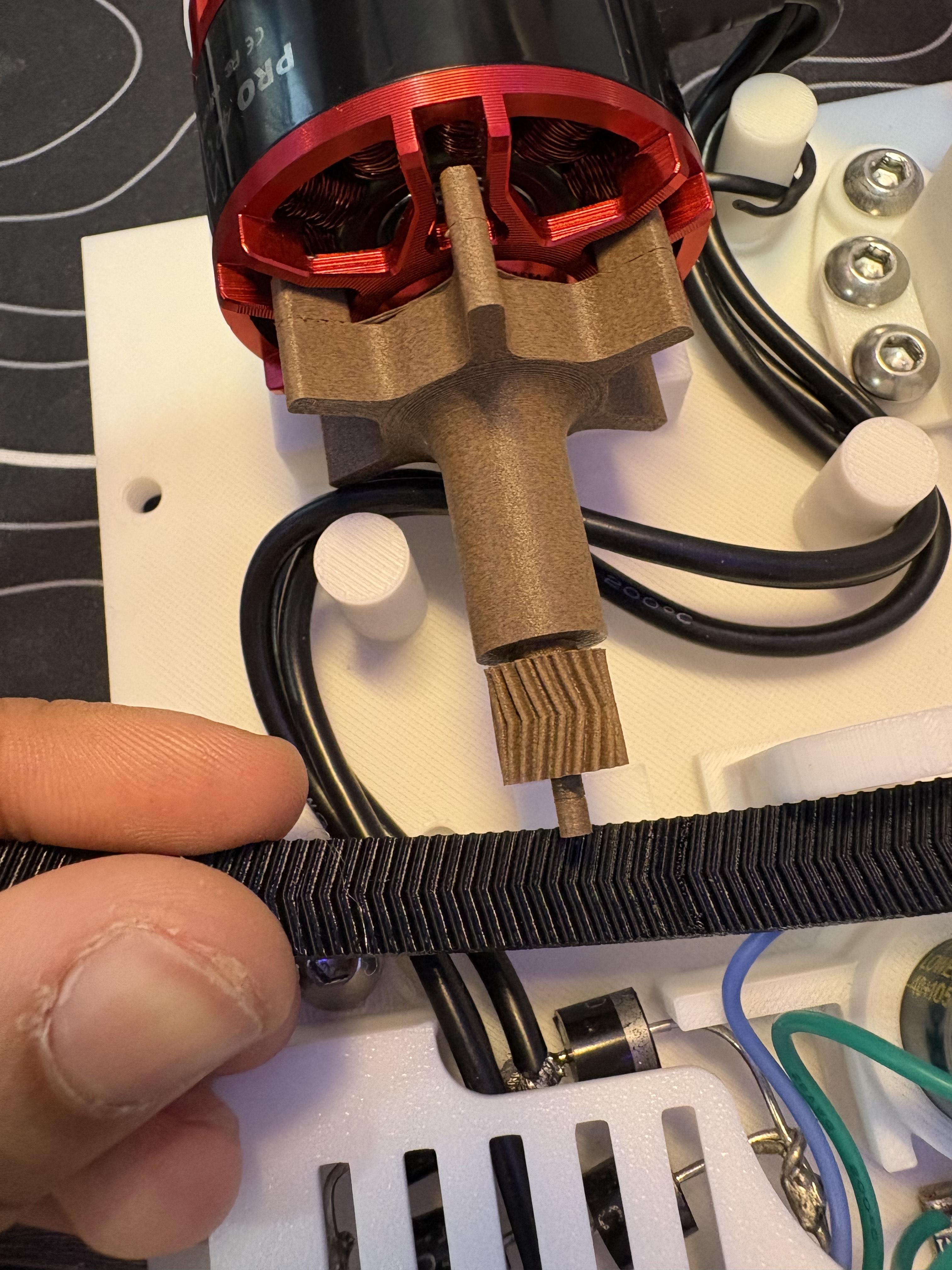
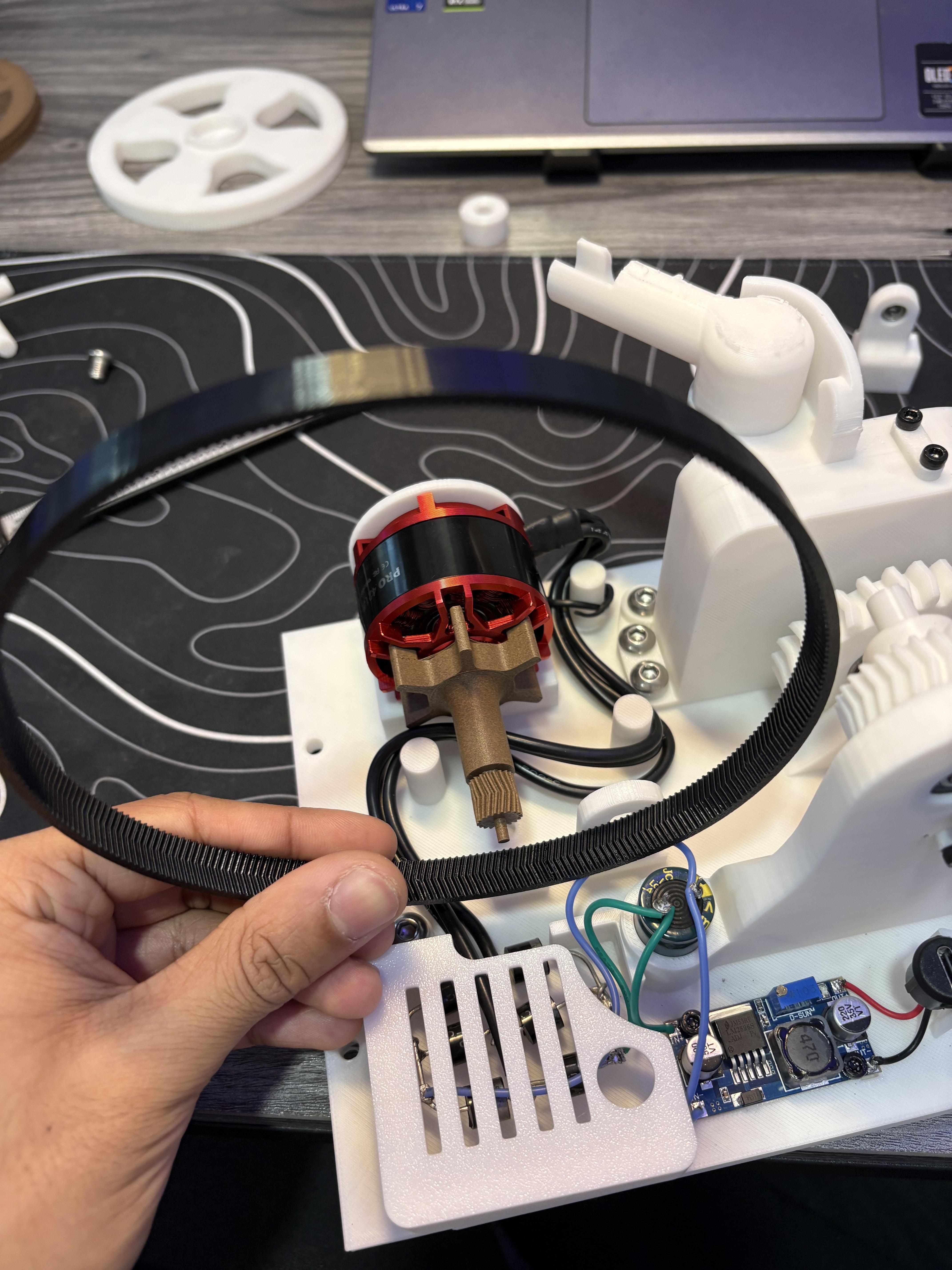
For this step you will need PLA2, PLA14, TPU Belt, (1) 623ZZ Bearing, (1) M6 8mm screw
PLA14 in this step has been updated with side rails to further reduce axial force applied on the belt, setup process is the same however.
Going over to the motor side, First grab PLA14, I'd recommend this part be printed out of PETG since it has a small axle but I have tested this on PLA as well and it also works just as fine. Just a recommendation. Put some hot glue inside PLA14's hexagonal shaft. Plug this in to PLA15 and push as much as you can inward. It should be secure. While drying grab (1) 623ZZ Bearing and PLA2. Push the bearing into the bearing hole of PLA2. Now grab TPU Belt and pay close attention to the alignment of the teeth. Double helical gears were selected for this project since they could help minimize generated axial forces and maintain a grip, and as you were previously setting up the project you noticed that the gears must mesh in a clockwise to counter clockwise configuration. Never clockwise to clockwise. For the belt, it is not true. They will both actually be in the same direction in order to mesh. Pay close attention to the photo where the belt is lined up with the gear. Notice the direction of the teeth that both belt and gear face. That will be the direction that belt must be mounted in. Slide the belt under PLA15. We will need it later.
Take the completed PLA2 and align its rectangular port to the rectangular extrusion right below PLA14. The bearings input hole must align with the shaft of the gear (PLA14) while also aligning its rectangular port to the baseplate. It will take a little bit of wiggle but they should slide loosely. Secure PLA2 down to the baseplate with (1) M6 8mm screw.
Idler Pulley Installment
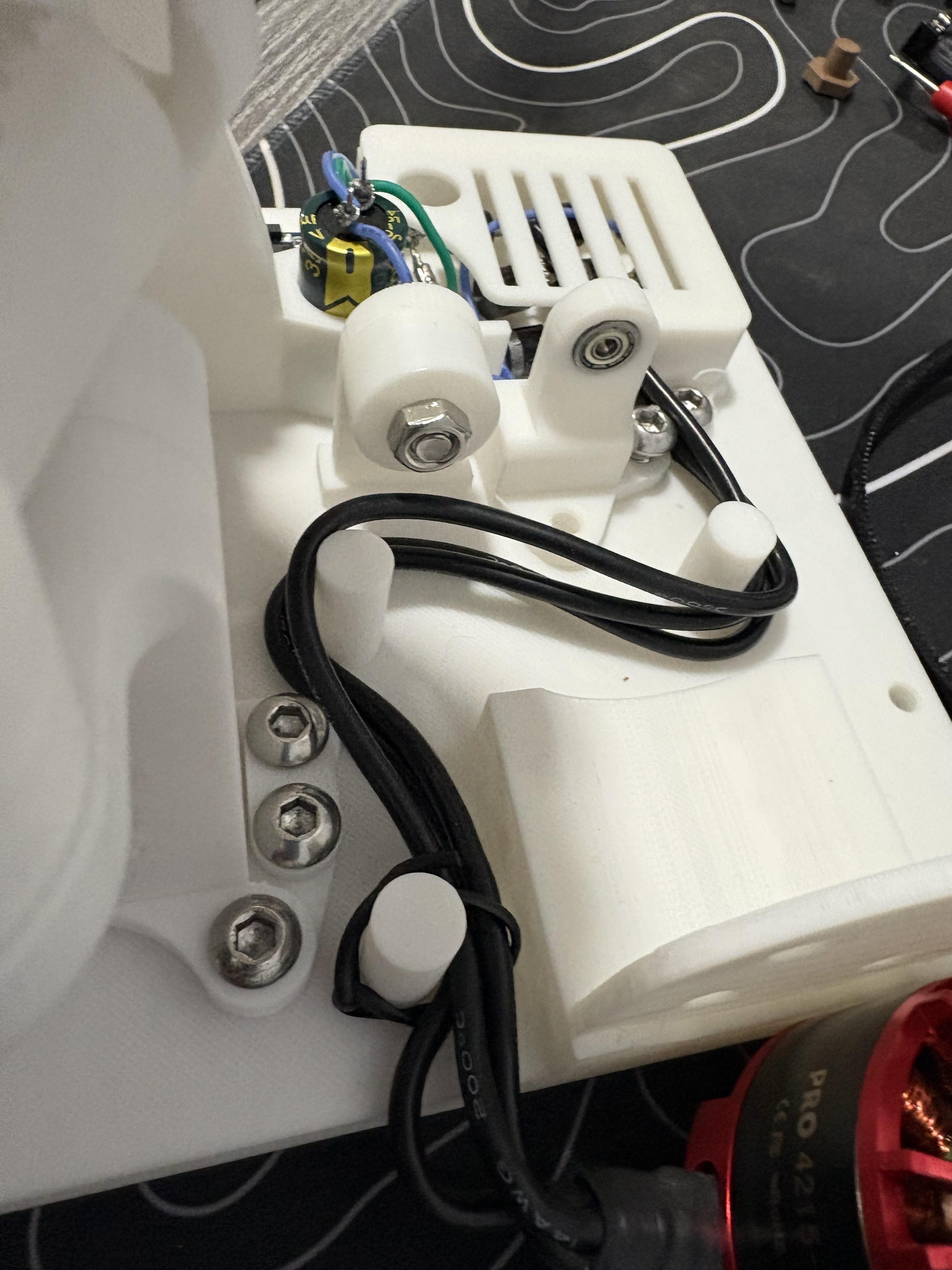
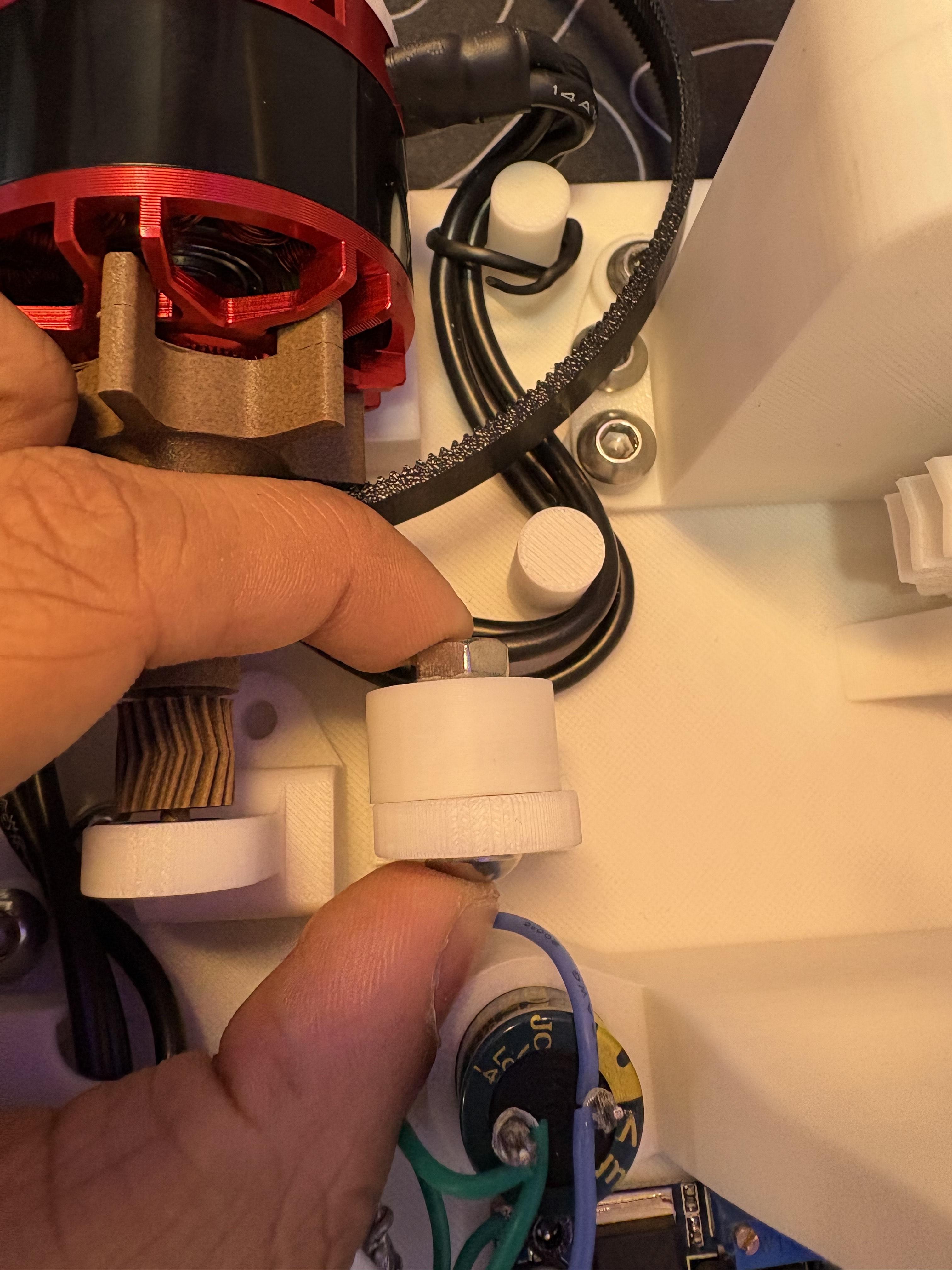
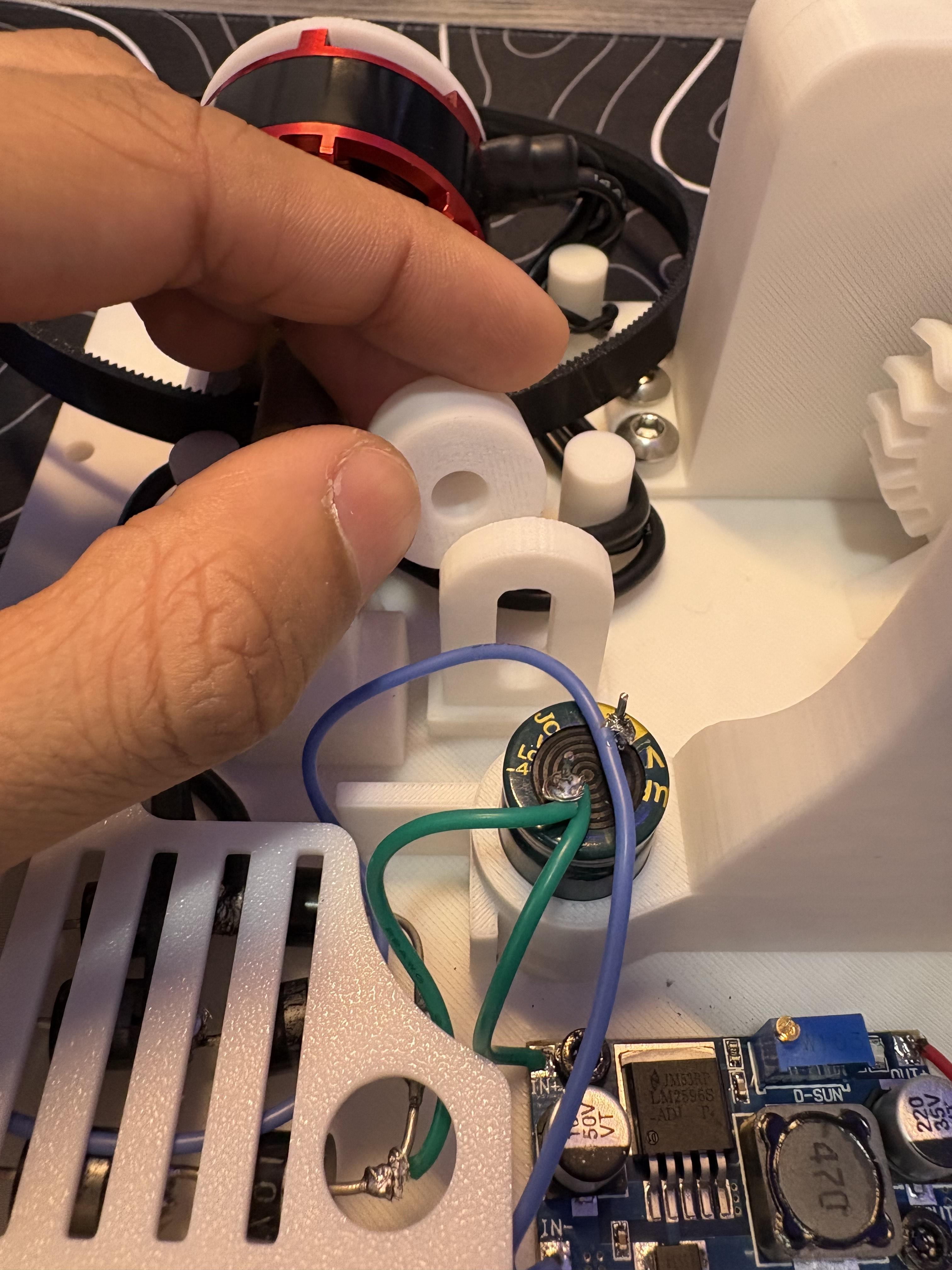
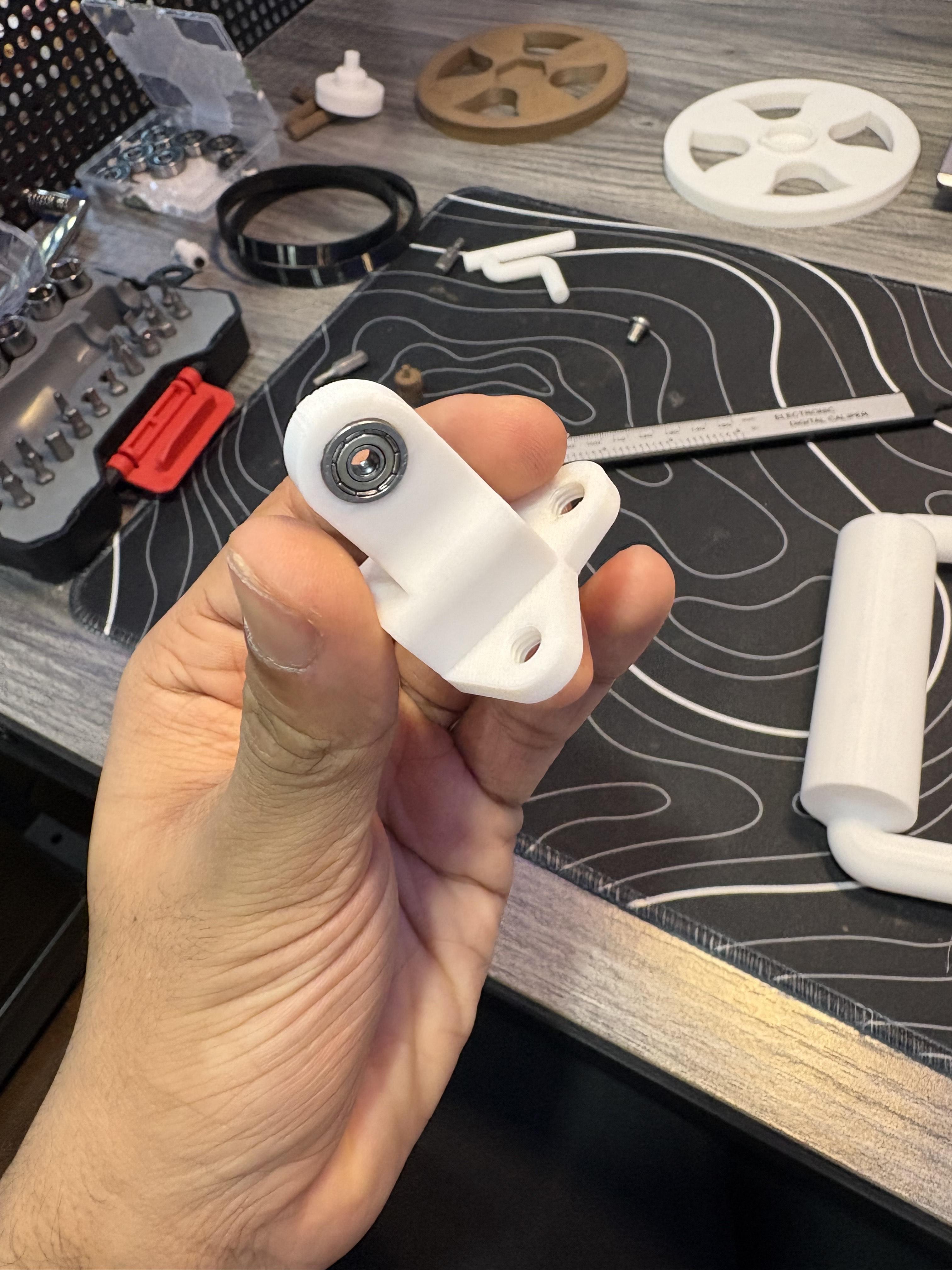
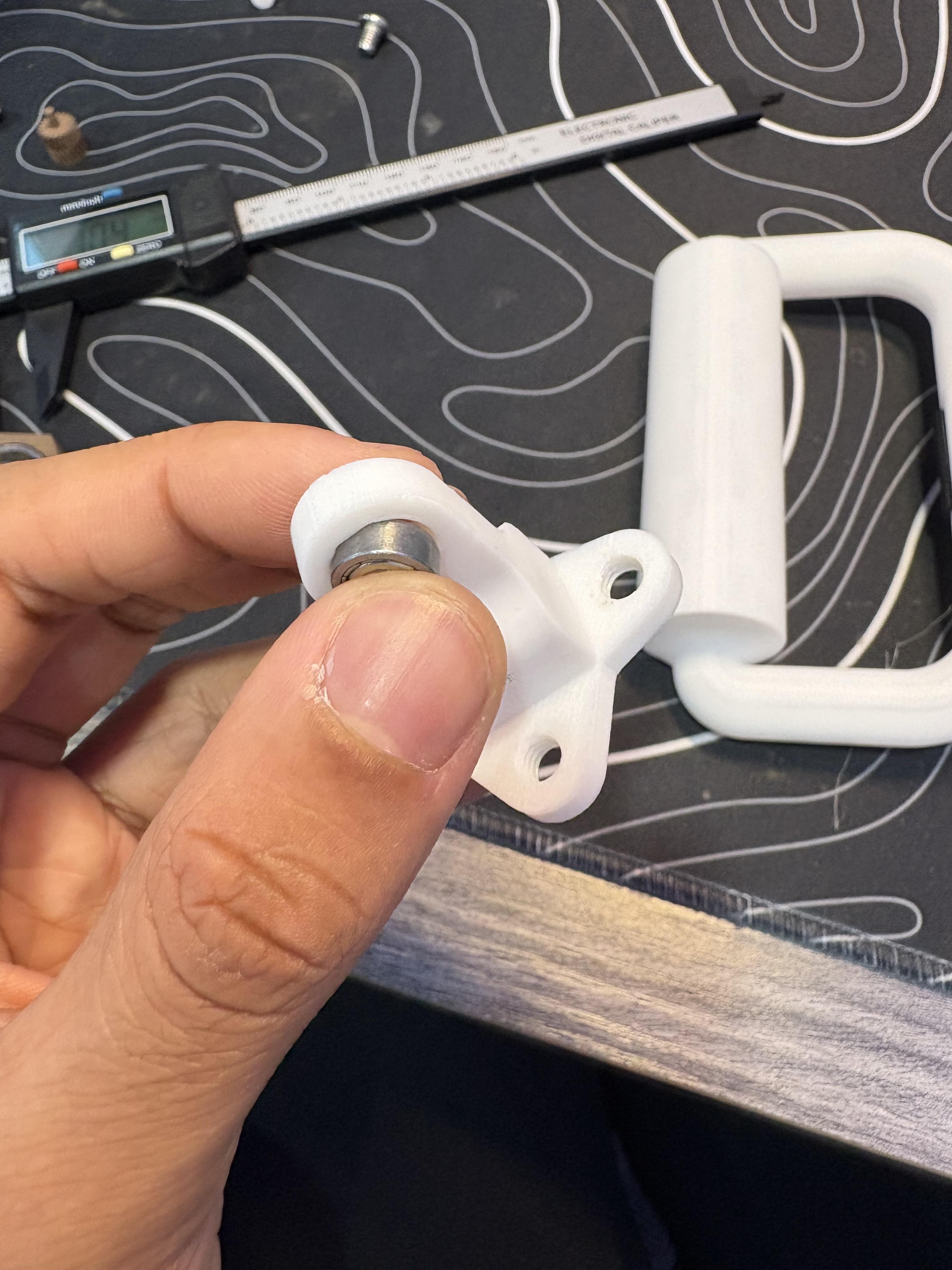
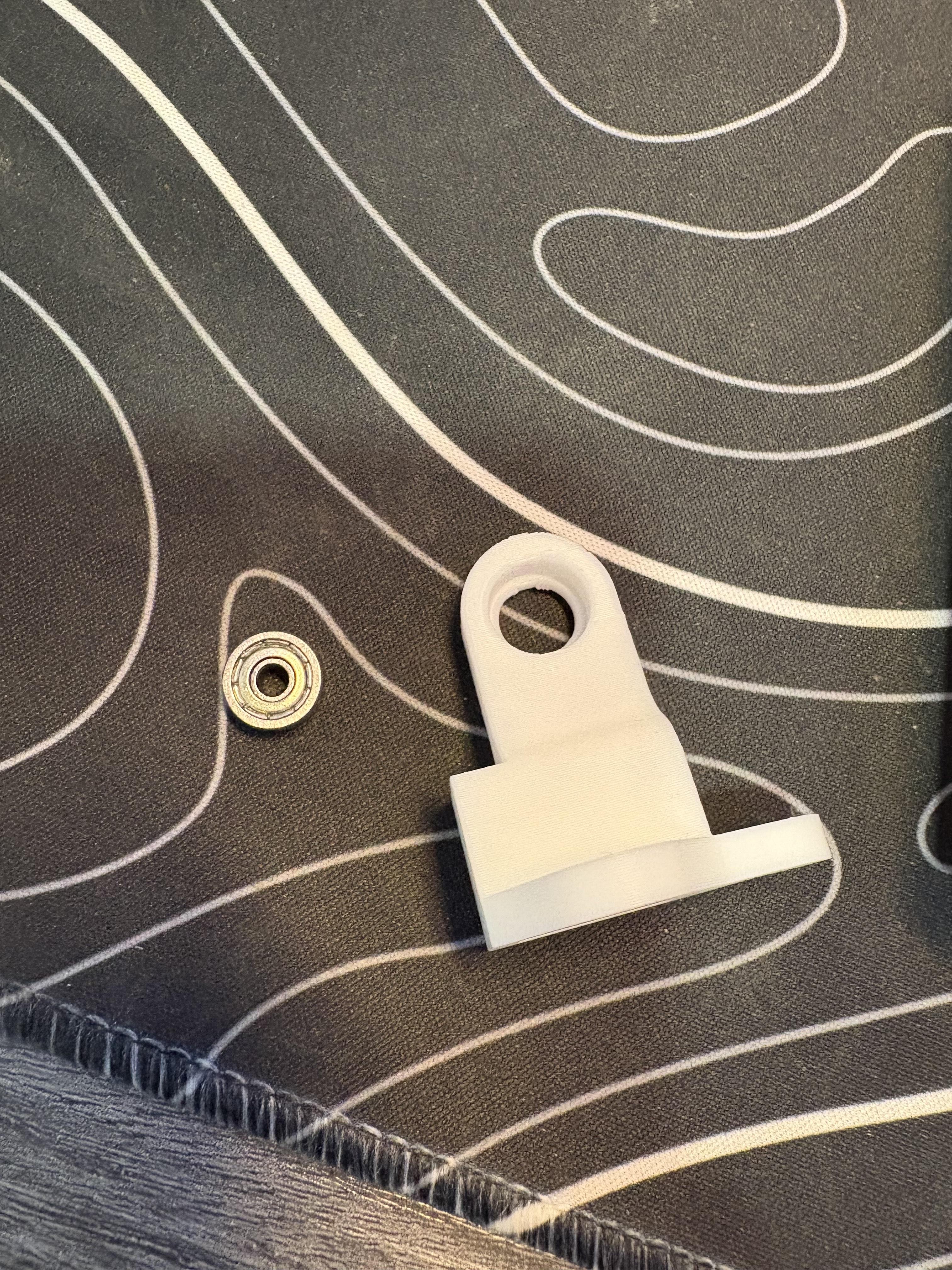
For this step grab PLA25, (1) M6 20mm screw, (1) M6 hex nut.
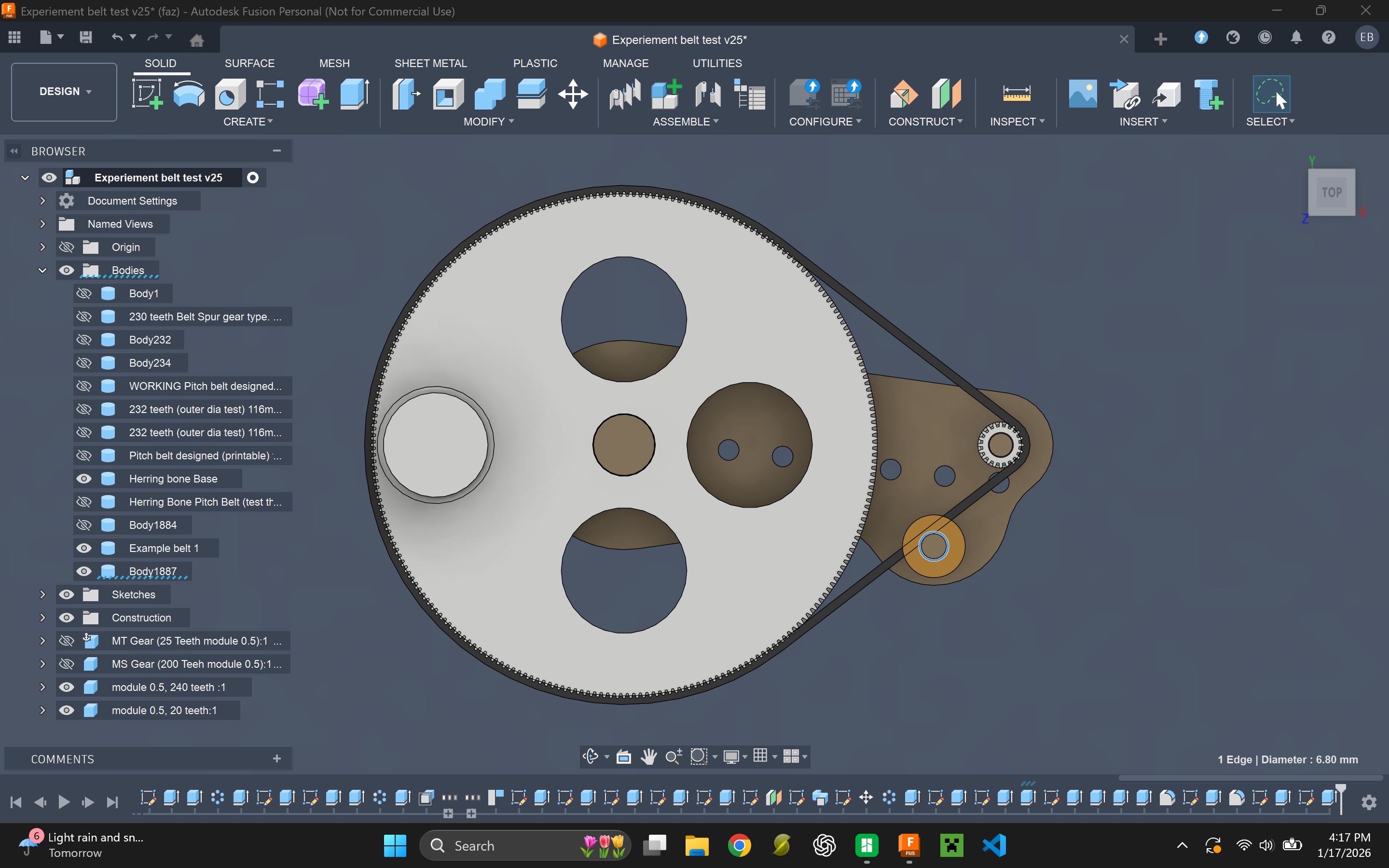
Notice next to PLA2 there is a stand that is oval shaped pointing upward with a oval shaped hole right in its center. Push PLA25's holes along with it, make sure they line up. This is the idler tensioner therefore this is a adjustable tensioner system. I'd recommend placing PLA25 3/4s upward on the oval track for great tension. I had strong results when I placed the pulley (PLA25) there. Run a M6 20mm screw through there, it will be very easy as the hole is big so no need to actually screw anything, but you will secure it by fighting a hex nut on the screw. Which will clamp PLA25 down onto the oval track. Feel free to play with the idler tensioner to get different results for different belts. Or even feel free to modify the file for increased track length to place even smaller resistance gears. This idler tensioner due to it's current track size will support 12:1 and 11:1 overdrive configurations given module size is 0.5.
Installation of Resistance Gear and Hex Clutch
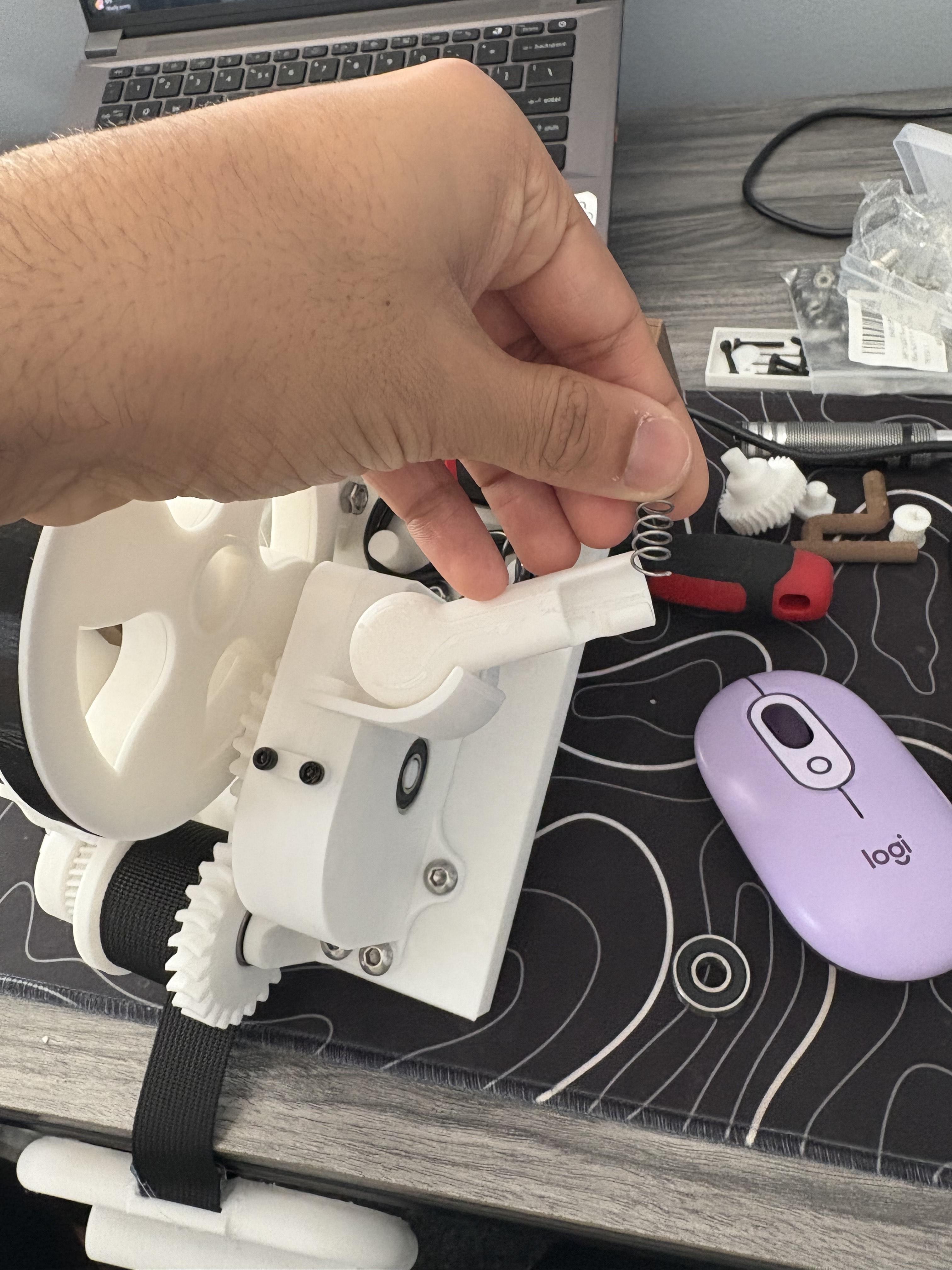
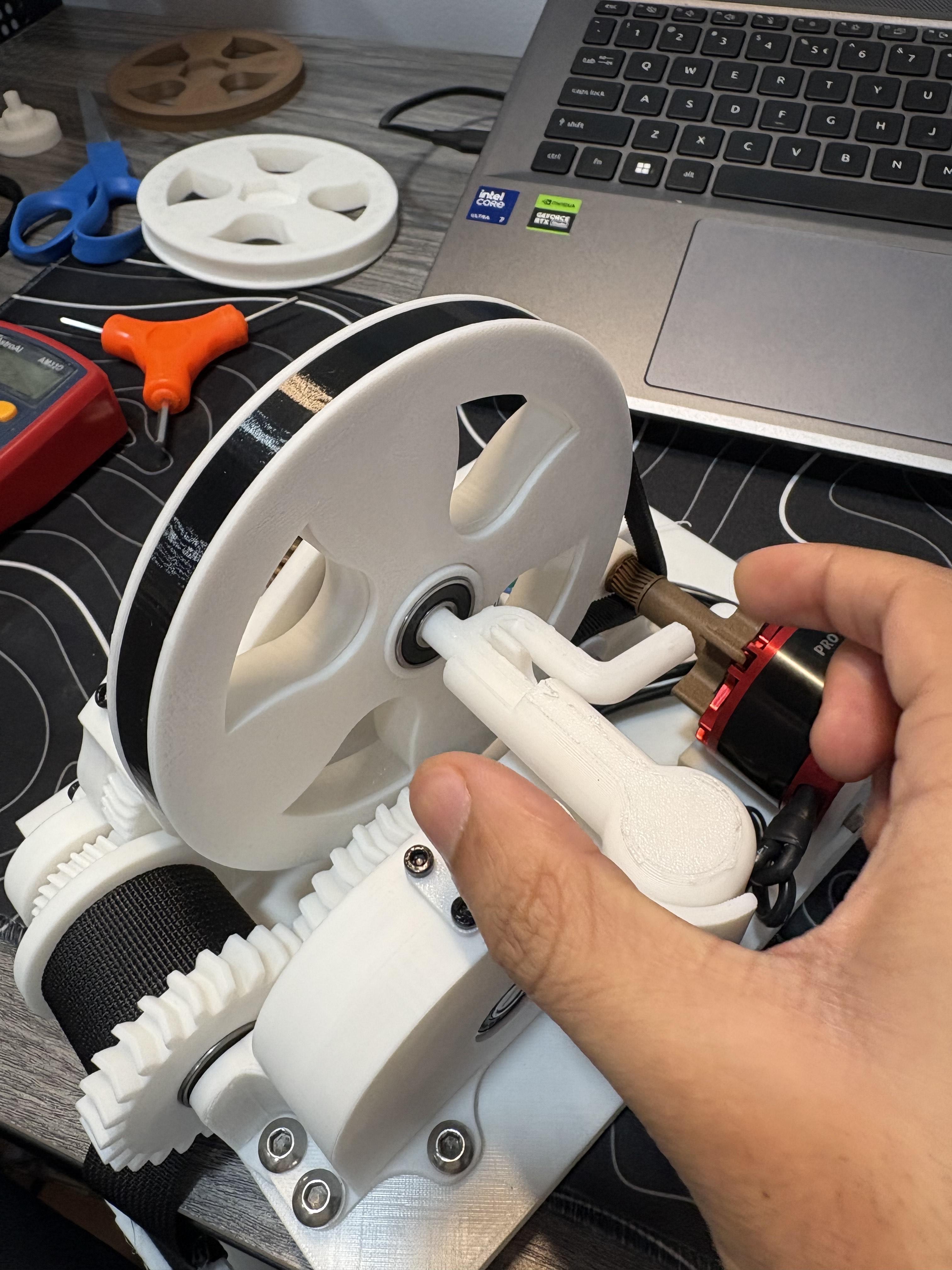
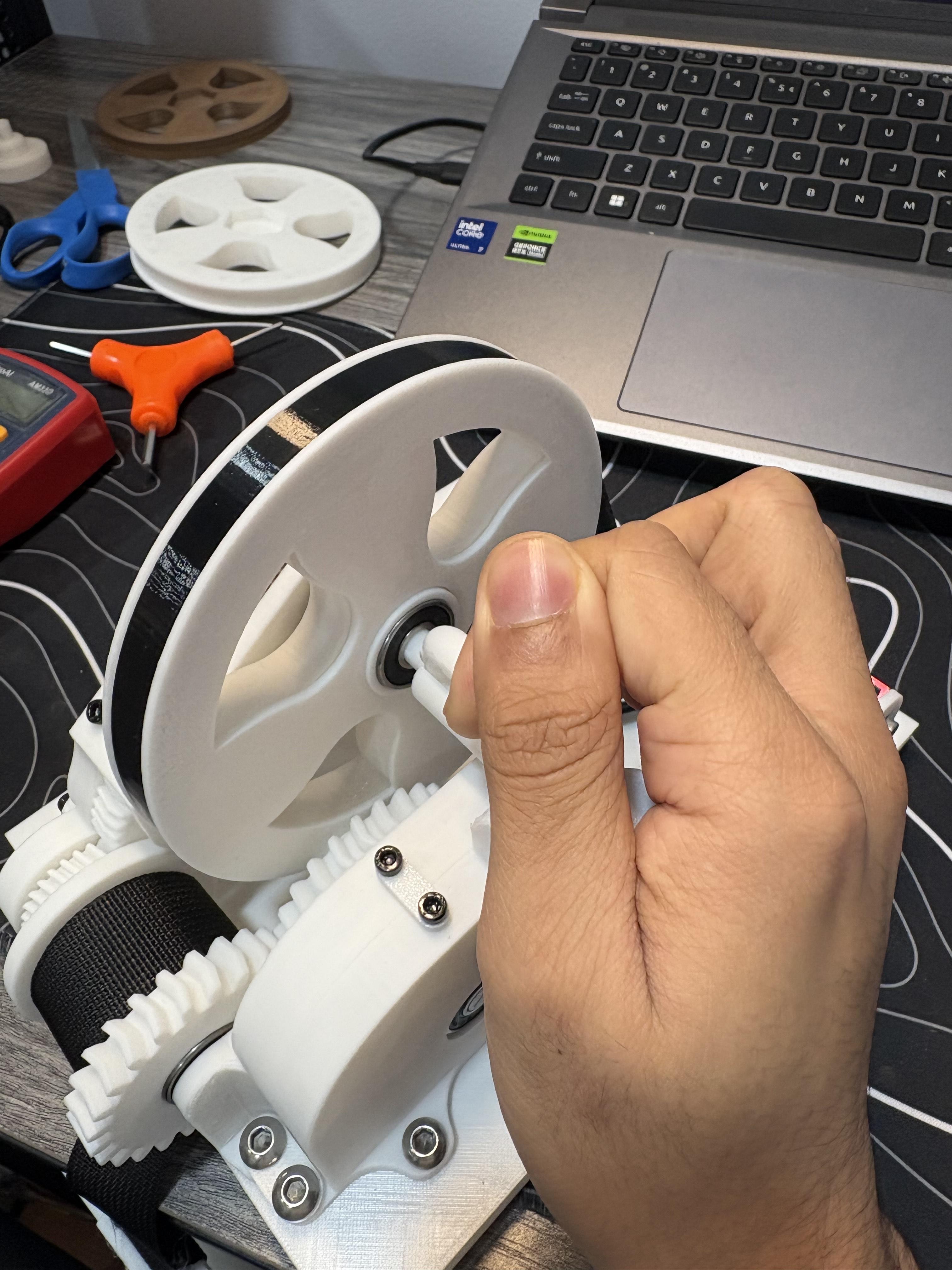
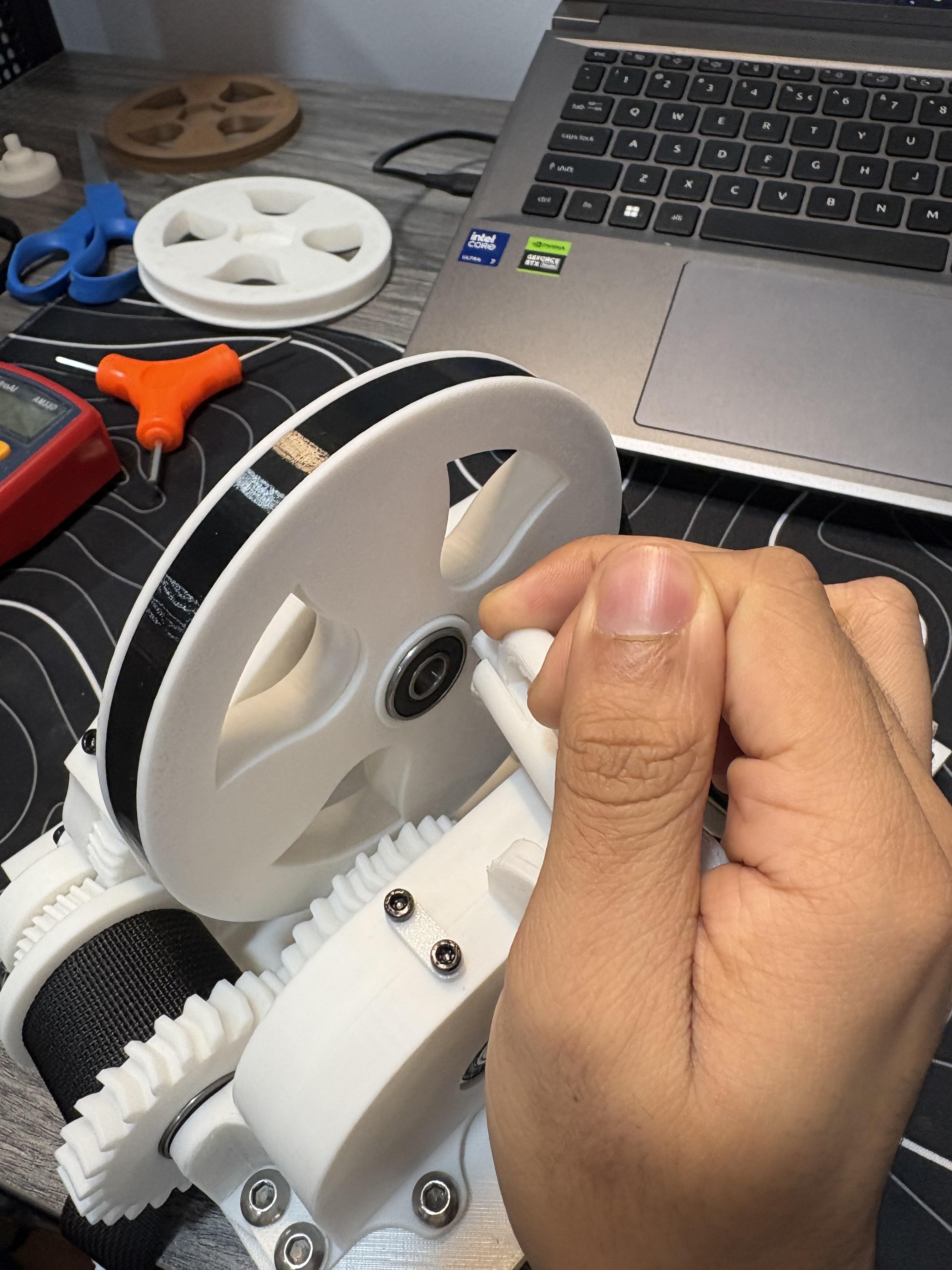
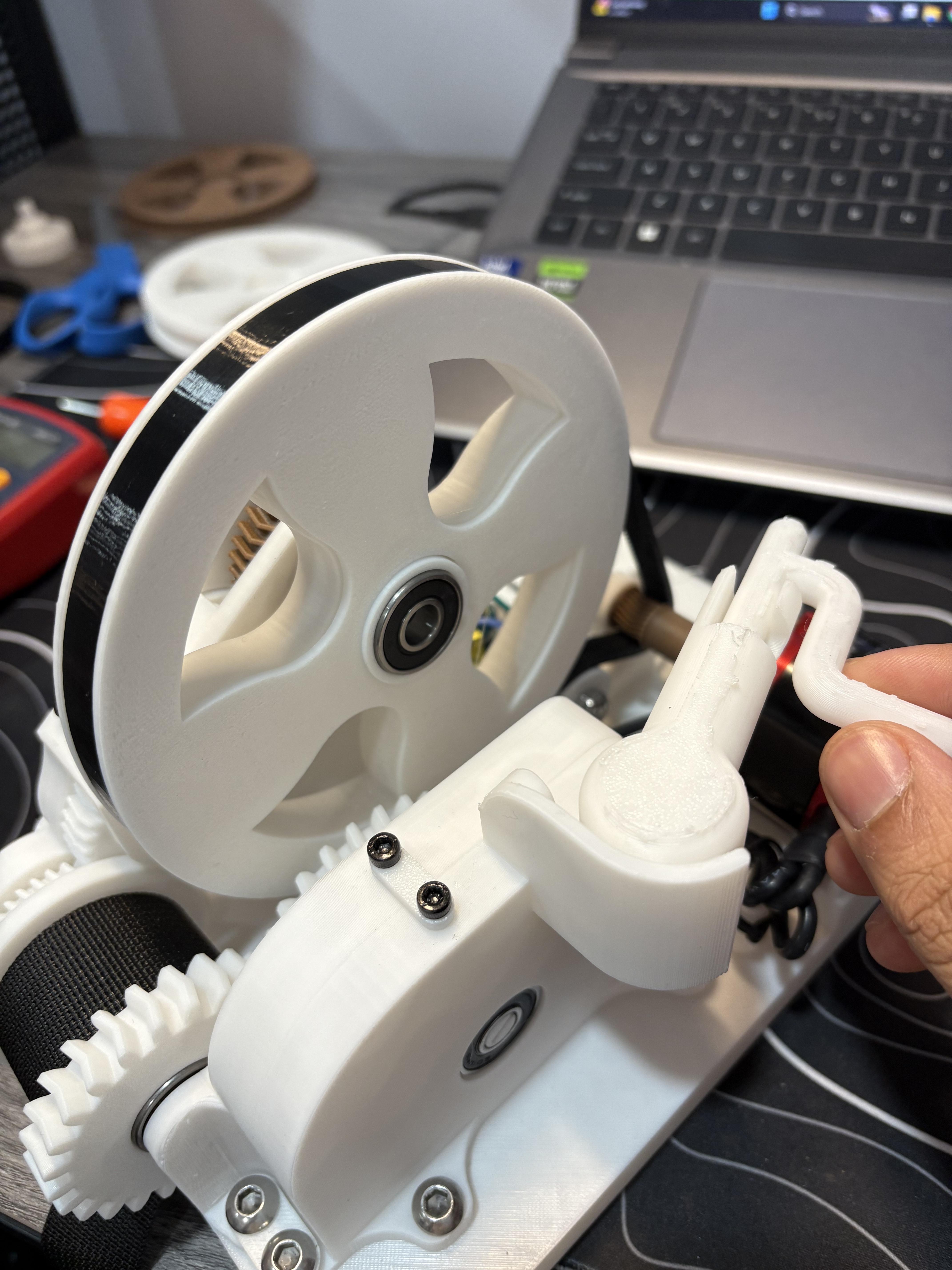
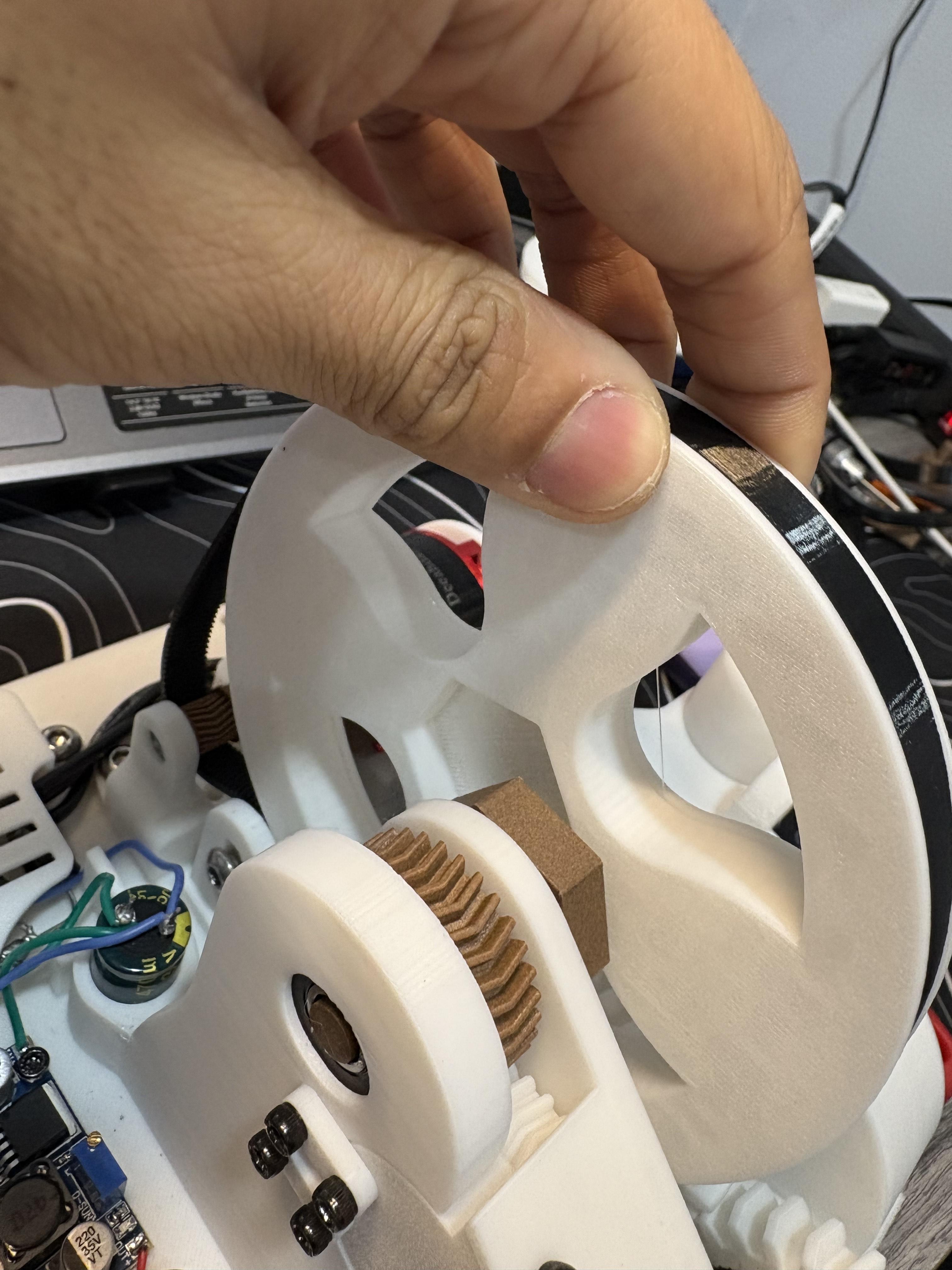
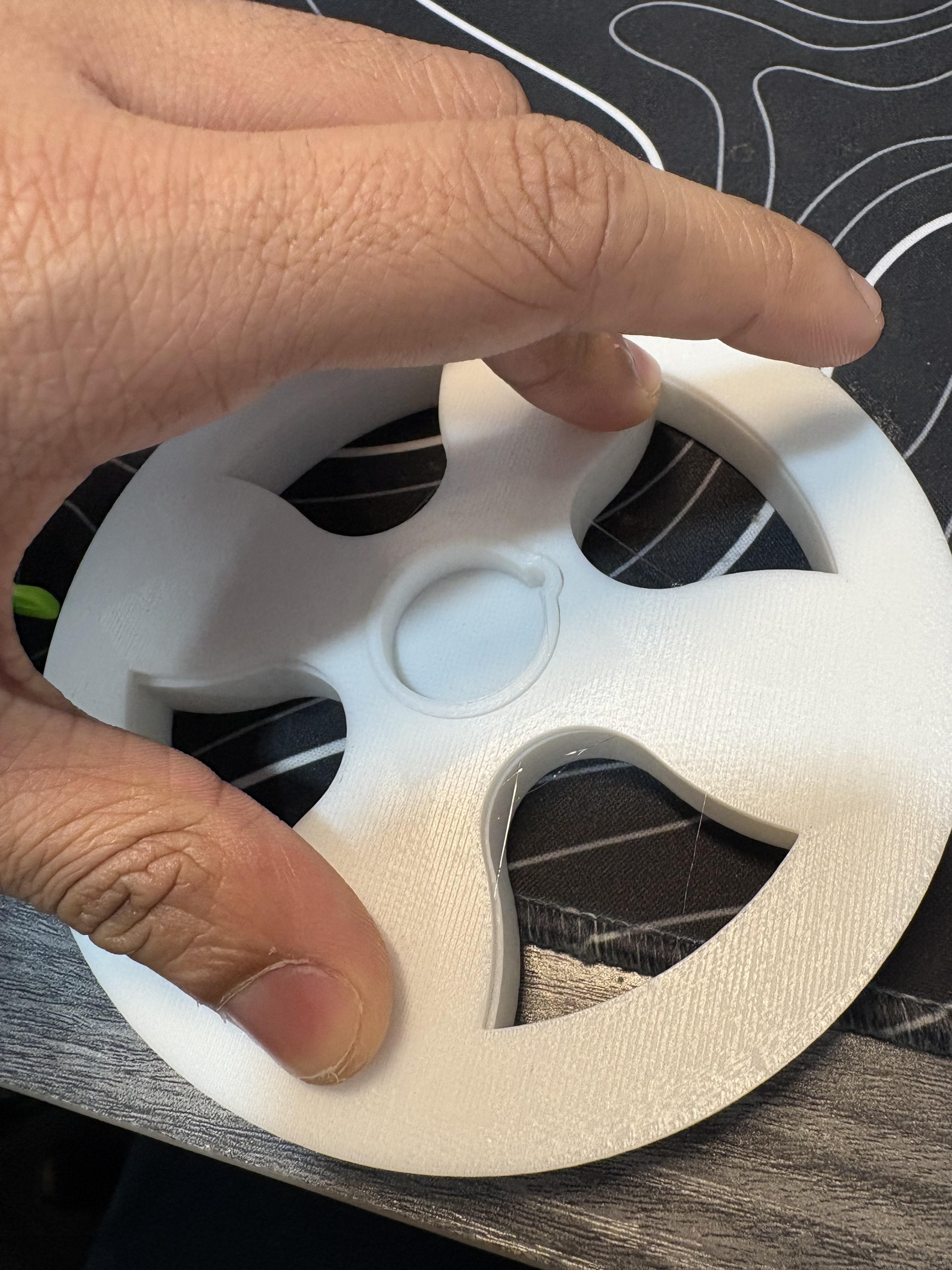
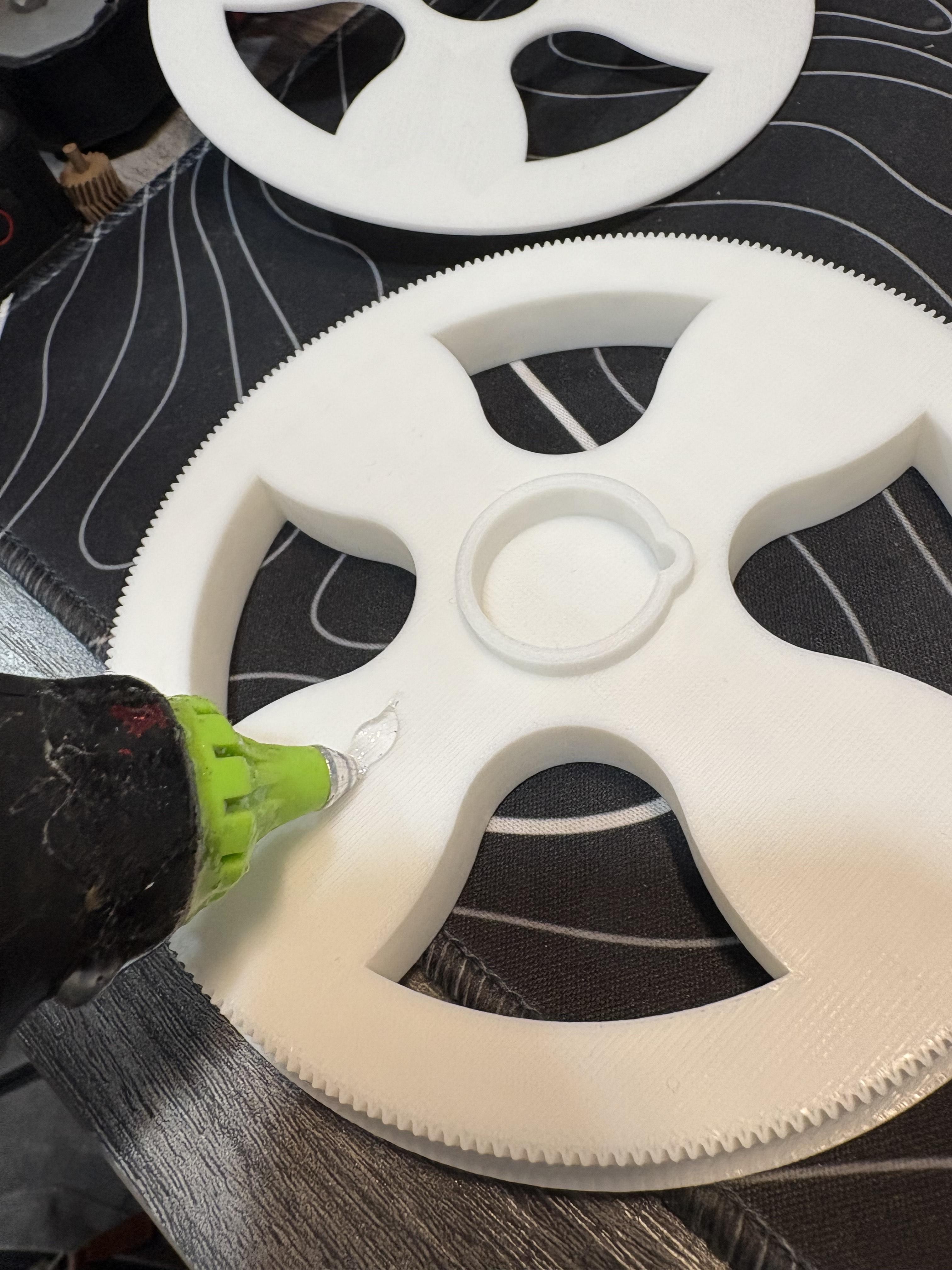
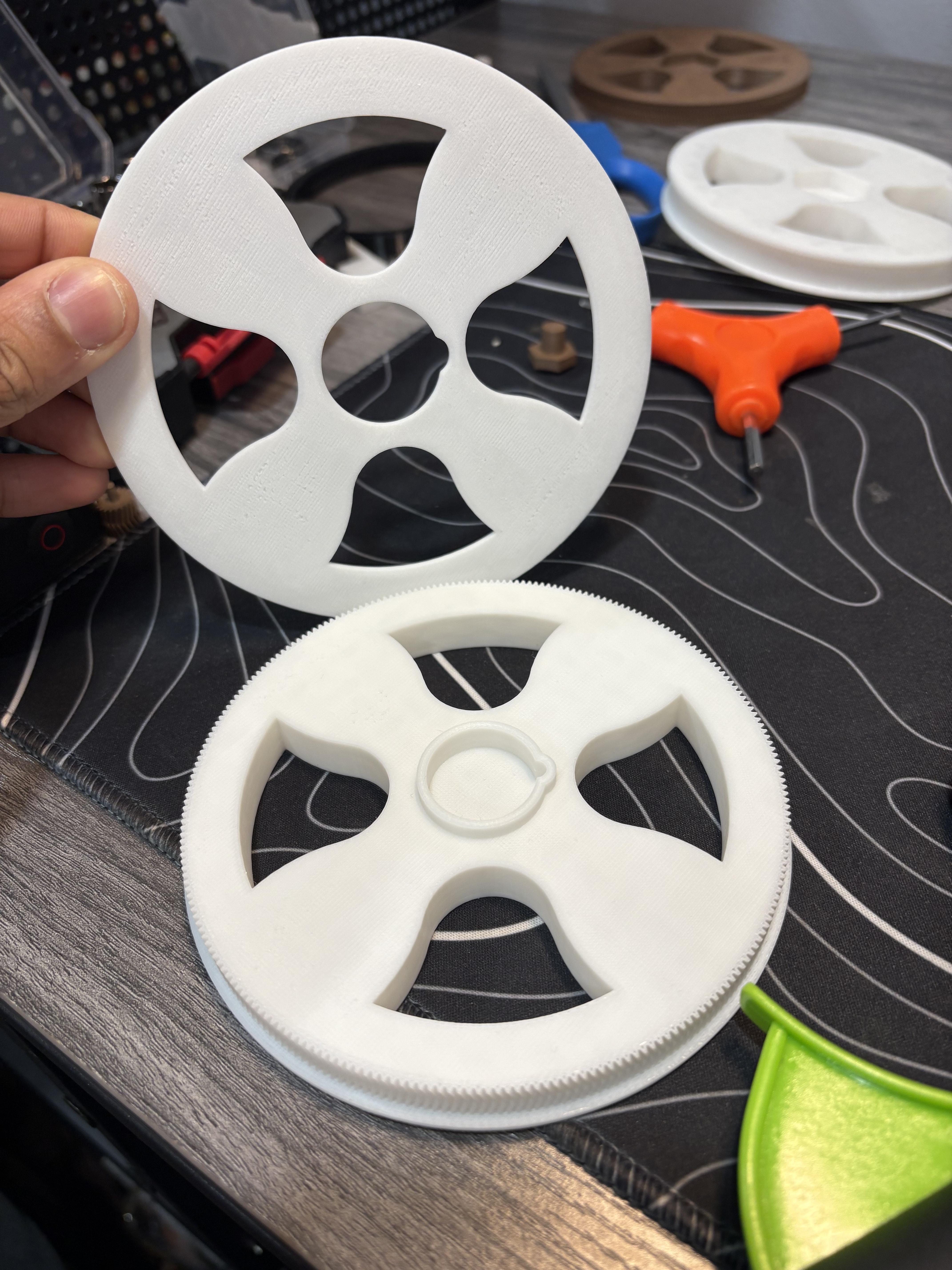
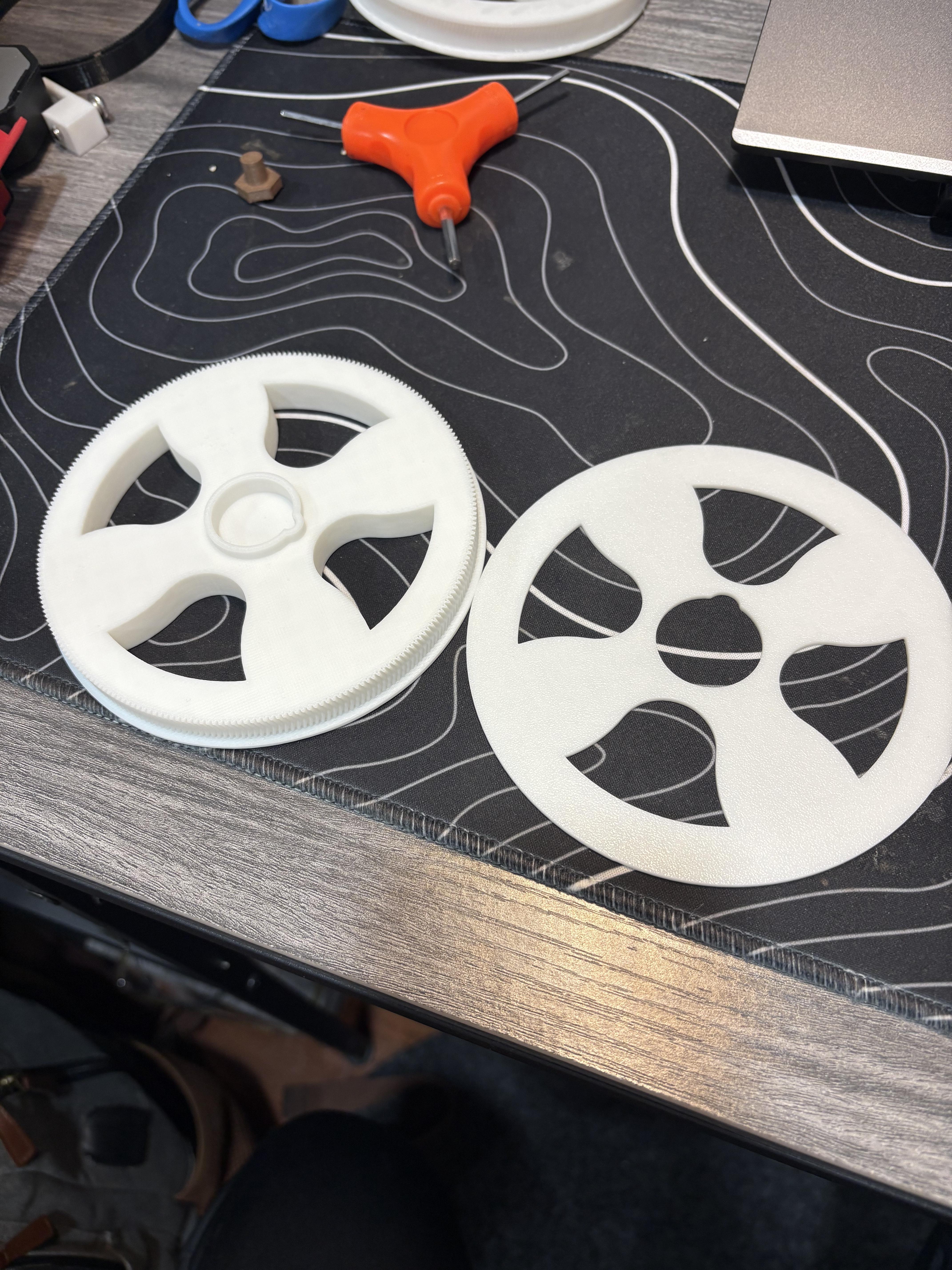
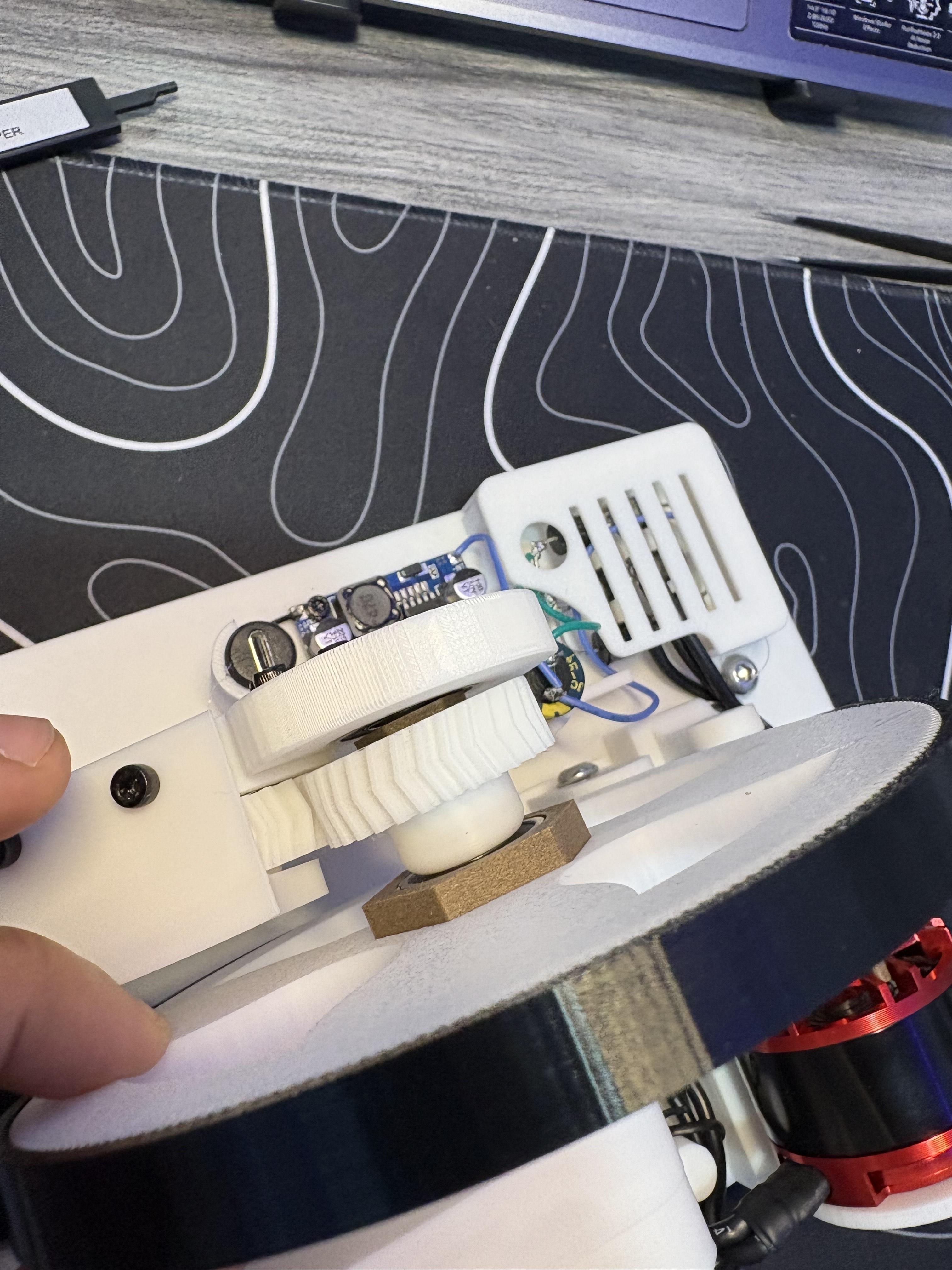
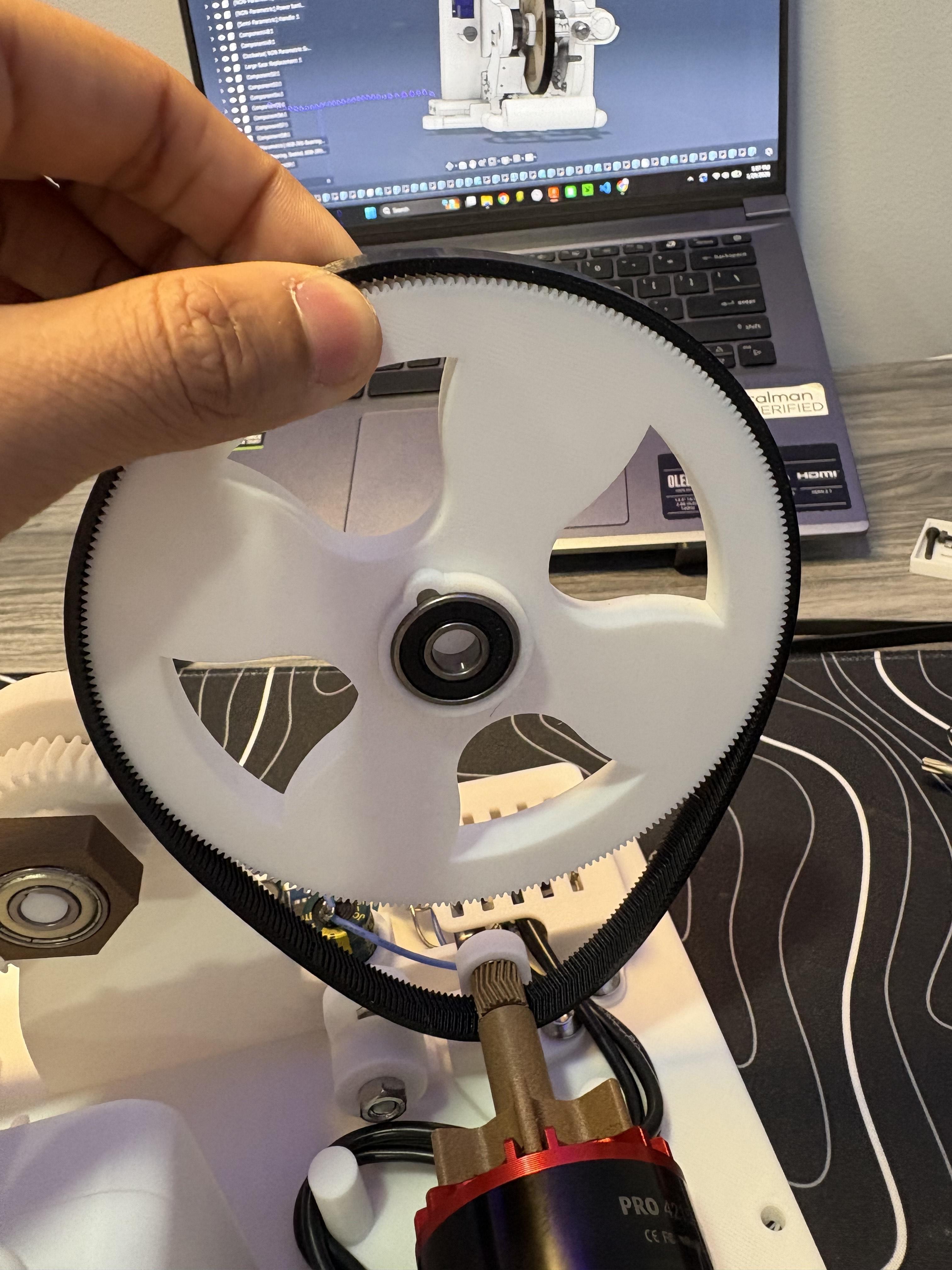
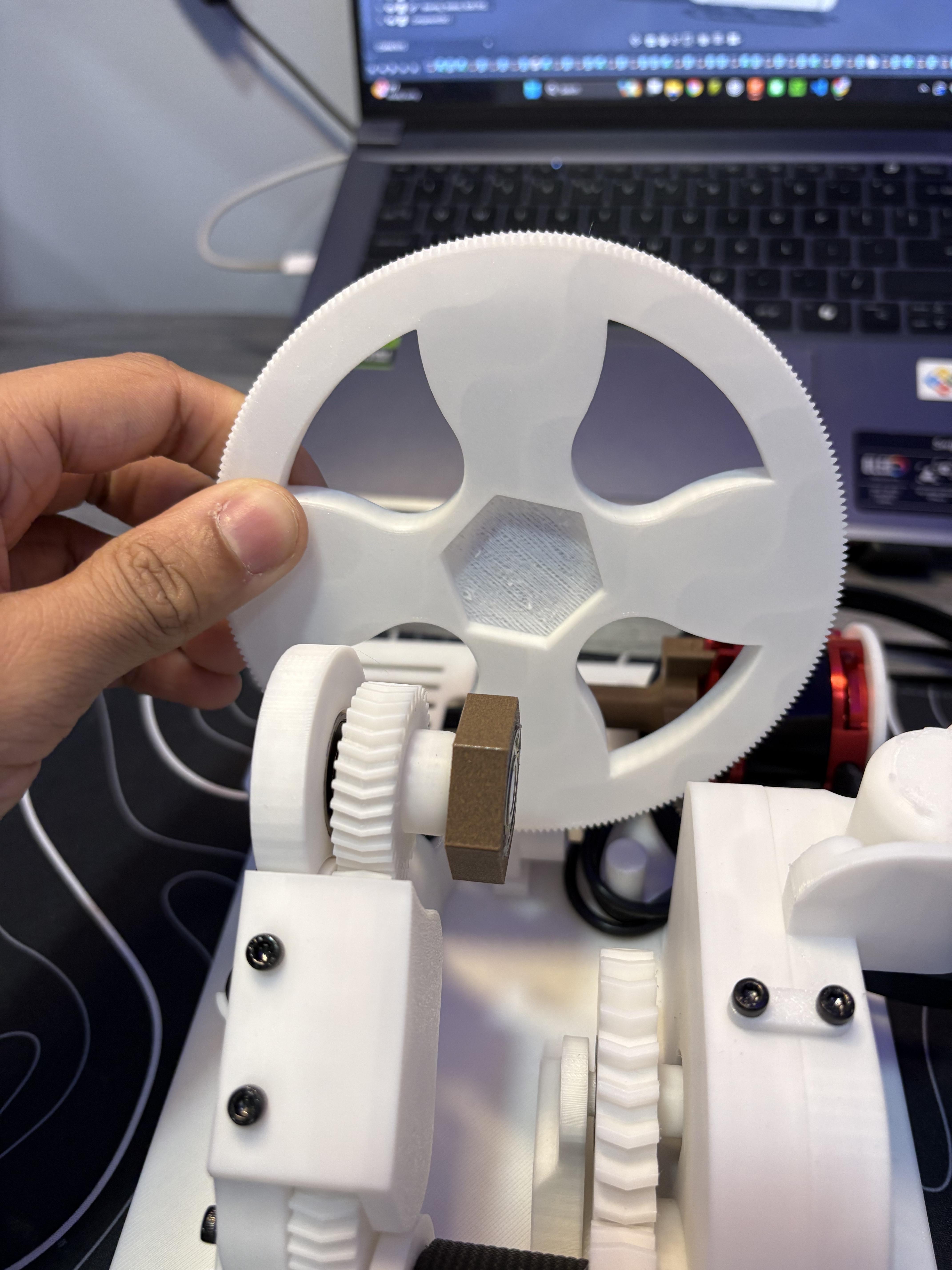
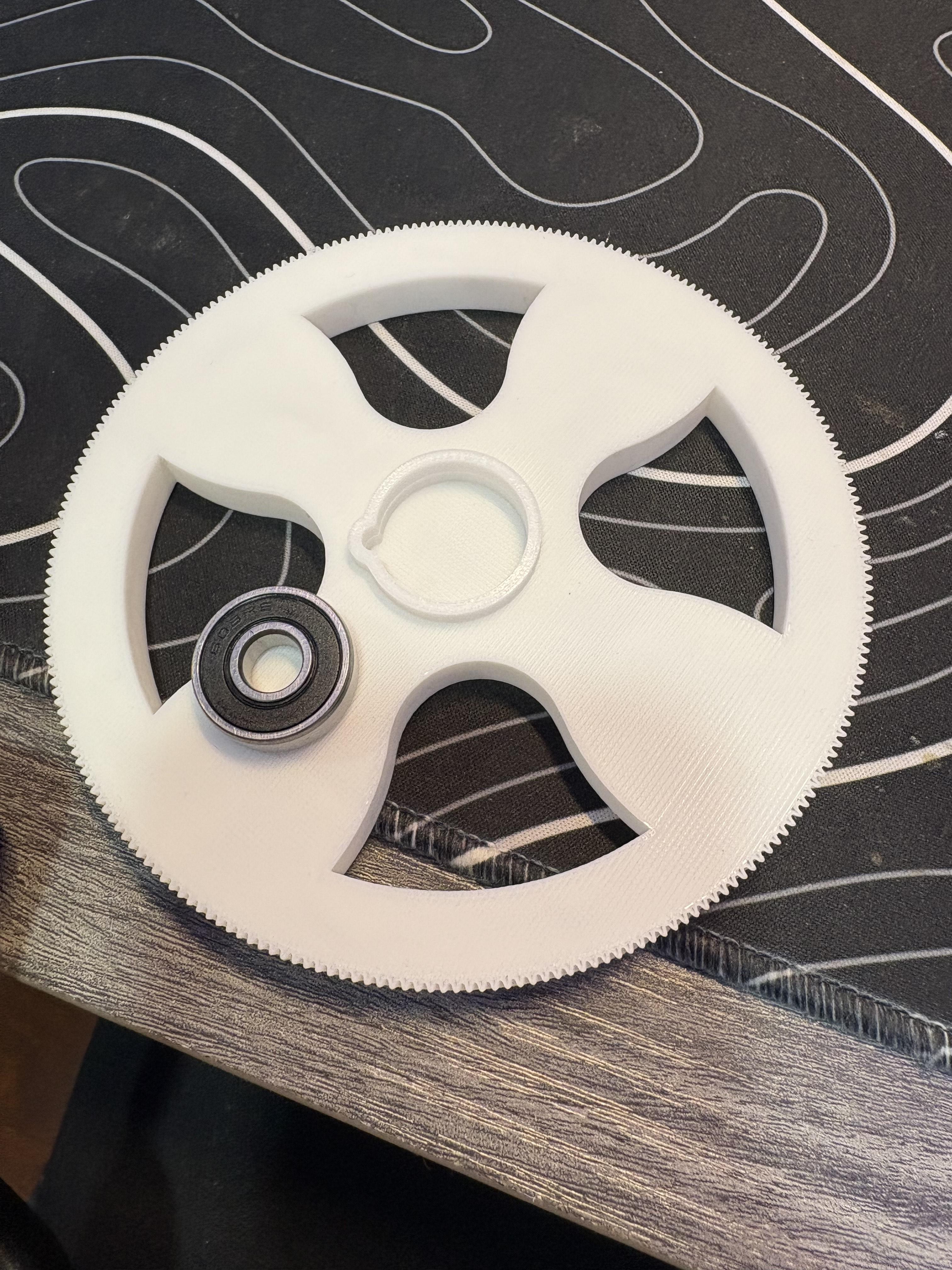
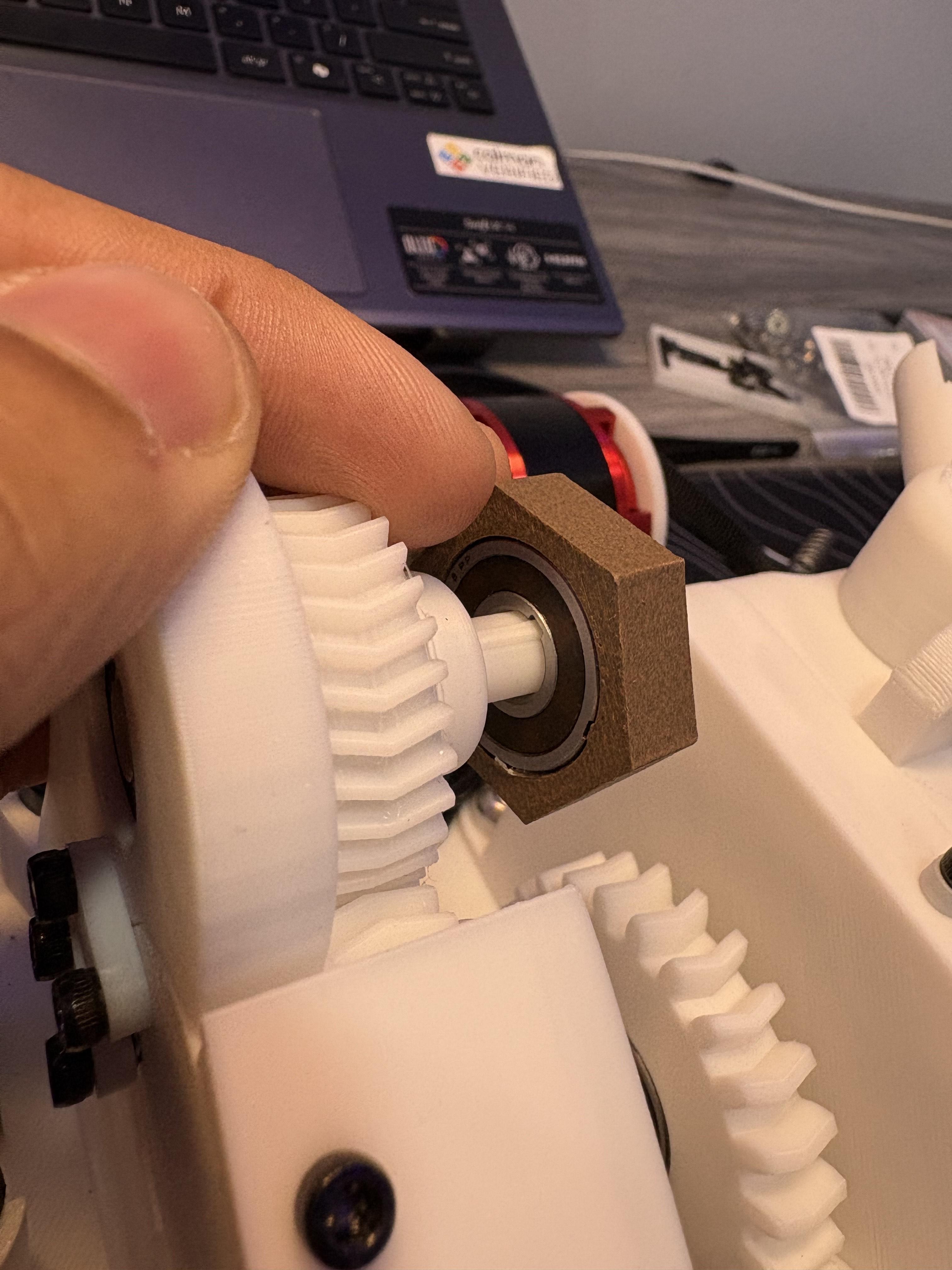
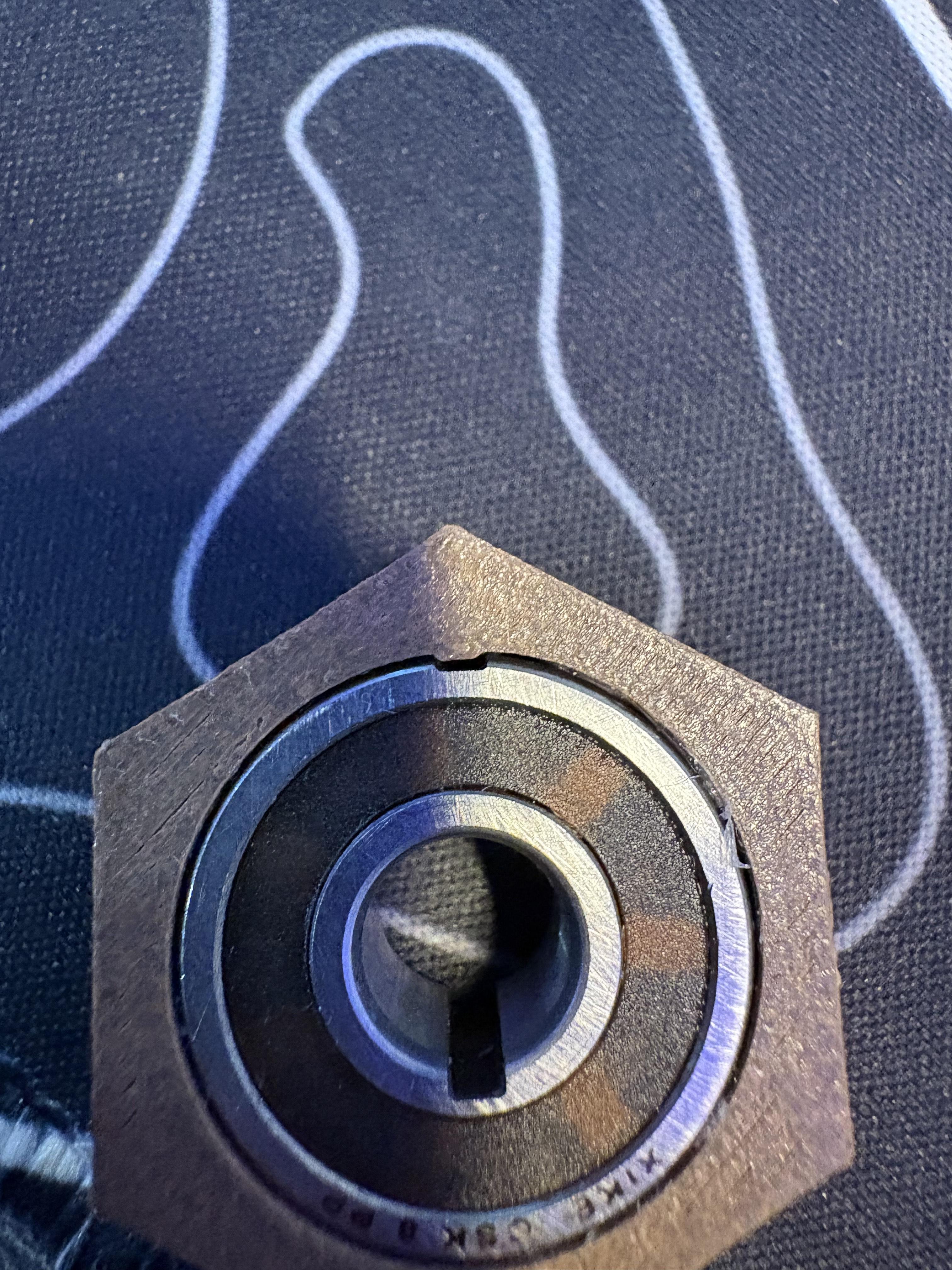
For this step you will need a 50mm compression spring, PLA40, PLA41, (1) 608 2RS Bearing, (1) One Way Clutch Bearing, PLA10, and PLA12
PLA40 was modified to have side rails as well for this step. Setup process is the same.
Begin by laying out PLA40 and PLA41. Notice the PLA41 slides right on top of PLA40 with its bearing hole. Before aligning them together, place hot glue on the surface of PLA40 on the side where the bearing hole is. Then press on PLA41 on top. Push them together and now the side rails of the flywheel gear are complete. This will help minimize axial forces. Press a bearing into the bearing hole of PLA40 and place it aside for now.
Take the One Way Clutch Bearing and PLA10, pay close attention to the most outer keyhole on the clutch bearing, as PLA10 has a tab that faces inward that presses down on this keyhole. This helps secure the movement better. Take this completed Hex Clutch and align it's inner keyhole with the axle of PLA32. PLA32's axle also has a tab but it presses outward onto the inner keyhole of the clutch bearing. Again to secure movement and prevent slip. Make sure the Brown-O-Ring side of the One Way clutch bearing faces the axle of PLA32 for the correct direction of movement. The good thing is it is designed to be loose for quick swapping so even if you do mess up the direction it should be fairly easy to swap the direction.
Take the completed resistance gear (PLA40 + PLA41) and run the belt through the teeth of the gear. Make sure the bearing hole side faces the spiral spring enclosure while the hexagonal input side faces the transfer mechanism side. Push it up and check to see if the teeth resist. THEY SHOULD NOT PUSH OUTWARD OR RESIST. It should mesh properly. If not the belt had a miscalculation that involved a error in tooth spacing ( This is for those who made a custom belt. If you are using the one provided then there will be no error. just print it at the minimum layer height your 3D printer can provide). The resistance gear's hexagonal port must align with the Hex Clutch and press inward for energy transfer, so take the gear ( with the belt still running through it) and go over the idler tensioner, it will feel very tight but you will have to fight it a little bit, but press on and align the hex clutch with the port of the resistance gear. Push all the way through in.
Take your 50mm compression spring, and cut it down to 21.5mm, then place it inside the tube of PLA11. Take PLA12 and push the longest side of the axle into PLA11's hole. Feel free to hot glue the spring to the long side of PLA11 but it's not necessary. Take the arm of PLA12 and press down into the shaft of PLA11. Rotate PLA11 until its shaft is parallel and aligned up against the bearing embedded on to PLA40. Let go of the handle and the axle will slide into the hole of the bearing. Securing the resistance gear onto the clutch and output gear.
Mounting the Topside Desk Bracket
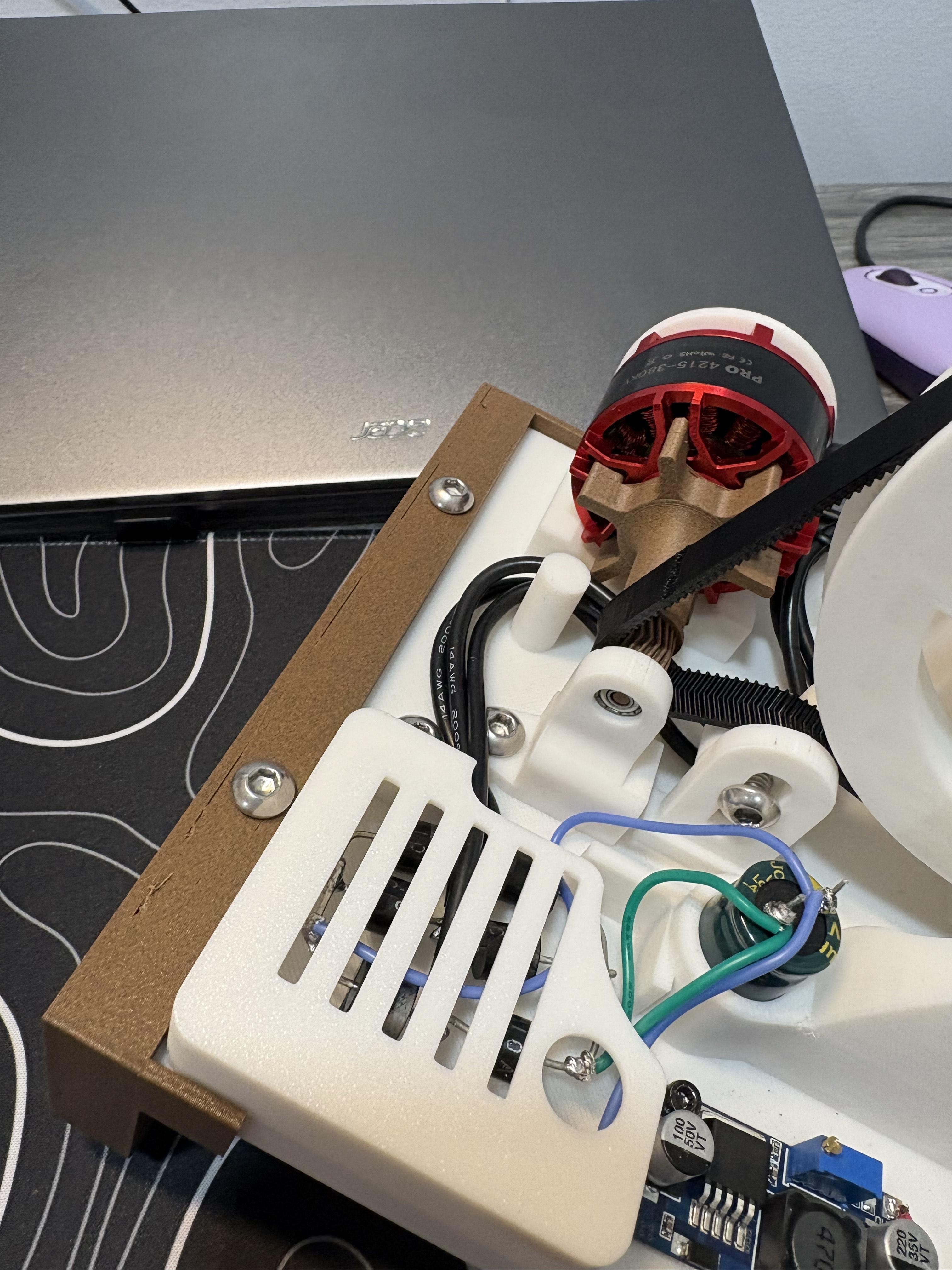
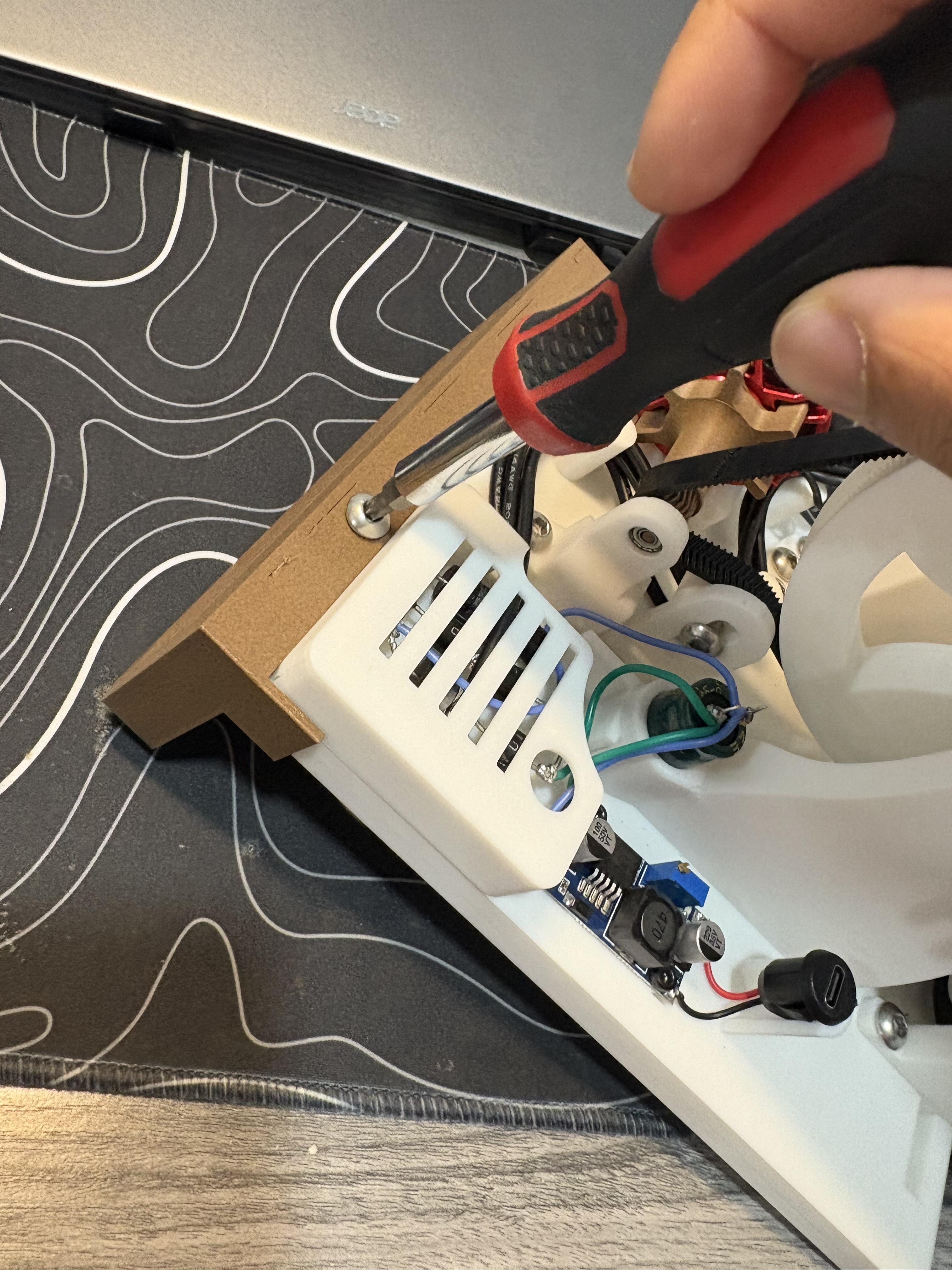
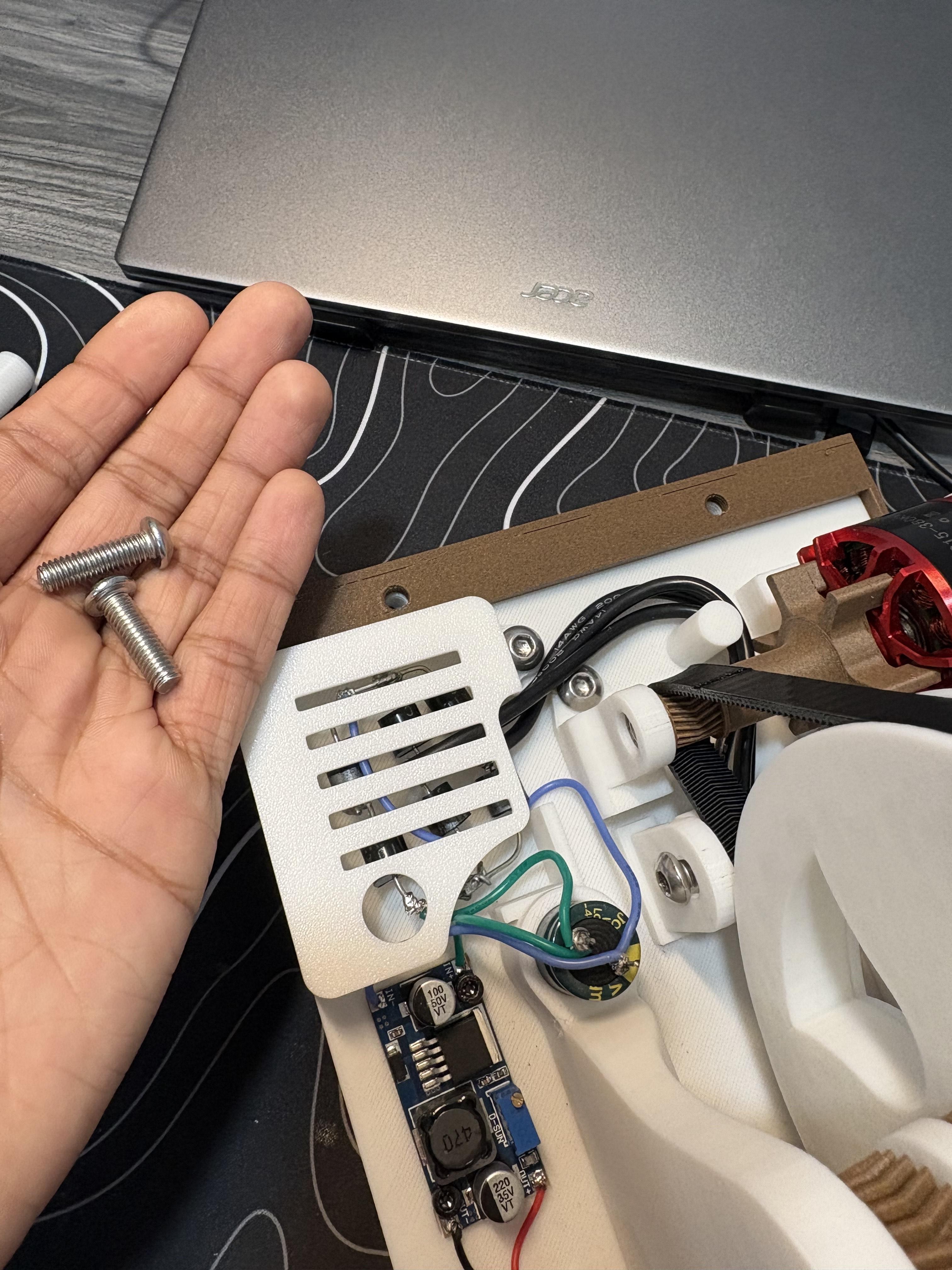
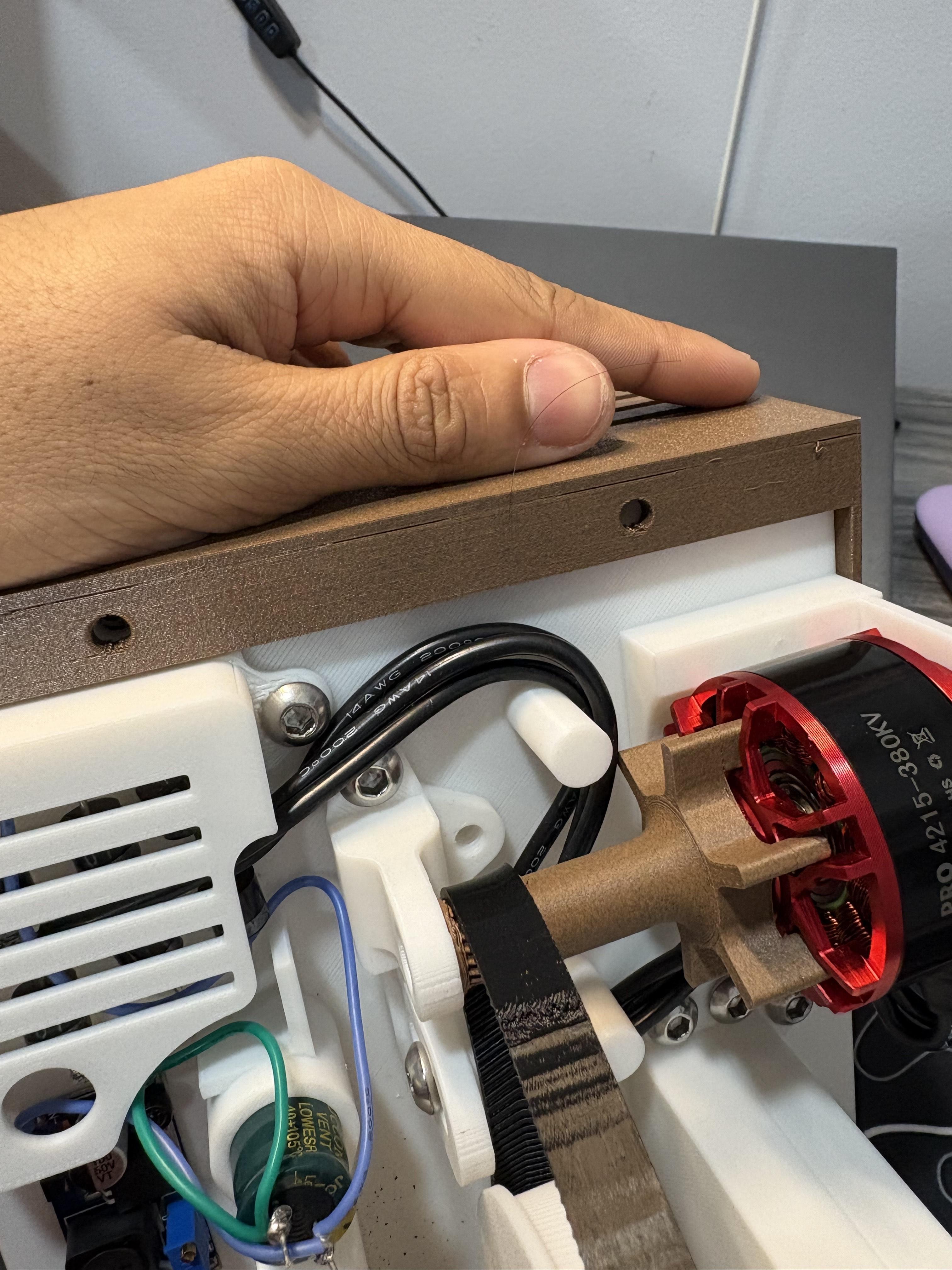
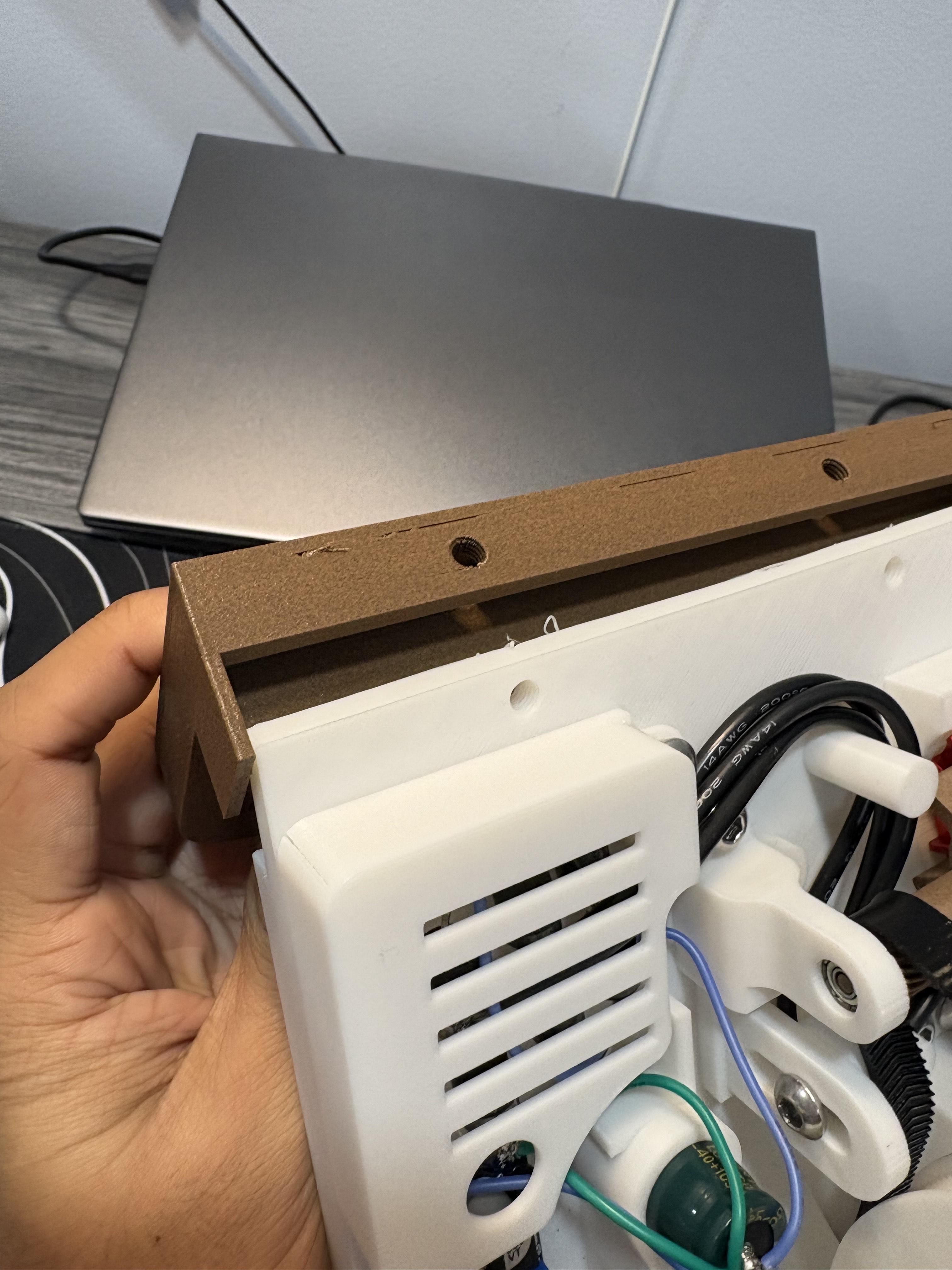
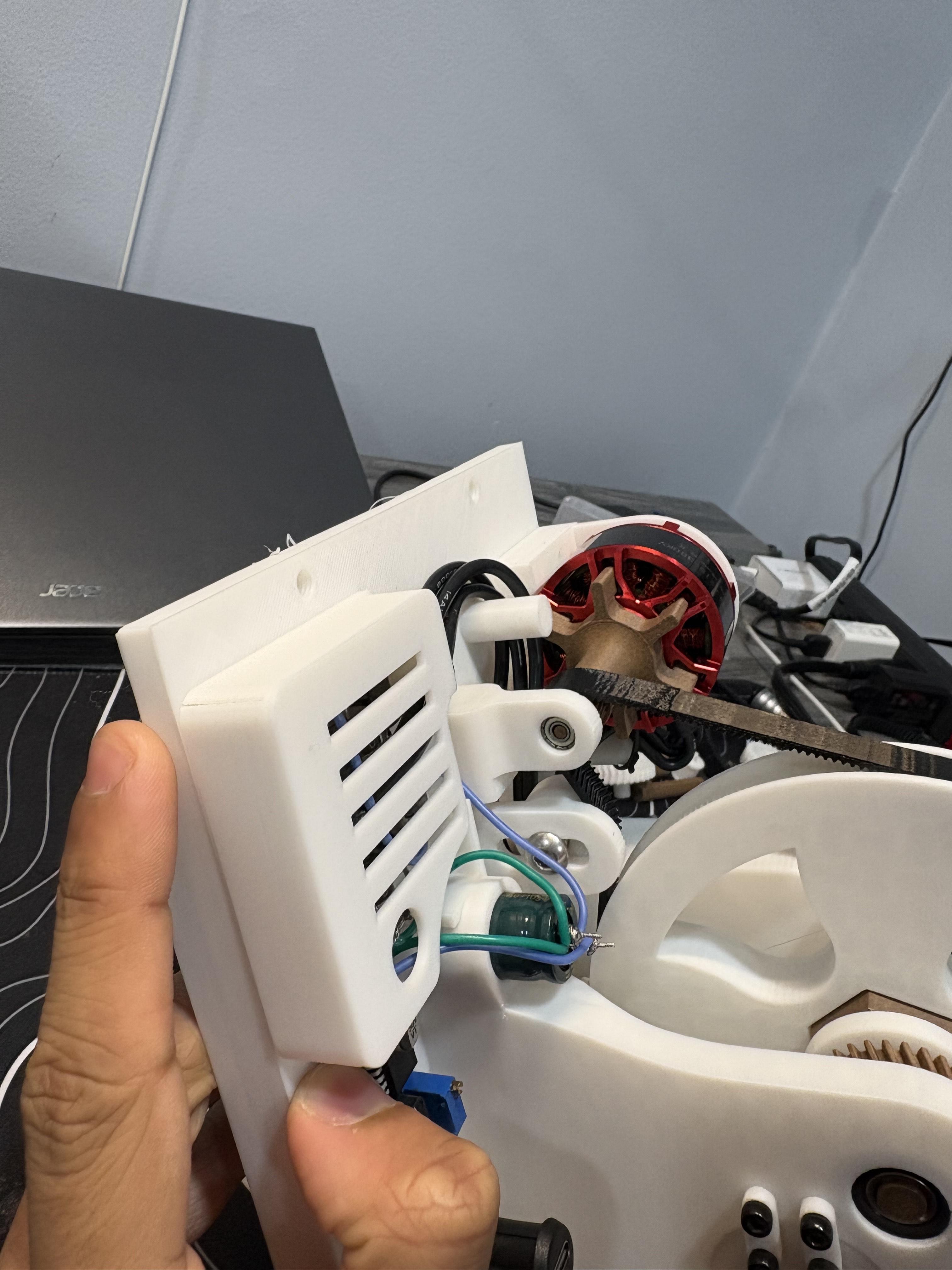
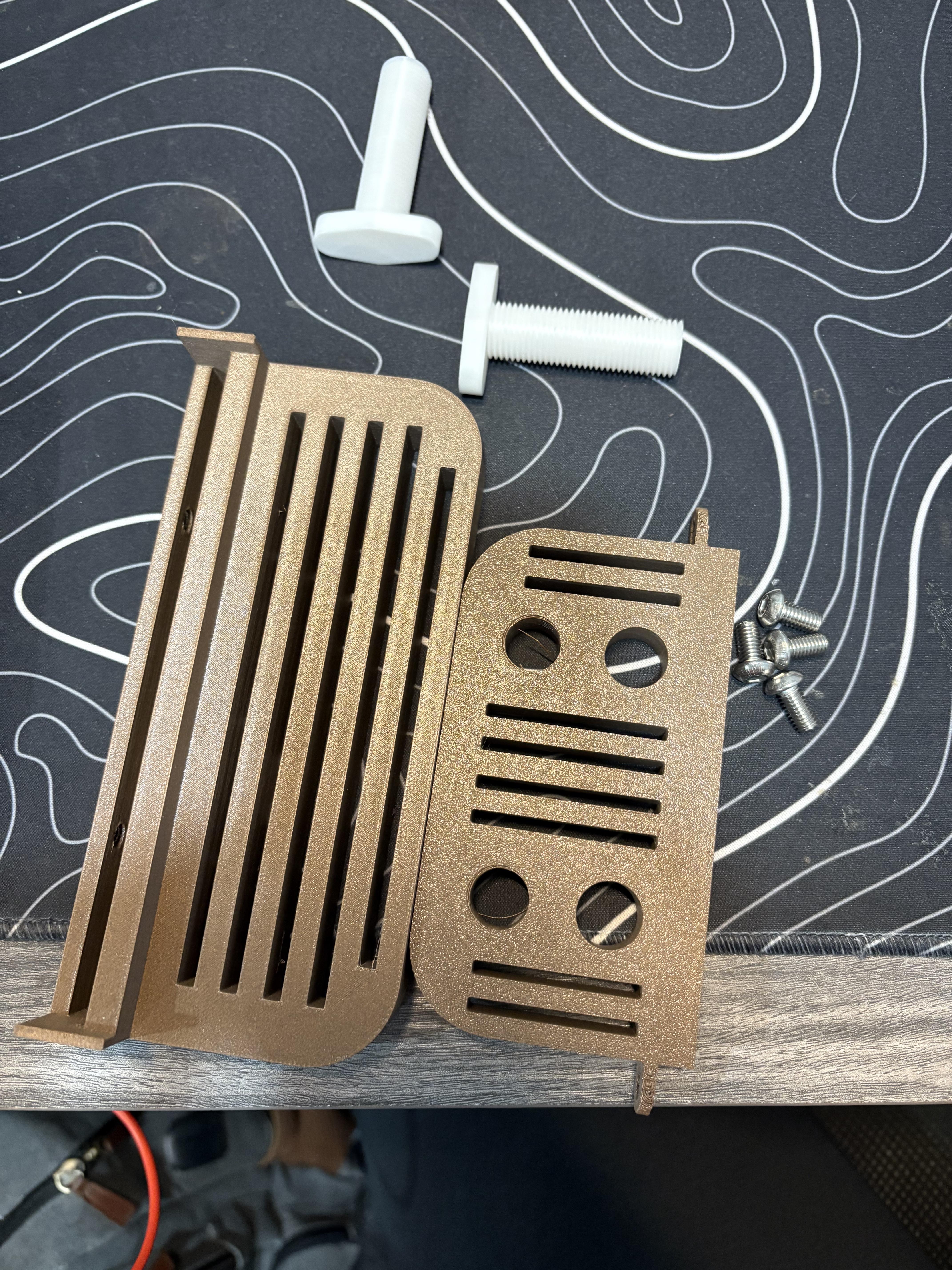
For this step and the next step you will need PLA21, PLA22, PLA23, PLA24 and (2) M6 20mm screws
But for this step, grab PLA21 and look at the rectangular extrusion that pulls off of where the motor is mounted. You will notice 2 M6 holes. This is where the Topside Bracket will be mounted. Take the side of PLA21 that has 2 M6 holes face toward you. You will notice that the rectangular extrusion of PLA1 will enter PLA21's port. Slide them down. It will be a tight fit, but once pressed down, secure PLA21 to PLA1 with (2) M6 20mm screws.
Installing the Lower Desk Bracket
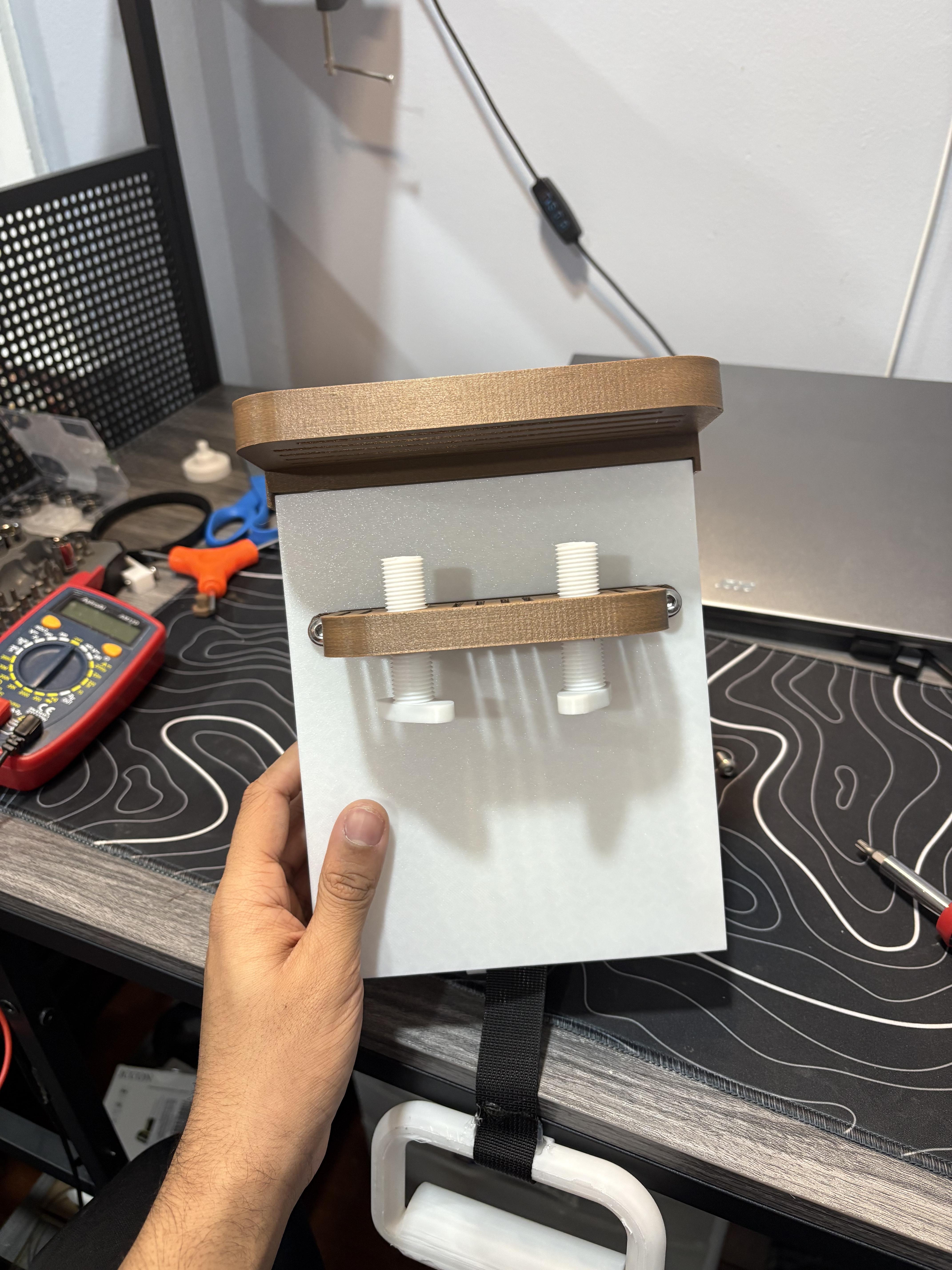
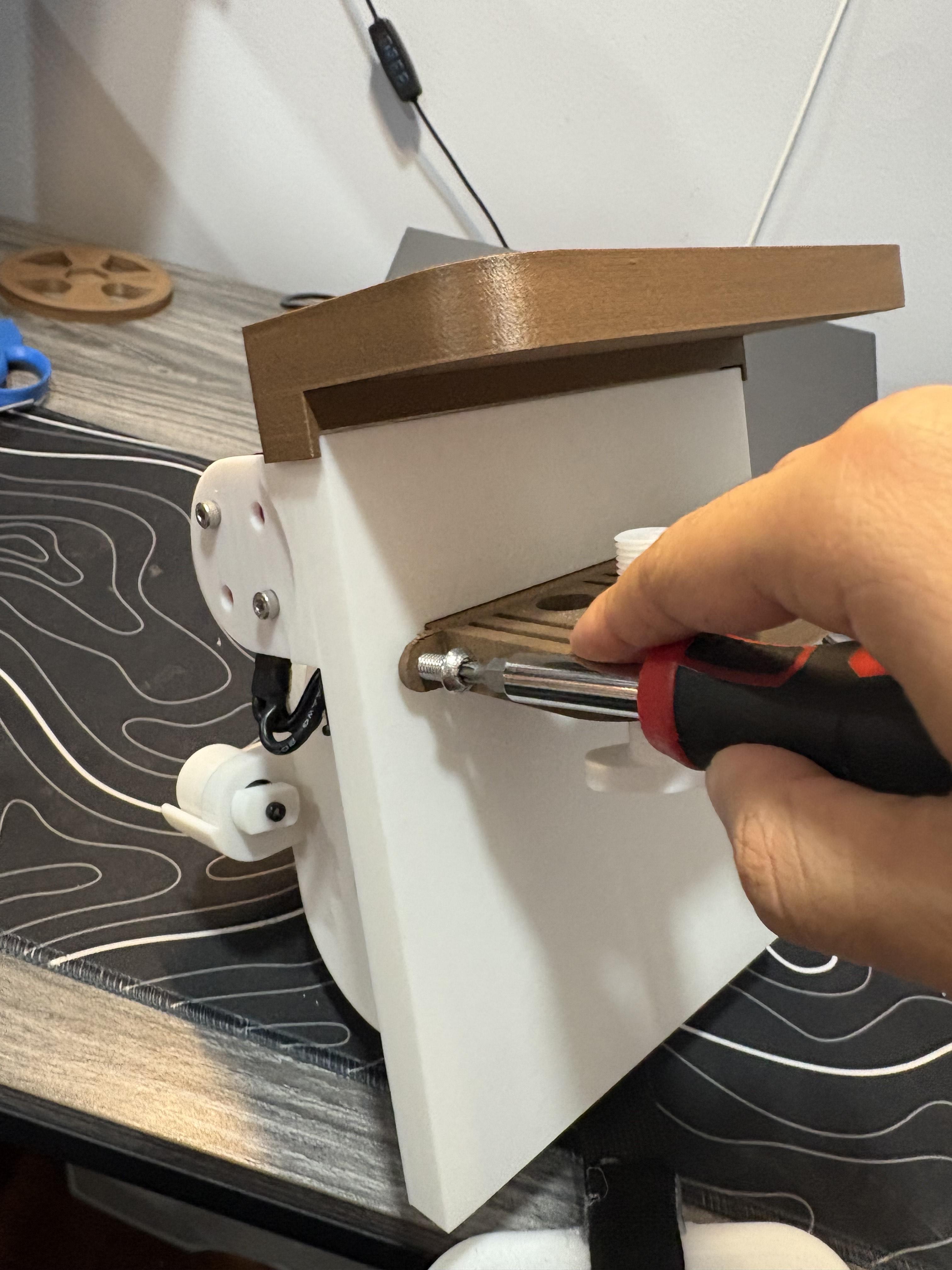
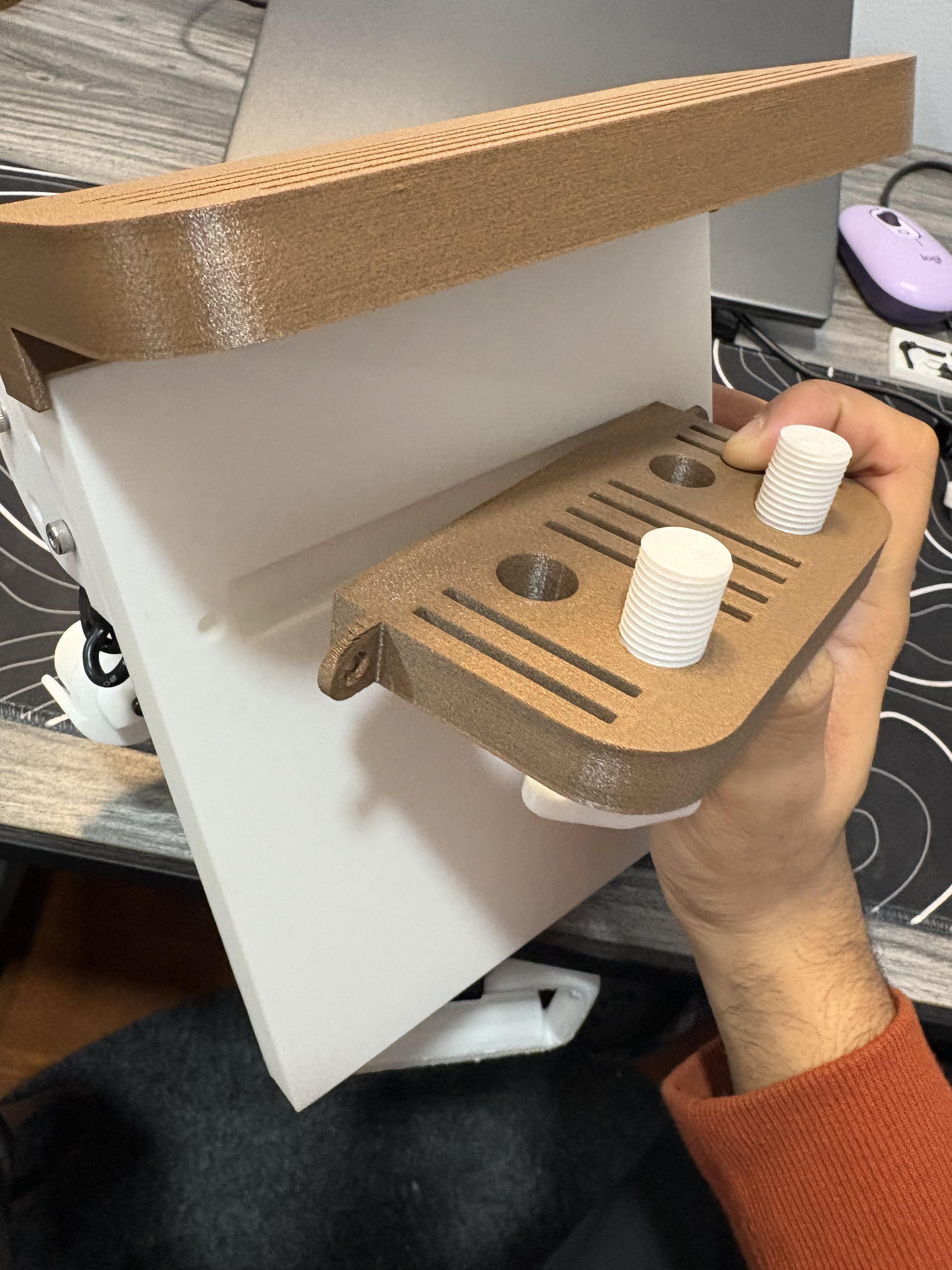
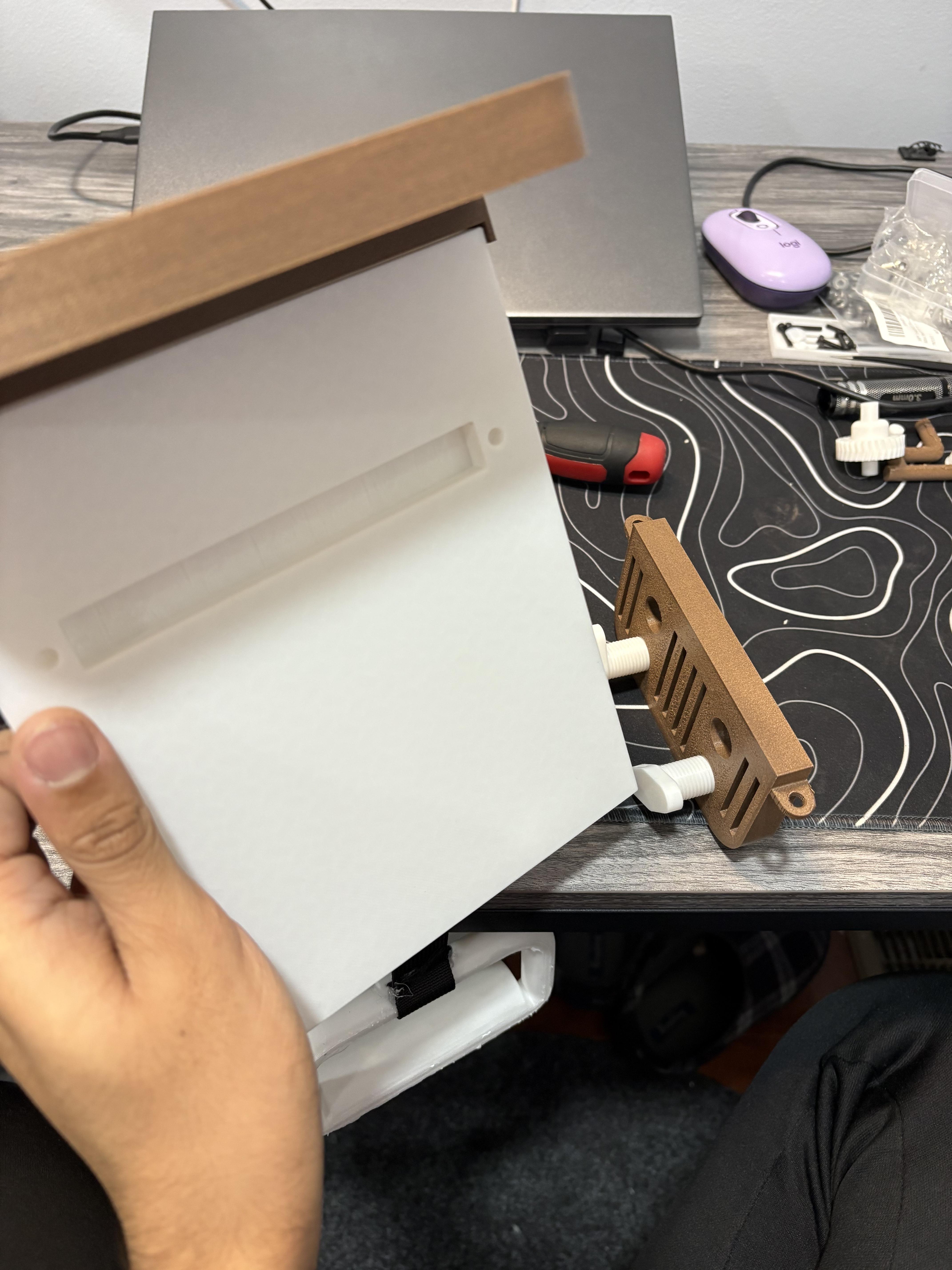
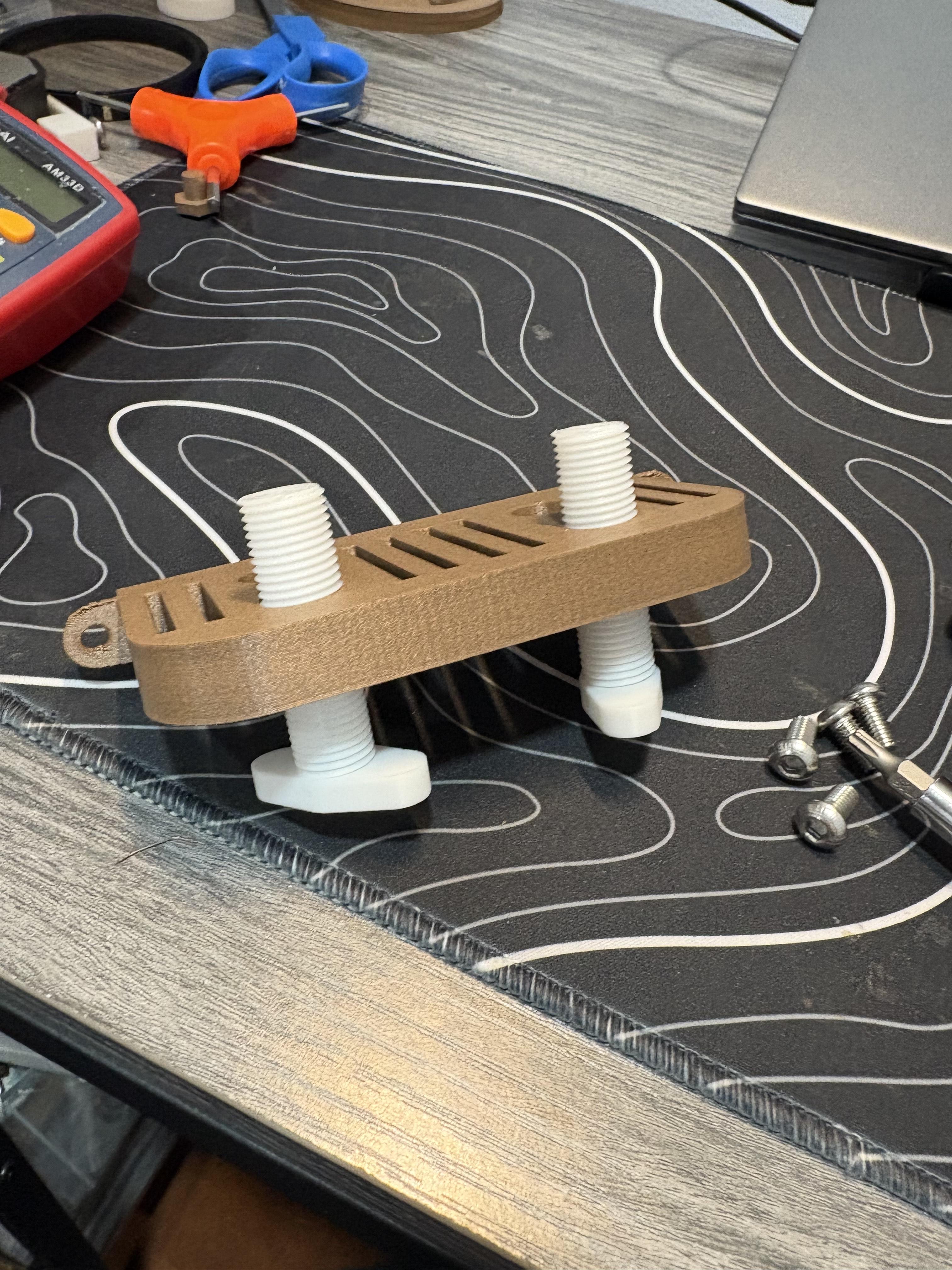
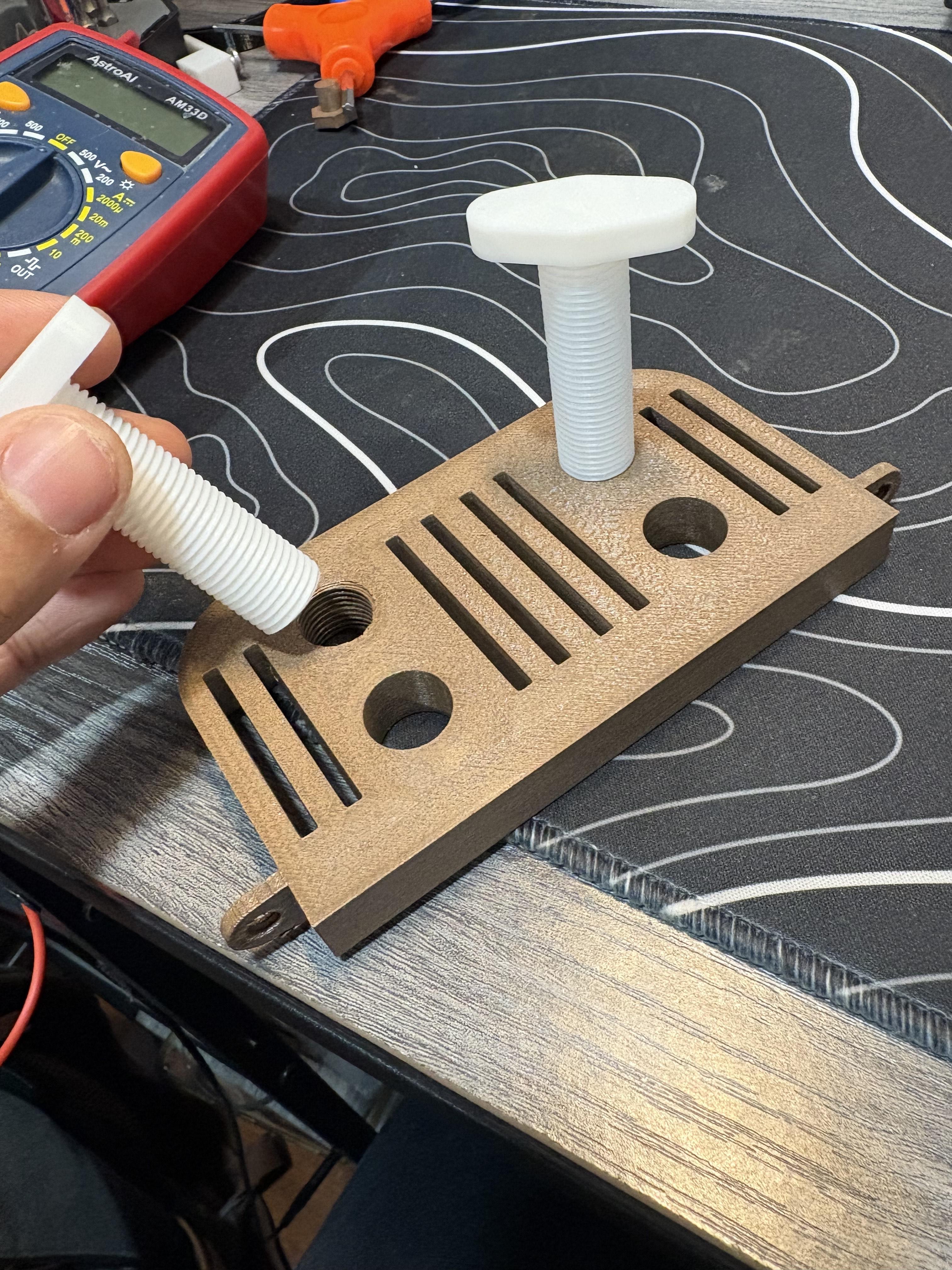
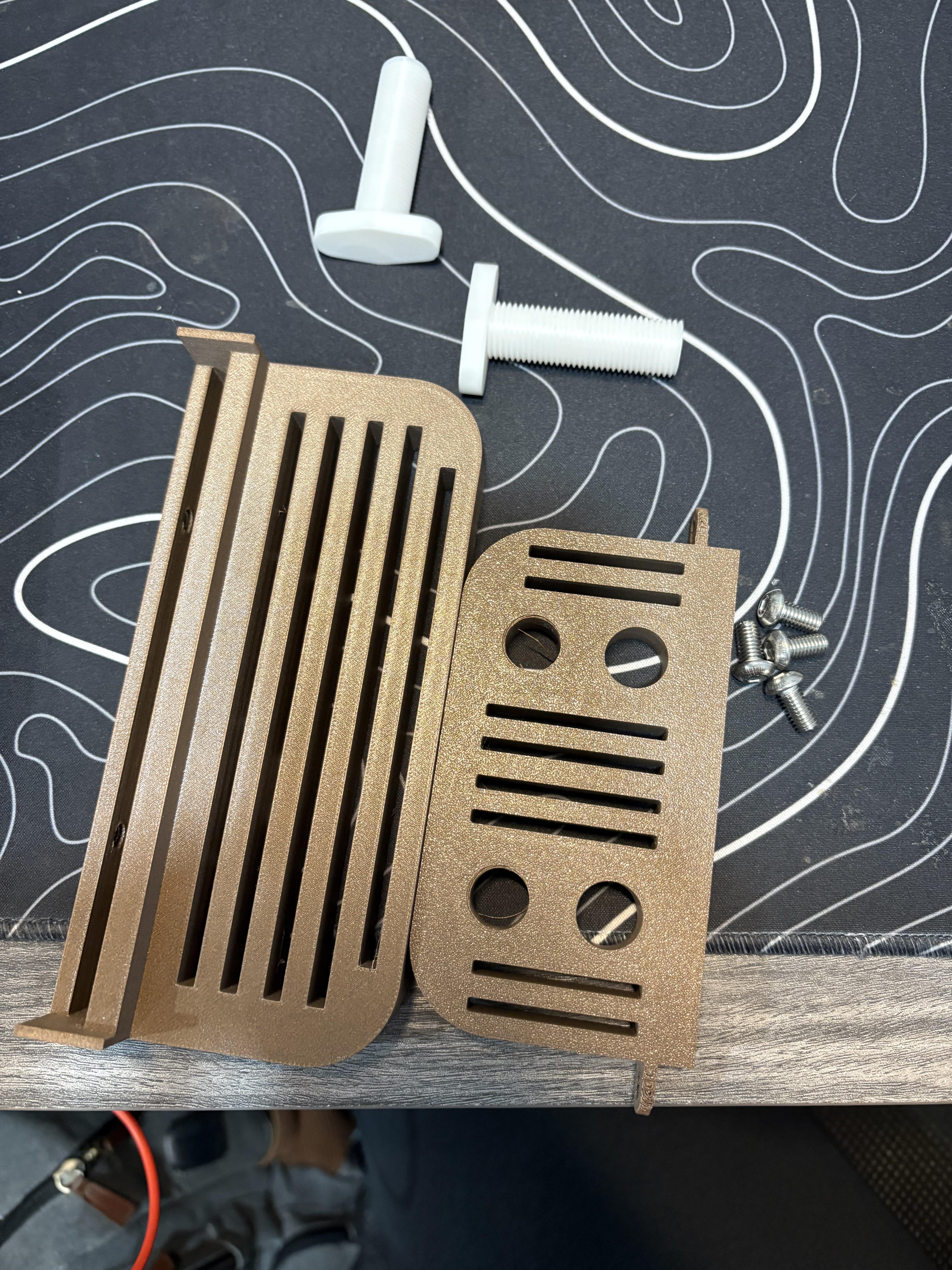
As previously mentioned, for this step you will need just PLA22, PLA23, PLA24 and (2) M6 10mm screws.
Before mounting. I recommend first to take PLA23 and PLA24 and screw them down into PLA22. It will be slightly difficult but screw in and out. This will loosen up the holes on PLA22 for more easy adjustable mounting. This step will take a little time so be patient with it as you don't want to end up breaking a part.
After your done loosening the screw hole, take the lower desk bracket and align in the the rectangular port on the backside of PLA1. It should press nicely, and notice that the tabs of PLA22 have M6 screw holes that align with the screw holes behind PLA1. Take (2) M6 10mm screws and secure the lower bracket onto PLA1.
Finished Prototype Workout Cable Generator
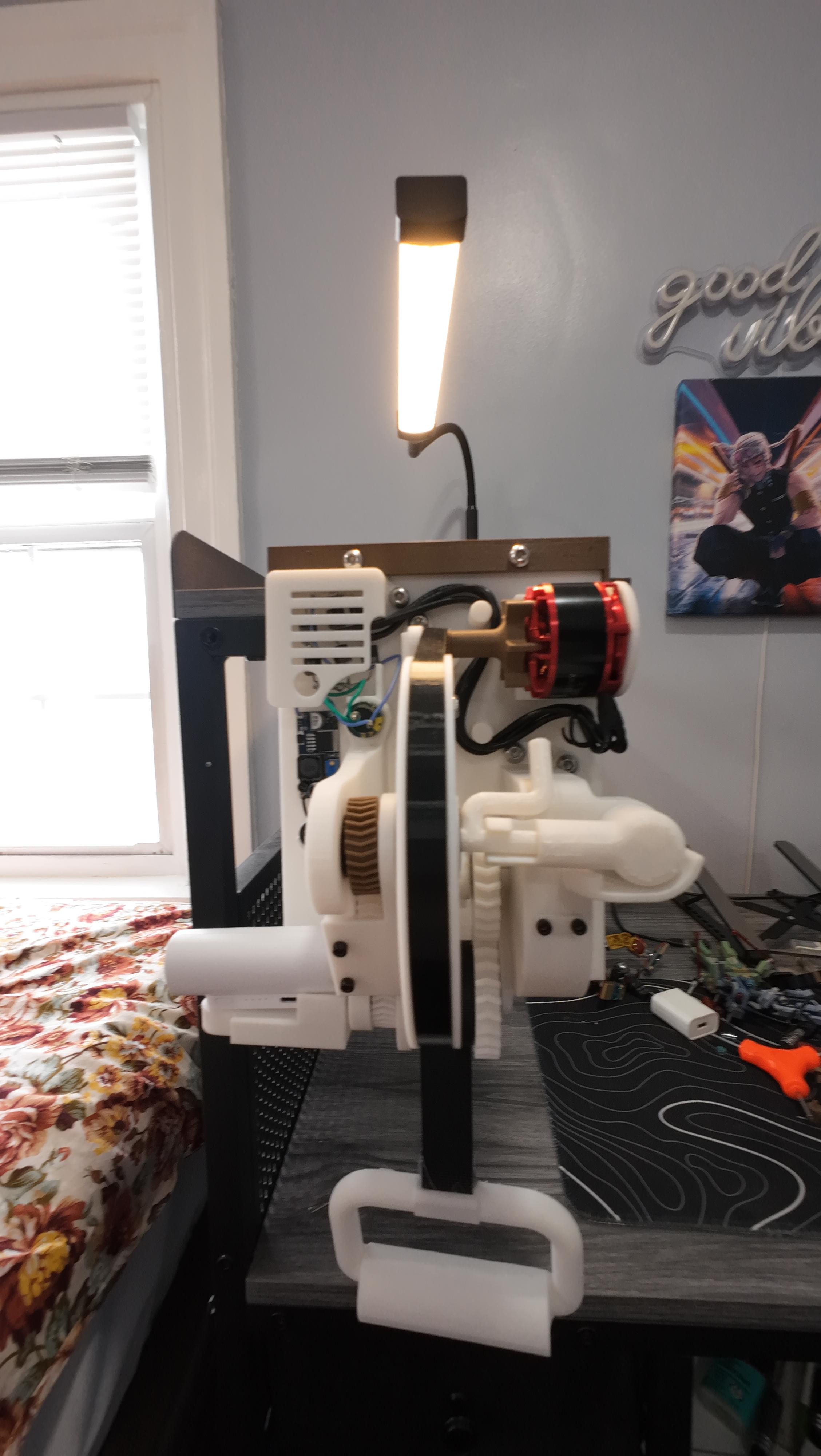
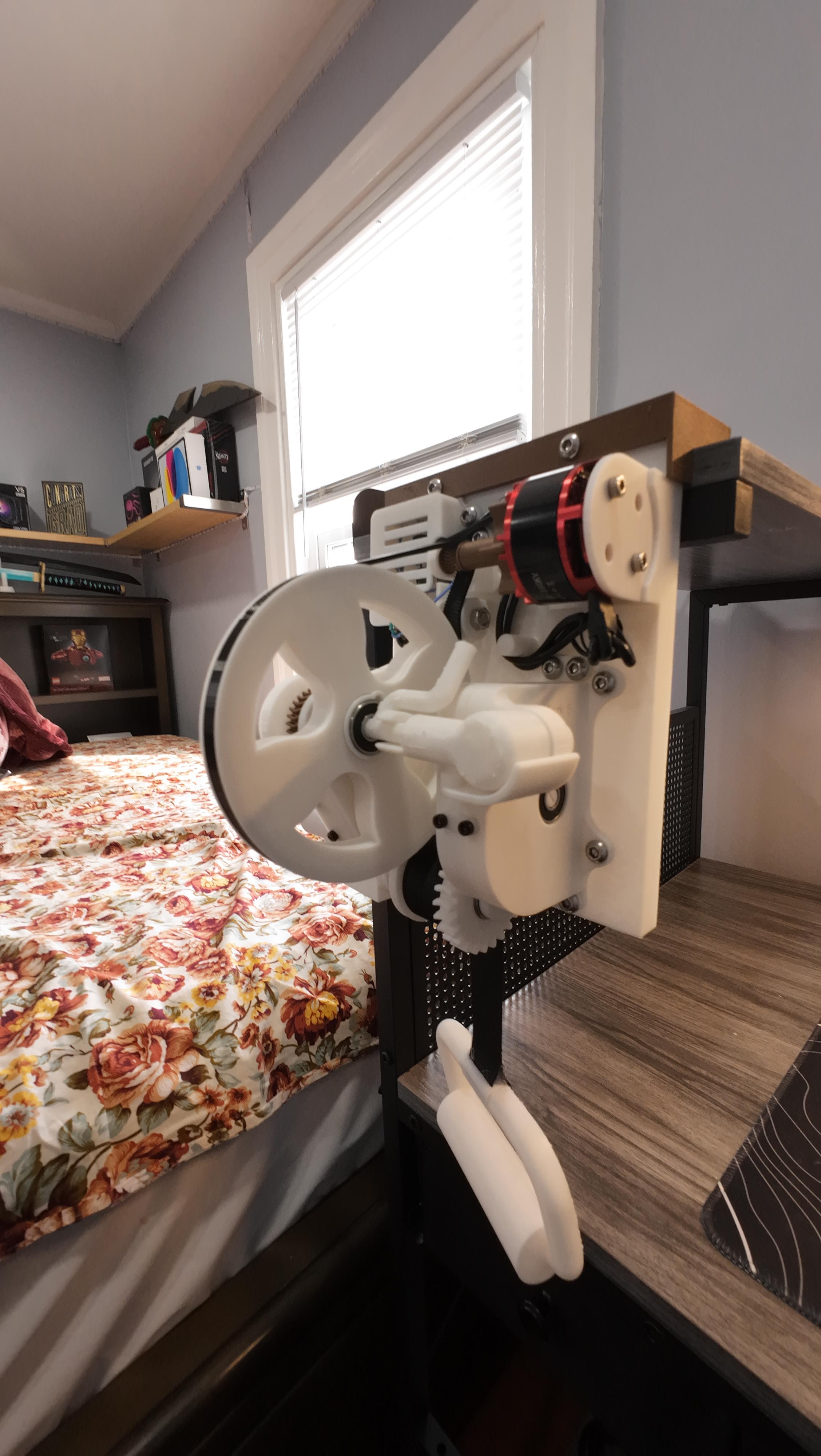
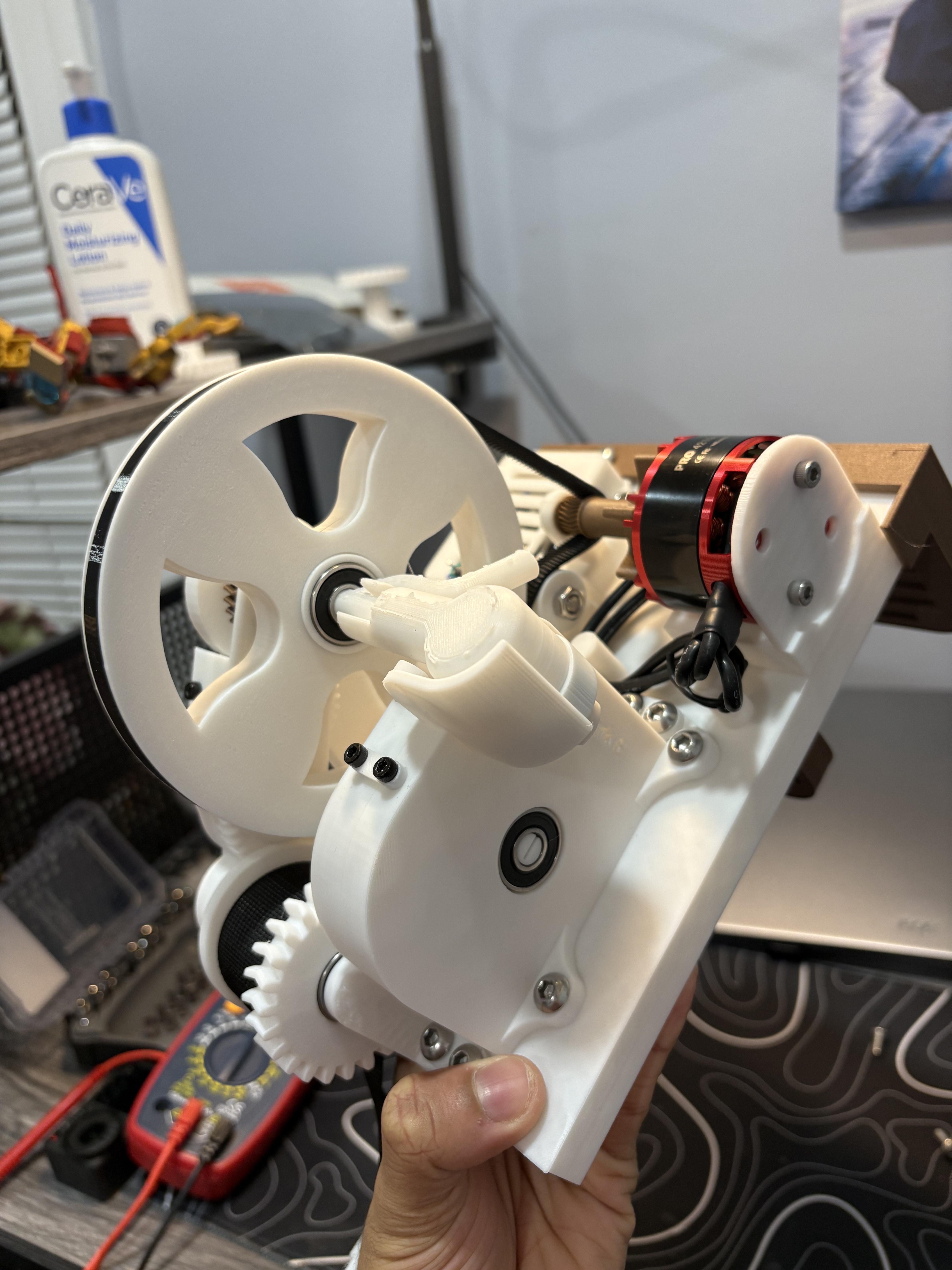
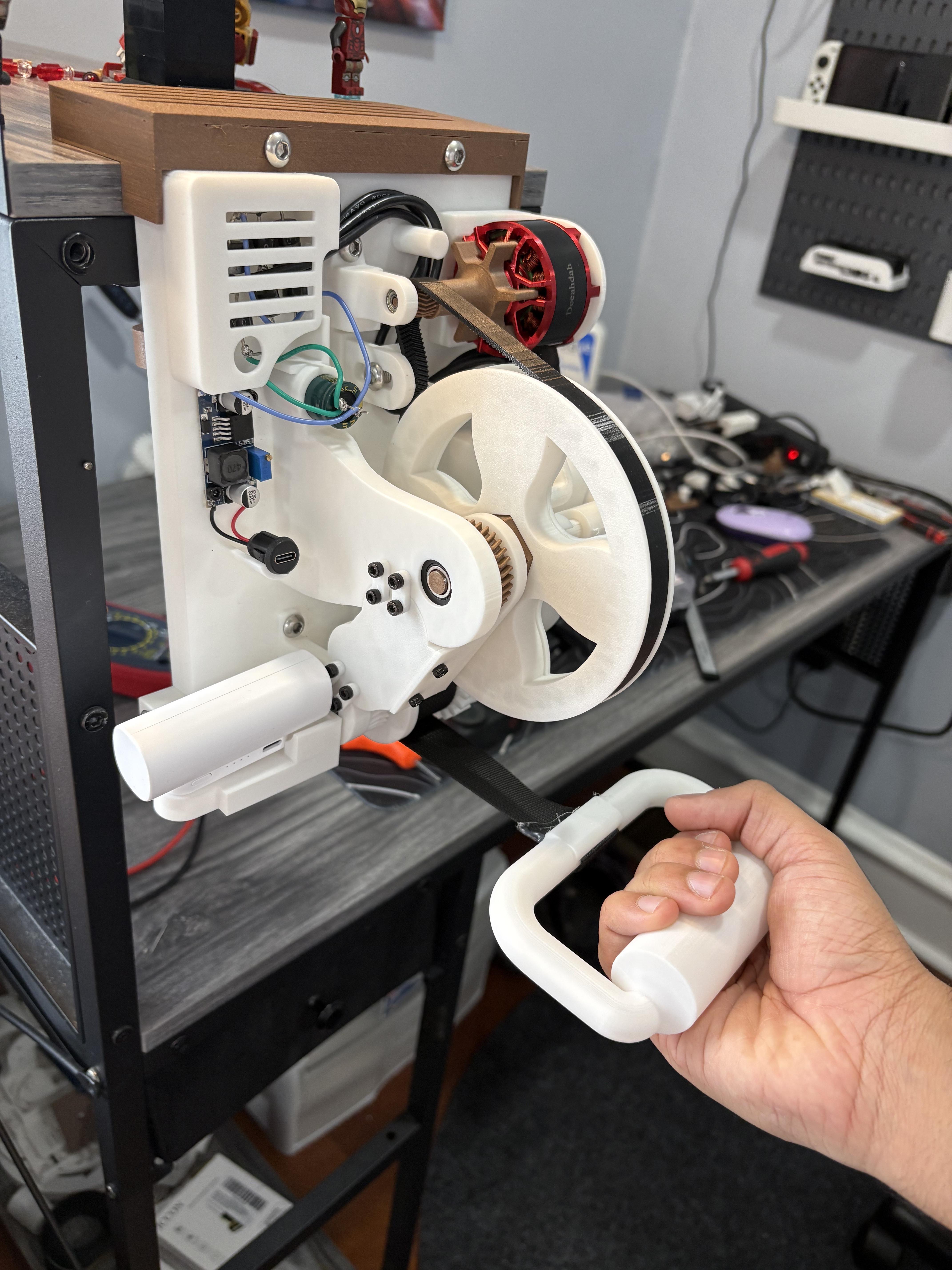
We are DONE! I'm so happy with this version specifically because I learned much more with this prototype and my previous version on energy generation. I made this version to have reduced weight, more compact factor and I'm happy to say compared to my last model, this version uses significantly less plastic! I uploaded a youtube video about my testing and I got a lot of insightful and helpful feedback from others on my design. This design is different compared to my previous models because its the first one that uses belt drive!
That being said, I learned a lot while designing this model, more about Fusion 360 and better ideas of how to incorporate it's parametric capabilities with the next version. Overall improvements can still be made and I'll continue to work to improve it! Feel free to design your own belts and interchangeable gears and customize this project to fit your needs! Thanks for seeing me through my journey with this!
Final Thoughts and Considerations of Improvements for Future Prototypes
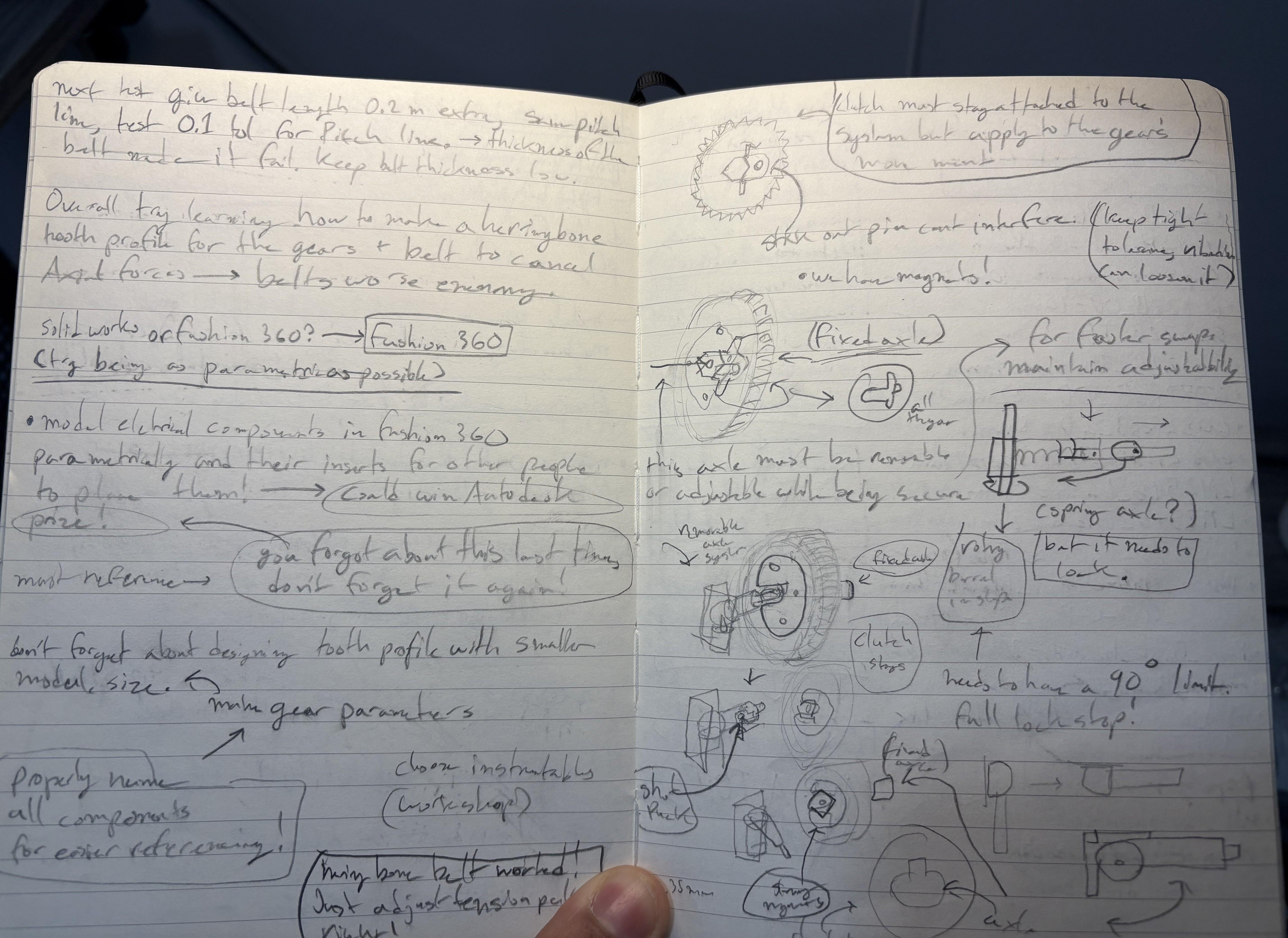
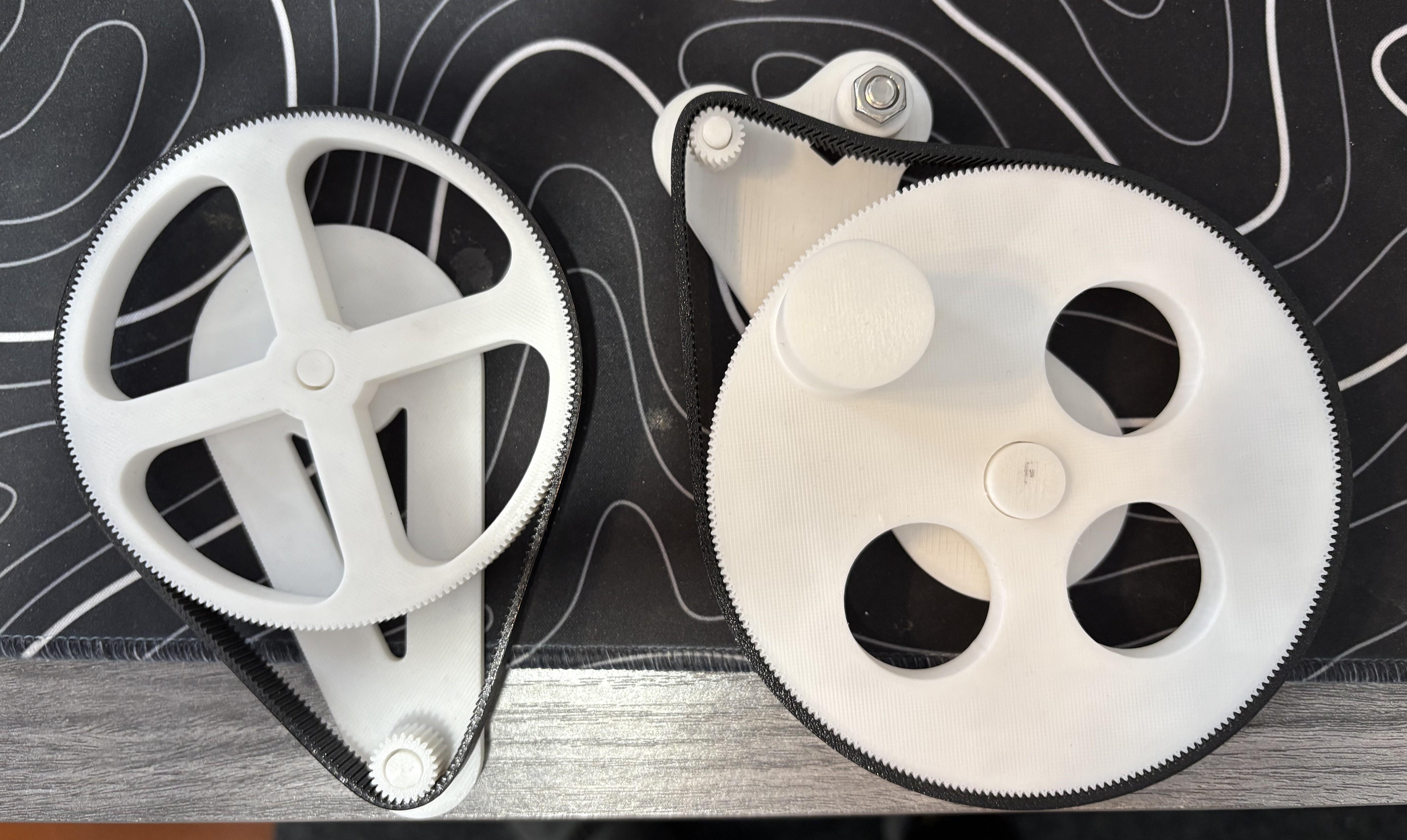
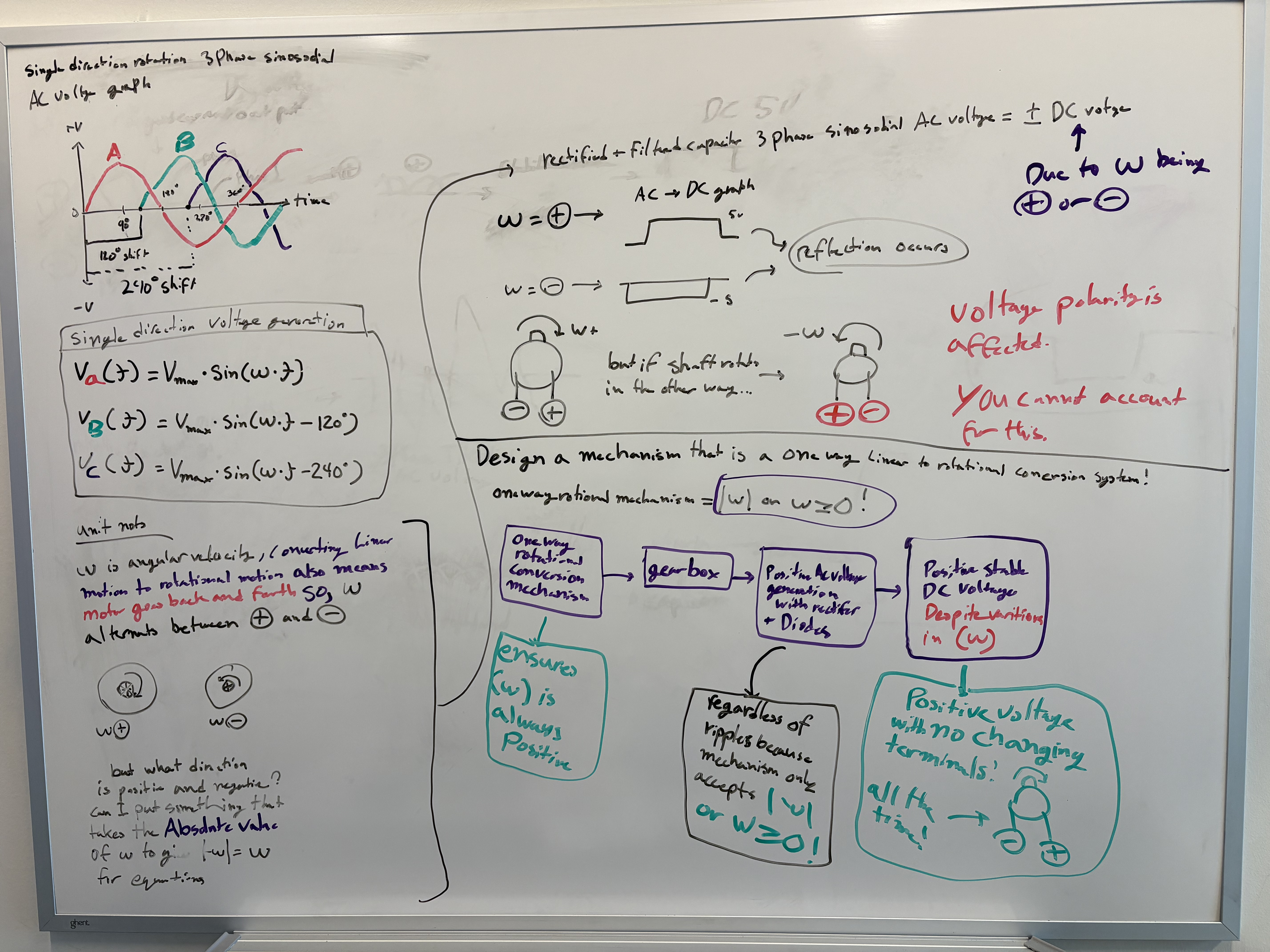
Ok, Reflections.
I've learned a lot from failures within this version as this version took on multiple new approaches such as interchangeable resistance systems and influencing major parameters based on global variables that could change. Seeing how as I constantly kept referencing global parameters to be treated as a dimension parameters for every joint on the baseplate began to cause frequent crashes made sense. I understand the parameter system of fusion 360 a bit more now because what was happening was every time I for example changed a bearing size. Every single sketch, every single extrusion, everything in the recorded timeline of the project that referenced the bearing size variable, would recompute. Recomputing often took almost 30 minutes of time when I could have simply gone back to the sketch I needed to change something. For the next version, instead of recklessly using a global parameter to influence the position/dimensions of joint parts, I will use it more responsibly for things I'm more likely to change.
The interchangeable resistance system was something on my mind for a long time but I had no idea how to implement it because of torque transfer. The torque impulses generated from all of my previous designs would cause axles to snap or gears to try to pop off. I had to press hard to keep them secure. I needed to find a way to distribute the load the individual teeth felt because of the requirements of high torque to gain a high output speed. That is until a commentor and I started talking from my last youtube post about improvements of the design. We started talking about how belt drive and a idler pulley tensioner system would actually benefit the design since a belt would distribute the load across multiple teeth, making the design more stable as well as reducing the amount of PETG used. Yes not all parts used PETG but compared to my previous iterations since the load is better distributed even PLA axles work fine now! The transfer mechanism also contributed to this greatly by adding many gears to distribute the large input torque more evenly before it reached the resistance gear. I think my future iteration will also keep this belt design, as with a idler tensioner I was able to swap the large gear for a much smaller gear. Of course RPM is reduced so overall voltage and current generated is reduced but the resistance is lessened. Which was the goal of this prototype. Have a stable system with distributed load while staying secure and easily interchangeable. The next prototype will aim to expand upon this by improving the idler tensioner even more and allowing for much larger gear ratios to allow for even further resistances.
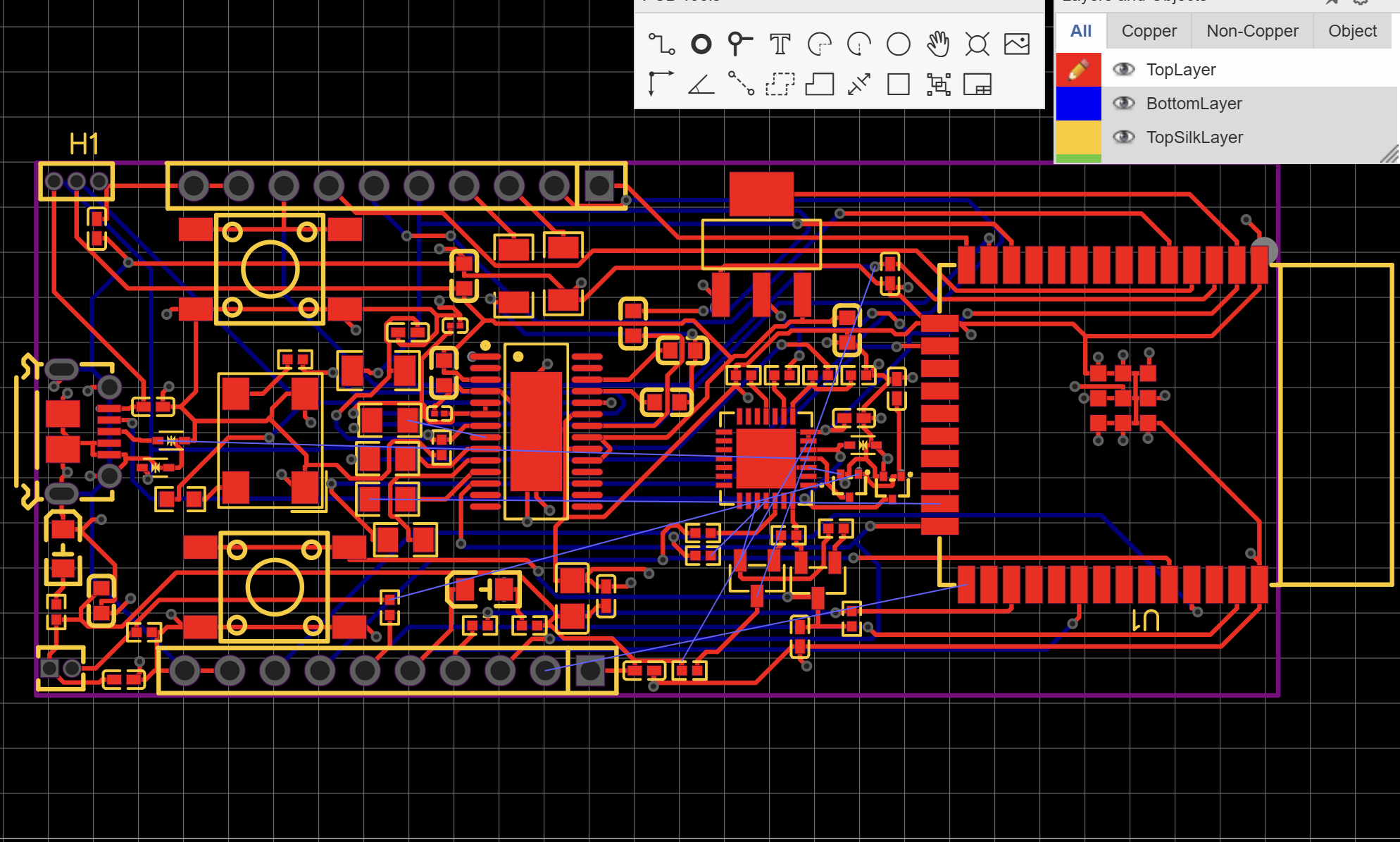
This model is more compact then the previous versions as this version has everything on one baseplate. Funny thing is this model also uses more components then the previous versions but for good reason. While working on this I have also been learning PCB design and I hope to implement a PCB design in the future that essentially allows multi-motor compatibility with a built in 3 Phase Full Wave Bridge Rectifier, filtering capacitors and a buck converter all in one by utilizing more Surface Mount Devices (SMD) components. This will make the next design even more compact, take up less space but best of all, allow for the motor to be quickly swappable for another, allowing for more improved energy generation testing and more rapid prototyping. Mathematically the voltage and current generated make sense but having live data be recorded based on a variable PRM not a constant RPM that would be plugged into a equation would help better gauge what kind of motors to use or how hard you have to preferably pull.
The mountable capability for this prototype was the same as the previous version, desk mounting for instance can be utilized in classrooms, desks, etc. as they are common within schools. However I'm still trying to figure out a way for wall mounting or door mounting without scraping or damaging surfaces. So far desk mounting seems to be the most safest version I have since it doesn't scratch the surface of desks. I hope to improve the mountable capability of the next version further.
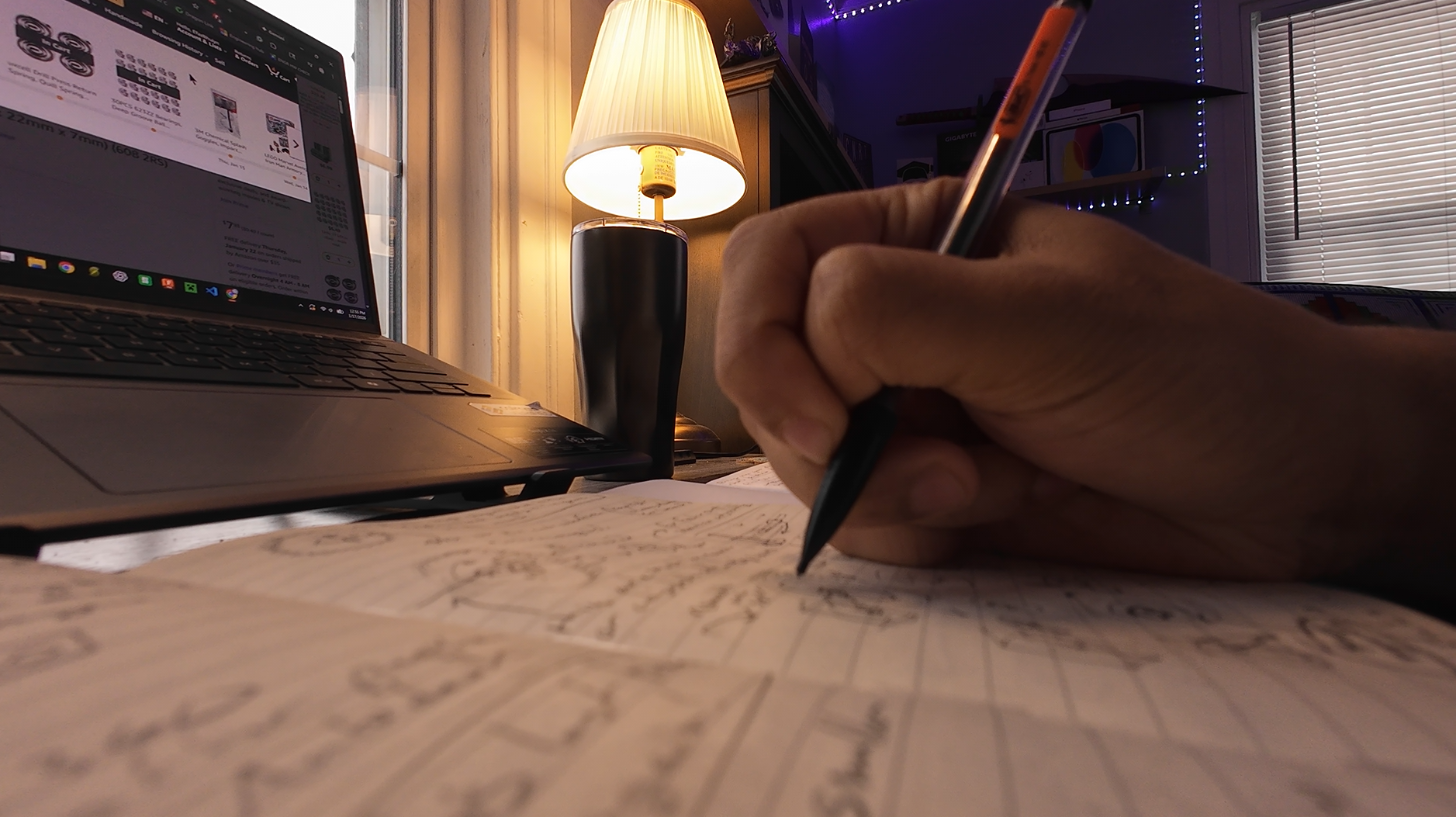
Overall, this project was crazy. I'm already halfway done a notebook I bought from staples just over a month ago filling it up with notes, thoughts, drawing and equations to calculating voltage and current generated from different motors. But I had a lot of fun learning more. I was really proud when I finally managed to get over a few of the biggest issues that all my previous prototypes had like compatibility, material usage and torque impulses with this project. It made me happy to continue to work on this project and is driving me to make a even more advanced version by learning or improving more skills like parametric design with fusion, PCB prototyping and more.
Thank you for sticking around for this portion of my journey on this project! If you made this generator, please give me some feedback on what you think I can improve on this design! I'd love to talk about it! That being said I'm gonna continue learning and make another one soon!