96 LED Filament Bulb Panel
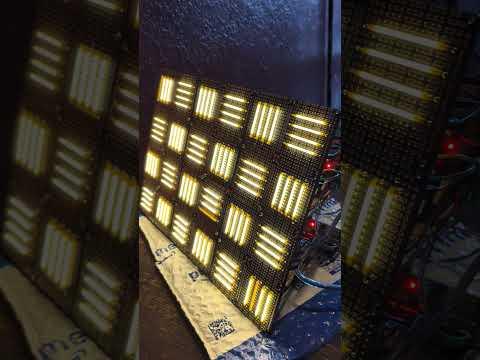
- I found out about filament-style LED bulbs and that Amazon sells a pack of 100 filaments, so I wanted to build something with them.
- An Arduino does not have enough pins to control that many LEDs directly. I explored a few options, but with my level of knowledge/skills the easiest way was to chain together 6 I2C-controlled PWM drivers, each driving 16 LEDs.
- If you know how to design PCBs, making a board that works with this could be simpler and cheaper, but requires experimentation to ensure it doesn't flicker too much: https://www.adafruit.com/product/2946
- I soldered 16 LEDs each to 6 prototyping boards, added headers to all of them, then used Dupont wires to connect them to the 6 PWM drivers
- You could use more or fewer prototyping boards. The benefit of the PWM driver approach is that it's modular, allowing up to 62 drivers/panels, which would be almost 1000 LEDs for anyone masochistic enough to try.
- 3D printed joiners that line up with the mounting holes on the prototyping boards are used to join them all into one large panel
Supplies
- Microcontroller with I2C pins that works with a 5.5V power supply (I used Arduino Uno R3)
- 96 LED filament bulbs (https://www.amazon.com/dp/B0CT5Z2CJ4)
- 6 PCA9685 16-channel PWM drivers (https://www.amazon.com/dp/B07WS5XY63)
- 6 square prototyping boards onto which 16 filaments will fit with mounting holes to join them together easily (https://www.amazon.com/dp/B08151V9TS)
- About 300 4-inch Dupont wires (https://www.amazon.com/dp/B07GD312VG)
- About 300 breakable pin headers (https://www.amazon.com/dp/B0817JG3XN)
- Headers are necessary because the pins on the LED filaments are not Dupont-compatible
- 5.5V power supply, 2A (1.2A for LEDs + powering the microcontroller and drivers)
- Small extra prototyping board to connect power supply to all PWM drivers and microcontroller, should have space for about 10 headers
- M2 screws (preferably >= 15mm shafts) with nuts and washers (https://www.amazon.com/dp/B0FG2CC91J)
- Soldering iron, pliers, tape, small breadboard to help with soldering
Download Code and Libraries
- The code I used for displaying various patterns on the panel is here: https://gist.github.com/adkeswani/01ab29886aa020a30f1347a007b0e839
- I used Adafruit's library: https://learn.adafruit.com/16-channel-pwm-servo-driver/using-the-adafruit-library
- Use MAX_BRIGHTNESS to control brightness. Try and make it a power of 2 - 1, e.g. 1023, 2047, 4095
- Each filament has a "pin", each group of 4 filaments is called a "square", 4 squares make up a "panel", of which there are 6.
- Each square has an "isForward" bool, which indicates whether the LEDs are connected to the PWM driver in forwards or backwards order, and a "lowPin" int, which is the zero-indexed index of the lowest pin in the square
- e.g. the 2nd square in the 3rd panel might be connected to pins 12, 13, 14, 15, with the 1st filament connected to pin 15, 2nd connected to pin 14, etc. In this case, for panel[2].square[1], isForward would be false and lowPin would be 12.
Test Filament and PWM Drivers
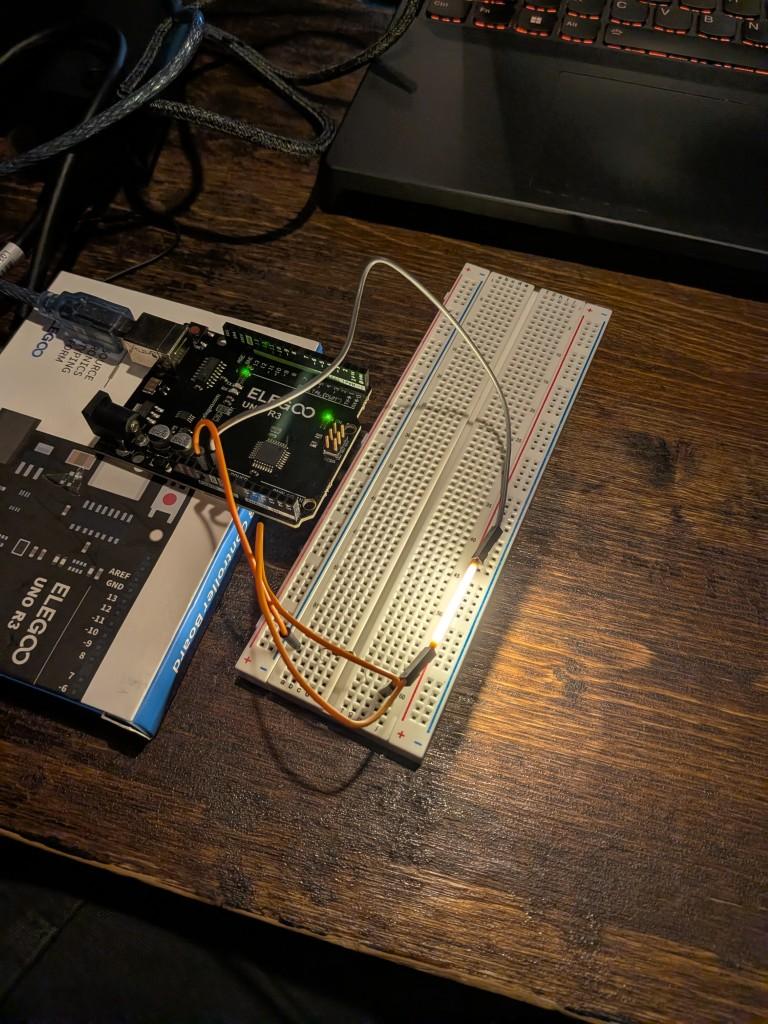
- The filaments linked in the Supplies list are specified to handle 120mA, but that will be very bright when they are all lit up, so we will go much lower.
- The PWM drivers linked in the Supplies do not specify the resistor on the PWM pins, but 220 ohm is typical, and 25mA is the maximum output on the PWM pins. With a 5.5V power supply and the 3V forward voltage drop on the LEDs, that means about 11.4mA through the LED, which was bright enough.
- I used a 5.9V power supply, which exceeds the recommended voltage but still works. I set MAX_BRIGHTNESS to 1023 in the code. With a 5.5V supply you might want to change that to 2047.
- You can test a filament on its own connected directly to the microcontroller with a resistor (hidden behind wires in the attached image)
- You should test each PWM driver too, powered off the microcontroller, just to ensure they are working. Use the code from the previous step or Adafruit's sample code to test each one with some LEDs. Step 9 (Wire up filaments to PWM Drivers) briefly describes how to connect the PWM driver to the LEDs.
Insert and Solder Filaments to Prototyping Boards
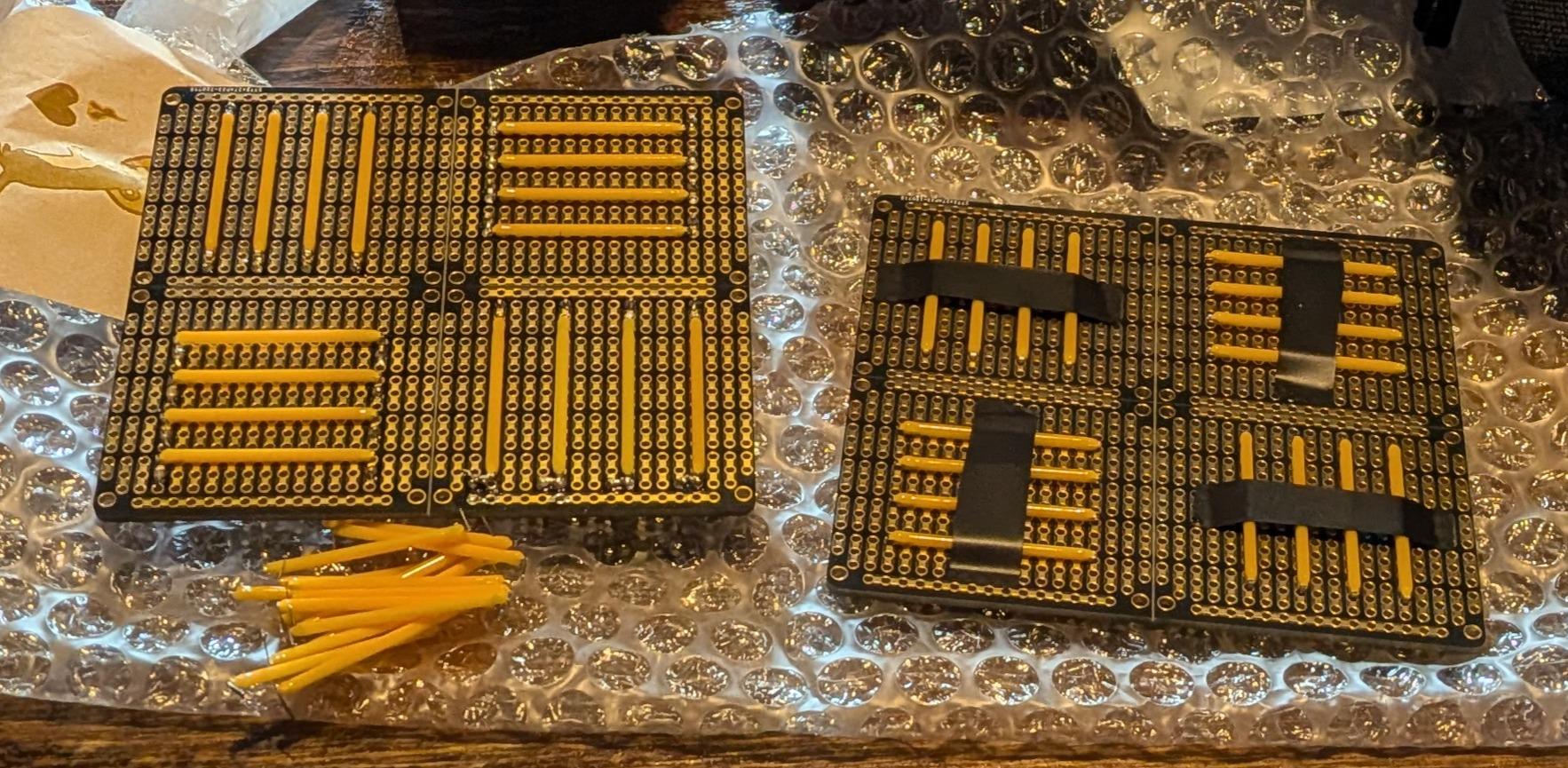
- Use pliers to bend the pins on the LEDs to 90 degrees. Try and bend close to the filament so there is enough pin to poke through the prototyping board.
- The filaments linked in the Supplies have 2 "sides". The coating on the filaments has a different color on each side. Ensure all the filaments have the same side pointing outwards, or else the filaments will look different when lit up.
- Insert the filaments into the prototyping board. You will need to find an attractive way to space them out. The patterns in the code attached to this Instructable are designed for the arrangement in this image.
- Pay attention to polarity! The filaments linked in the Supplies list only have a small hole on the ground pin. It's best to align them all the same way, e.g. the ground pin is always the right or bottom pin.
- Use tape to secure all the filaments, then flip the board over and solder them to the board.
Insert and Solder Headers to Filaments
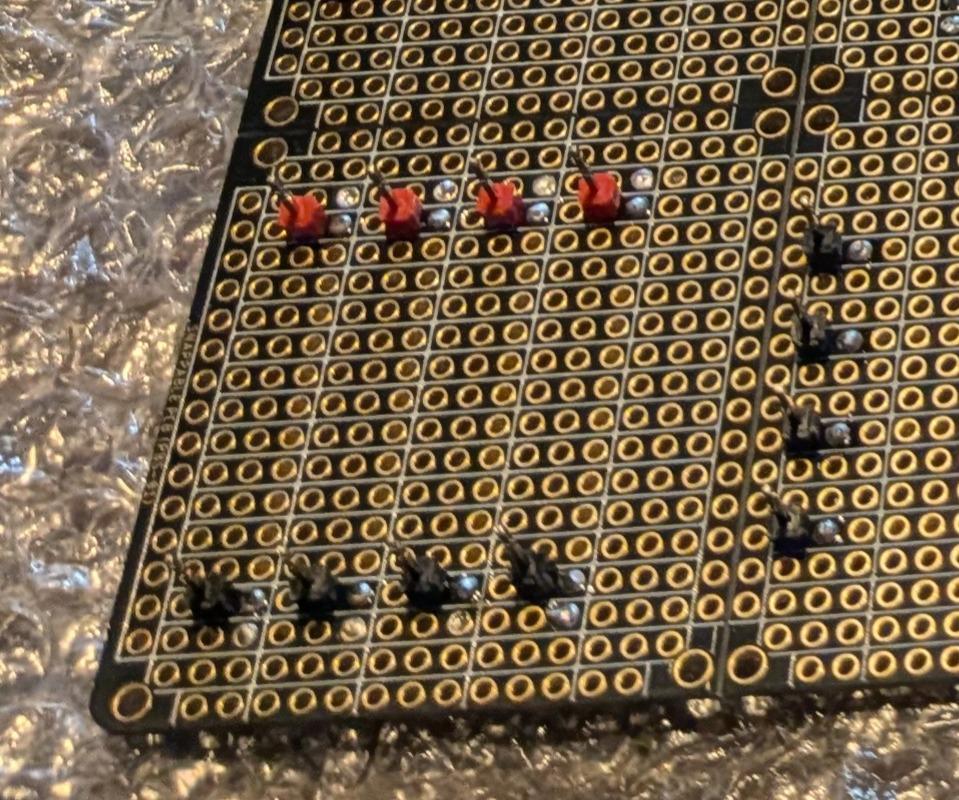
- On the prototyping boards linked in the Supplies, every group of 3 holes is connected (see image). Insert a header for each filament pin in the same group. This way, when you solder the header to the board, it is also connected to the filament's pin.
- To solder the headers, I plugged the headers into a breadboard (i.e. long pin plugged in), then placed the prototyping board on top (filaments facing upward) with the short pins poking through the desired holes, then put something under the board to prop it up while soldering. You should end up with the headers being on the back/unlit side as shown in the image.
- Ideally use red headers for V+ pins and black for ground.
Do Some Testing
- Now that the filaments are soldered to the prototyping boards, it is a good time to test them
- See Step 9 (Wire up filaments to PWM Drivers) for how to connect a PWM driver to the filaments
- Test one PWM driver and panel at a time to ensure all your components are working. This way you can just power if off the microcontroller's power output pins (assuming your microcontroller can supply about 200mA for all 16 LEDs on a panel, though you can also just light one LED at a time if needed)
Solder Up a Small Power Supply Board
- No photos for this one, but we want to have each PWM driver and the microcontroller on a separate parallel circuit off the power supply, since we want each to get 5.5V.
- Unfortunately the current draw is higher than recommended for a breadboard, hence we have to make our own power rails.
- Join/solder the V+ and GND terminals of the power supply (using a DC terminal connector if possible) to a prototyping board, then solder a black and red row of at least 7 header pins (6 for the PWM drivers, 1 for the microcontroller) each and use wire/solder to connect the whole red row to V+ and the whole black row to GND.
Link Prototyping Boards Together
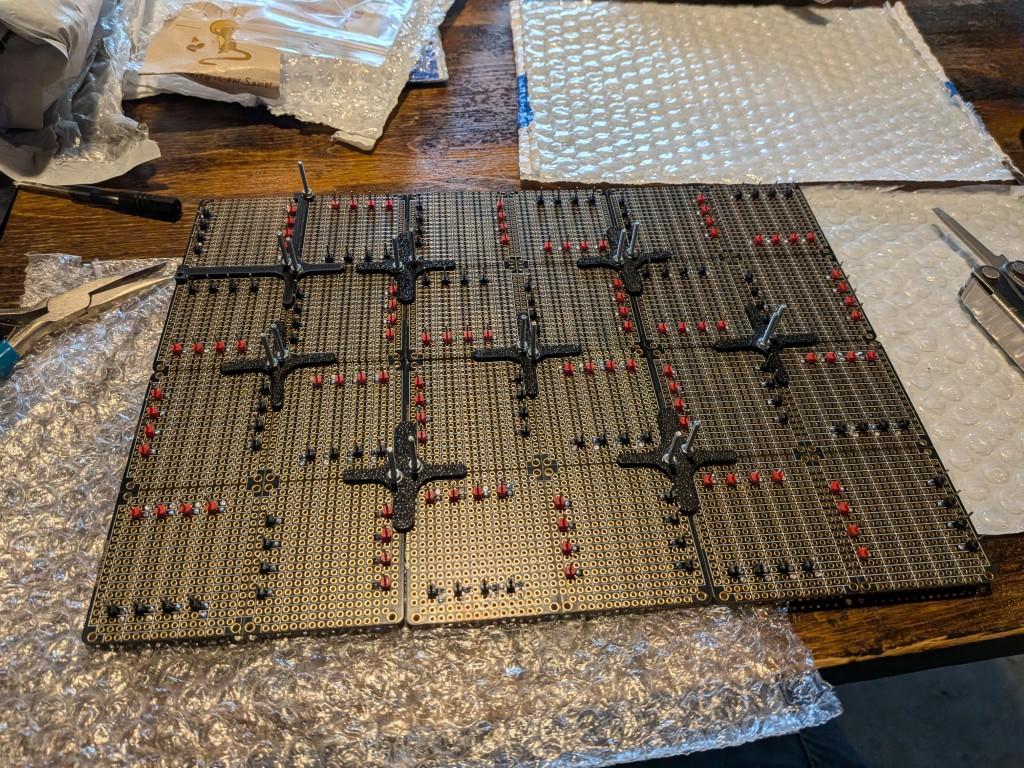
- It's best to join all the prototyping boards together into a panel before doing the wiring.
- One way to do this is to 3D print links/joiners with holes that line up with the mounting holes on the prototyping boards.
- The attached STLs work with the prototyping boards linked in the Supplies list, but you may need to design your own because the positioning of the LEDs and headers can get in the way of these joiners
- Since the linked prototyping boards are not perfectly square, there are two joiners: one for horizontal connections, one for vertical.
- The joiners span across two prototyping boards with one screw in the corner of each prototyping board being joined. To keep the front of the panel clean, put the joiners on the back side of the panel and poke the screws through from the front to the back.
- The holes in the joiners are not threaded - they rely on the nut squeezing the parts together. I used washers to spread the load, but unsure if they are actually necessary.
Solder Headers and Bridge Address Jumpers on PWM Drivers
- We are going to chain the PWM drivers together, so each PWM driver needs a different address.
- This is done by bridging/soldering a connection on the PWM driver near where it says "I2C Address"
- The code attached to this Instructable uses addresses 0x40 to 0x45 (inclusive)
- See https://learn.adafruit.com/16-channel-pwm-servo-driver/chaining-drivers for images and more details about what to do
- Also solder headers to the input and output holes of the PWM drivers (if not already present). You will only need the I2C pins (SCL, SDA) on the output pins (so that we can chain them together), and only the VCC, GND, SCL, SDA pins on the input pins (since we are not chaining the power supply, only the I2C signal)
- Either side of the board can be used as the input or output, but try and be consistent about which side you use
Wire Up Filaments to PWM Drivers
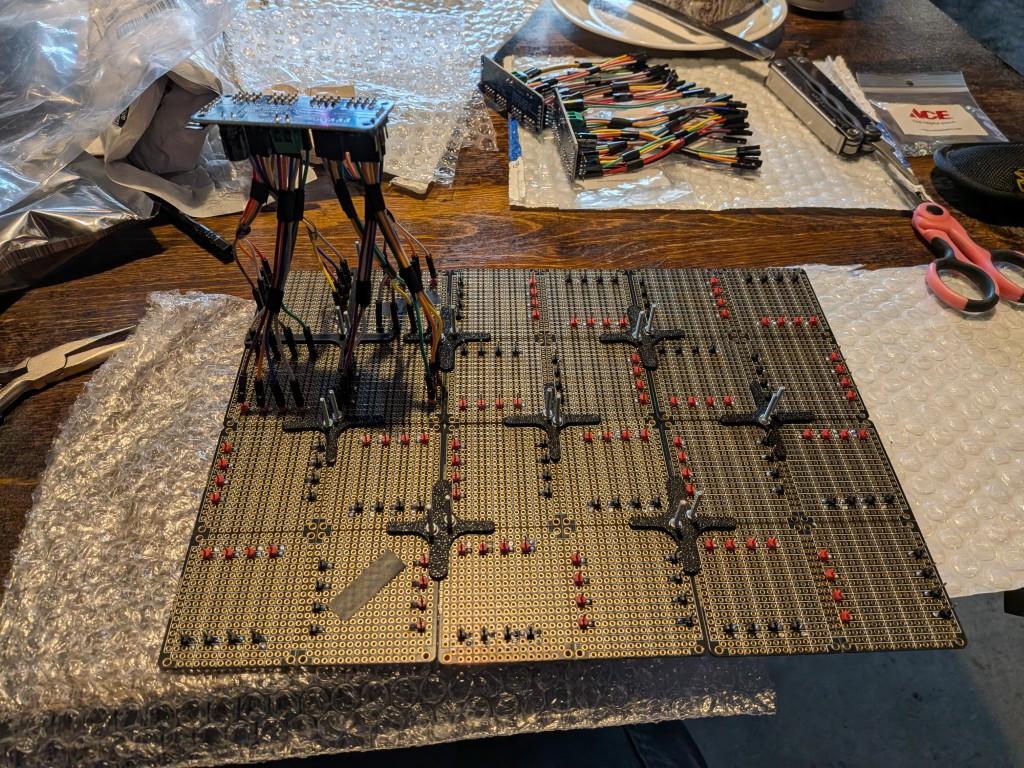
- Connect the 16 headers/LEDs on each prototyping board to one PWM driver, with each LED's V+ header connected to one of the 16 PWM pins (yellow on the drivers linked in the Supplies), and each ground header connected to a black ground/GND pin.
- The V+ pins on the PWM driver are for servos.
- I found it easiest to individually peel off wires from the ribbon that the Dupont wires came in, then use tape to hold them together in groups of 4. It's possible that peeling off groups of 4 could work.
- Assuming you are using the same pattern/arrangement as I did and the attached code, each group/square of 4 filaments should be connected to the PWM driver sequentially in groups of 4.
- It does not matter if the filaments in each square are connected in forwards or backwards order, because there is an "isForward" flag for each square of 4 filaments in the attached code.
- The order in which the squares are connected does not matter either because there is a "lowPin" field for each square that lets you indicate which pin (0, 4, 8, or 12) is the lowest number pin in each square.
- e.g. the 1st group of 4 LEDs could be connected to pins 4,5,6,7, the 2nd group to 12,13,14,15, etc. as long as they are in the same group of 4 and connected in sequence (e.g. 1st LED connected to 7, 2nd LED connected to 6, 3rd LED connected to 5, 4th to 4).
- This is a bit complicated to explain, so it will require some experimentation. There is a "testPatternFirstPin" pattern in the code that can be uncommented to help determine the correct "isForward" and "lowPin" values for each square.
- The wires will get very crowded/dense, so find the best arrangement that lets you plug in all the wires without them pushing each other out. There are enough wires that they will hold up the weight of the PWM driver as shown in the attached image.
Wire Everything Up and Chain Together the PWM Drivers
- Connect the output SCL and SDA pins from each PWM driver to the input SCL and SDA pins of the next driver. The order of PWM drivers does not matter - we specify the address of each panel/driver in the code (e.g. "panels[0].pwm = Adafruit_PWMServoDriver(0x45);").
- Wire the microcontroller VIN and PWM driver VCC pins and all their GND pins to the power supply board, making a separate parallel circuit for each one.
- Connect the power supply and all panels should work. You may now need to figure out the correct order of the panels and the correct isForward and lowPin values for each square. The "testPatternWaveEachSquareAtATime" function in the code may help.
Optional: Mounting
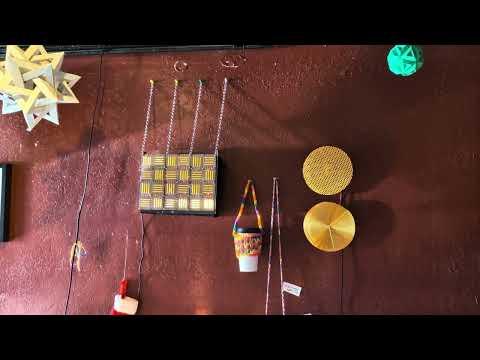
- You can use the mounting holes on the prototyping boards to mount the panel to a wall as shown in the attached video.
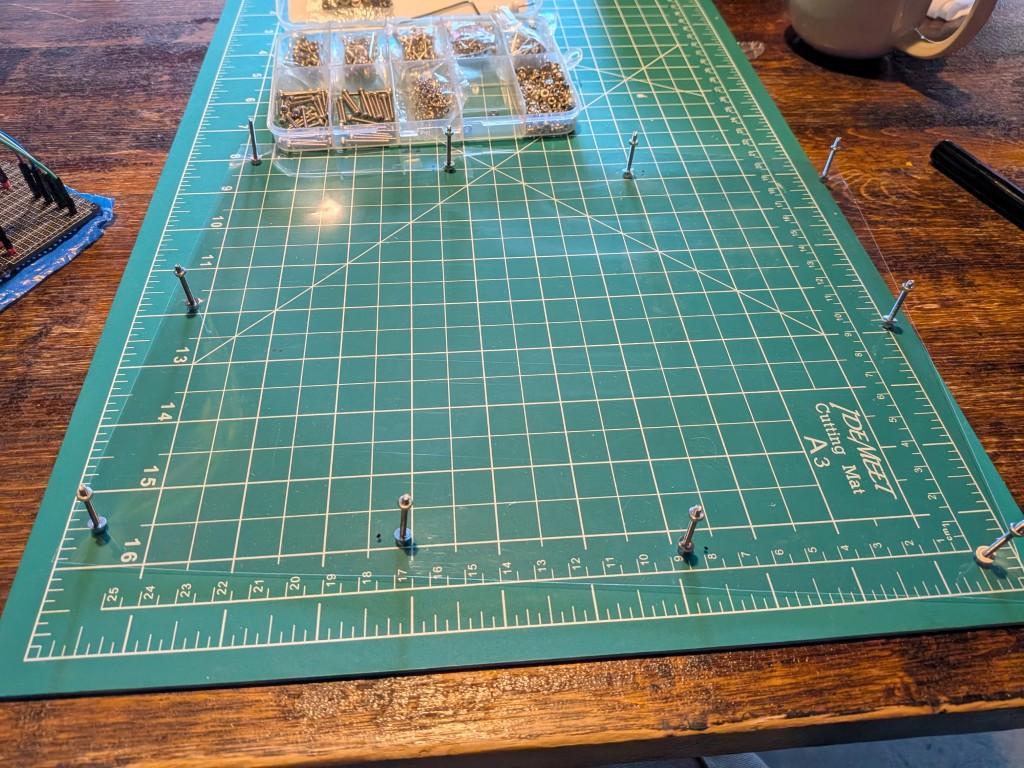
- I also took a sheet of transparency film (the kind used with old school projectors) and poked screws through it, then secured it to the mounting holes on the prototyping boards. This provides some protection for the filaments.
- I used a small sheet of foam core to secure the PWM drivers by poking screws through mounting holes on the driver boards into the foam core and securing with a nut on the back of the foam core. This avoids having the PWM drivers constantly pull down on all the wires while the panel is mounted to the wall.