7 Free Tips to Clean My Mac Hard Drive
by VishalC24 in Circuits > Apple
535 Views, 9 Favorites, 0 Comments
7 Free Tips to Clean My Mac Hard Drive
Mac hard drive cleaning is simple but necessary task that one should perform occasionally. Removing junk files and other unwanted files from the Mac hard drive will result in creation of free spaces that would be extremely helpful to OS X in performing day to day operations. Speed up Mac from Stellar Data Recovery is one such Mac cleaner that works on internal & external Mac hard drives. Read 7 simple steps to clean up your Mac hard drive without use of any Mac cleaner. However, if your hard drive is large, bulky and full of files then you may consider using a Mac cleaner.
Clean Up Desktop & Dock
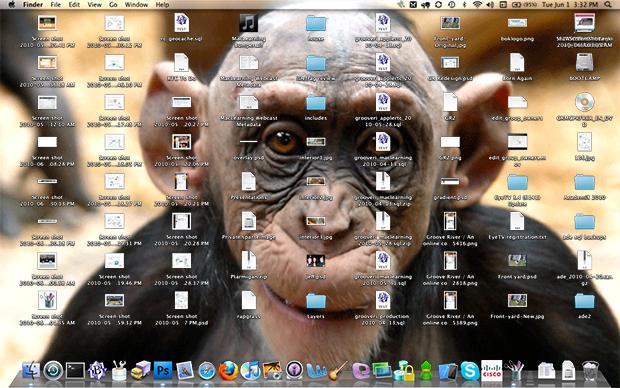
Mac desktop should be neat, tidy and free of unwanted applications. It is the best practice to create a new folder and move the occasionally used icons to it. This will help OS X to minimize the use of its resources in order to quickly boot to the Mac desktop. Some great tips to manage Mac desktop are mentioned here. Now, put some little efforts to cut down the number of applications from Mac's Dock. With a tidy Mac desktop & dock, you can expect a significant improvement in Mac performance.
Kill Old & Unused Caches Files
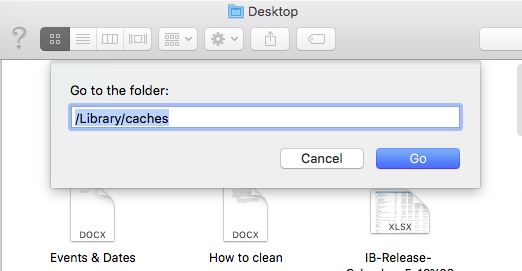
Use Finder << Go<< Go to folder << /Library/caches and trash all caches files from it. With this operation you can regain some good amount of free spaces and creation of new caches files will further improve OS X performance.
Don't Spare Unused & Bulky Log Files
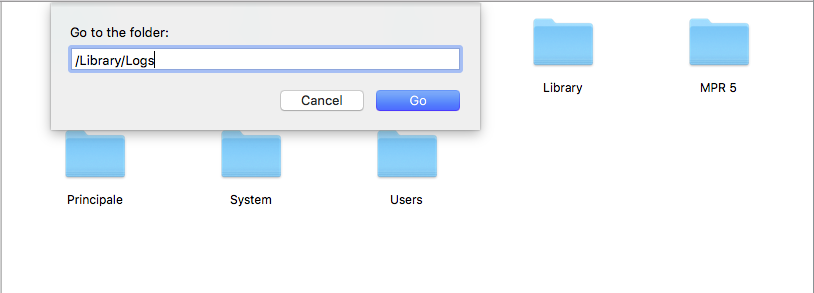
Use Finder << Go << Go to folder << /Library/Logs and clear all logs files from it. Even once, most of log reports aren't touched by the users. Consider sending log reports to trash a pious task for Mac hard drives.
Kick Out Unused Applications

Use Finder << Go << Go to folder << Applications and drag unwanted apps, software to trash. This is another holy task that will result in better hard drive spaces for Mac. More the free spaces more the improvement in OS X performance. With appropriate Mac cleaning you hard drive will never run out of spaces or show you the error: Your Startup Disk is Full
Remove Widgets From Mac

Use Finder << Go << Go to folder << Widgets and drag non Apple and sluggish widgets to trash. Widgets are cool to have but they silently consume lots of RAM for their operations. So, consider removing these widgets if you are low on RAM or hard drive spaces.
Lighten Download Folder

Use Finder << Favourites << Download to view all files that have been downloaded into this folder through web. Not all downloaded applications are worthy of staying for long on Mac hard drives. Right click << Arrange By << Date Last Opened to view files for removal. Download folder is one place that can help you clean gigabytes of unwanted data from Mac hard drive. Just go for it.
Locate Duplicate Files

Through Finder:
- Launch new Finder Windows
- Enter wild card ASTERISK symbol in the Finder's SEARCH box
- Use '+' button below search box and enter KIND and ANY fields
- Filter the results with Kind and similar items will show up
Remove iTunes Duplicates
- Launch iTunes from Dock or Application folder
- Select Music, Films or Podcasts
- Click View << Show Duplicate Items Delete Duplicate (Move to trash)