3D Printed Time-Lapse Videos on Prusa Core One.
by advancedhobbylab in Workshop > 3D Printing
45 Views, 0 Favorites, 0 Comments
3D Printed Time-Lapse Videos on Prusa Core One.
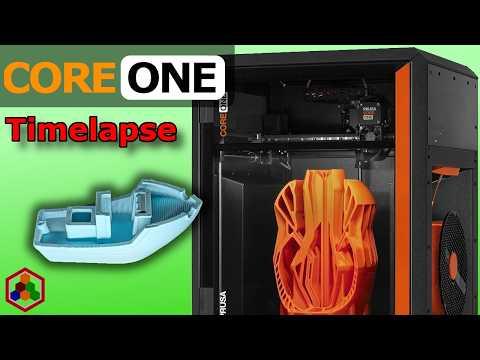
I added a mod to my Prusa Core One to create beautiful time-lapse videos. I want to be able to share the 3D printing projects that I do online and time lapse videos are an excellent way to display that work.
Supplies
Tools:
- Soldering Iron
- Needle-Nose Pliers/Wire-cutters
- Computer
- Cellphone
- Tripod
- Phone Mount
Hardware:
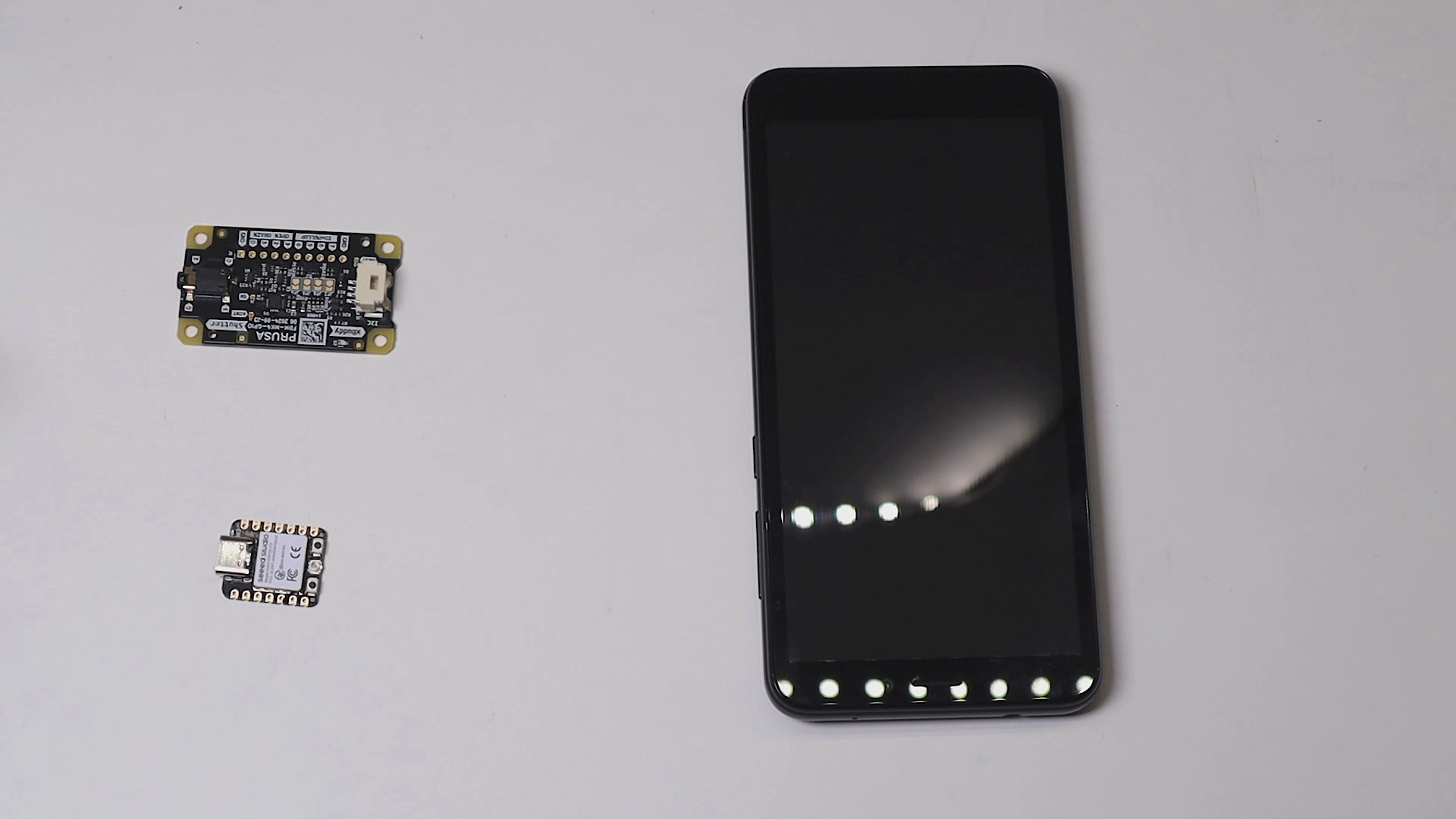
- Prusa GPIO Hackerboard (prusa3d) (printed solid)
- ESP32 Microcontroller (link*)
- Perf Board
- 26x Male Header Pins (link*)
- 14x Female Header Pins (link*)
- Ribbon Cable (link*)
- Wire (link*)
- 2x LED (Optional)
- 2x 33Ohm Resister (Optional)
* Affiliate links. Using these links supports my work by allowing me to earn a small commission.
Assembly



Soldering GPIO Hackerboard
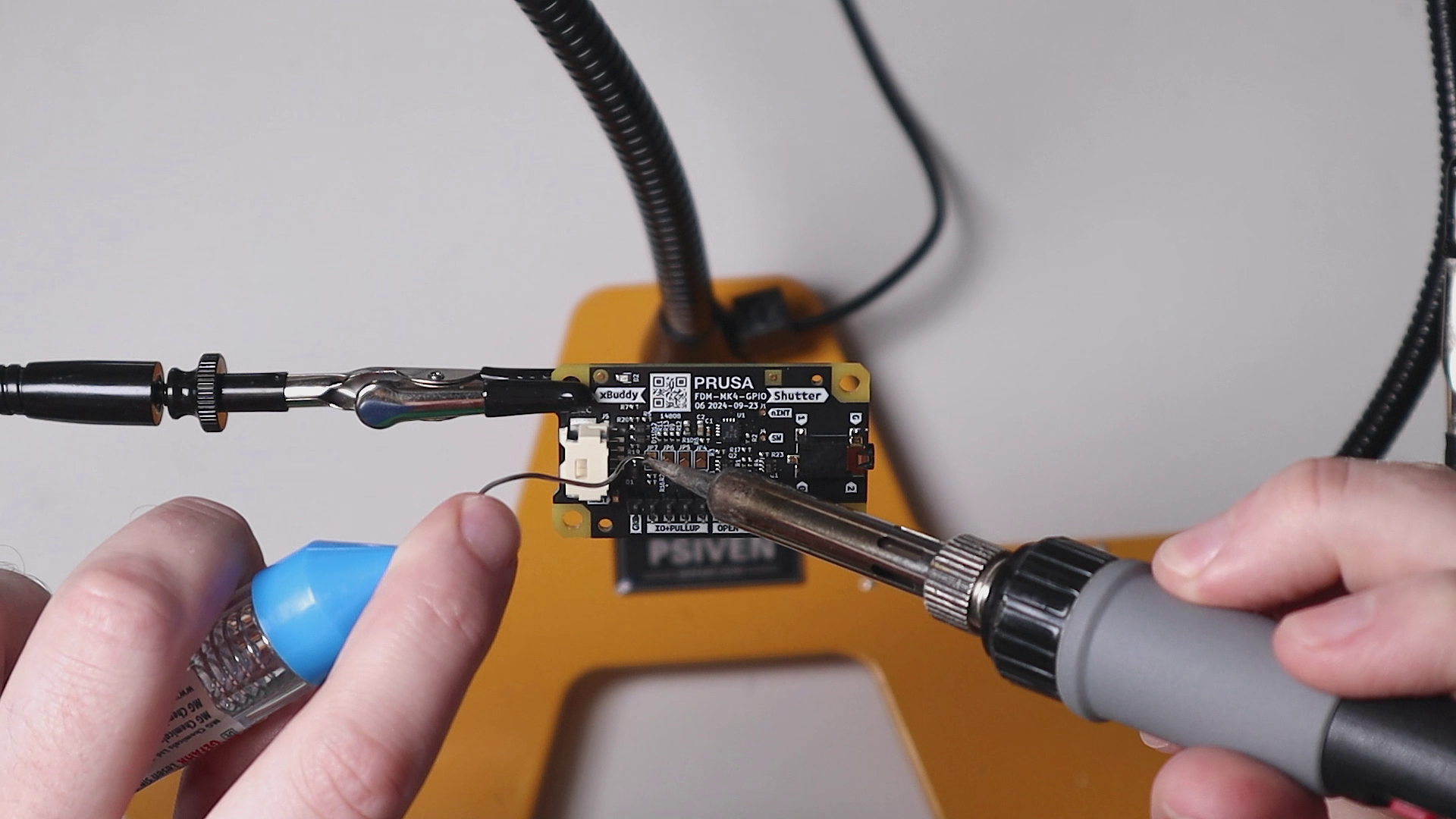
Take a row of 10 male header pins and solder them onto the GPIO Hackerboard. You only need 2 pins soldered for GND and pin 7, but it can be more convenient to solder all 10 if you want to do anything else with your hackerboard later.
Add solder to the pads under the JP7 label to close this circuit. This connects an internal pull-up resister.
Let the solder cool and place the GPIO Hackerboard to the side for now.
Soldering ESP32 Microcontroller
Take two rows of 7 male header pins and solder them to the ESP32 microcontroller. They should be soldered facing downward with the buttons facing upward.
Let the solder cool and place the microcontroller to the side for now.
Soldering Connections
We need a way of connecting the GPIO Hackerboard to the microcontroller. To create a more professional look, I decided to solder the connections down to a small perf board. This part will take a little planning as not all perf boards have the same size.
Take two rows of 7 female header pins and place them on the perf board. Hold the microcontroller over the female header pins to ensure they have the right spacing. Then place a row of 2 male header pins on the board. These will be for the connection to the GPIO hackerboard.
Next, start cutting wire to be used for connections. Using solid core wire allows you to bend the wires to make sharp angles which will leave you with a cleaner layout. If possible, use different color wires for different paths with an easy to remember color scheme such as: black for GND.
Using the microcontroller as a reference, you need to connect the signal wire and GND wires. You need to add wires between the male header pins and the female ones. If doesn't matter which of the male header pins is used for GND and which is used for signal as long as you can tell them apart. The signal wire should be connected to the pin labeled D3 on the microcontroller.
(Optional)
You may add status LEDs on the board as well. I used a blue LED to indicate a successful bluetooth connection and a green LED to indicate when the phone should take the photo. This can be helpful when debugging the software.
Each of the LEDs should have a resister soldered on the positive side. The blue LED's positive should be connected to the D10 pin with the green LED's positive connected to the D9 pin.
Program ESP32 Microcontroller
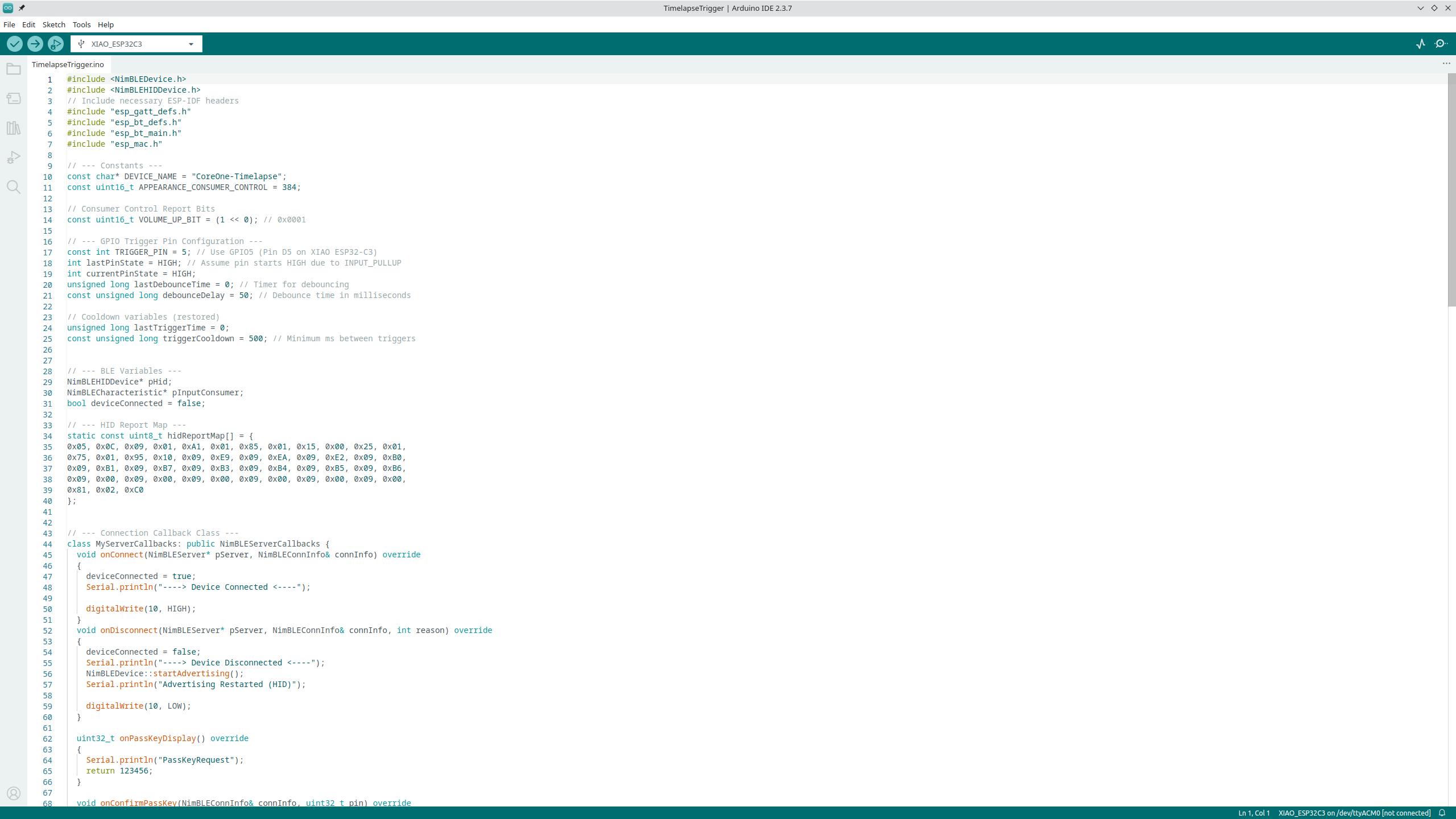
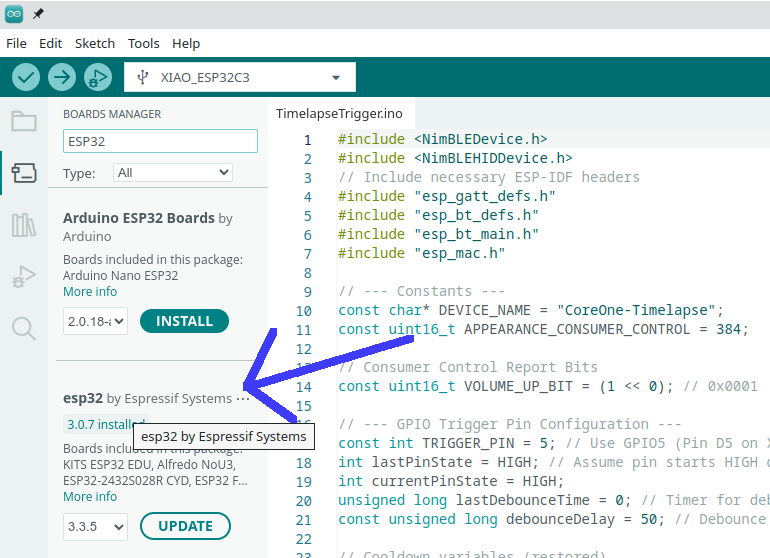
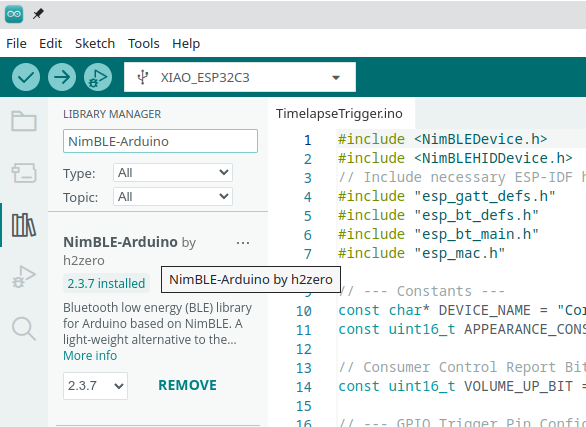
Download TimelapseTrigger.ino. This is the arduino code that needs to be uploaded to the ESP32 microcontroller.
Open ArduinoIDE (install) and open the TimelapseTrigger.ino file (included in this step). To get it working, a few libraries may need to be installed. Go to Tools->Manage Libraries... and search for NimBLE-Arduino. Install it if needed. I used version 3.0.7. Next go to Tools->Board: ->Boards Manager... and search for esp32 by Espressif Systems. Install that if needed.
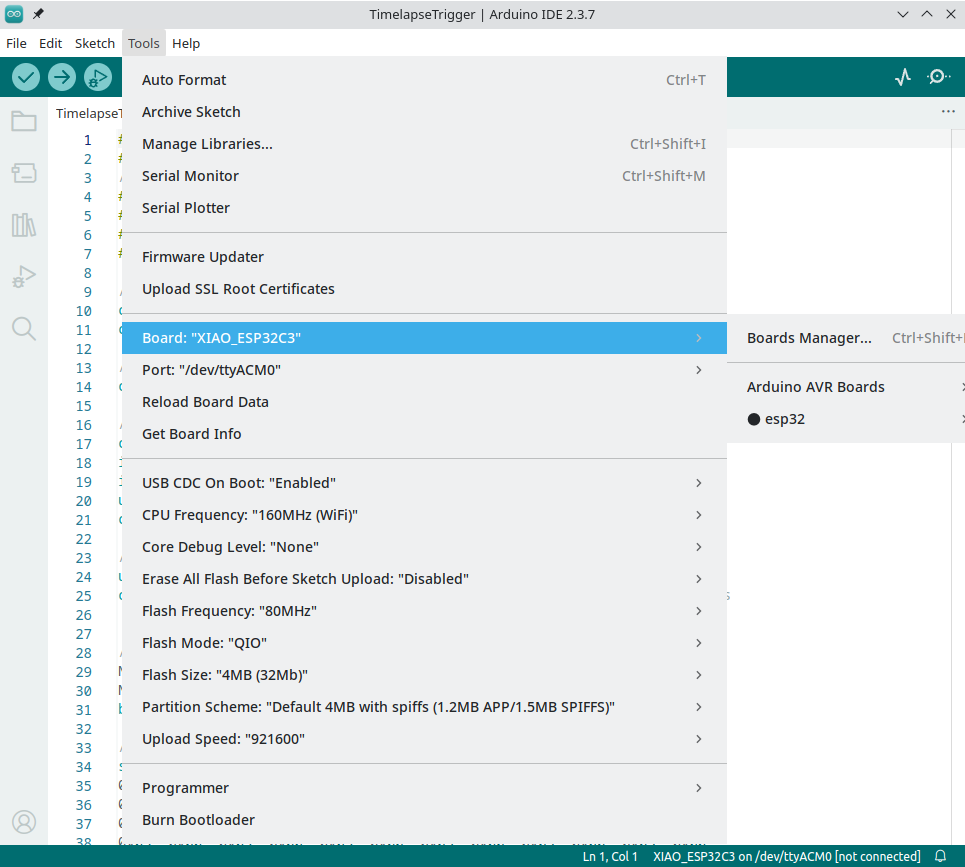
To install the program, you first have to set the destination board. Go to Tools->Board: ->esp32->XIAO_ESP32C3. If you plug your microcontroller into your computer, it should auto recognize the port, but if not, set the port Tools->Port: and select the right port, my port on my linux machine is /dev/ttyACM0.
Next, click the upload button in the top left. You should get a message that the upload was successful.
You should test the microcontroller to confirm everything is working. With the microcontroller powered on, use your cell phone to search for bluetooth signals. You should see an option called: CoreOne-Timelapse. Pair with that signal and set your phone down. Now grab a short spare wire and manually create a connection between GND and the D3 pin. This should simulate a signal from the GPIO hackerboard. If it signaled correctly, the volume on your phone should have increased, or if you have the camera app open, the camera would have taken a photo.
Downloads
Installation
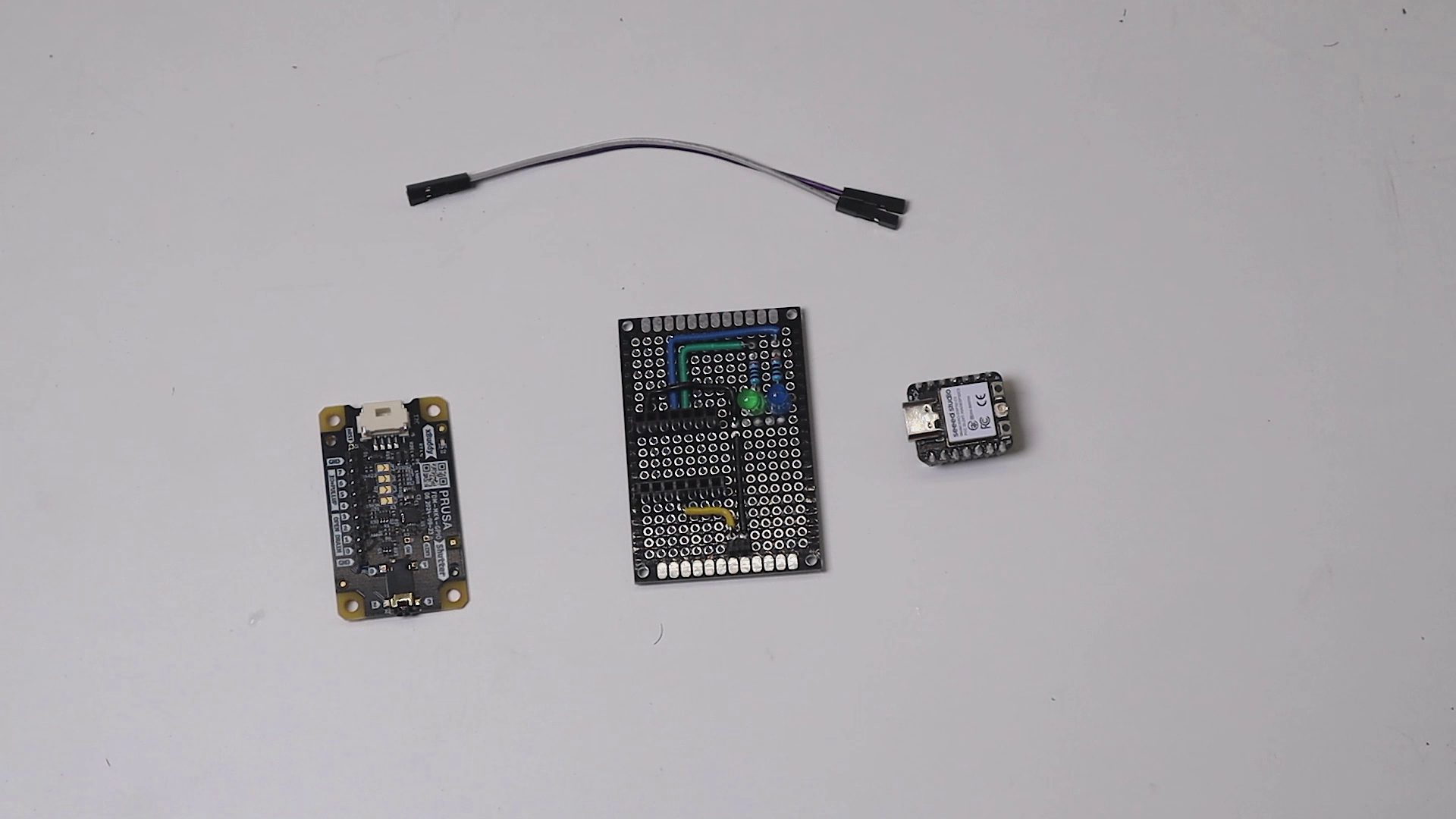


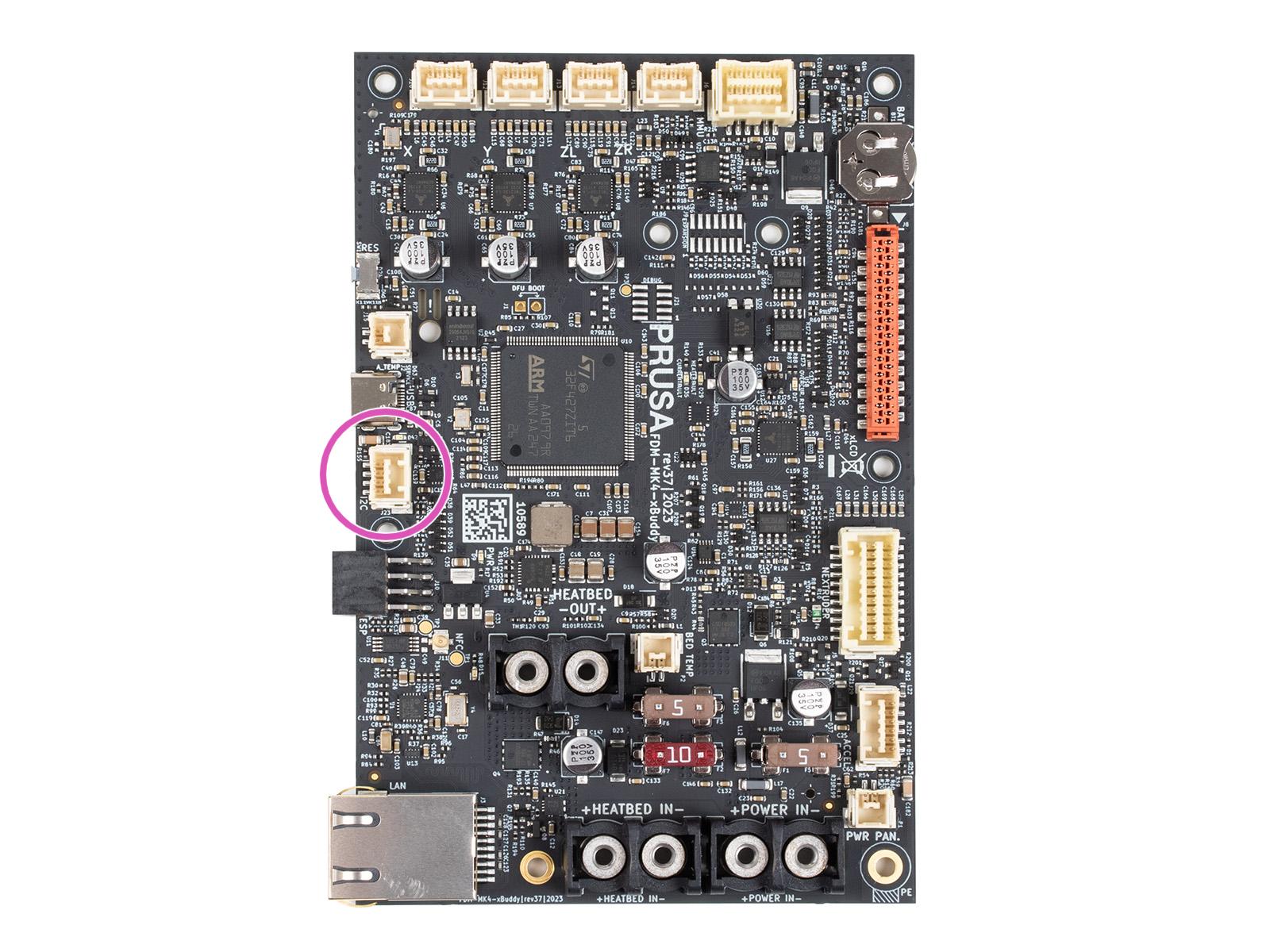

Now we can connect the electronics to the printer. A small cable will have to be connected the printers electronic board. The problem is that there is no obvious route for a cable to exit the electronics enclosure. There is a small opening that is hidden by the WiFi module if installed. If you don't have it installed, you may route the cable through that hole. If you want to keep the WiFi module installed, I created a modified WiFi cover that allows the cable to pass under the WiFi module. I uploaded the model to Printables.
Connect one end of the GPIO Hackerboard cable to the Prusa electronics and route it through the hole near the WiFi module and connect the other end to the GPIO Hacker board. NOTE: You should turn the printer off when connecting the cable. The printer won't recognize the hackerboard until you power cycle the printer.
Using two wires from the ribbon cable, connect it to the GND and pin 7 on the Hackerboard and connect the other end to the two pin header on the perf board. Be sure to keep the same orientation: GND->GND, Pin 7 -> D3.
The microcontroller won't be able to receive power from the GPIO hackerboard so we will need to power it separately. A simple USB power adapter will allow you to power your microcontroller.
(Optional)
There are a number of cases for the GPIO Hackerboard on Printables. You may consider printing one for more mounting options.
Setup Prusa Slicer
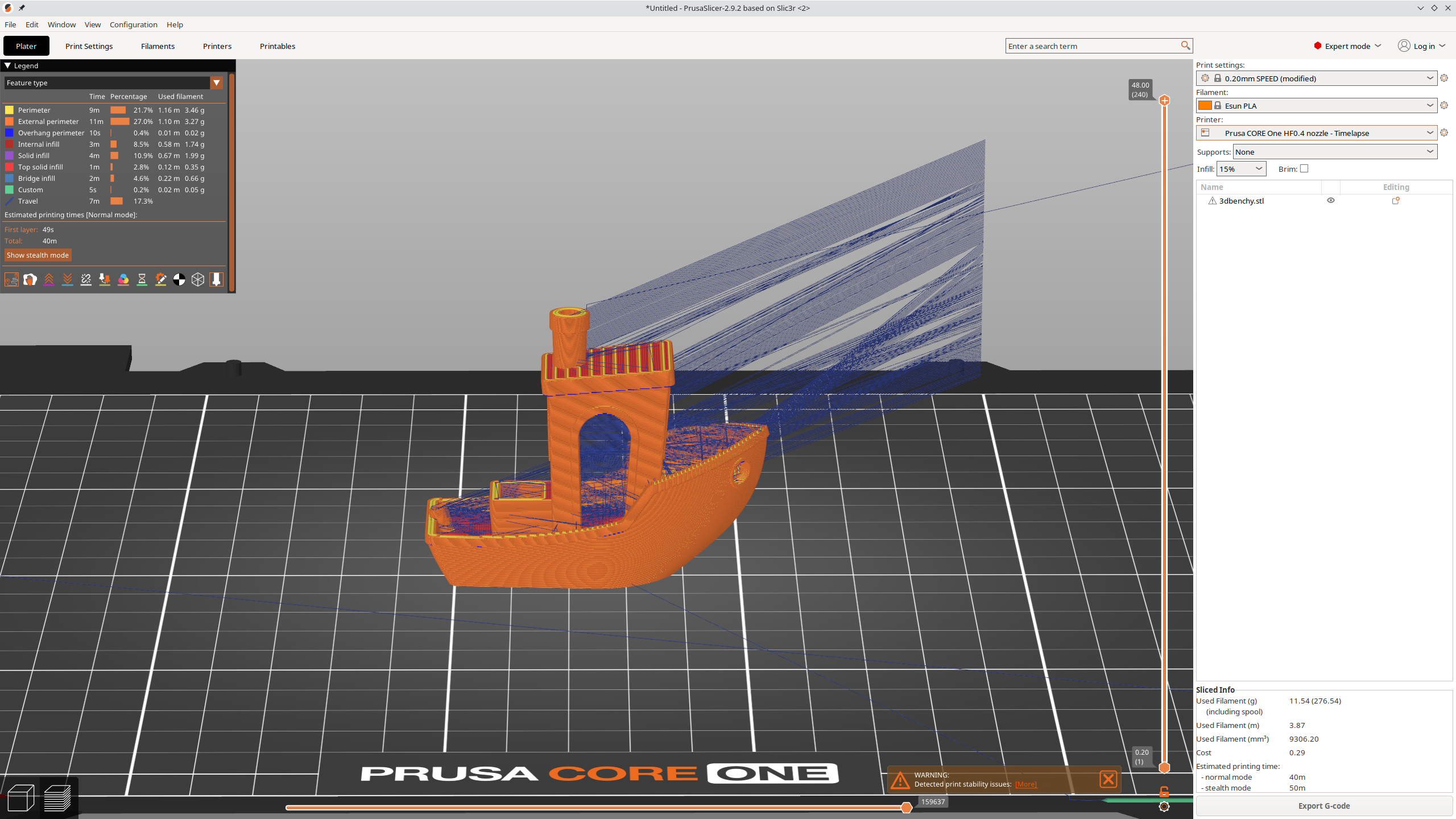
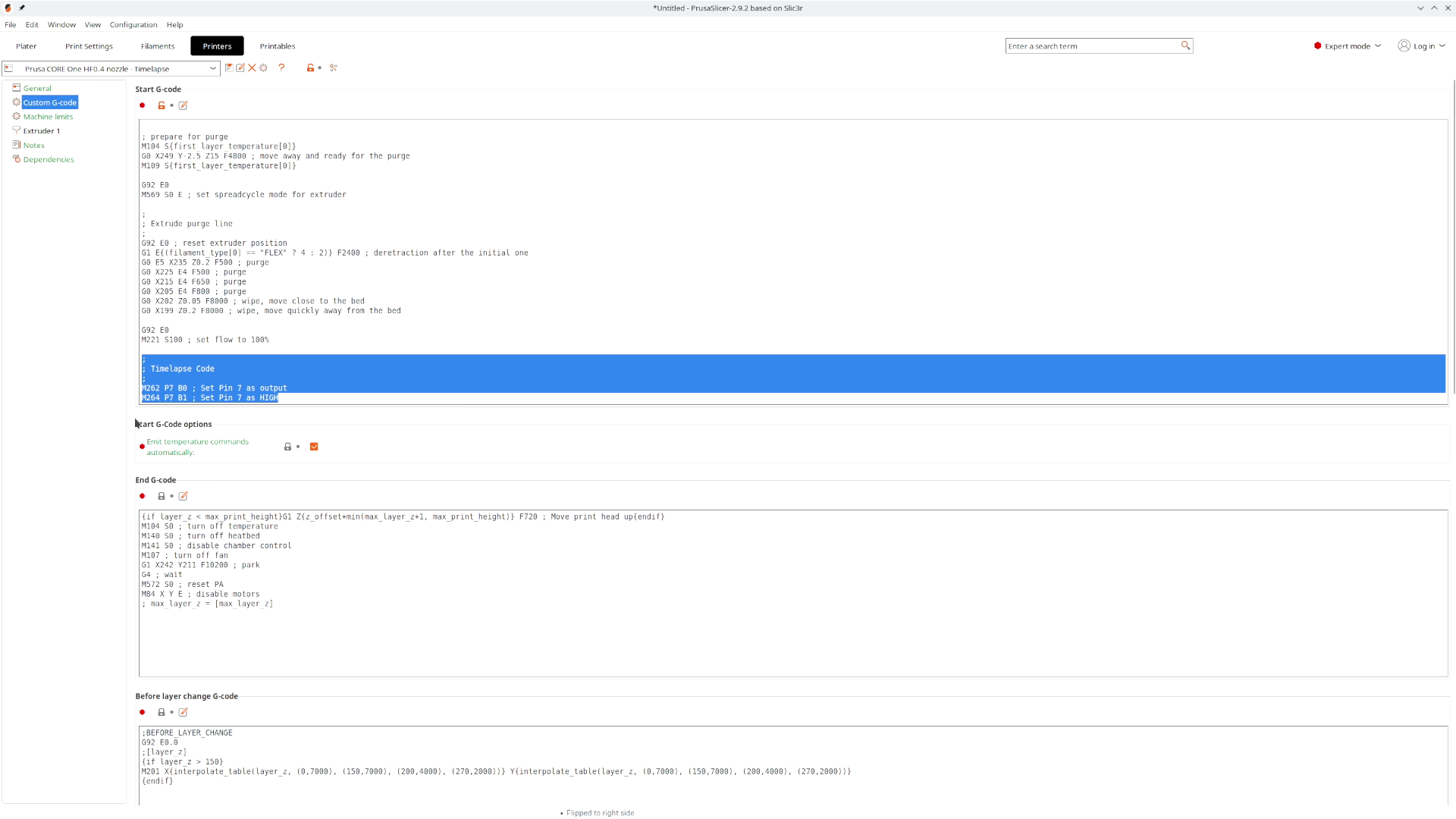

Before we can record videos, we must update Prusa Slicer to generate the gcode we need to command the printer to signal the GPIO Hackerboard.
First, select the printer configuration that you want to use for timelapse videos. The one I used was: Prusa CORE One HF0.4 nozzle. At the top, go to Printers->Custom G-code.
In the first section (Start G-code), at the end, add the following code segment:
In the section called After layer change G-code, add the following at the end:
You won't want to use this configuration for every print as the added move operations will increase print times. At the top, there is a save icon that will allow you to save it with a different name so you can easily switch between time-lapse and normal printing modes.
Create Video

Capture Photos
With the printer and microcontroller powered on, connect the cell phone to the bluetooth signal on the microcontroller and open up the camera app. Attach the phone to the tripod and position the phone in front of the printer. Start printing a model that was generated using the new gcode settings. The phone should take photos after every layer.
NOTE: You may have to watch the first layer print to ensure it is working. Some phones have a tendency to fall asleep. If the printer takes too long the warm up, the phone may fall asleep before it starts printing and no photos will be taken.
Create Video
The images can be combined into a video using video editing software. I use Davinci Resolve (install) which has a free version that you can download.
Create a folder on your computer and download all the images from your phone into this folder.
Davinci Resolve will automatically recognize a series of images as an image sequence if the files are named with sequential numbers. If your phone is like mine, it will generate images with lengthy names using timestamps which seems to confuse Davinci Resolve.
This can be fixed by using Windows File Explorer. First, navigate to the folder containing your images. Select View->Sort->Created Date to sort the files. Then select all the files, right-click the first one and select rename. Rename it something like: timelapse_(1001). Windows will automatically give all the files sequential numbers in the order that they where sorted.
The files should now appear as an image sequence in Davinci Resolve. You may then add that image sequence to your media pool and add it to your timeline like any other video clip.