2-Bit Adder With 7-Segment Display
by 793635 in Circuits > Arduino
14 Views, 1 Favorites, 0 Comments
2-Bit Adder With 7-Segment Display
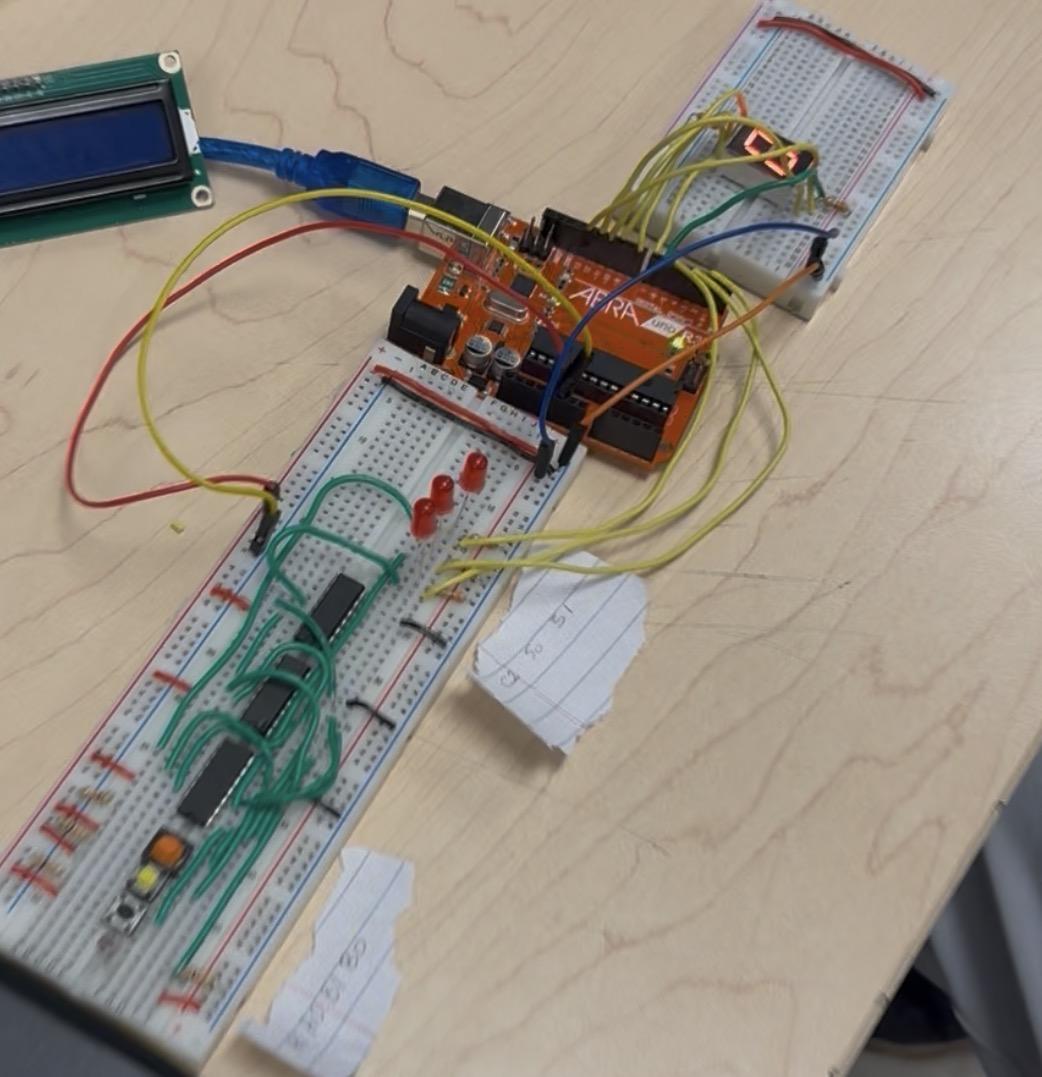

I'm Jetan, and in this Instructable, I will show you how to build my senior project, a 2-Bit Binary Adder that uses seven-segment displays. At first, the project may seem challenging to build, but once you learn how it works, you will find that it is actually simple to build. Below is a more detailed description.
For the adder to function, you will supply two binary numbers (which consist of just two digits - 0 and 1) as inputs. The binary numbers that you supply each consist of two inputs: the first number will come from A1 and A0, and the second number will come from B1 and B0. Each input can be a binary digit 0 or 1, and depending on what input you supply and what combination it is, each set of inputs for A's and B's binary number can represent a decimal number from 0 to 3.
This project combines two different types of input numbers into a single value using logic gate technology. The gates: AND, OR, and XOR work like a computer-made decision for us based on the two number inputs -> : one will be a '1', or turned ON, and the other a ‘0' or turned off. As a result, the output will be displayed via a series of seven-segment displays, much like any digital clock and/or calculator. You will also be using standard LEDs for additional indication of your number input values being converted to binary output values. By understanding that computers use binary numbers, you can see, as shown in this project, through simple digital circuit design, how to perform mathematical operations with addition and display them in a clear and easy-to-read format.
After some performing preliminary research and effectively communicating with my instructor about my interests and ideas, I decided to select the logic gates for the 2-Bit Adder project to use as the basis for my project. The 2-Bit Adder interests me because it produces a quantifiable output/result, making the project more valuable for me as a novice's hands-on learning tool. Although my wiring and circuit logic have been difficult at times, I feel that the Instructable document will serve to allow you to complete and test your project step by step. Let's begin with the suggested material.
Supplies
.jpg)
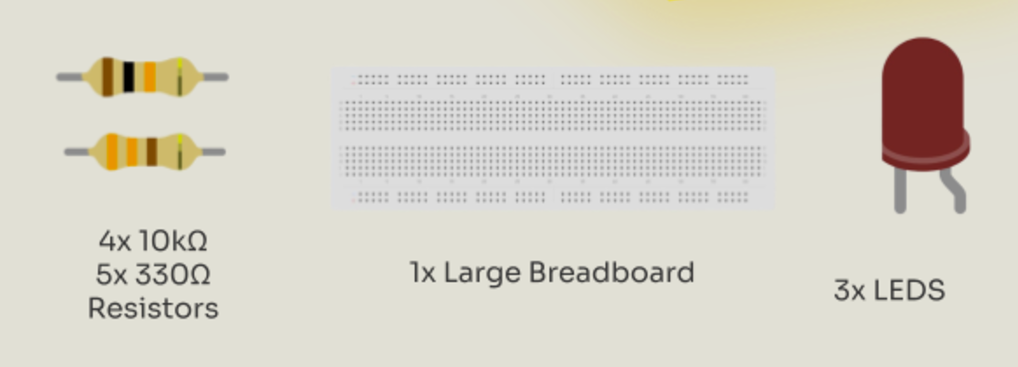
For this project, you will require (links are included):
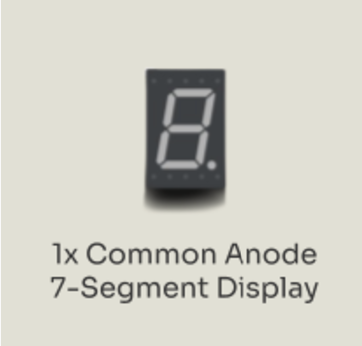
1x Common Anode 7-Segment Display
1x Wire Pack
1x Breadboard
3x LEDS
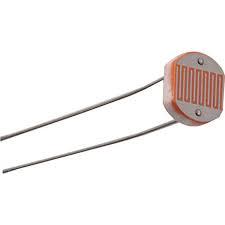
1x LDR
| Component | Quantity | Cost |
| ------------------------------ | -------- | ------ |
| Common Anode 7-Segment Display | 1 | $3.46 |
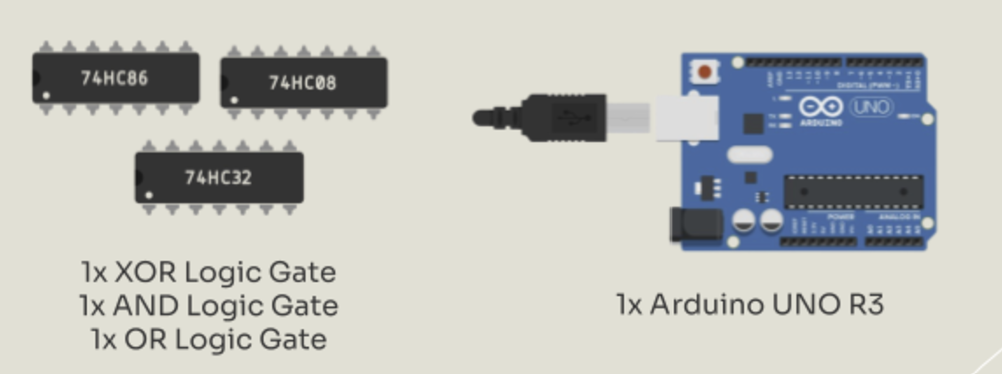
| XOR Logic Gate | 1 | $2.41 |
| AND Logic Gate | 1 | $0.95 |
| OR Logic Gate | 1 | $1.80 |
| 10 kΩ Resistors (bulk) | 4 | $0.40 |
| 330 Ω Resistors (bulk) | 5 | $0.50 |
| Arduino UNO R3 | 1 | $15.99 |
| Breadboard (if needed) | 1 | $4.99 |
| Wire Pack (if needed) | 1 | $14.99 |
| LEDs | 3 | $9.00 |
| LDR (Light-Dependent Resistor) | 1 | $9.00 |
TOTAL COST = $63.48
Adding Pushbuttons
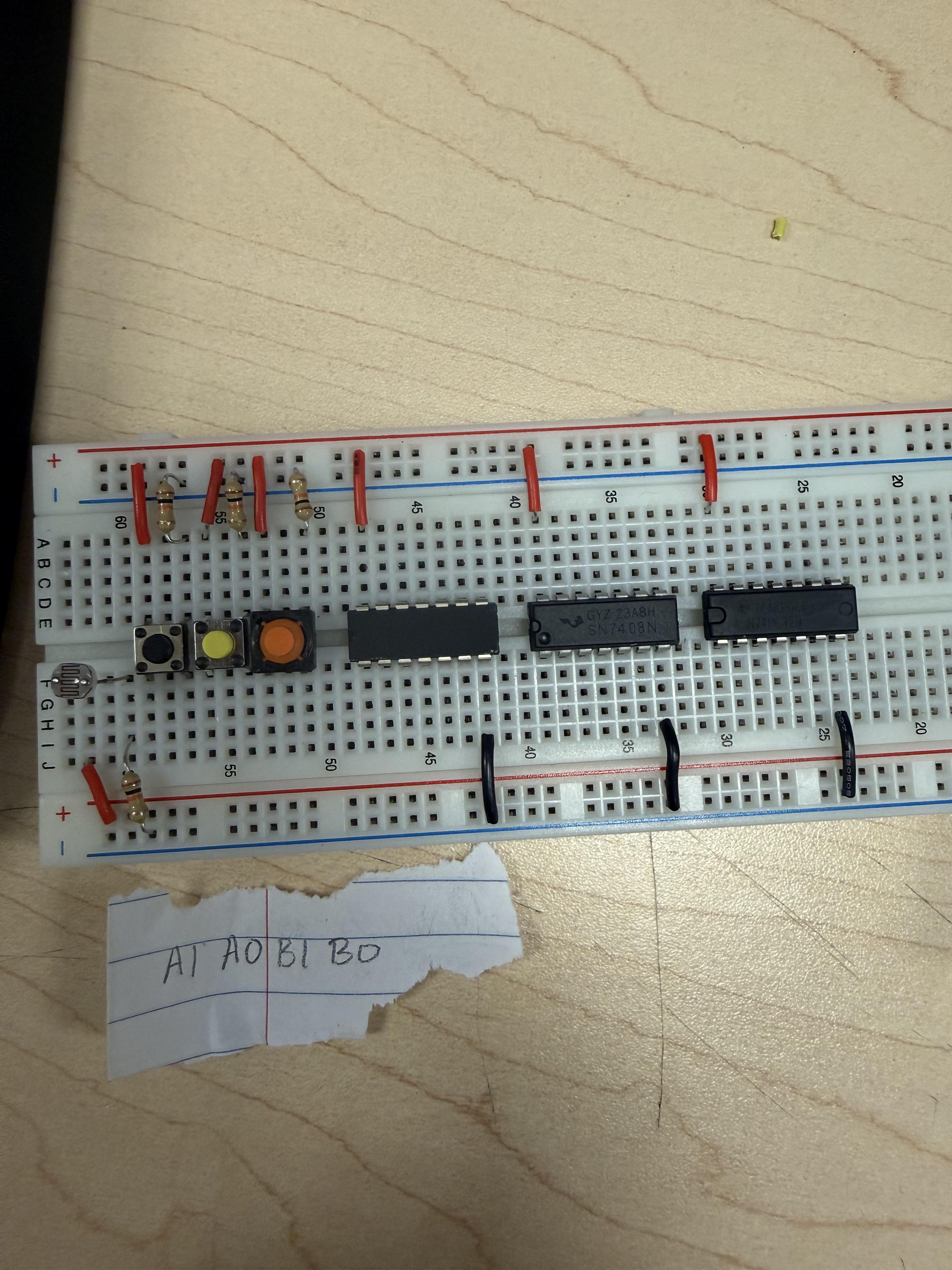
For assembling the circuit, first, the 5V terminal and GND of the Arduino should be connected using the 5V and GND on the breadboard. Then, the push buttons should be inserted across the breadboard, with one end of the button connected to the 5V terminal and the other end connected to the input terminal. This should be done for all push buttons, connecting a 10 kΩ pull-down resistor from the input terminal of the Arduino. Then, the logic gate IC for XOR, AND, and OR gates should be inserted across the breadboard, the VCC terminal connected to the 5V terminal, the GND terminal connected to the GND terminal, the inputs connected from the push button output, and the output connected according to the 2-bit adder logic.
Connecting the Input to Gates and Output
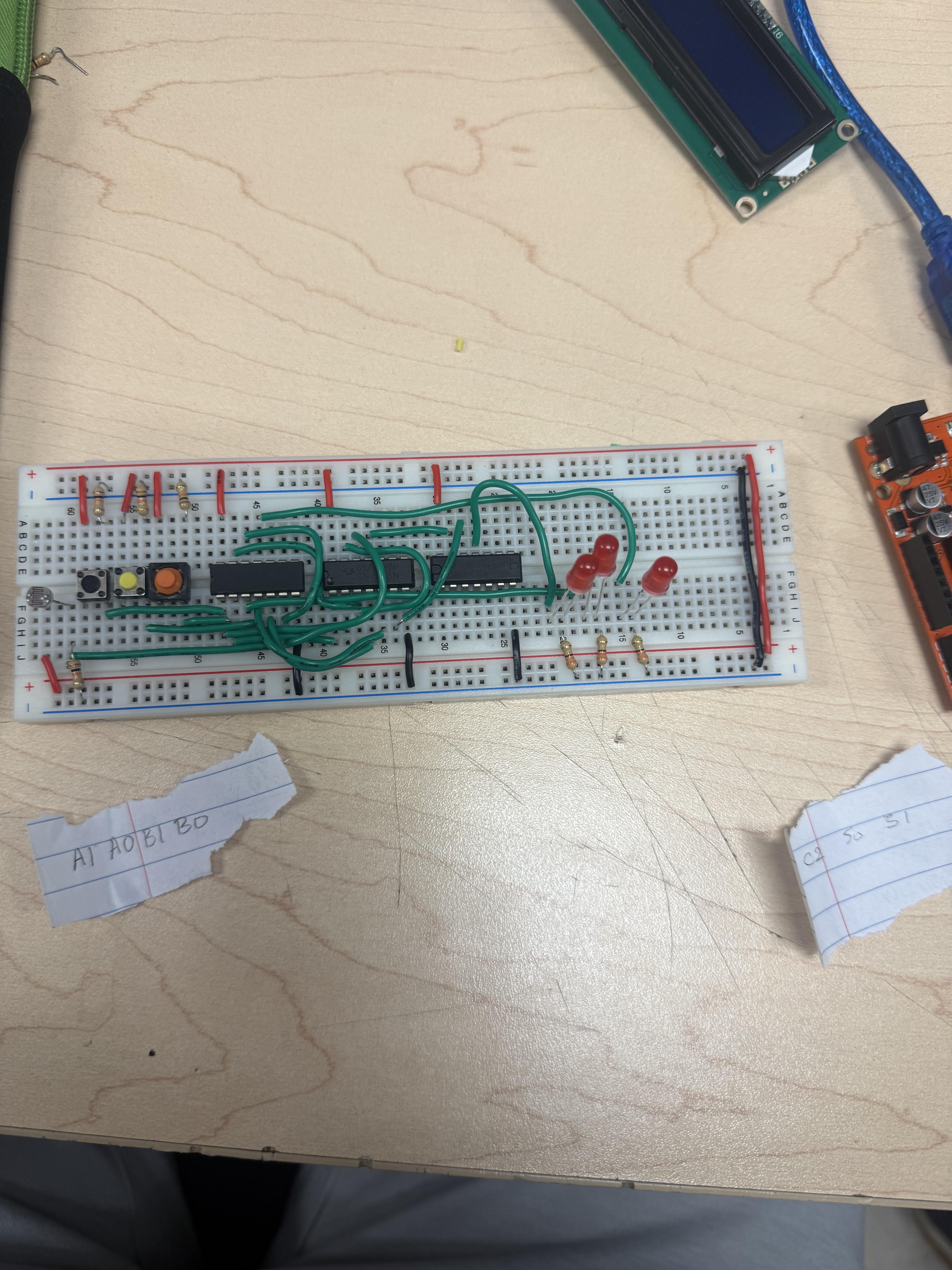
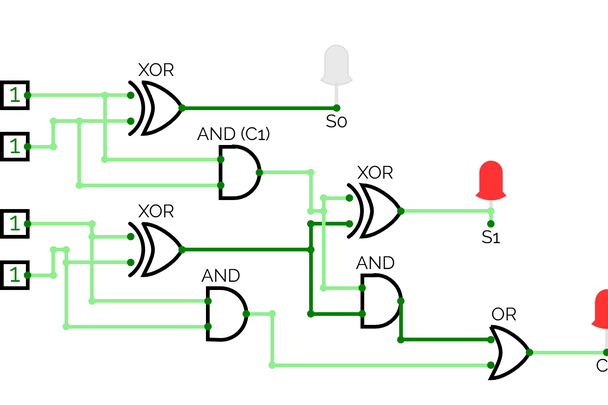
The output of the logic gates connects through the display unit, composed of three LEDs, which indicate the result of the 2-bit addition. The output carrying out the carry operation, named C2, results from the combination of the carry output of the AND gate and the carry output of the OR gate. It is connected through an LED. Similarly, the output S0, which represents the least significant bit of the result, results from the XOR gate applying the XOR operation between inputs A0 and B0, which is connected through another LED. The output S1, which represents the most significant bit, results from the XOR logic gate, which combines the carry output of the first stage along with the output from the XOR operation between inputs A1 and B1. It is connected through the third LED. Each of the LEDs includes a 330 Ω current-limiting resistor, which connects the anode end of the diodes to the output of the gate, while the cathode connects to ground.
Downloads
Connecting Outputs
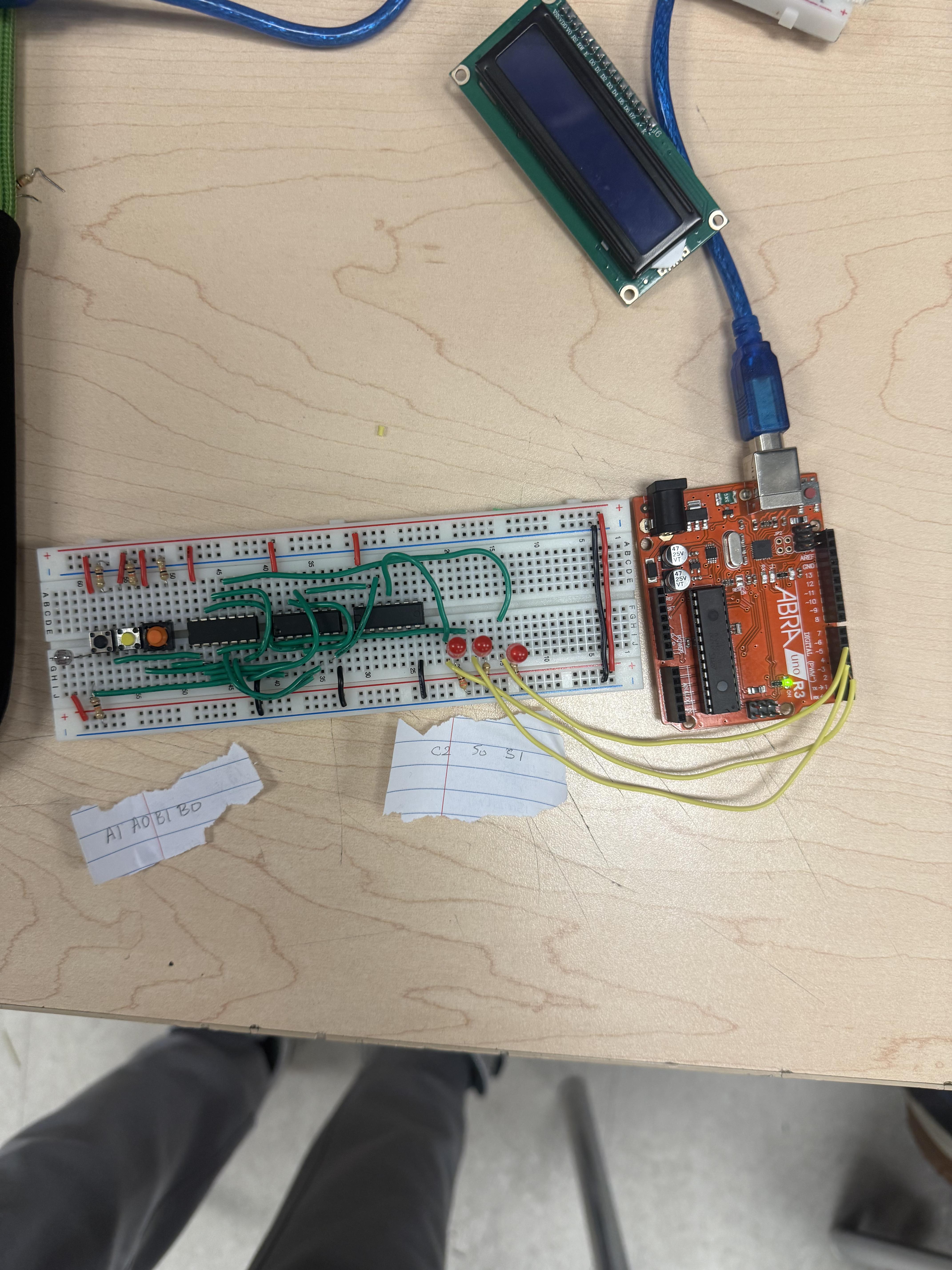
Connect the LED to the digital outputs such as C2: 3, S0: 4, S1: 5.
Now work with the code
const int pinC2 = 3;
const int pinS0 = 4;
const int pinS1 = 5;
void setup() {
pinMode(pinC2, INPUT);
pinMode(pinS0, INPUT);
pinMode(pinS1, INPUT);
}
void loop() {
int C2 = digitalRead(pinC2);
int S1 = digitalRead(pinS1);
int S0 = digitalRead(pinS0);
}
Connecting the 7-Segment
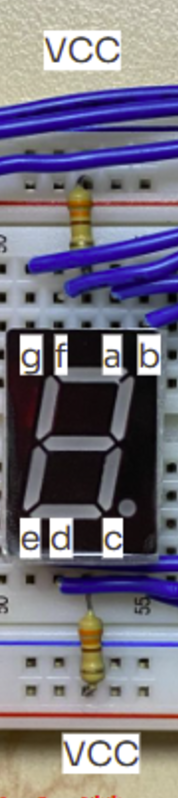
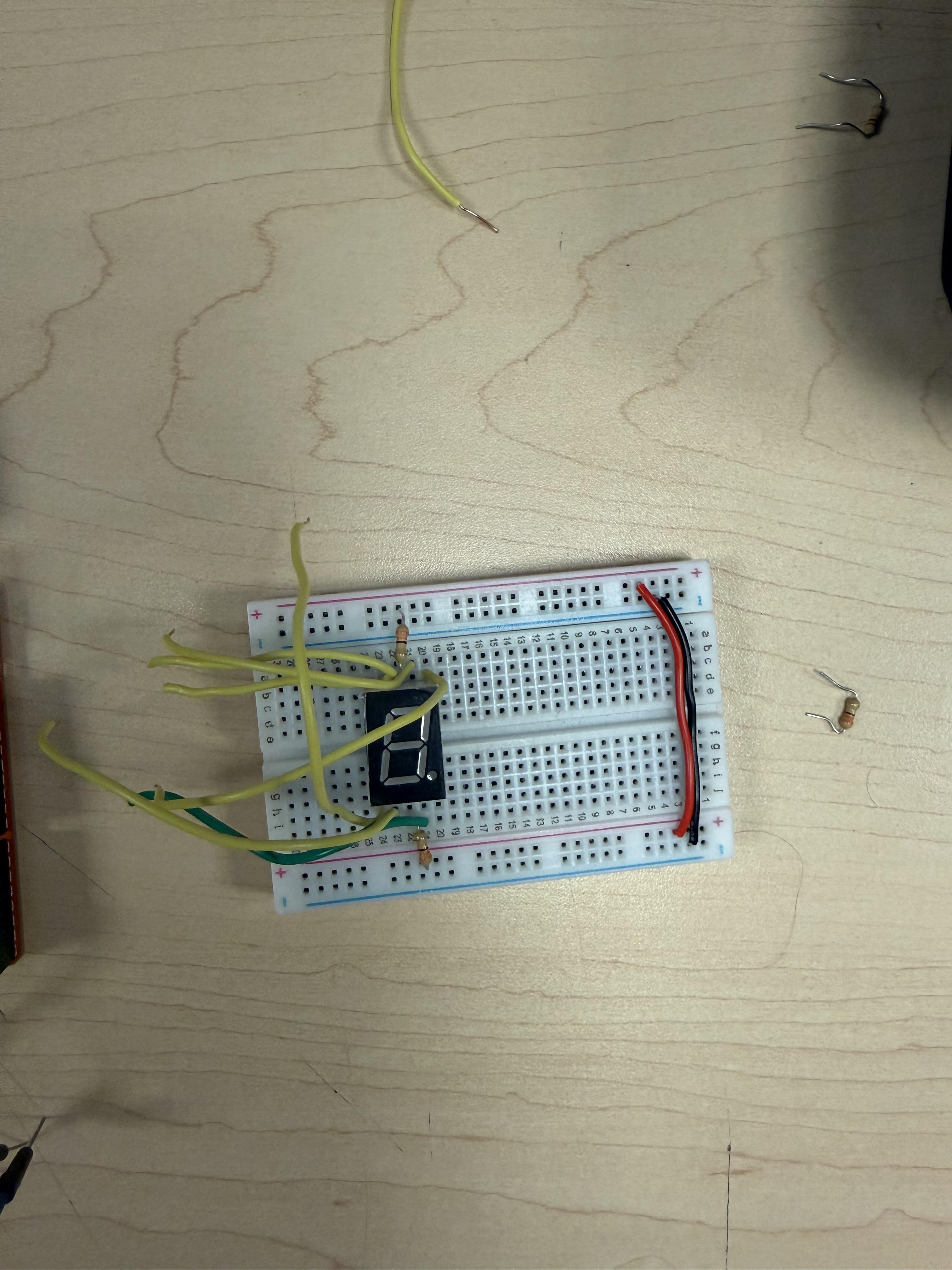
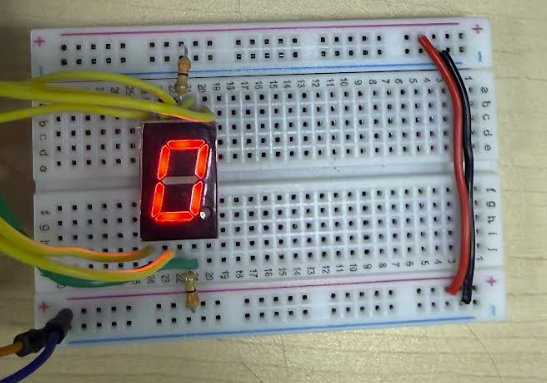
To connect the seven-segment display, first identify the pins labelled A through G on the display, which control each individual segment. Connect each segment pin to its corresponding Arduino digital pin via a 330 Ω current-limiting resistor to protect the LEDs in the display. Segment A is connected to digital pin 10, B to pin 11, C to pin 6, D to pin 13, E to pin 12, F to pin 8, and G to pin 7. If you are using a common-anode display, connect the common-anode pin to 5 V; if it is common-cathode, connect the common-cathode pin to ground. Once wired, setting a digital pin HIGH or LOW turns each segment on or off, depending on the display type, allowing numbers to be displayed correctly.
Code For Arduino:
const int segA = 10;
const int segB = 11;
const int segC = 6;
const int segD = 13;
const int segE = 12;
const int segF = 8;
const int segG = 7;
const bool digits[7][7] = {
{1,1,1,1,1,1,0},
{0,1,1,0,0,0,0},
{1,1,0,1,1,0,1},
{1,1,1,1,0,0,1},
{0,1,1,0,0,1,1},
{1,0,1,1,0,1,1},
{1,0,1,1,1,1,1}
};
Add code to the setup function:
pinMode(segA, OUTPUT);
pinMode(segB, OUTPUT);
pinMode(segC, OUTPUT);
pinMode(segD, OUTPUT);
pinMode(segE, OUTPUT);
pinMode(segF, OUTPUT);
pinMode(segG, OUTPUT);
displayNumber(value);
Add this to the loop:
int value = (C2 << 2) | (S1 << 1) | S0;
displayNumber(value);
//Comparing values from all outputs for the 7-segment
Code for displaying the number on a 7-segment display and clearing the display before the next number:
void displayNumber(int num) {
if (num < 0 || num > 6) {
clearDisplay();
return;
}
digitalWrite(segA, !digits[num][0]);
digitalWrite(segB, !digits[num][1]);
digitalWrite(segC, !digits[num][2]);
digitalWrite(segD, !digits[num][3]);
digitalWrite(segE, !digits[num][4]);
digitalWrite(segF, !digits[num][5]);
digitalWrite(segG, !digits[num][6]);
}
void clearDisplay() {
digitalWrite(segA, HIGH);
digitalWrite(segB, HIGH);
digitalWrite(segC, HIGH);
digitalWrite(segD, HIGH);
digitalWrite(segE, HIGH);
digitalWrite(segF, HIGH);
digitalWrite(segG, HIGH);
}
Video Demonstration
Combinations TEST:
┌────┬────┬────┬────┬────┬────┬────┬─────────────
│ A1 │ A0 │ B1 │ B0 │ C2 │ S1 │ S0 │ Binary Result │ Decimal on Display │
├────┼────┼────┼────┼────┼────┼────┼─────────────
│ 0 │ 0 │ 0 │ 0 │ 0 │ 0 │ 0 │ 000 │ 0 │
│ 0 │ 0 │ 0 │ 1 │ 0 │ 0 │ 1 │ 001 │ 1 │
│ 0 │ 0 │ 1 │ 0 │ 0 │ 1 │ 0 │ 010 │ 2 │
│ 0 │ 0 │ 1 │ 1 │ 0 │ 1 │ 1 │ 011 │ 3 │
│ 0 │ 1 │ 0 │ 0 │ 0 │ 0 │ 1 │ 001 │ 1 │
│ 0 │ 1 │ 0 │ 1 │ 0 │ 1 │ 0 │ 010 │ 2 │
│ 0 │ 1 │ 1 │ 0 │ 0 │ 1 │ 1 │ 011 │ 3 │
│ 0 │ 1 │ 1 │ 1 │ 1 │ 0 │ 0 │ 100 │ 4 │
│ 1 │ 0 │ 0 │ 0 │ 0 │ 1 │ 0 │ 010 │ 2 │
│ 1 │ 0 │ 0 │ 1 │ 0 │ 1 │ 1 │ 011 │ 3 │
│ 1 │ 0 │ 1 │ 0 │ 1 │ 0 │ 0 │ 100 │ 4 │
│ 1 │ 0 │ 1 │ 1 │ 1 │ 0 │ 1 │ 101 │ 5 │
│ 1 │ 1 │ 0 │ 0 │ 0 │ 1 │ 1 │ 011 │ 3 │
│ 1 │ 1 │ 0 │ 1 │ 1 │ 0 │ 0 │ 100 │ 4 │
│ 1 │ 1 │ 1 │ 0 │ 1 │ 0 │ 1 │ 101 │ 5 │
│ 1 │ 1 │ 1 │ 1 │ 1 │ 1 │ 0 │ 110 │ 6 │
└────┴────┴────┴────┴────┴────┴────