🍹 Best Automatic Syrup Dispenser | DIY Arduino Project | Beginner Friendly
by TylerDDDD in Circuits > Arduino
157 Views, 1 Favorites, 0 Comments
🍹 Best Automatic Syrup Dispenser | DIY Arduino Project | Beginner Friendly
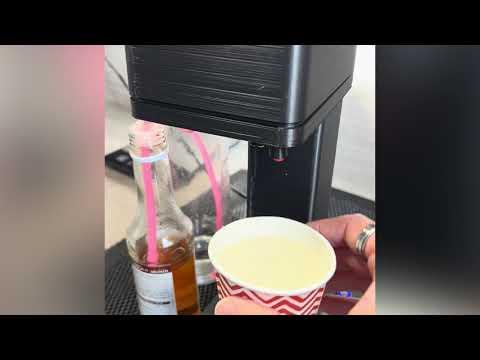
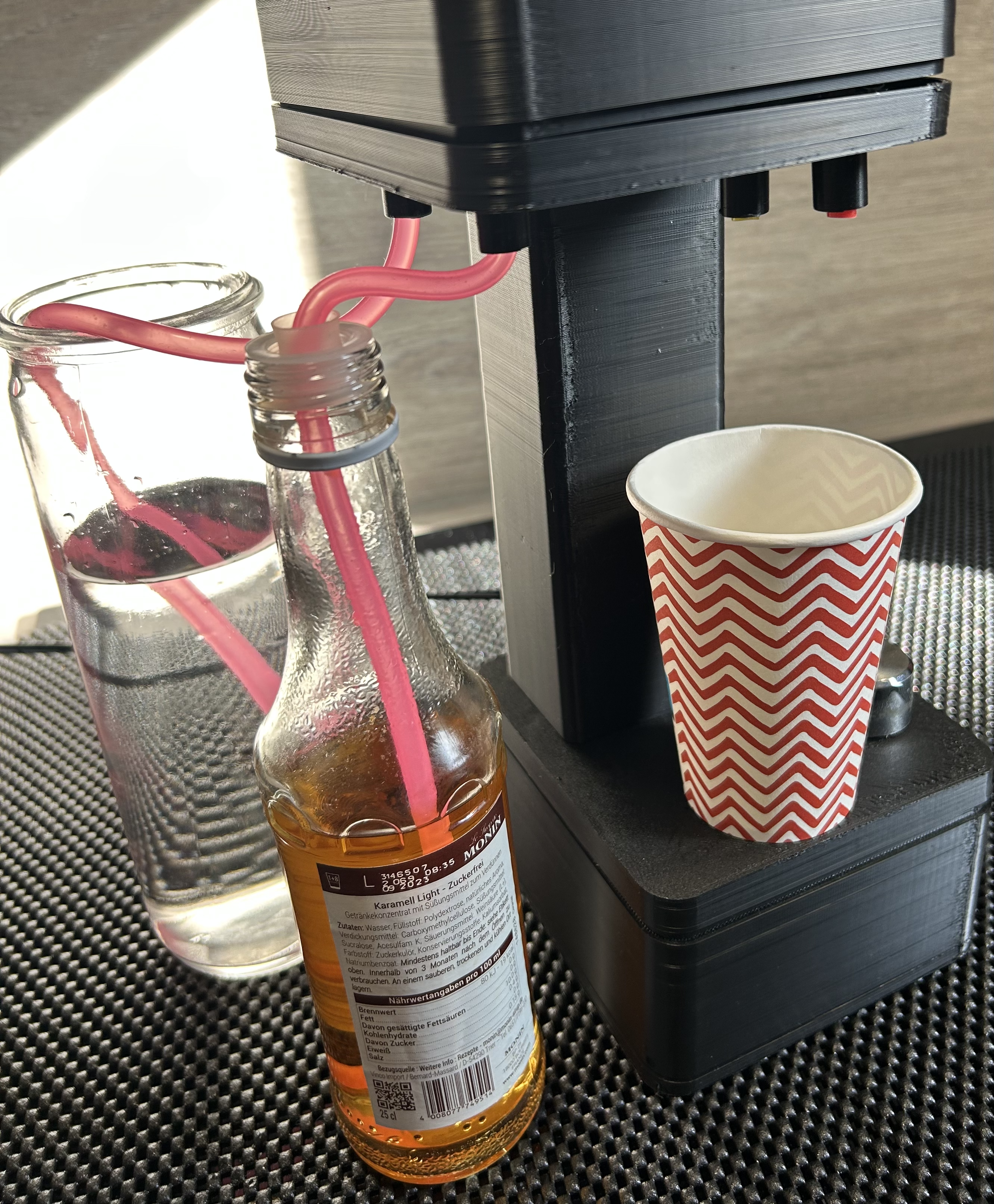
Hey makers! 👋
If you love Arduino projects, sweet drinks, and building cool stuff that makes your friends go “BRO WHAT IS THAT?!” — you’re gonna love this.
This is Syrup Machine 2.0 — a bigger, cleaner, and way cooler upgrade from my previous version. It automatically dispenses:
✅ Plain water
✅ Water + syrup mix
✅ Syrup lemonade mix
✅ Perfect grenadine or diabolo drinks
✅ Adjustable syrup concentration with a button
And the best part?
👉 If you can upload code to Arduino, you can build this. Seriously.
🎯 Why You’ll Love This Project
- Beginner friendly 🧠
- Looks awesome on your desk or kitchen counter
- Fully customizable drink strength
- Great intro to Arduino + 3D printing + basic electronics
- Perfect for parties, gaming nights, or just flexing your maker skills
🧠 How It Works
The ESP-WROOM controls pumps that push liquids from containers to the output nozzle.
The system mixes water and syrup dynamically based on your selected concentration.
The button lets you change the sweetness level — simple and satisfying.
Supplies
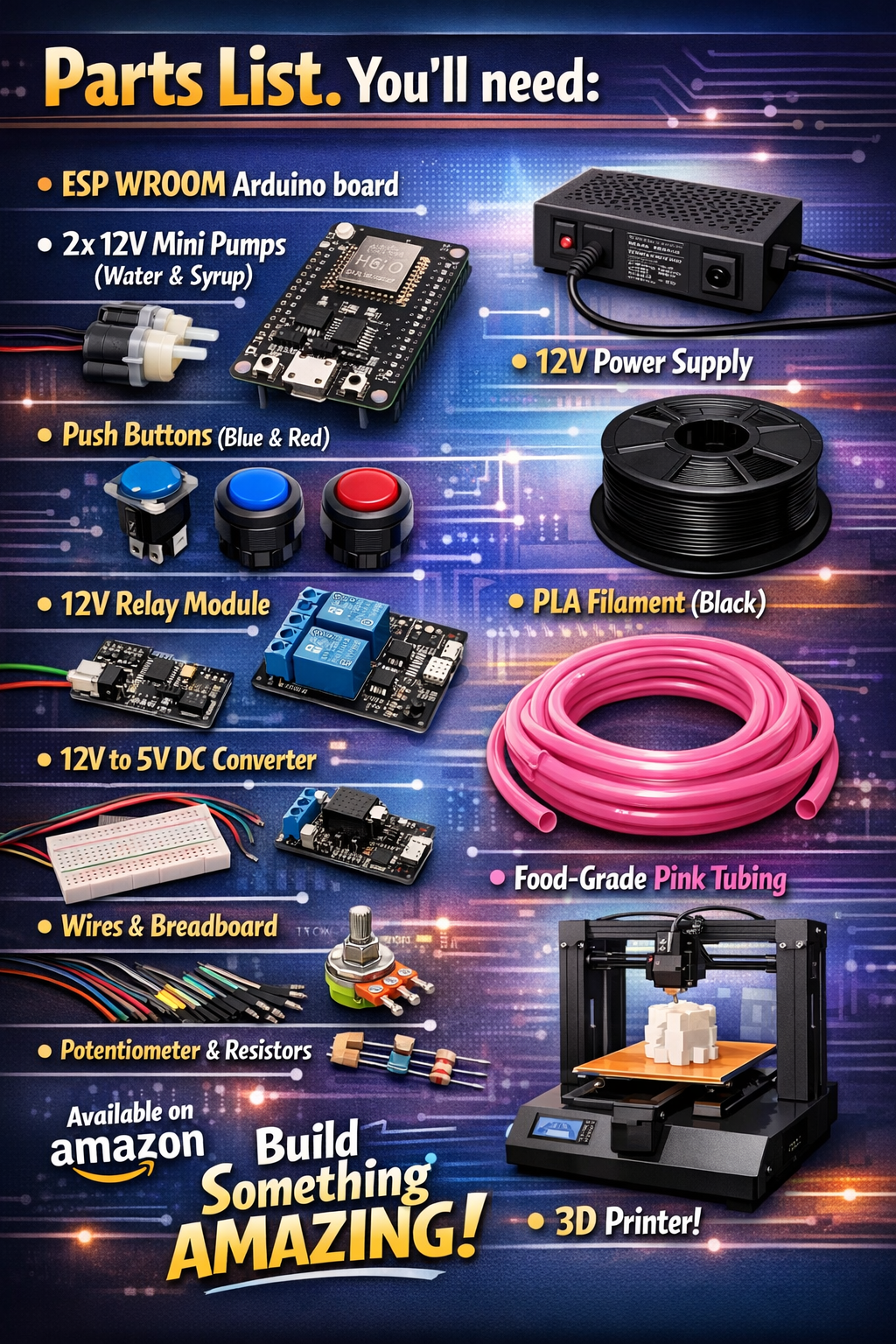
Parts List. You’ll need:
- 3D printer.. or ask a friend or your school !!
- ESP WROOM Arduino board
- Food-safe mini pumps (water + syrup). Choose 2 12V pumps
- Push buttons. One blue (water only) and one red (syrup plus water)
- Relay module . At least 2 relays (on one card :) ) . Choose a 12V relay
- Power supply. This to bring power to the relay AND to the DC adaptor
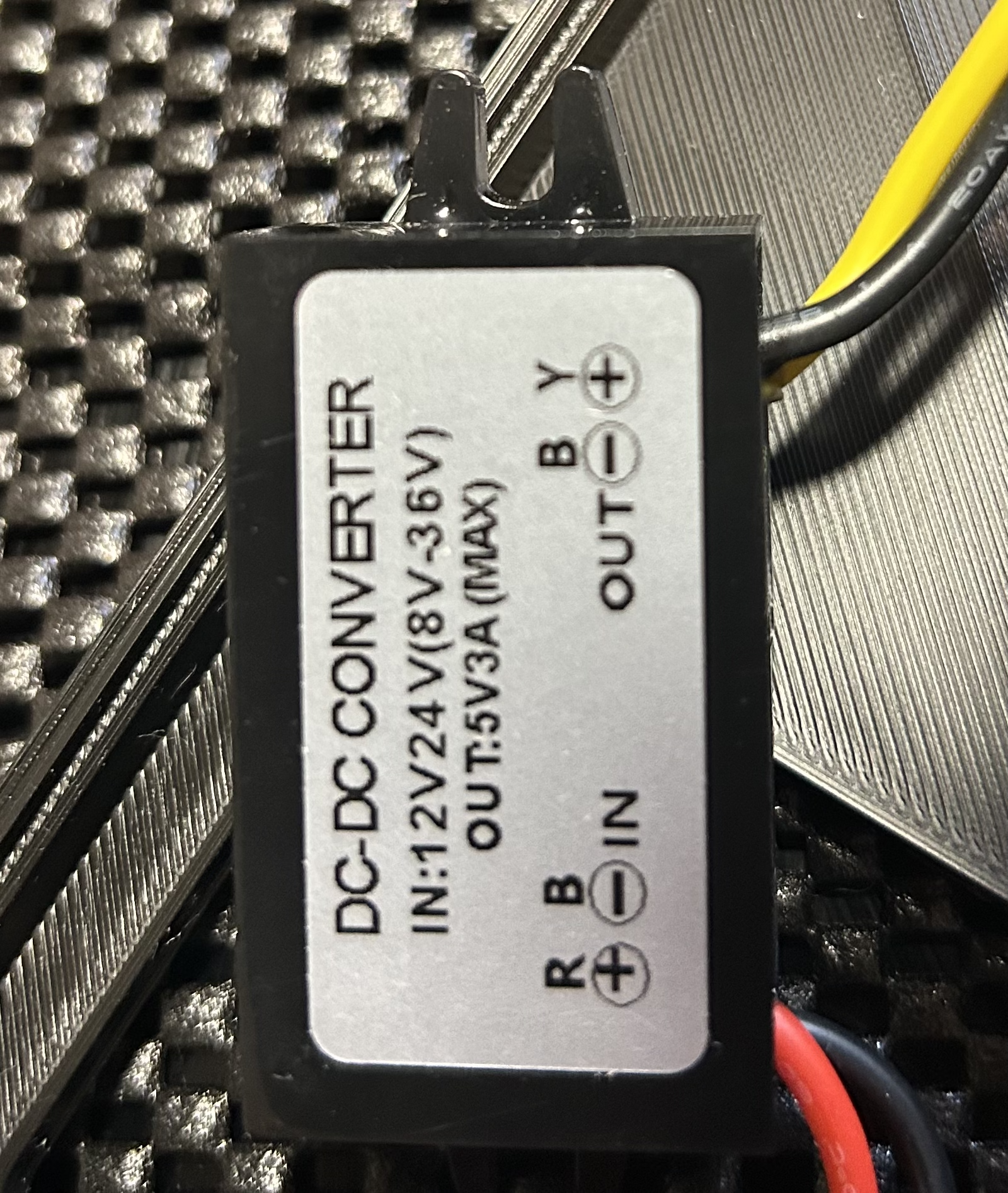
- DC converter 12V to 5V. This to bring power to the Arduino
- Tubing (food grade recommended). I like pink, to bring color in our lives ;)
- Wires + breadboard or soldered PCB
- One Potentiometer
- 2 resistors
- PLA filament. I like it black to look .. professional
( Sponsored Amazon links :) )
🧑💻 Upload the Arduino Code
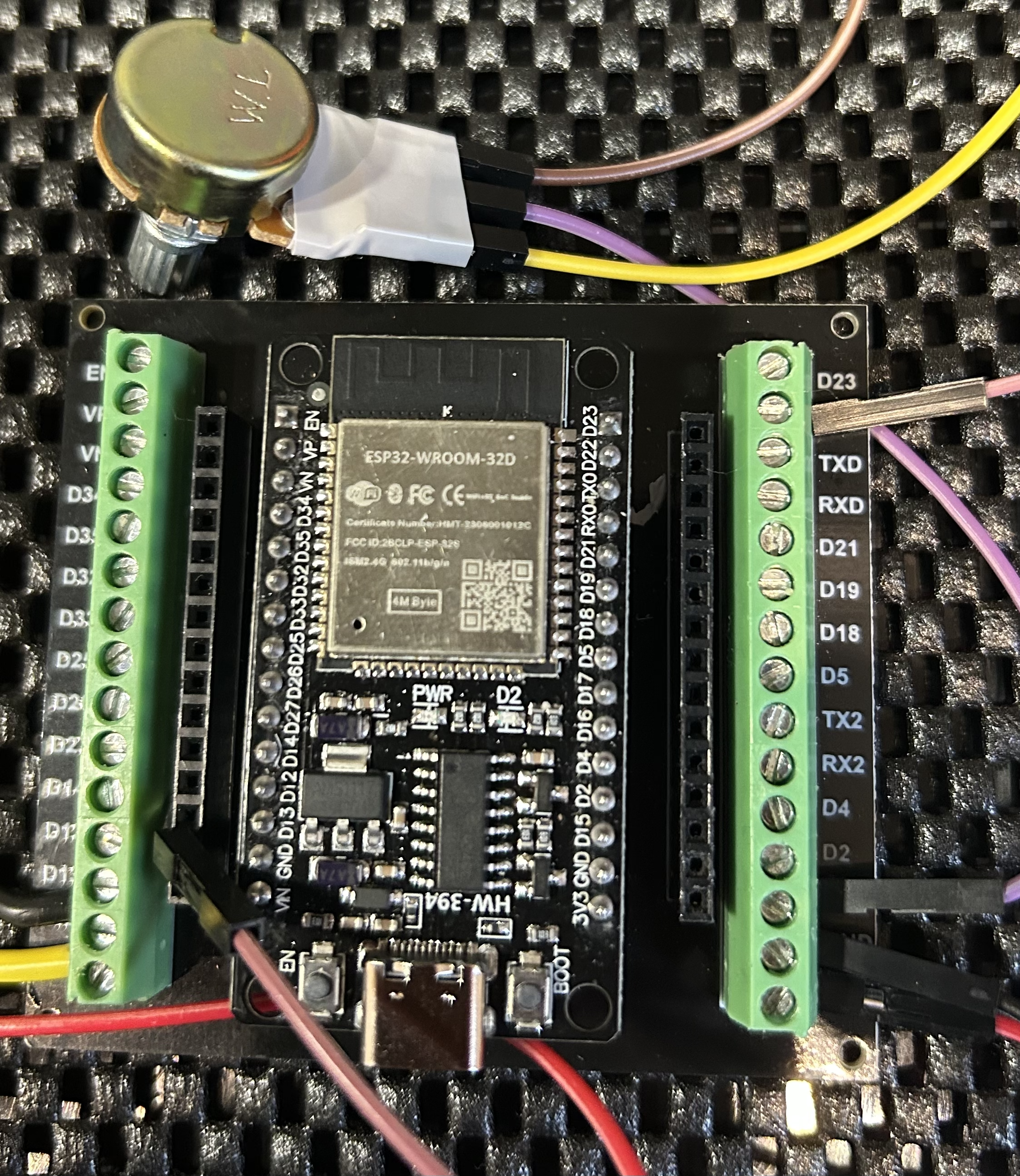
🚀 1 – Get the Arduino Code
First, grab the Arduino code.
👉 Download the code from GitHub:
Download the repository and choose the .ino file ; Link.
(The other files are for 3D printing the case.)
💻 2 – Install Arduino IDE (if not already installed)
If you don’t have it yet:
👉 Download Arduino IDE (free) here:
https://www.arduino.cc/en/software
Install it like any normal application (Next → Next → Install 😄).
⚙️ 3 – Add ESP-WROOM Board Support
The ESP-WROOM is not available by default in Arduino IDE.
You need to install the ESP32 package.
1️⃣ Open Arduino IDE
2️⃣ Go to File → Preferences
3️⃣ In “Additional Boards Manager URLs” paste:
4️⃣ Click OK
5️⃣ Go to Tools → Board → Boards Manager
6️⃣ Search for ESP32
7️⃣ Install “ESP32 by Espressif Systems”
⏳ Wait for installation (takes 1–2 minutes).
🔌 4 – Select Your Board
👉 Go to Tools → Board
👉 Choose ESP32 Dev Module (or your exact ESP-WROOM model)
👉 Plug your board via USB
👉 Go to Tools → Port and select the correct COM port
📂 5 – Open the Project
👉 Open the downloaded .ino file in Arduino IDE
👉 Click Verify (✓) to check for errors
👉 Click Upload (→)
If upload fails:
- Hold the BOOT button while uploading
- Release when “Connecting…” appears
🎉 6 – Upload Complete
If you see:
🔥 That’s it.
Your board is alive.
🧠 Pro Tip for Students
If something doesn’t work:
- Check the USB cable (many are power-only!)
- Install CP210x or CH340 drivers if needed
- Restart Arduino IDE
- Ask ChatGPT 😎
- If you want, I can also generate a clean, professional PDF version ready to include in your GitHub README or student guide.
Done. Easy win.
🔌 Wiring & Electronics Assembly
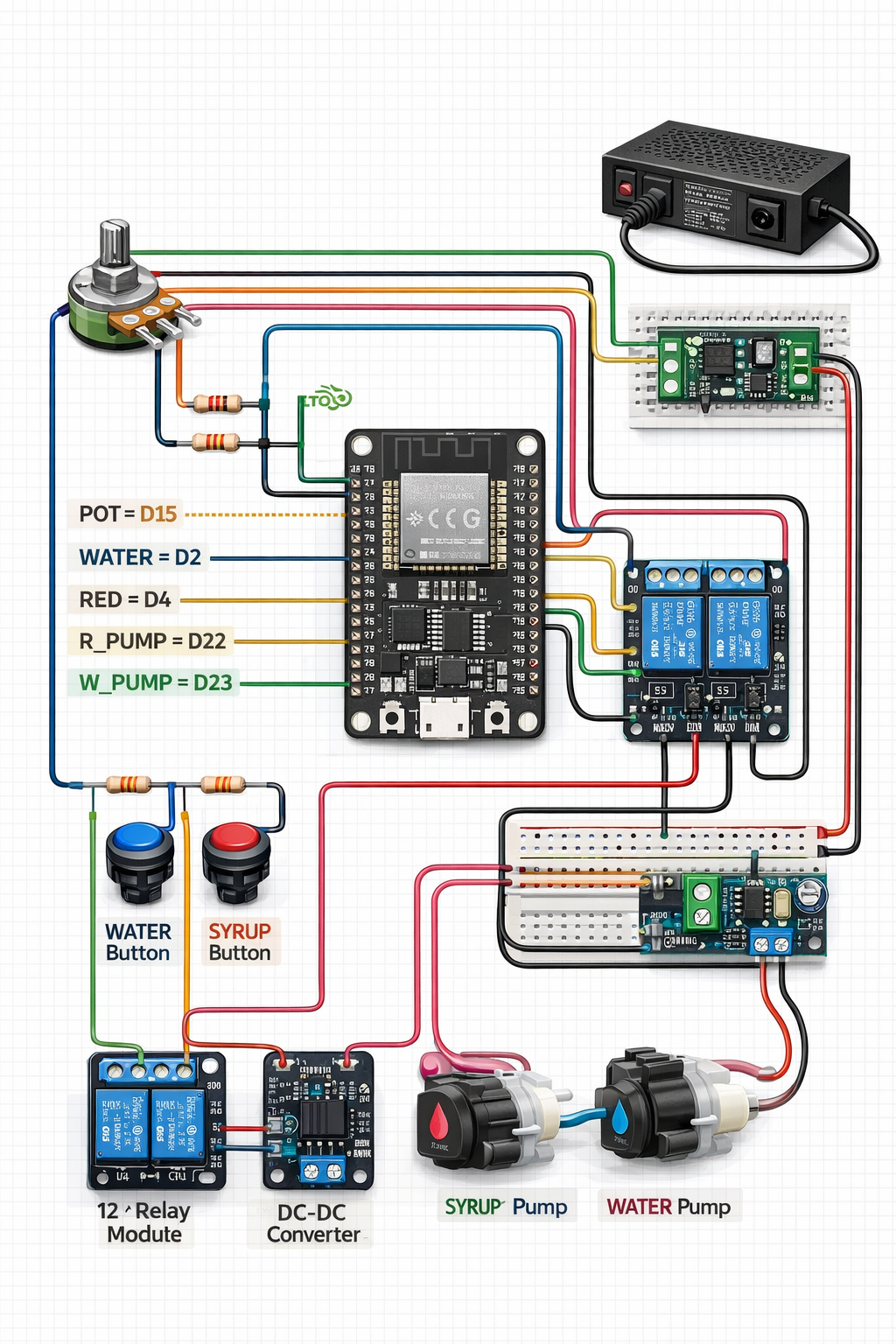
Follow the wiring schematic carefully.
Main connections:
- 12V Power supply → converter → ESP
- 12V Power supply → relay
- Red Button → ESP input pins
- Blue Button → ESP input pins
- Potentiometer → ESP input pins
- Relay → Pumps
⚠️ Important Rule:
👉 Build and test one block at a time.
Do NOT connect everything at once. You will save hours of debugging.
💡 Pro tip:
Test pumps individually before final assembly. Label your wires. Future-you will thank you.
🖨️ 3D Print the Parts
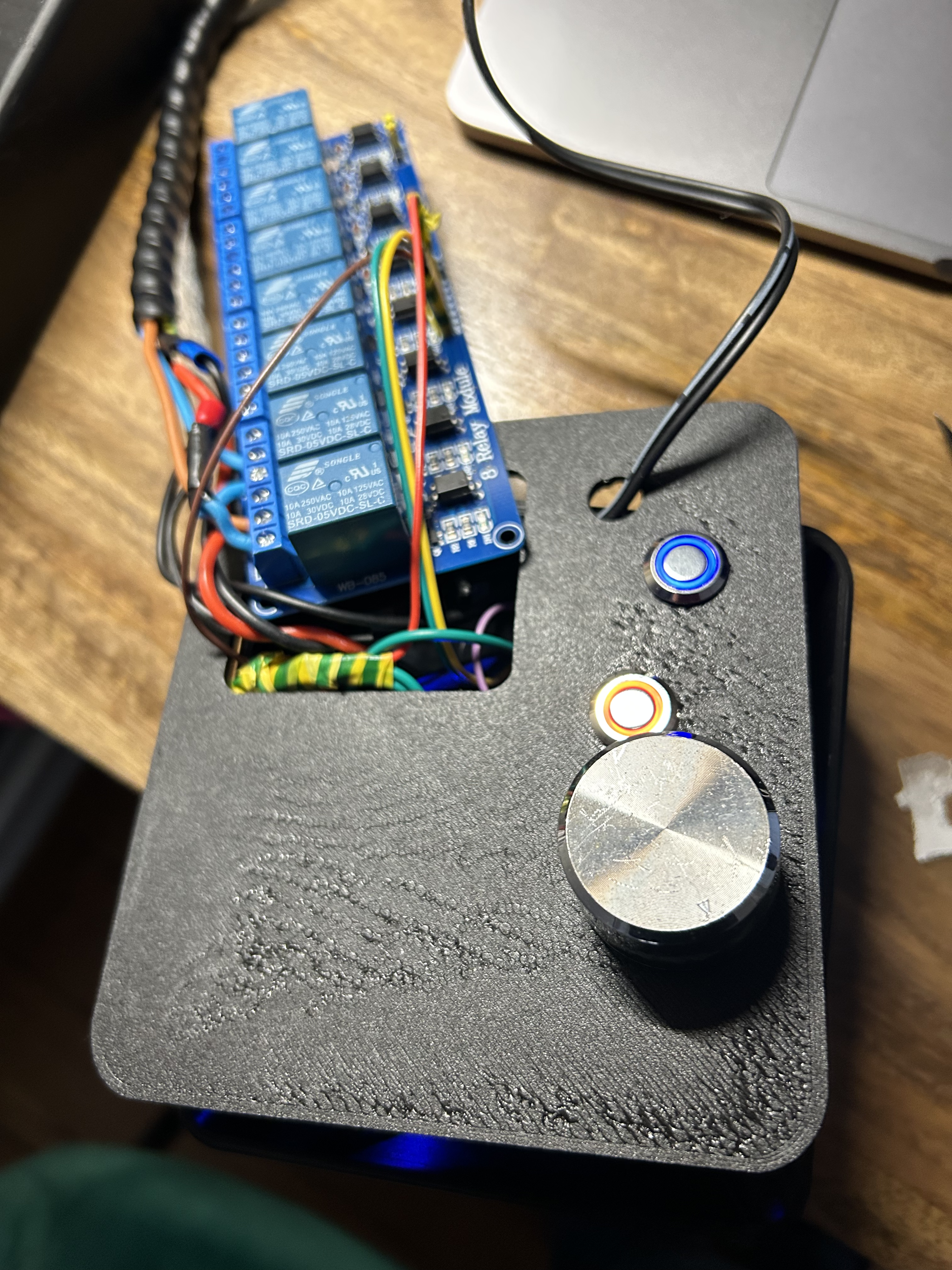
🚀 Get the STL files
Download the STL files from GitHub. Link.
Print all STL files.
Recommended settings:
- Material: PLA
- Color: Black (looks premium)
- Layer height: 0.2 mm
- Infill: 20%
- Supports: Only where required
PLA is beginner friendly and prints fast.
🔧 Final Assembly
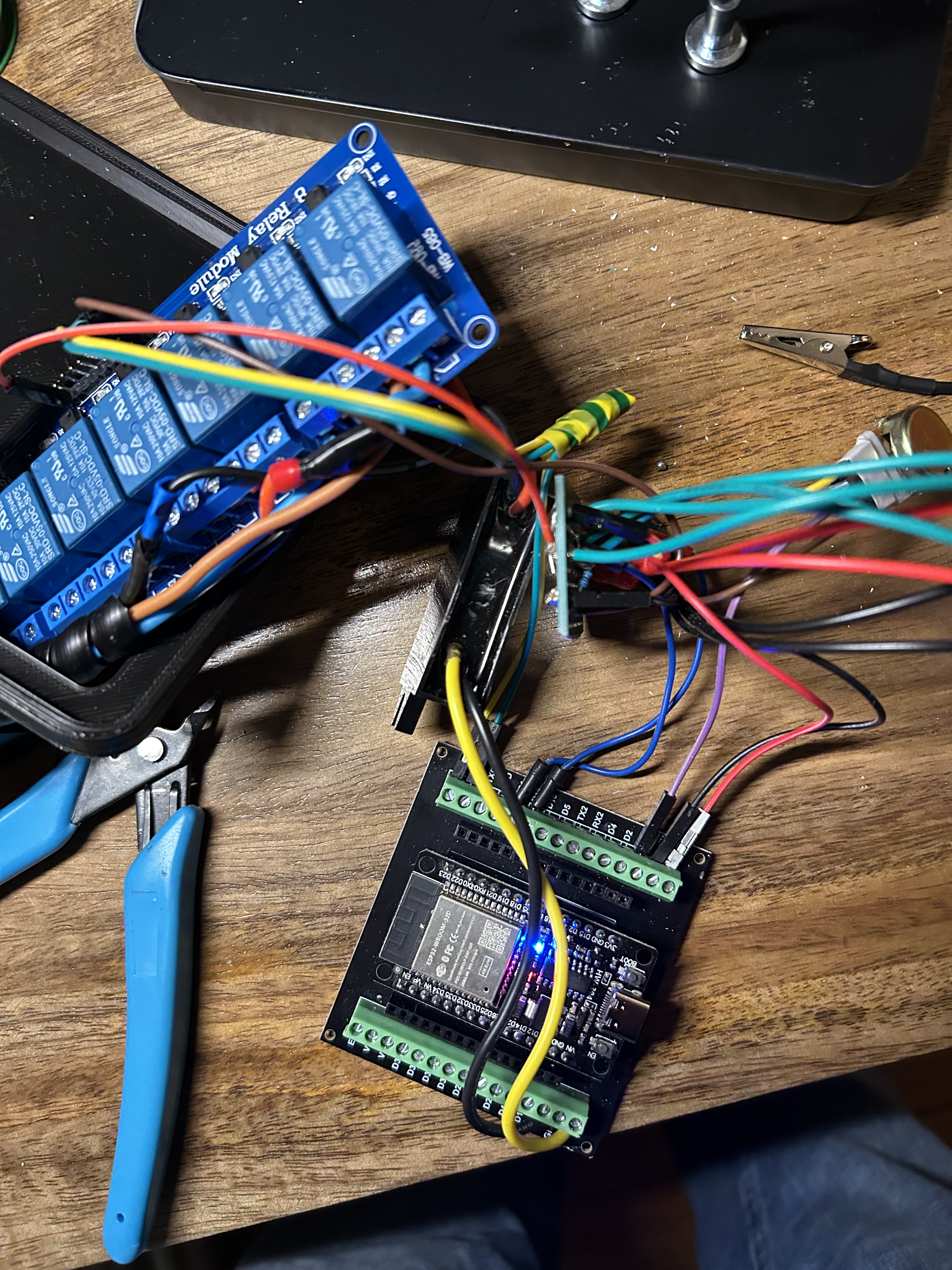
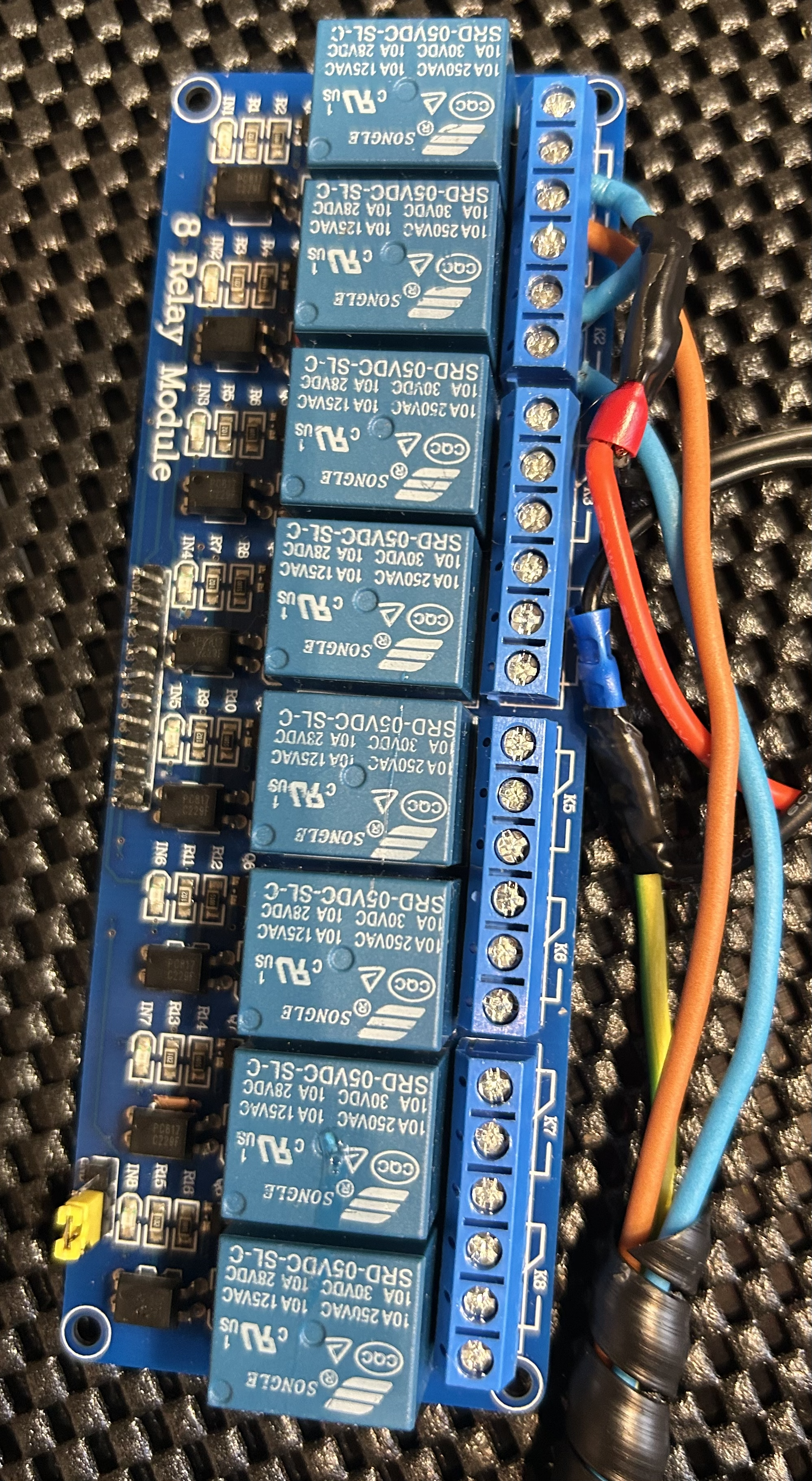
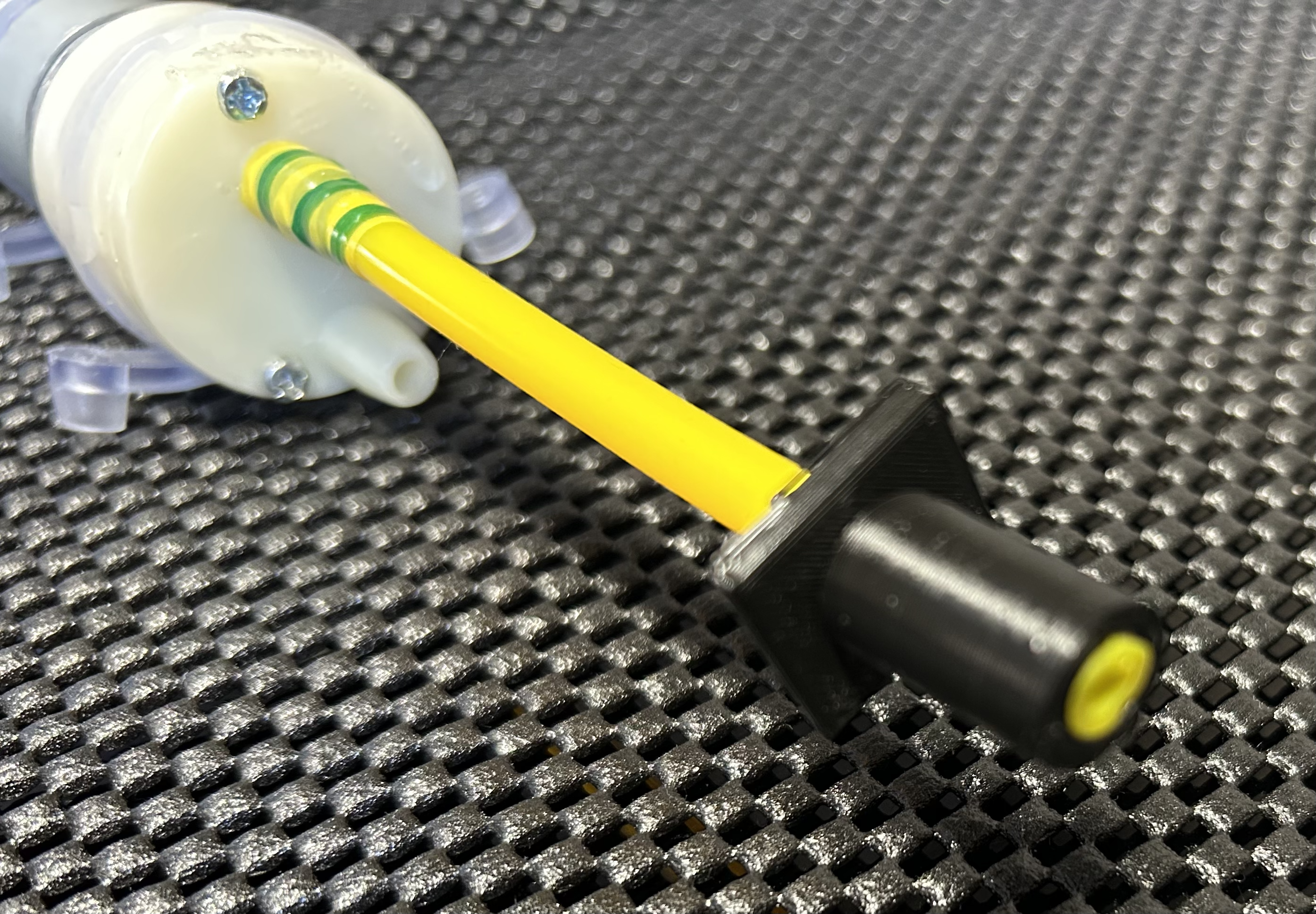
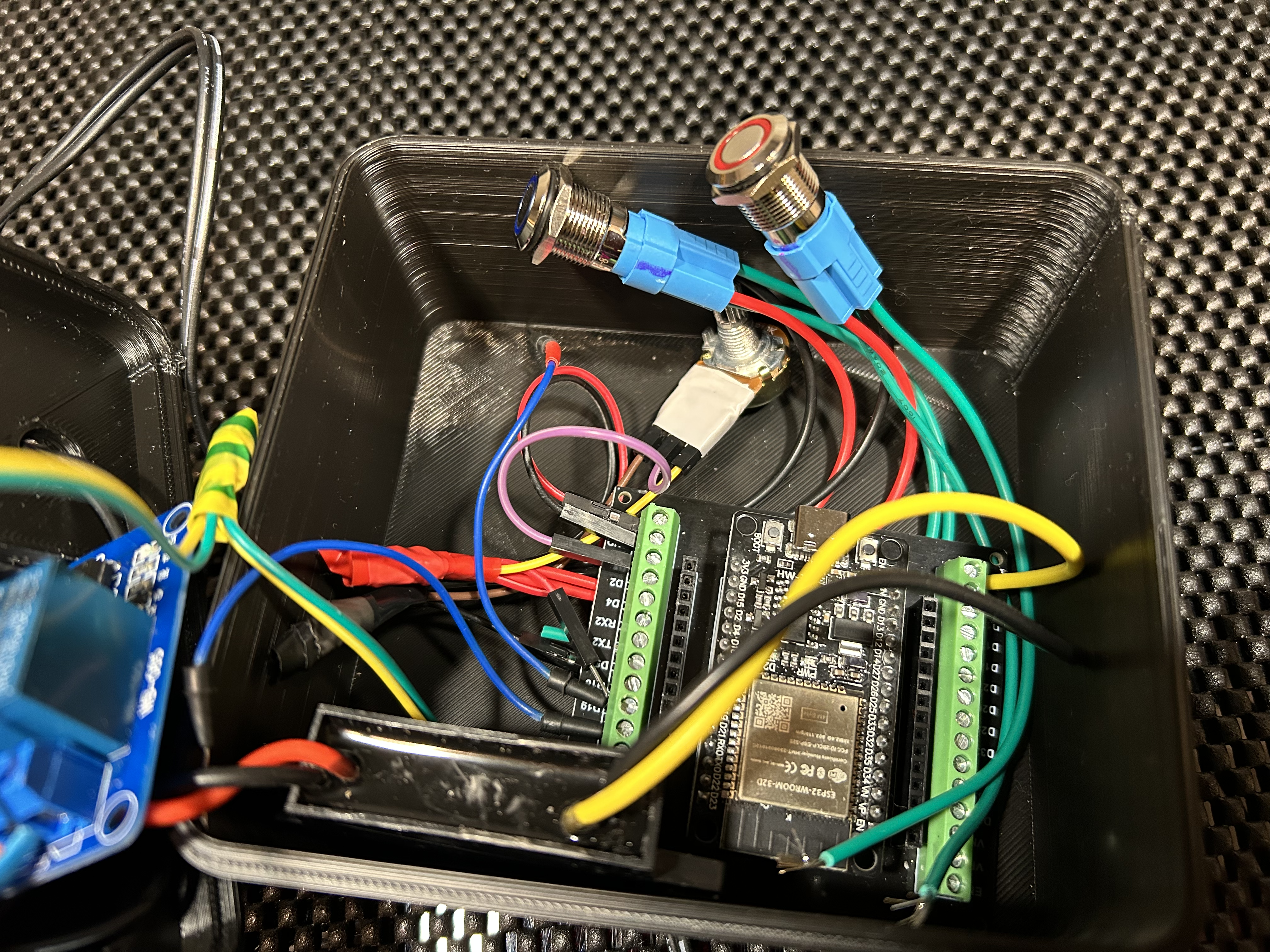
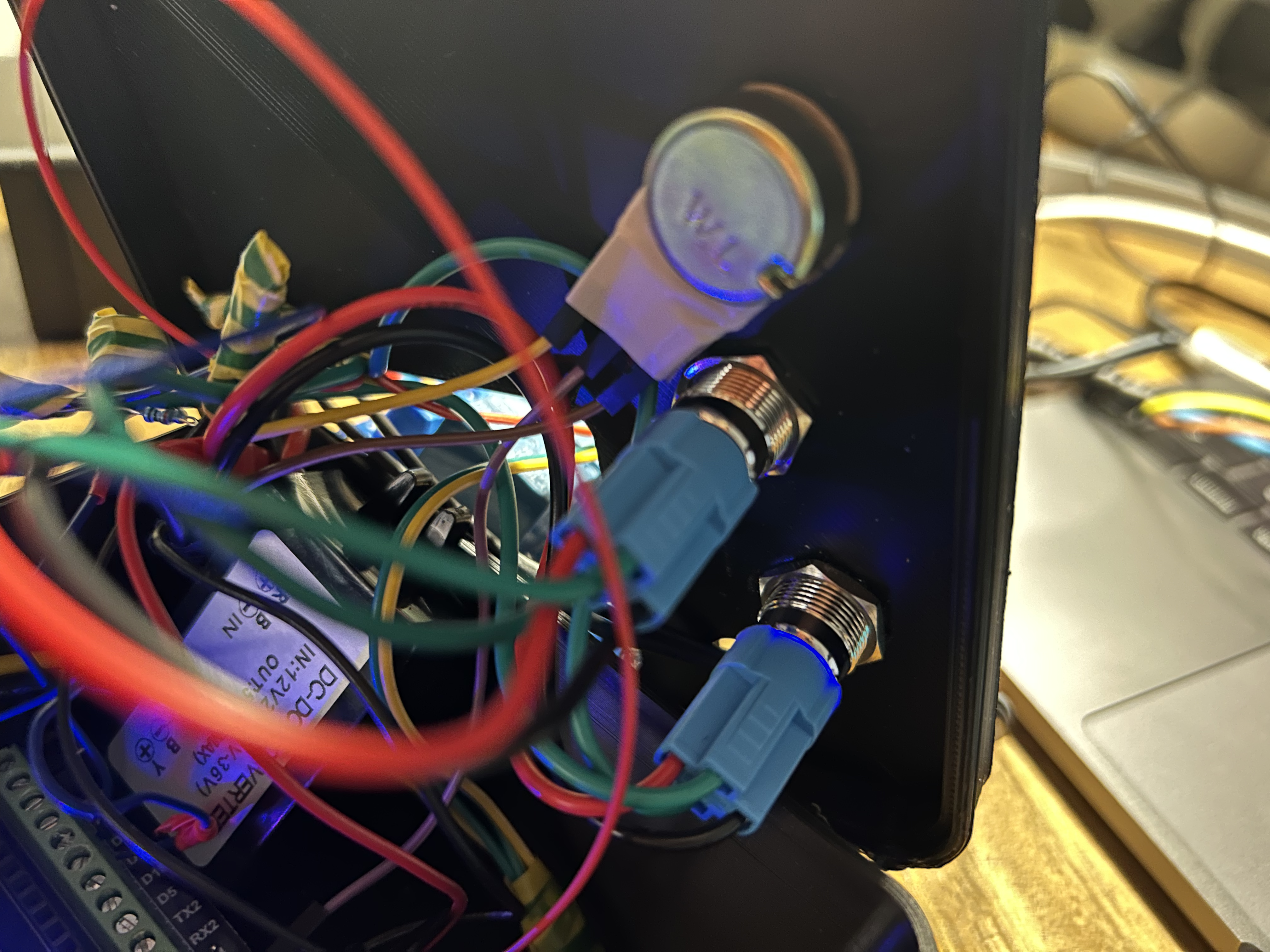

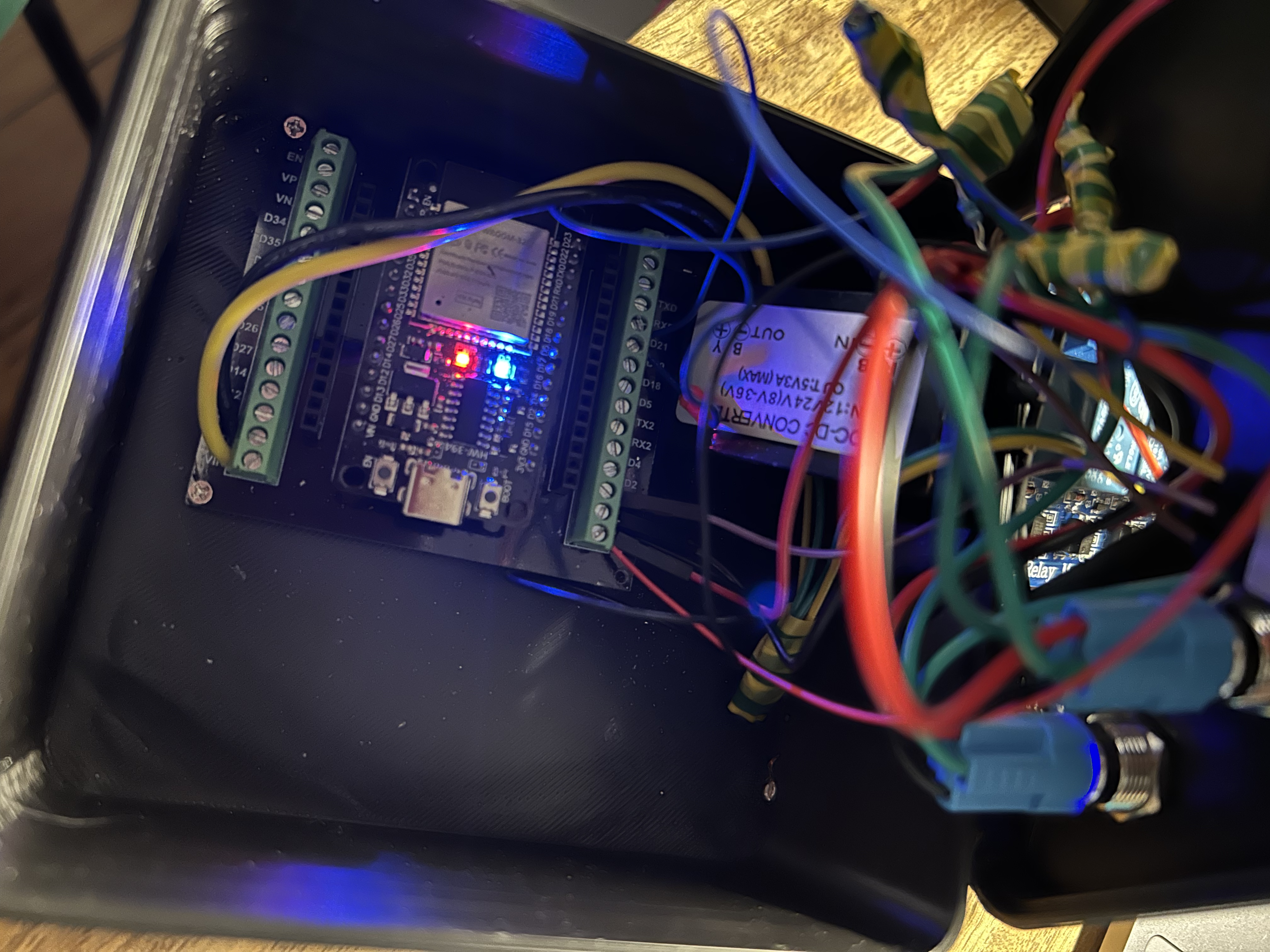
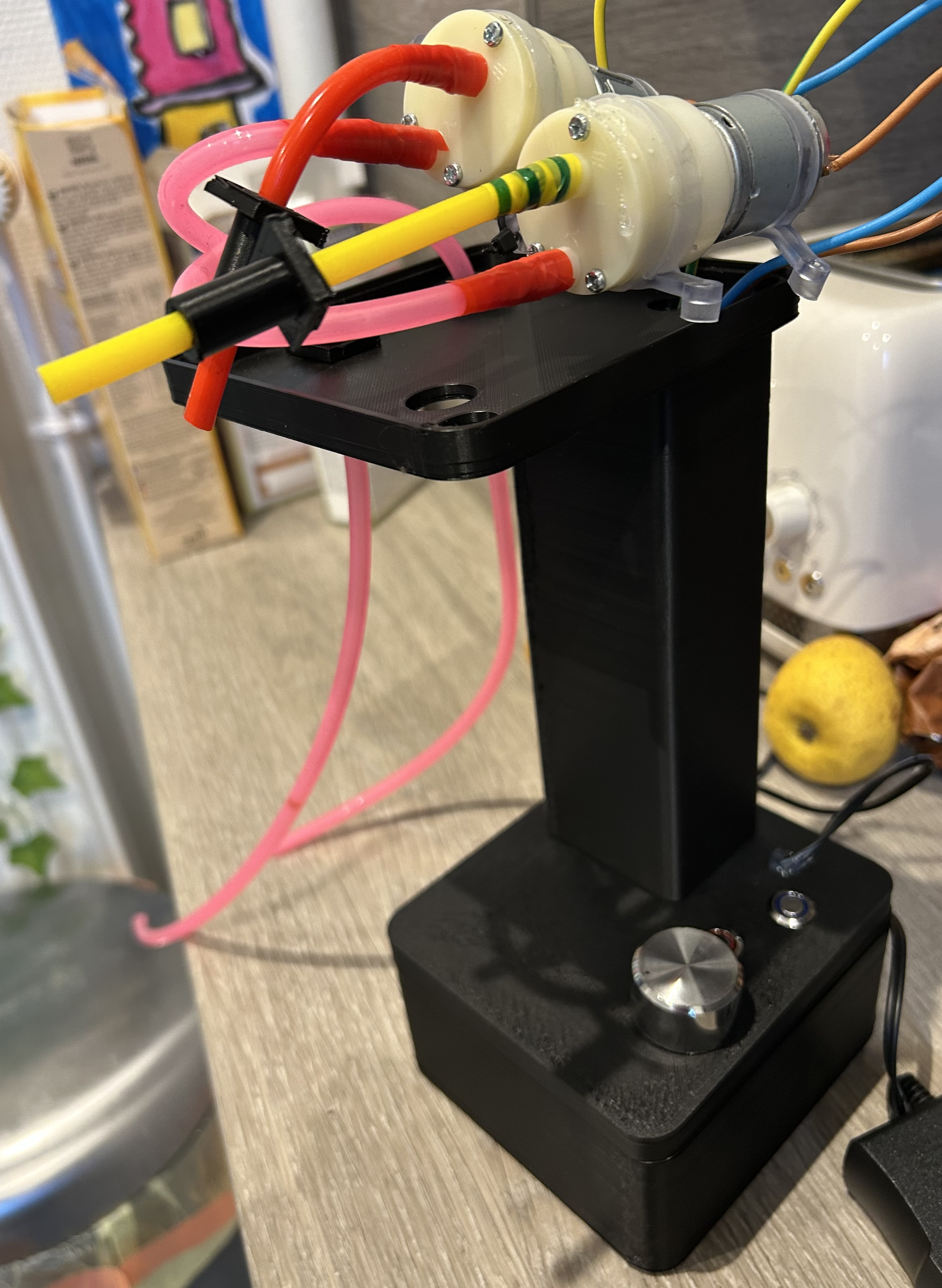
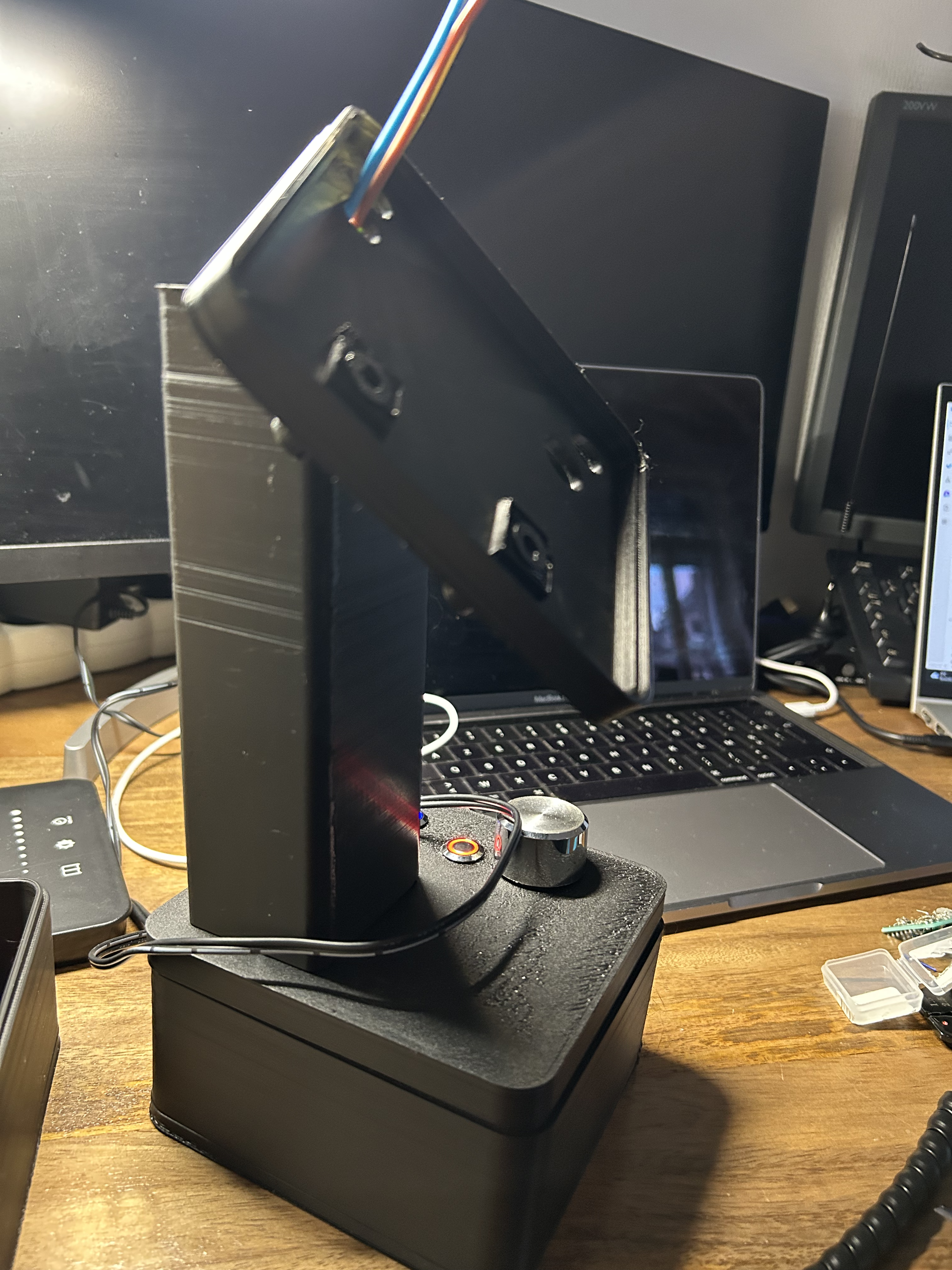
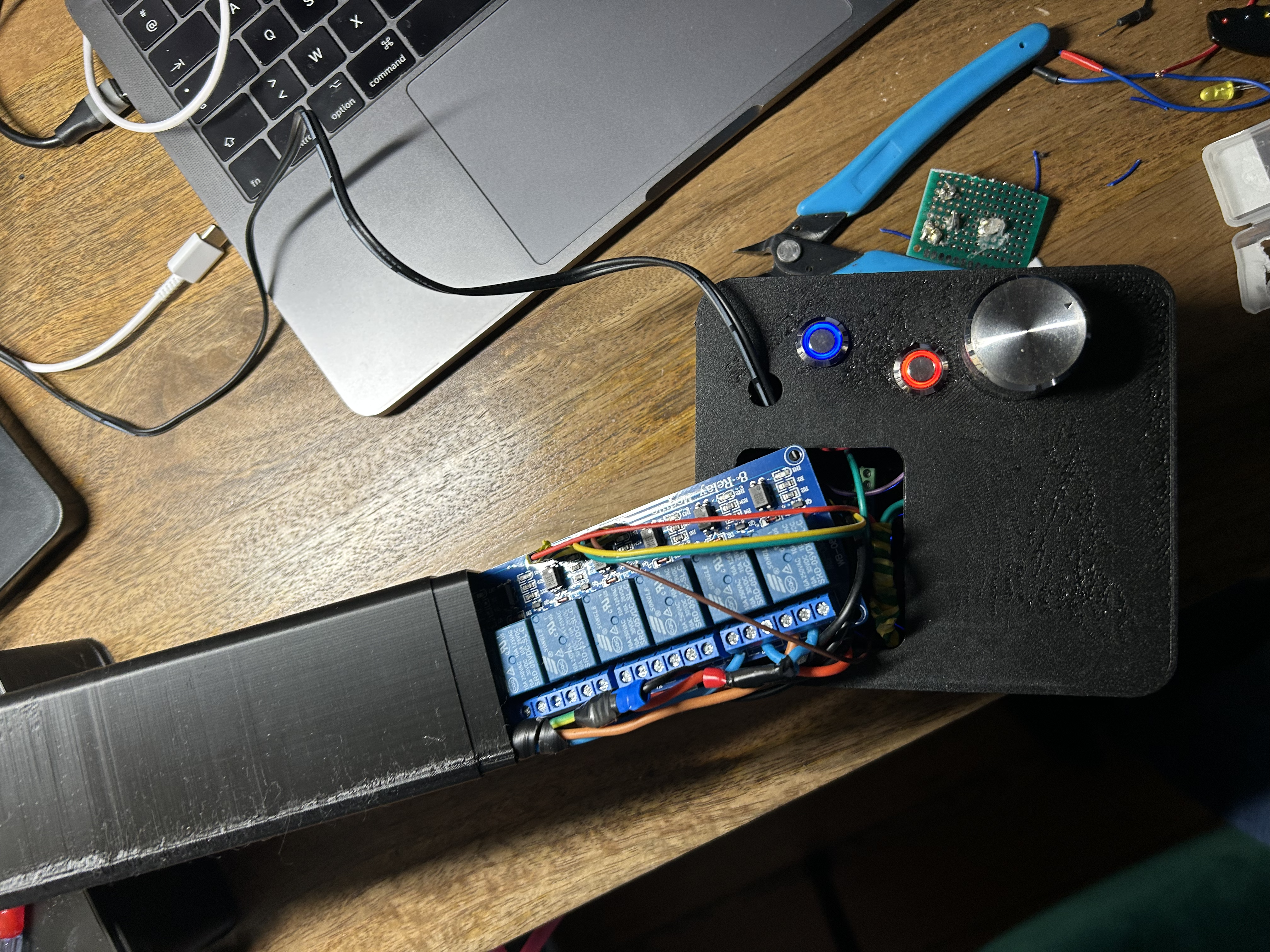
Time to bring your creation to life ; transform your project from a prototype into a clean, professional machine.
Take your time.
Rushing this step is how great projects turn messy.
🚰 1️⃣ Install the Pumps Inside the Housing
- Secure both pumps firmly inside the enclosure.
- Use screws or printed brackets (recommended).
- Make sure:
- The inlet faces the liquid source.
- The outlet faces toward the tubing exit.
- Avoid sharp bends in tubing near the pump.
✅ Test tip:
Before closing the case, briefly power each pump to confirm correct direction and flow.
🔌 2️⃣ Mount the Electronics
- Secure the ESP-WROOM board using spacers.
- Mount the relay module away from moisture areas.
- Fix the DC-DC converter so it cannot move.
- Keep power wires separated from signal wires when possible.
⚠️ Important:
- No loose boards.
- No exposed 12V terminals.
- No stress on solder joints.
✅ Test tip:
Power ON before closing the enclosure and confirm:
- ESP boots
- Relays click
- No overheating
🧵 3️⃣ Route Tubing Properly
- Use smooth curves — no tight bends.
- Keep tubing away from electronics.
- If possible, add small clips to guide the tubes.
- Ensure no leaks at connections.
💡 Professional touch:
Use consistent tubing lengths for a symmetrical look.
🔘 4️⃣ Insert and Secure the Buttons
- Mount the blue button (Water).
- Mount the red button (Syrup).
- Tighten firmly but do not over-tighten plastic threads.
- Double-check wiring polarity.
✅ Test tip:
Before closing:
- Press each button.
- Confirm correct pump activates.
- Check that wires do not move when pressing.
🧩 5️⃣ Close the Enclosure
- Carefully arrange wires inside.
- Avoid pinching cables.
- Close slowly while watching tubing alignment.
- Tighten screws evenly.
Do not force it.
If it doesn’t close easily → something is misplaced.
🧪 Testing Time!
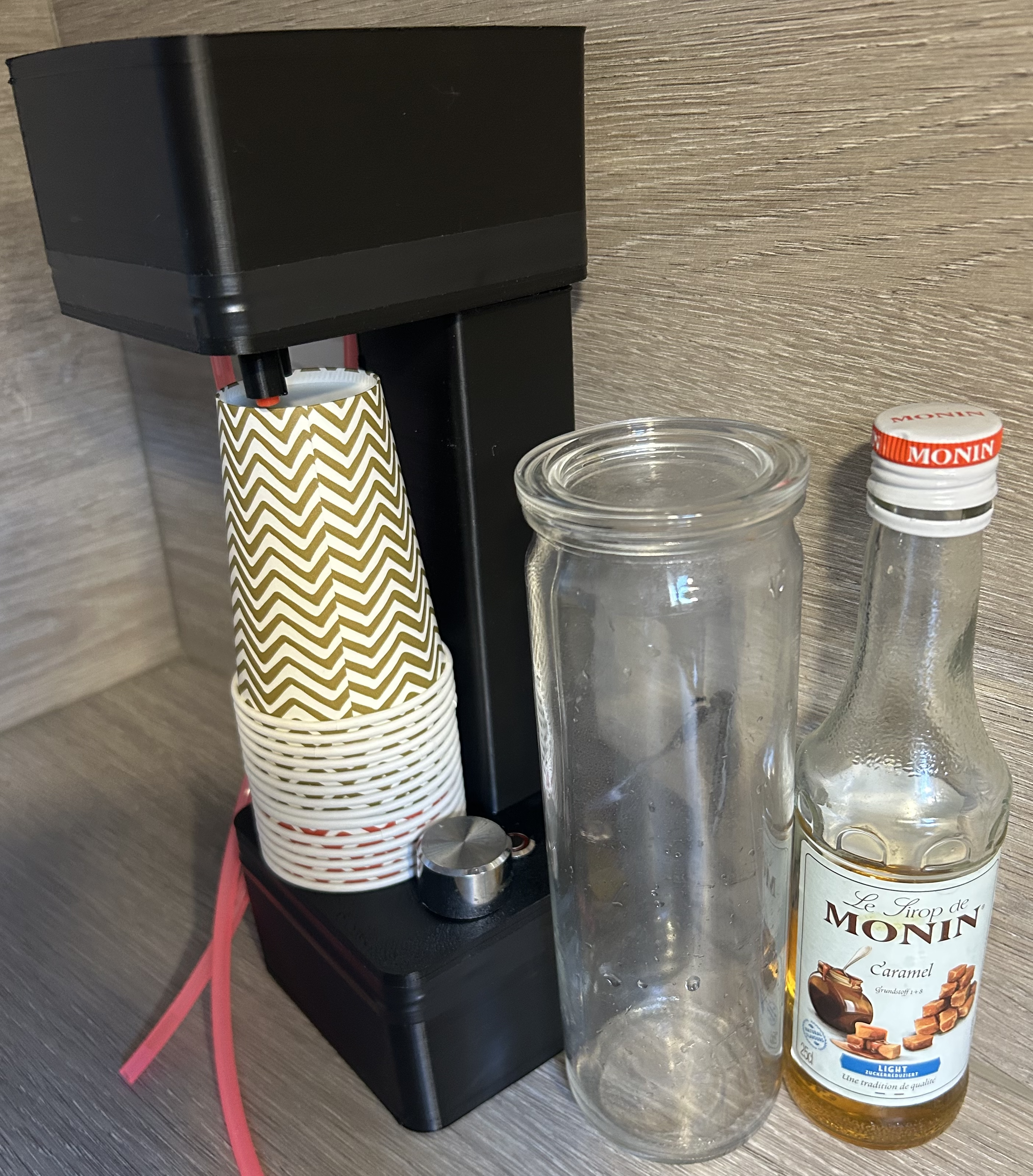
🚰 1️⃣ Fill containers
Fill containers with:
- Water
- Syrup
- Option : Lemonade instead of water
🔌 2️⃣ Power !!
Power on and test:
✔ Buttons trigger correct liquid
✔ Concentration control changes sweetness
✔ No leaks (very important 😅)
Conclusion
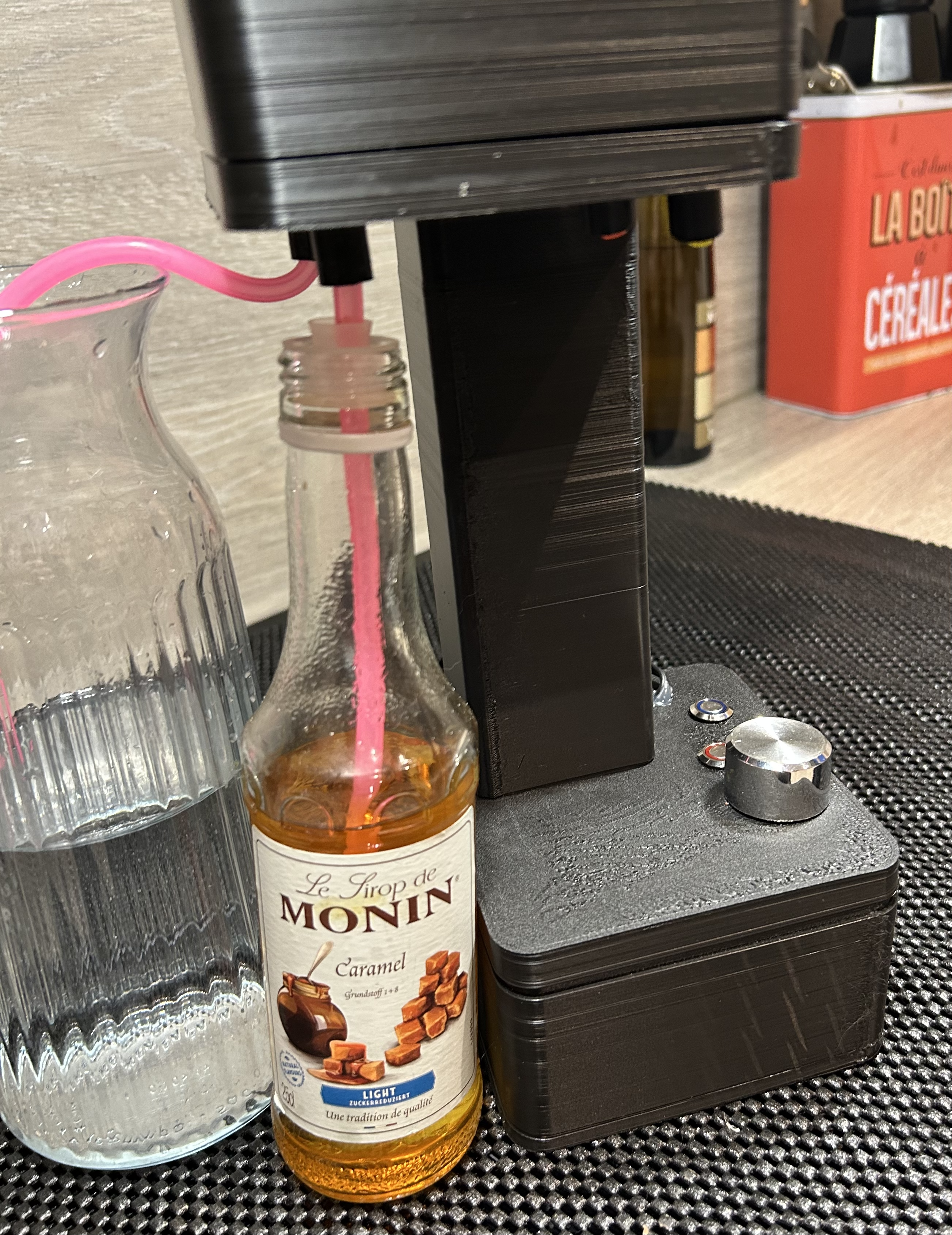
🍓 Drinks You Can Make
- Grenadine water
- Diabolo mint
- Custom energy mixes
- Mocktails
- Gamer hydration fuel
🧩 Possible Upgrades (Future Version?)
- OLED display
- Touch controls
- App control via WiFi
- RGB lighting (because obviously)
- Multi-syrup selection
❤️ Final Thoughts
If you're getting into Arduino and maker projects, this is a PERFECT build.
It’s fun, useful, and looks insanely cool when finished.
Plus… you get unlimited custom drinks.
That alone is worth it 😎
⭐ If You Build One…
Please .. Drop pictures.
Customize it.
Show off your flavor combos.
And most importantly…
Stay hydrated and stay geeky 🤓