🕦 ⛅ Raspberry Pi Under-Cabinet Weather Clock (DIY Smart Kitchen Display)
by Anoraker in Circuits > Raspberry Pi
563 Views, 9 Favorites, 0 Comments
🕦 ⛅ Raspberry Pi Under-Cabinet Weather Clock (DIY Smart Kitchen Display)

A better kitchen clock
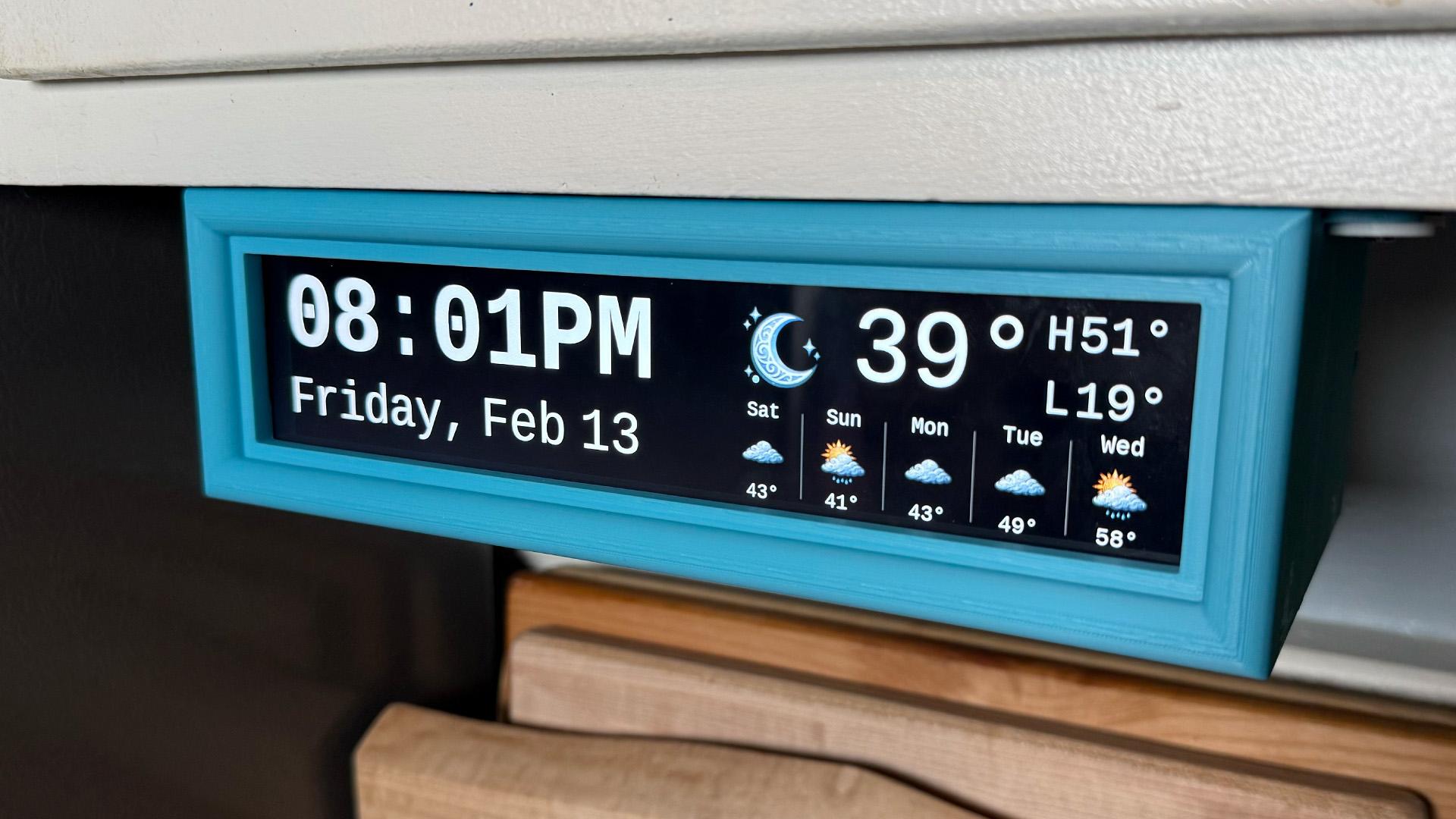
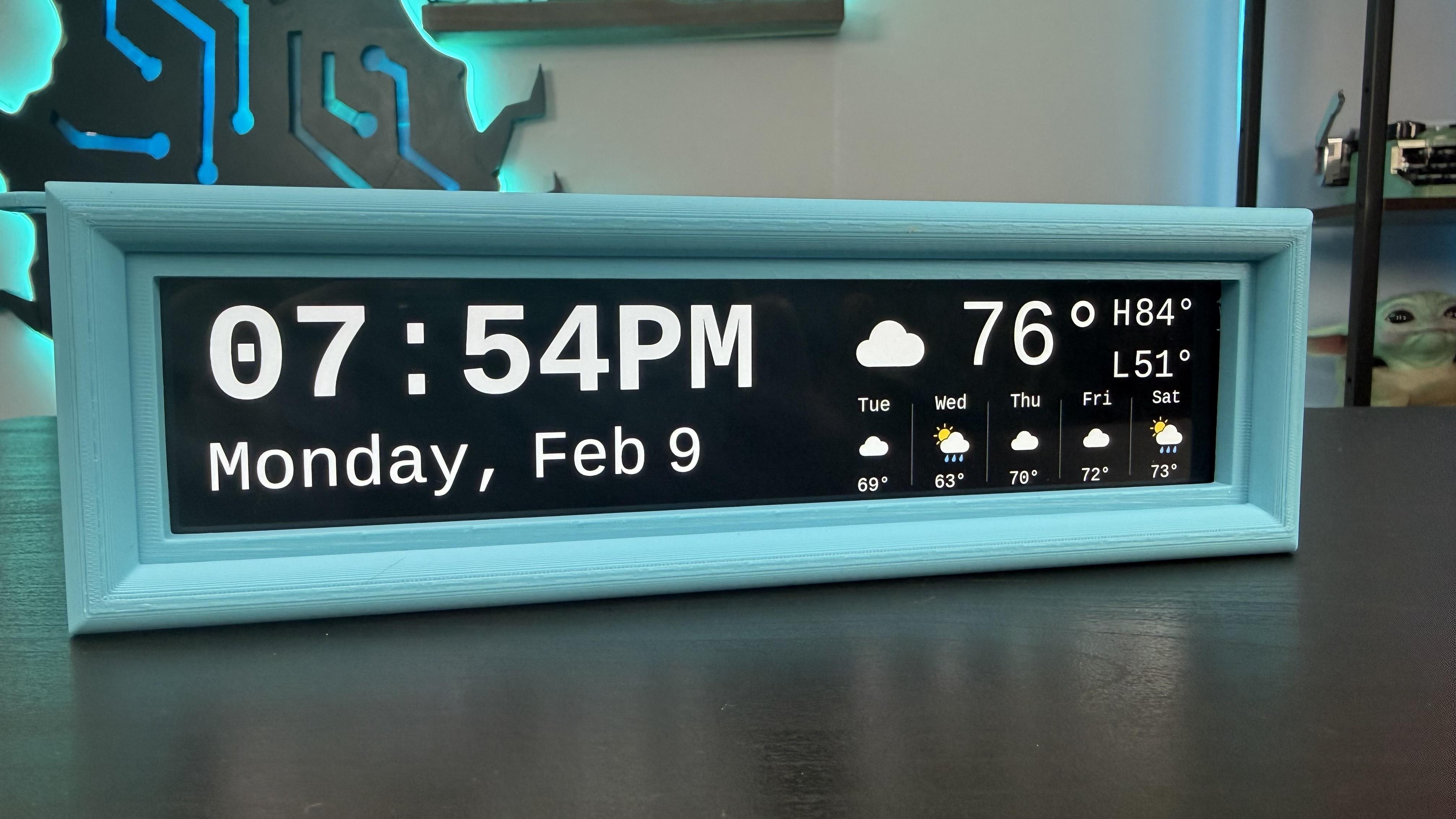
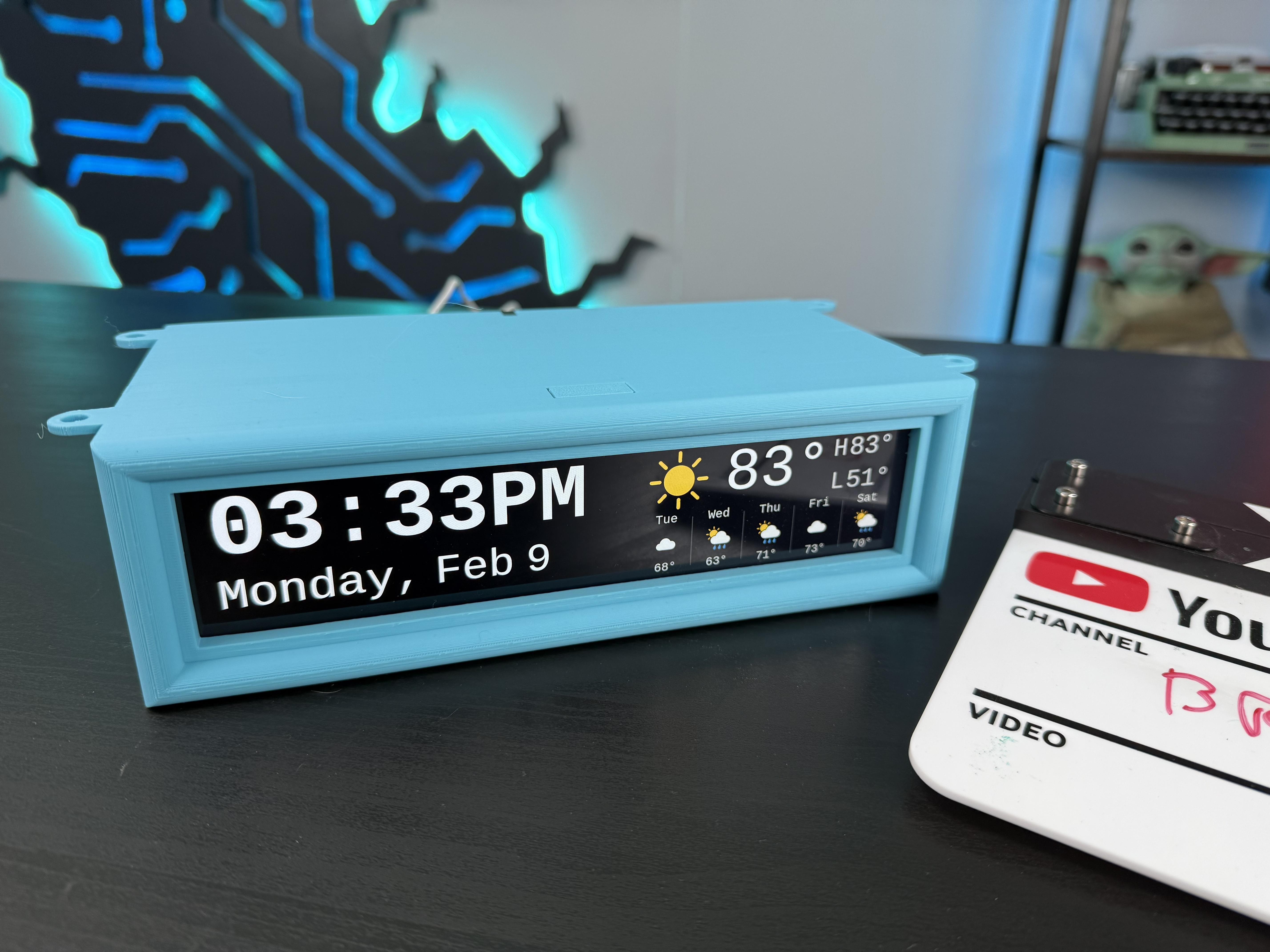
I replaced my old under-cabinet kitchen clock with a DIY Raspberry Pi smart display that shows the time and weather at a glance.
When I bought my house, it came with one of those under-cabinet radio clocks that somehow survived the early 2000s. It technically worked… until power outages and daylight saving time reminded me it absolutely did not. So I replaced it with something better. This DIY smart home display runs on a Raspberry Pi, uses an affordable ultra-wide screen, and is designed to live under a cabinet so it’s always visible but never in the way. No touchscreen. No voice assistant. No app. Just the time and weather when you glance up.
The best part? You can build one too. You don't need to solder anything, or even know how to code. Just 3D print a case, put the parts together, and run an extremely simple script from terminal. You won't even need a Weather API key.
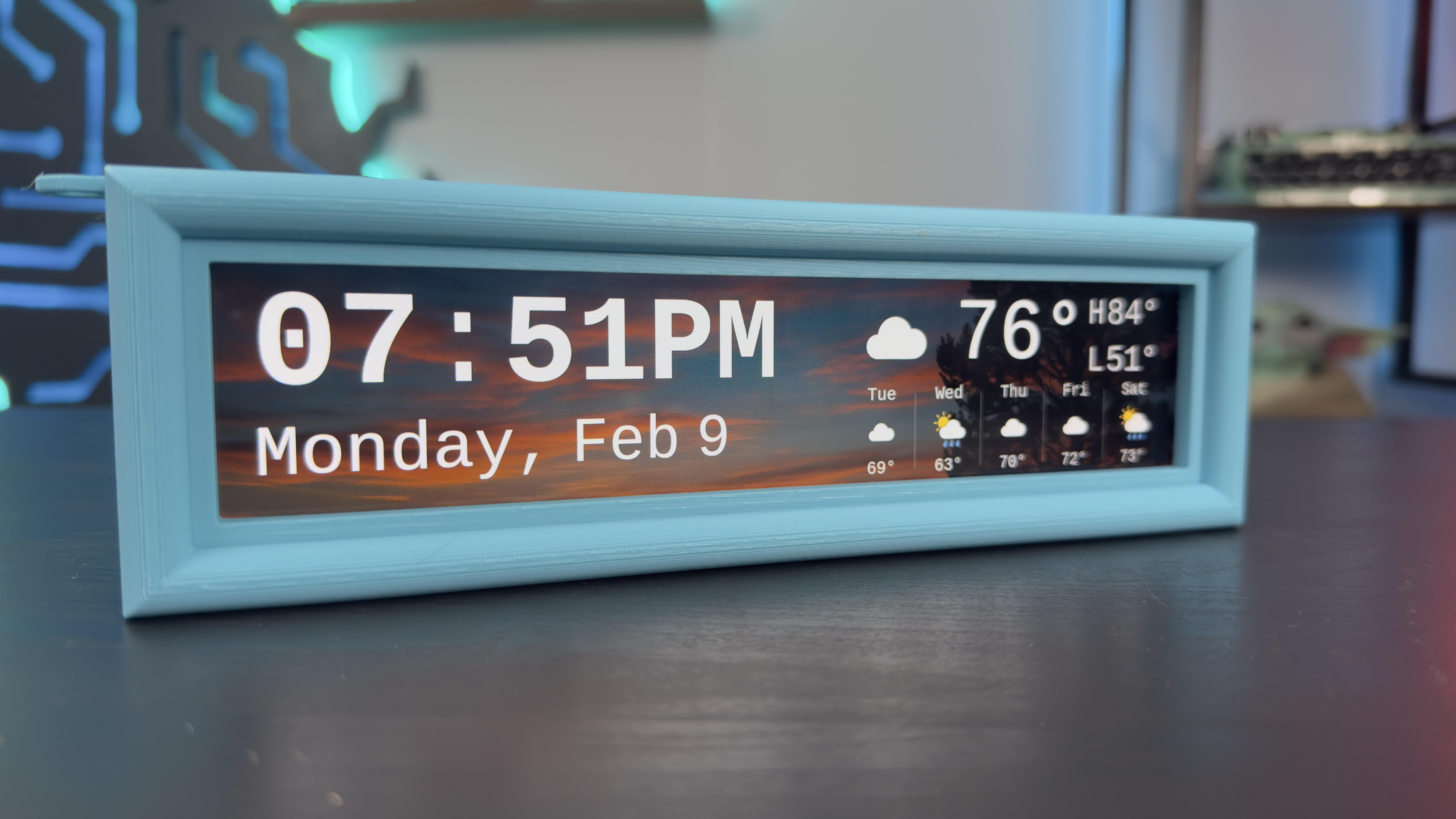
It's possible to change out the icons, add a background and even specify backgrounds for day and night. Supports Imperial, Metric, and 12 hour or 24 hour clock modes.
You can find the full details on GitHub or watch the above YouTube video to see assembly. The GitHub listing includes a free set of icons and a background. You can find additional backgrounds and icons in different themes (fantasy, yarn, graffiti, etc.) here: https://www.patreon.com/posts/diy-under-clock-150710354
Or make your own!
🖼️ Custom Backgrounds
You can display background images by placing files in the public/assets/ directory.
Generic (day-only)
If only a generic background is present, it will be shown during the day and hidden at night:
- background.jpg
- background.webp
- background.png
Day / Night backgrounds
You can also provide separate backgrounds for day and night:
- background-day.jpg
- background-day.webp
- background-day.png
- background-night.jpg
- background-night.webp
- background-night.png
✅ The first valid file found in each category will be used.
Recommended resolution: 1920×480
🎨 Weather Icon Customization
All weather icons are SVG files stored in:
To use your own custom icons:
- Replace existing files using the same filenames (e.g., clear-day.svg, rain.svg, etc.)
- Keep them in SVG format
- For consistent layout, aim for icons sized around 100×100 pixels
Supplies
- Raspberry Pi 4: https://amzn.to/40en56s (affiliate) or
- Raspberry Pi 5: https://amzn.to/3ZEJUQH (affiliate)
- Raspberry Pi Power Supply: https://amzn.to/3MvrPBF (affiliate)
- Wisecoco HDMI display: https://amzn.to/4cuofSN (affiliate)
- Micro HDMI to HDMI adapter: https://amzn.to/3ZyFOJZ (affiliate)
- 3D Printer: https://amzn.to/4rNSisW (affiliate)
- filament: https://amzn.to/4tArbn9 (affiliate)
Note: the Display comes with the microUSB and HDMI cable you need.
Free STL file for the case:
https://makerworld.com/en/models/2394718-under-cabinet-weather-clock-case#profileId-2623970
Prepare Raspberry Pi
Insert microSD card into your home computer and use Raspberry Pi imager to set it up for your Raspberry Pi with Raspberry Pi Os
Download Script to Raspberry Pi
- Download the install script
- Install the software:
Provide Preferences
The setup script will:
- Install all required system and Node.js dependencies
- Set up screen rotation for landscape-oriented displays
- Configure PM2 to auto-launch the app at boot
When prompted, provide your location in City,State,Country (ex. Cincinnati,OH,US), and your preference for Imperial or Metric and 12 or 24 hour clock mode.
After setup finishes, the software should work automatically even without reboot.
Print Case
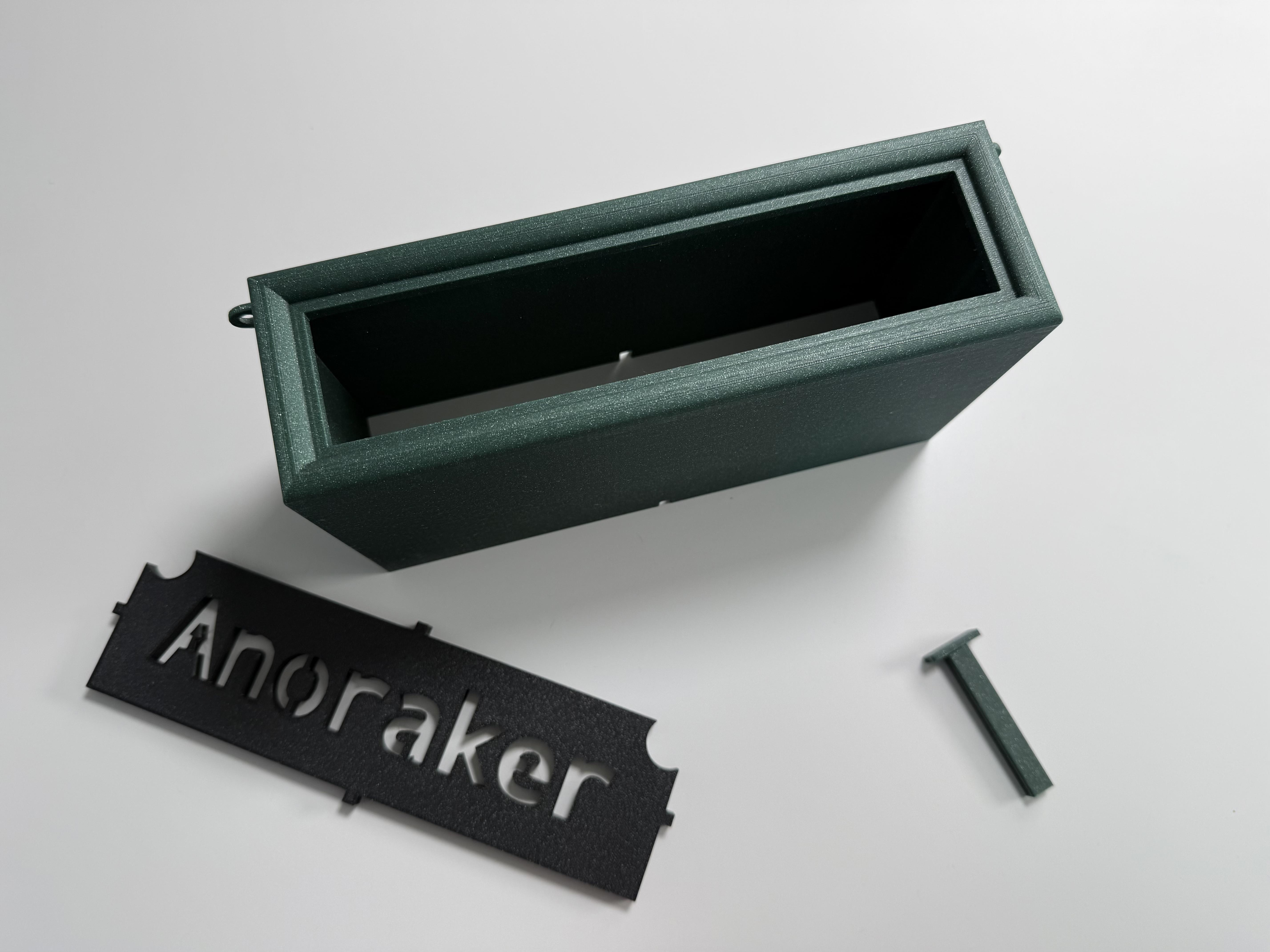
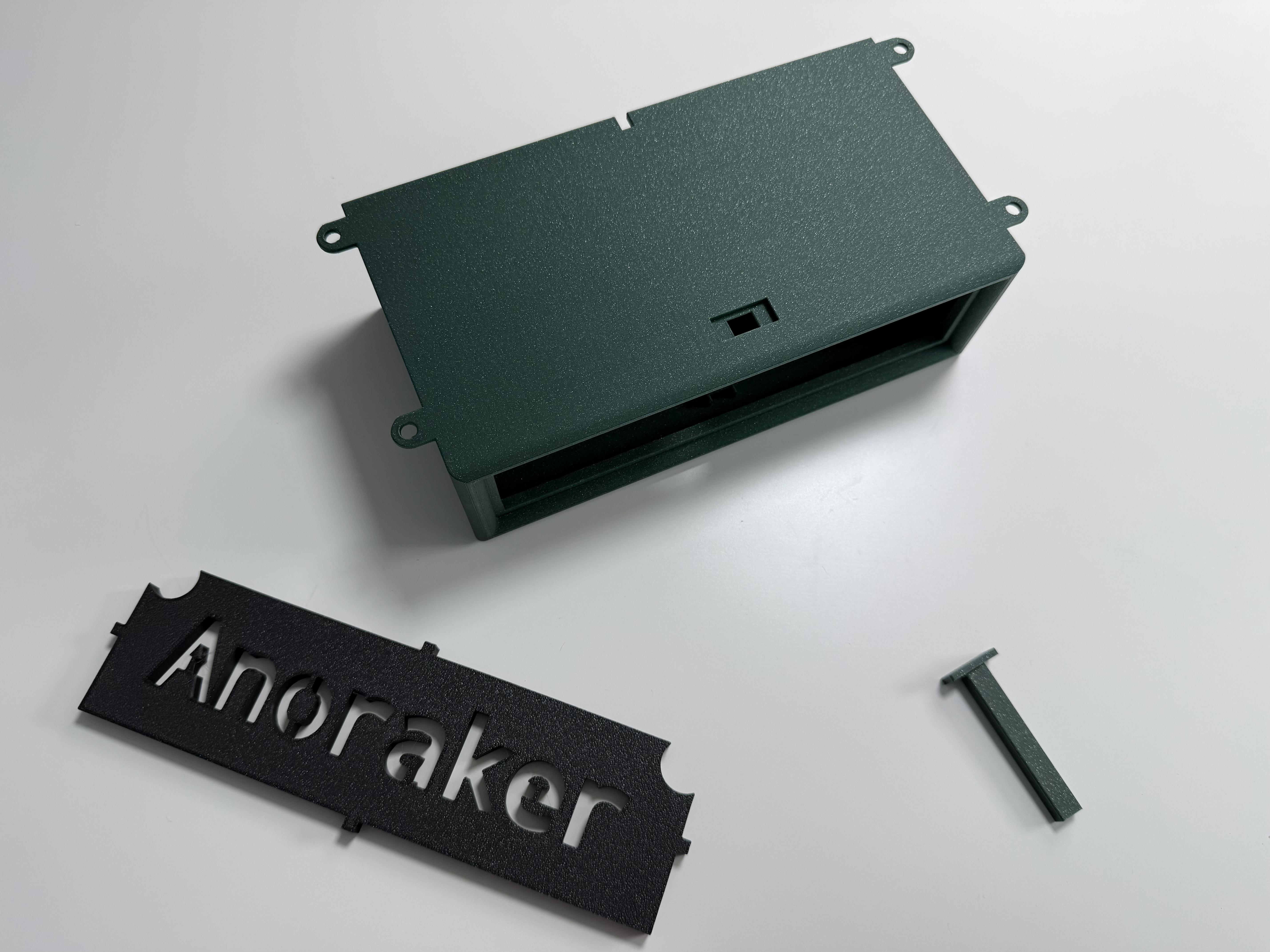
Using a 3D printer, print the case, back, and locking key for the clock.
Remove Case From Wiscoco Screen
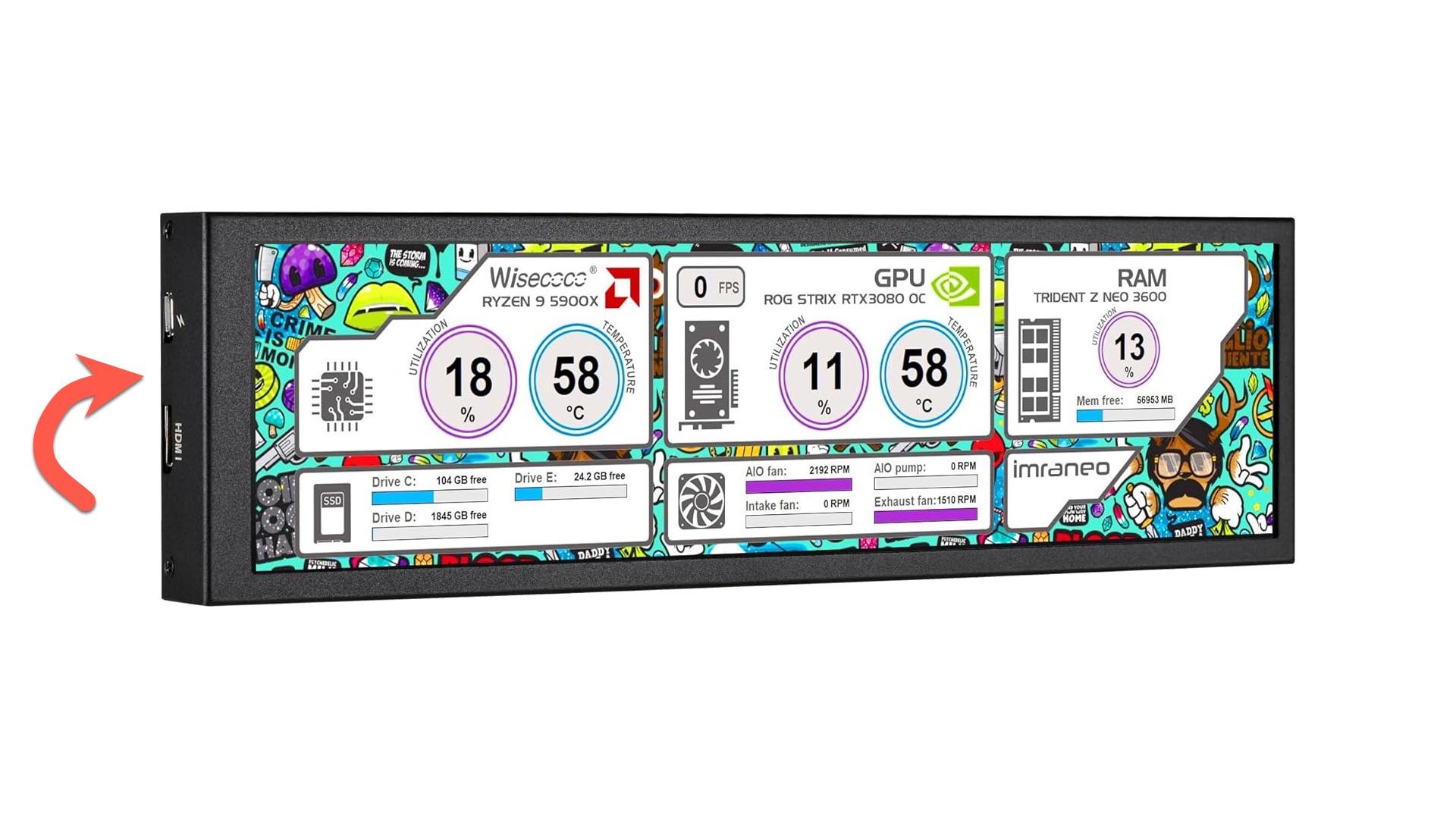
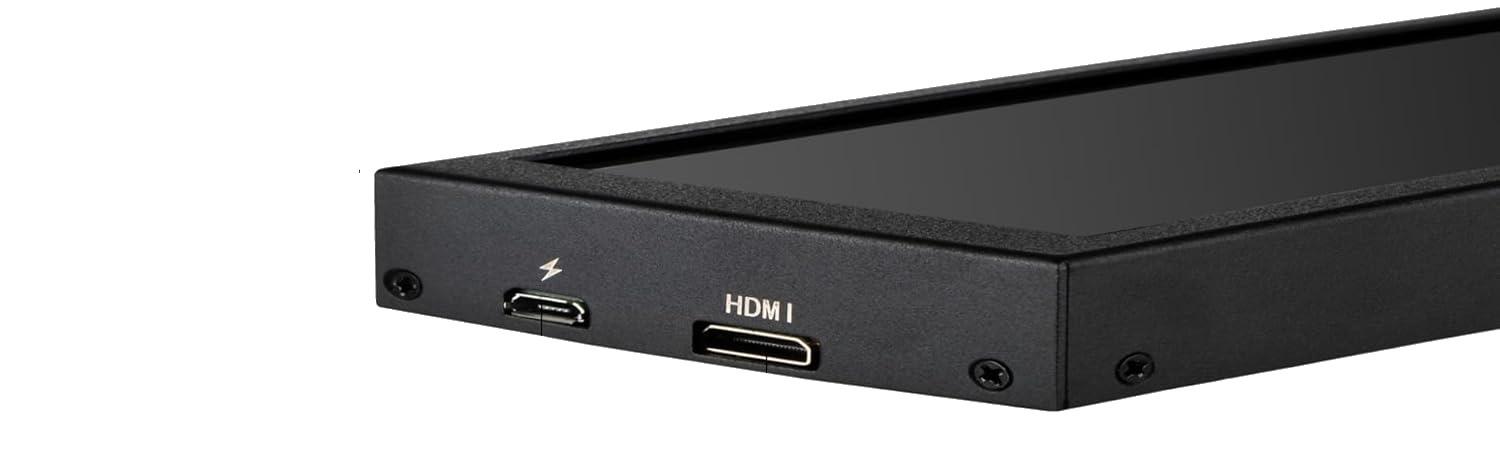
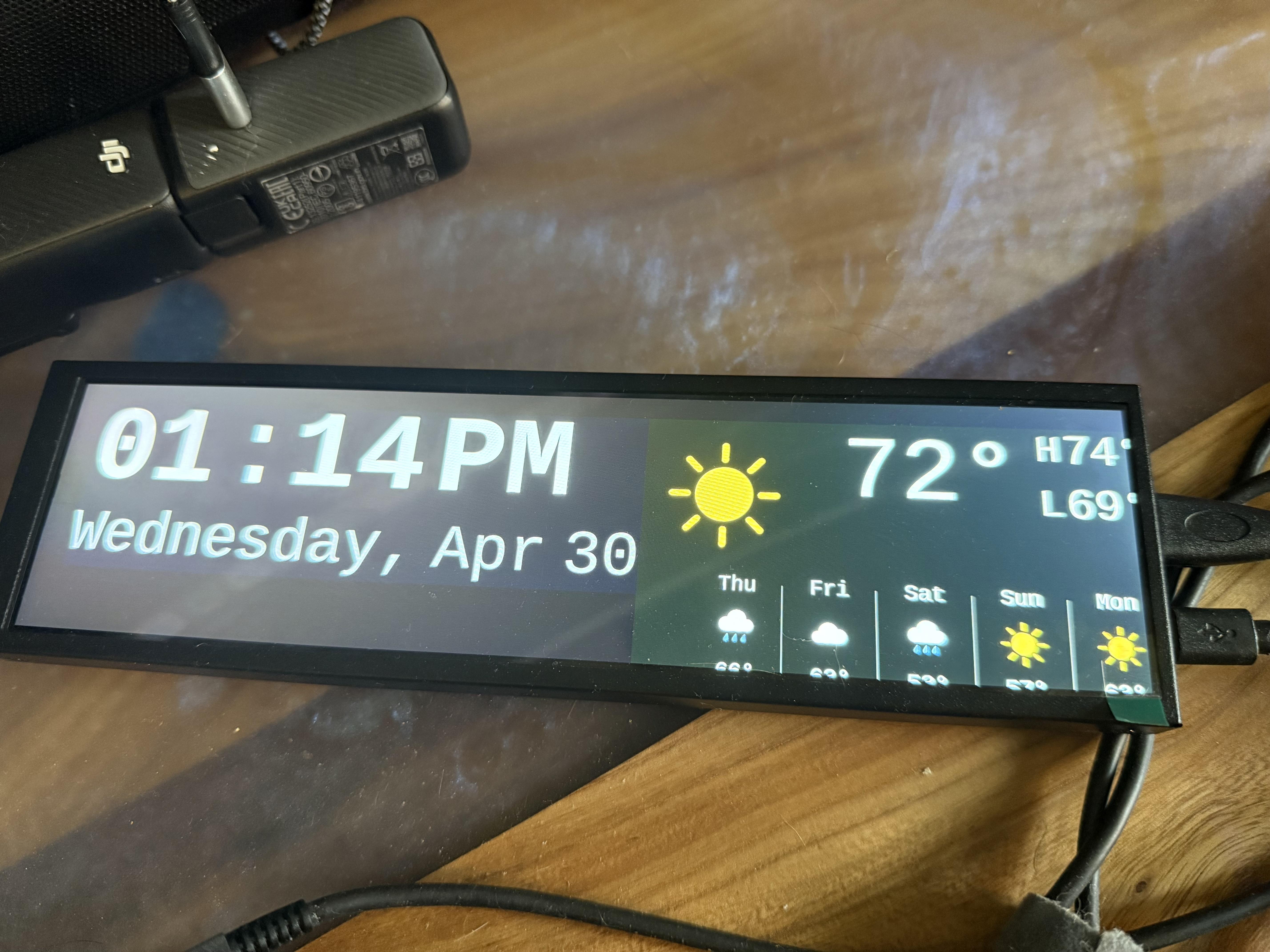
The Wisicoco screen has a case that forces all ports to the side. Using a screwdriver, undo the screws and remove the outer casing freeing the display and the ports.
Connect Cables

Connect the Raspberry Pi to the display using a screen's included cables and the adapter found in the supply list. Connect the power cable as well, but don't plug it in yet.
Insert Display Into Case
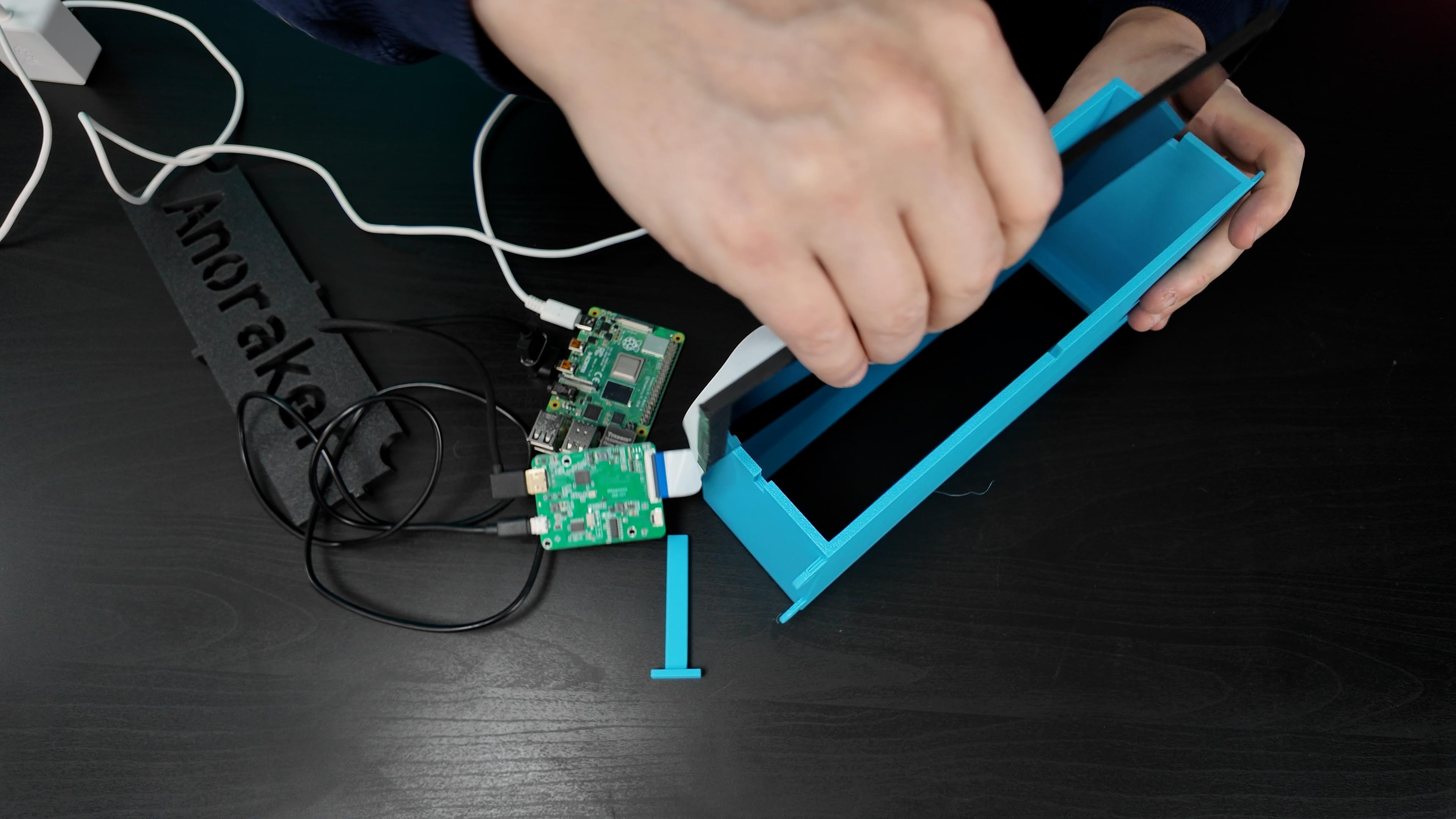
Slide the display into the 3D printed case, slipping it past the small bump that will help hold it in place.
Slick Lock Key Into Top of Case
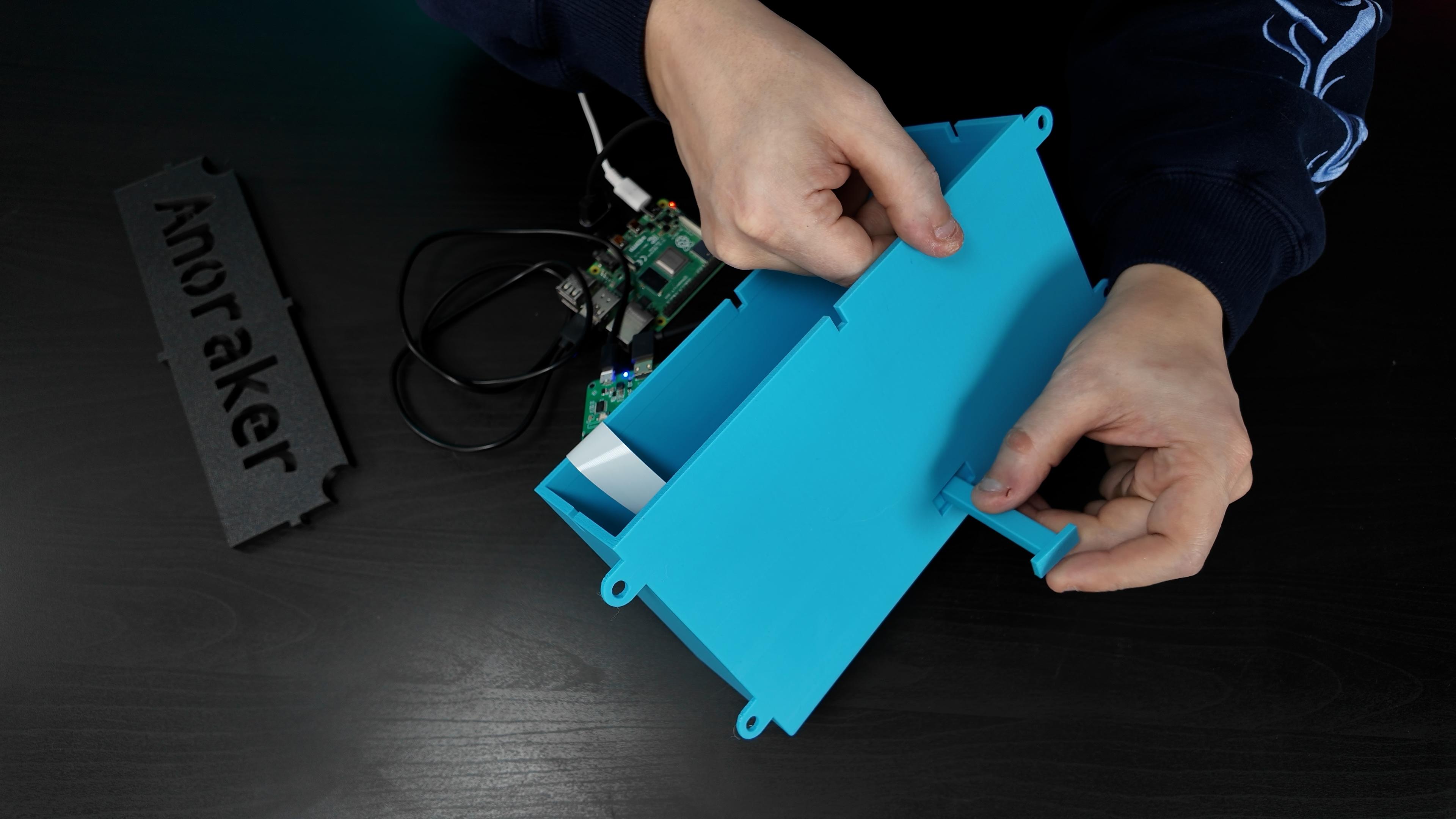
Slide locking key into the hole at the top of the case, ensuring it goes behind the display and into the "bump" inside the case. This will hold the display in vertical position.
Tuck Components
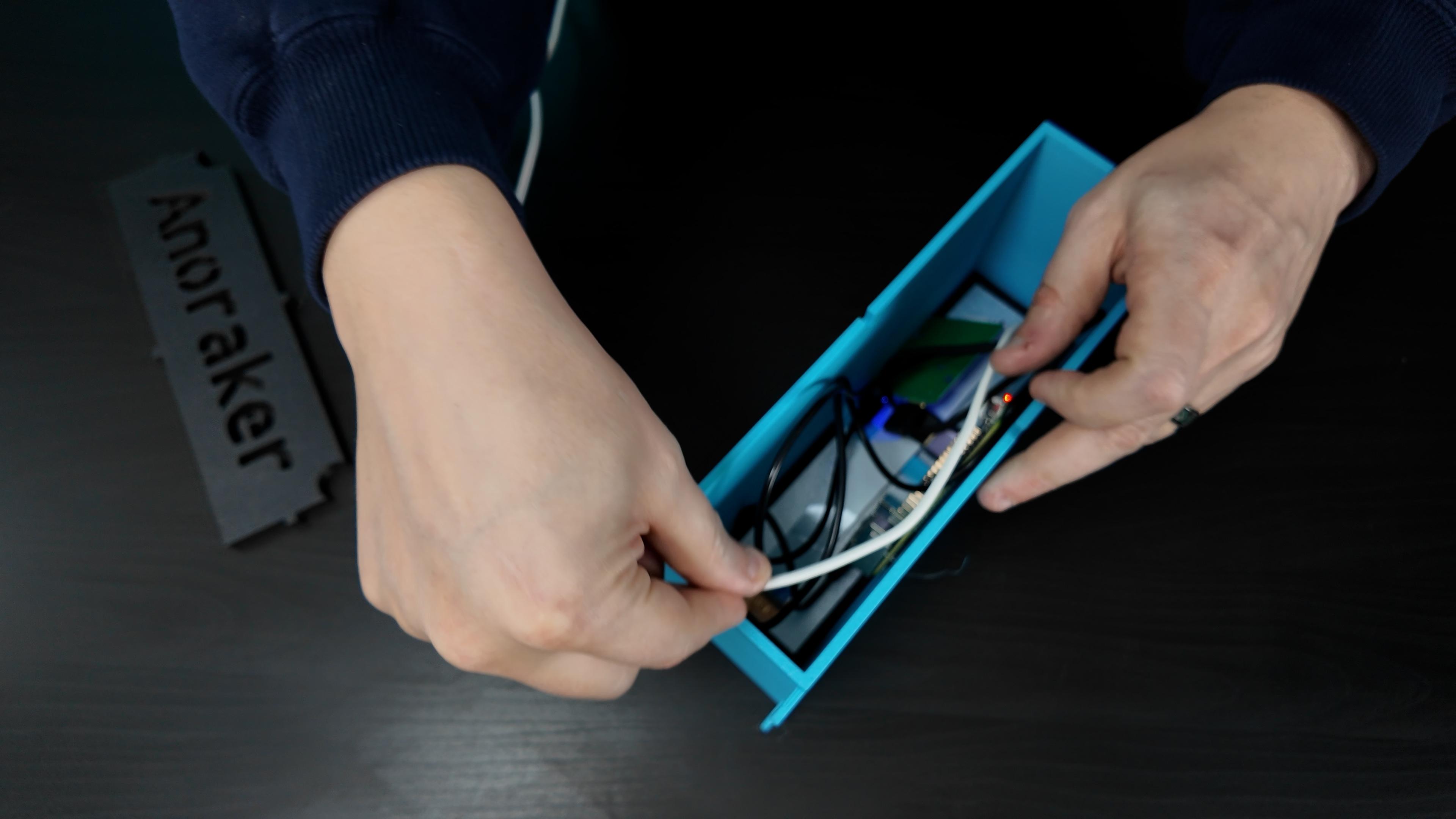
Tuck all components into the case, being as neat (or if you're like me... as messy!) as you like. Bring the power cable towards the top left or right corner of the case, depending on location of your outlet compared to where the clock will be.
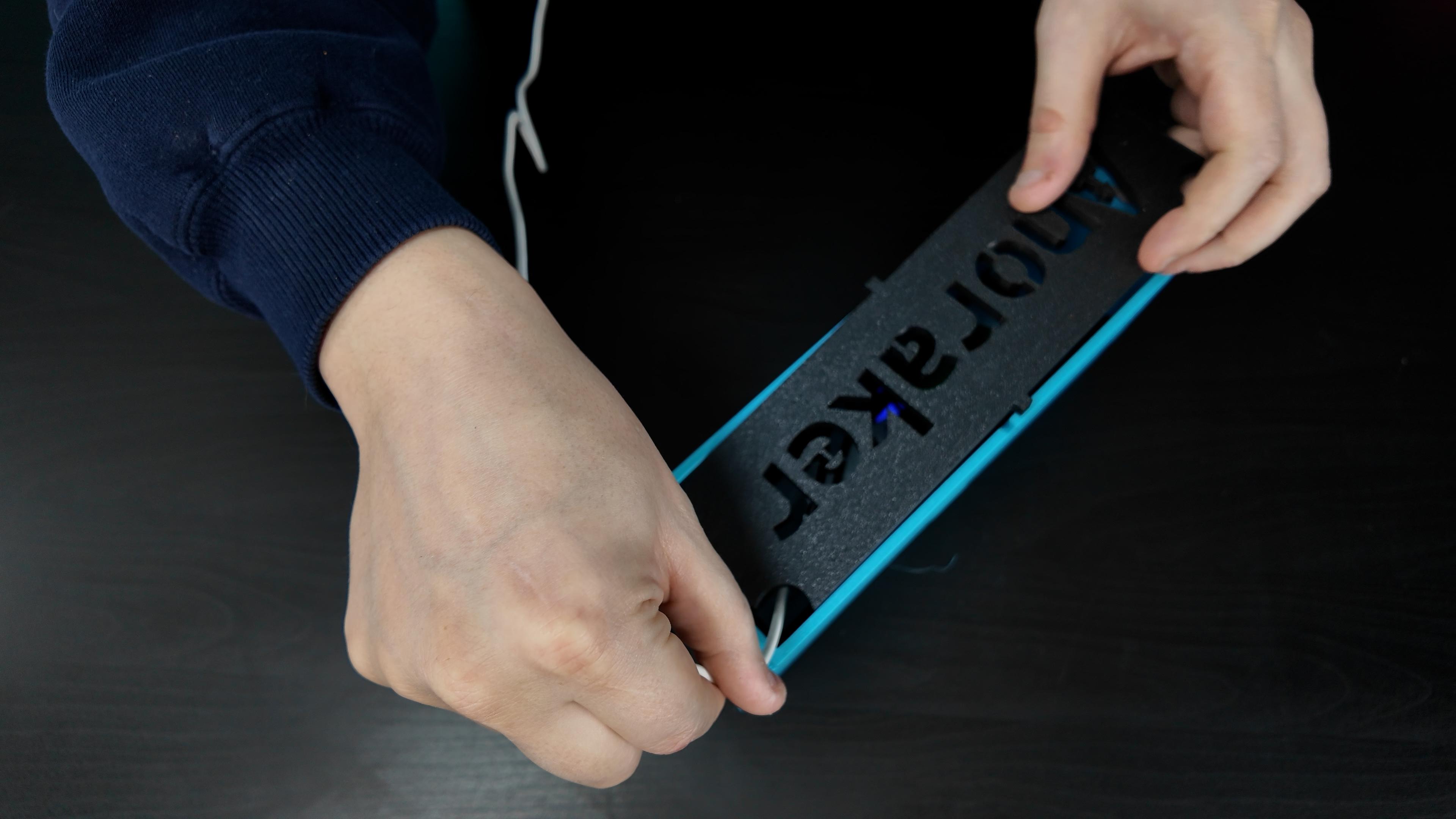
Slide the back onto the case, while ensuring you don't pinch the power cable. This is a friction fit, and will fit snuggly.
Assembly Complete
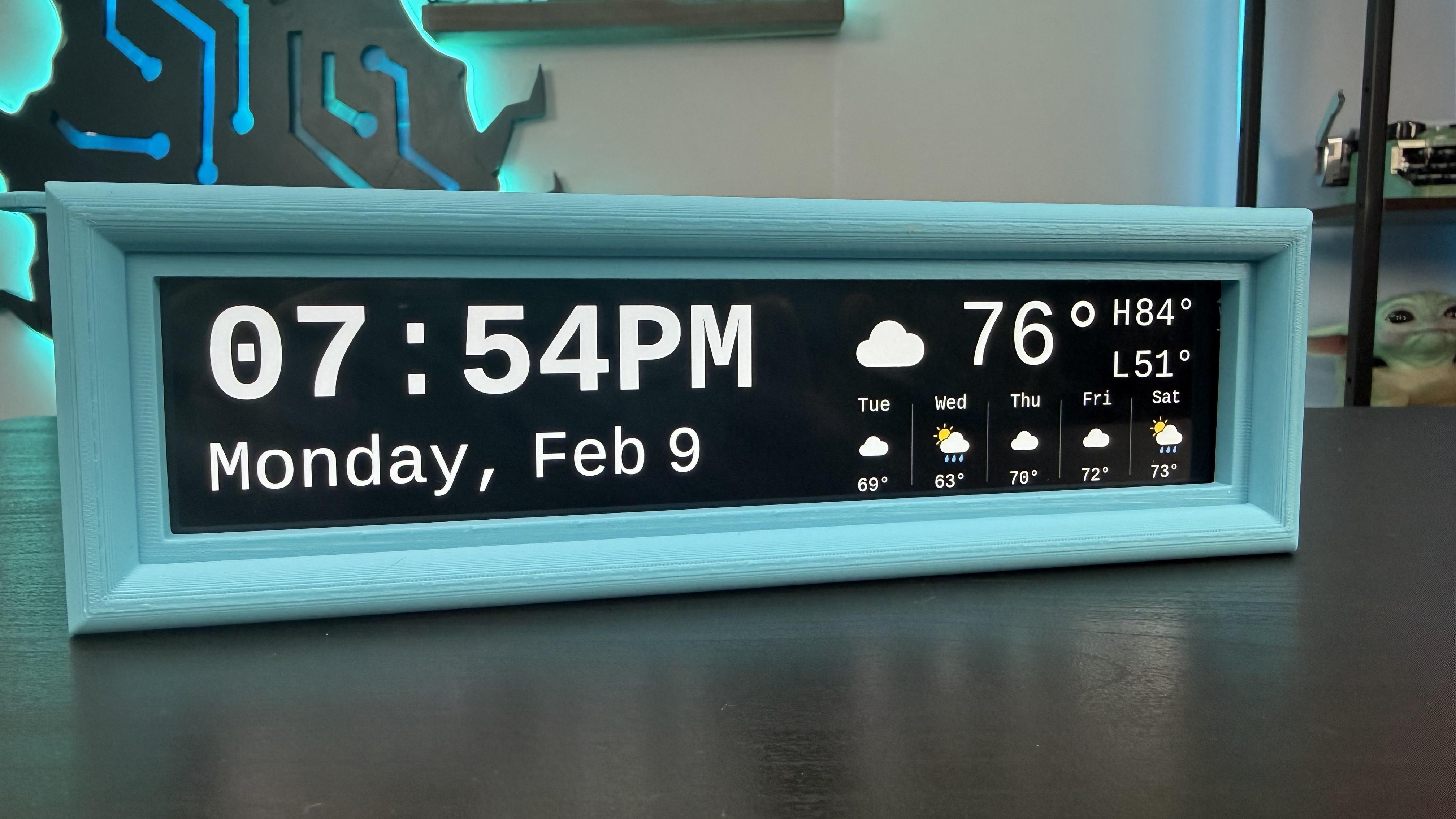
Assembly complete! You'll find screw holes at the top of the case to allow you to install it to the underside of a cabinet if you so desire.